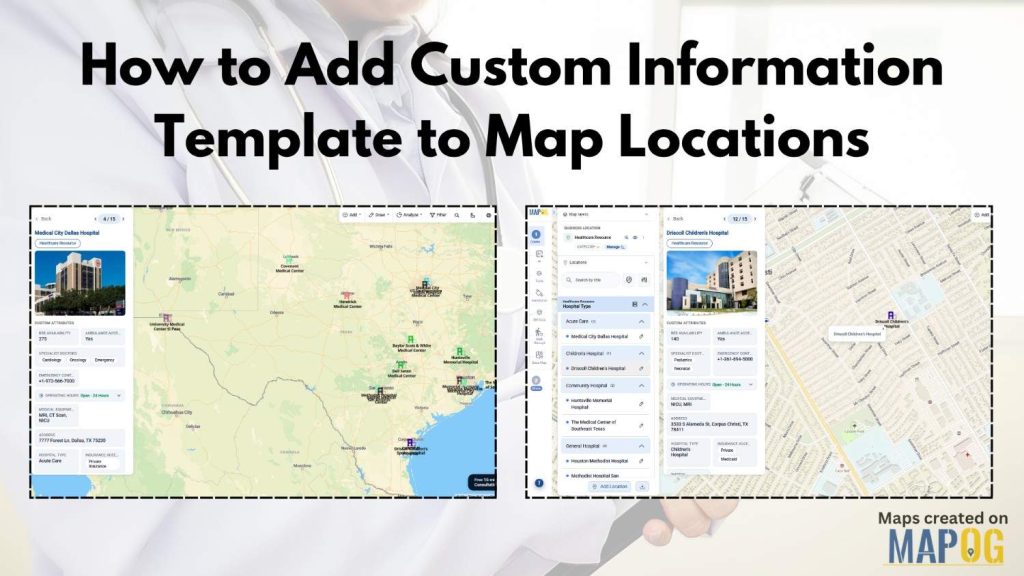
Managing location-based data is still a challenge for industries like healthcare, logistics, emergency response, and retail. Organizations often scatter data across spreadsheets, outdated records, and disconnected systems. As a result, teams struggle to update location details quickly or visualize important resources on a live map. However, MAPOG with custom information template is helping organizations create reusable map templates, organize datasets, and collaborate more efficiently.
Why Custom Information Template Matters
A Custom Information Template helps standardize location data across multiple maps. Instead of entering the same attributes repeatedly, teams can create reusable templates once and apply them everywhere. This approach improves data consistency while making workflows faster and easier to manage.
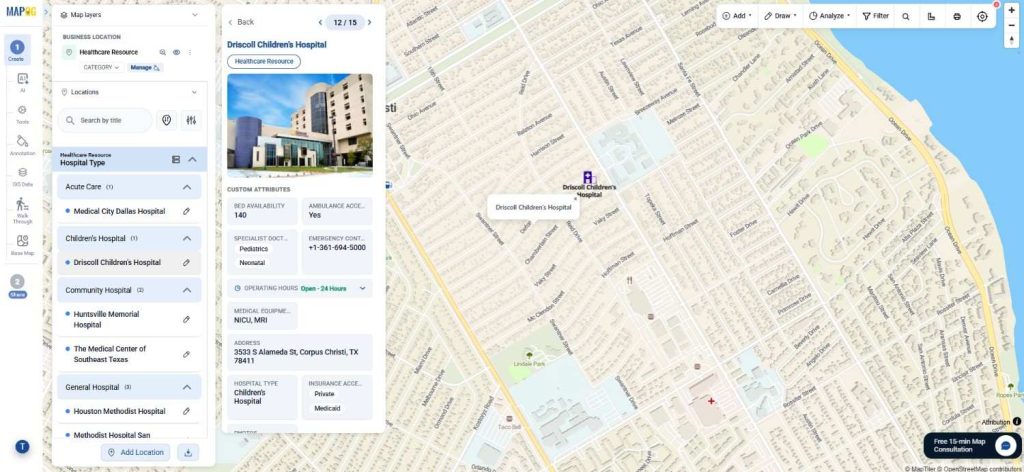
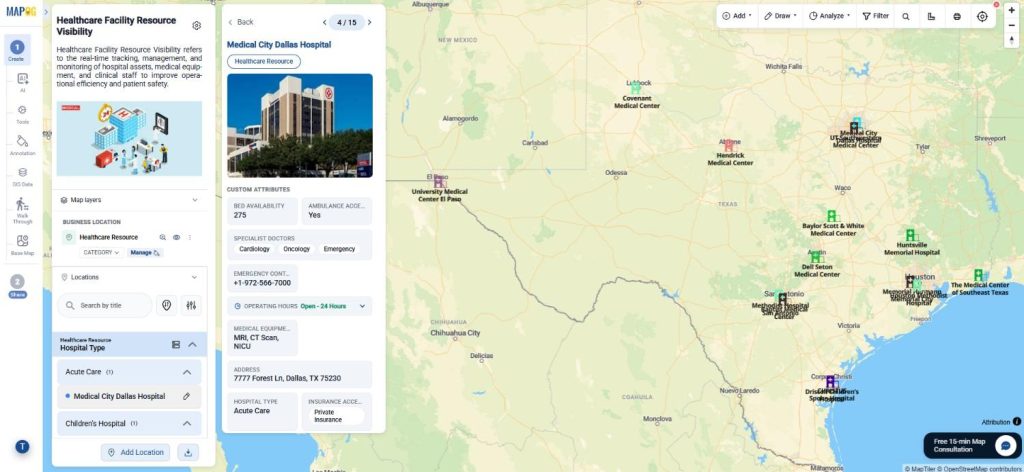
For example, a healthcare organization may create a template containing: Bed Availability, Ambulance Access, Specialist Doctors, Emergency Contact, Operating Hours. Later, users can reuse these fields while uploading hundreds of hospital locations through CSV files.
Step-By-Step Guide to Create a Custom Information Template
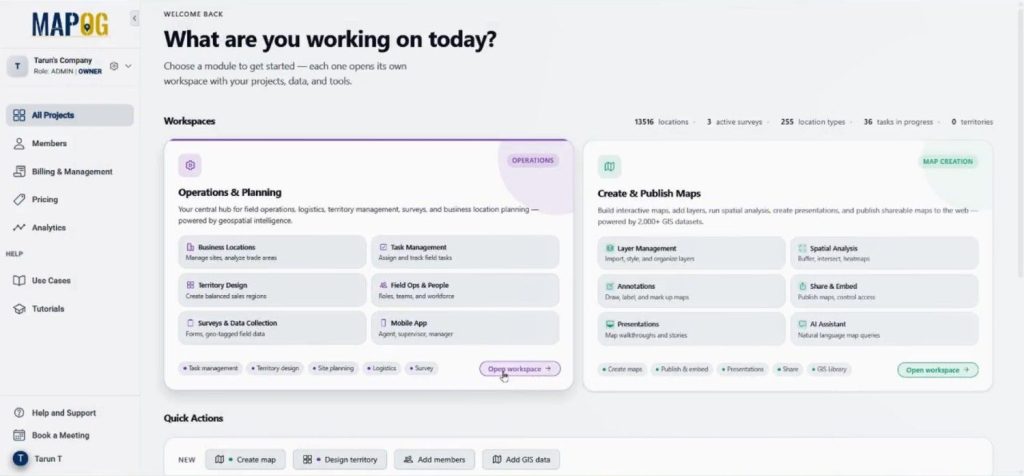
Step 1: Open Workspace and Create a New Location Type
First, visit MAPOG and open the Operation & Planning workspace.
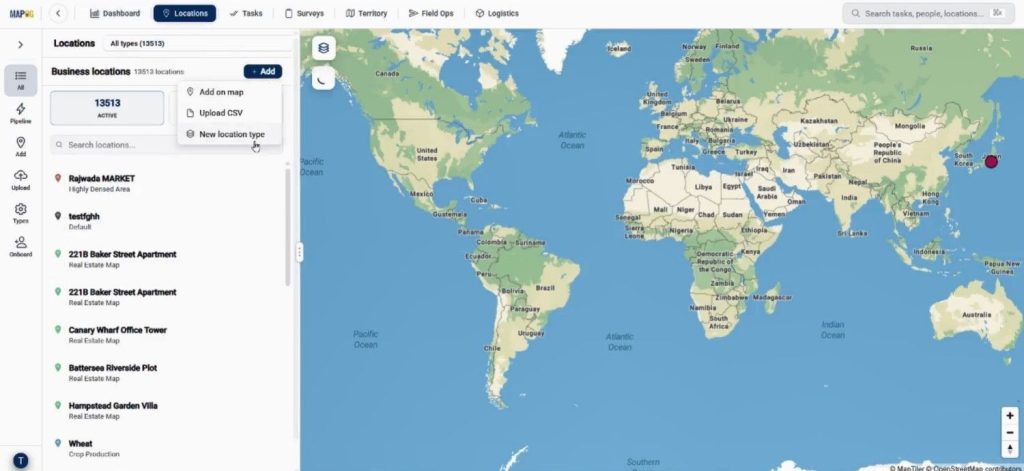
Then go to Location and click Add followed by New Location Type. MAPOG allows users to create reusable templates for future maps.
Now provide a title such as Healthcare Resource, choose a color, and set the geometry type as Point.
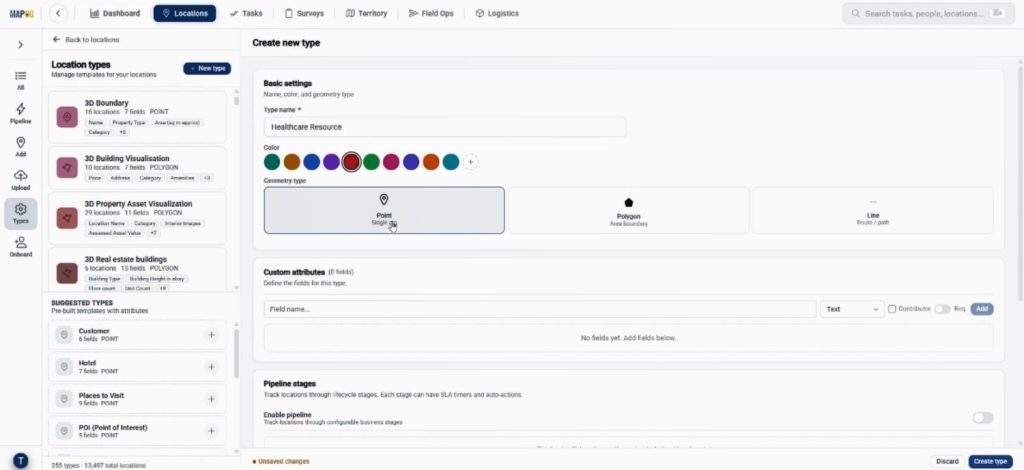
Afterward, start adding fields like Bed Availability, Ambulance Access, Specialist Doctors, Emergency Contact, and Operating Hours. Users can also assign different field types, including number, select, multiselect, address, and business hours.
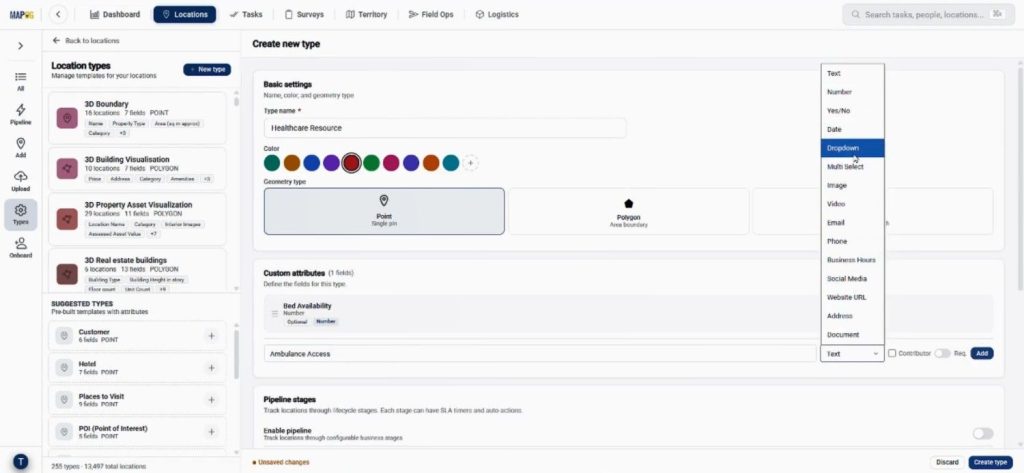
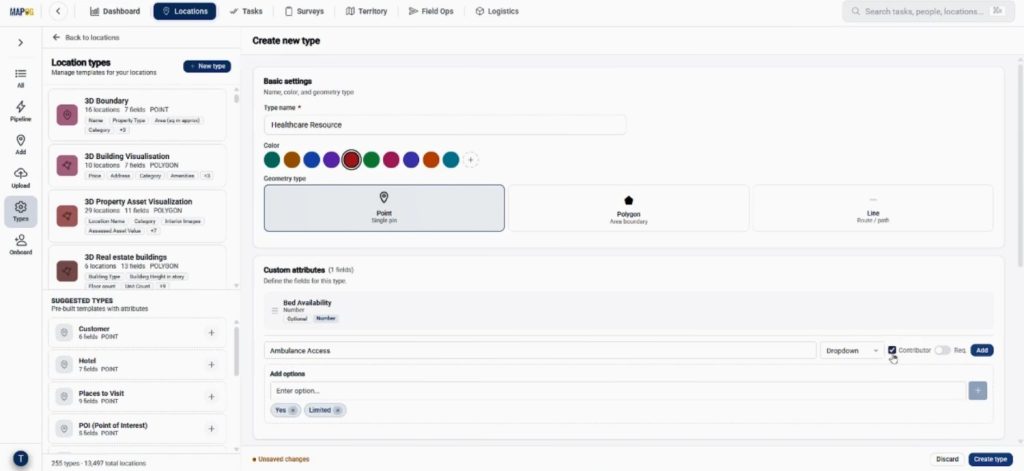
Enable contributor access so team members can update records from their side.
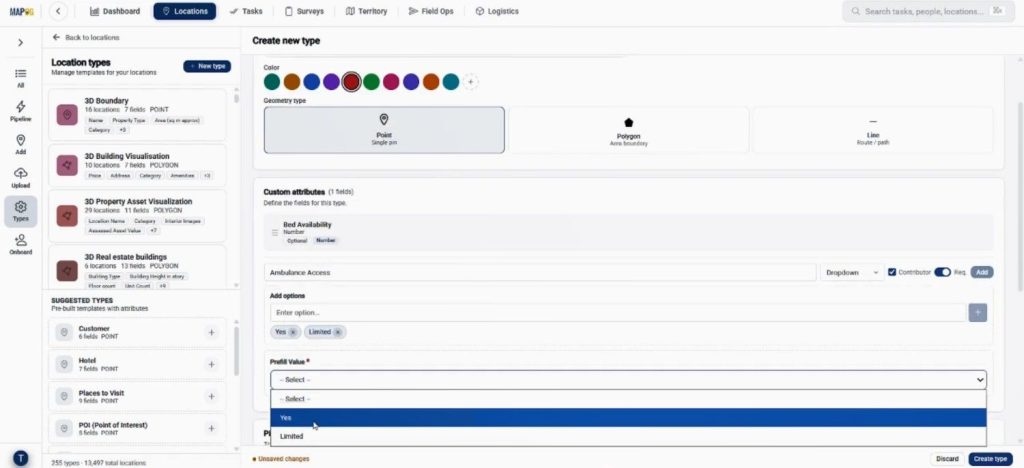
Moreover, map creators can mark important fields as required to maintain accurate datasets.
Before saving, live preview the form to ensure everything looks organized. When done click create type to save the template.
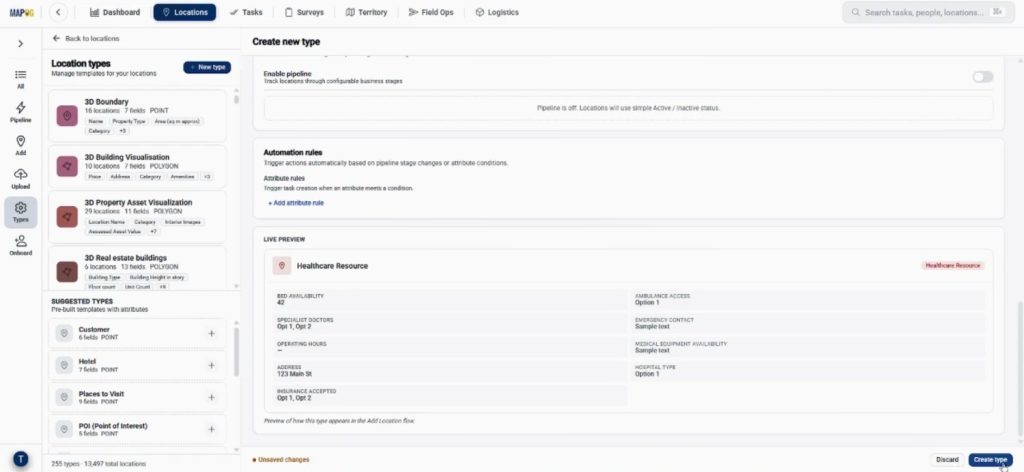
Step 2: Build a Map Using the Custom Information Template
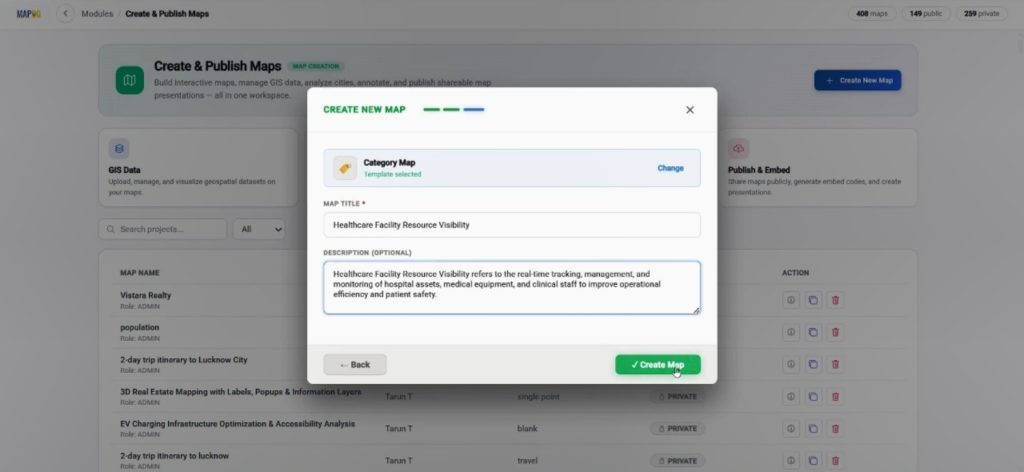
Next, move to the Create & Publish workspace and click Create New Map.
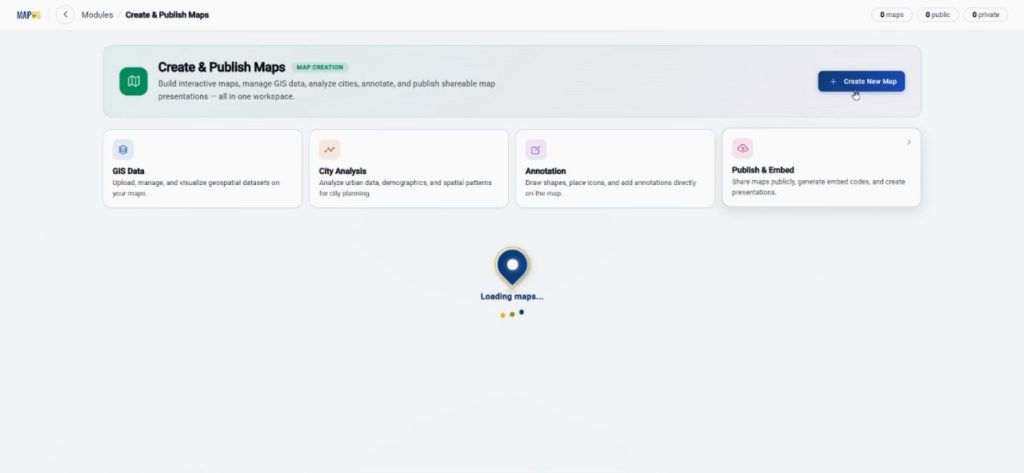
Then select With Template option.
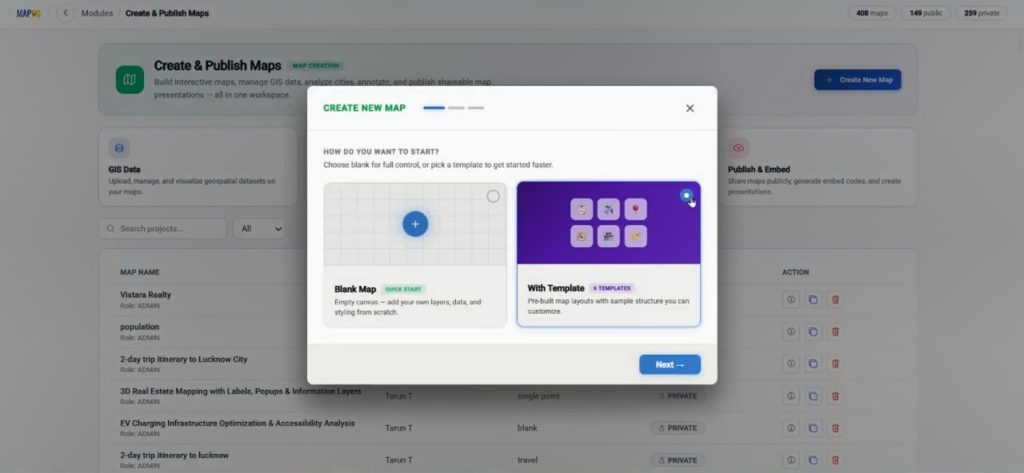
Choose the template category created earlier.
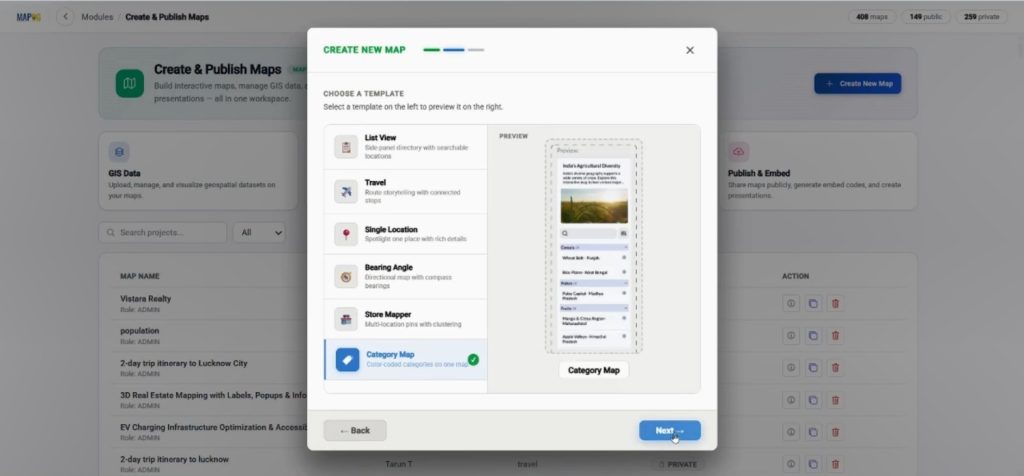
Add a suitable map title and description so you can identify the project easily later.
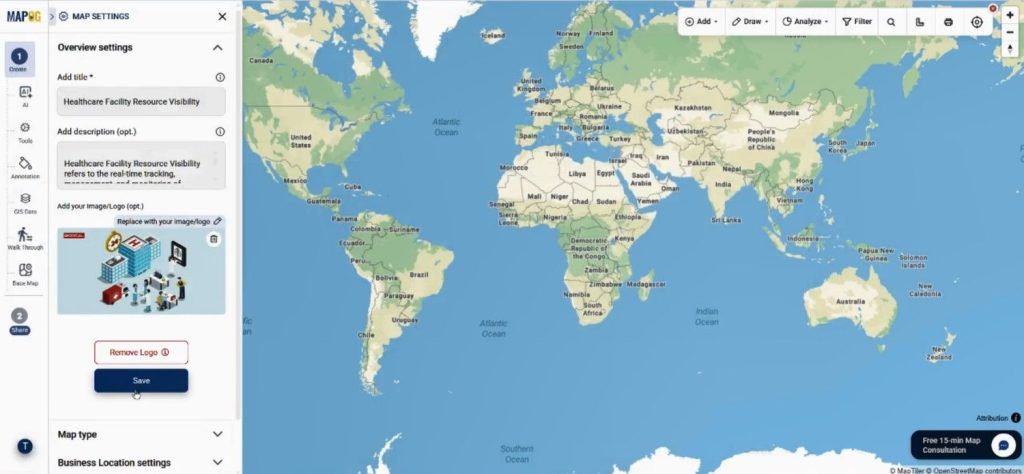
After creating the map, users can open Map Settings and upload a custom logo for branding.
Step 3: Upload CSV Data into the Custom Information Template
One of the biggest advantages of MAPOG is the Upload CSV feature. Instead of plotting locations one by one, they can import large datasets within minutes. Go to Add Location and choose Upload CSV.
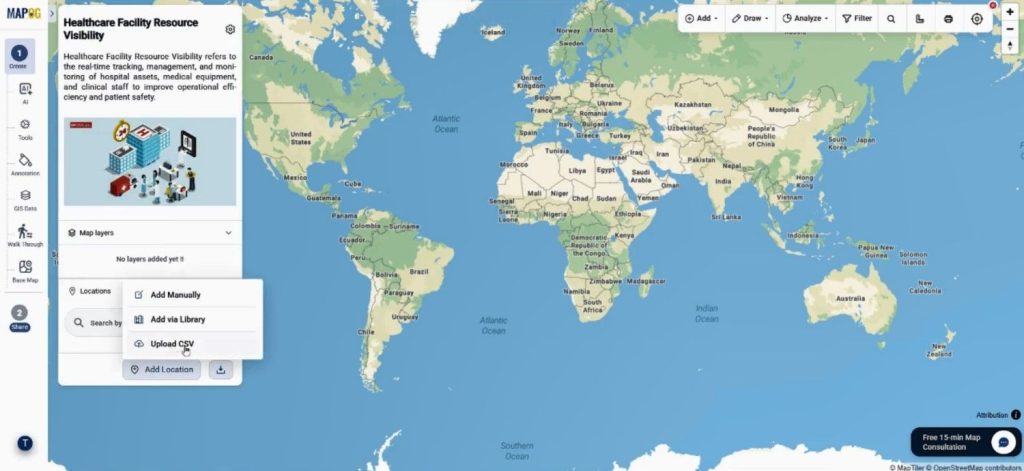
Then select your Custom Information Template from the dropdown menu and upload the CSV file.
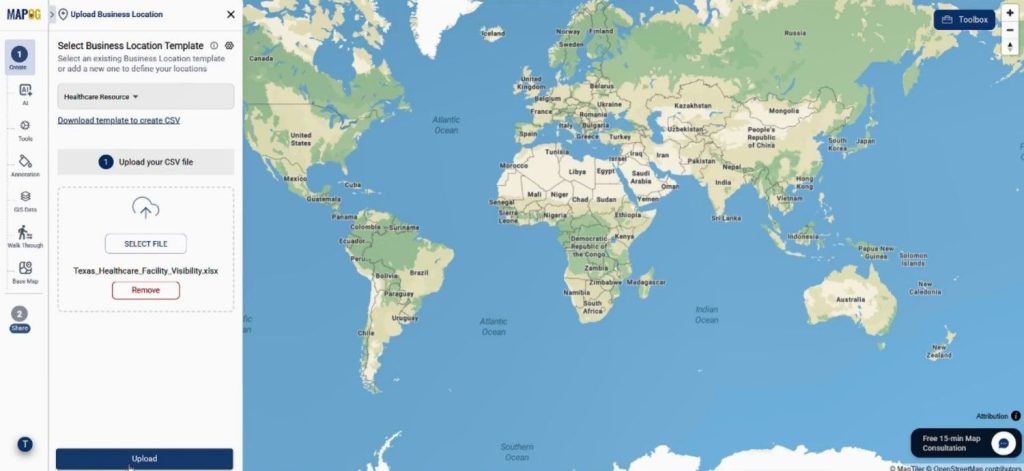
During the upload process, users can assign a Unique ID to prevent duplicate entries.
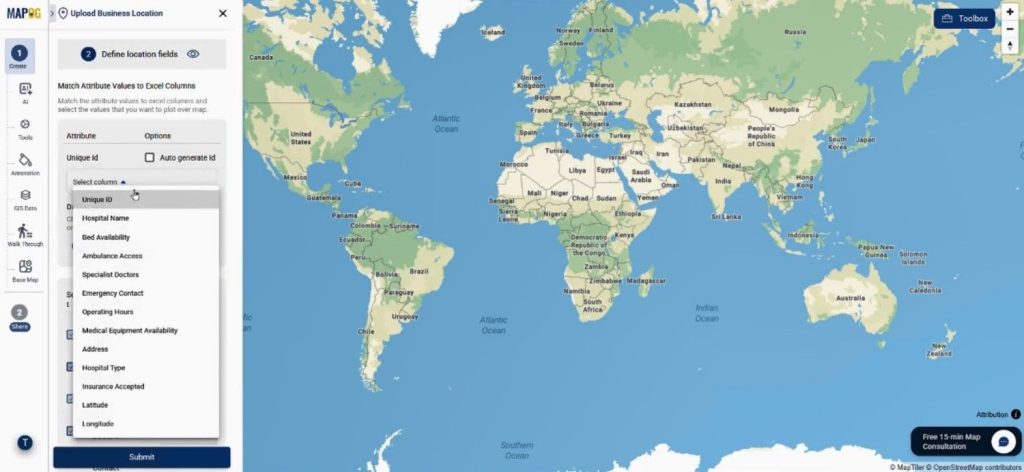
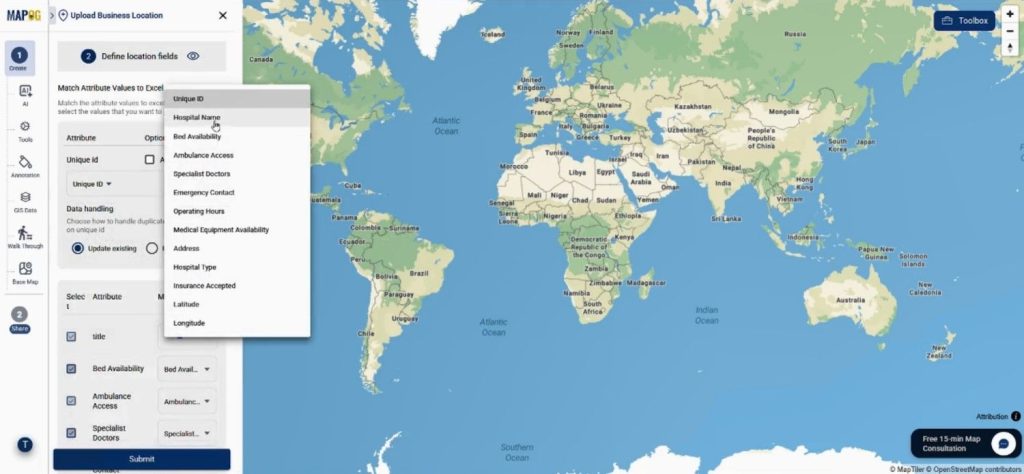
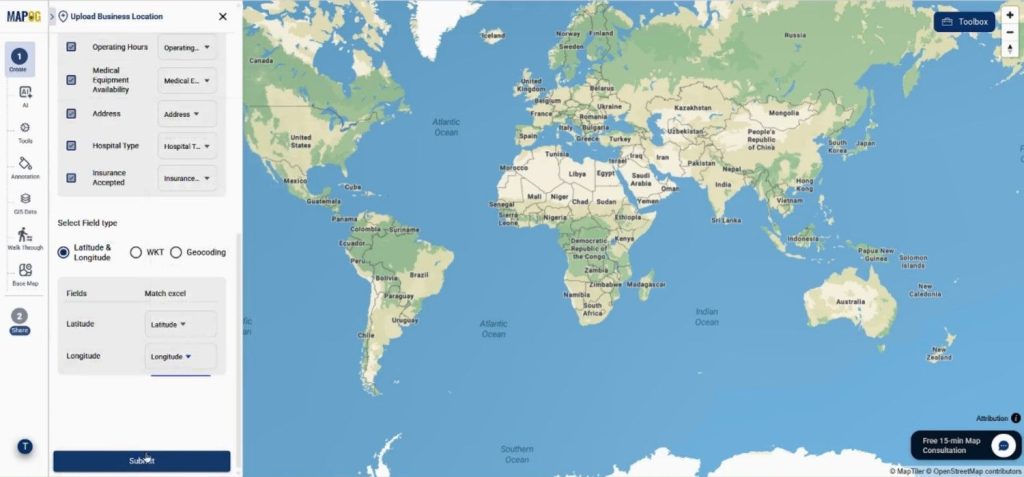
Additionally, match each column with its corresponding attribute. Map latitude and longitude fields correctly to ensure accurate plotting.
After submission, all locations will instantly appear on the interactive map.
Step 4: Customize Visualization for Better Insights
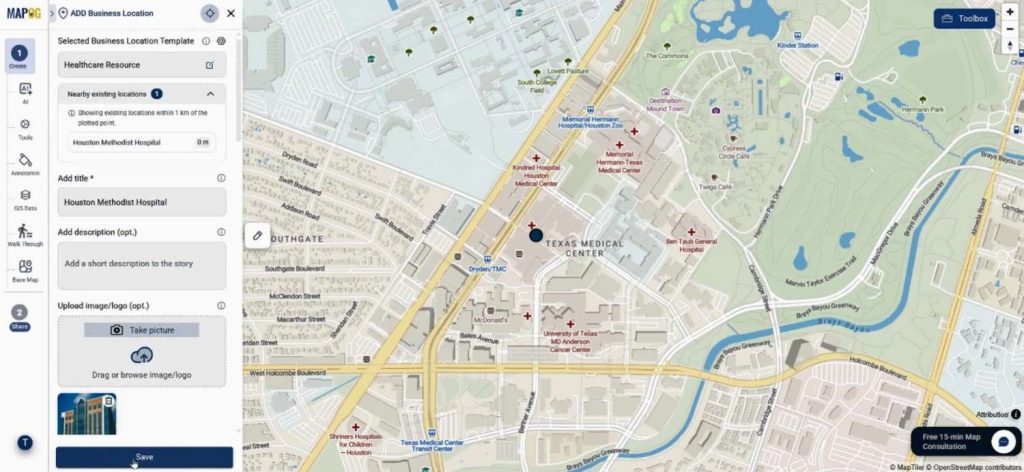
After plotting the locations, click on edit business location details.
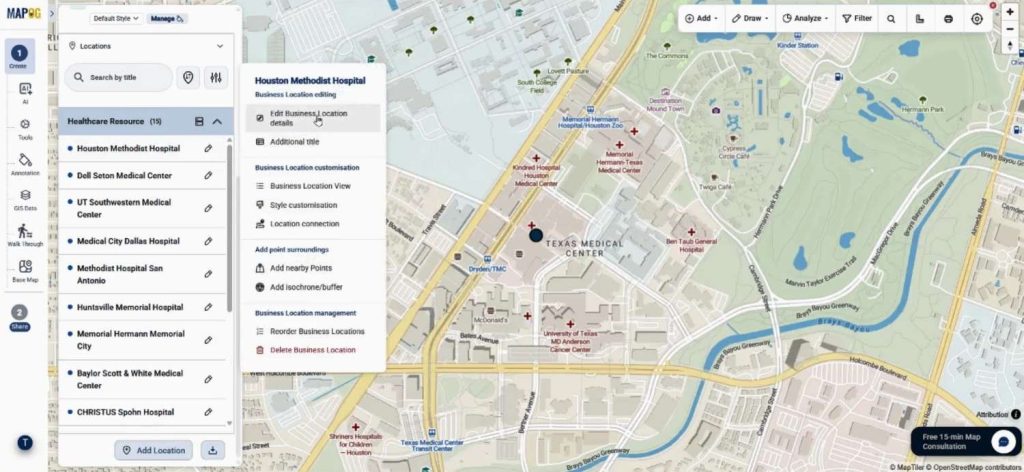
Users can edit individual entries to add descriptions, images, and extra business details.
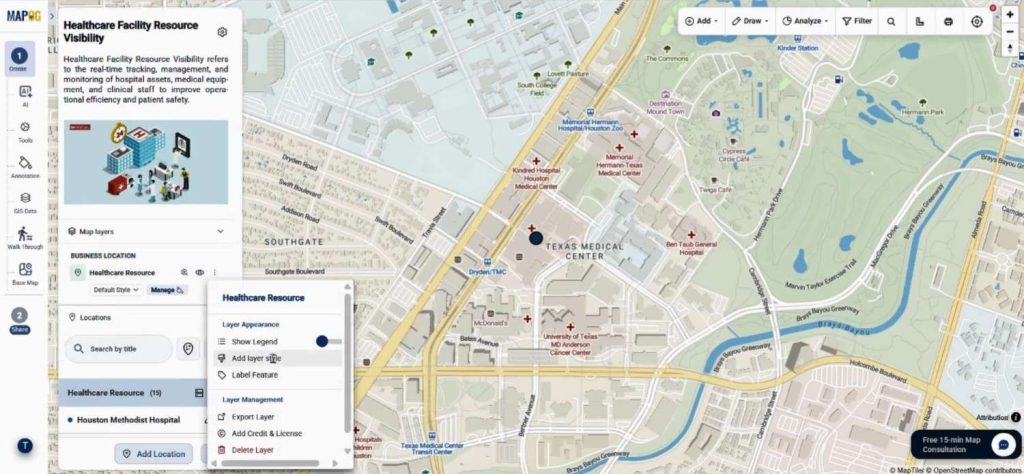
Then open Add Layer Style.
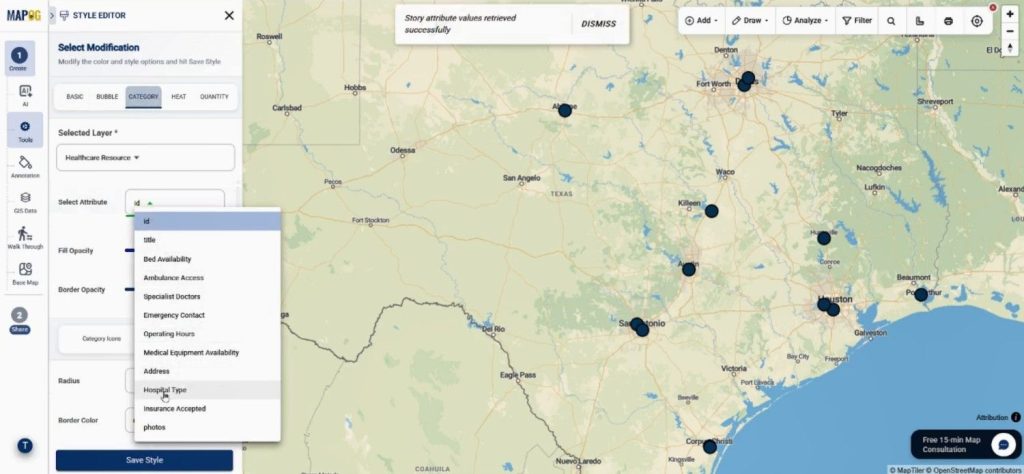
Select Category Style to customize colors and icons according to specific attributes.
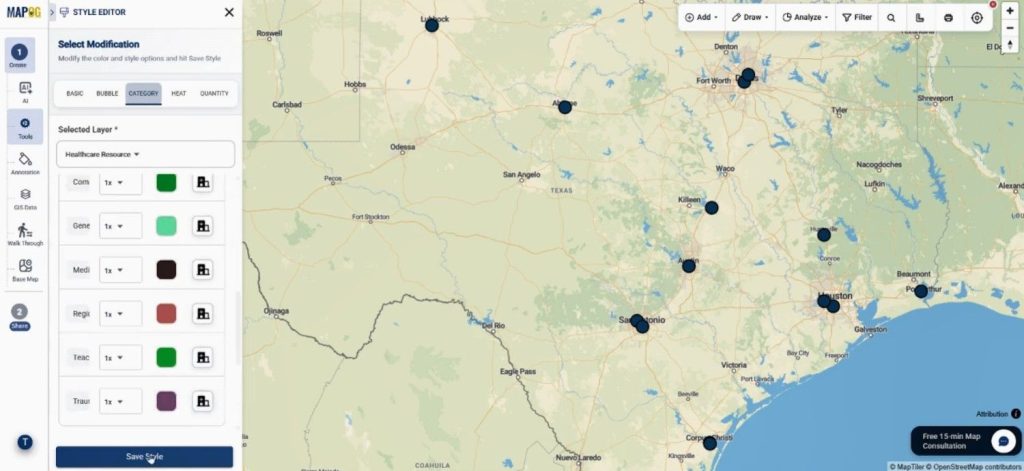
Then add suitable colors & attributes. As a result, users can identify resources faster during planning or emergencies.
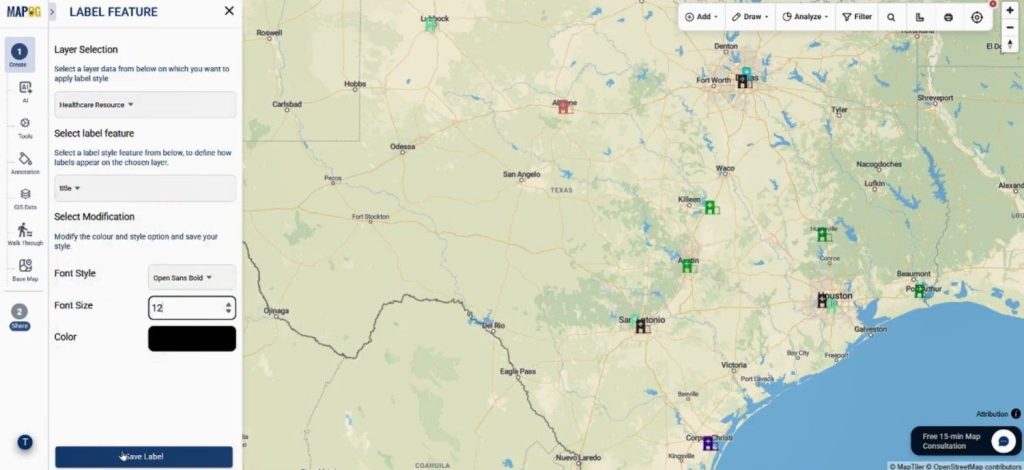
Next, use the Label Feature option to display titles directly on the map. Font style, color, and size may also be adjusted for cleaner visualization.
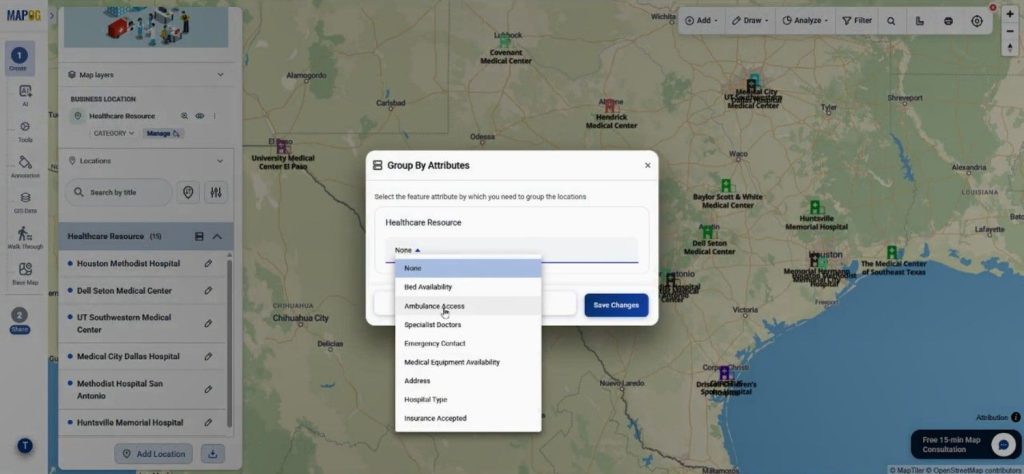
Furthermore, locations can be grouped using attributes like region, facility type, or service category.
Step 5: Finalizing and sharing the Map
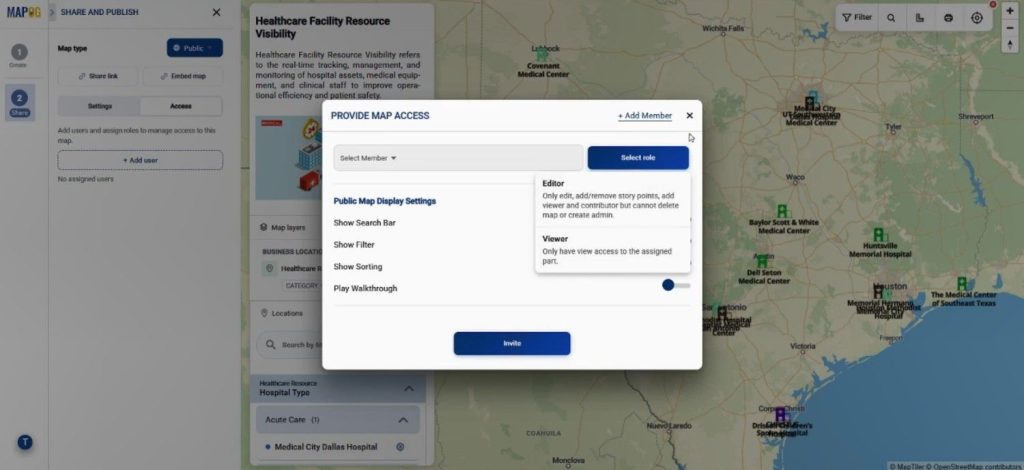
Finally, go to Preview & Share. Your map can be kept private or made public depending on the audience.
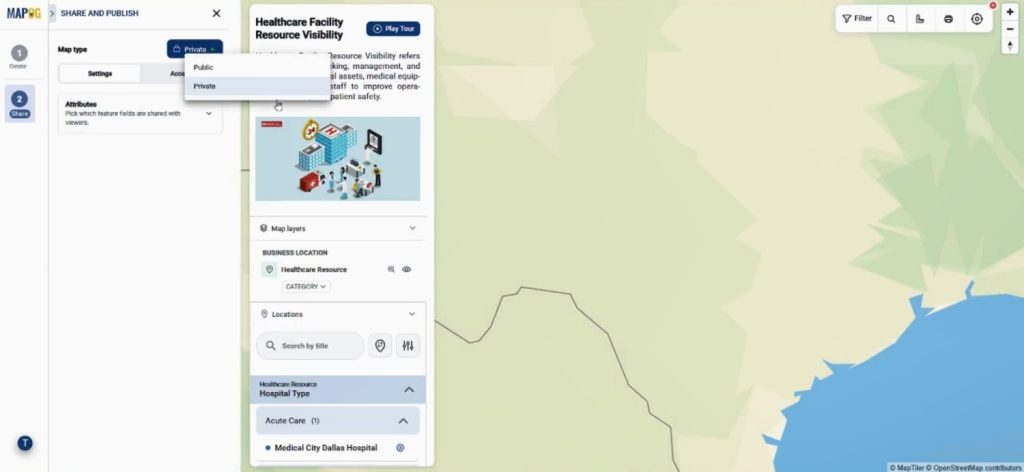
You may also assign collaboration roles.
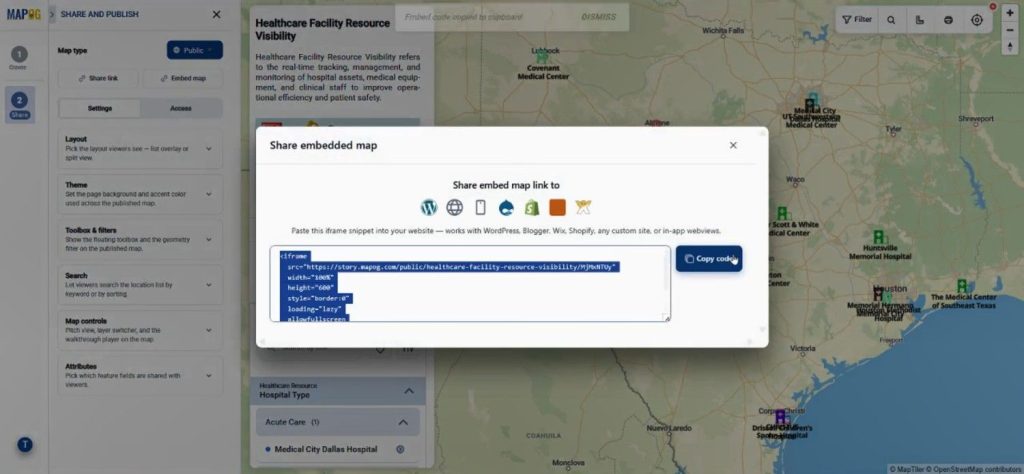
Dhare map link or embed the map into websites or blogs.
Industries Using Custom Information Template Maps
The Custom Information Template approach is now being used across several industries because it simplifies large-scale location management.
Healthcare organizations use it to track hospital resources and ambulance access. Meanwhile, logistics companies map warehouse networks and delivery hubs. Educational institutions organize campus assets, while tourism teams create interactive destination guides.
Similarly, government agencies can overlay population data, healthcare services, and transportation routes to support smarter resource allocation.
Conclusion
Creating reusable location templates saves time, improves collaboration, and keeps mapping projects consistent. With MAPOG’s New Location Type and Upload CSV features, large datasets can be visualized quickly while maintaining structured information across every map layer.
Whether you are managing healthcare facilities, logistics assets, or public infrastructure, interactive mapping templates can make decision-making far more efficient.