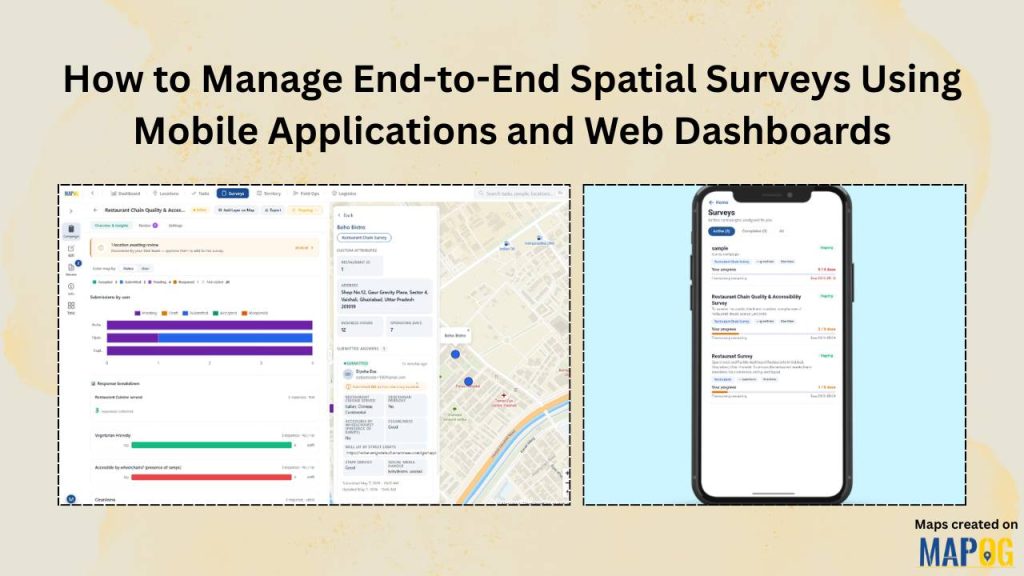
Conducting field or spatial surveys using mobile applications, such as accessibility and restaurant quality audits, face many challenges due to reliance on paper records, disconnected field notes, and delayed updates, leading to errors in compliance mapping and facility management. The MAPOG Survey and MAPOG Contributor mobile application address these issues by enabling real-time data collection on live maps, improving accuracy and decision-making. With MAPOG, teams can assign audit locations, track submissions, and maintain connectivity between office managers and field auditors.
Key Concept of End-to-End Spatial Surveys Using Mobile Applications & Web Dashboards
Successful spatial surveys using mobile applications rely on three pillars: a structured location template, a robust survey design, and a seamless mobile workflow. For instance, an audit of restaurant accessibility requires more than just a name; it needs precise coordinates, hygiene ratings, and photographic evidence of physical barriers or wheelchair ramps. MAPOG allows managers to build these requirements into a digital framework that field staff can access via the MAPOG Contributor app (available on Play Store and App Store).
Step-by-Step Process to Manage End-to-End Spatial Surveys Using Mobile Applications
Step 1: Create a Location Type for Field Data Collection
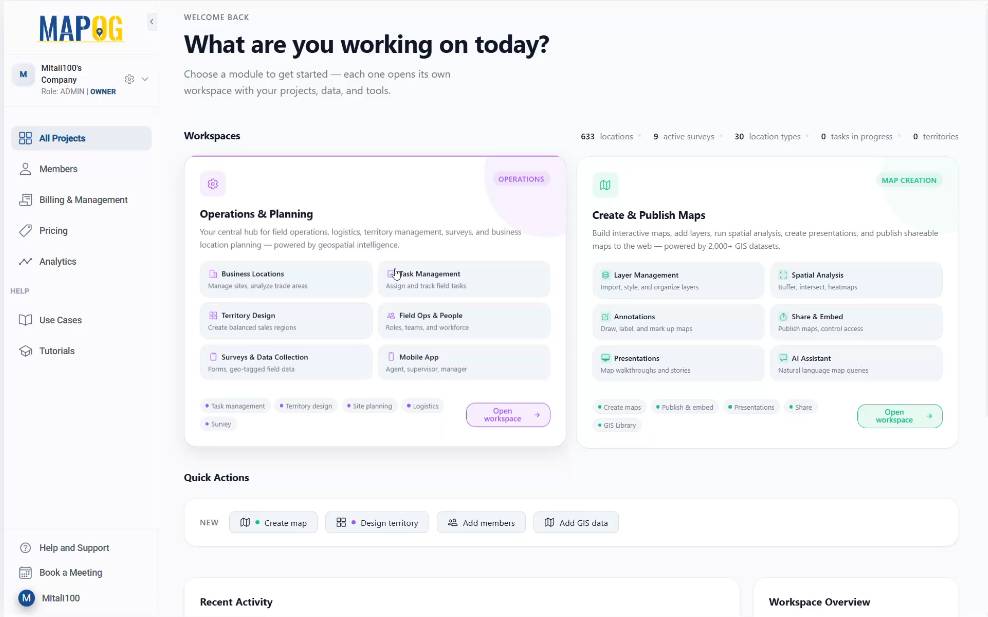
First, open MAPOG and go to the Operation & Planning workspace.
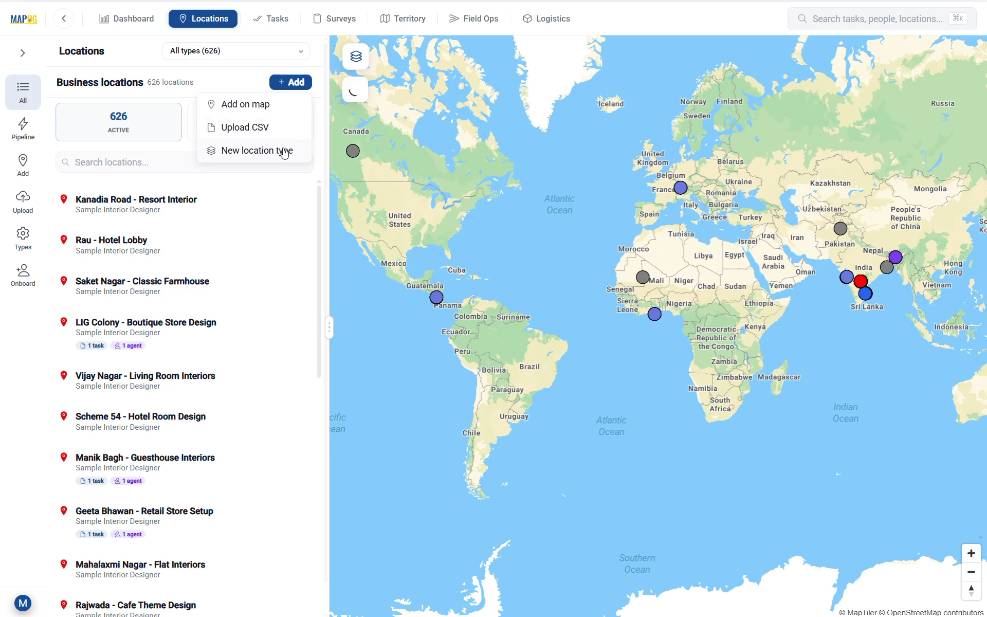
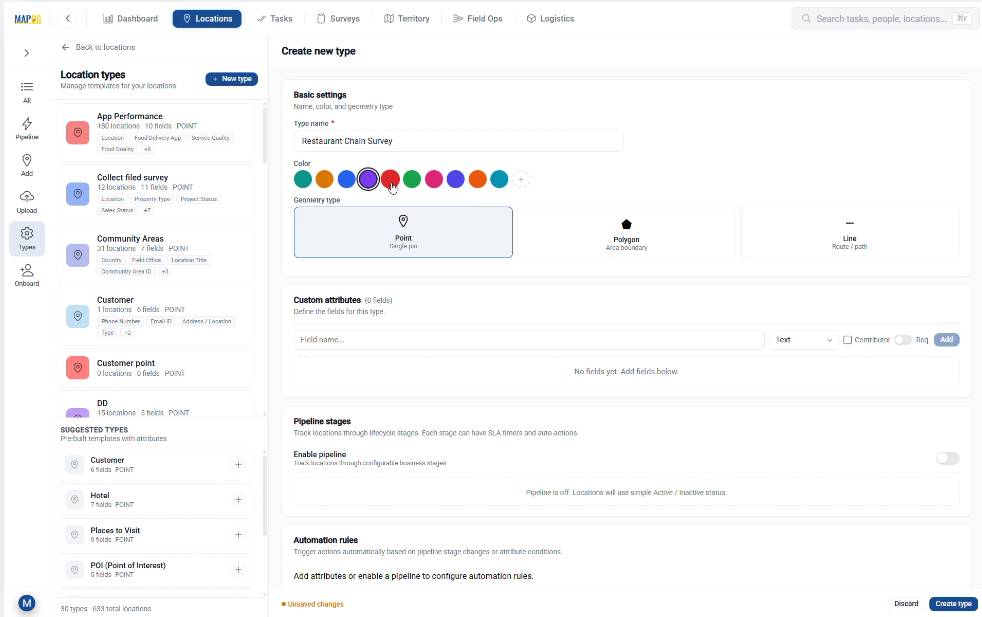
Then, move to the Location section and click on Add. Here, select New Location Type from the listed options to create a reusable template.
Name your location type, assign a color, and set the geometry to Point. Create text fields for Restaurant Name and Type, then grant Contributor Access so field users can modify data. Select Create Type to finish.
Step 2: Build the Survey Campaign for Location-Based Field Data
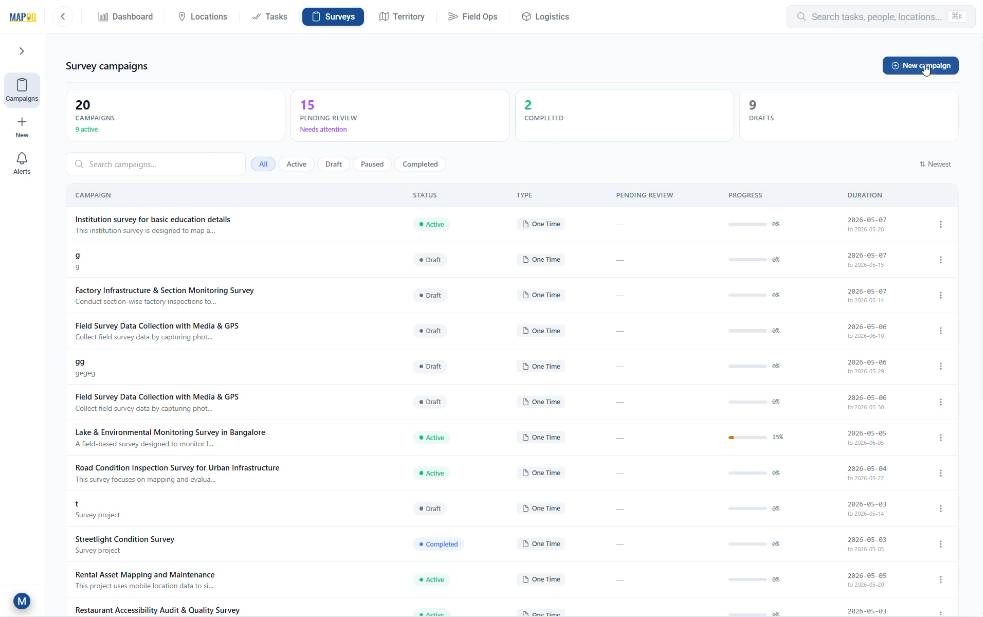
Next, go to the Survey section and click on New Campaign.
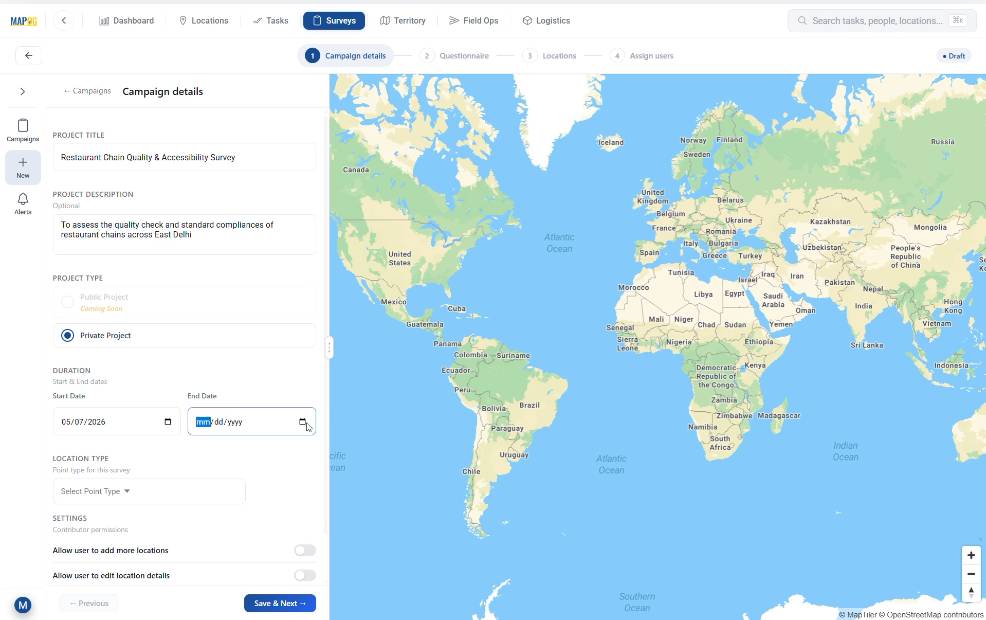
In the Campaign Details section, add the Project Title, description, duration, and survey type.
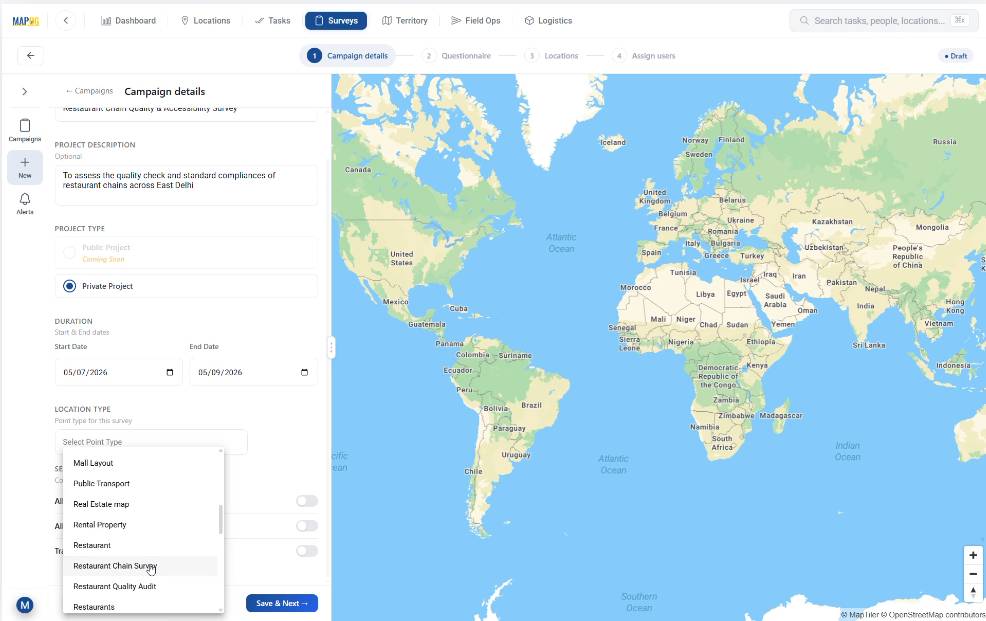
Then, choose the recently created location type from the dropdown list. After that, enable settings like, Add Location and Edit Location so that contributors can update missing locations directly from the field. Then, click Save & Next.
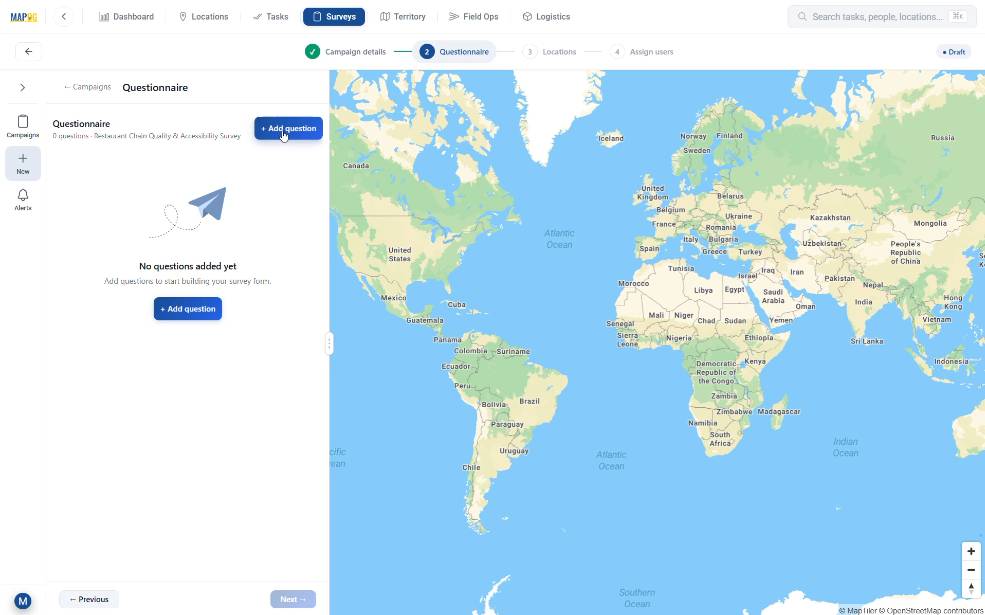
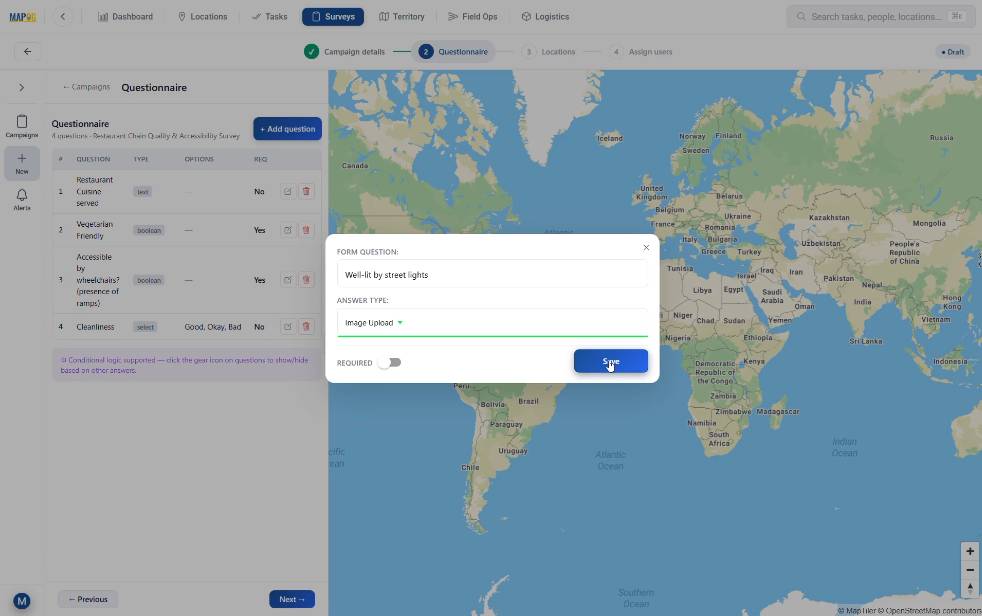
In the questionnaire section, using the Add Question option, build the form using diverse answer formats: dropdowns for ratings, booleans for “Yes/No” compliance, and image/video upload fields for photographic proof.
Step 3: Upload Locations and Plot Data on the Map
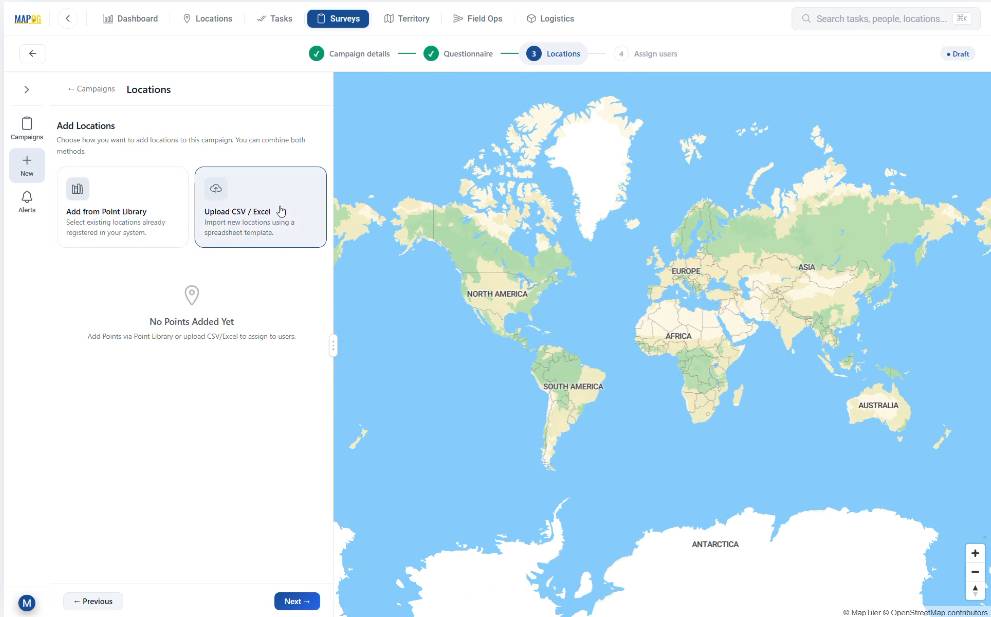
Now, move to the Locations sections and click on Upload csv/excel.
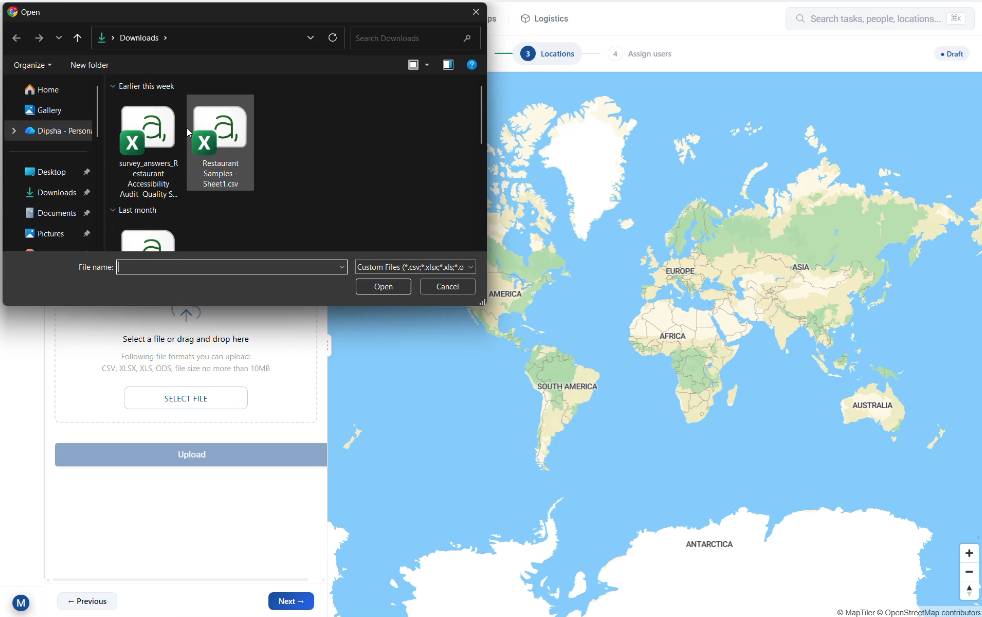
Browse and upload your prepared csv/excel file containing restaurant location along with their geocoded latitudes and longtides.
Select a unique ID to avoid duplication of datasets.
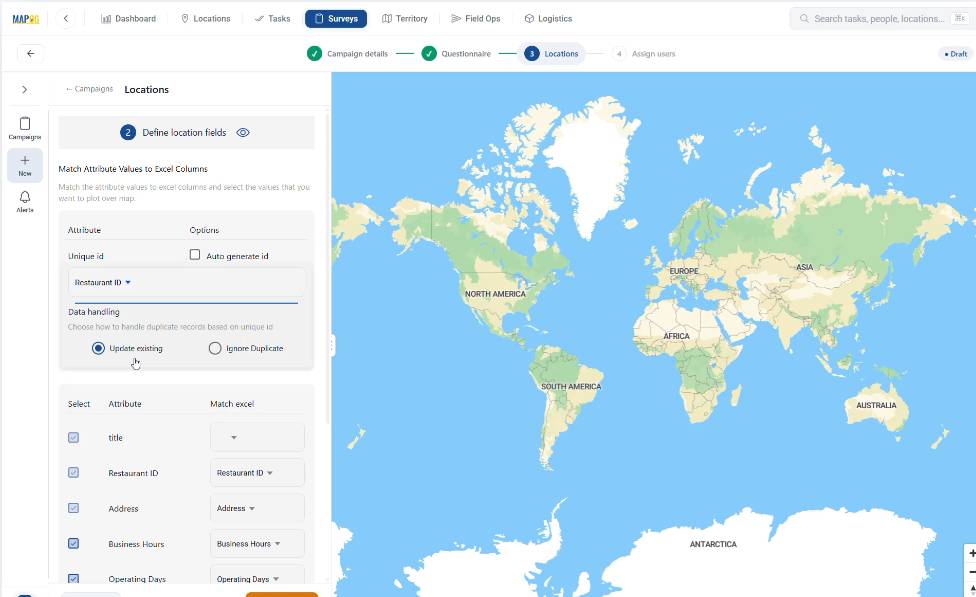
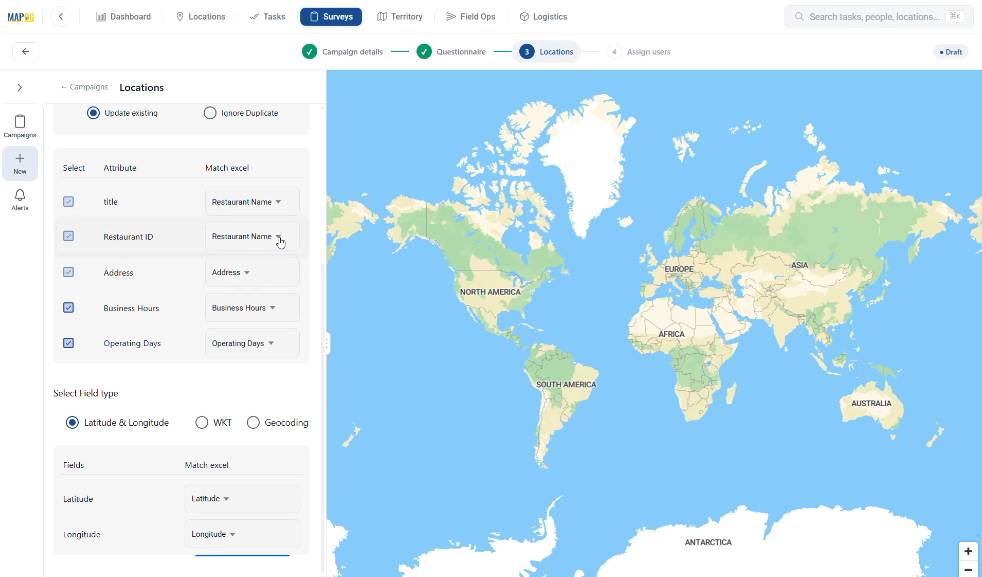
Match the attributes properly and choose Latitude & Longitude as the field type as per your data set in the csv/excel file. Then, click on Save & Next. The system automatically plots all points on the map.
Step 4: Assign Users and Launch the Survey
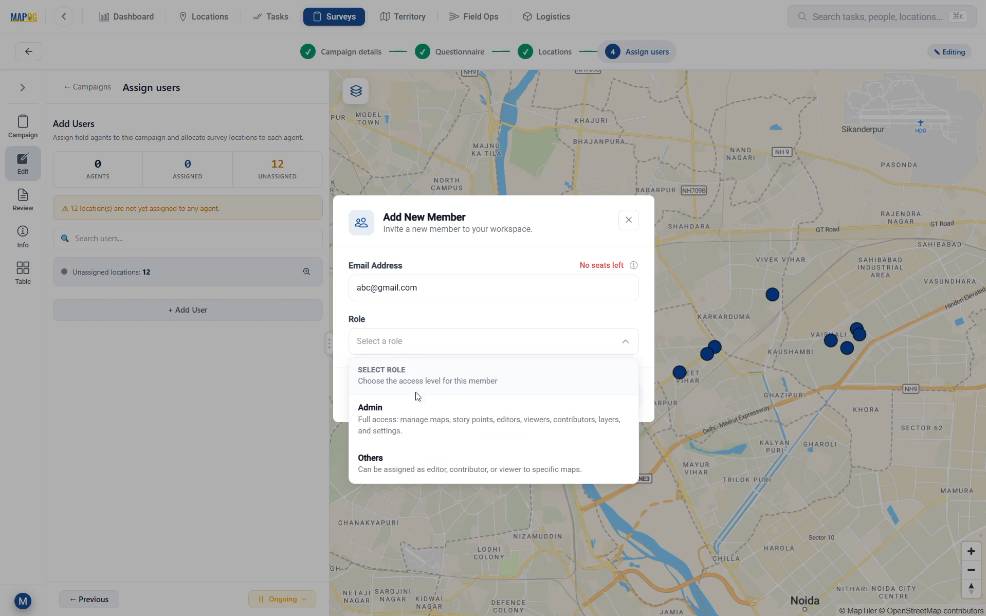
After that, go to Assign Users and click Add Member through Add User. Enter the assignee’s email id and set roles like Admin or others depending on access needs.
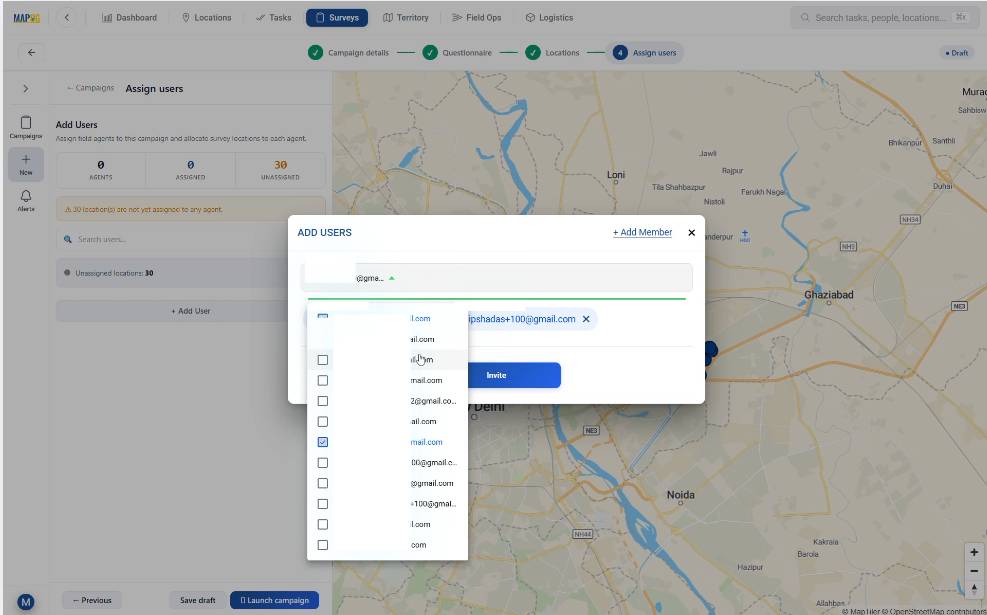
Then, select members from the drop down box and invite them to participate in the survey.
Subsequently, in order to assign specific points to team members, draw a polygon on the map by clicking on Map (Polygon Draw). This tool helps users divide areas among assignees.
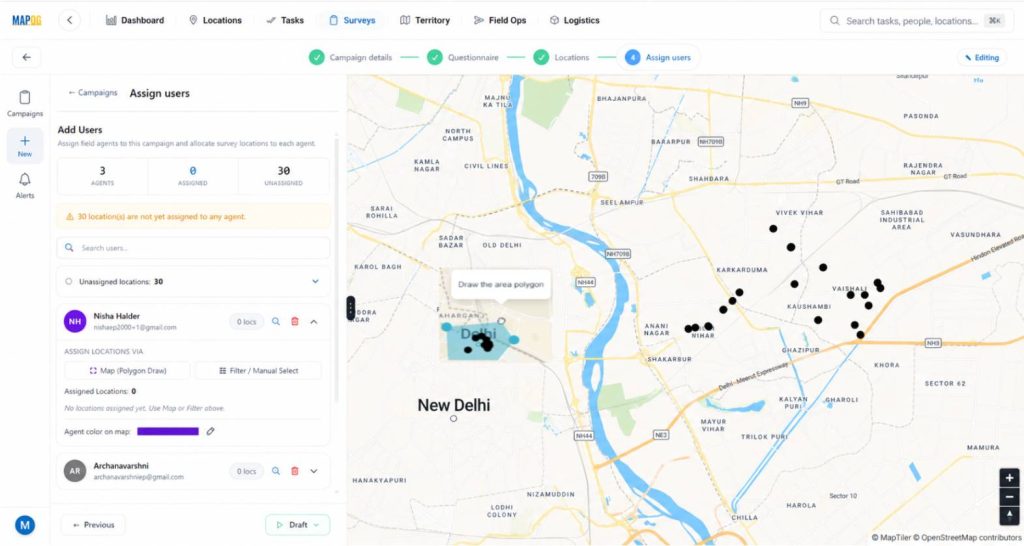
You can also use the filter tool to easily see the list of unassigned locations and assign them to the users.
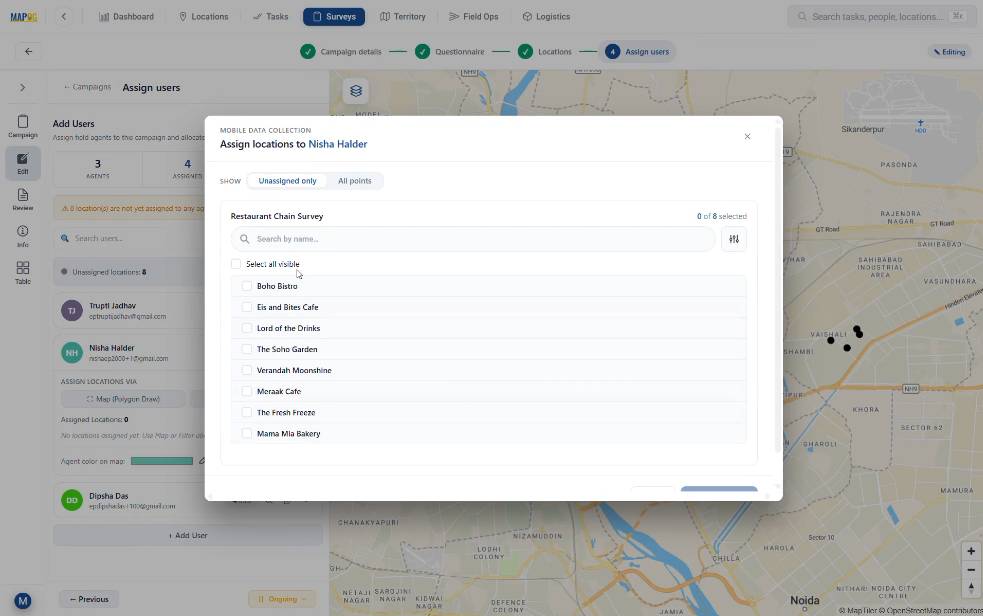
Finally, click Start Survey. Now, the survey becomes active, and assignees receive tasks directly on the MAPOG Contributor Mobile App.
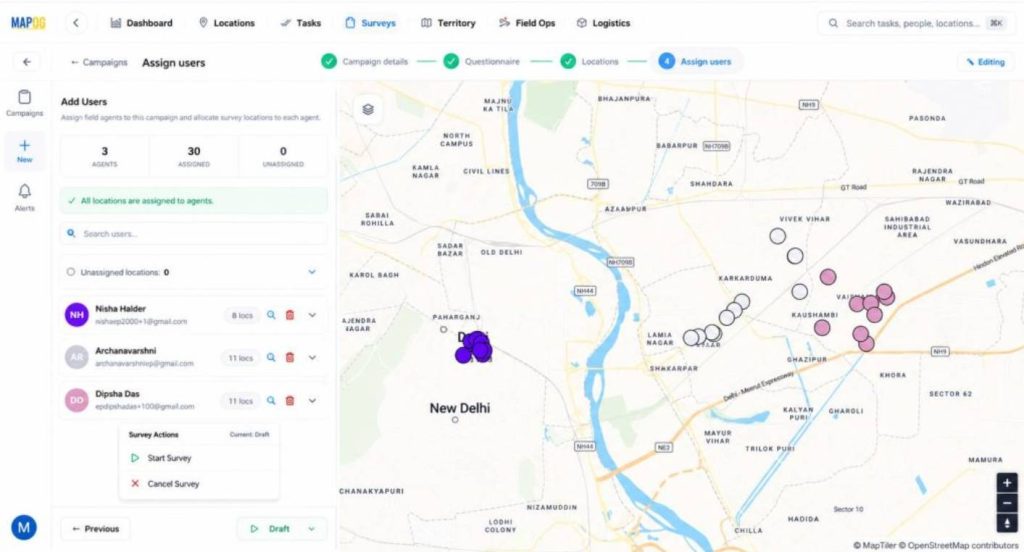
Step 5: Field Survey Using MAPOG Contributor Mobile App
On the ground, auditors use the MAPOG Contributor App. If an auditor finds an unlisted restaurant, they use the ‘+ Found a New Location’ button to drop a pin and register it instantly with all it’s details.
After selecting a location, the structured survey form appears. Data can be saved as a draft or submitted immediately, ensuring that field insights reach the office in seconds rather than days.
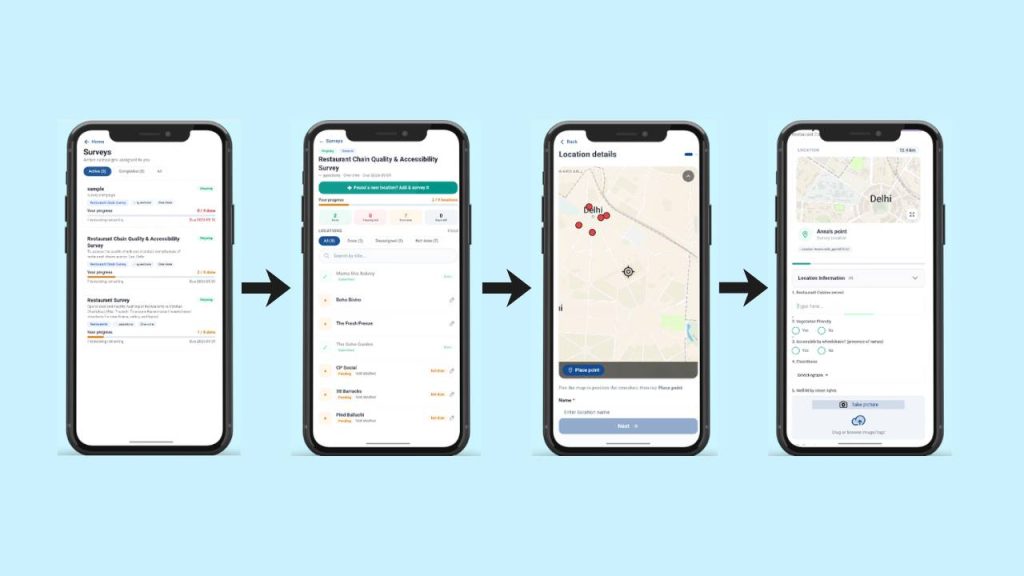
Step 6: Review and Export Field Data Collected via Mobile Applications
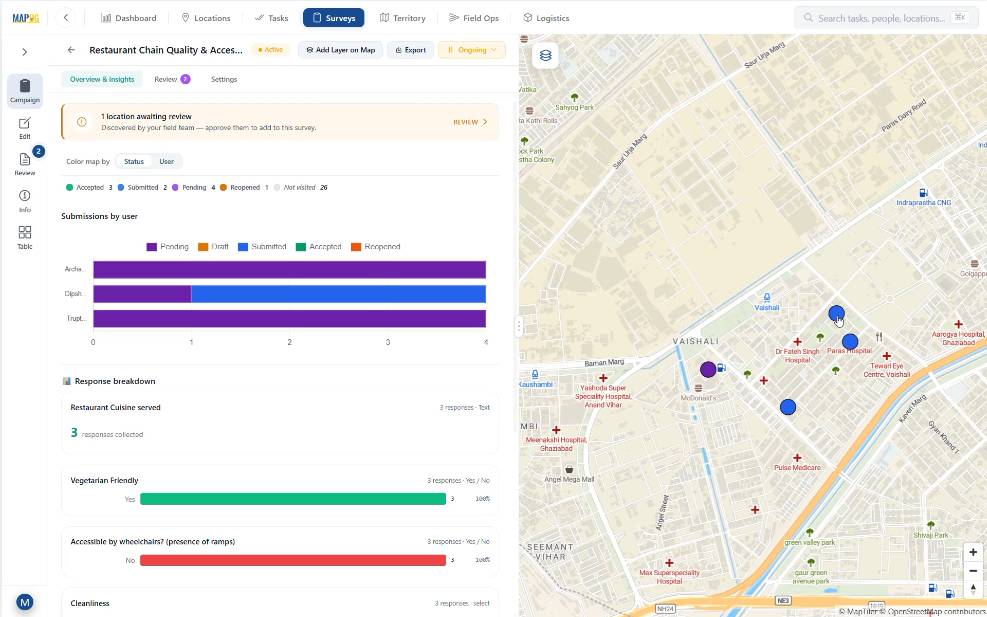
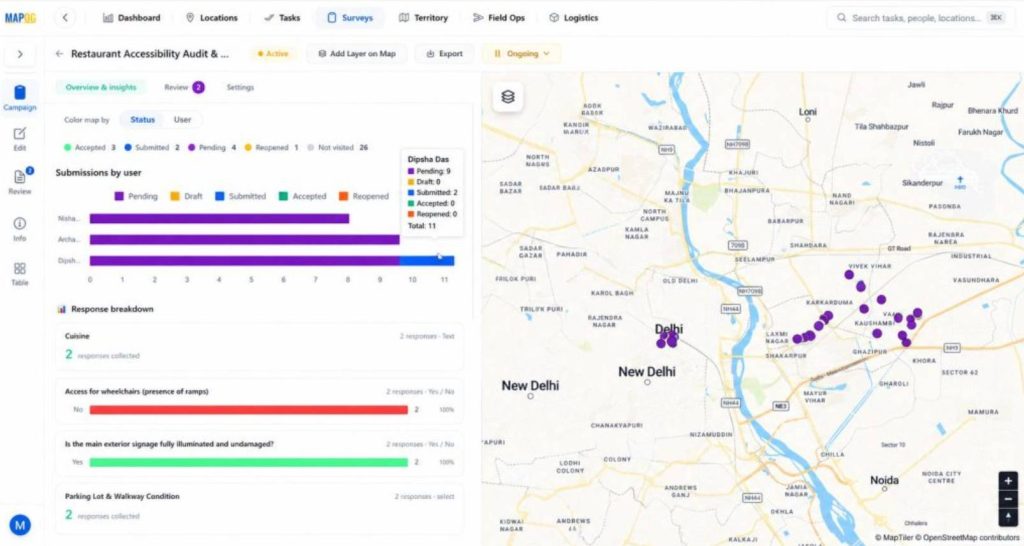
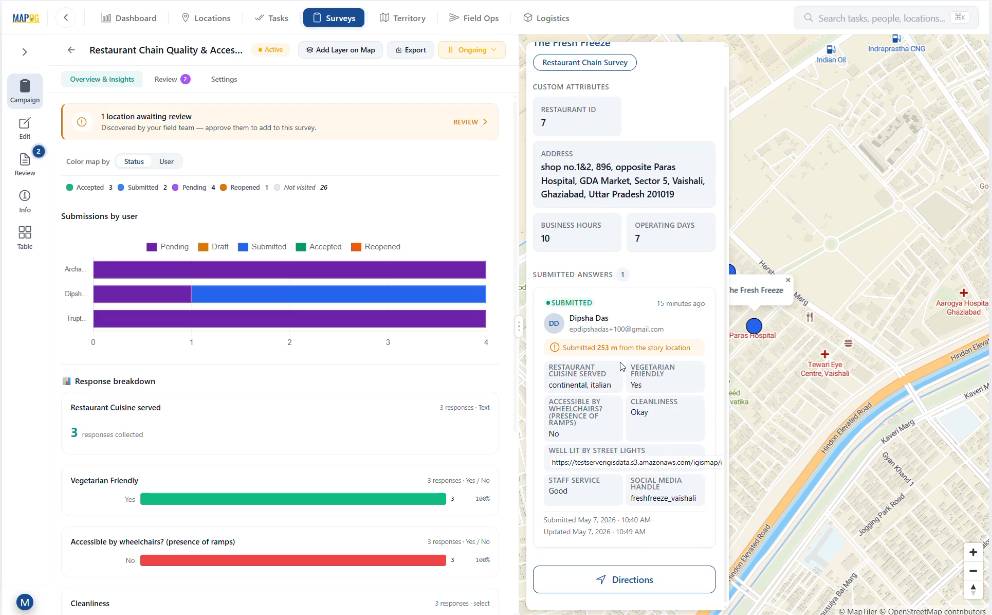
At this point, after submission, managers can check all entries from Campaign Overview & Insights. Data can be viewed by user and submission status.
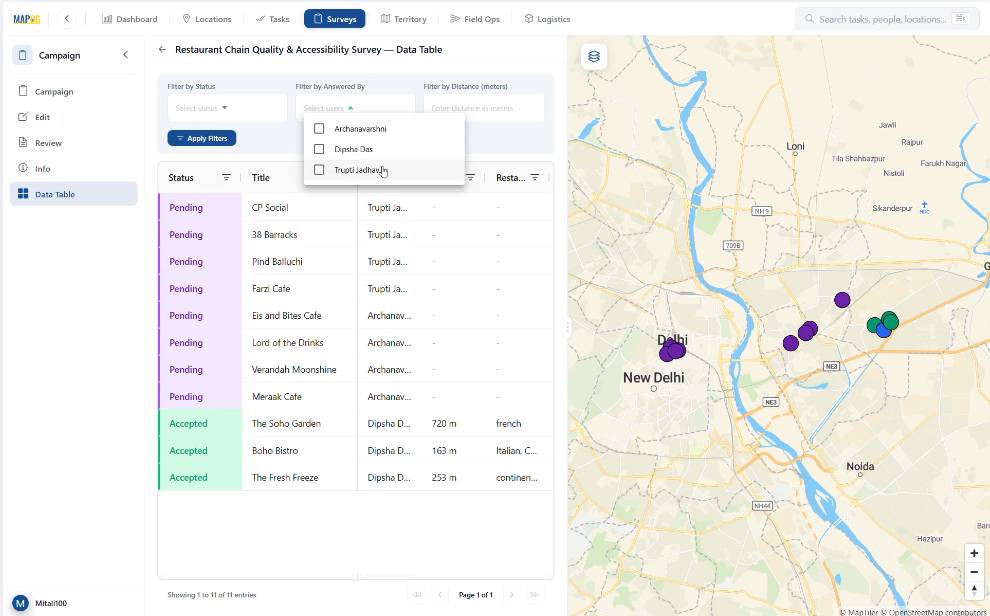
Afterward, in the table section, filters help review records by assignee or status.
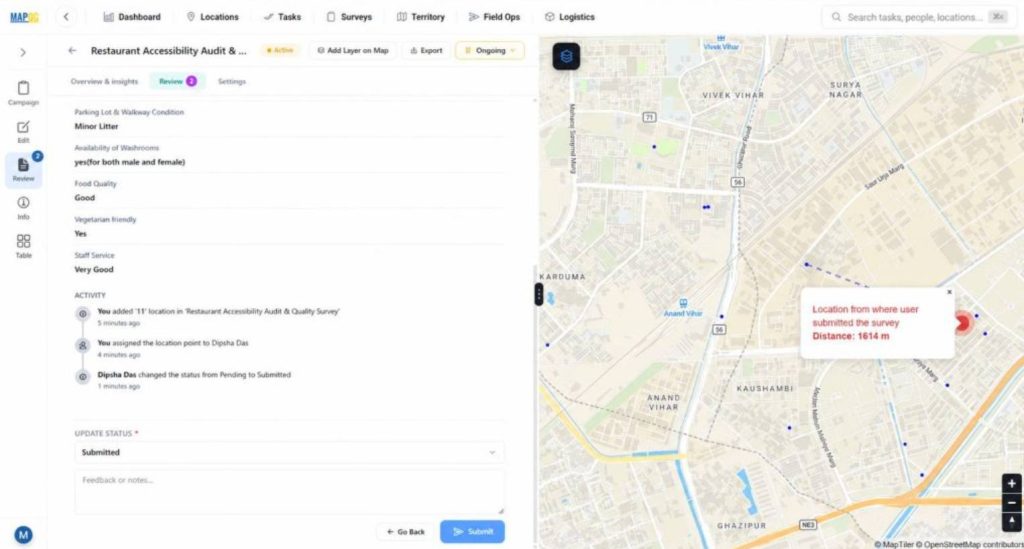
Then, in the Review section, submitted forms can be checked, feedback can be added, and approval status can be updated.
Finally, the dataset can be exported using the export option for reporting purposes.
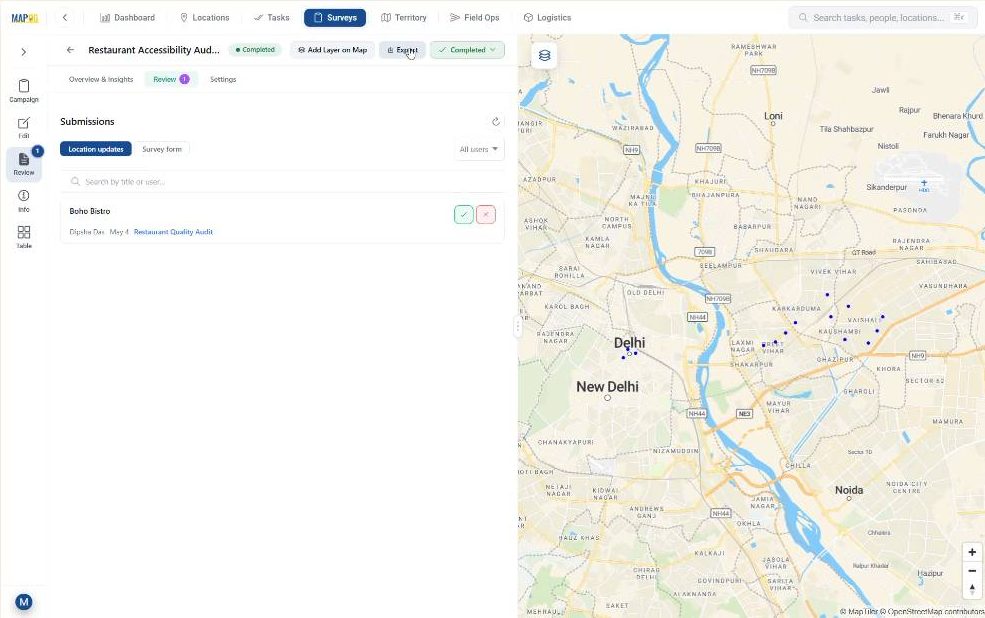
The dataset can also be added as a new layer inside an existing map using the Add Layer on Map option for future GIS analysis.
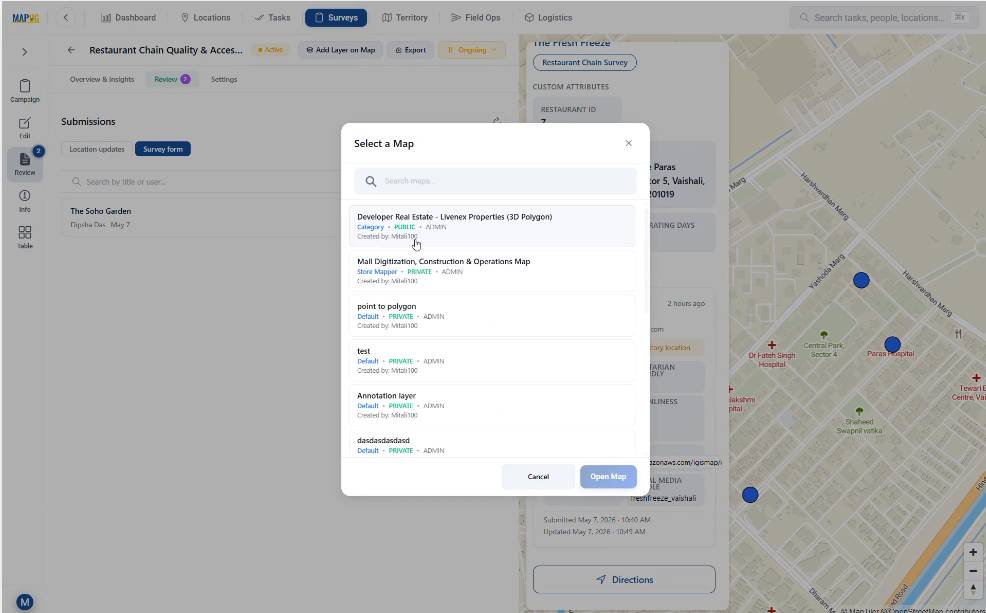
Thus, the complete field workflow remains connected from collection to decision-making.
Industry Applications and Benefits of Spatial Surveys Using Mobile Applications
Many sectors benefit from proper end-to-end spatial surveys using mobile applications. Restaurant chains track store compliance, urban planners conduct accessibility audits, and disaster management teams monitor infrastructure risks. Real-time updates reduce delays, avoid lost context, and strengthen field verification. Live mapped information enhances planning and accountability. MAPOG facilitates this by connecting office planning with field execution through Survey and MAPOG Contributor Mobile App.
Conclusion
The synergy between the MAPOG web platform and the Contributor mobile app eliminates the data lag that hampers modern facility management. By providing a transparent, end-to-end workflow—from template creation to GIS-ready exports—MAPOG empowers organizations to turn field observations into actionable intelligence with unprecedented speed and accuracy.