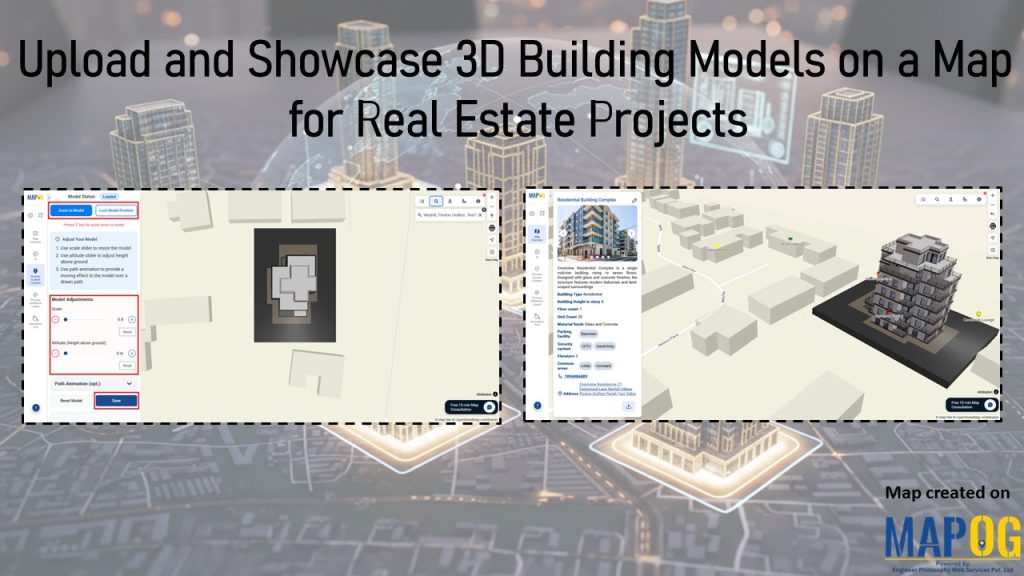
In real estate, models are prepared, both digital and handmade, but they often fail to serve their purpose. Digital 3D models stay locked inside design software, inaccessible to clients. Handmade scale models look impressive but are fragile, costly, and limited to showrooms. Consequently, neither connects to maps or shows how a property relates to schools, hospitals, or lifestyle amenities, leaving buyers uncertain and projects incomplete. MAPOG solves this by placing 3D building models directly on interactive maps, aligning them with location data and amenities. Thus, the ability to upload and showcase 3D building models on a map delivers a complete, client‑ready showcase.
Key Concept: Why Upload and Showcase 3D Building Models on a Map
Because beyond static visuals, maps reveal spatial truth; showing distances, amenities, and accessibility. Thus, models evolve into decision‑driving assets, proving livability, investment potential, and trust, while transforming real estate presentations into immersive, client‑ready experiences that close deals faster.
Steps to Upload and Showcase 3D Building Models on a Map
1. Create a New Map
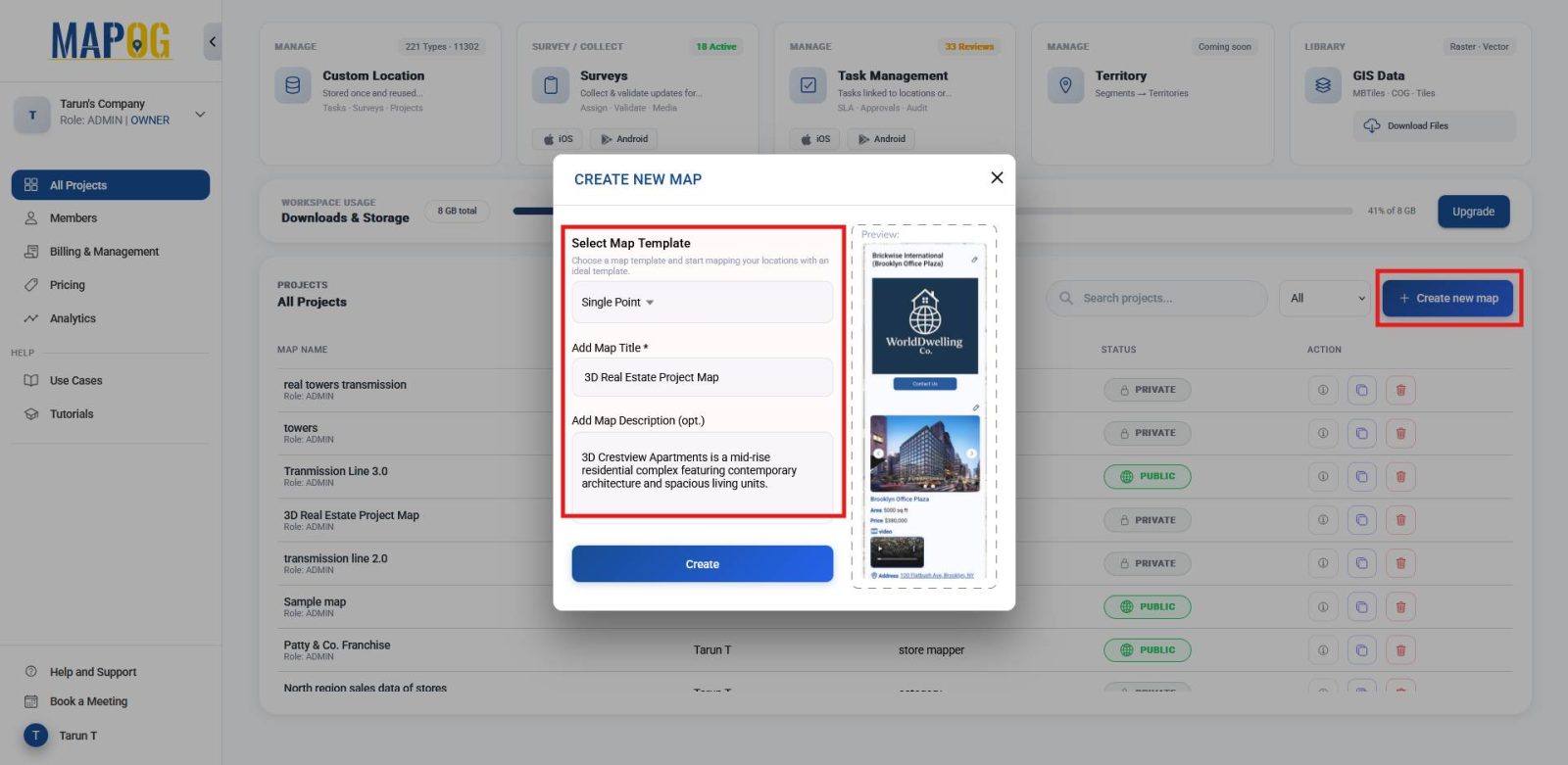
To begin, head to MAPOG and click Create New Map. Choosing the Single Point template helps you anchor your project to a specific location. Add a clear title and description, then click Create to start.
2. Upload and Place Your 3D Model
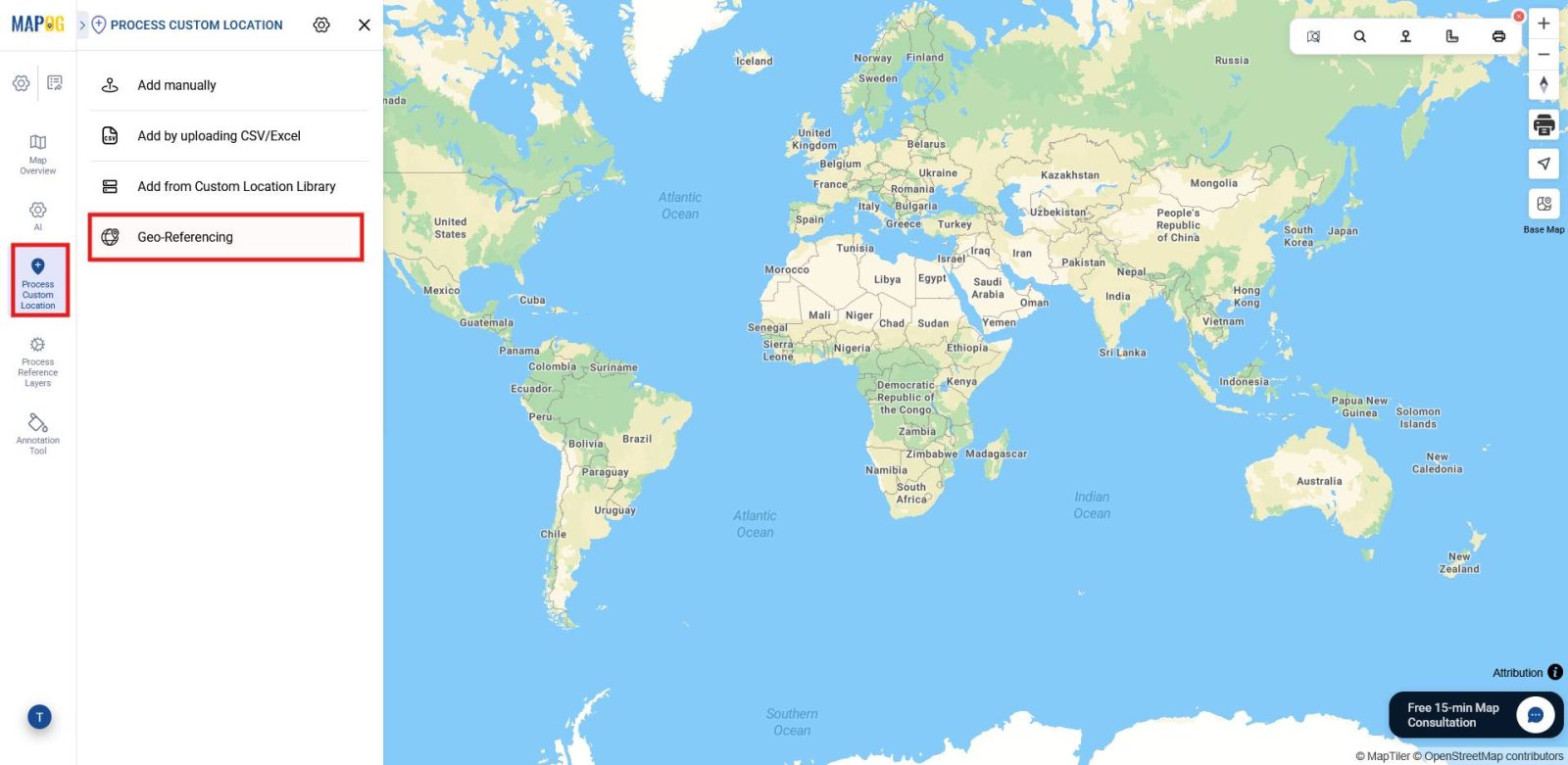
Next, go to the Process Custom Location section and select Georeferencing. This ensures your model aligns with real-world coordinates.
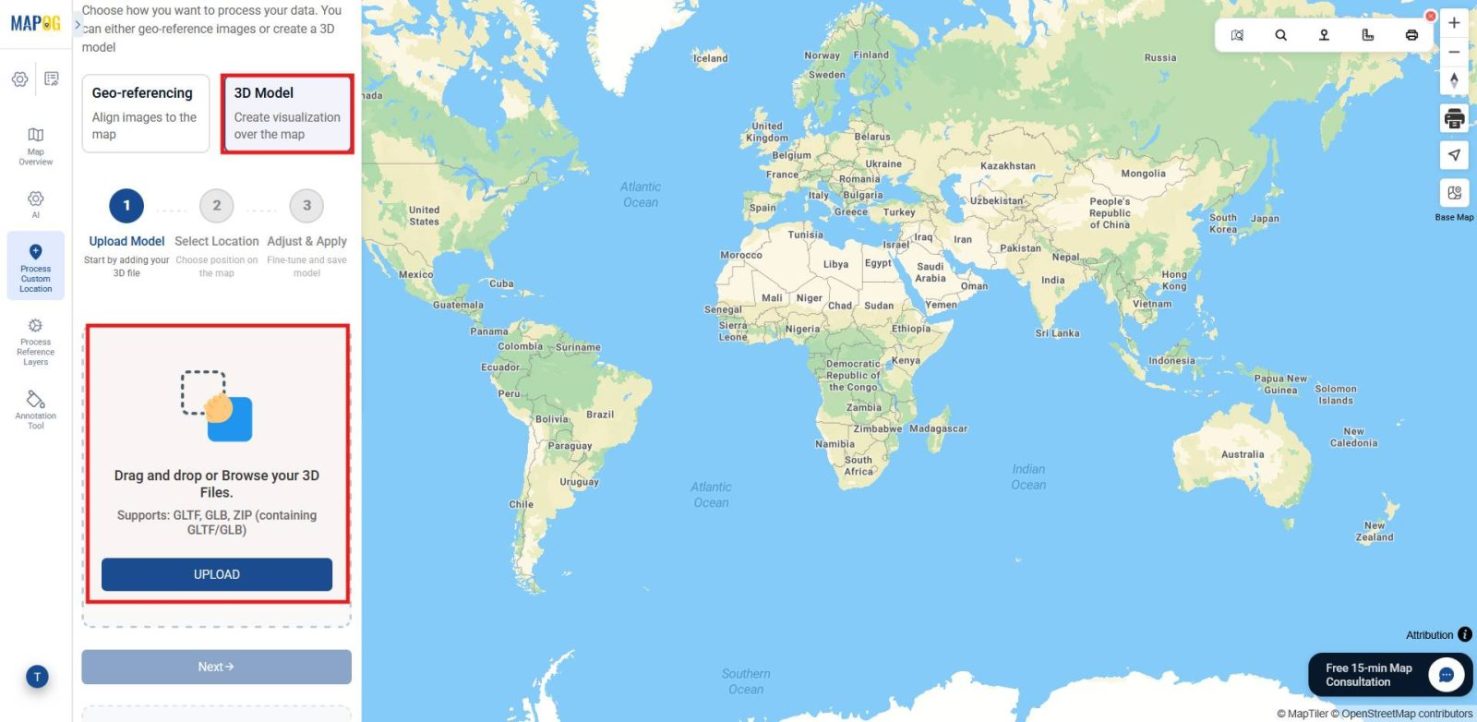
Choose the 3D Model option, then browse and upload your file in GLTF, GLB, or ZIP (containing GLTF/GLB) format. Once selected, click Next.
Through the Tool Box section, search for your place by name or latitude/longitude. When the location appears on the map, click start selection and tap the exact spot where your model should be placed.
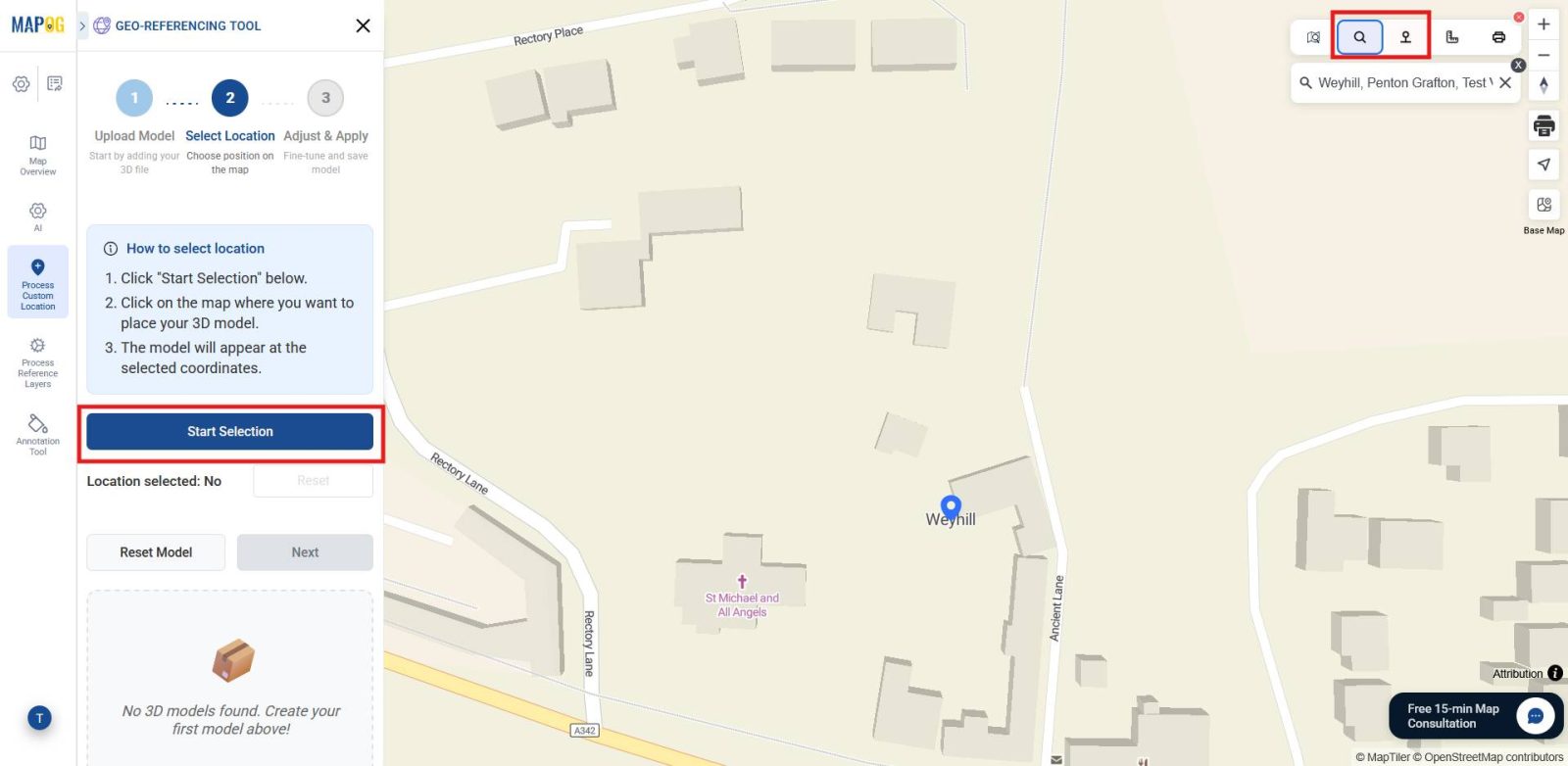
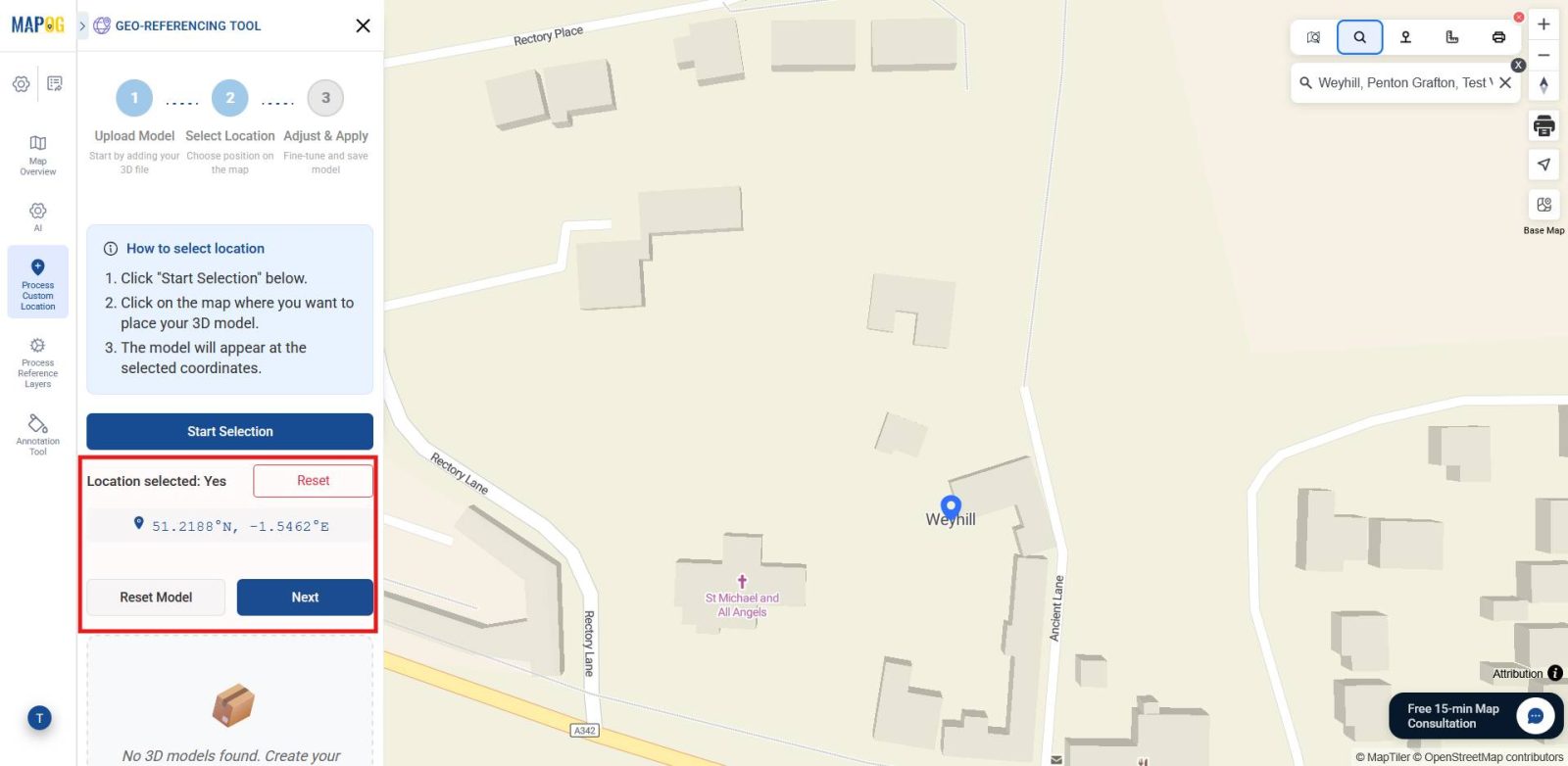
The latitude and longitude will automatically appear, ensuring accuracy. If the location isn’t correct, reset and place it again. Once finalized, click Next and your 3D model will appear on the map.
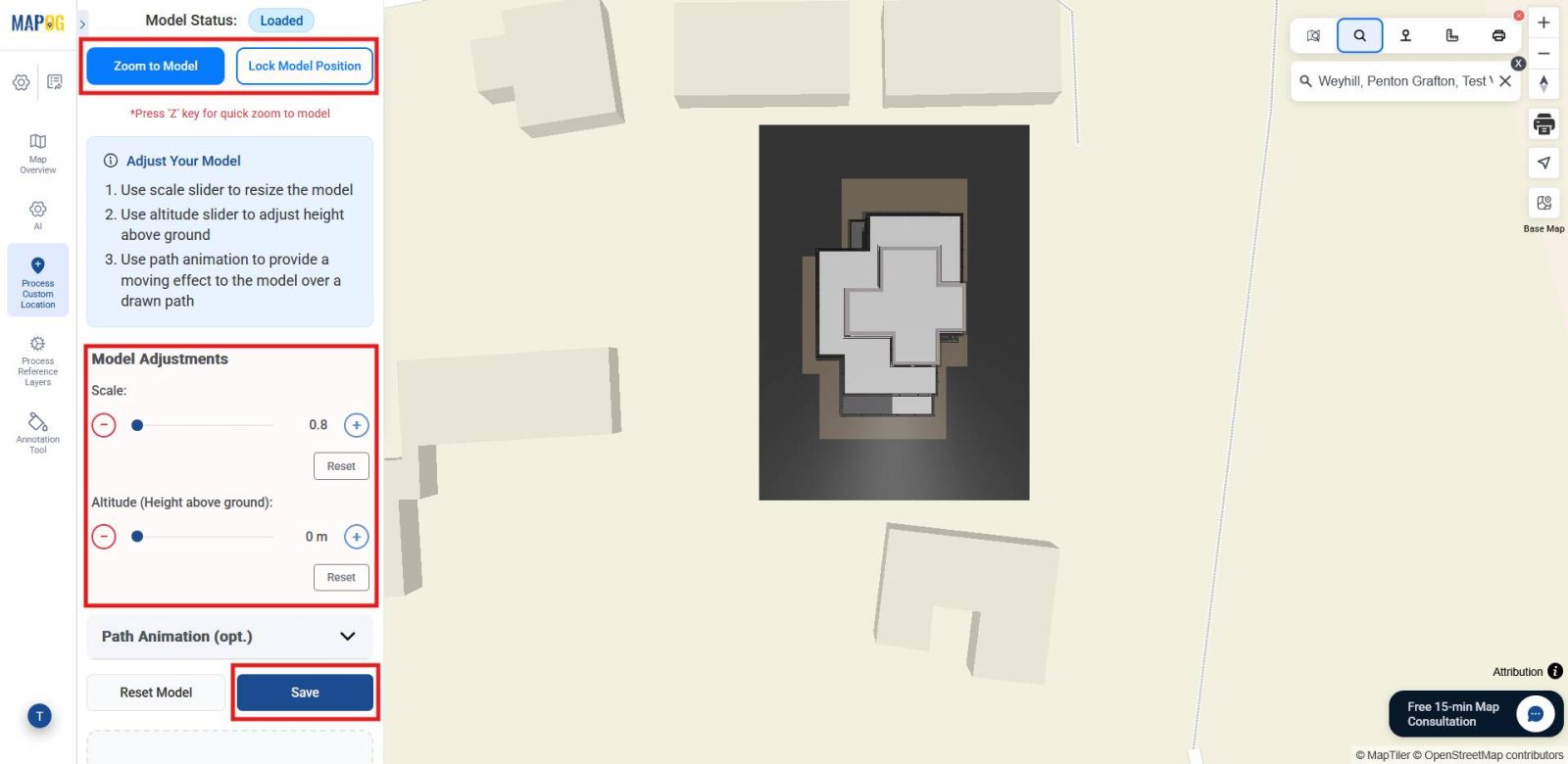
You can resize it to match the area and adjust the height if it represents a floor plan above an existing structure. After adjustments, click Save to lock the model in place, ensuring it remains consistent for future use.
3. Add Custom Location Details
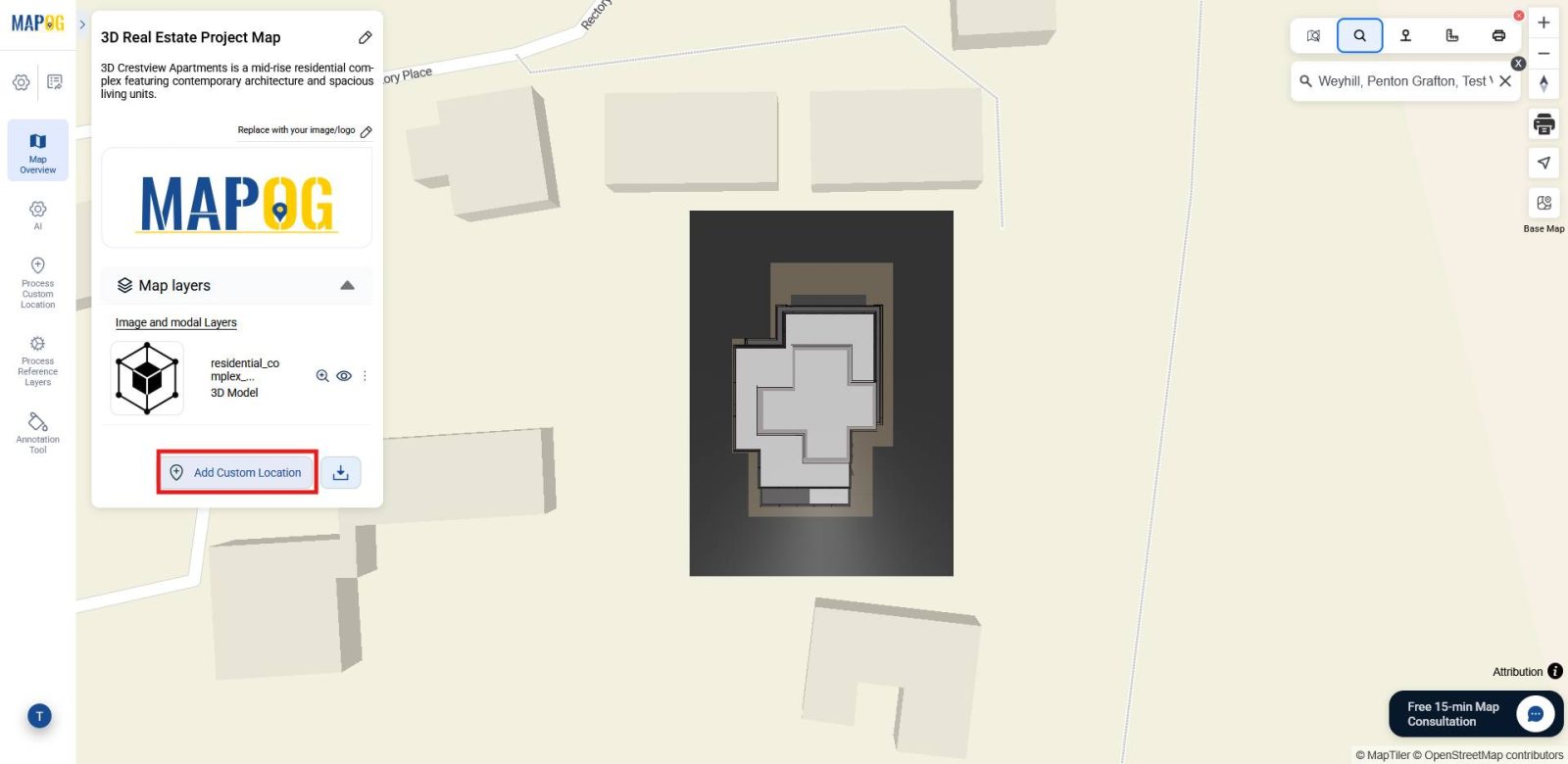
Afterward, click Add Custom Location to enrich your 3D model with informative context.
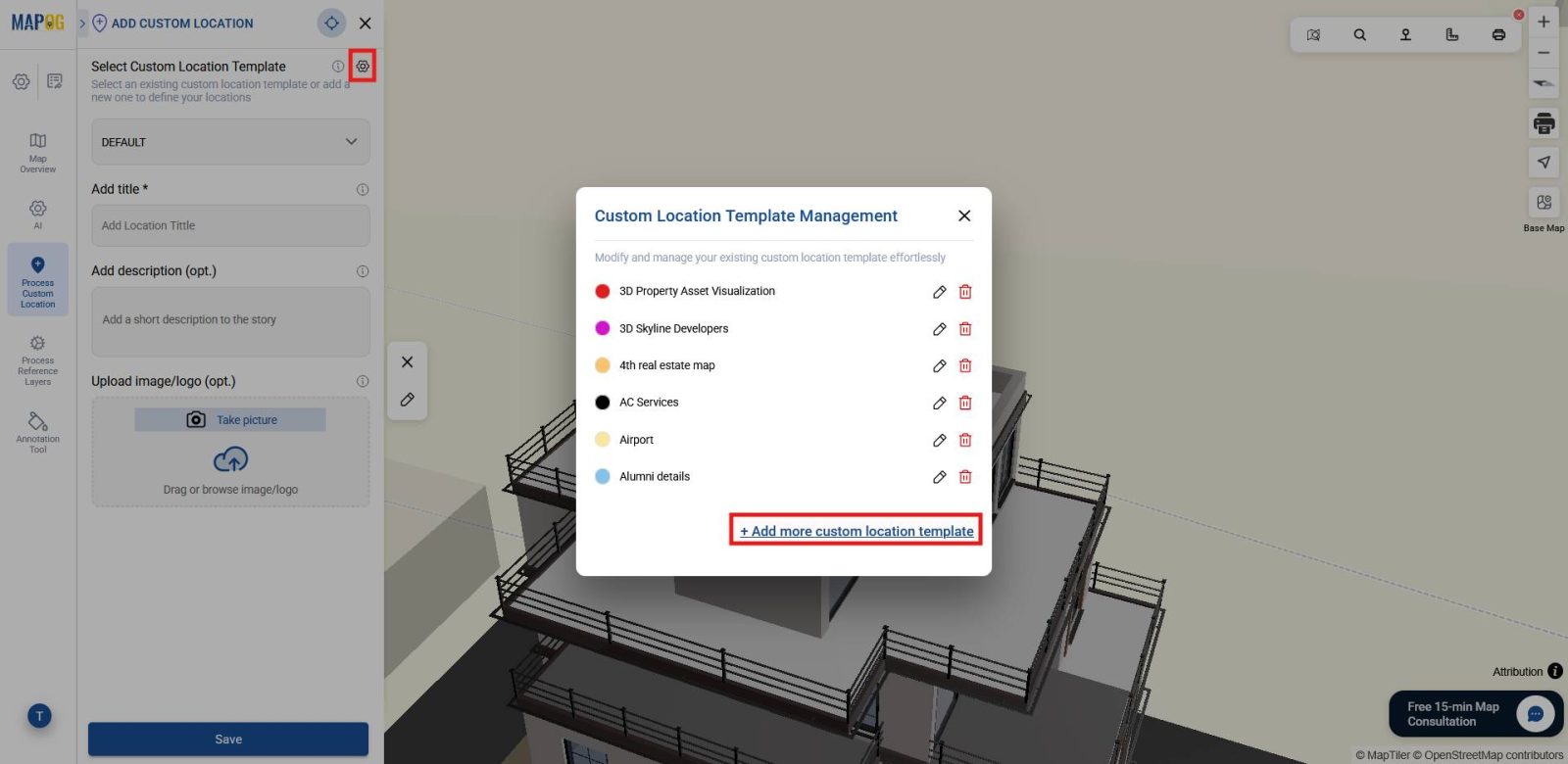
Then, click the settings icon of the custom location template and select Add More Custom Location Template.
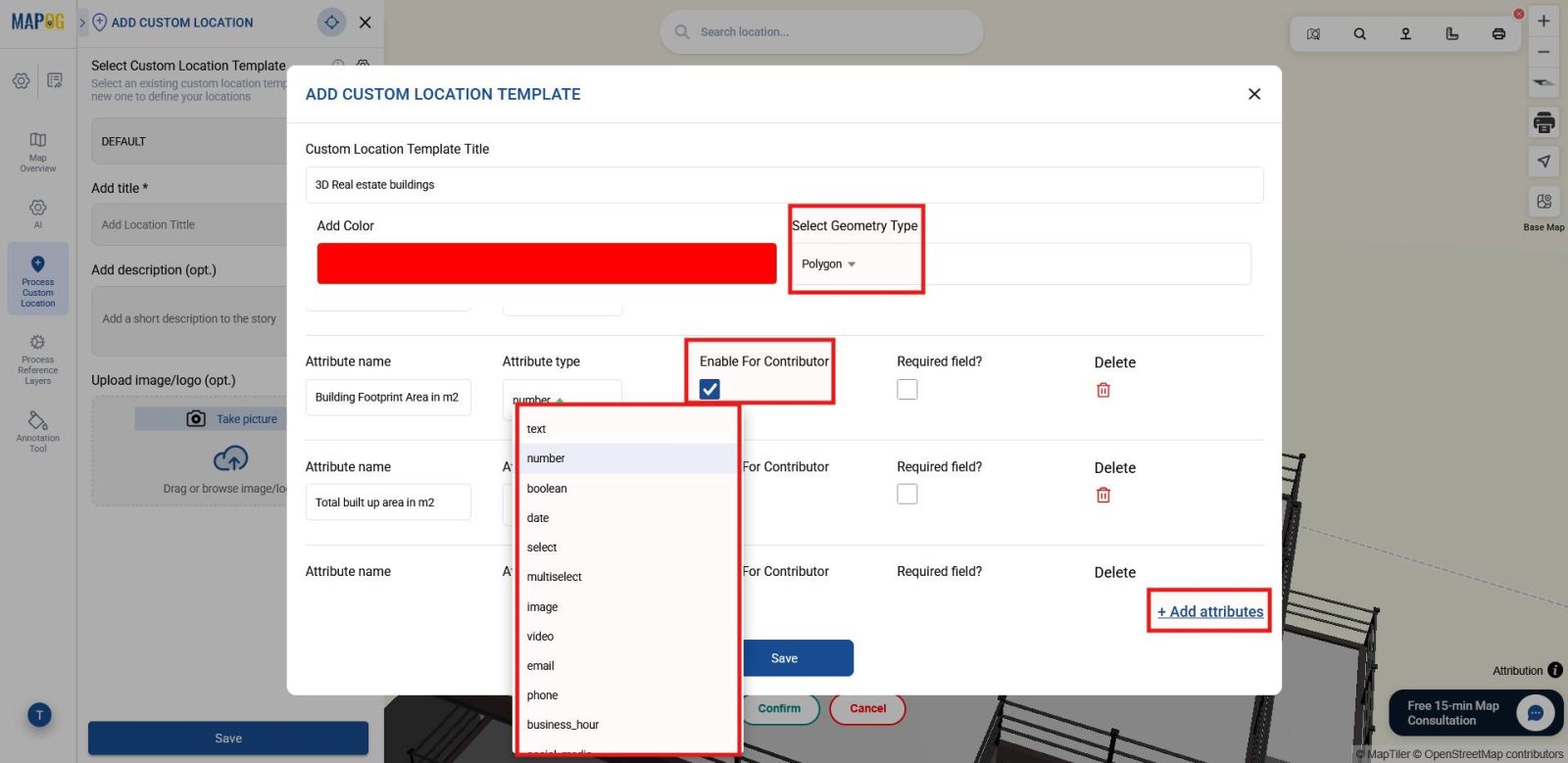
Provide a title, set a color, and select Geometry Type as polygon. Now, add attributes such as building area (number), address (address), building amenities (multiselect), and more. Also, enable contributor access so that team members can update or adjust details later. These details make the model more engaging and useful. Once added, click Save. You can reuse the template for similar projects, ensuring efficiency.
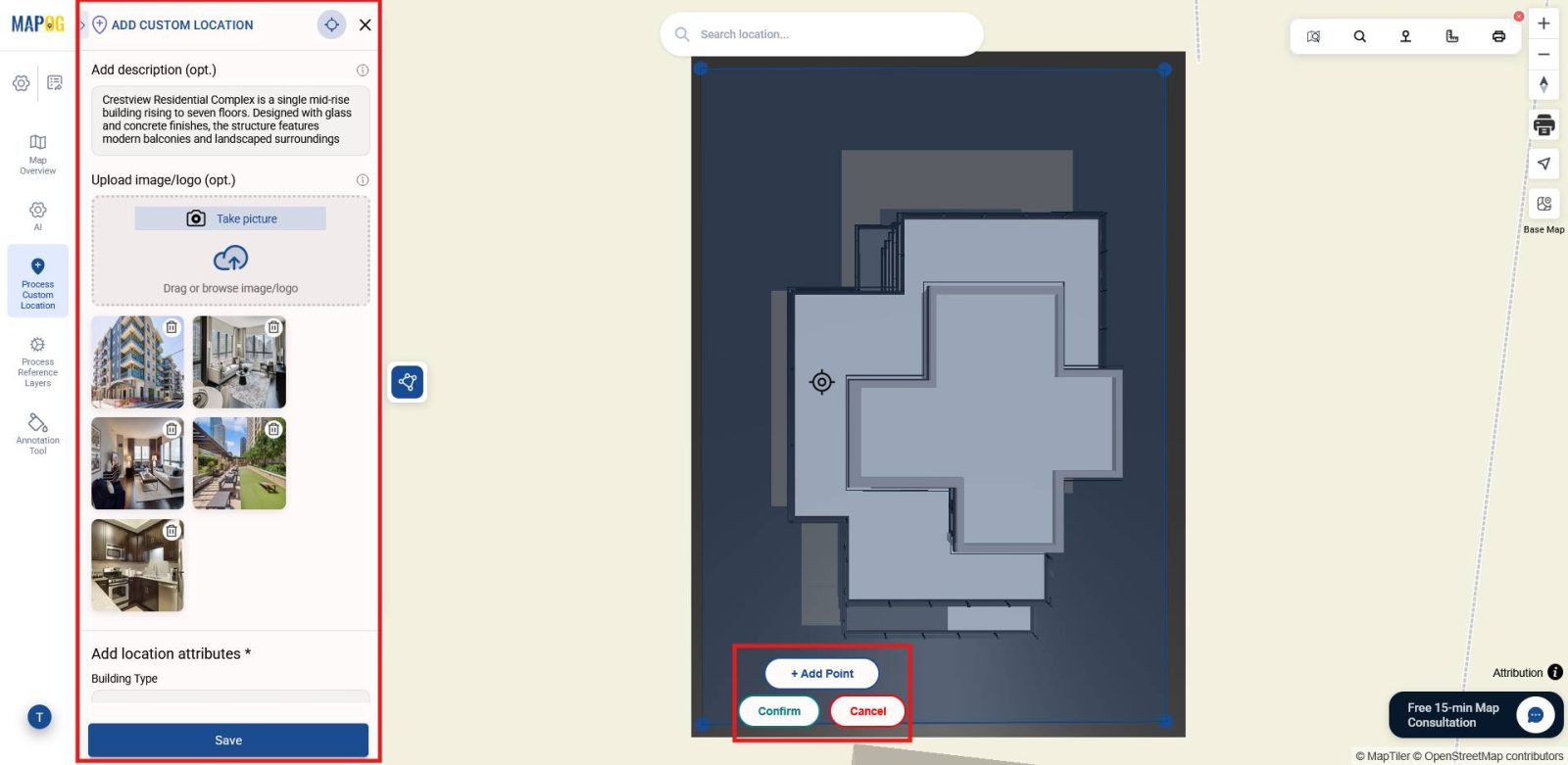
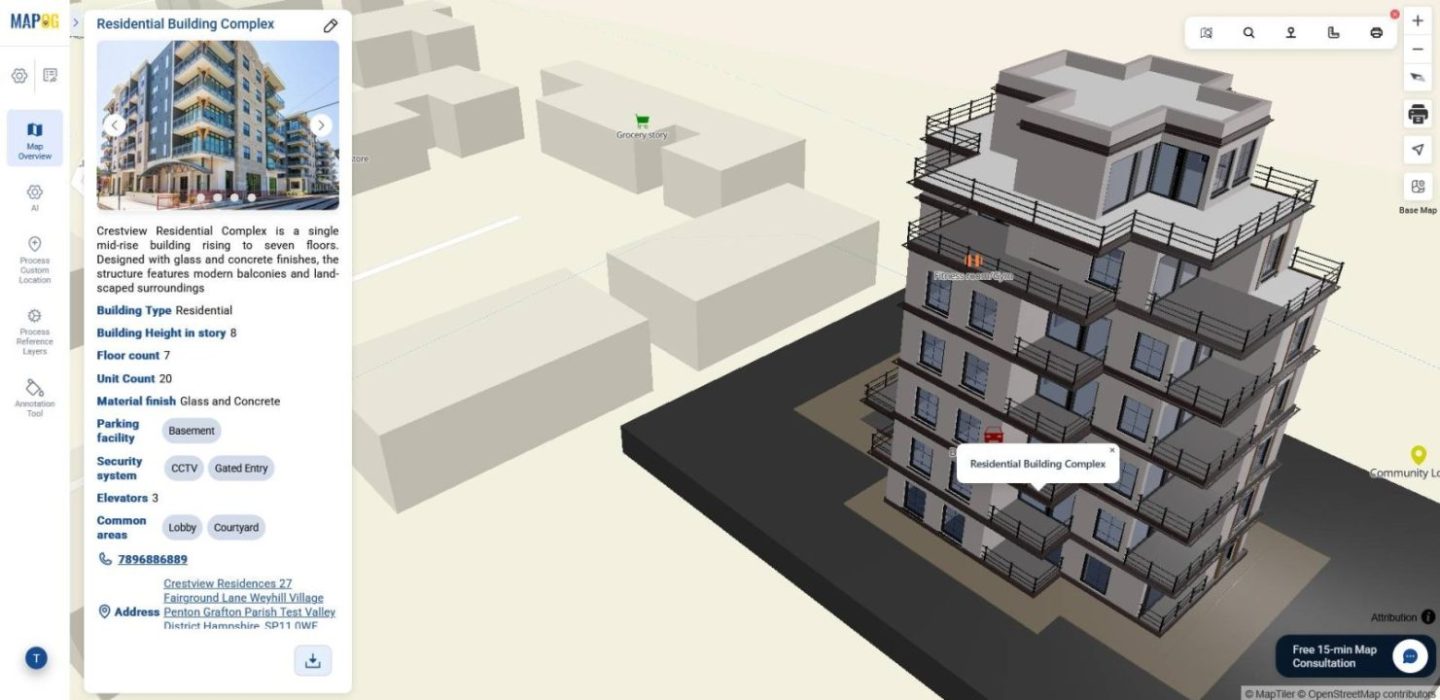
From the dropdown, select the created template. Since, polygon was chosen as the geometry type, add four points to create a polygon around the 3D model. Next, add a description of the model, upload images of the site, and fill in all attributes. Once details are added, click save, and every detail will be visible on the map, making the showcase comprehensive.
4. Highlight Nearby Amenities
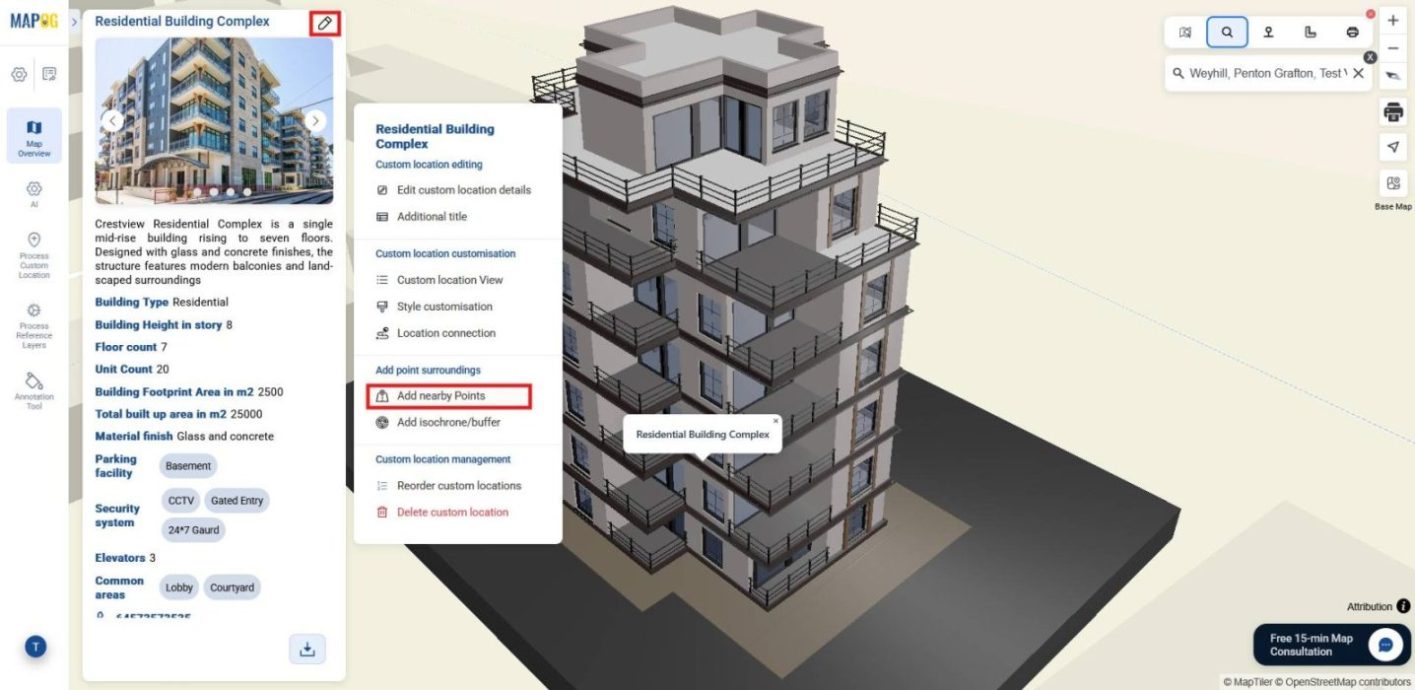
Now, highlight nearby amenities to show lifestyle context. Click the pencil icon and choose Add Nearby Points.
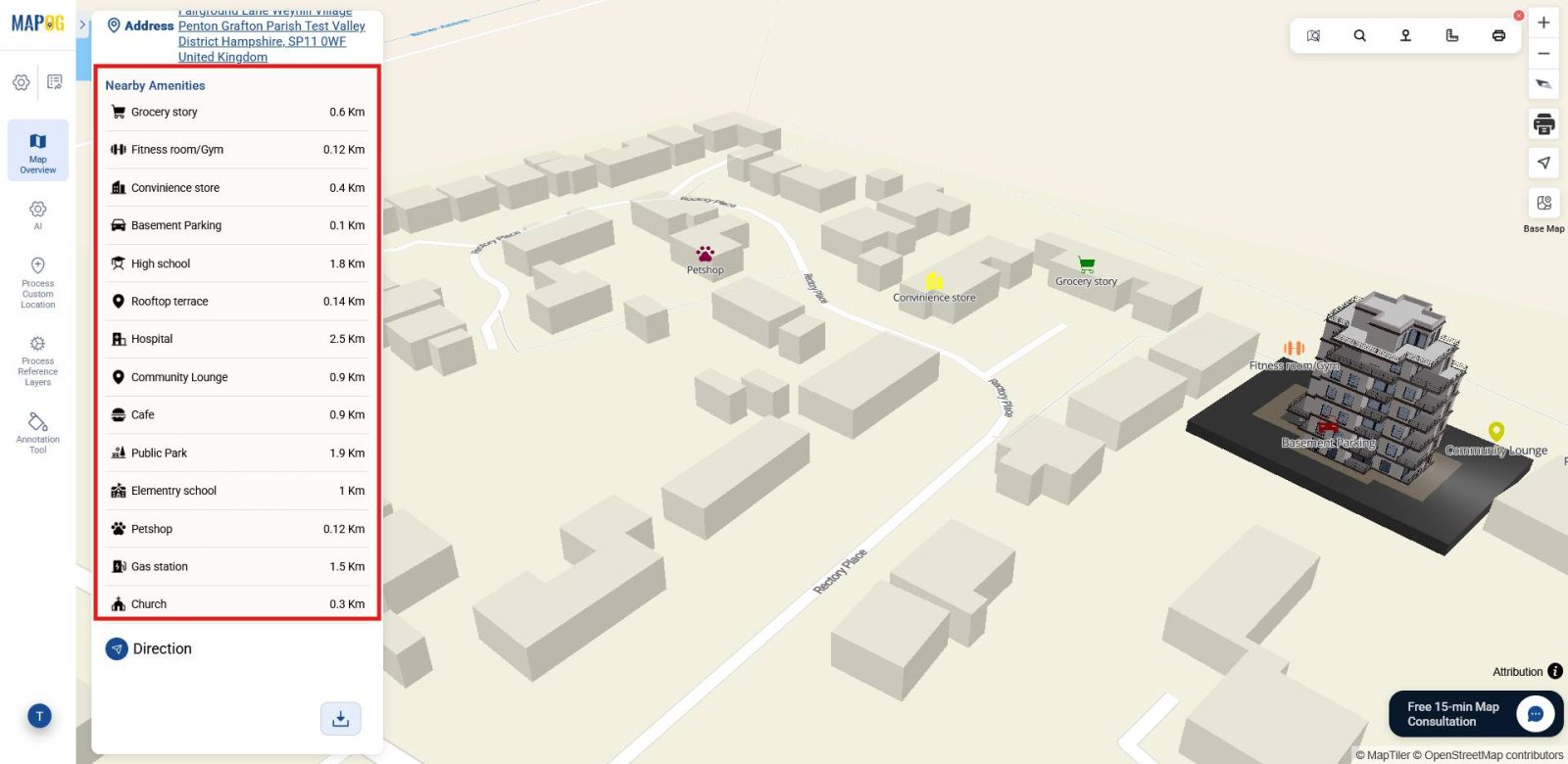
Search for the place through name or simply plot the point on the map where the amenity is located, give it a name, set a color, and select a suitable icon. Then enable the show distance toggle, and through the Calculate tool the distance from the site to the amenity is automatically generated once the point is plotted, helping viewers instantly understand accessibility.
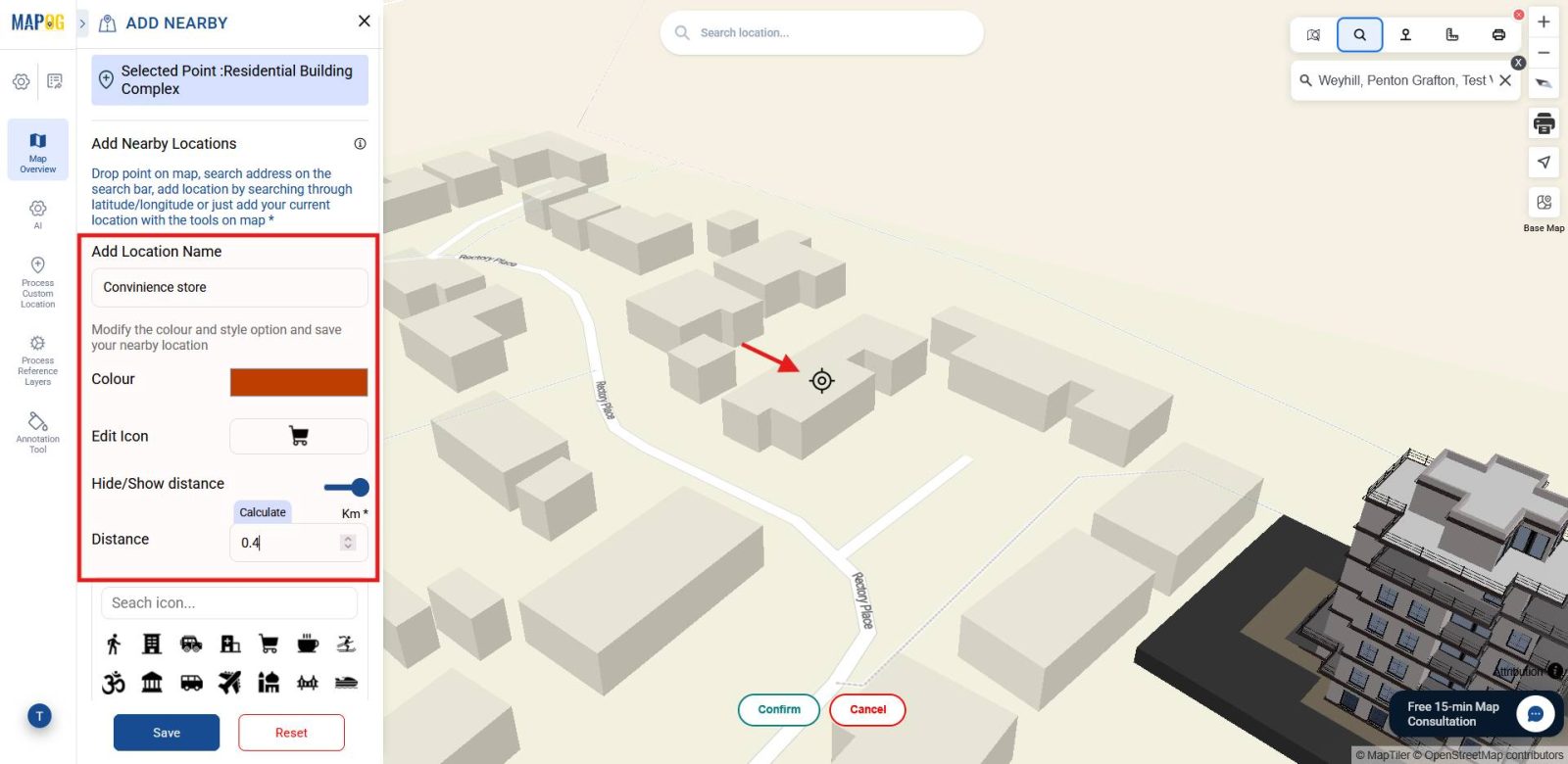
Finally, click Save, and your points will be added to the map, making the project more client‑ready.
5. Preview and Share Your Map
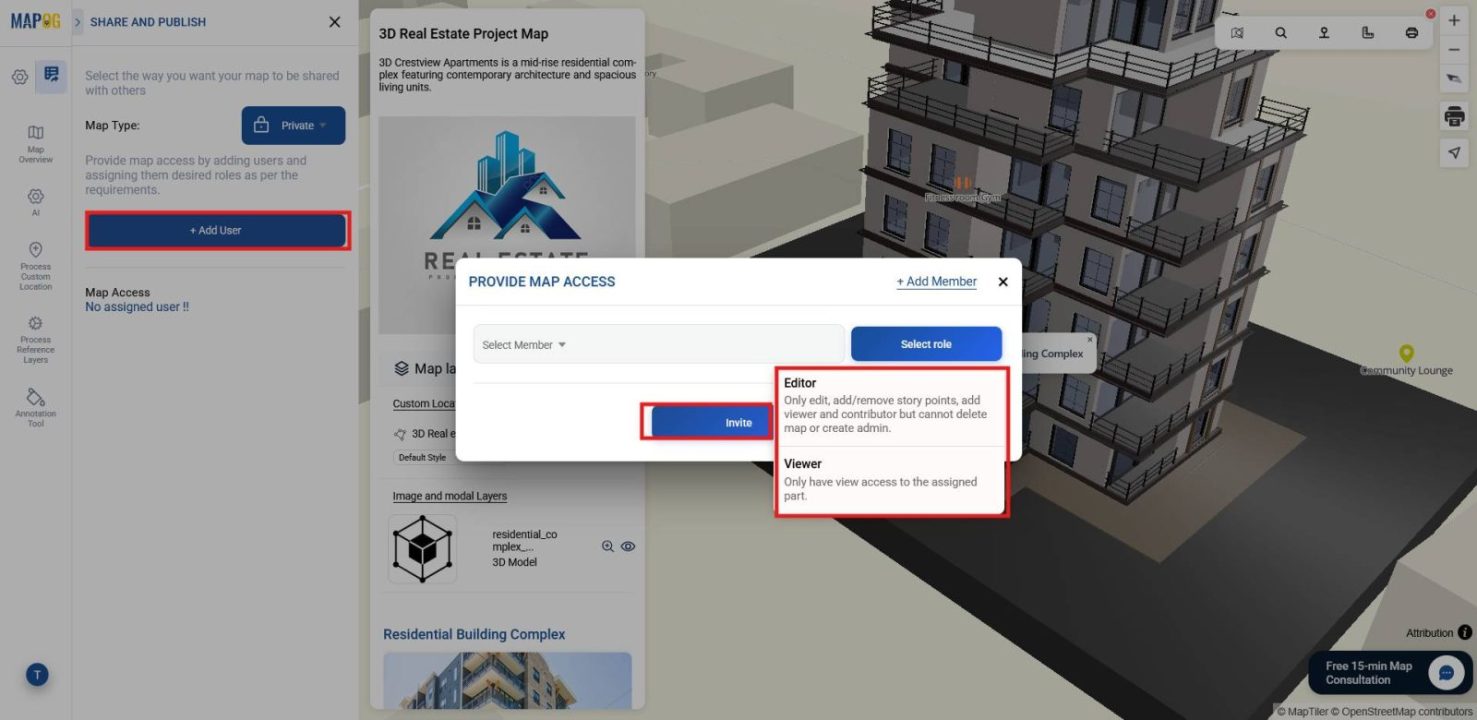
Finally, go to the Preview and Share section. Sharing ensures your work reaches the right audience. You can share privately by using Add User, assigning roles such as editor or viewer for collaboration.
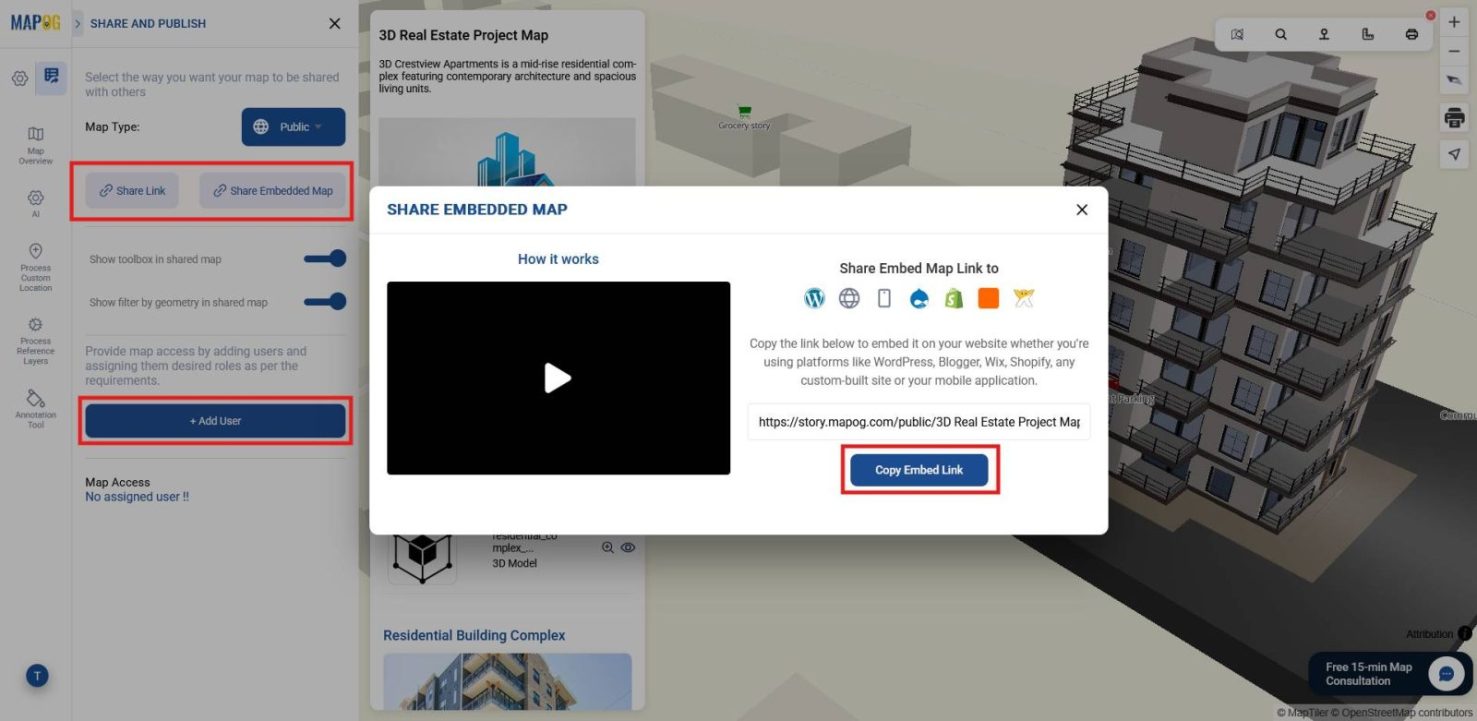
Alternatively, share publicly through the Share Link or Embed Map option, making your 3D model and its details accessible to a wider audience.
Industrial Use and Benefits
Industries showcase mapped 3D building models to highlight accessibility, strengthen planning, improve marketing, and build investment confidence across hospitality, retail, education, and infrastructure projects.
Conclusion
In summary, mapping 3D building models shifts real estate from static display to spatial storytelling. By revealing how projects connect with their surroundings, it uncovers livability, accessibility, and investment depth. Ultimately, MAPOG fuses design with context, turning properties into persuasive narratives that drive confident decisions.
Related blogs you may like:
- Visualize Property Assets Using 3D Building Mapping
- Real Estate Site Planning and Feasibility Analysis Using GIS
- Creating 3D Building Maps for Your Real Estate Project