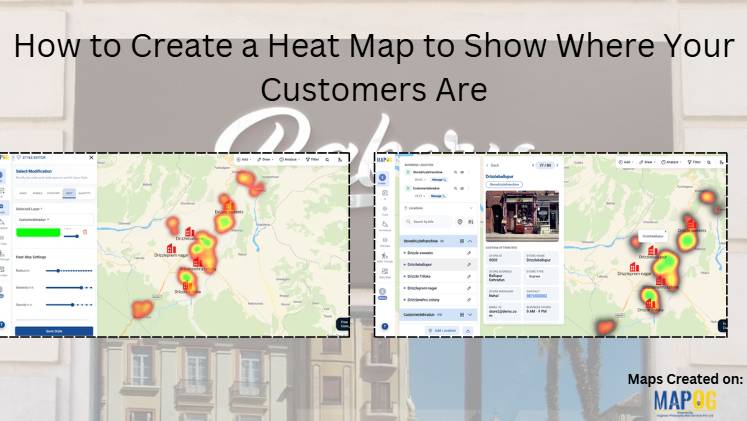
Understanding where your customers are located is essential for making informed business decisions. While spreadsheets and reports provide valuable information, they often fail to reveal geographic patterns. A heat map solves this problem by transforming customer locations into an easy-to-read visualization that highlights areas with the highest customer concentration.
Whether you operate a retail chain, manage delivery services, or oversee franchise locations, a customer heat map helps you identify demand hotspots, evaluate store coverage, and discover opportunities for business growth. Moreover, in MAPOG by comparing customer density with store locations, you can make smarter decisions about expansion, marketing, and resource allocation.
Key concepts to Create a Heat Map
To create heat map is a powerful location intelligence tool that transforms customer location data into an interactive visual representation of customer density. By combining store locations and customer locations on the same map, businesses can identify demand hotspots, analyze customer distribution, evaluate market coverage, and compare customer concentration with existing store locations. Using custom location templates, CSV data imports, and heat map visualization, organizations can uncover geographic patterns, optimize sales territories, improve delivery planning, support expansion decisions, and make data-driven business decisions through interactive mapping and spatial analysis.
Step 1: Create a New Customer Heat Map
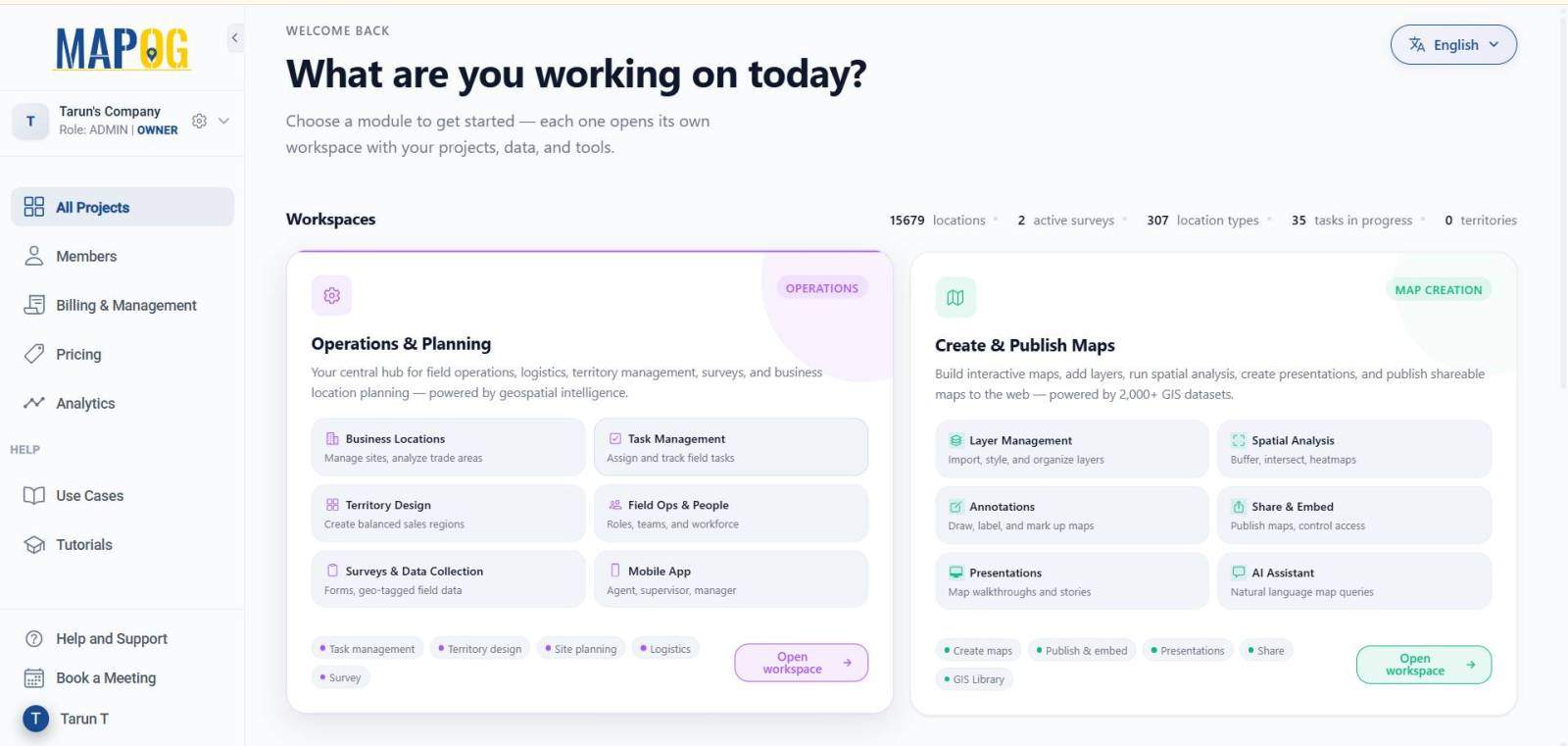
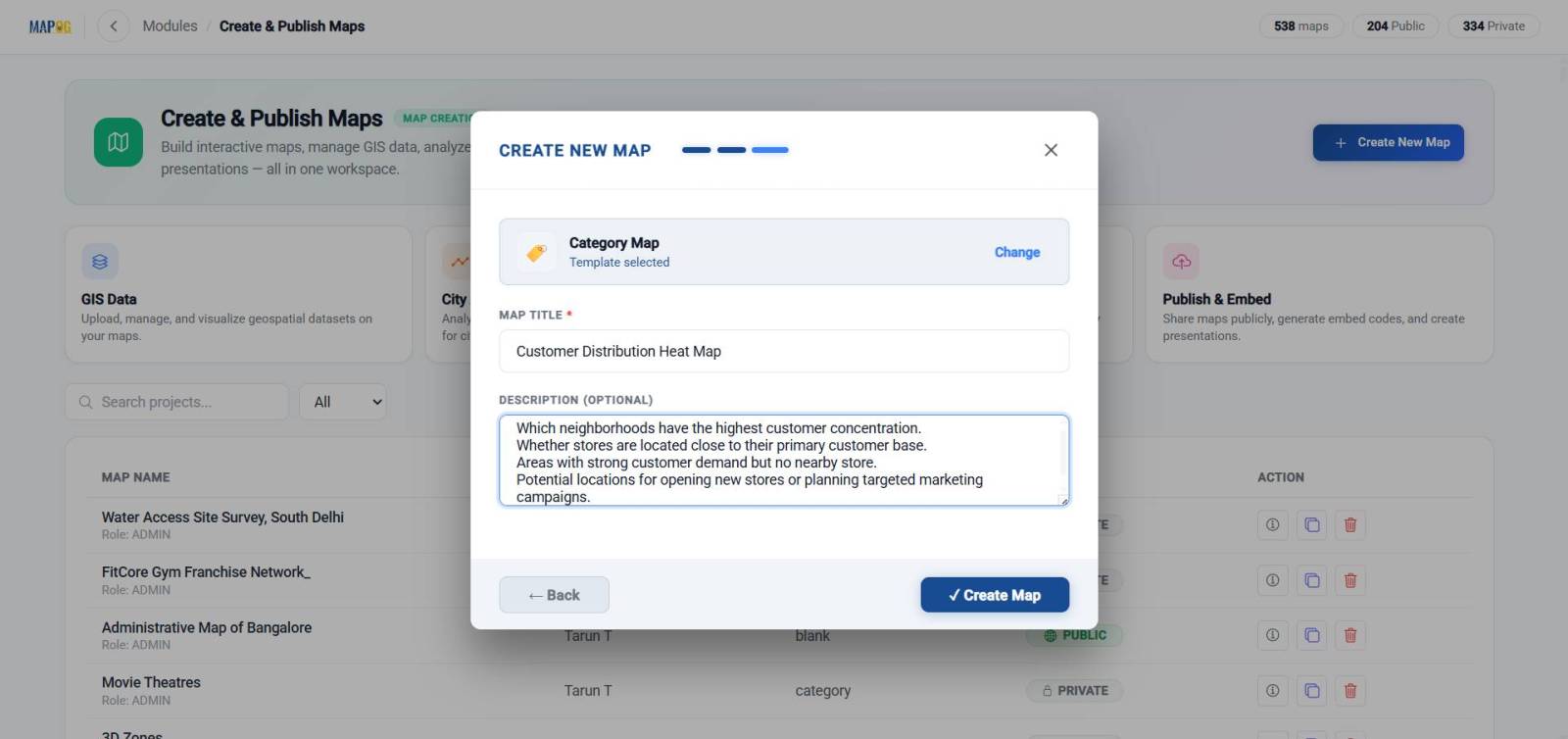
First, open MAPOG, click Create & Publish Maps, and then select Open Workspace.
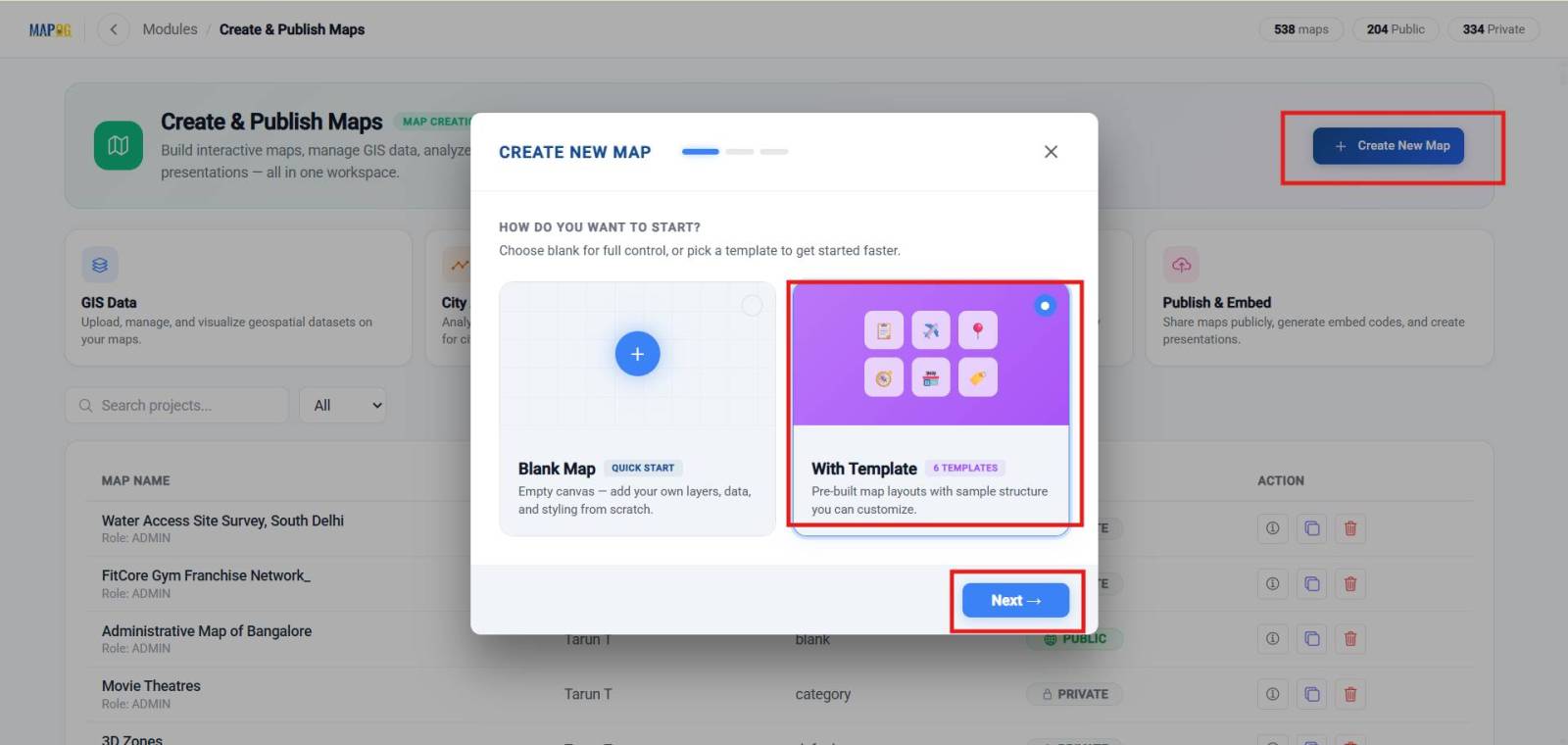
Next, create a new map using the With Template option.
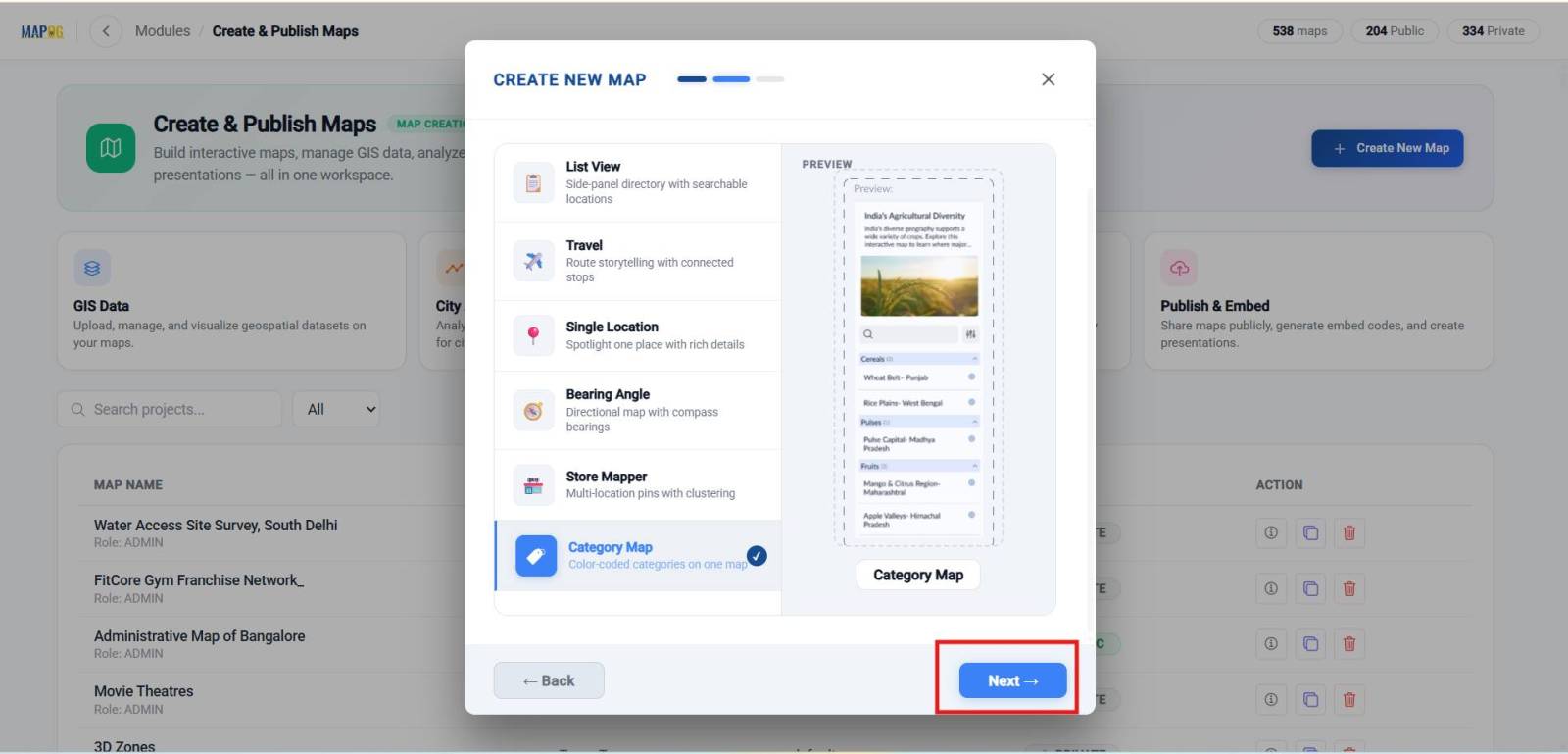
Choose the Category Map template.
After that, enter a suitable map title and description before creating the project. This provides a structured foundation for your Customer Heat Map.
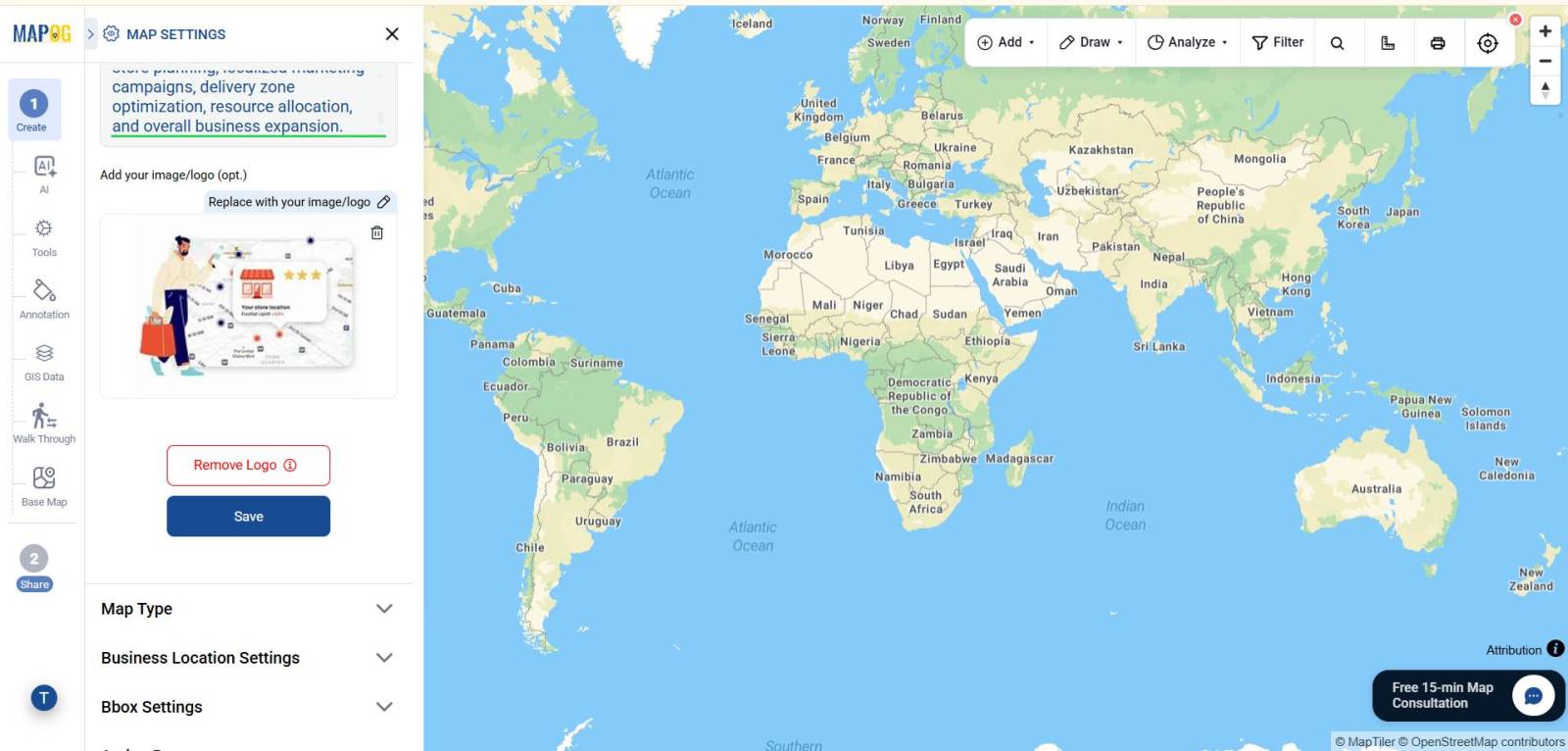
You can add a specific logo to your map by clicking on map settings and then upload image.
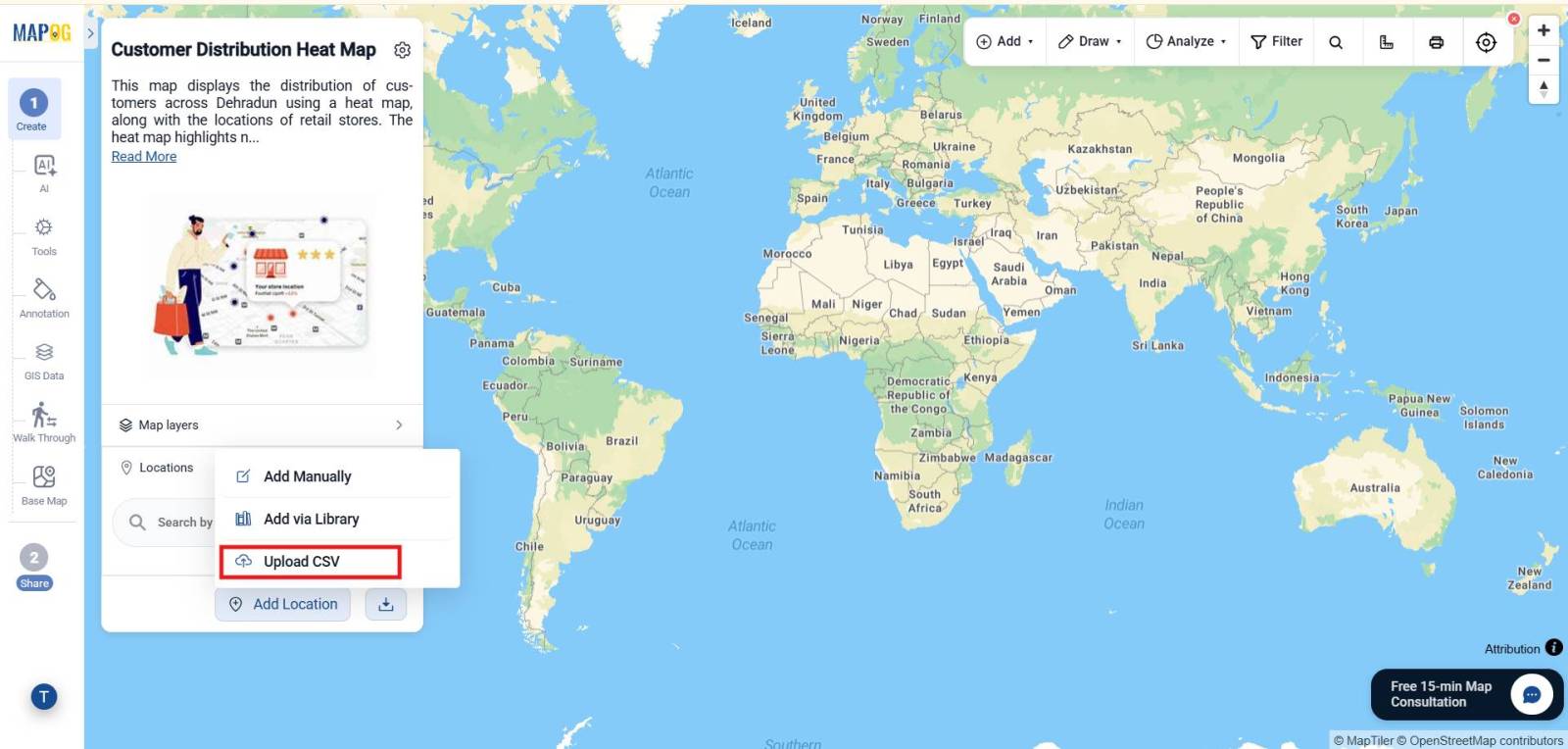
Step 2: Create a Store Location Template
Once the workspace opens. Now go to Add Location and choose Upload CSV.
Select the Business Custom Location Template settings option
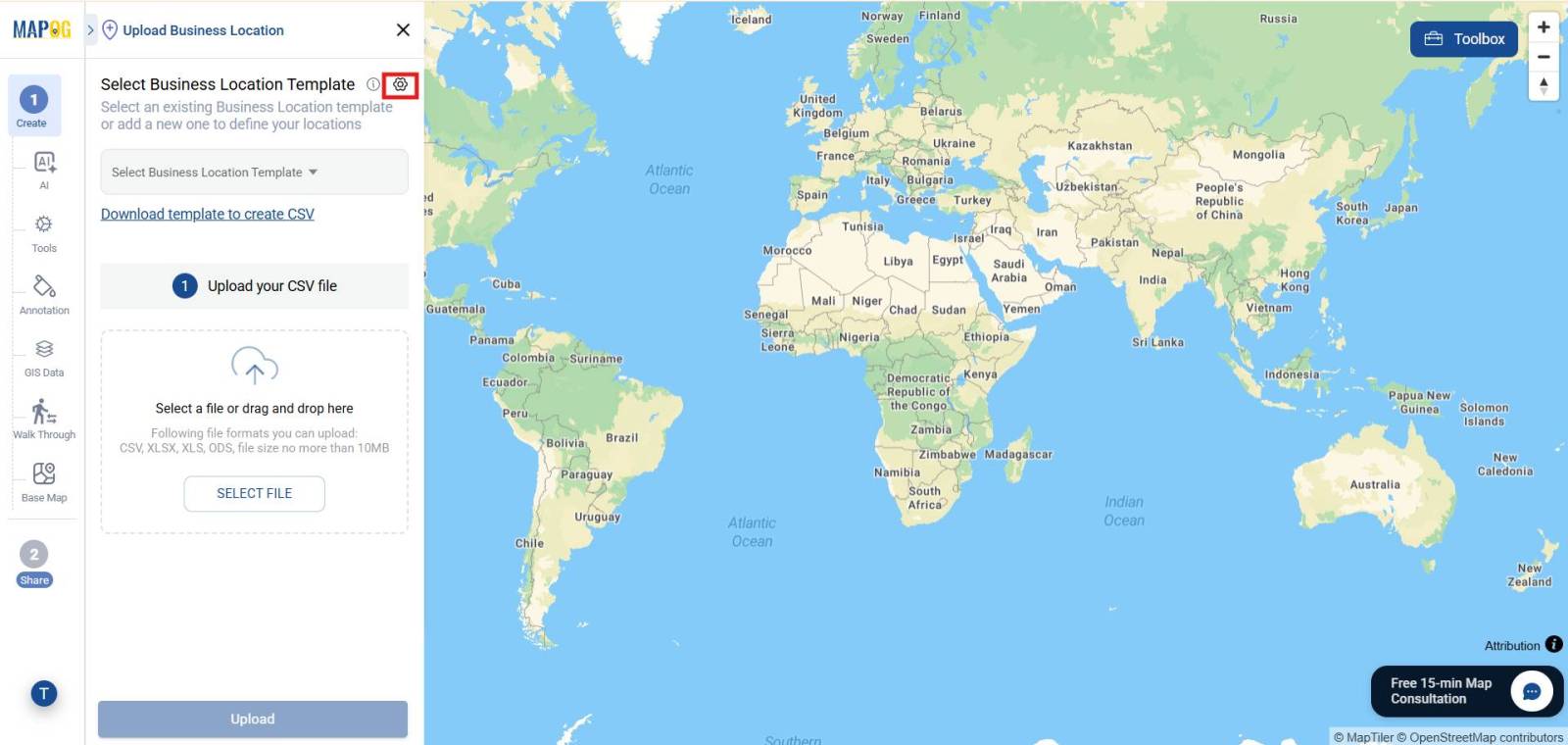
By clicking the new type, create a reusable template. Enter a template name such as Store Locations, choose a suitable color, and select Point Geometry.
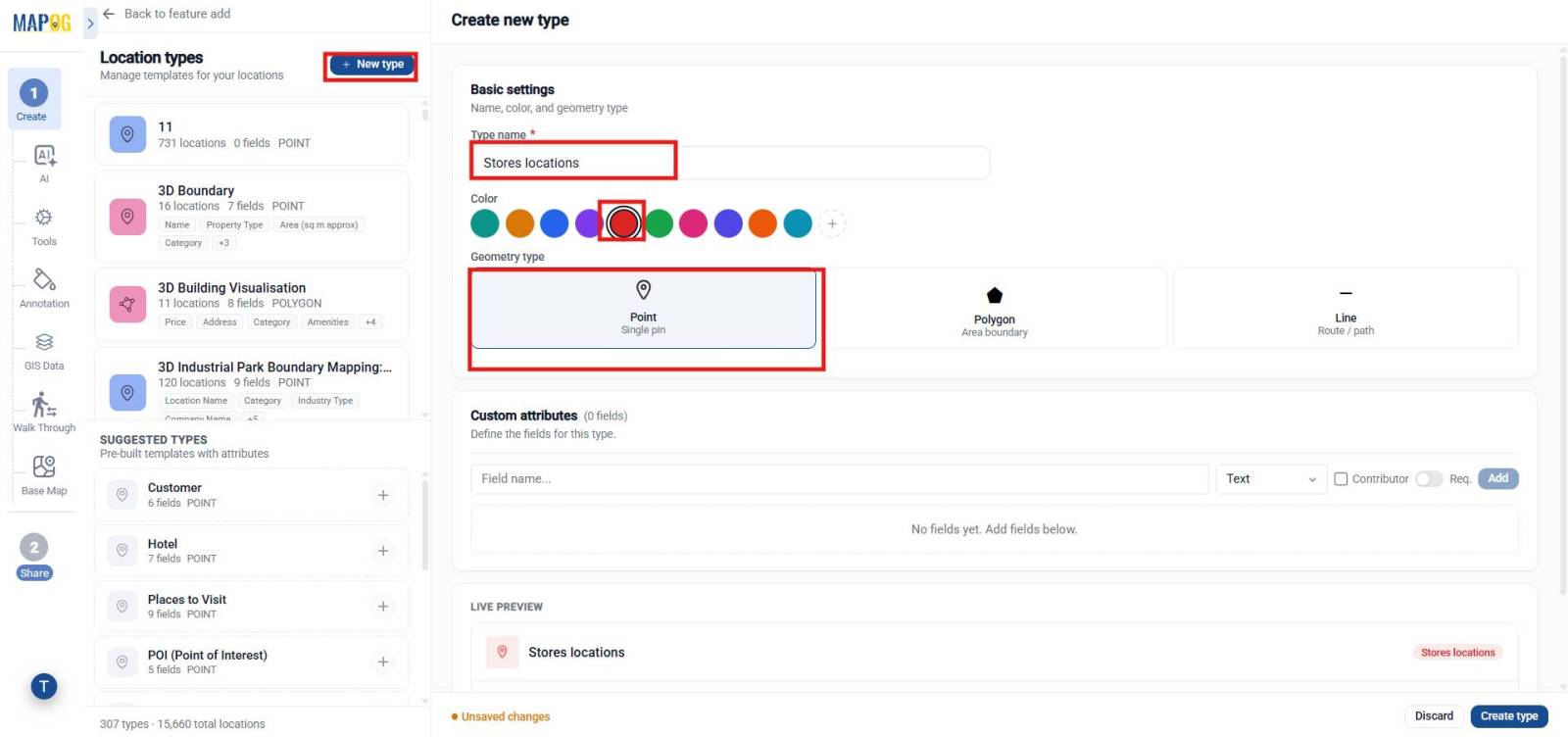
Then add fields such as Store ID, Store Name, Store Type, Address, Monthly Sales, Store Status, Customer Rating, and other required details using appropriate field types like select, text, address etc. If contributors are enabled, staff can update information whenever required. When done click create type to save it.
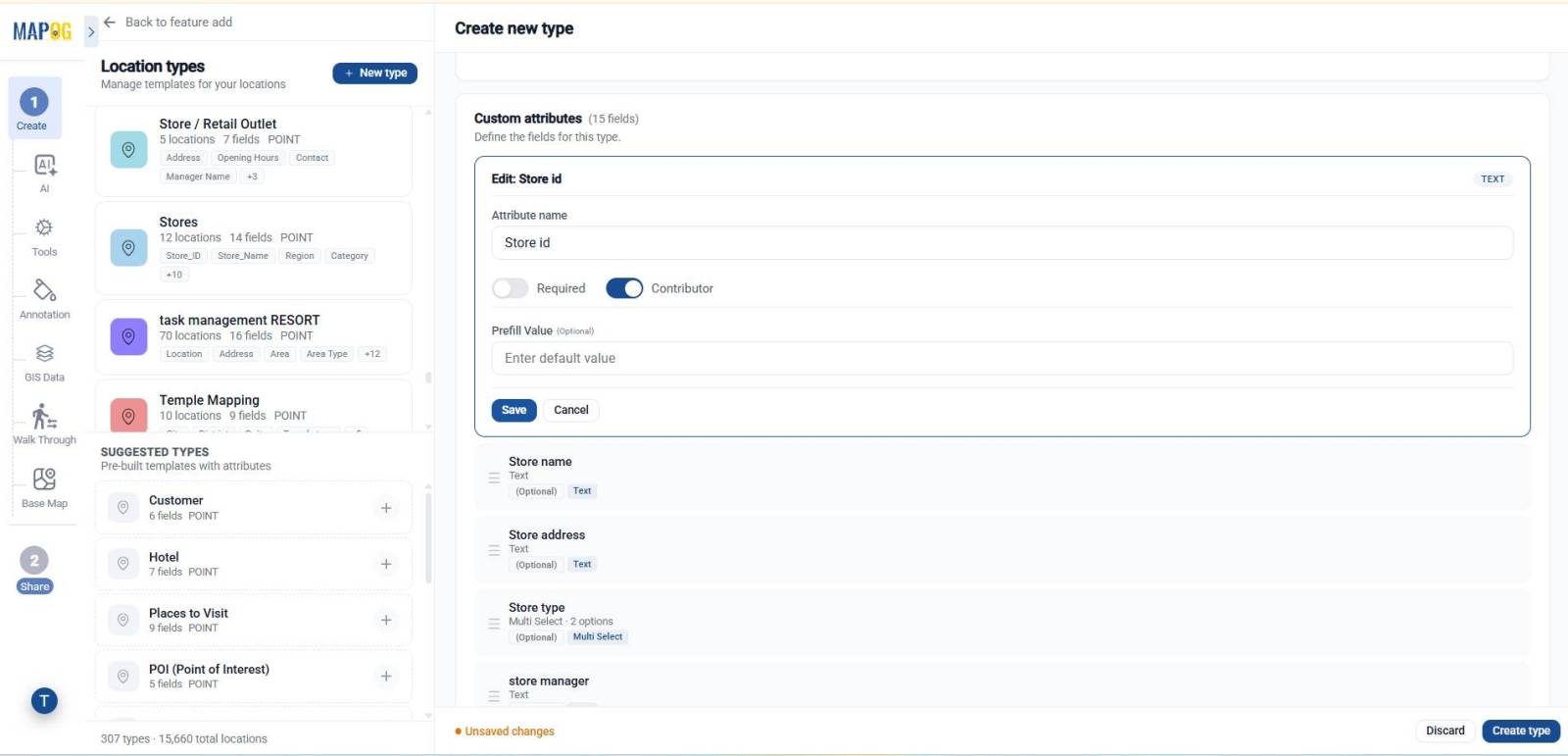
Step 3: Create a Customer Location Template
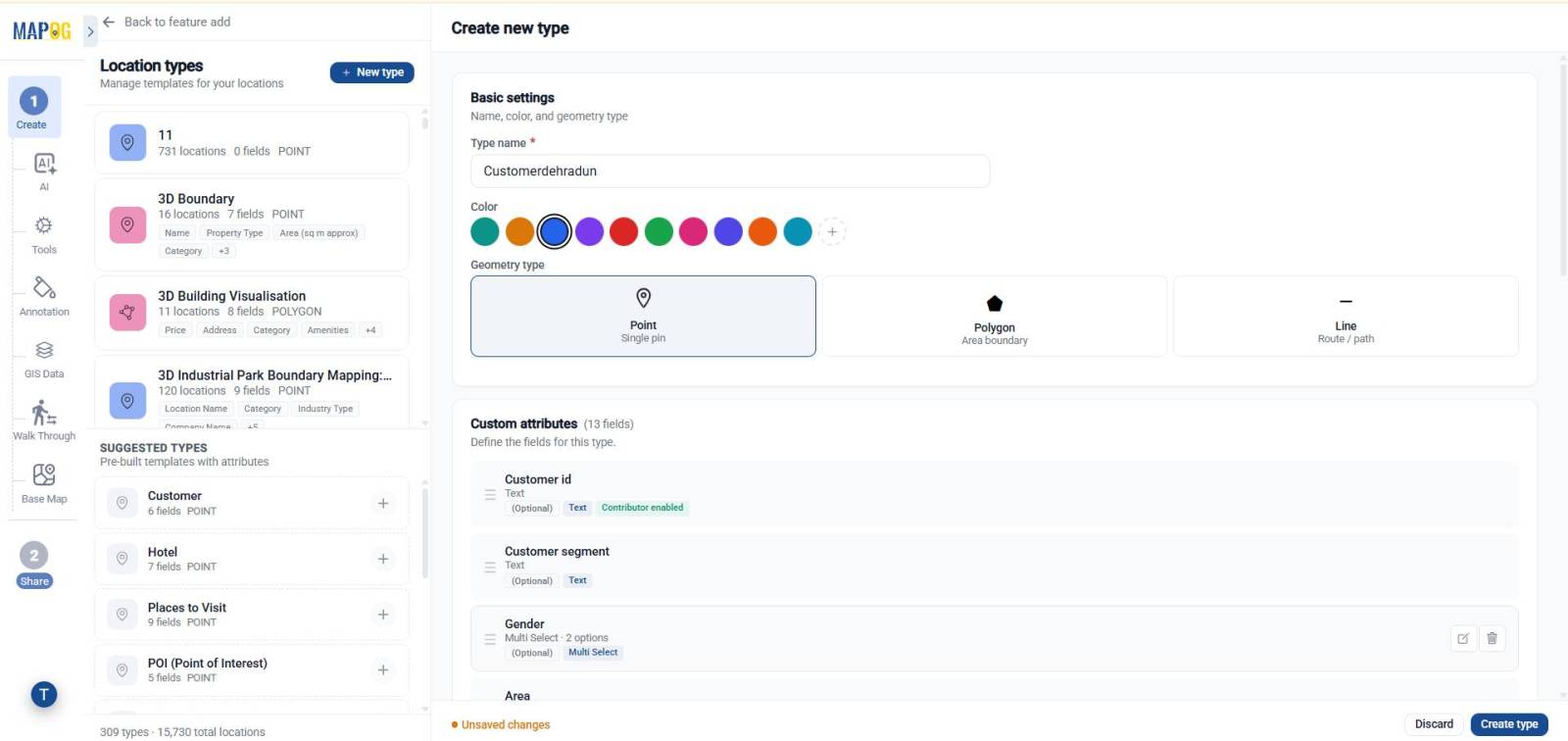
Similarly like store location make a new template for customer data , click new type again to create another template named Customer Locations.
Choose Point Geometry, assign a different color, and add fields such as Customer ID, Customer Name, Customer Segment, Gender, Age Group, City, Area, Customer Status, and other relevant details. Using different attributes types. After adding all the required fields, click Create Type to save the customer template.
Step 4: Upload the Store Location Data
Now come to the Upload CSV section. Select the Store Locations custom template that you created earlier. Next, upload the prepared Store Locations CSV file.
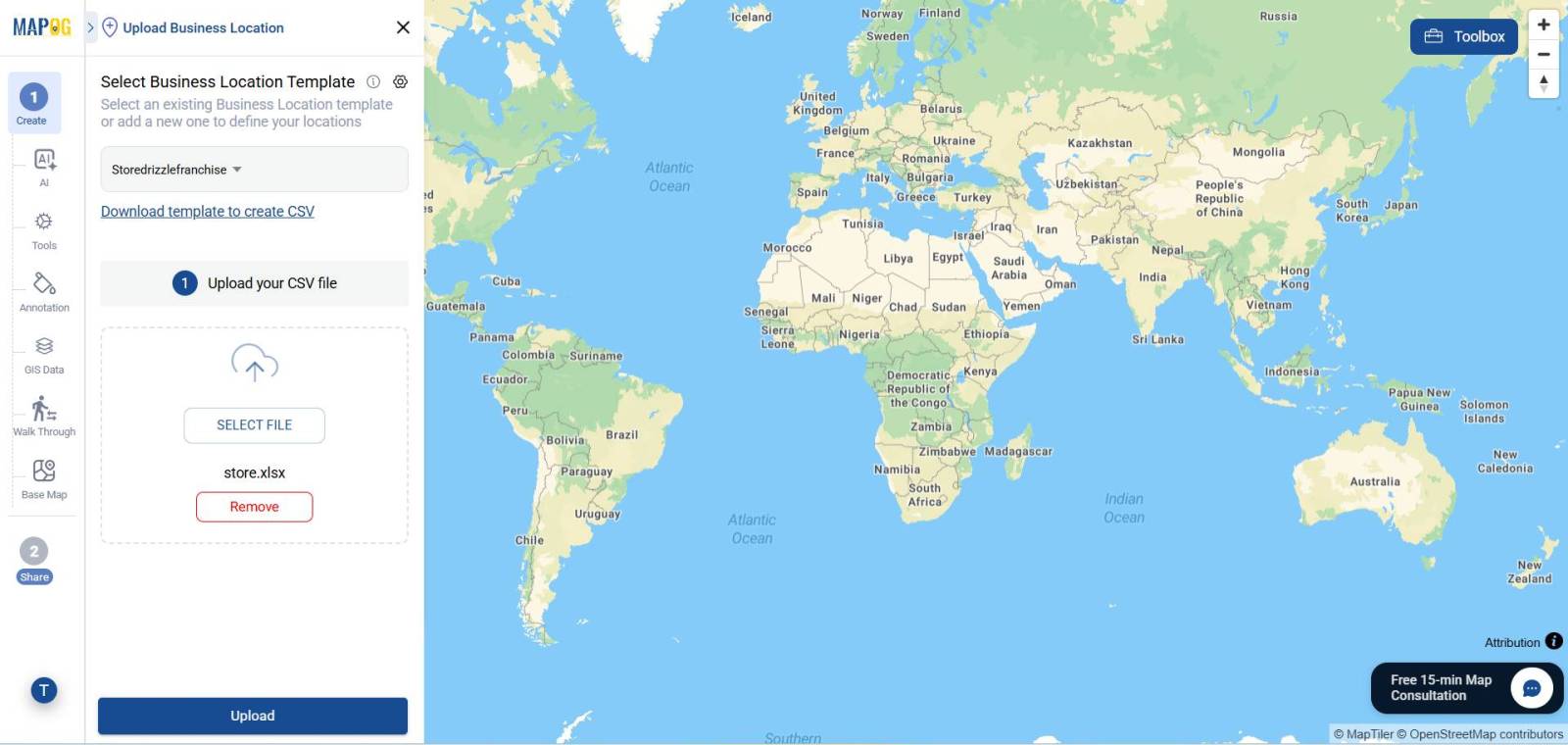
Assign a Unique ID to avoid duplicate records.
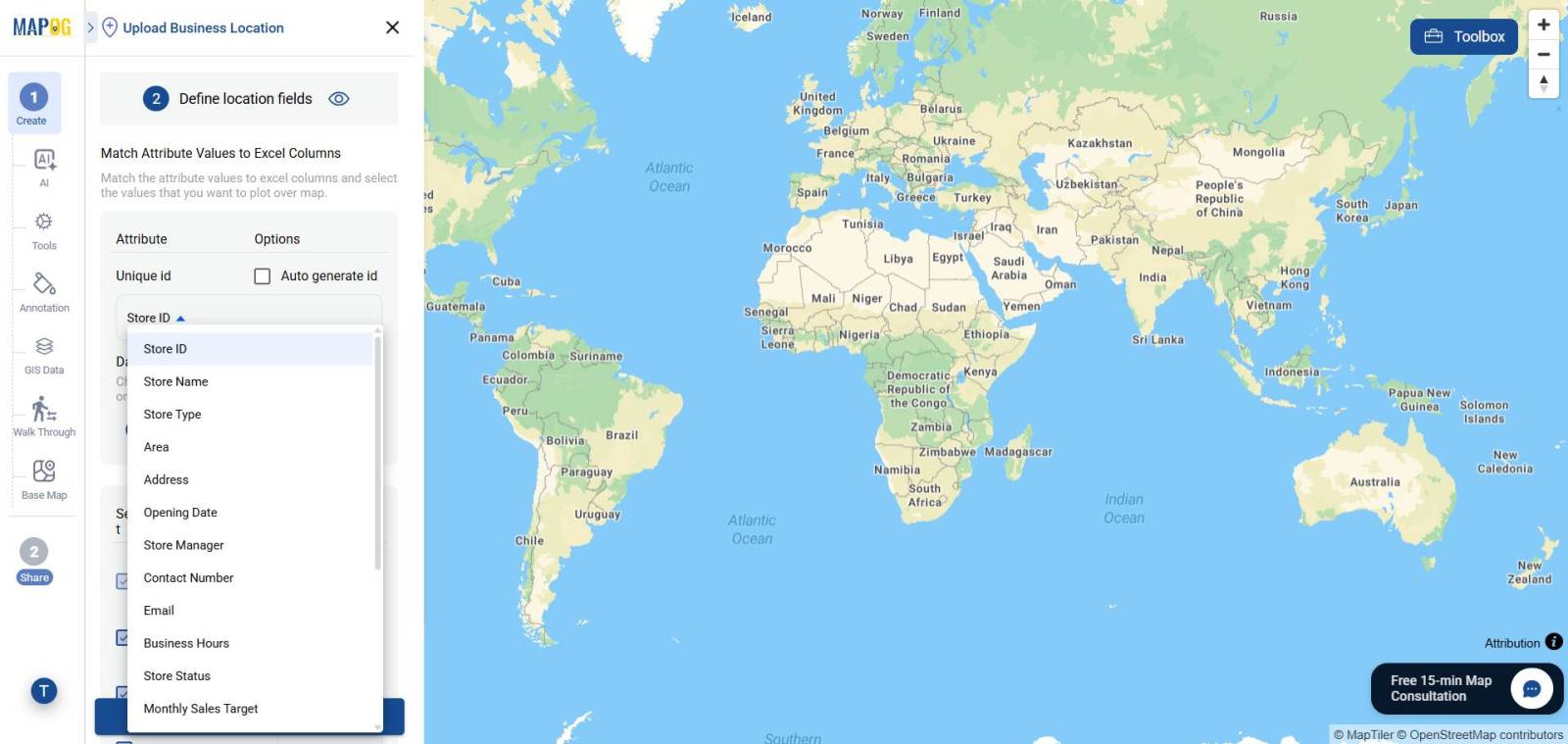
Then match each CSV column with the corresponding attribute and map the Latitude and Longitude fields correctly.
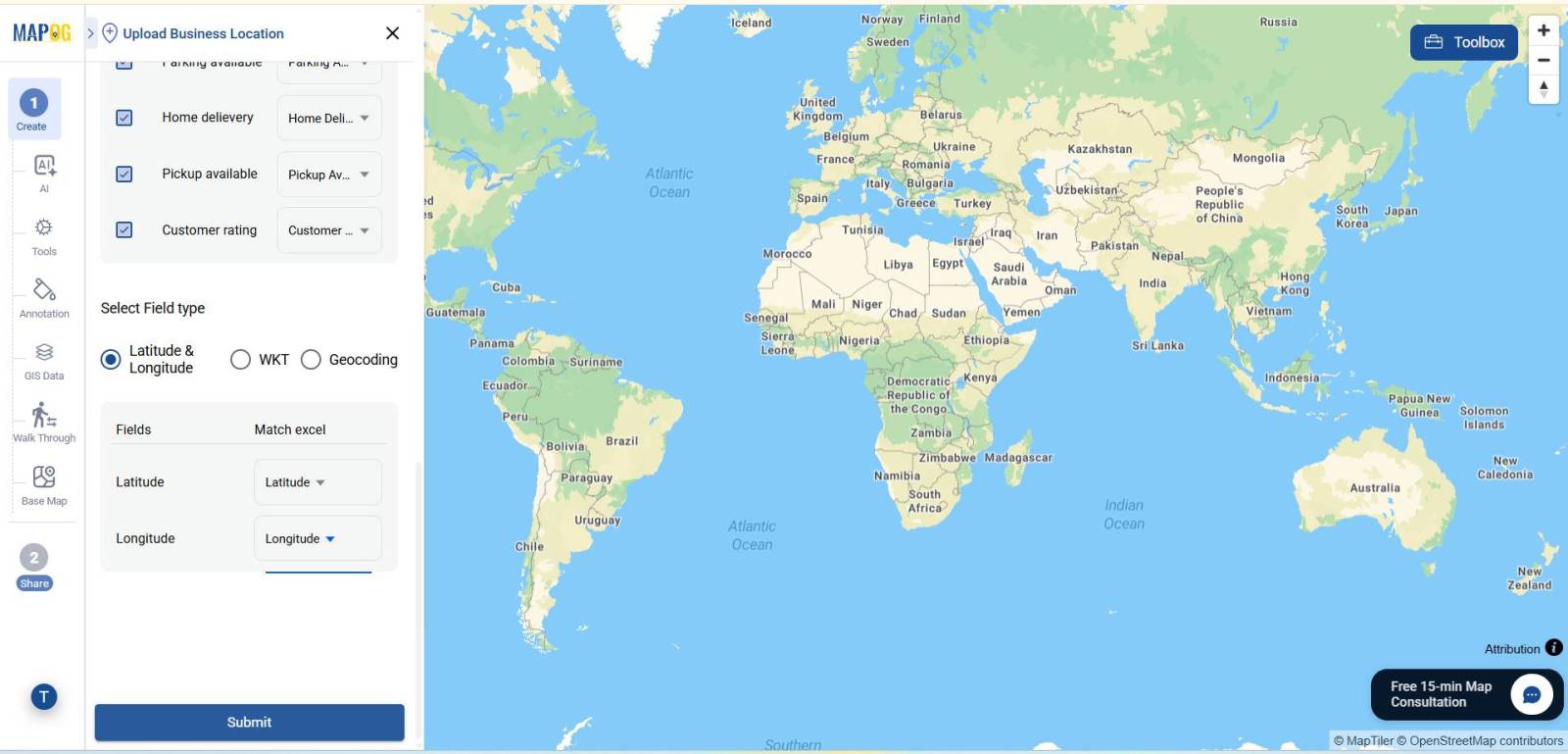
Finally, submit the data. As a result, all store locations will appear on the map as point markers.
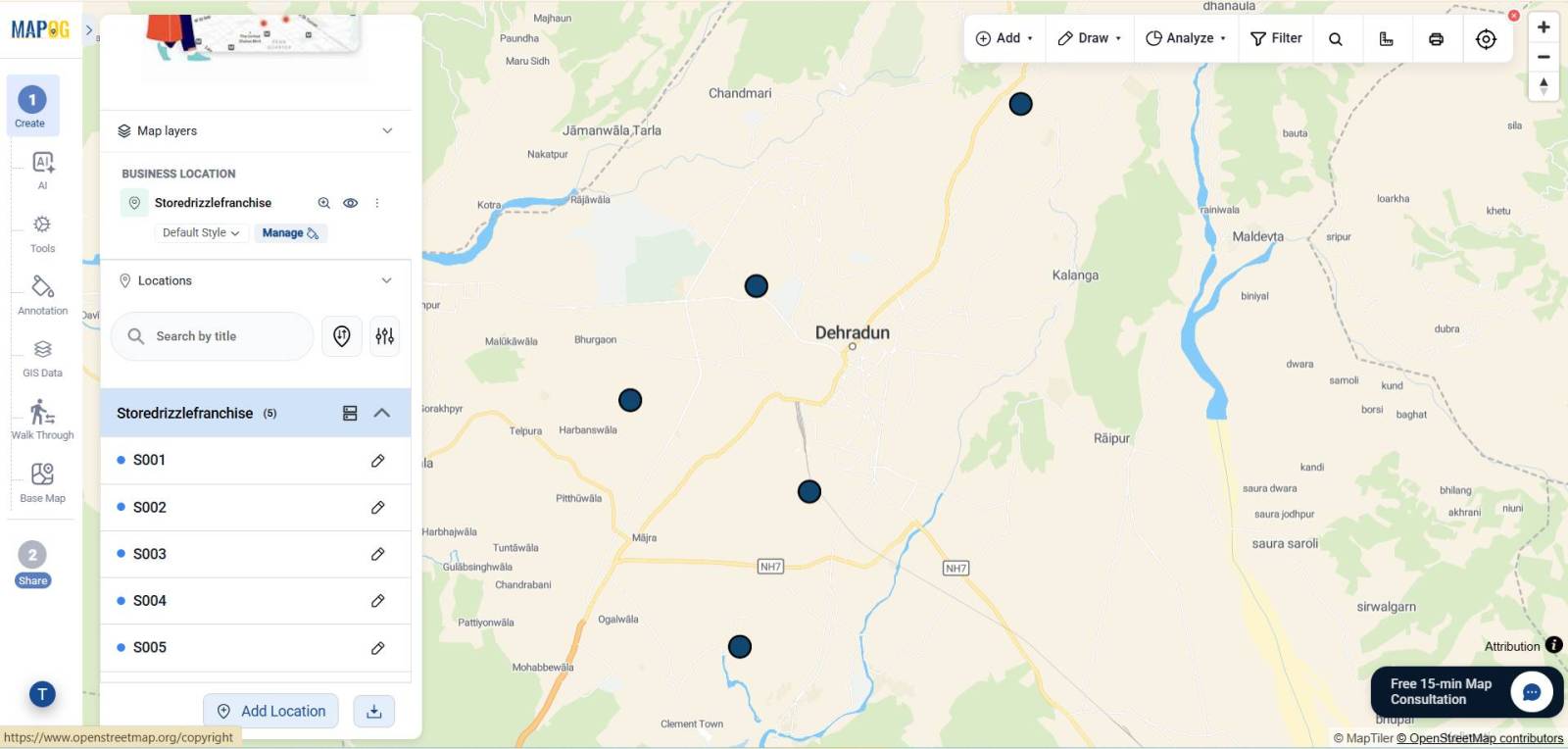
Step 6: Style the Store Layer
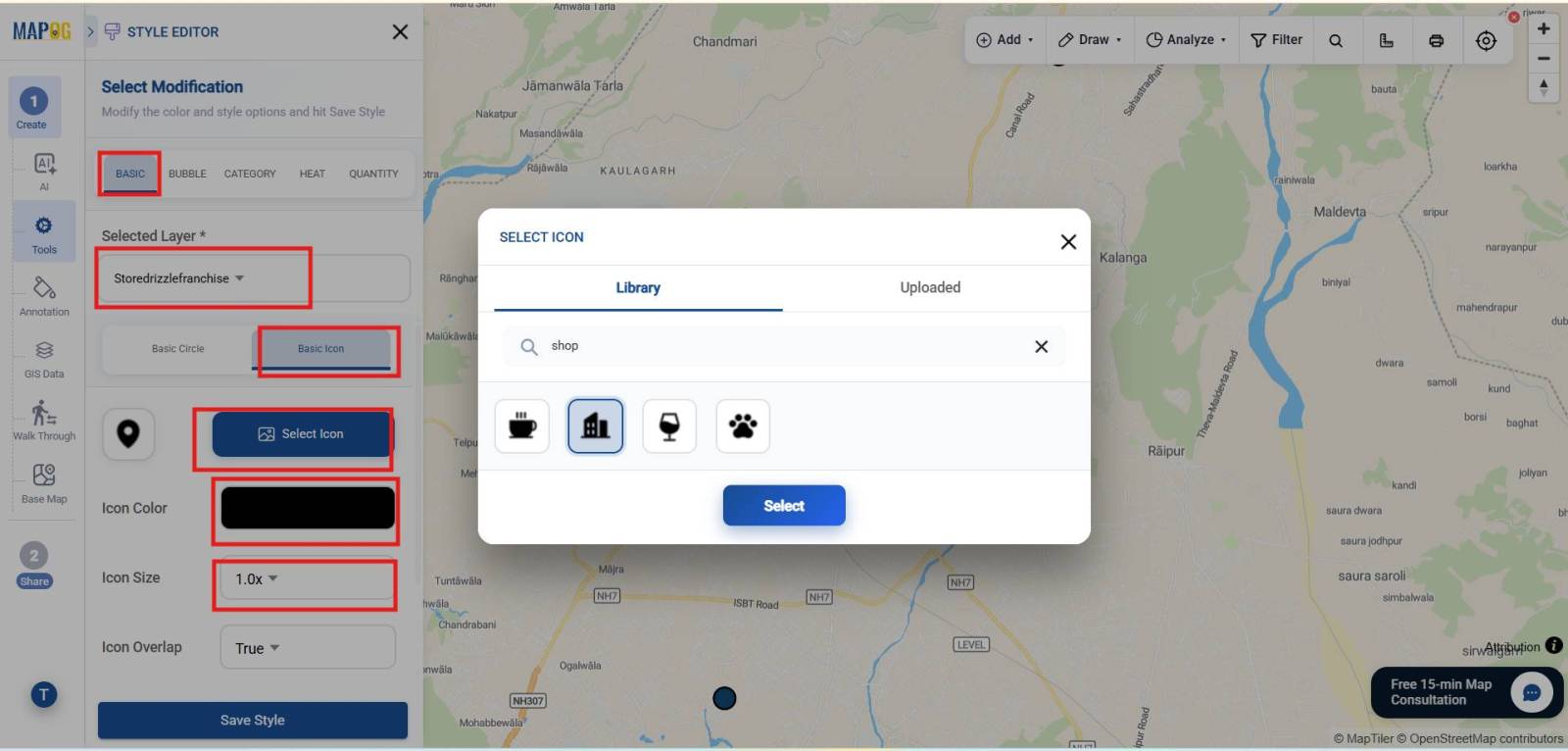
Next, open the Store Locations layer and click Add layer Style.
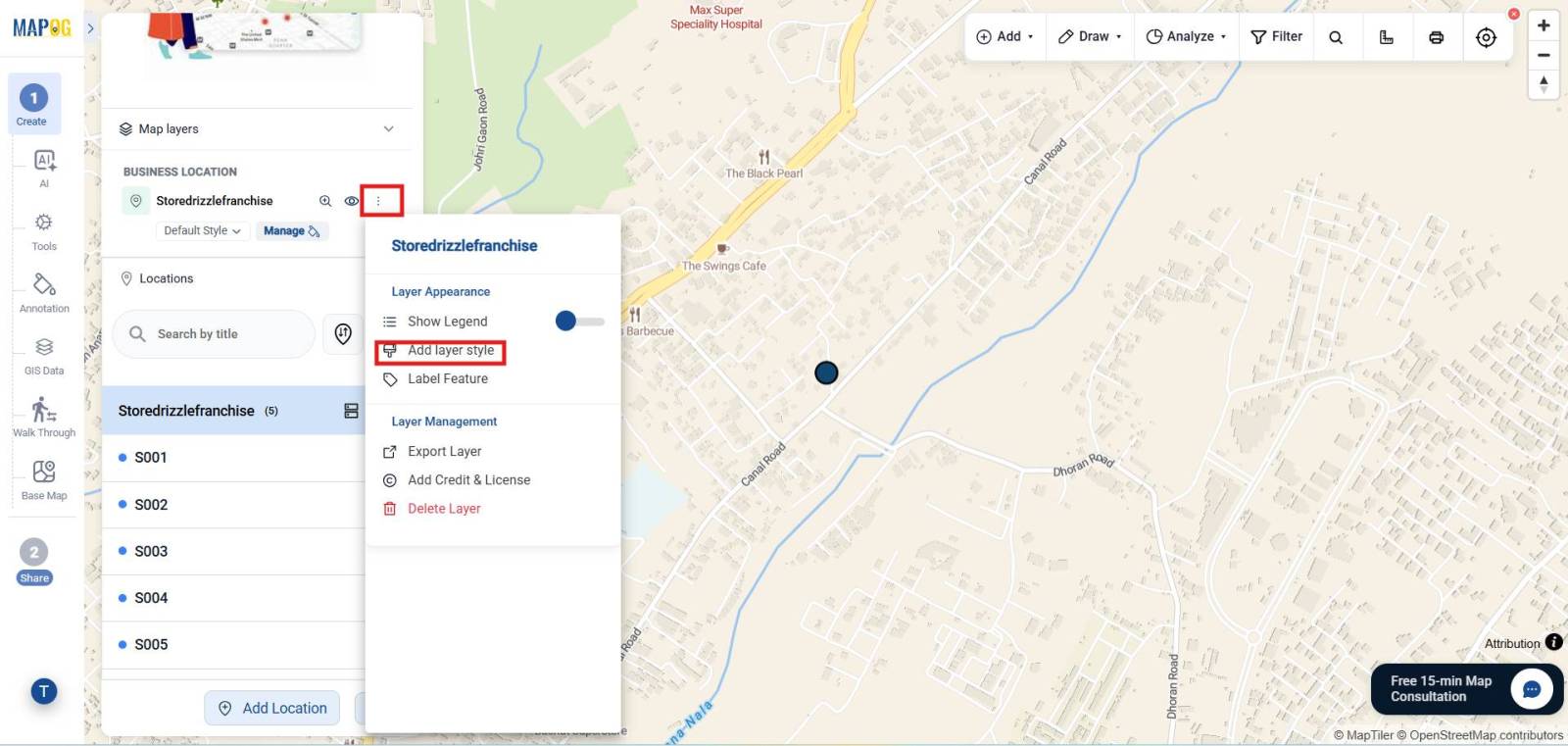
Choose Basic Style, then select a suitable icon for representing your stores. You can further customize the marker size, color, and appearance to make store locations easy to identify on the map.
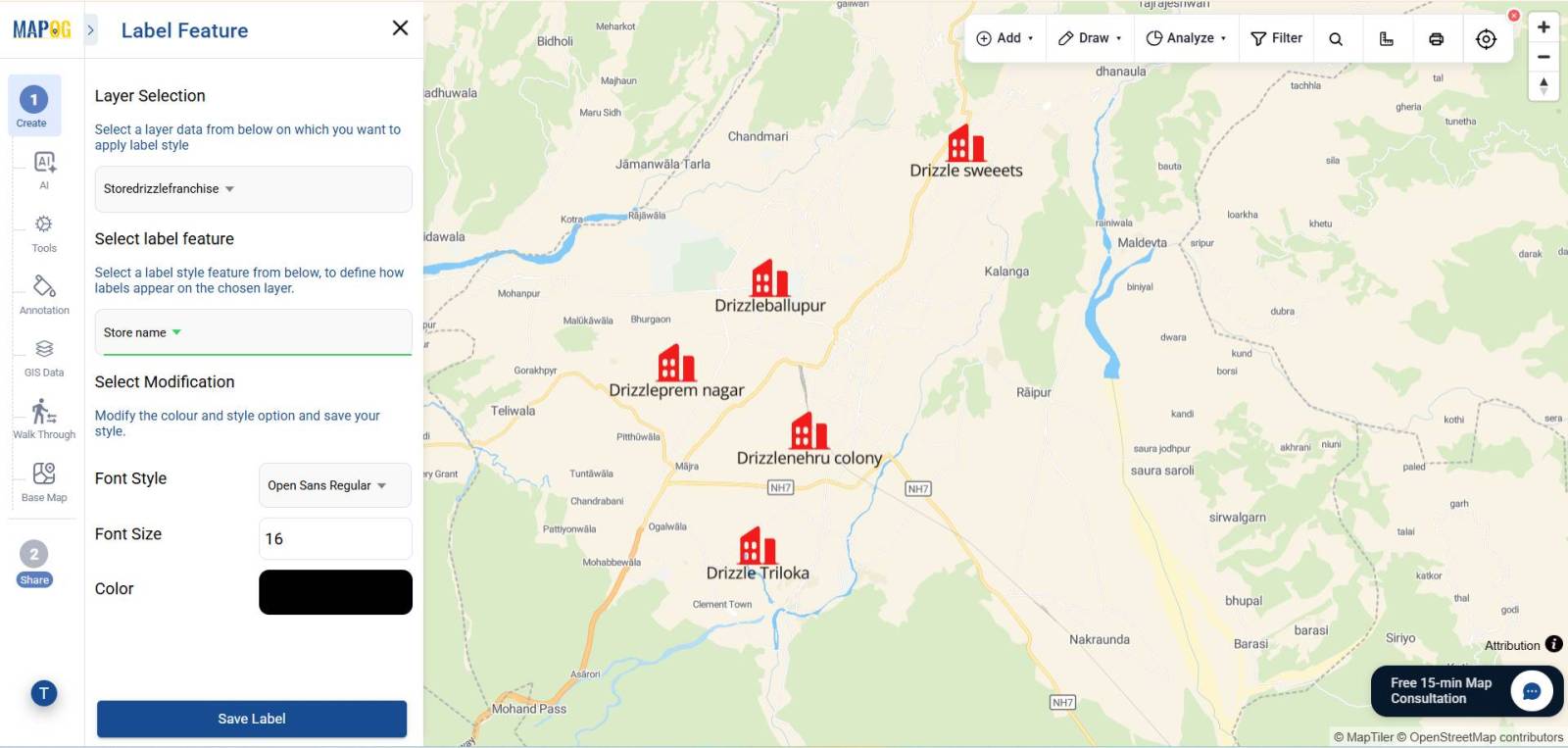
You can also add labels to your customer or store locations for better map readability. Simply select Add Labels, and choose the attribute (such as Customer Name/Store Name) & set font type, size & color.
Step 6: Upload the Customer Location Data
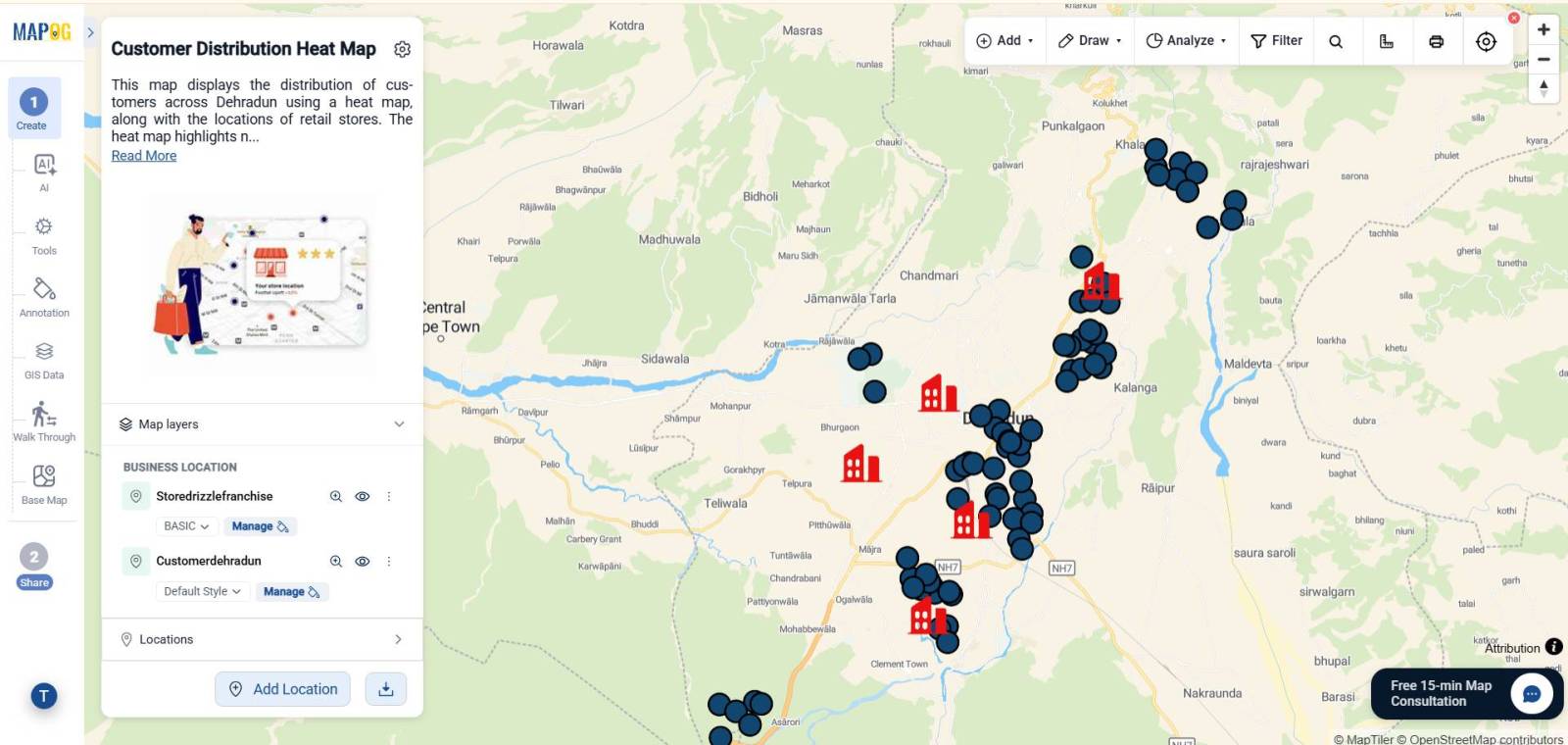
By using the same method you can upload customer data also. Once the upload is complete, all customer locations will be displayed as points on the map.
Step 7: Create the Customer Heat Map
Now open the Customer Locations layer and click Add layer Style.
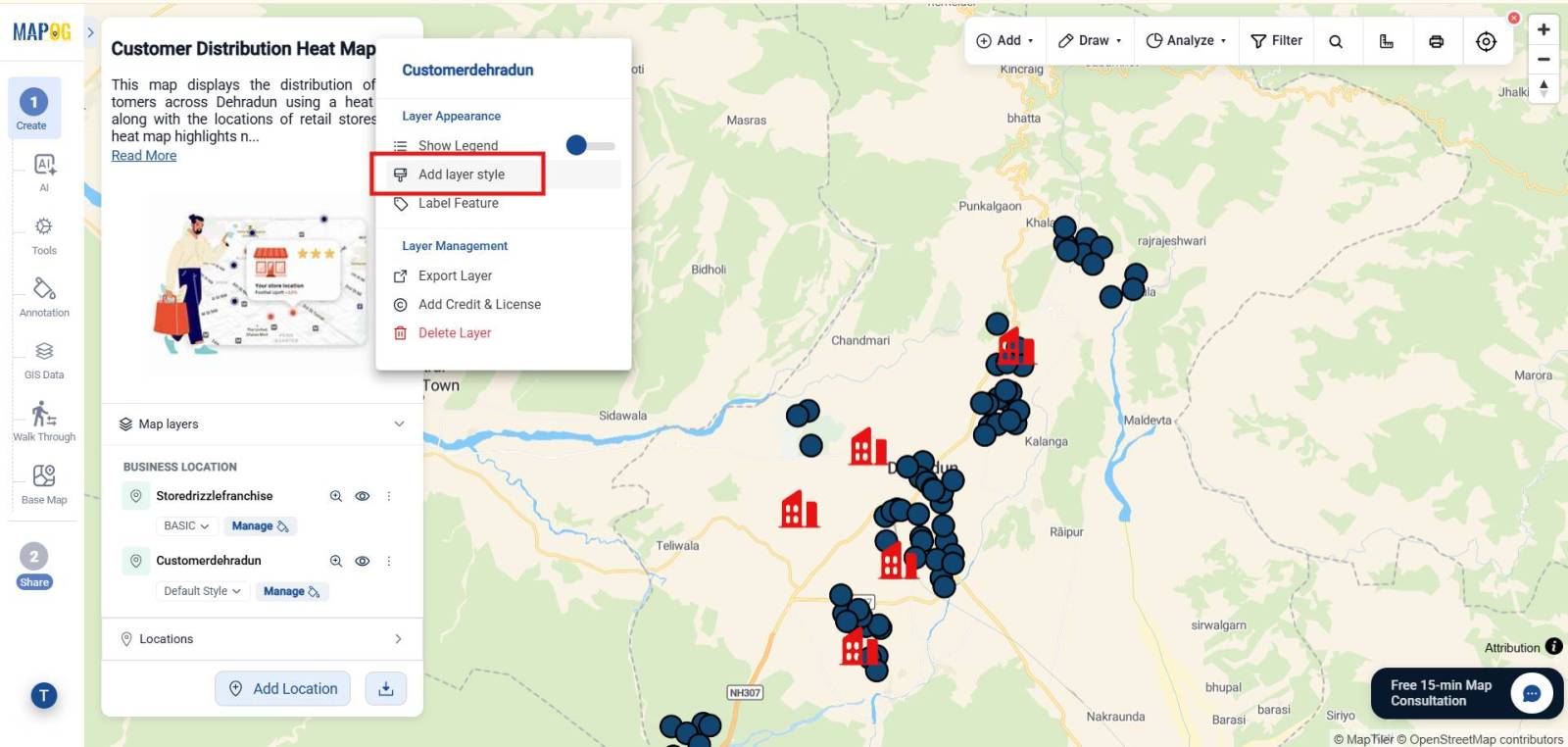
Now go to heat map style and then select a numeric attribute such as Total Orders or Total Spending.
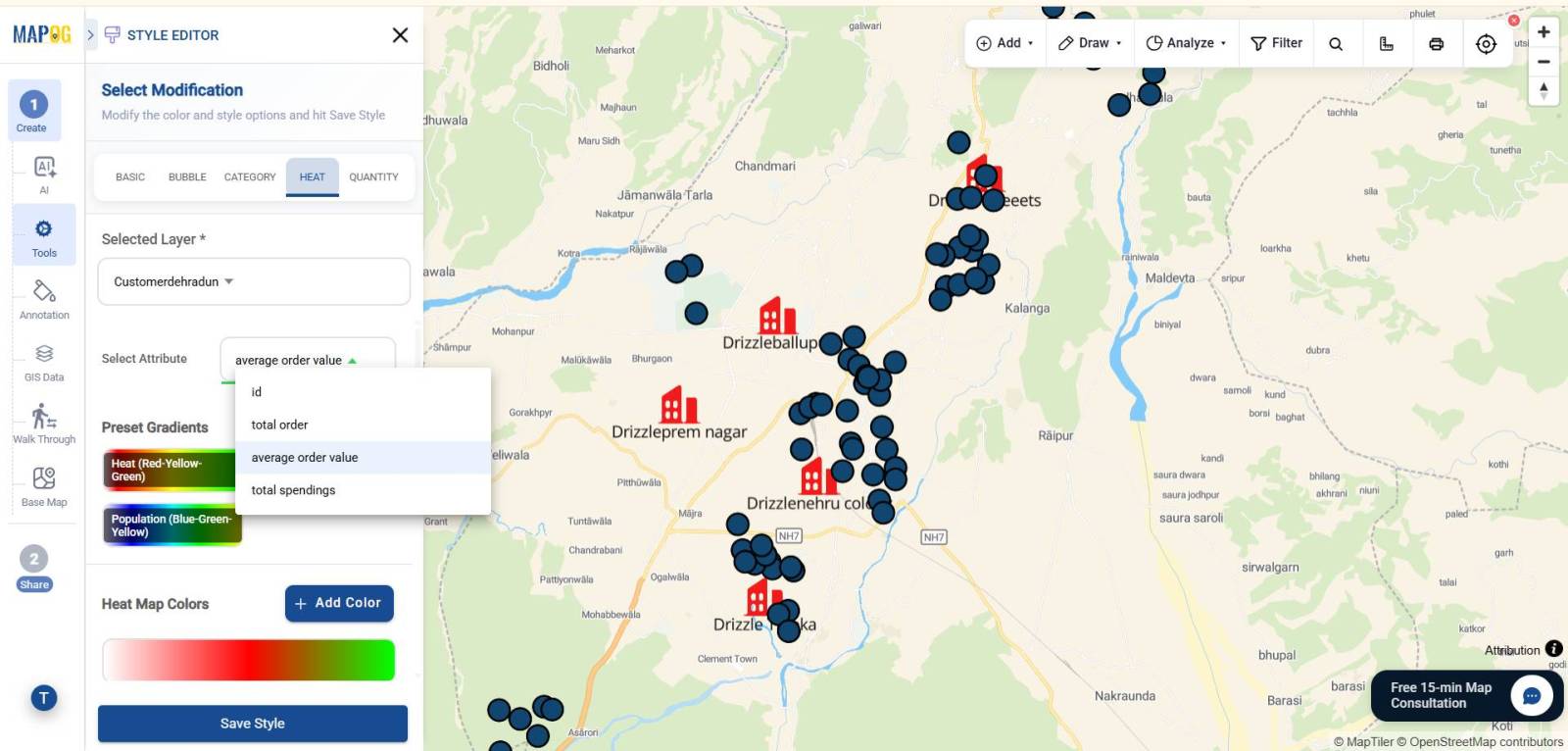
MAPOG automatically converts customer locations into a heat map, where areas with more customers appear in warmer colors (yellow, orange, and red), while areas with fewer customers appear in cooler colors (blue and green). This makes it easy to identify customer hotspots without viewing individual points.
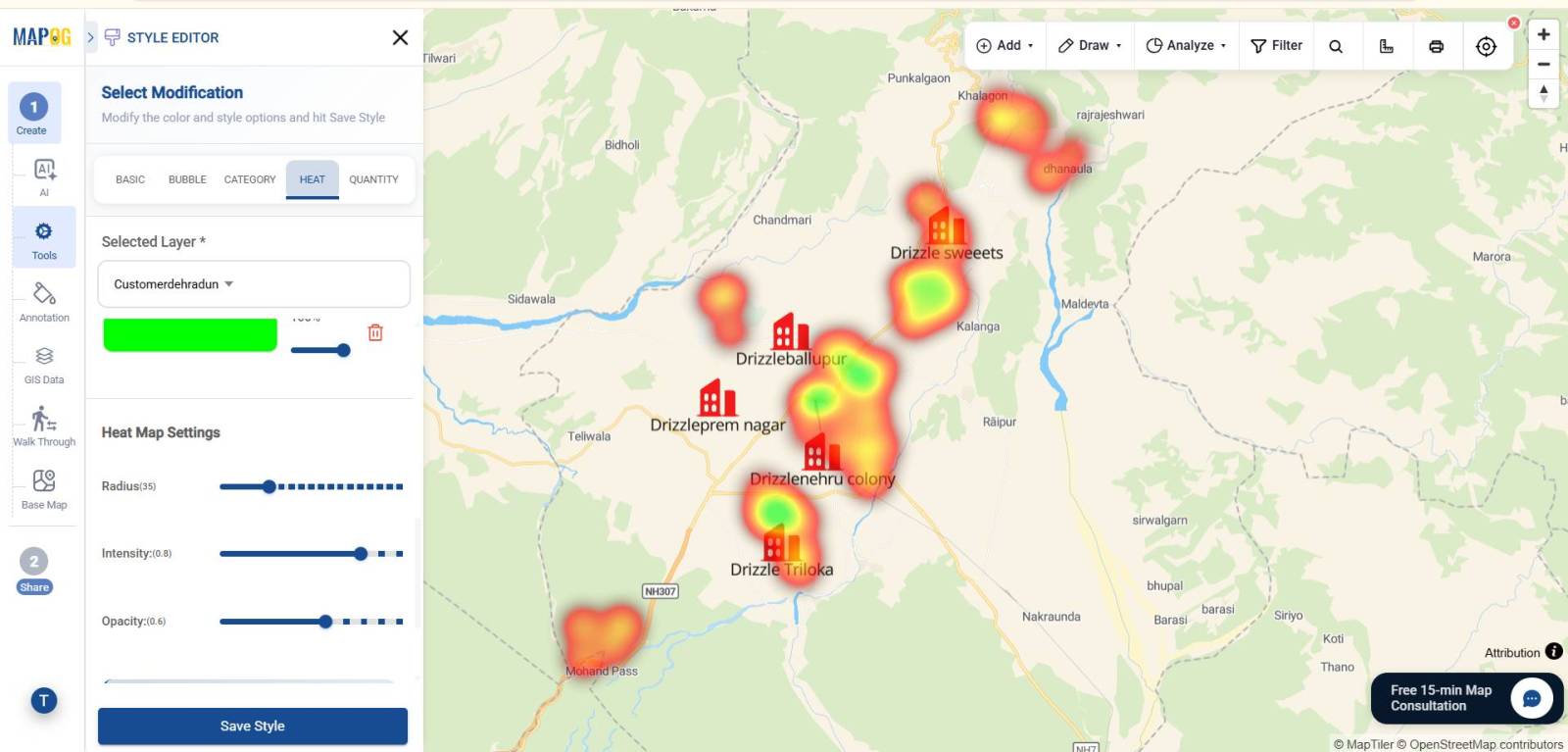
You can customize the heat map using the following settings:
Opacity: Control the transparency of the heat map so you can clearly view both the density layer and the underlying map.
Color Range: Choose how customer density is displayed, from cool colors for low-density areas to warm colors for high-density hotspots.
Radius: Adjust how far each customer location influences the surrounding area. A smaller radius shows precise clusters, while a larger radius creates broader heat zones.
Intensity: Increase or decrease the strength of the heat map colors to make hotspots more or less prominent.
Step 8: Share and publish
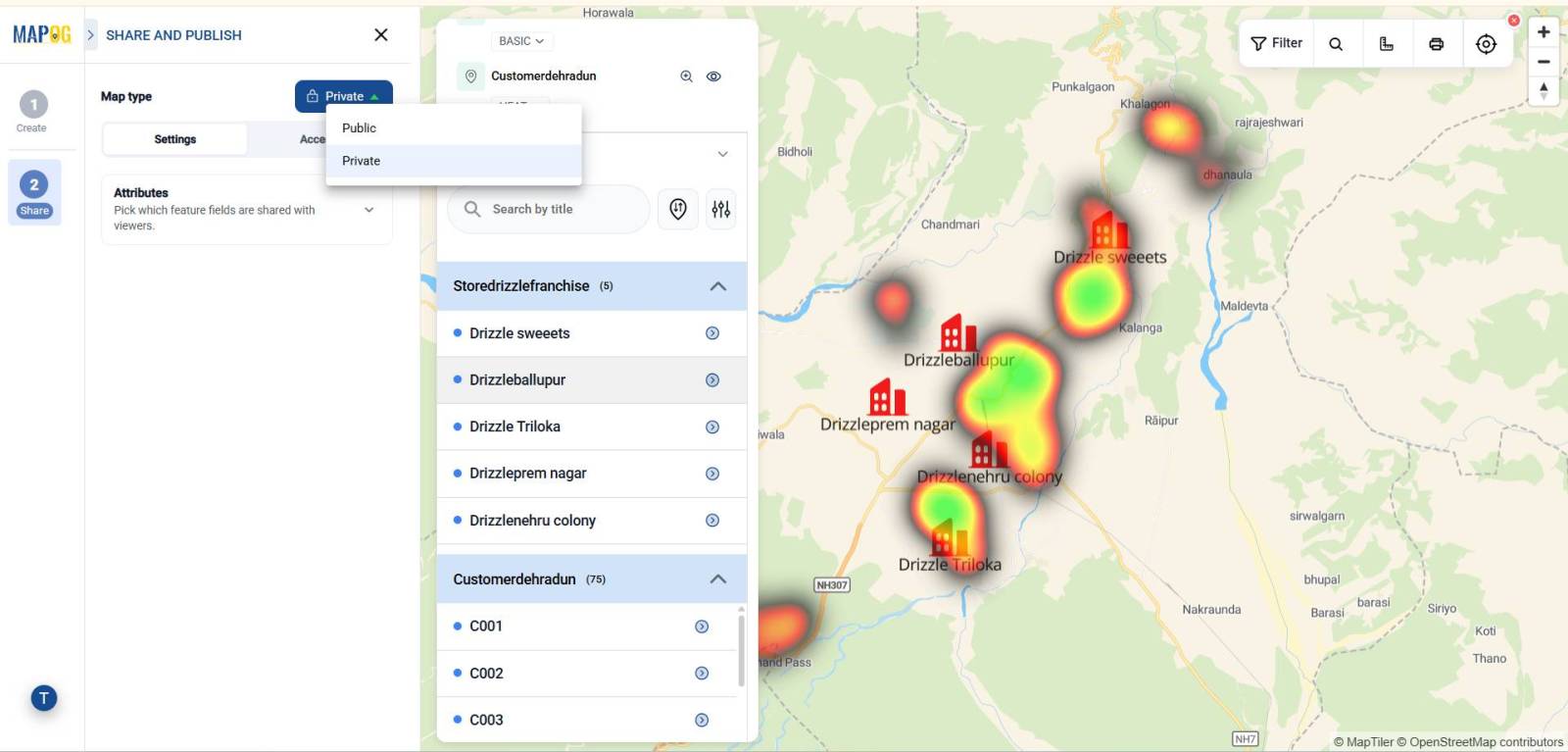
Finally, open Preview & Share to make the map public or private.
- Public Map: Anyone with the map link can view the heat map, making it ideal for sharing with customers, partners, or on your website.
- Private Map: Restrict access to specific users or team members, ensuring your customer location data remains secure and accessible only to authorized people.
Once you’ve selected the appropriate sharing option, save your settings and share the map as needed.
Industries That Can Benefit from Customer Heat Maps
Customer heat maps are useful across a wide range of industries. For example:
- Retail chains can view neighborhoods with the highest customer demand.
- Restaurants and food delivery businesses can optimize delivery zones.
- Franchise businesses can evaluate market coverage before opening new outlets..
Conclusion
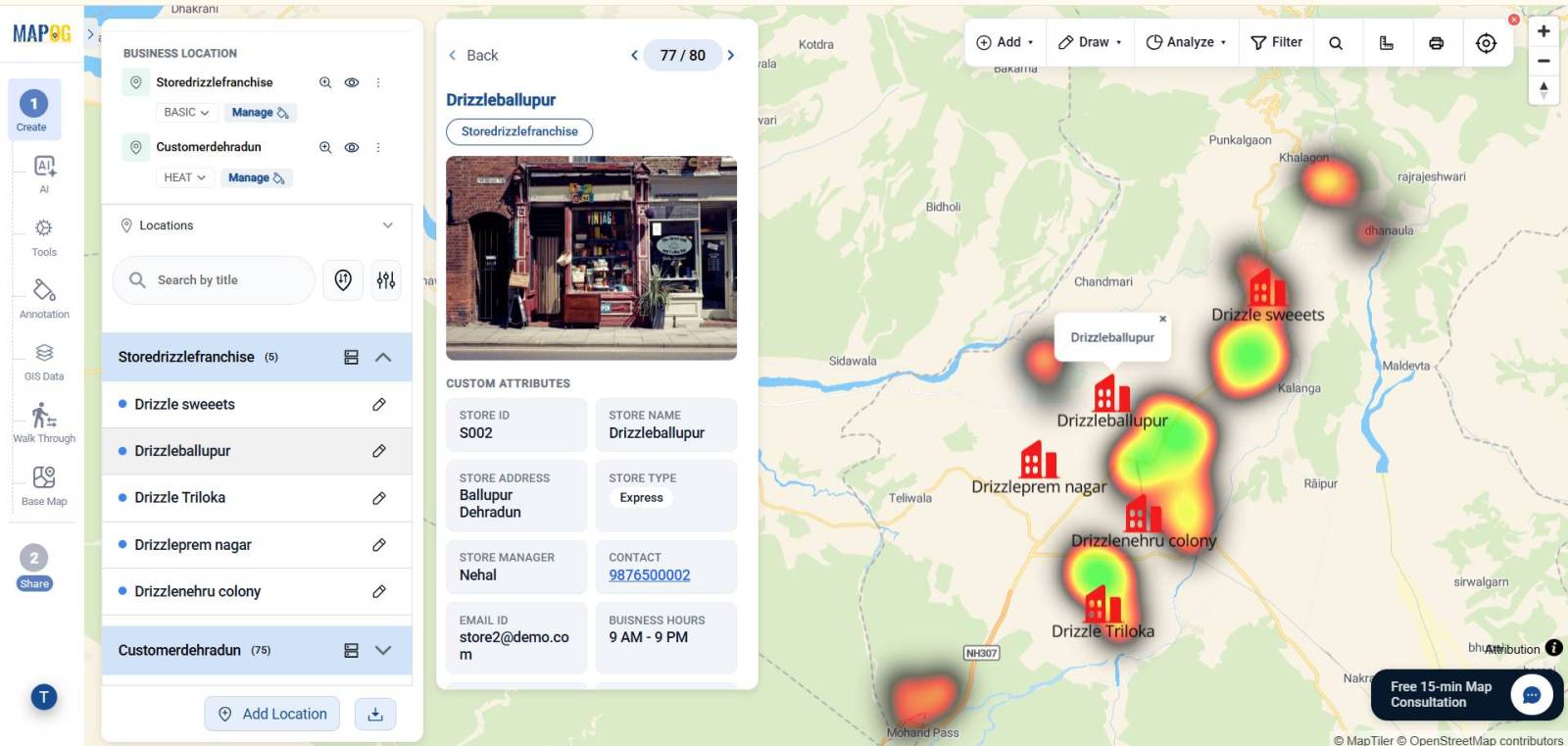
A customer heat map is one of the most effective ways to visualize where your customers are located. Rather than analyzing hundreds or thousands of individual records, you can instantly identify demand hotspots and compare them with existing store locations. Furthermore, this approach helps businesses improve market analysis, optimize operations, and make better expansion decisions.
With MAPOG, creating a customer heat map is straightforward. By creating separate templates for stores and customers, importing CSV data, styling store locations with icons, and displaying customer locations as a heat map, you can build an interactive visualization that provides valuable location intelligence for your organization.