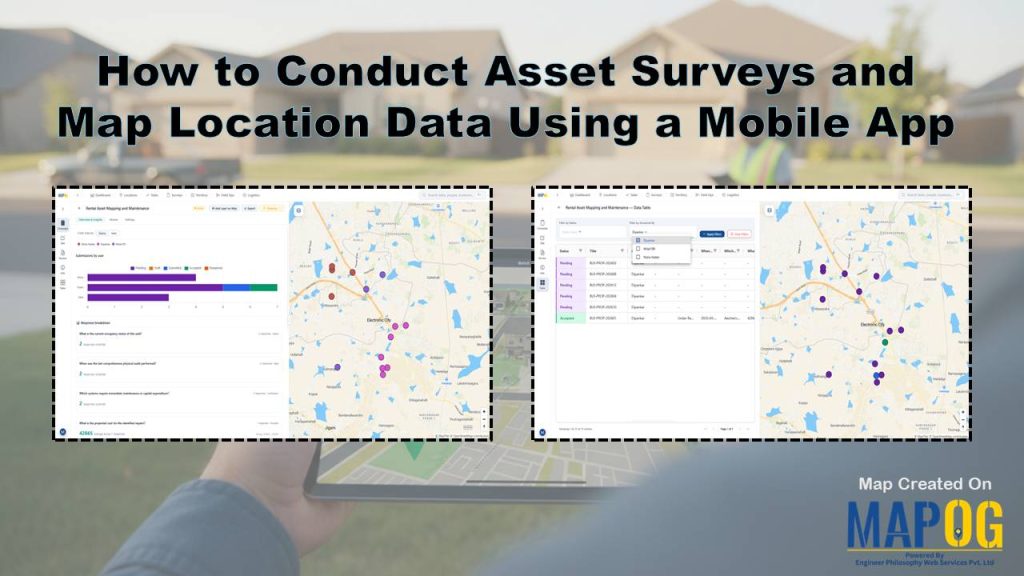
Property managers increasingly use mobile apps to conduct asset surveys and location mapping. These apps improve inspection speed and accuracy. MAPOG Surveys & Data Collection Forms helps field teams capture geo-tagged property condition and maintenance data. It replaces fragmented workflows with a centralized, map-driven system accessible from anywhere.
Key Concept: Asset Surveys and Map Location Data Using a Mobile App
Asset surveys and mobile data collection create a structured process for capturing field information in real time. Teams record asset condition, location, measurements, and observations to support rental property management. Each update connects directly to a mapped location, improves accuracy, reduces data gaps, and helps teams make faster, informed decisions.
Steps- by- Step Workflow: Conduct Asset Surveys and Map Location Data Using a Mobile App
1. Create your campaign
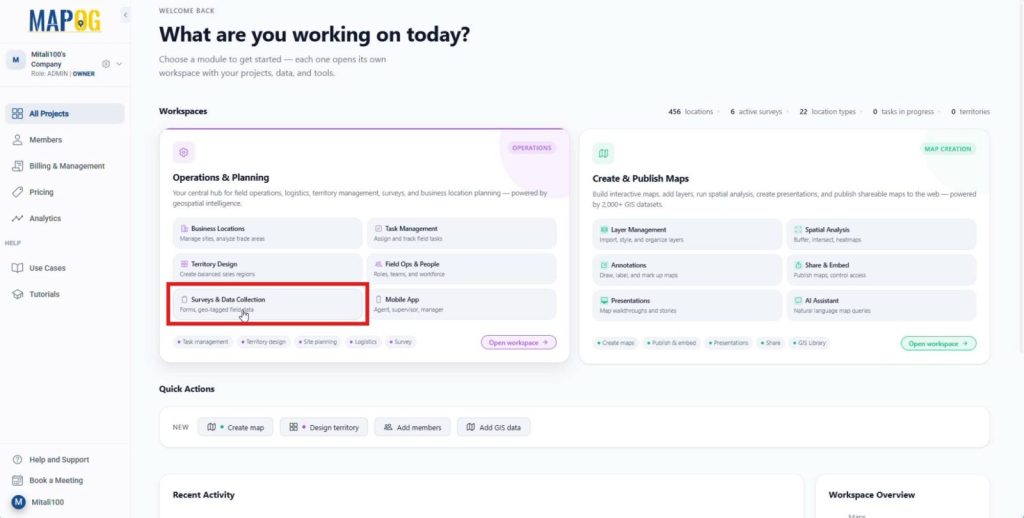
First, go to MAPOG, then open the Surveys & Data Collection section from the Operations and Planning workspace to access the feature built for structured, location-based data capture.
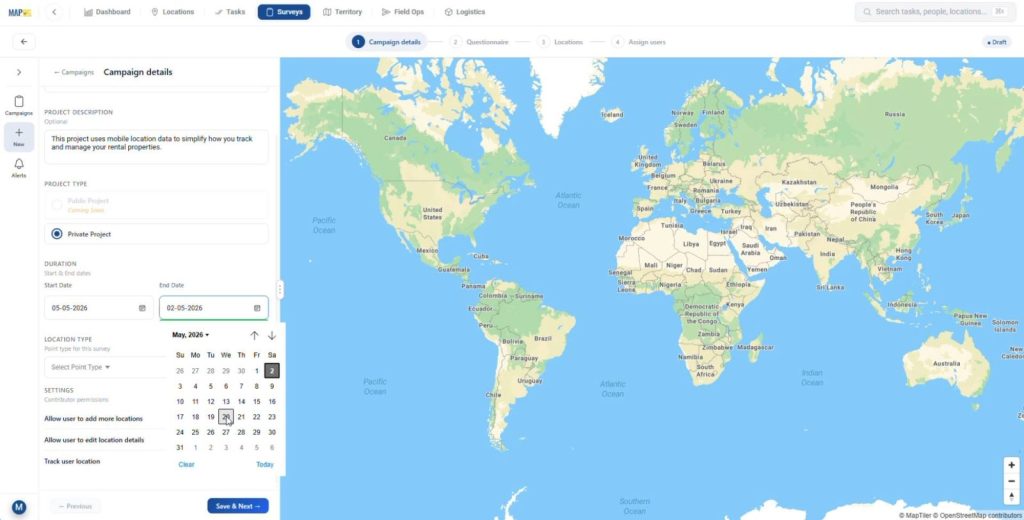
Then, click New Campaign and in the campaign details, add a title, description, set project type as private and set duration so the survey scope and timeline are clearly defined from the start.
2. Create Location Type
After that, open the location type dropdown and click create new,
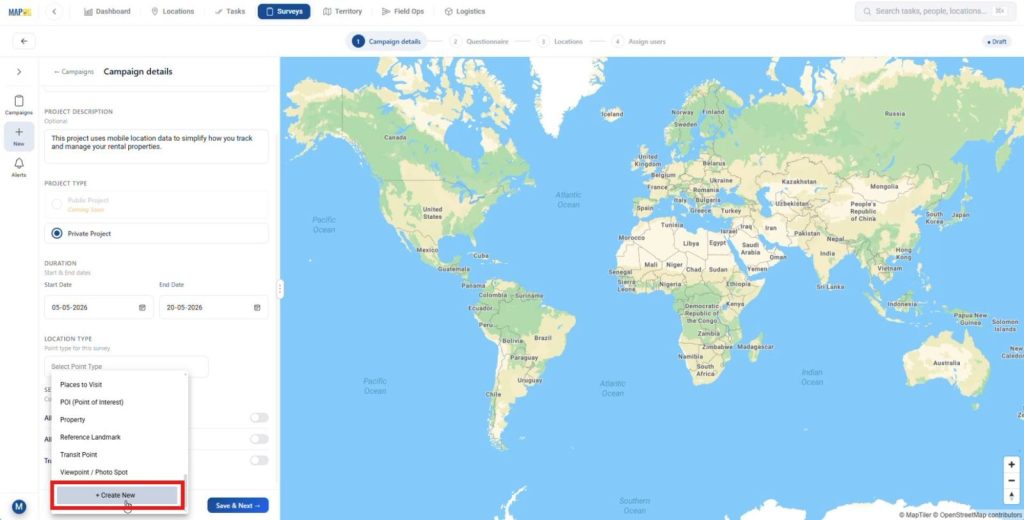
then click new type, add a name and color, set geometry to point,
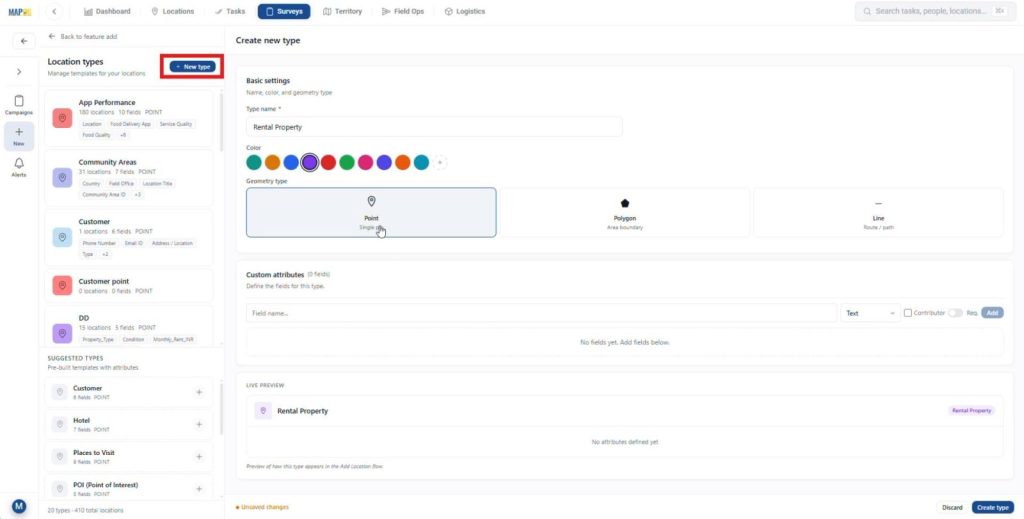
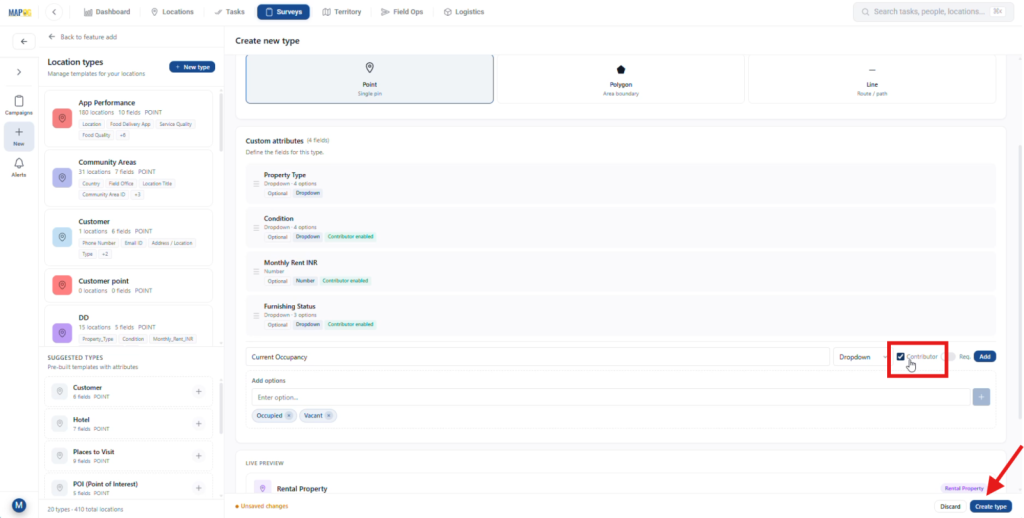
and include attributes like Property Type using a dropdown field type and Monthly Rent using a number field, enable contributor permission so field teams can update data when needed, ensuring your data structure stays standardized and reusable, and finally save it by clicking the Create Type button.
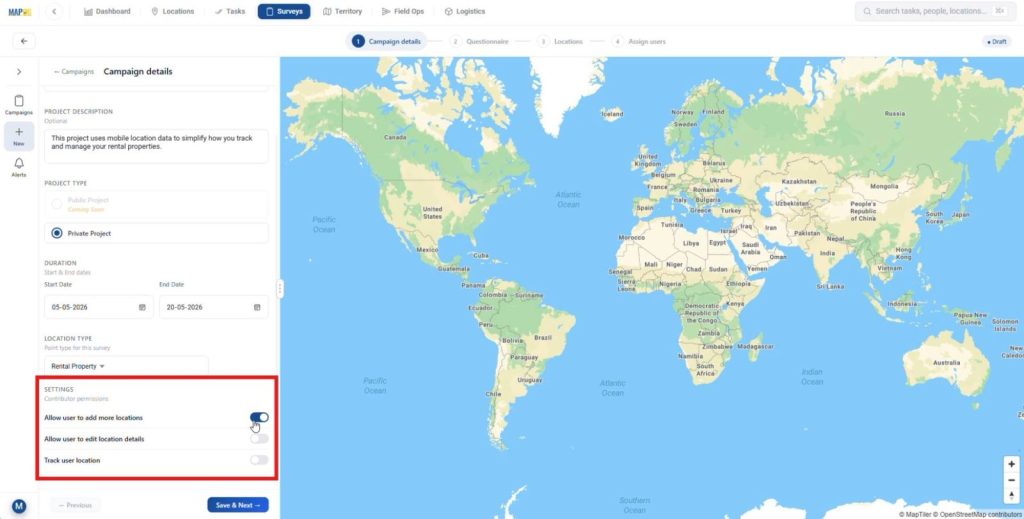
Once created, select this location type, then configure settings like Allow user to add more locations so field teams can capture new or missed sites on the go.
3. Add Survey Questions
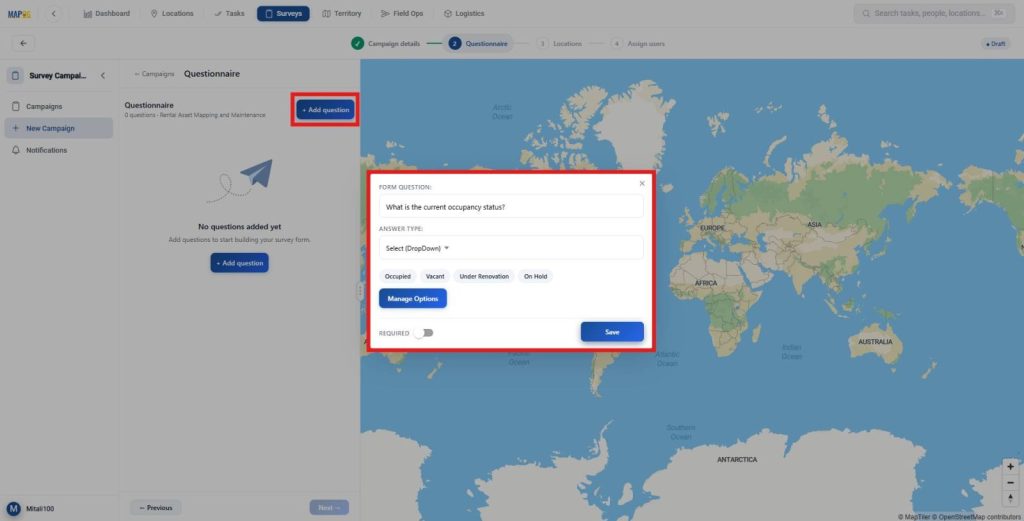
Now, click Add Question and add items like current occupancy status, choose answer types such as dropdown or multi select, and include options like Occupied, Vacant, Under Renovation, or On Hold to ensure consistent and easy analysis.
4. Upload Locations
Following this, go to Locations and choose Upload CSV or Excel,
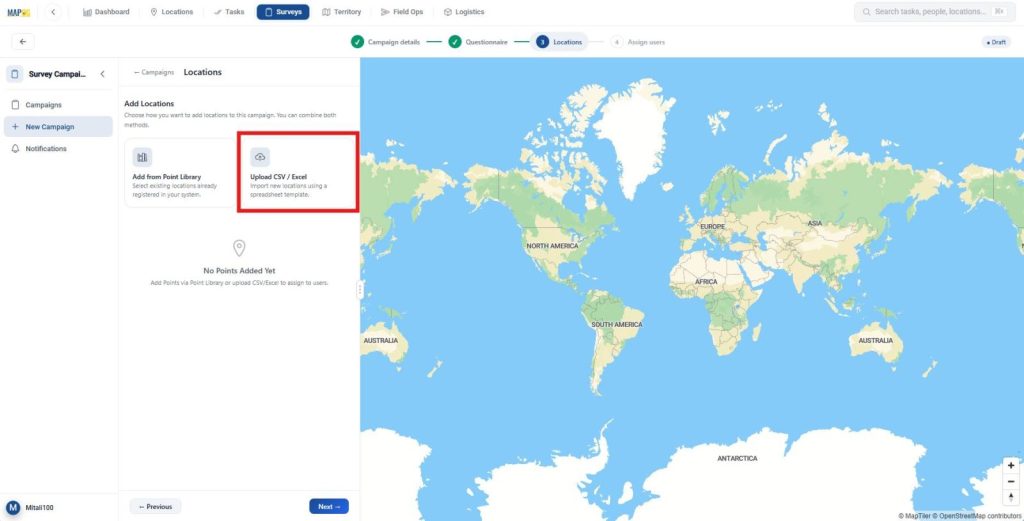
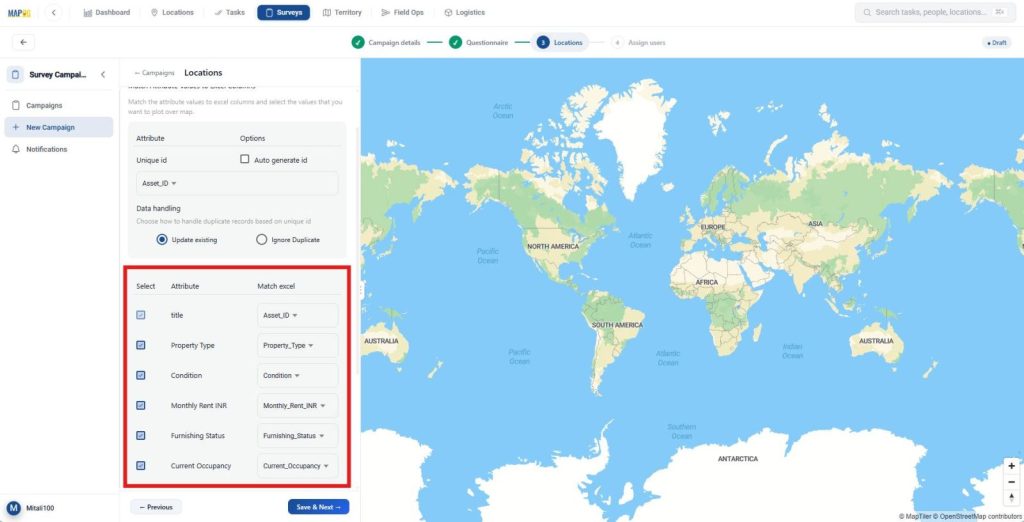
then upload your file, select or generate unique IDs, map fields correctly,
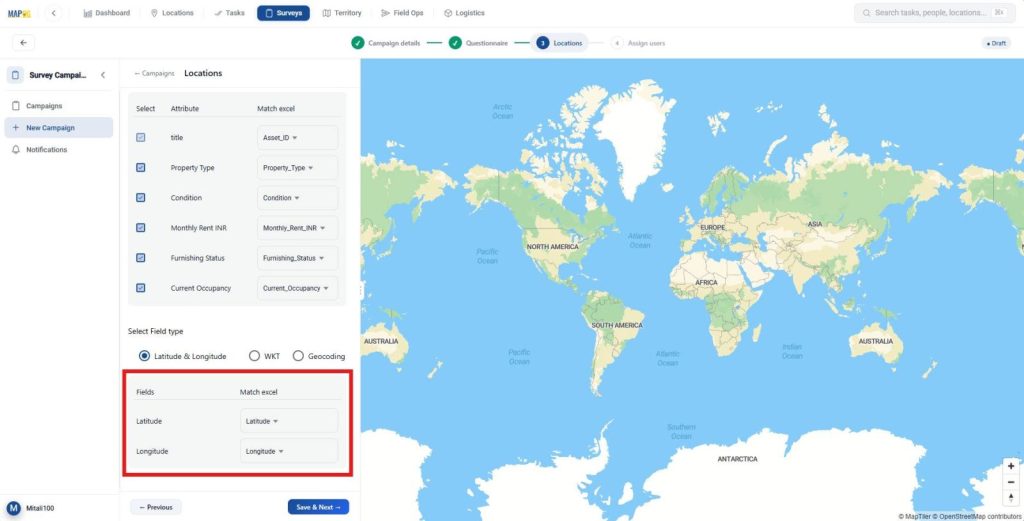
and choose latitude and longitude so all locations are automatically plotted on the map, ensuring every site is accurately placed and tracked.
5. Add Users and Assign Roles
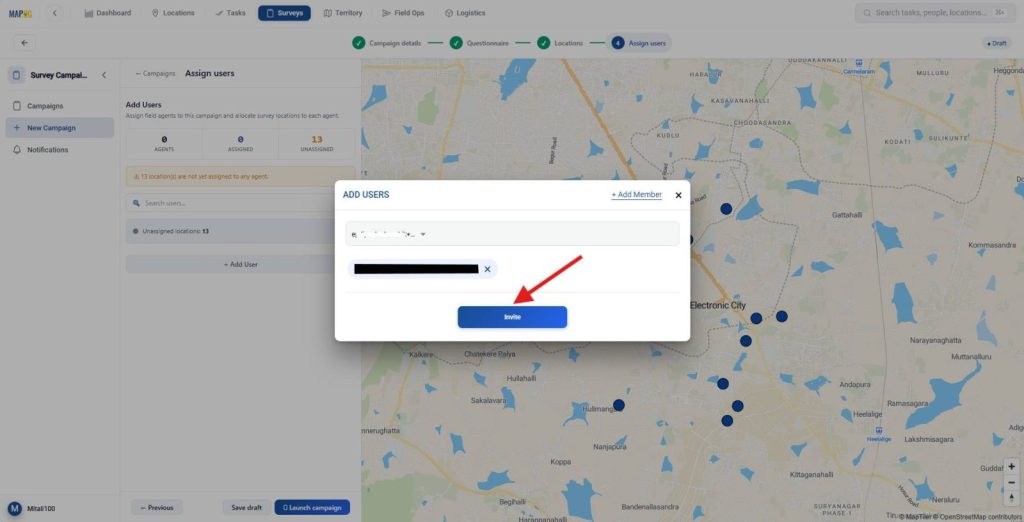
Next, go to Add Users and then Add Members, enter email IDs, select roles where Admin has full access while others can be assigned as editor, contributor, or viewer,
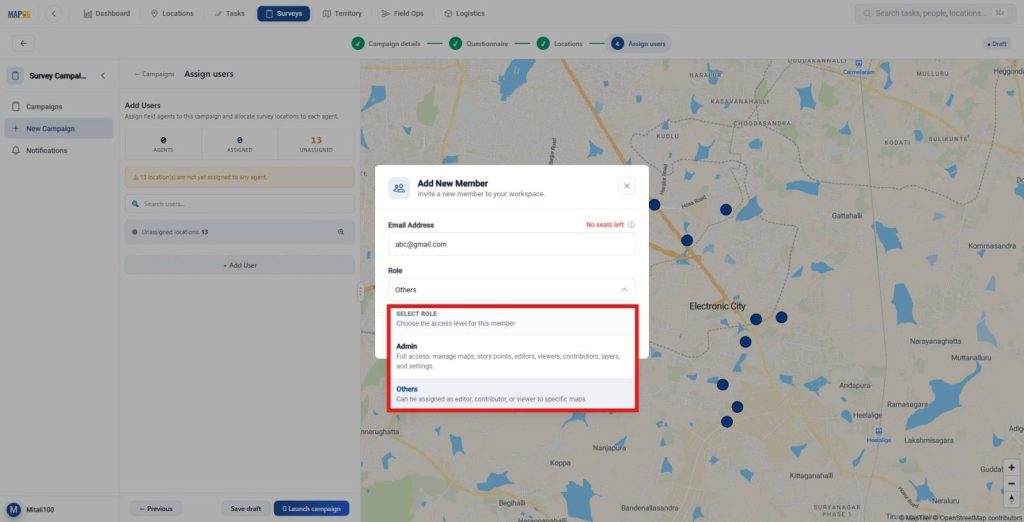
then select the added members and click invite to onboard them with defined responsibilities.
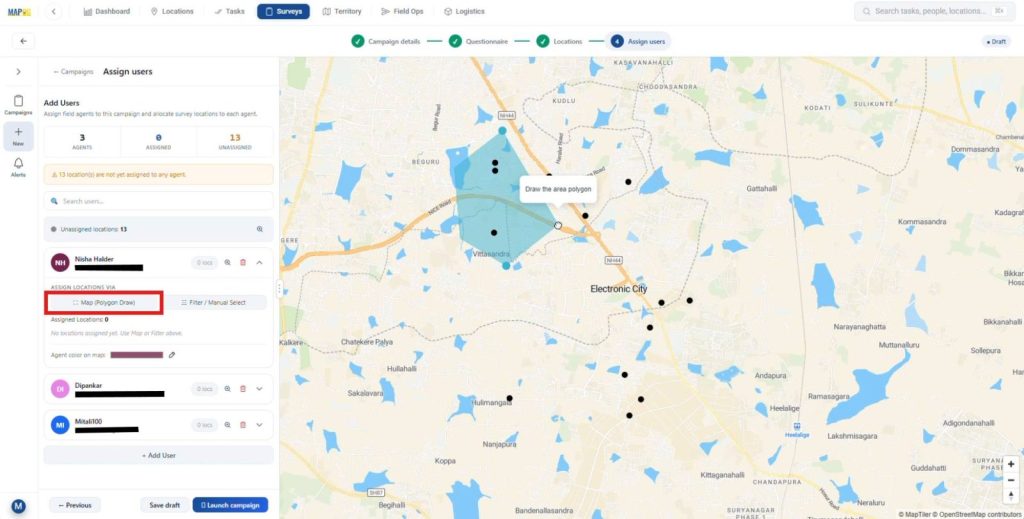
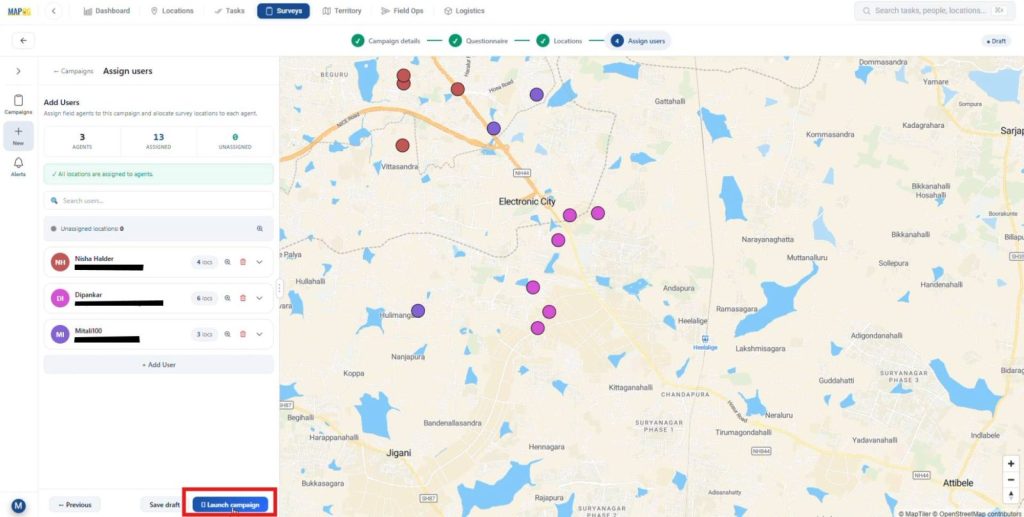
Afterwards, assign locations via Map using polygon draw to visually allocate areas and ensure clear ownership for each member.
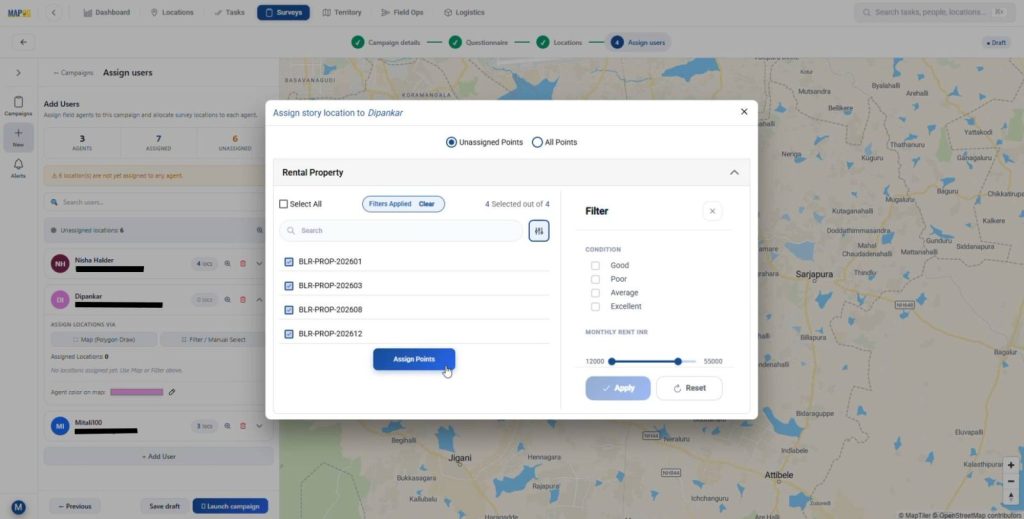
Alternatively, assign locations via Filter or manual select by filtering assigned or unassigned points based on attributes, enabling faster and more flexible allocation.
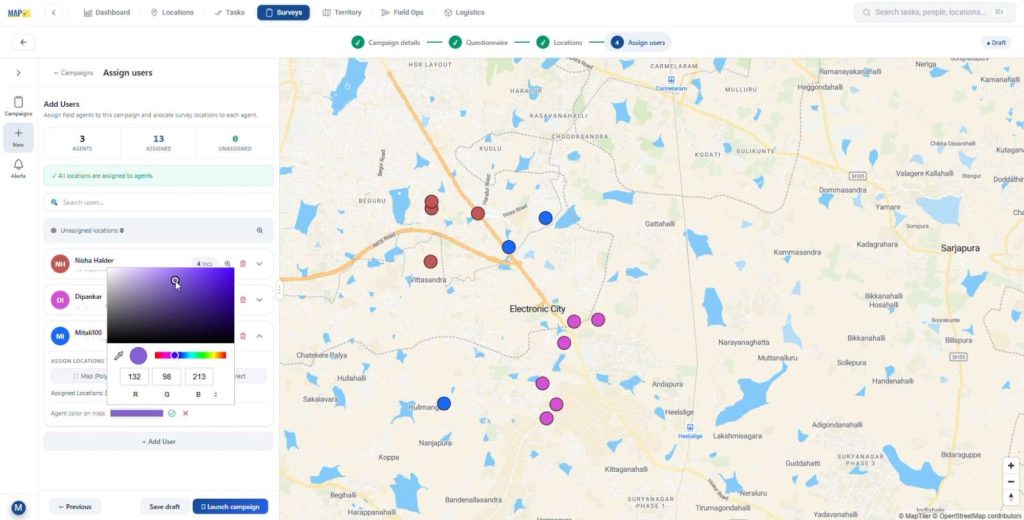
Set distinct colors for each agent to easily differentiate assignments and improve visual clarity.
6. Launch Survey
Then, review everything and move from draft to launch so the survey becomes active and ready for execution.
7. Field Data Collection
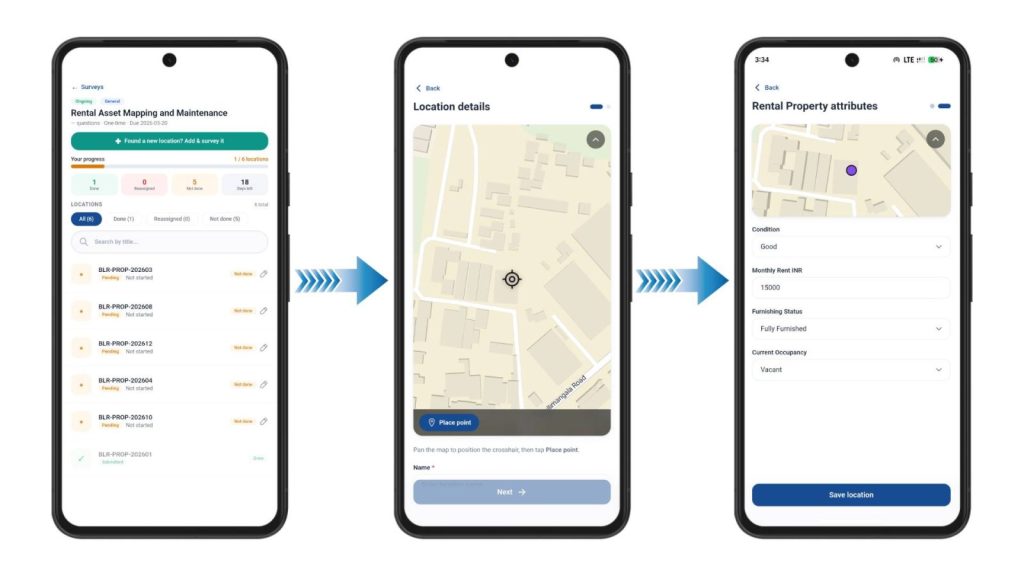
Meanwhile, in the contributor app, go to the survey section to view assigned sites or use Find a New Location to add one, plot it on the map, enter the required details, submit the property attributes, and save the location, ensuring no field data is missed during inspections.
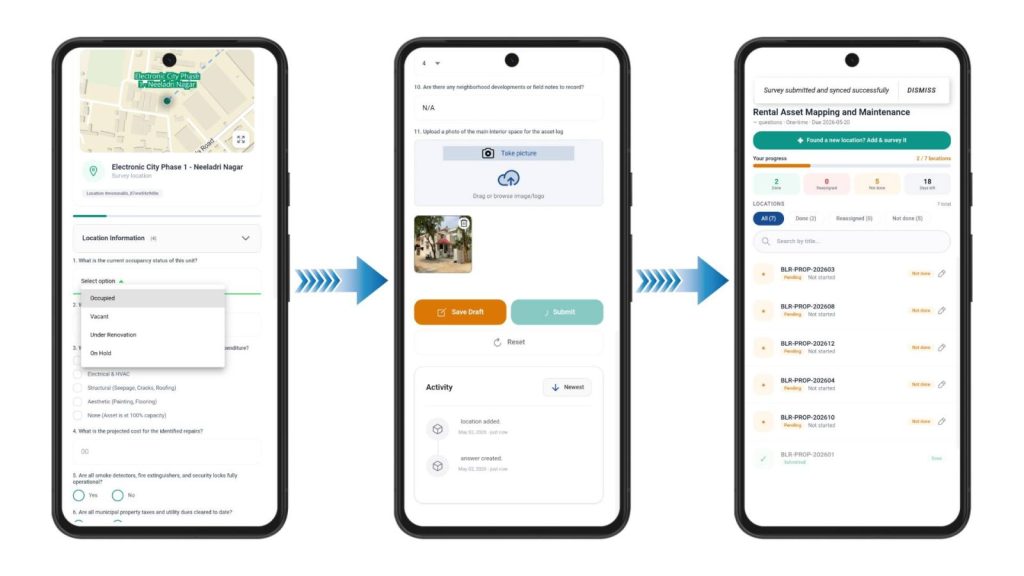
As work progresses, contributors fill in forms, upload photos and videos, and submit or save drafts so real-time, verifiable data flows into the system.
8. Review Responses
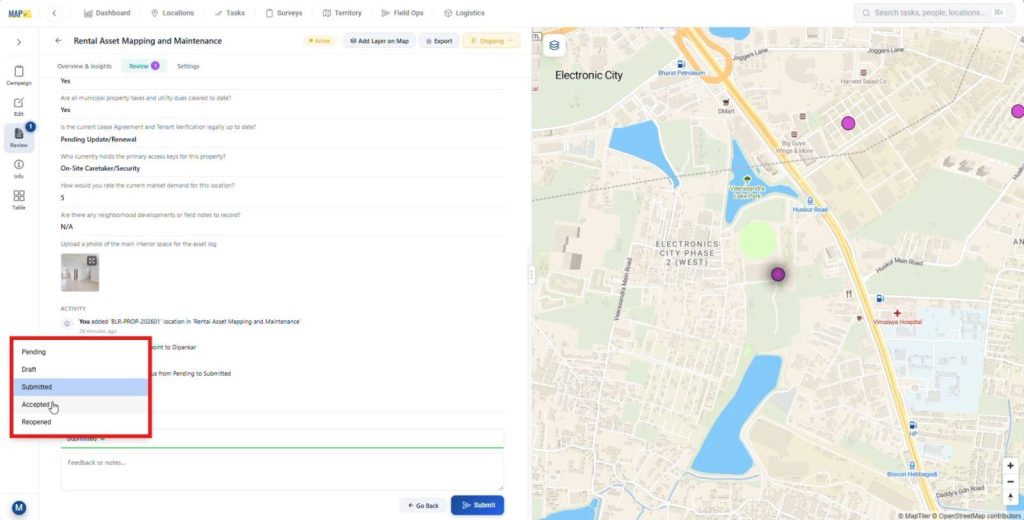
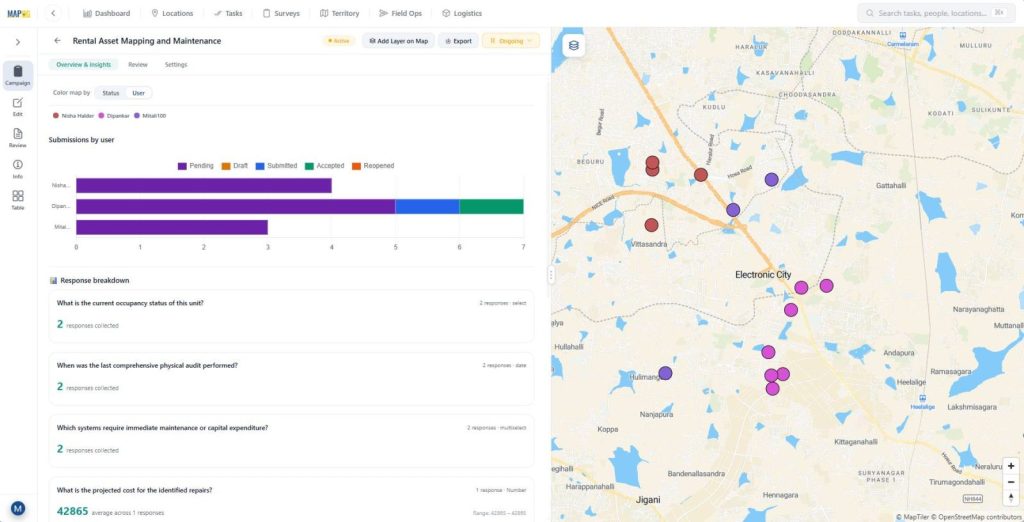
Subsequently, in the Overview dashboard, view and filter responses by status or contributor to quickly track progress and identify pending or completed entries.
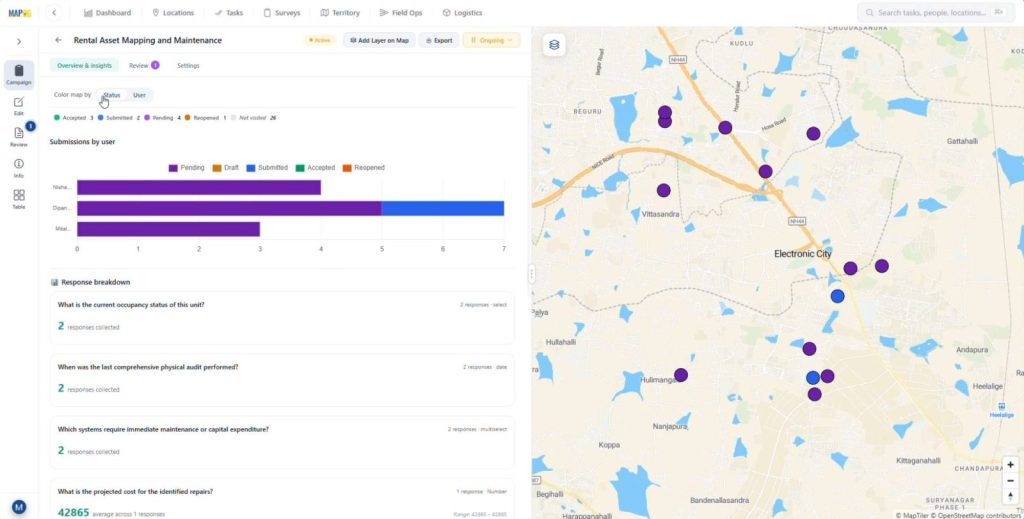
Then, review survey responses and accept, reject, or reopen entries to ensure data accuracy and maintain quality control.
9. Export and Integrate Data
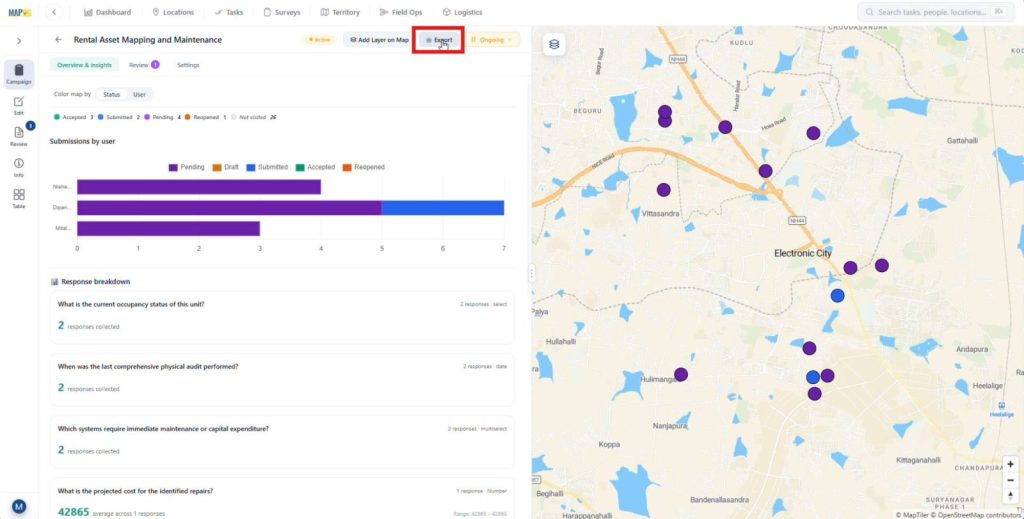
Next, use the export option to download responses as a CSV file so the data can be shared, analyzed, or archived externally.
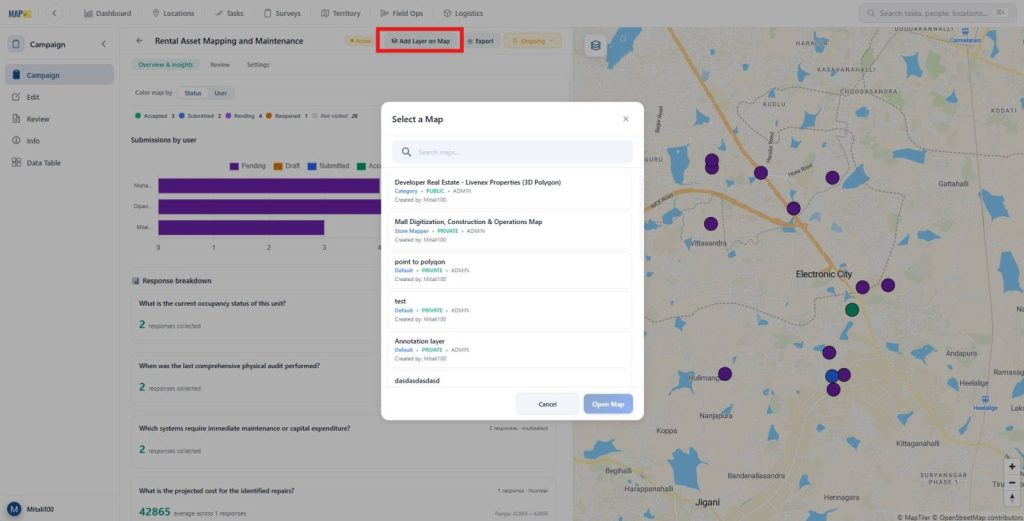
Finally, use Add Layer on Map to create a new map or open the survey in an existing one, allowing you to visualize and integrate results into broader projects.
Industries and Domains That Benefit
Multiple sectors leverage mobile asset surveys to enhance operations
- Utilities & Infrastructure: Inspect pipelines, power lines, and water assets in real time, tracking maintenance and mapping faults.
- Agriculture: Field agents geo-tag crop health, irrigation assets, and soil sampling points across large parcels.
- Healthcare & Public Services: Organizations assess facility access, map service gaps, and record community conditions in underserved areas.
Conclusion
Property managers conduct asset surveys and map location data via a mobile app to gain full visibility into asset condition, status, and history. MAPOG Surveys & Data Collection enables scalable, geo-tagged data capture with real-time map visualization, helping teams reduce gaps, respond faster, and maintain reliable, location-based property records.
Download the contributor app from here:
App Store (iOS) | Play Store (Android)