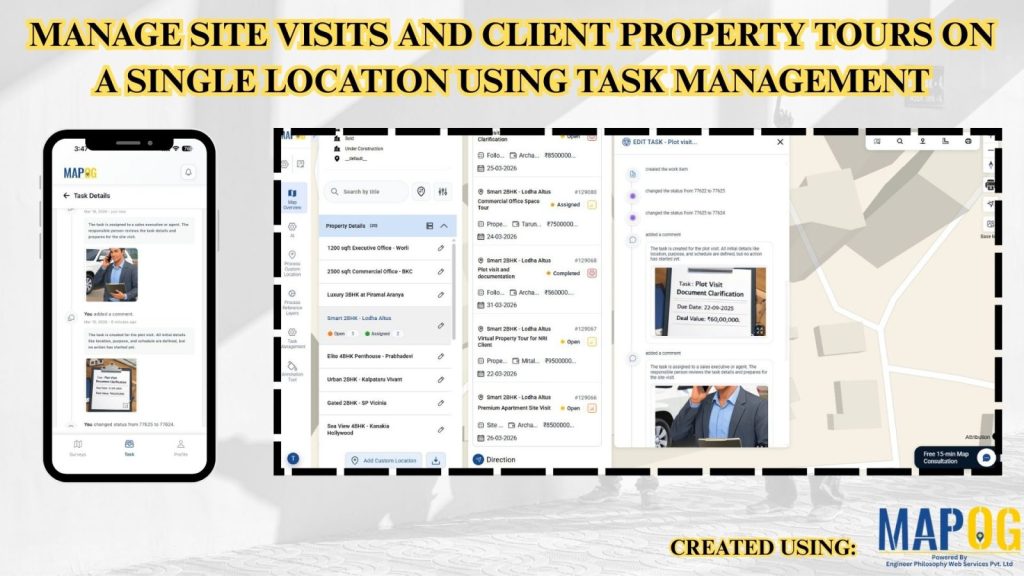
Scattered records make it difficult to manage site visits and client property tours in the real estate industry, but MAPOG transforms visit data into a single interactive map. It improves location visibility, coordination, and scheduling while supporting faster decision-making. Track tasks, monitor visits, and ensure accountability using real-world spatial context instead of spreadsheets.
Key Concept: Manage Site Visits and Client Property Tours
Site visit and client tour mapping uses an interactive map to display exact property locations with linked details such as visit status, assigned team member, client information, purpose of visit, and schedule timeline. This approach helps teams plan, assign, and track visits in one place, improving coordination and reducing manual records.
Methodology: Manage Site Visits
This method helps organize and manage all site visits and client property tours efficiently in one centralized system.
1. Manage Tasks Using Existing Map
To begin task management, open your existing property map from the MAPOG dashboard where all your saved maps are listed.
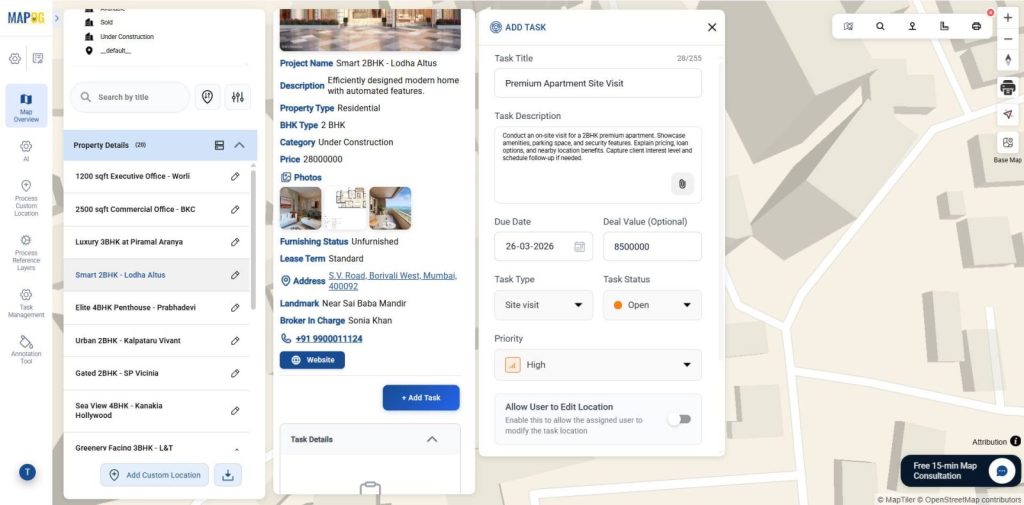
Once the map opens, review locations and details to understand task status, then manage, update, or assign tasks smoothly.
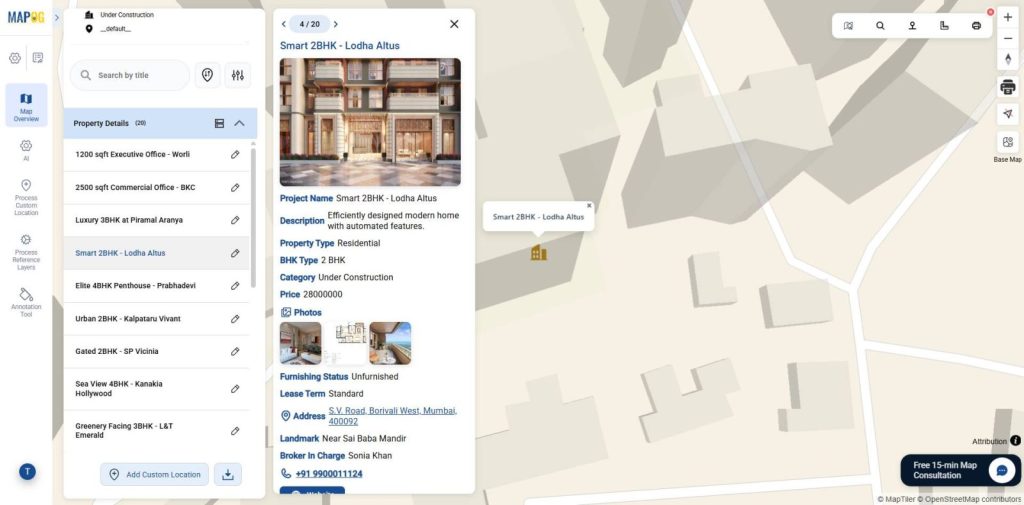
2. Enable Task Management Module
Check if task management is enabled, or go to Map Settings and enable the Task Management Module to add tasks.
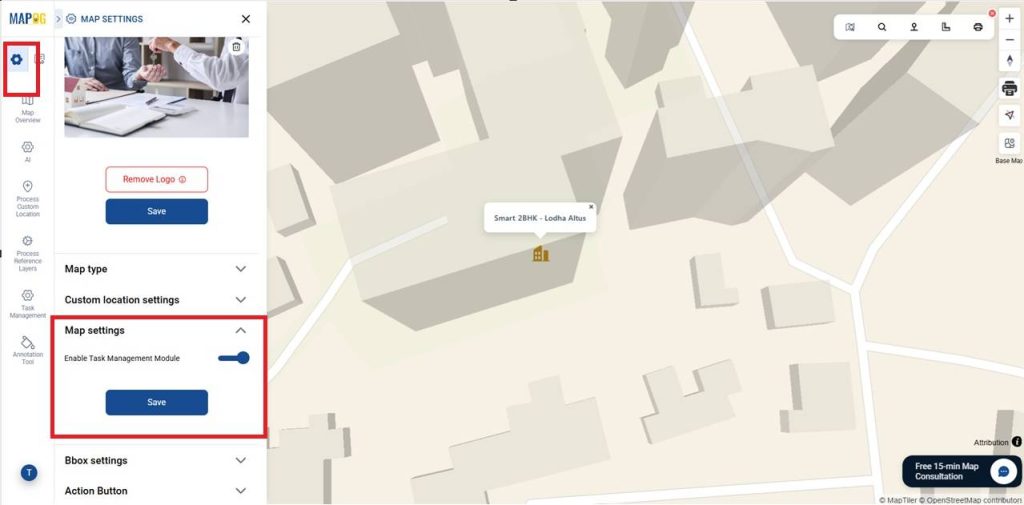
3. Adding Tasks to Your Map
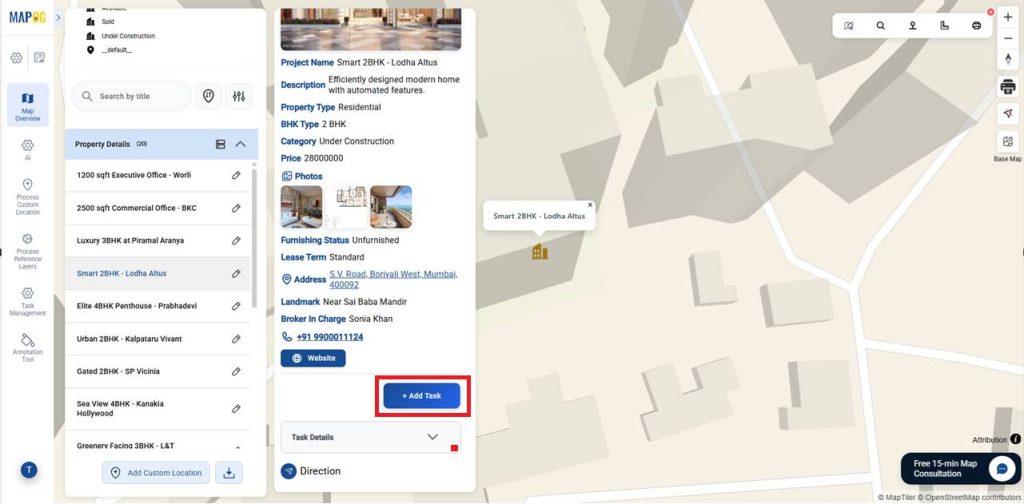
Start by selecting the location where you want to add a task, then click +Add Tasks to proceed.
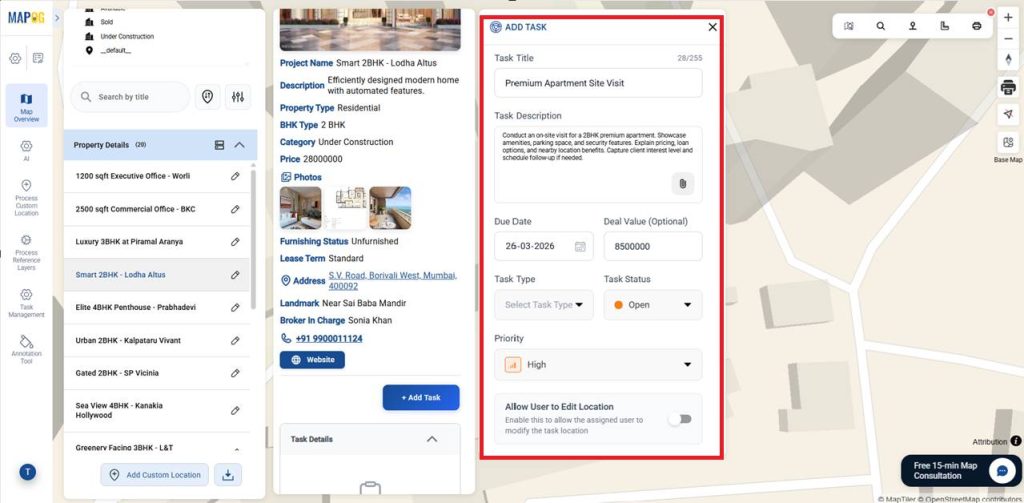
Begin by entering the Task Title and Description. Then set the Due Date, Deal Value, Task Status, and Priority.
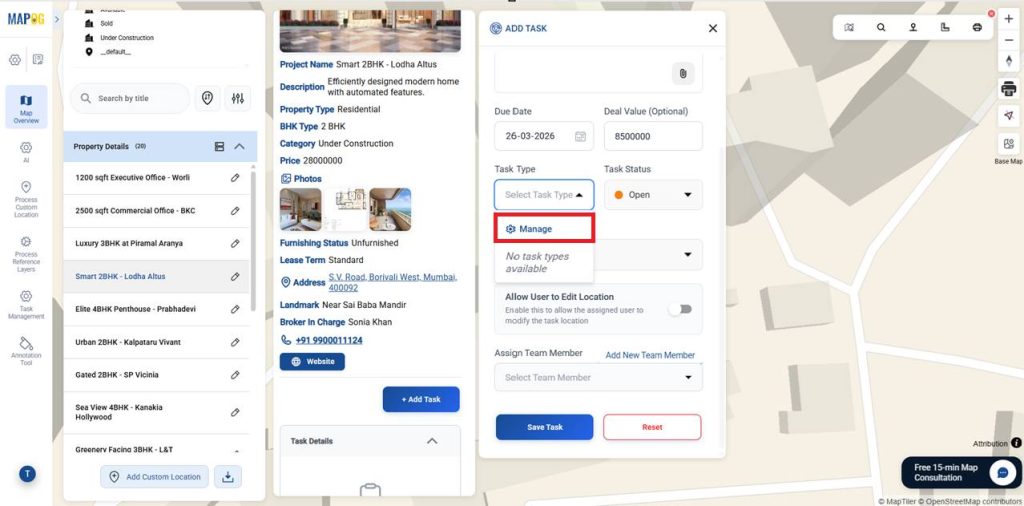
Then, select the Task Type, by selecting the existing or select the manage to add new one.
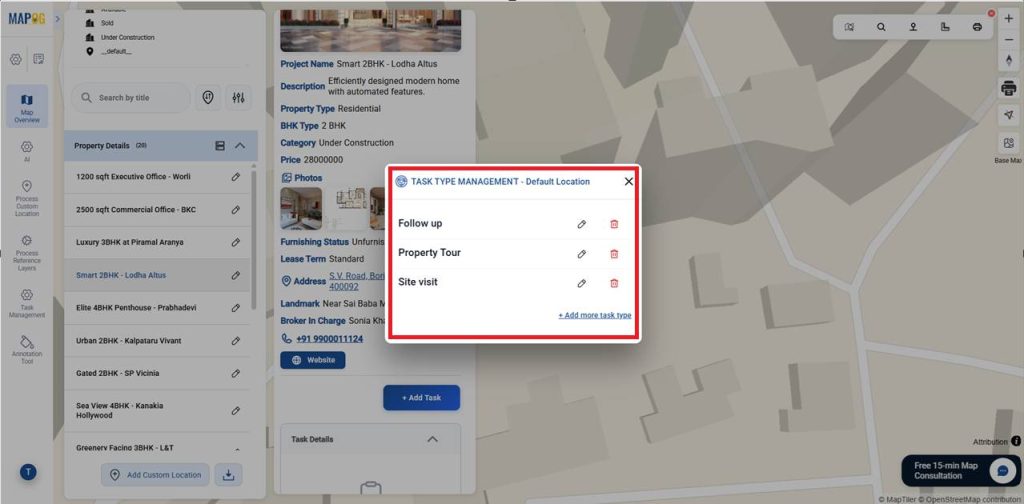
In this Task type Management select +Add more task type if required. Add a new task type and make sure to select it once it has been created.
After choosing the task type and going to assign team member & it redirects you to the Completion Form Builder to capture details, upload proof images, and verify standards before finishing the task.
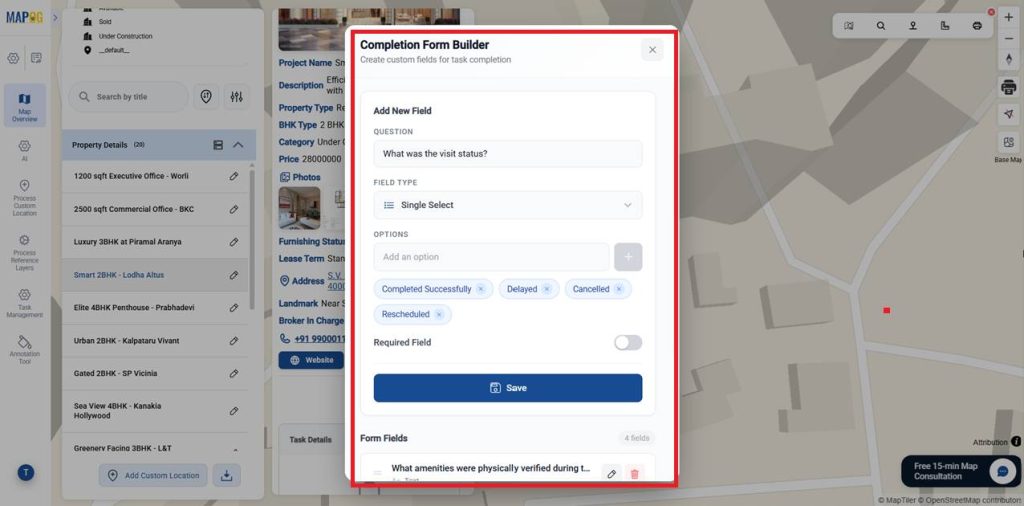
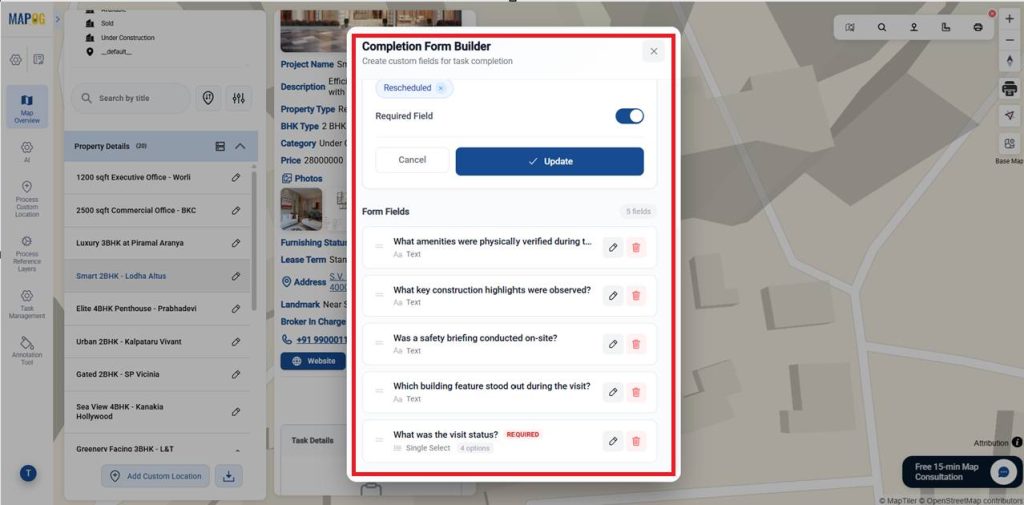
Choose field types like text, select, or image to capture responses or photos. Mark mandatory fields as Required and save the form.
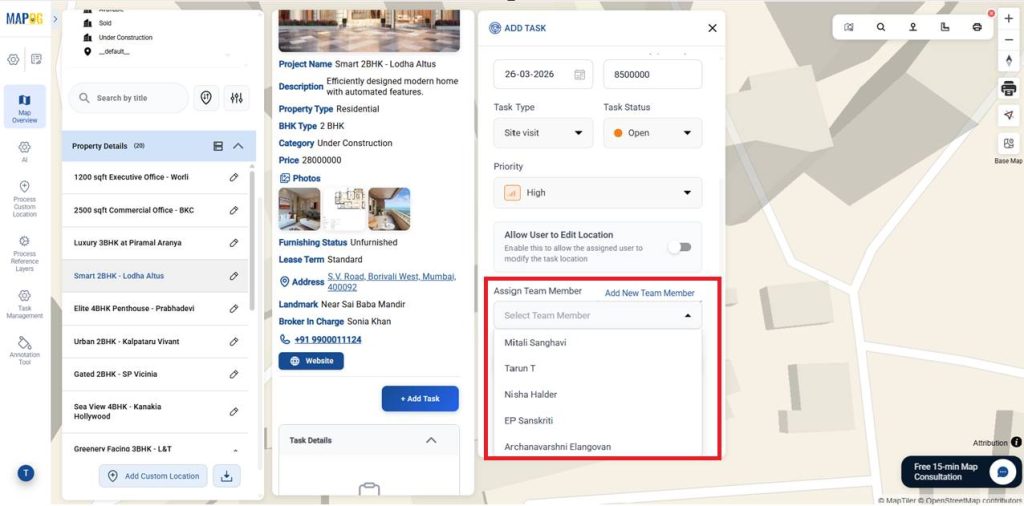
Assign a team member, allow location edits if required, enable progress tracking, and save the task.
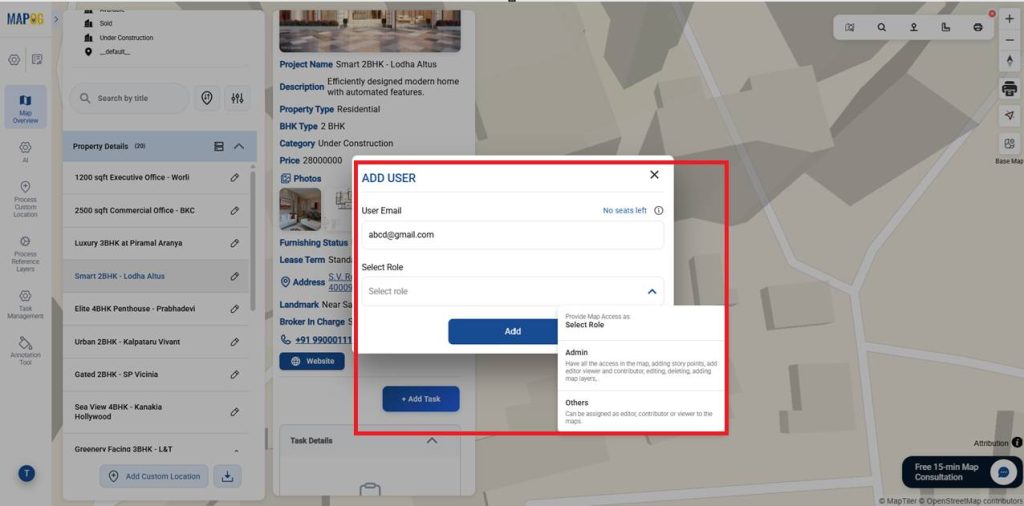
If needed, add new team members by selecting Add New Team Member, then assign their email and role (such as admin or others).
After assigning the task to the relevant team member, review all details to ensure accuracy, then click Save to successfully create and record the task.
You can add multiple tasks for all locations as needed. Attach custom questions through the completion form setup to collect structured inputs and ensure consistent updates across every location.
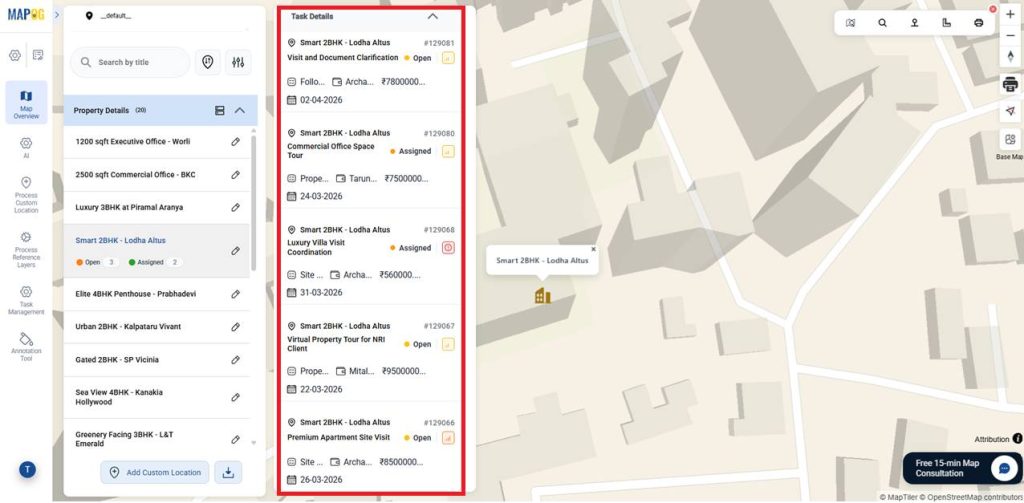
4. Task Status Monitoring
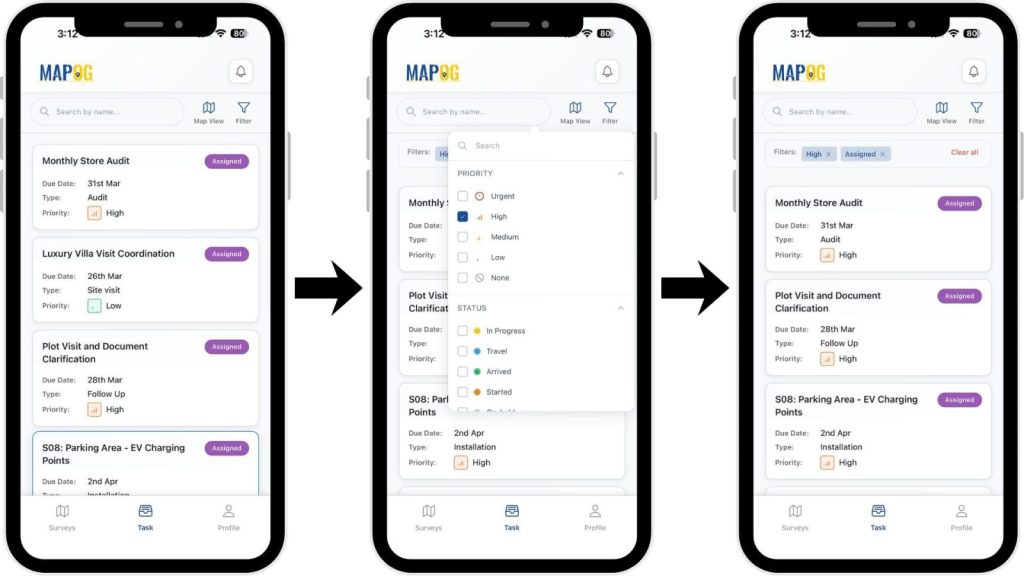
Assignees receive tasks instantly in the MAPOG Contributor App, allowing them to take action without delay. There you can easily filter tasks as per priority or status.
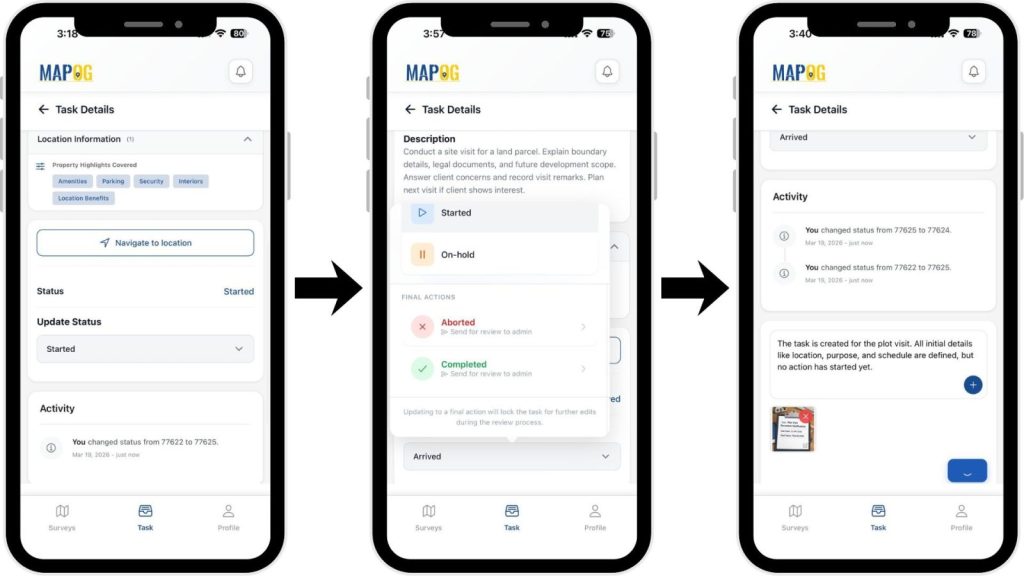
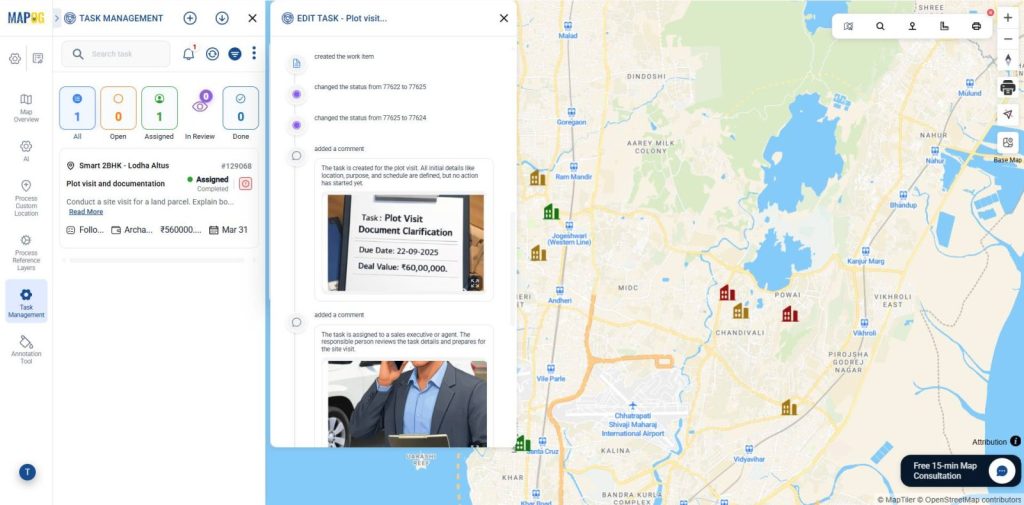
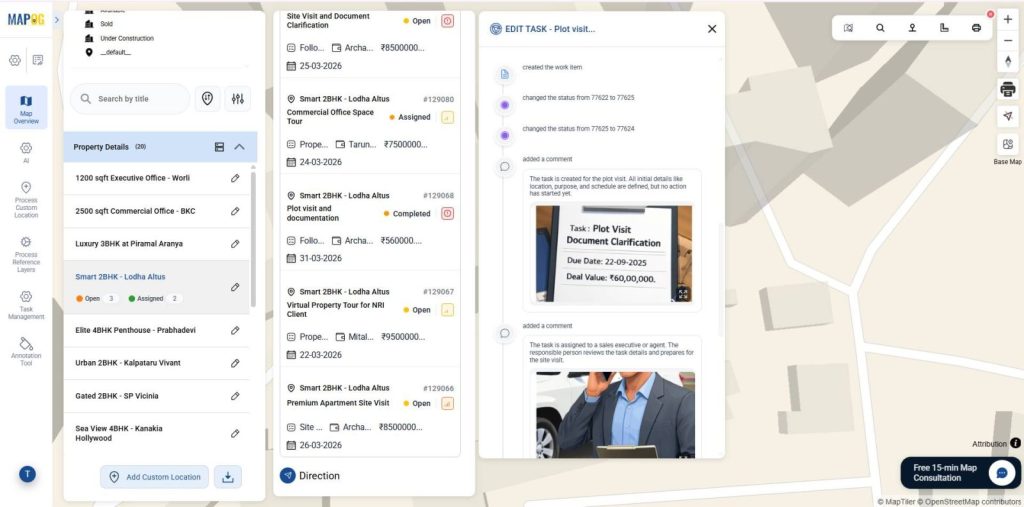
Users can view task details, navigate to sites, update status in real time, mark tasks on hold or aborted with reasons, upload before-and-after images, add comments, and track updates with timestamps.
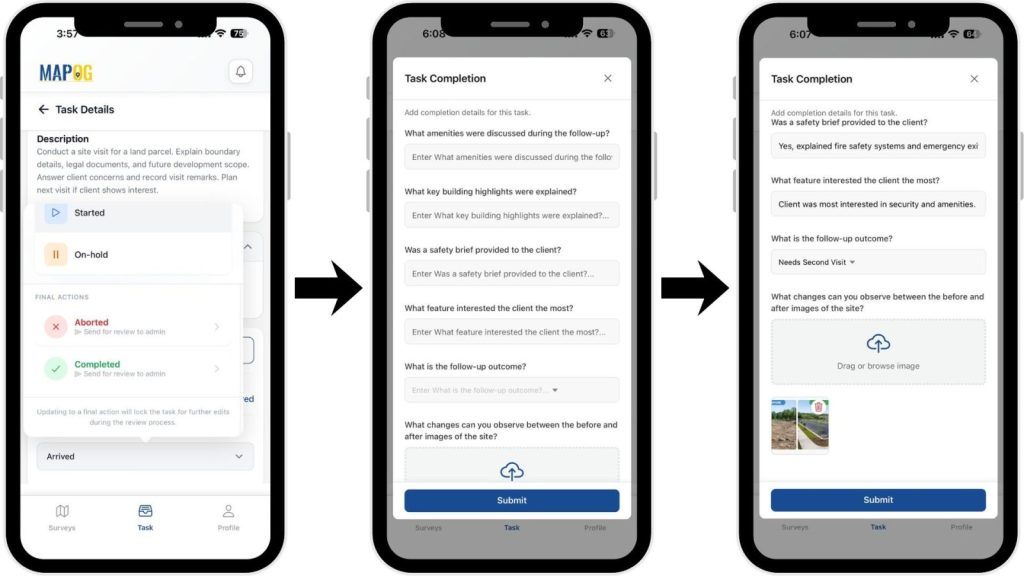
After completing the task, assignees must move the status to complete & submit a completion form to ensure quality checks and compliance, verifying updates and required details like comments or images for accurate review and final approval.
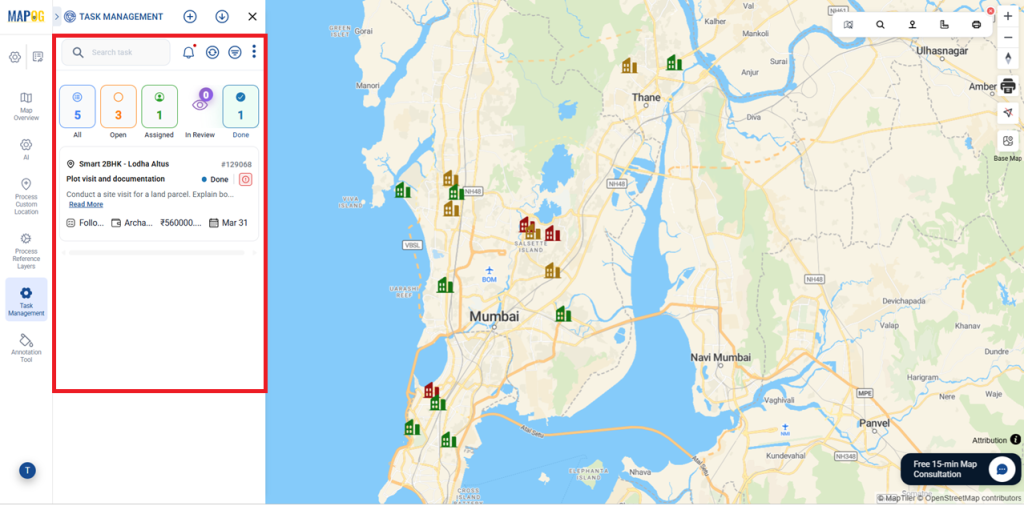
Meanwhile, progress updates appear live in the Task Management section, where teams can filter tasks by status, priority, or assignee and view real-time comments for better tracking, visibility, and coordination.
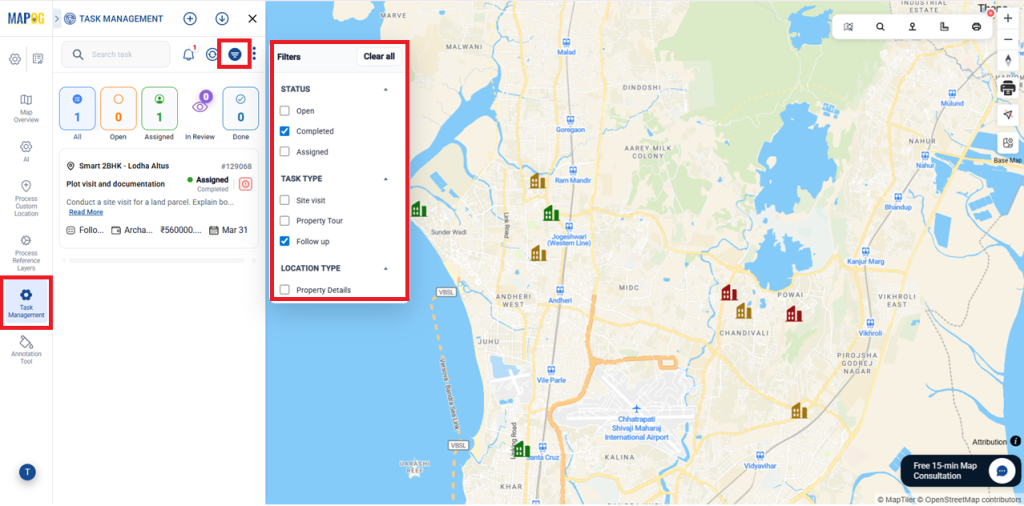
Next, admins verify the photos and completion forms submitted by technicians, using visual evidence and structured data to confirm that every task is accurately documented.
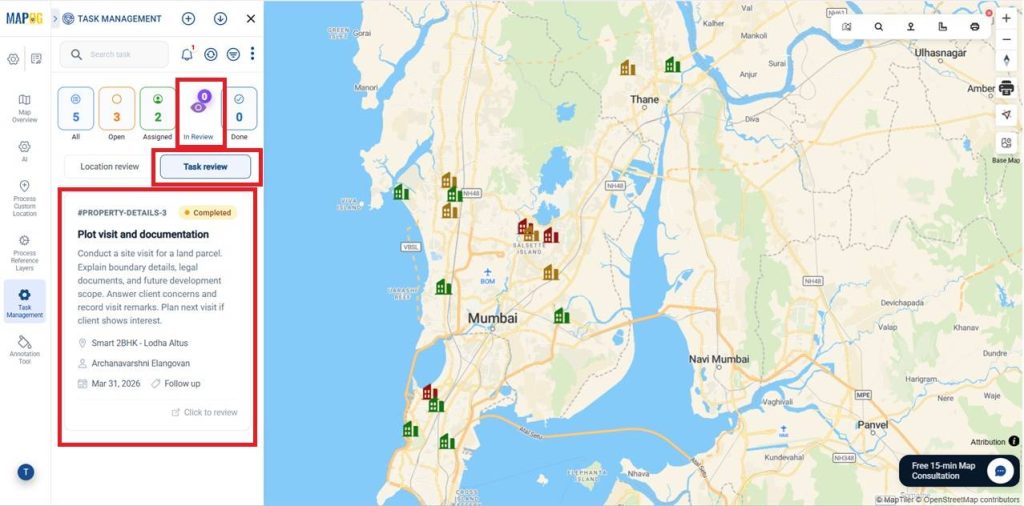
Admins can access the In Review section on the dashboard to review tasks, check details, completion forms, and supporting evidence, ensuring work meets standards before proceeding.
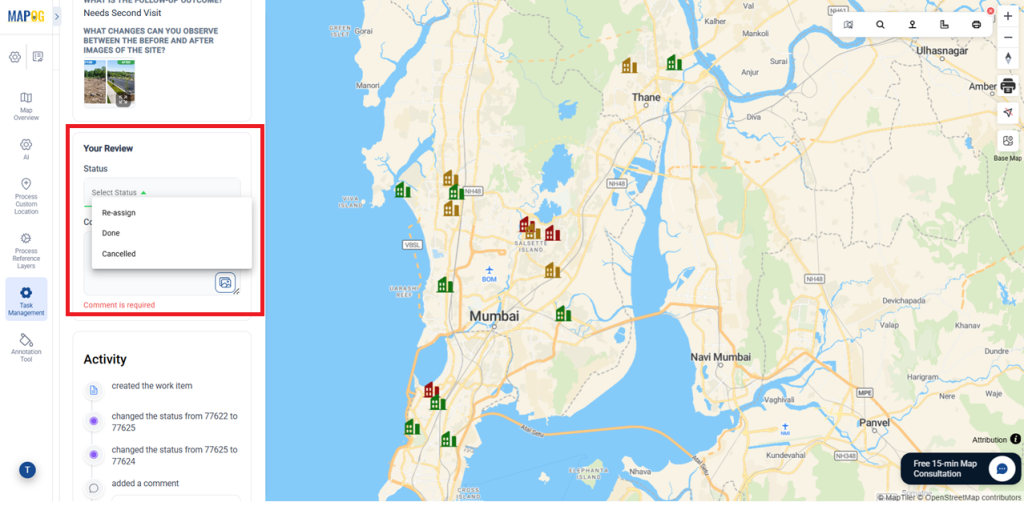
After reviewing, admins provide comments for clarification, feedback, or approval, then set the task status to Re-assign, Done, or Cancelled.
Once Submit Review is clicked, the task moves to Done, the workflow updates, and the field team is notified, ensuring transparency, quicker decisions, and clear accountability.
5. Publish and Share Your Map
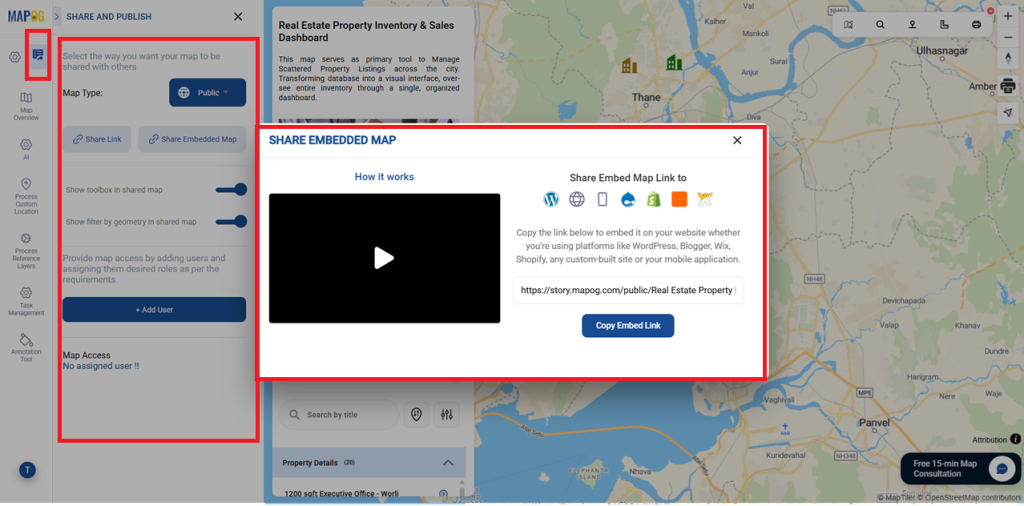
After setup, use Preview & Share to make the map public and create a shareable or embeddable link. This lets stakeholders easily access and explore the property portfolio map and its attributes.
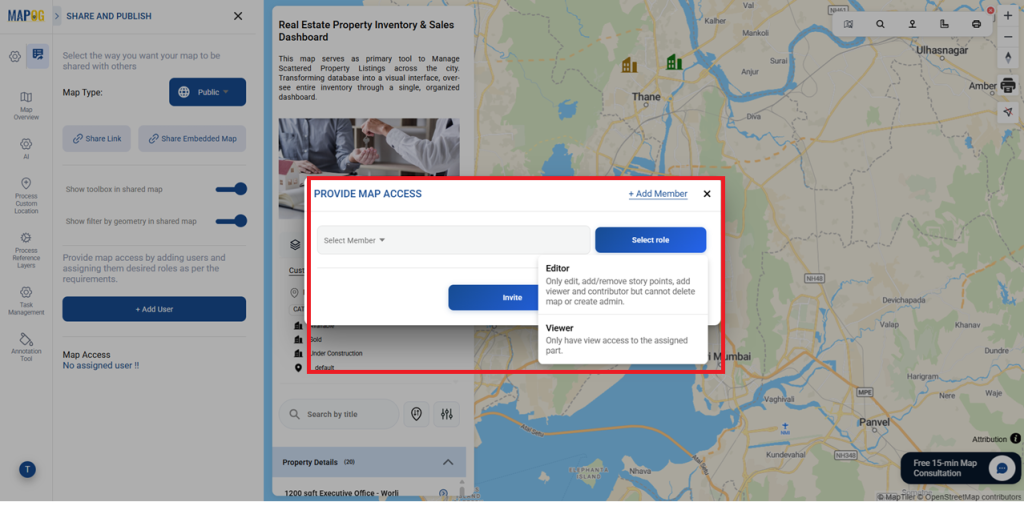
Use +Add Users to include existing users or create new ones with Add Members. Then invite them to view or edit the map based on the access permissions you assign.
Industry Use Cases and Benefits
Task management maps bring all activities into one place, helping real estate, operations, and field teams track tasks, site visits, and team performance easily. They improve coordination, provide real-time updates, and ensure better visibility of progress across locations.
MAPOG Mobile App: Android (Play Store) and iOS (App Store)
Conclusion
In conclusion, MAPOG simplifies task management by turning activities into an interactive map-based workflow, allowing teams to track progress, manage assignments, and make faster, data-driven decisions from a single platform.