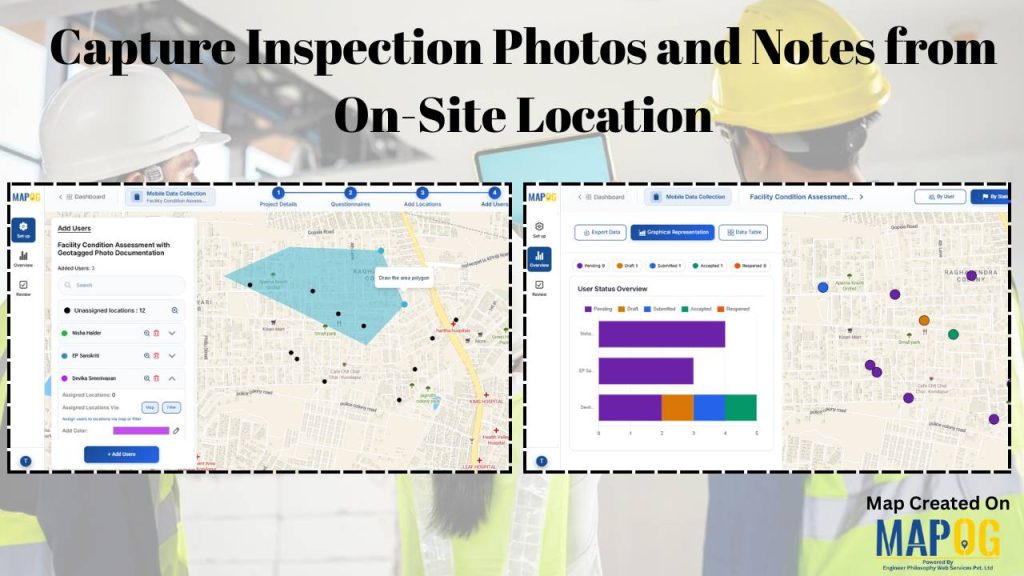
Across sectors that rely on regular site checks—such as property management, facility maintenance, construction, and infrastructure monitoring—teams often capture inspection photos and notes using phones, paper records, or scattered messages, which leads to missing records, unclear locations, and reporting delays.
With MAPOG’s mobile data collection, inspections are linked to precise locations. Field teams capture geotagged photos and structured notes in real time, while managers gain centralized visibility and a reliable digital audit trail.
Key Concepts to Capture Inspection Photos and Notes
Capturing inspection photos and notes on-site improves accuracy and efficiency through mobile data collection. Teams record geotagged photos and observations using smartphones, while structured digital forms ensure consistent reporting. Real-time and offline capture, along with dashboards and digital audit trails, provide better visibility, accountability, and maintenance decision-making.
Step by Step Guide on How to Capture Inspection Photos and Notes
1. Create a mobile survey
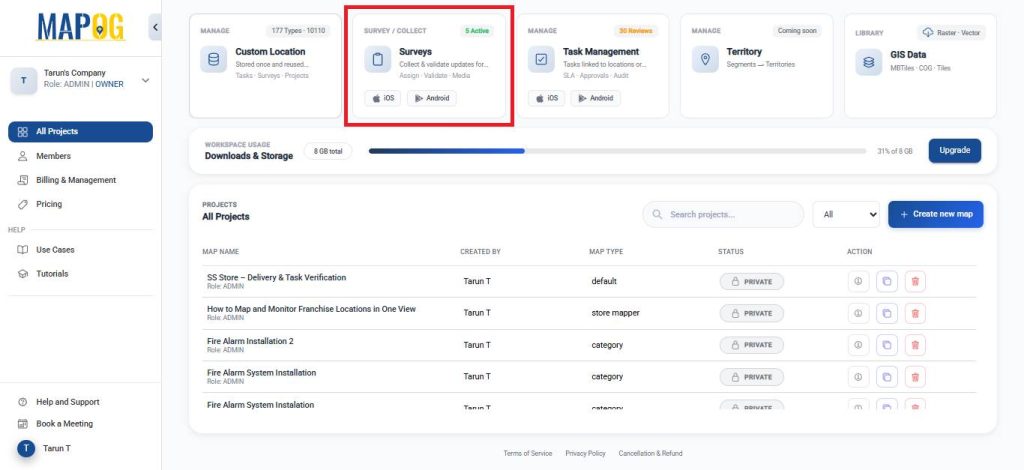
From the MAPOG dashboard, select the Survey option.
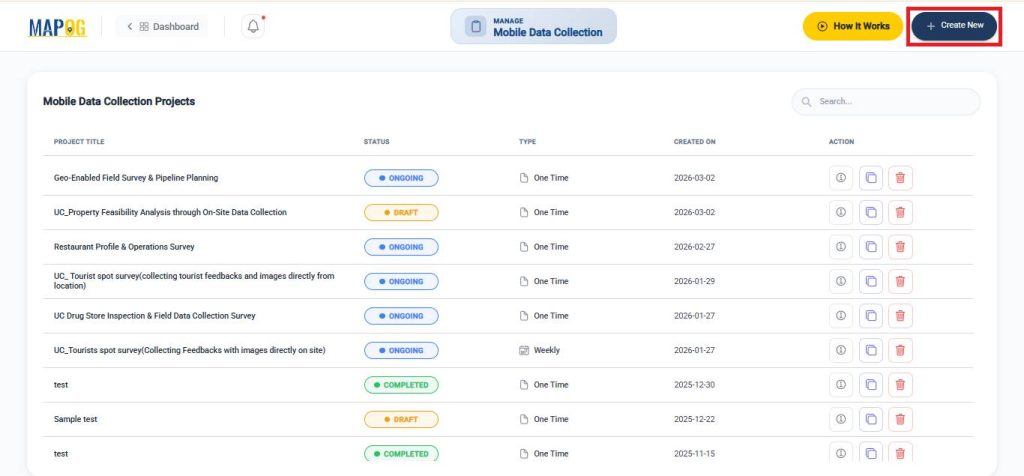
After that, click on Create New, on the mobile data collection section.
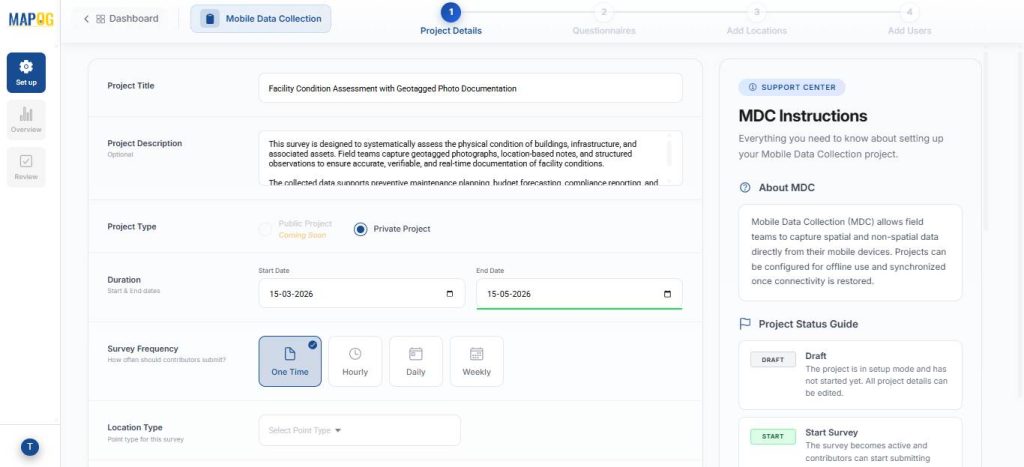
Next, assign a survey name, description, project type, duration, and frequency.
2. Create New Location Type
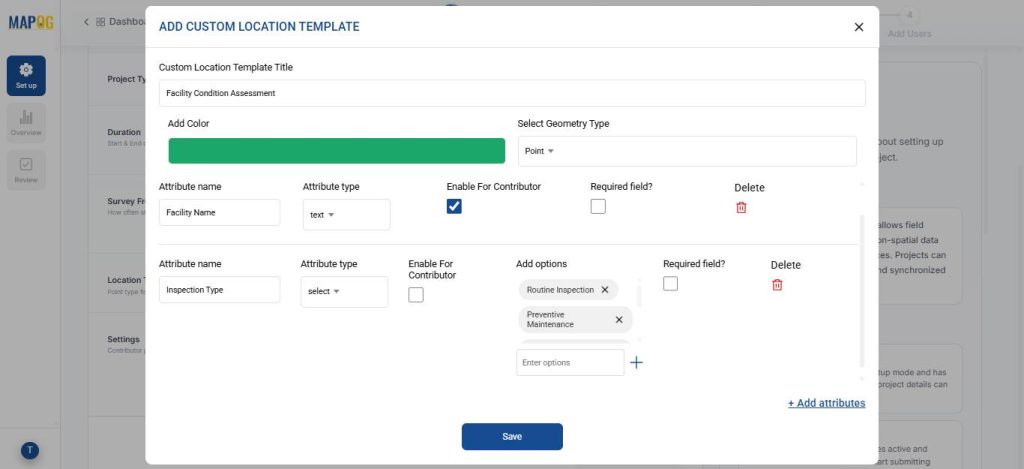
Then, go to Location Type, click Create New, and create a new point-based location type called Facility Condition Assessment. Choose an appropriate color and set the geometry as point. Going further, add inspection-specific attributes using select, multiselect, and text fields. Moreover, the team enables contributor access so inspectors can update data directly from the field. This reusable setup ensures that data remains standardized across projects.
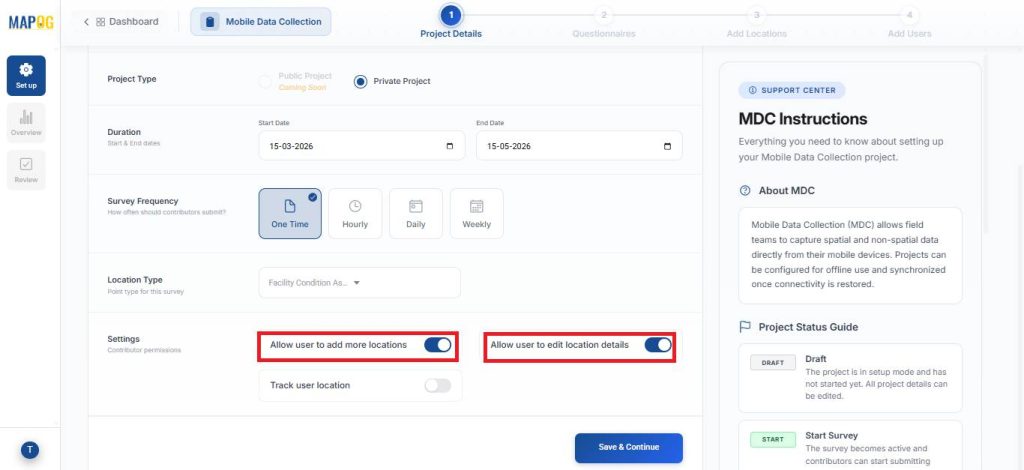
Next, enable settings like Allow user to add more locations and Allow user to edit location details to allow more flexibility to the user. Then, click save and continue.
3. Add Questions and Locations
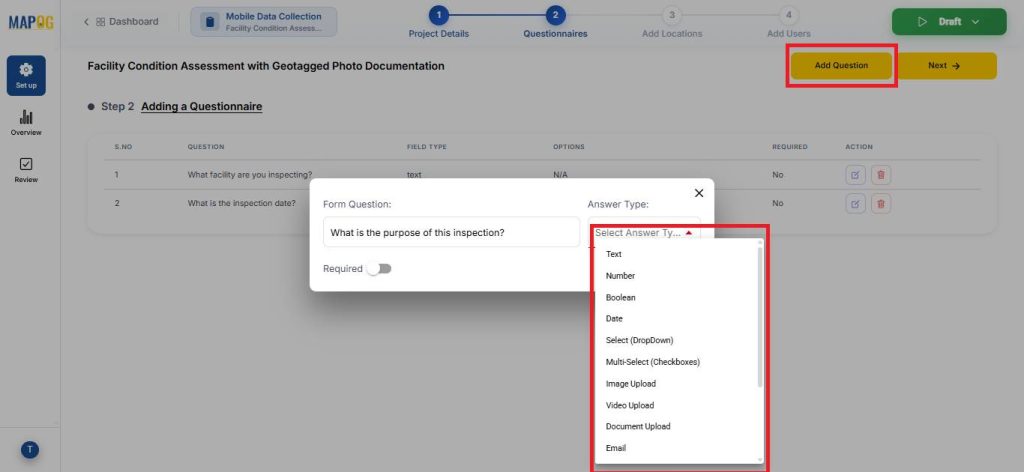
Now, using the Add Question option, create suitable survey questions like the purpose, area, components etc. of inspection with appropriate answer types like text, Boolean, select or image.
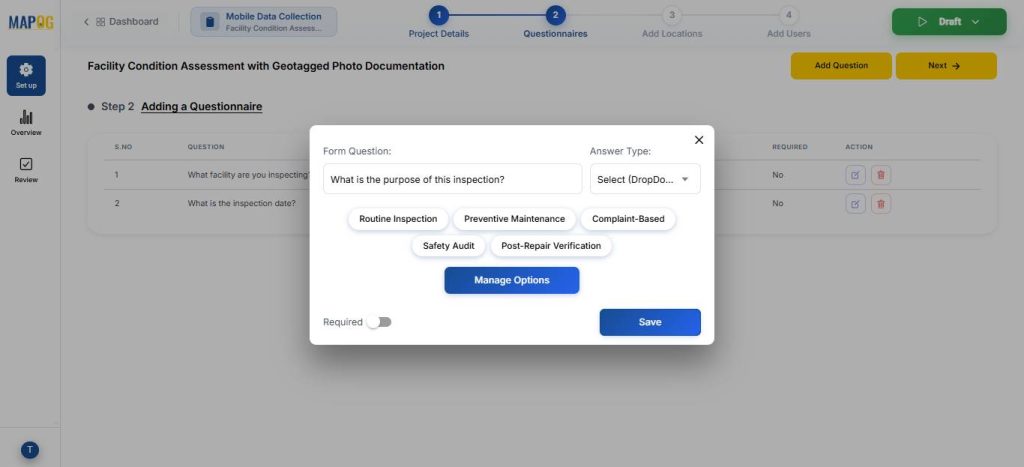
For, select and multiselect options, you can go to manage options to add, delete or edit the answer options.
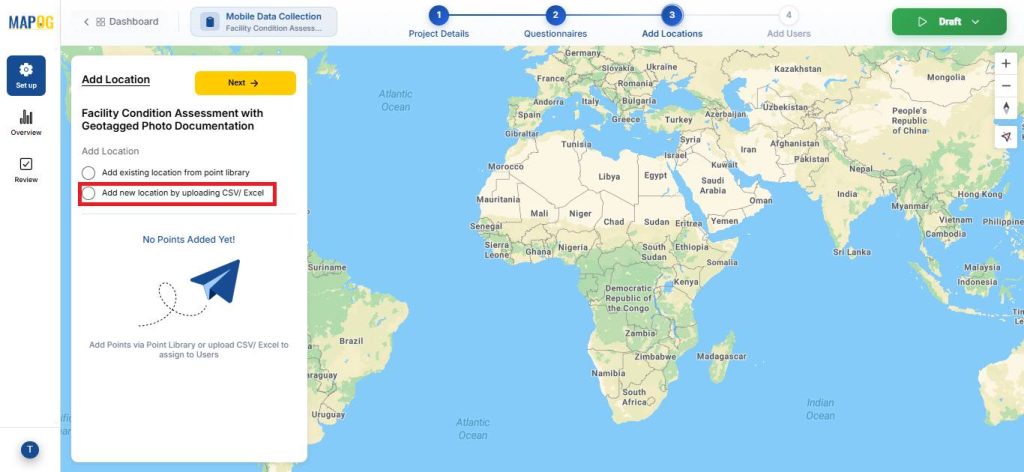
Subsequently, upload the prepared CSV/Excel file using Add by uploading CSV/Excel.
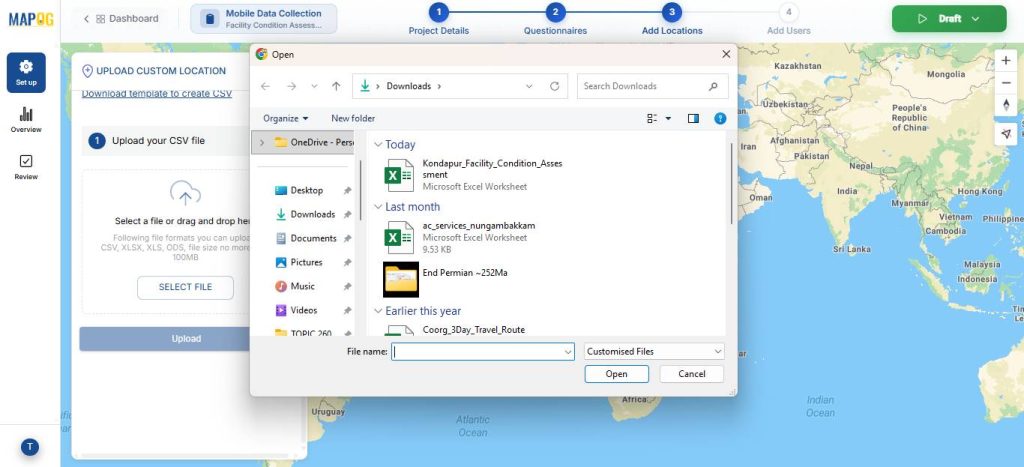
Assign a Unique ID to uniquely identify every location, helping prevent duplicates and enabling easy tracking and updates.
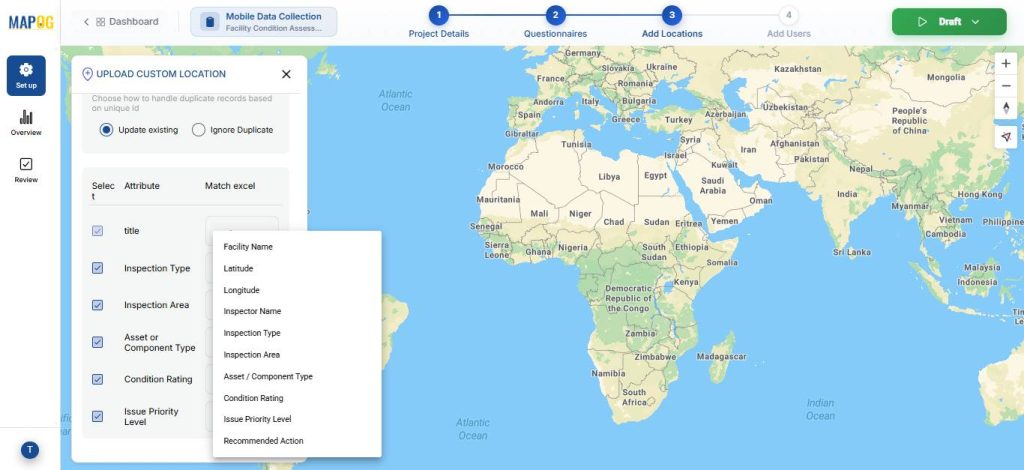
Match the attributes with excel and field type to latitude and longitude. Lastly, hit submit.

Your points will now appear on the map.
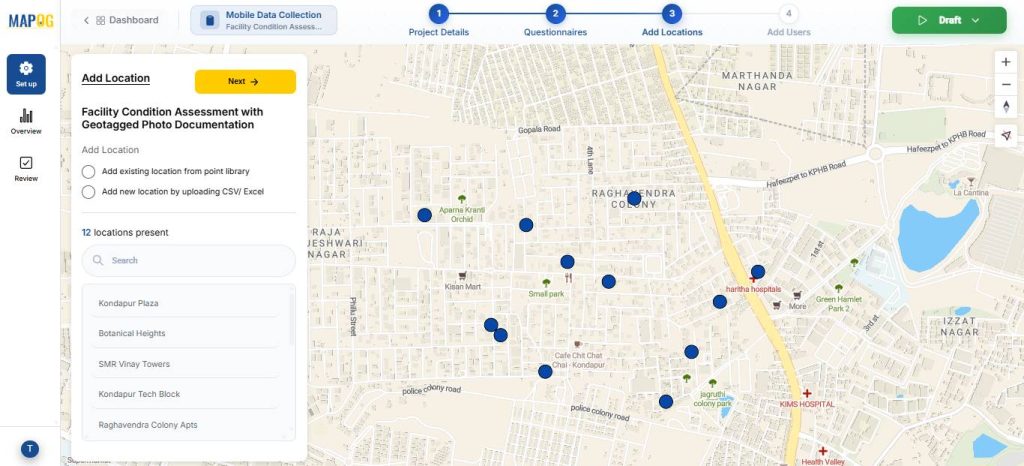
4. Assign Team Members
In the Add User section, add members of the inspection team using their email ids and assign roles such as admin or others.
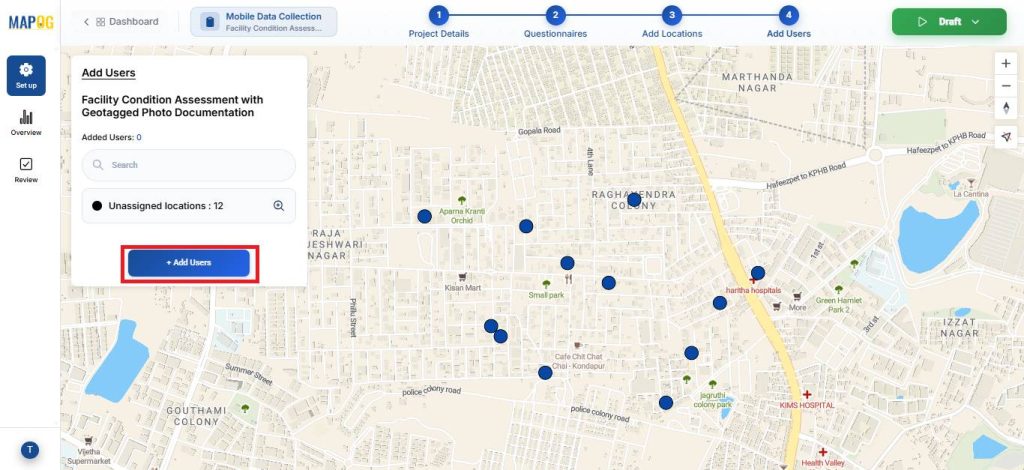
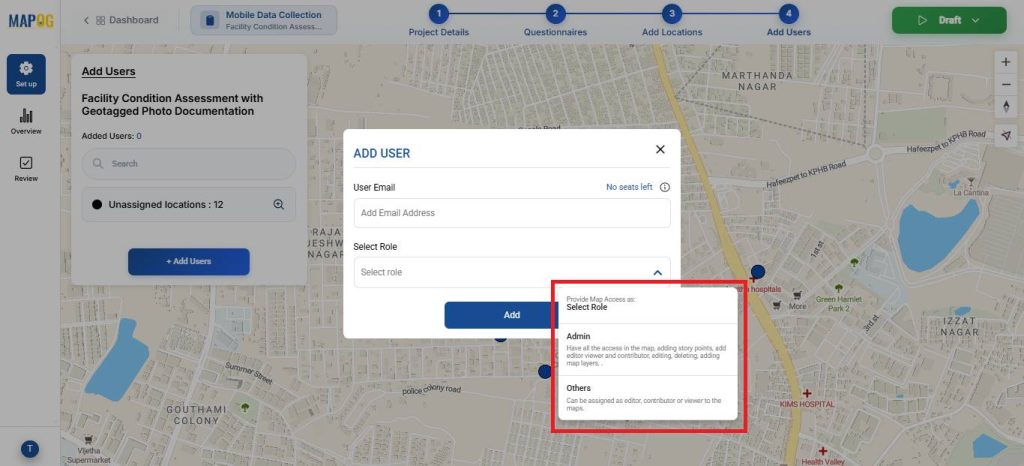
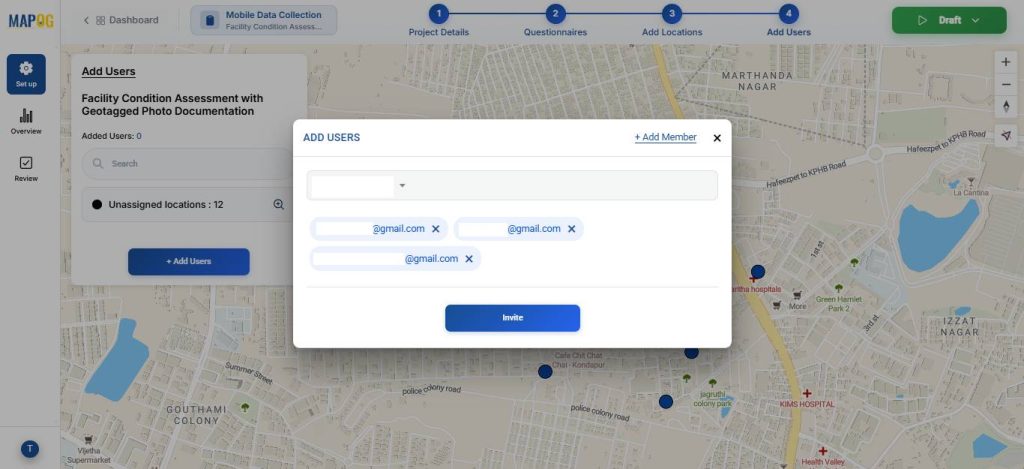
Then select the members from the dropdown & invite them to participate in the survey.
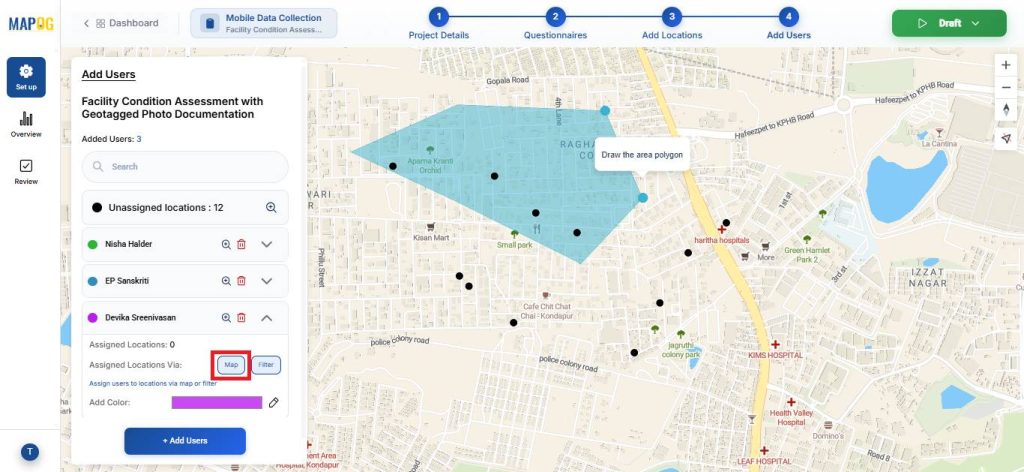
Next, click on the Map option to draw polygon around points to allocate the specific points under the area to that assignee, you can also assign different colors for easy differentiation.
The Filter option can also be used to assign points.
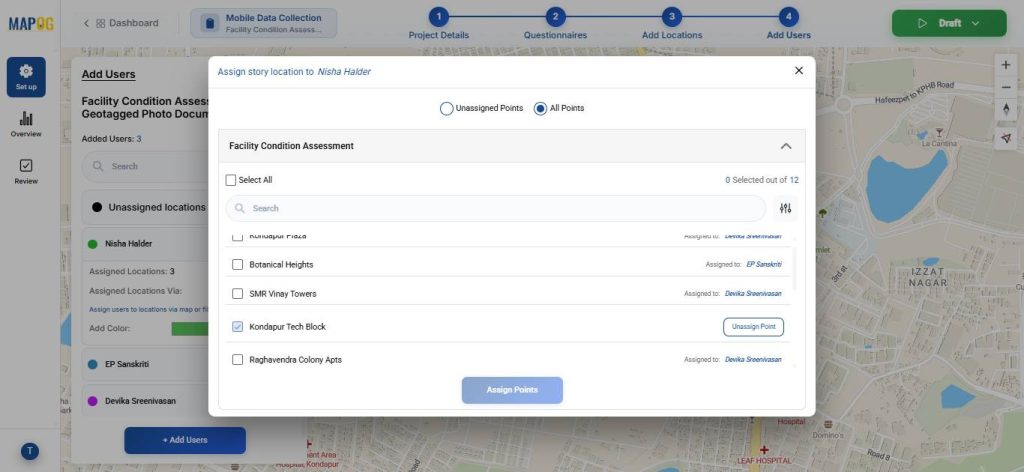
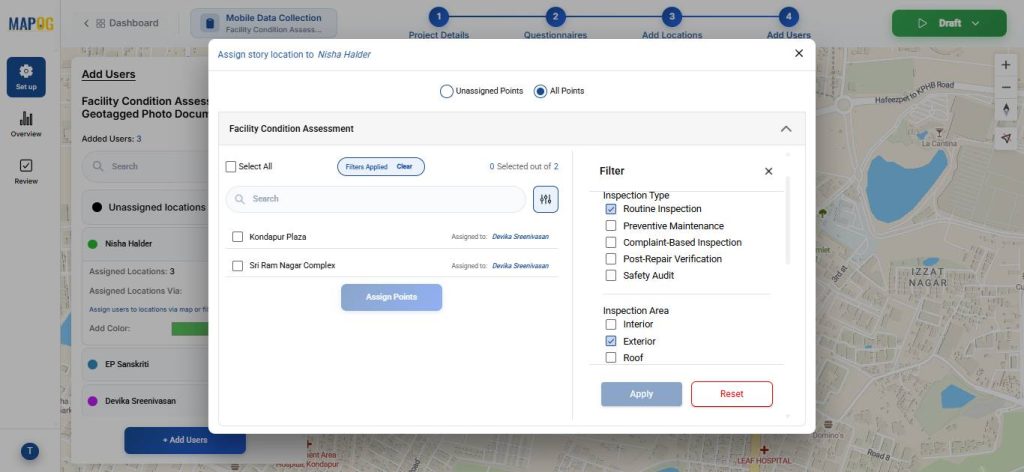
After that, go to the draft section and click on Start Survey, to launch it.
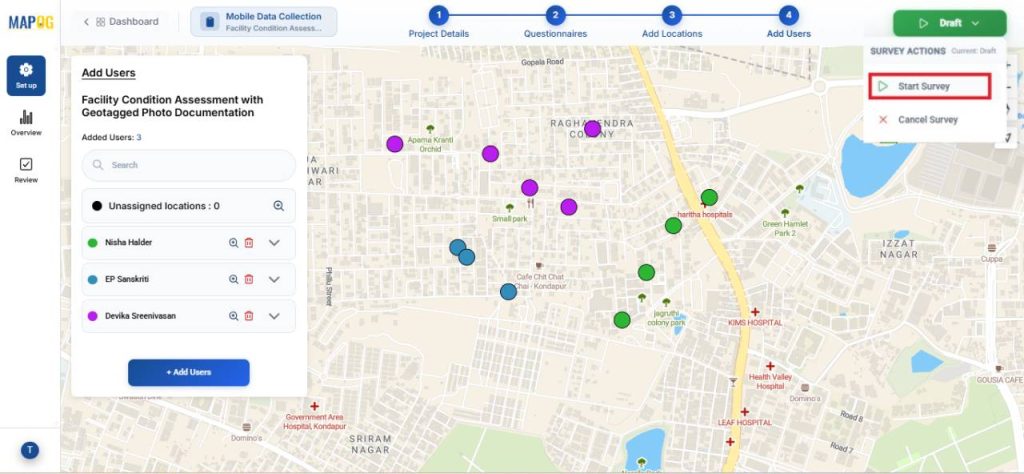
5. Contribute to the Survey via Mobile App
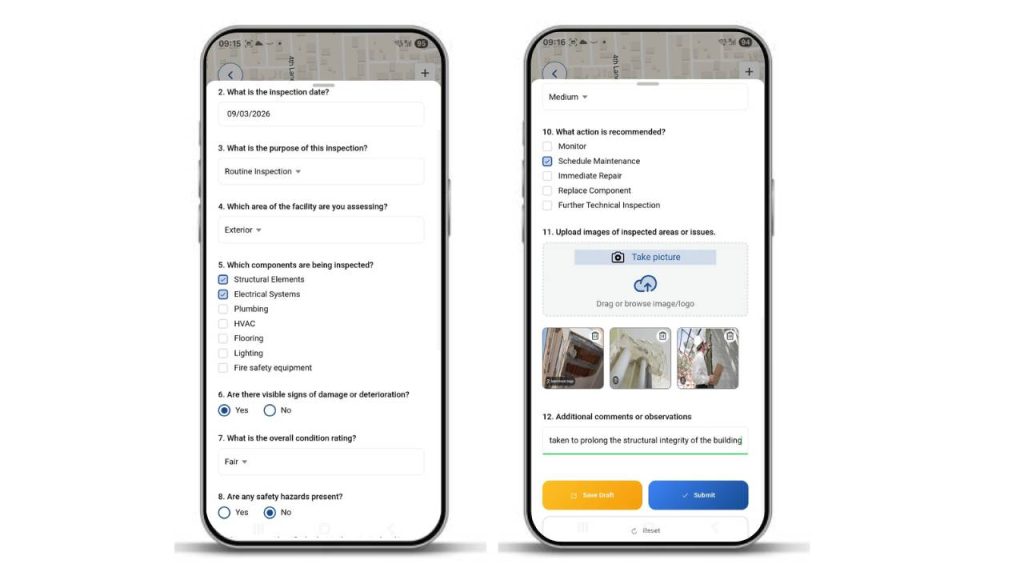
Assignees can receive their mapped locations on the MAPOG Contributor App. Here, you can add new location points by clicking on Add Location, pinpoint on the location you wish to add and click confirm. Then, add the necessary details about the location and click save.
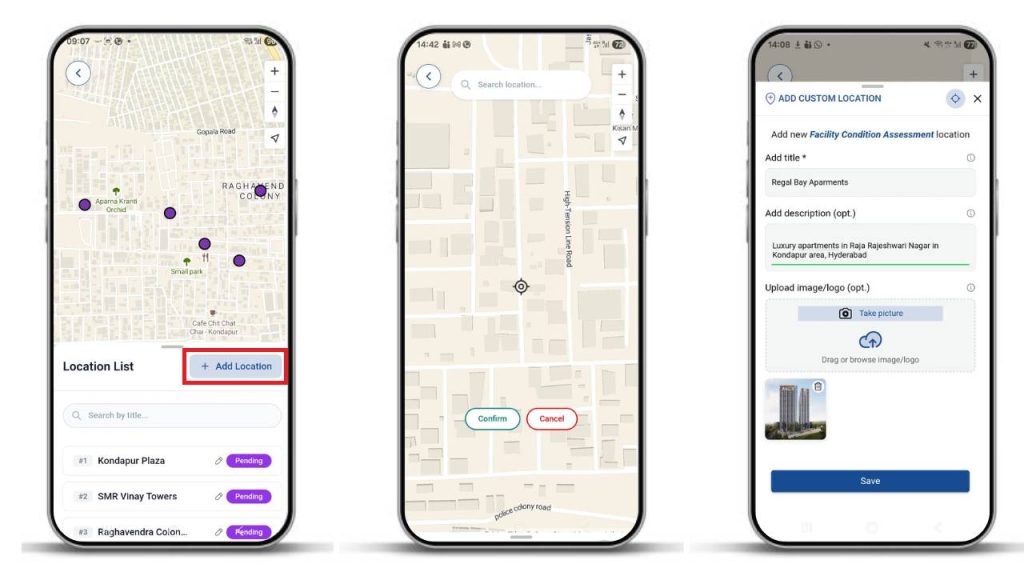
Fill out the surveys with collected information, upload photos, and submit or save drafts.
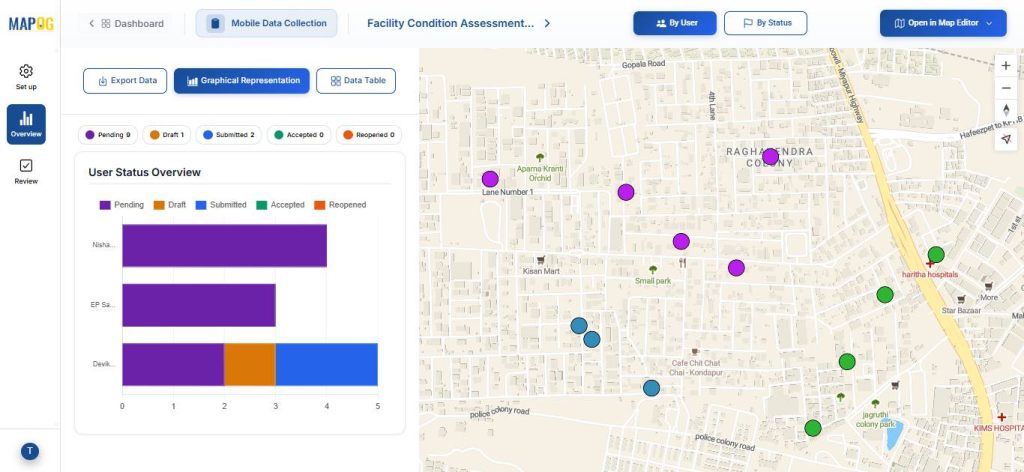
6. Monitor and Analyse Results
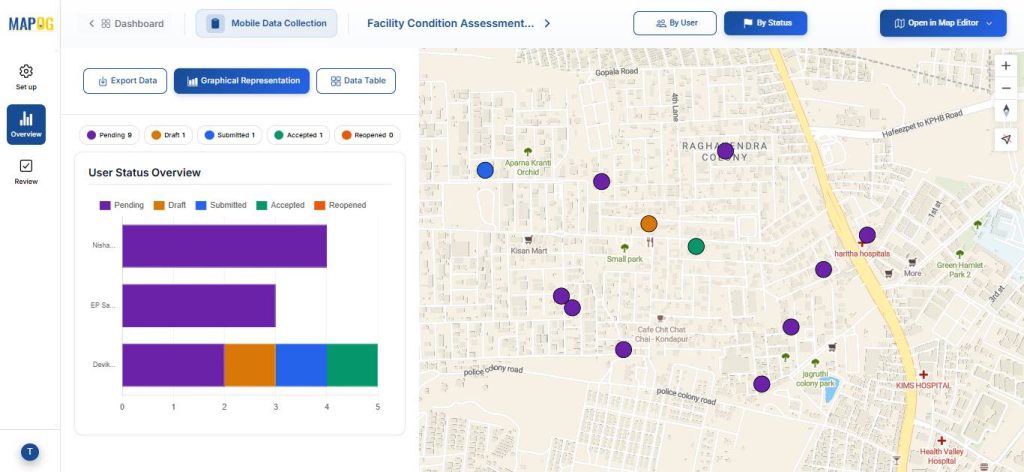
Use the Overview panel to track the status of your survey. Here, you can view key statistics such as the number of pending, drafted, and submitted responses.
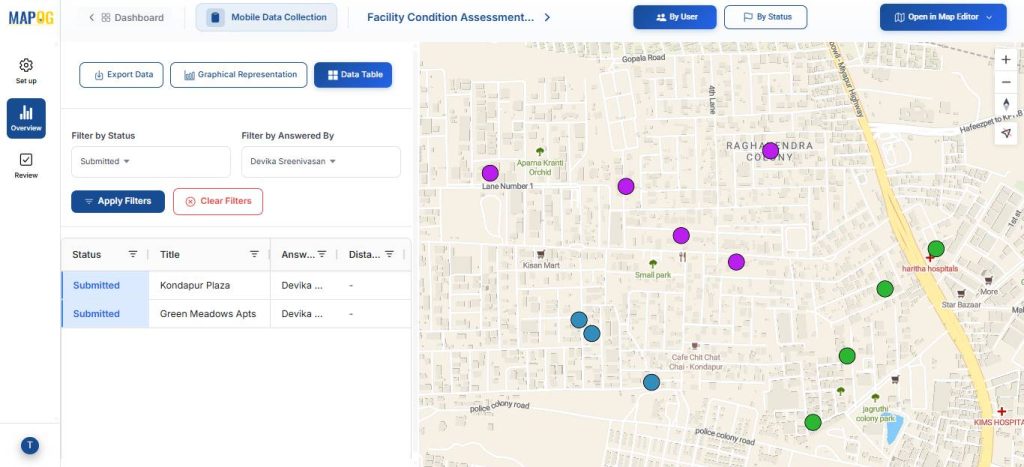
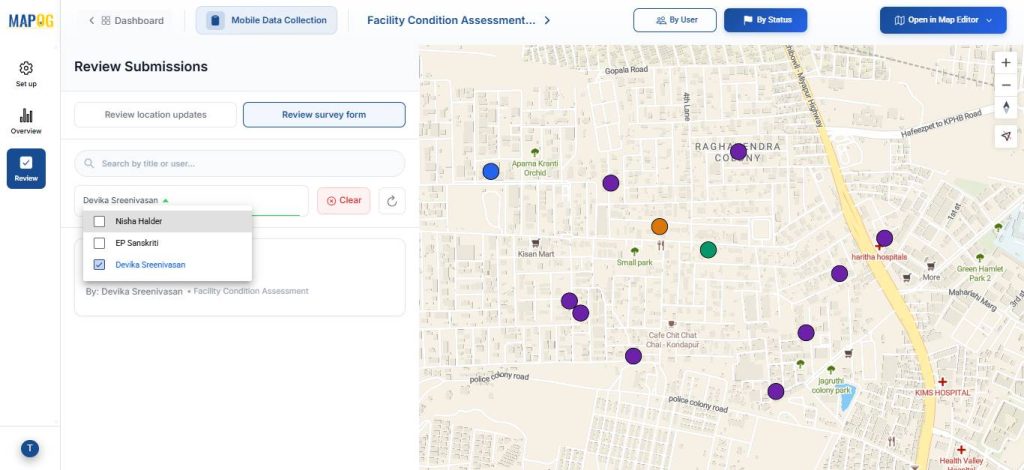
You can also monitor progress by filtering inspector responses based on their assigned team members.
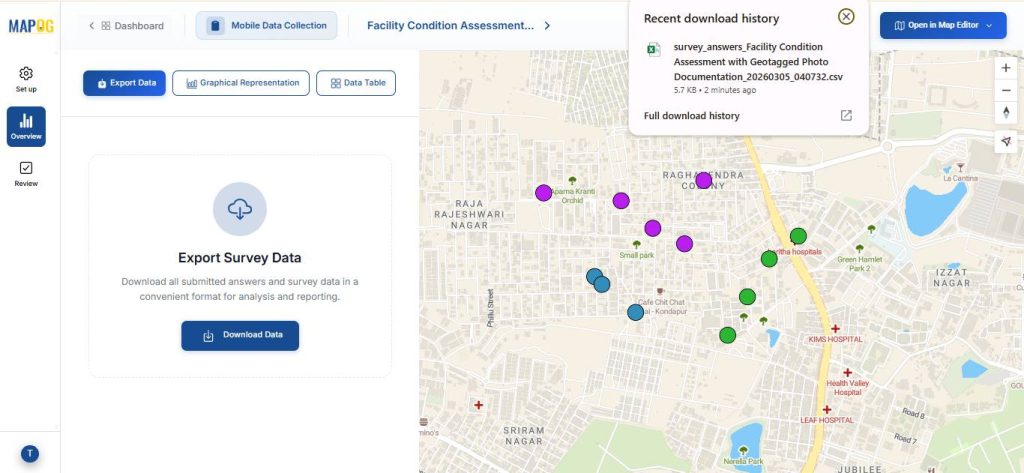
You can download the data in CSV format using the Export Data option.
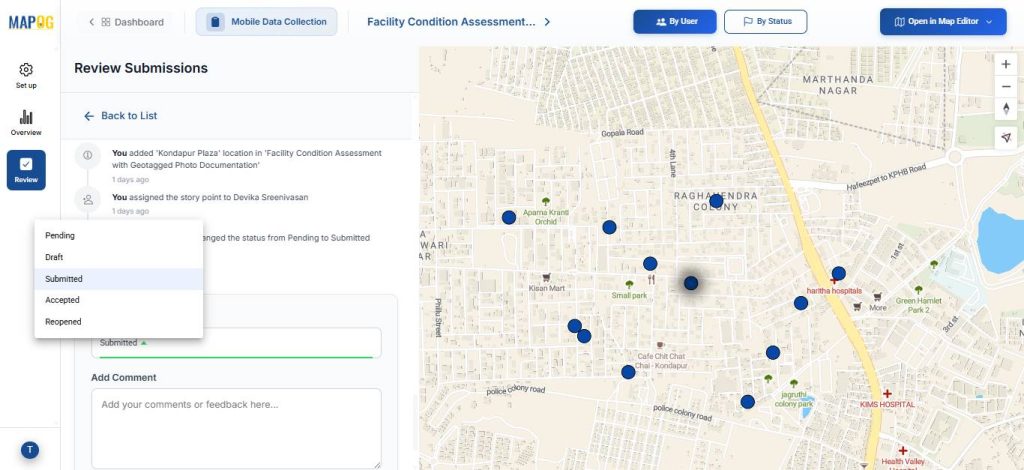
In the Review section, the admin can review location updates or review survey survey forms.
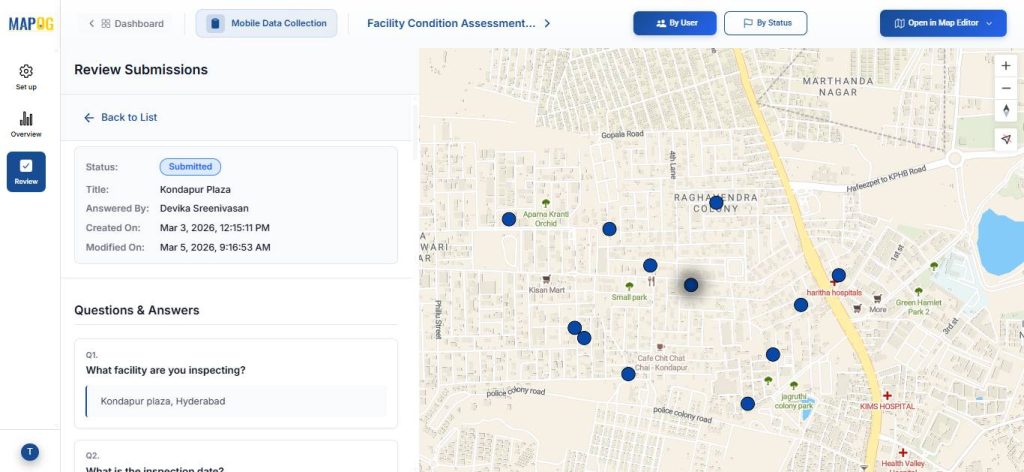
The admin can also update the task status from Completed to Accepted. Additionally, data can be filtered based on the assignee.
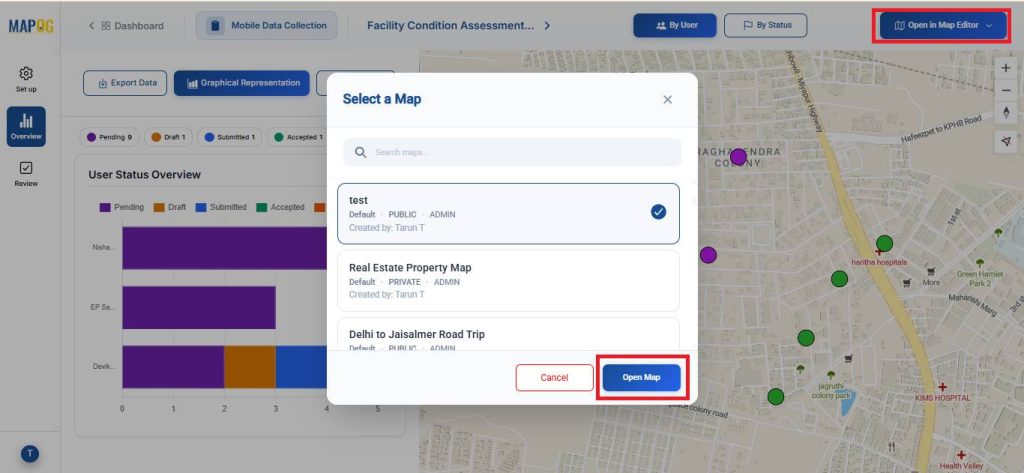
In the overview section the map can be opened in a new or existing map using the Open in Map Editor section.
Real World Applications
Capturing inspection photos and notes from on-site locations is widely used across industries. In property and facility management, it supports maintenance and safety checks. Construction teams use it to track progress and defects, while utilities inspect infrastructure like pipelines and power systems. Manufacturing relies on it for equipment maintenance, and real estate firms use it for property documentation. Across industries, it improves accountability, speeds reporting, and ensures accurate, location-based records.
Conclusion
In conclusion, efficiently capturing inspection photos and notes on-site is essential for accurate field reporting and maintenance management. MAPOG streamlines this process with geotagged photos, digital forms, and real-time updates, helping organizations maintain reliable records, improve visibility, and make faster maintenance decisions.