Creating an interactive map is only the beginning. The real value comes when you can share interactive maps with the right audience while maintaining complete control over who can access it. Depending on your project, you may share interactive maps publicly available for customers, stakeholders, or presentations, or keep it restricted to specific team members working on internal projects.
With MAPOG, you can choose whether you share interactive map is publicly accessible or privately shared with selected users. In addition, role-based access ensures that every collaborator has the appropriate permissions, making it easy to work together while keeping your data secure.
Why While Share interactive Maps Publicly Controlling Matters
Different projects require different levels of access. Some maps are designed for public viewing, such as tourism guides, event maps, or marketing campaigns, while others contain confidential business information that should only be available to authorized users.
Instead of sending static files or multiple versions of the same map, organizations can maintain a single interactive map and control who can view or edit it. This keeps everyone working from the latest information while protecting sensitive data.
Whether you’re sharing a map with clients, partners, or internal teams, choosing the appropriate sharing option helps balance accessibility with security.
Steps to Share Interactive Maps Publicly
Step 1: Open Your Map
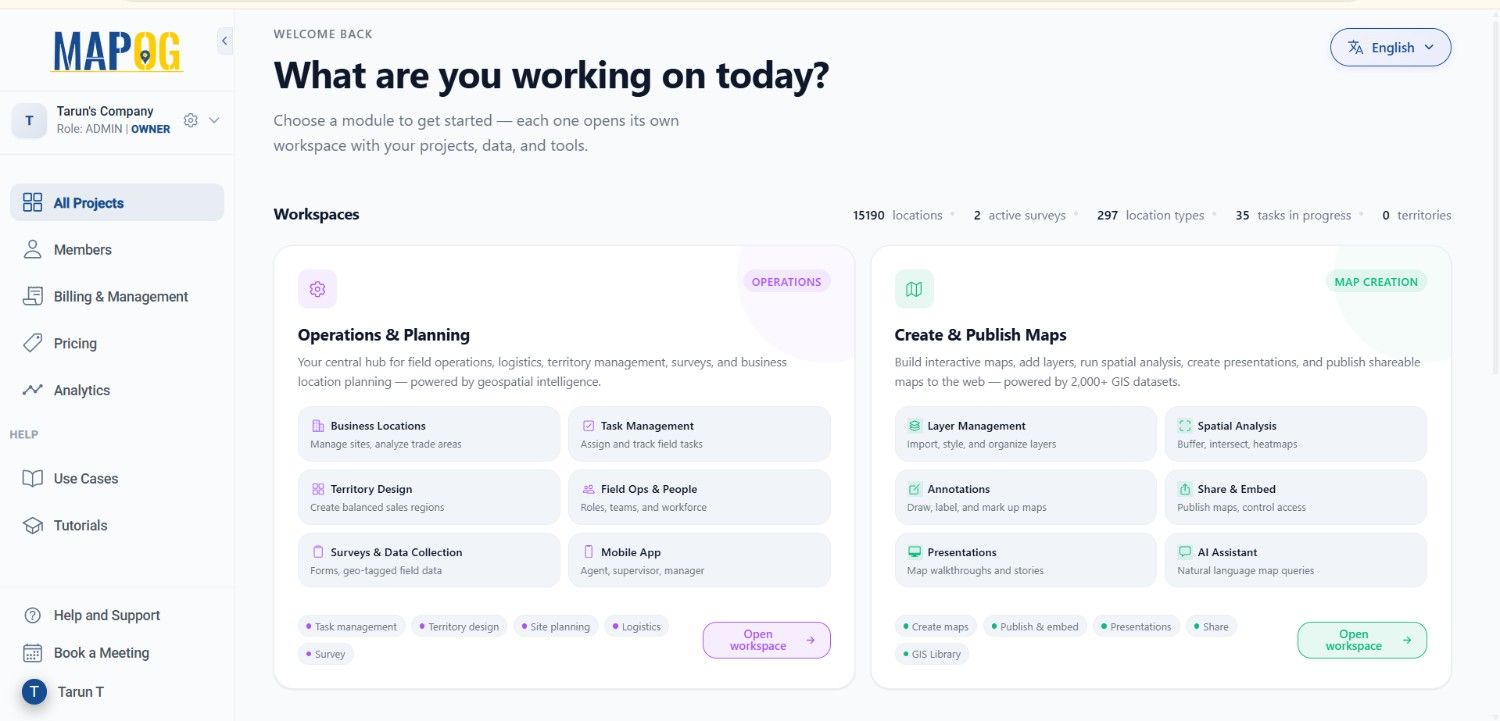
Firstly, open your project in MAPOG and navigate to Create & Publish Maps.
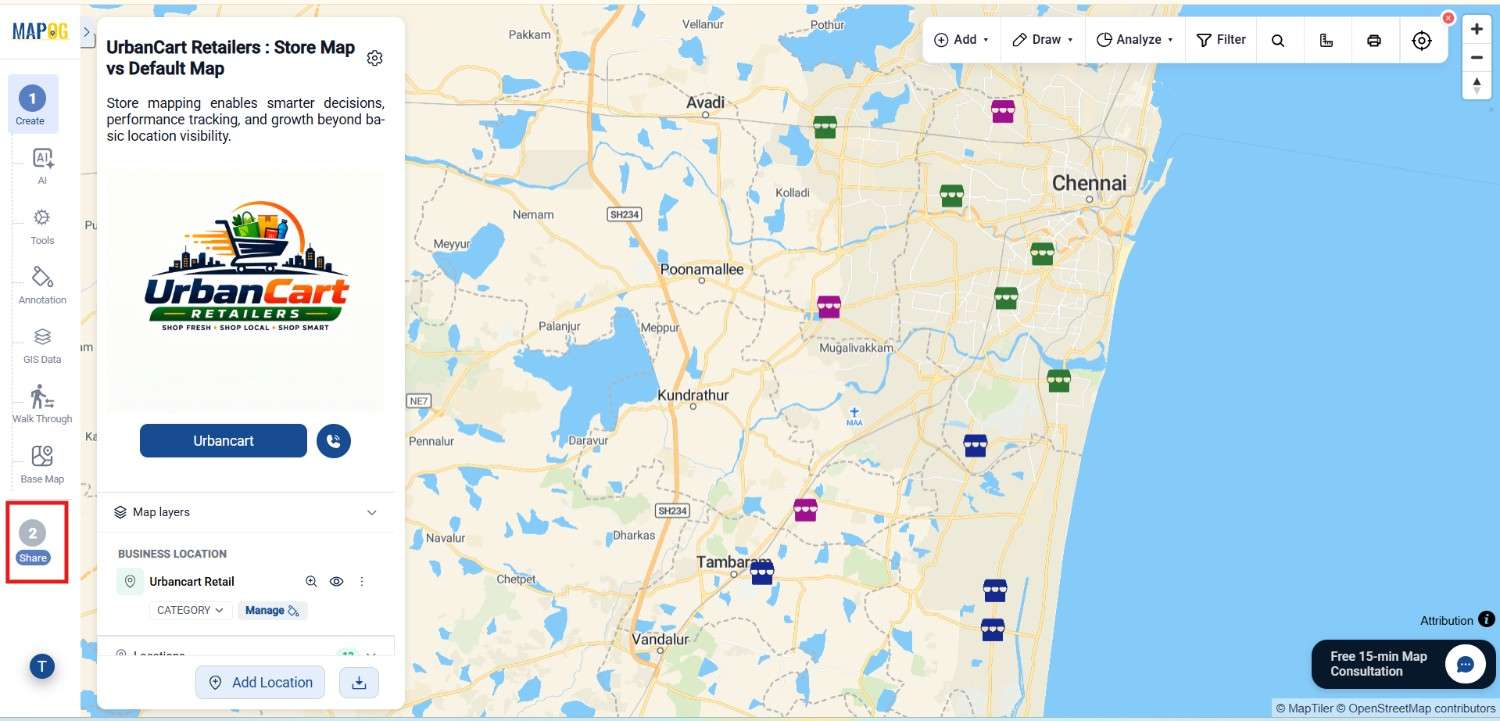
Once your map is ready, open the Share & Publish section. Additionally This is where you can configure your map’s visibility and manage user access.
Step 2: Select Private Visibility
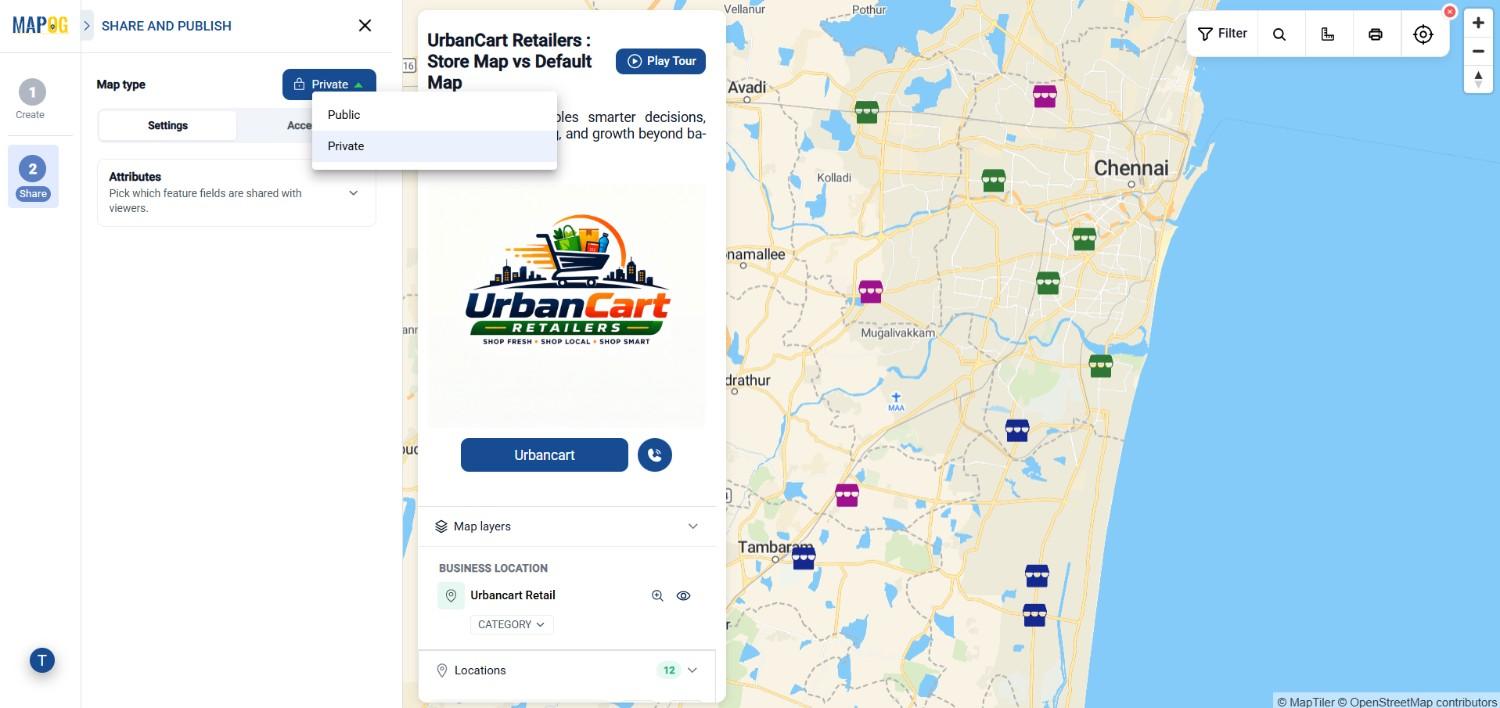
However If your map contains confidential or internal information, begin by selecting Private under the Visibility settings.
With Private visibility enabled, only invited users can access the map. Secondlly Even if someone receives the URL, they cannot open the map unless they have permission.
Private sharing is ideal for:
- Internal business projects
- Survey and field operations
- Asset management
- Infrastructure mapping
- Government projects
- Enterprise collaboration
This ensures your data remains protected while allowing authorized users to collaborate securely.
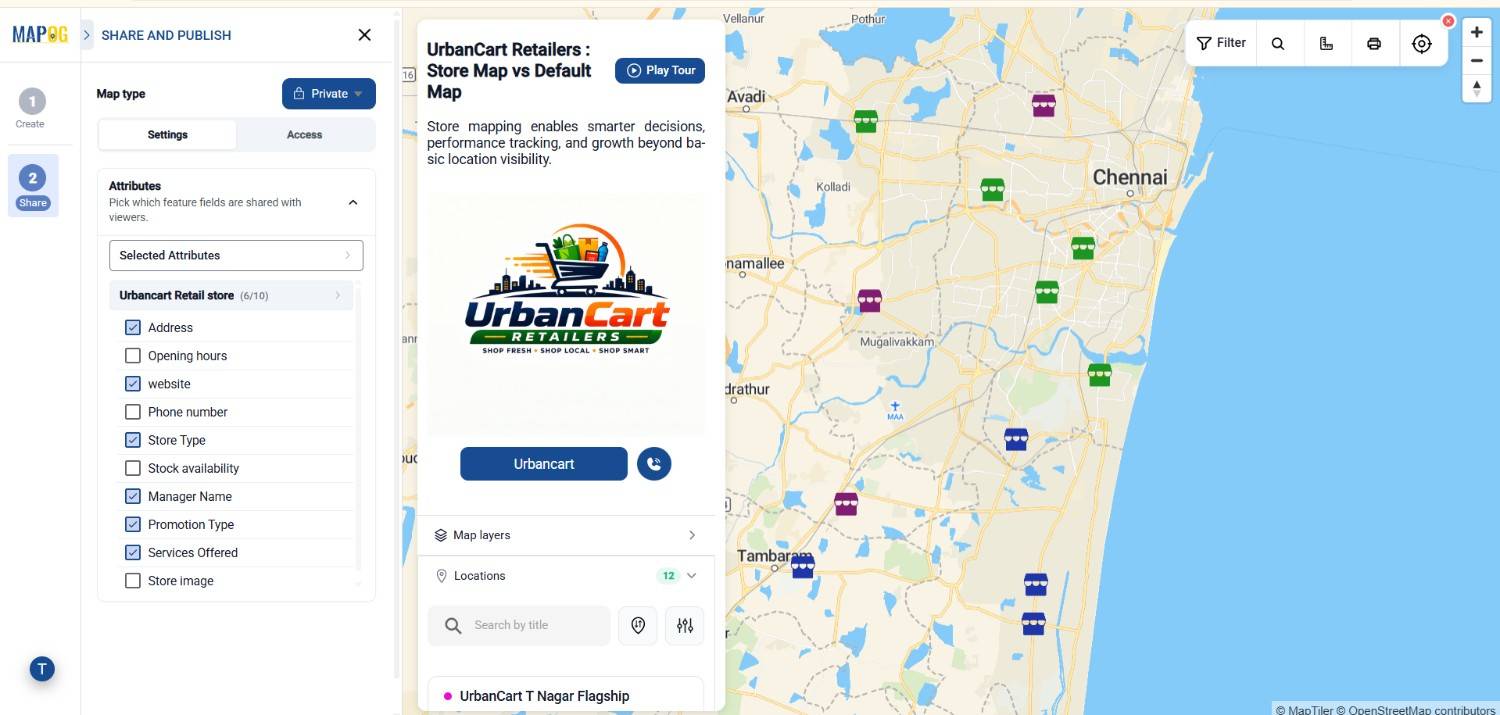
Step 3: Select the Attributes to Display
Instead of just inviting users, choose which attributes should be visible when the map is shared.
Therefore Depending on your project, you can display information such as:
- Location Name
- Category
- Description
- Contact Details
- Images
- Videos
- Custom Attributes
Moreover Displaying only relevant attributes keeps the map clean while preventing unnecessary information from being shared.
Step 4: Add Users and Assign Roles
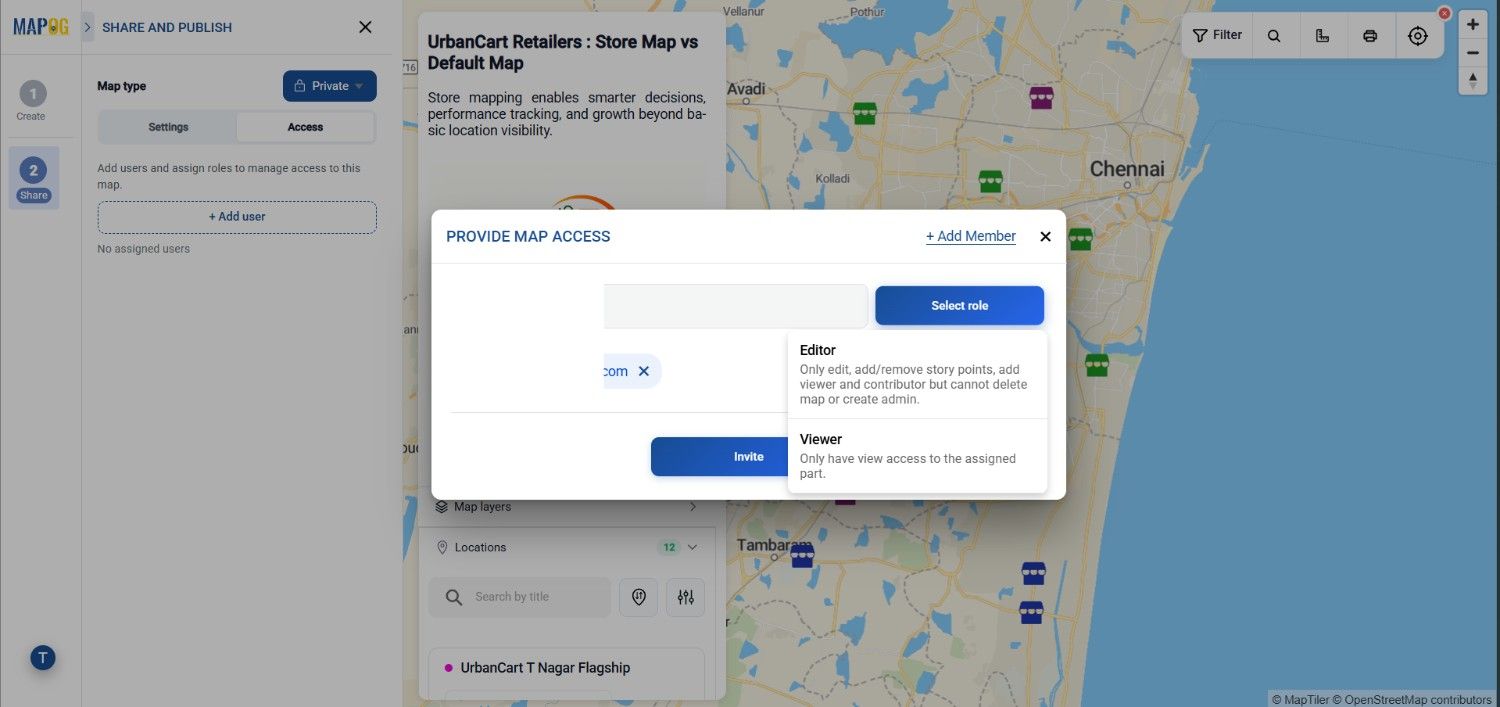
Now open the Access section and click Add User.
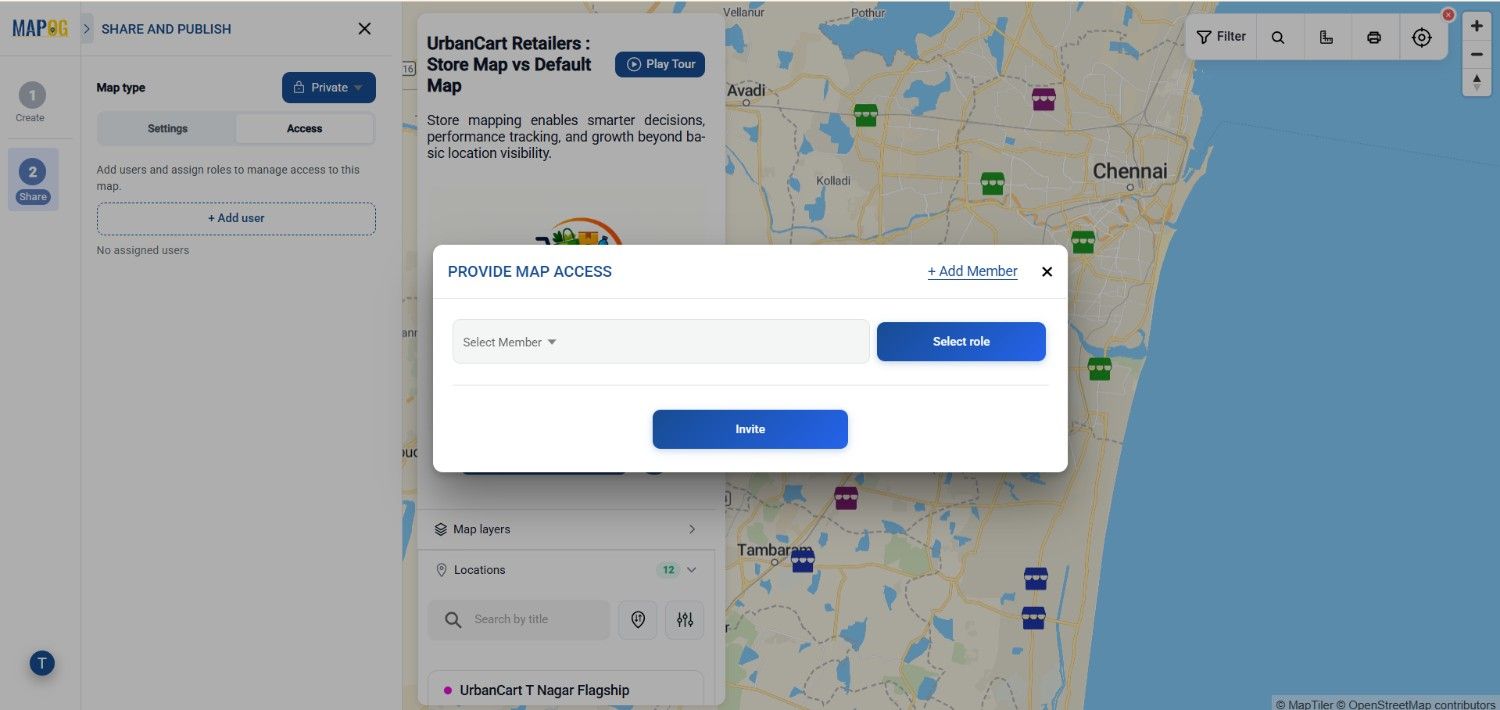
Go to add member and then Enter the email addresses of everyone who needs access to the map.
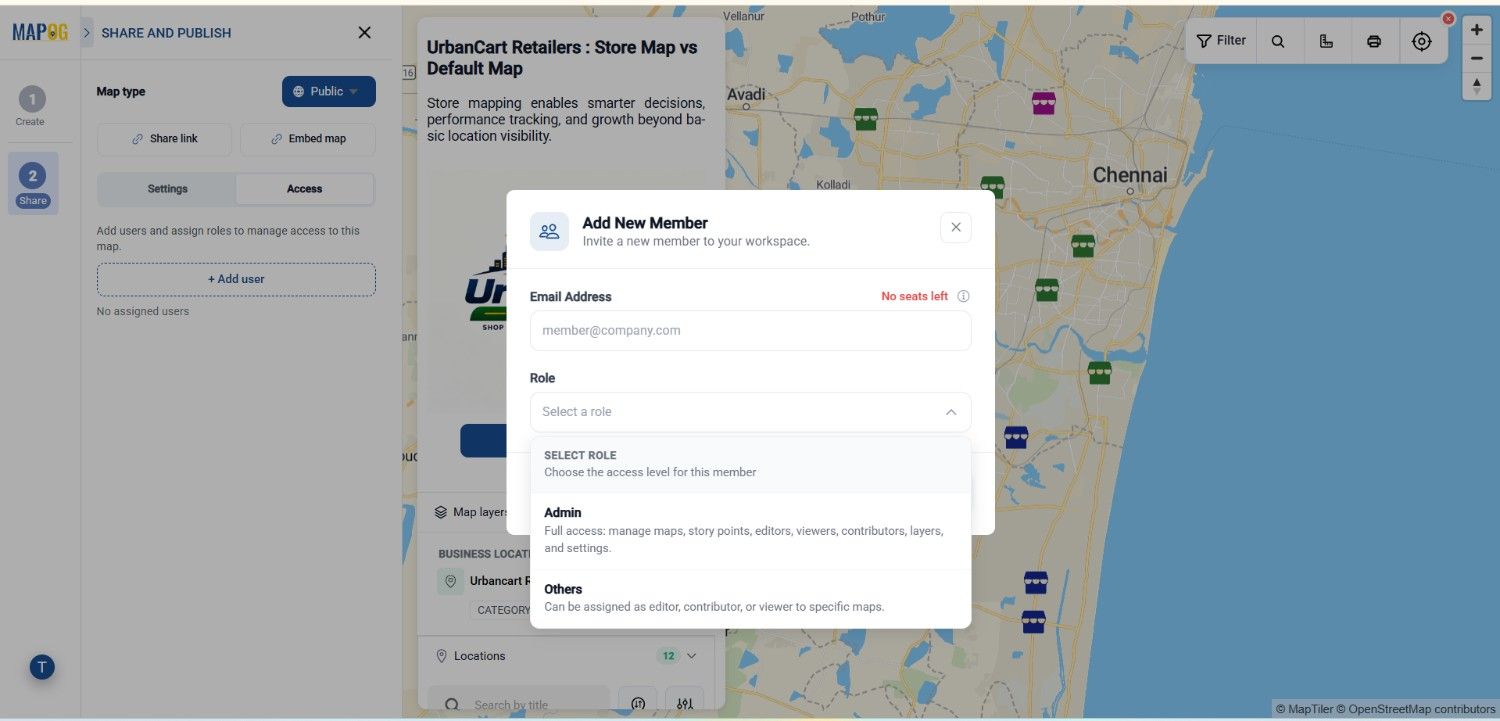
Next, assign roles according to each person’s responsibilities.
Admins have complete control over the project. They can create, edit, organize, and delete map points, routes, layers, media, and attributes. Additionally, they can manage sharing settings, invite or remove users, assign permissions, and control the entire project.
Others – These can be assigned as editor , contributor or just viewer for the map .
After that Select the proper role & click on send invite.
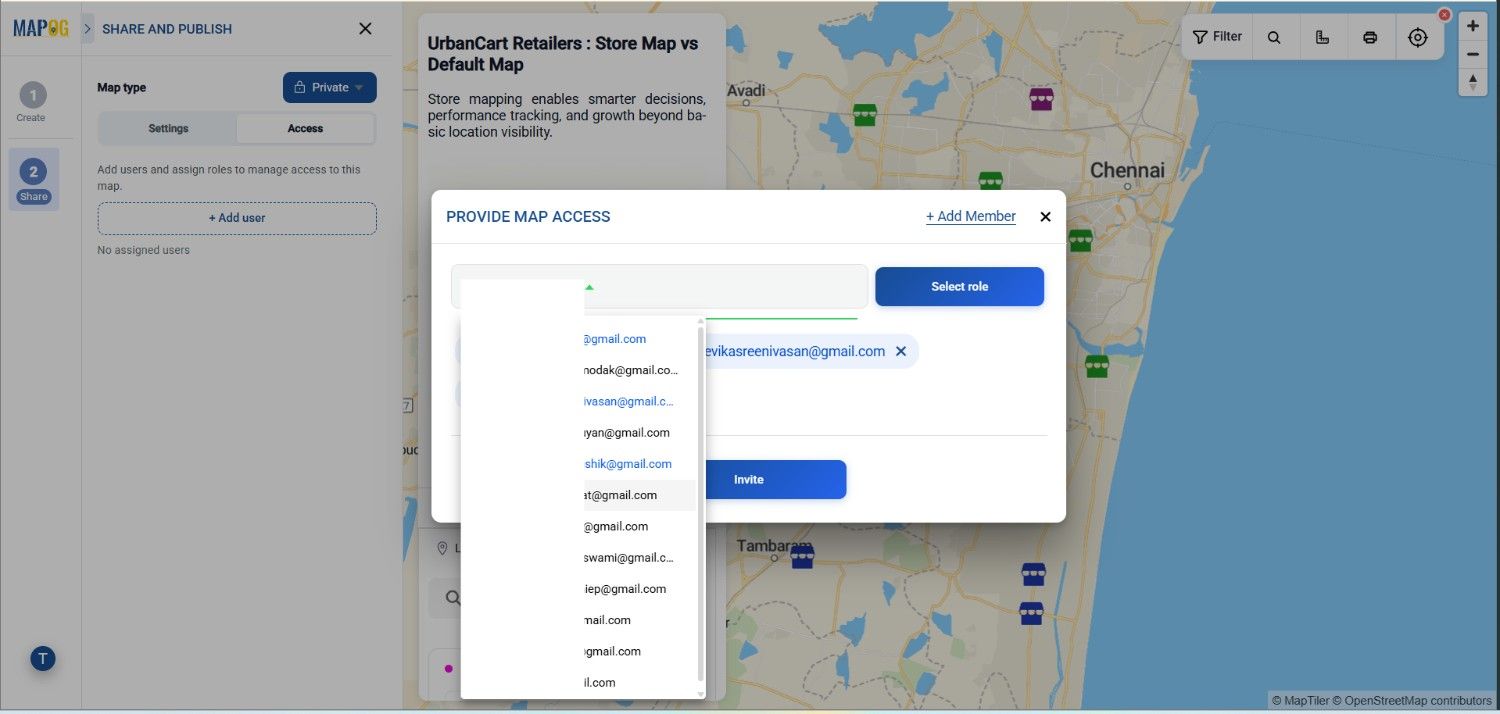
Then choose the persons and select them , go to select members and then choose members whom you want to provide map access.
Editors or Contributors can actively update the map. They can add new locations, edit existing information, upload geotagged photos or videos, modify assigned content, and contribute field data according to the permissions granted by the administrator.
Viewers have read-only access. They can search, explore, and view map information but cannot modify or delete any content.
After assigning the appropriate roles, click Invite.
You can add multiple users at once by entering their email addresses and assigning different permissions. Consequently, every team member receives the level of access required for their work while the map remains secure and well organized.
Step 5: Switch to Public Visibility
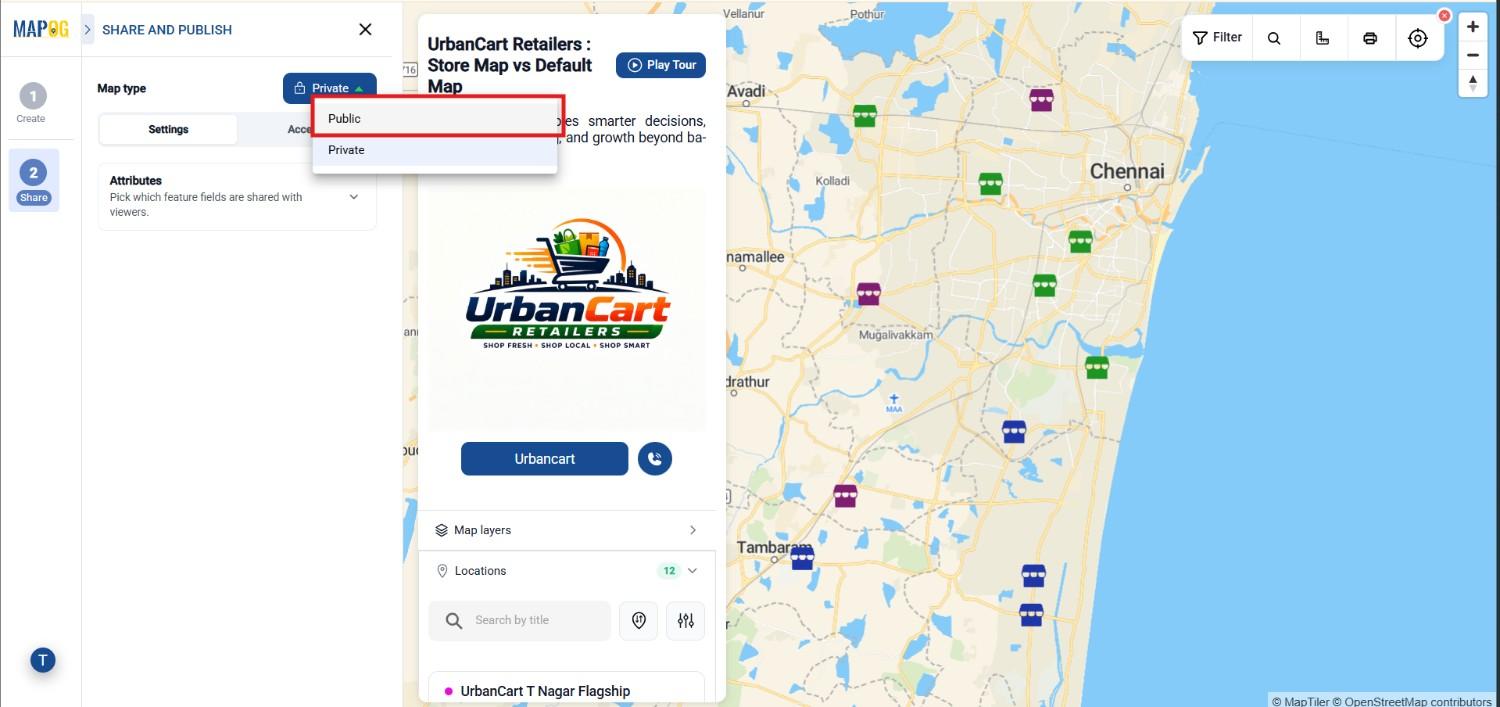
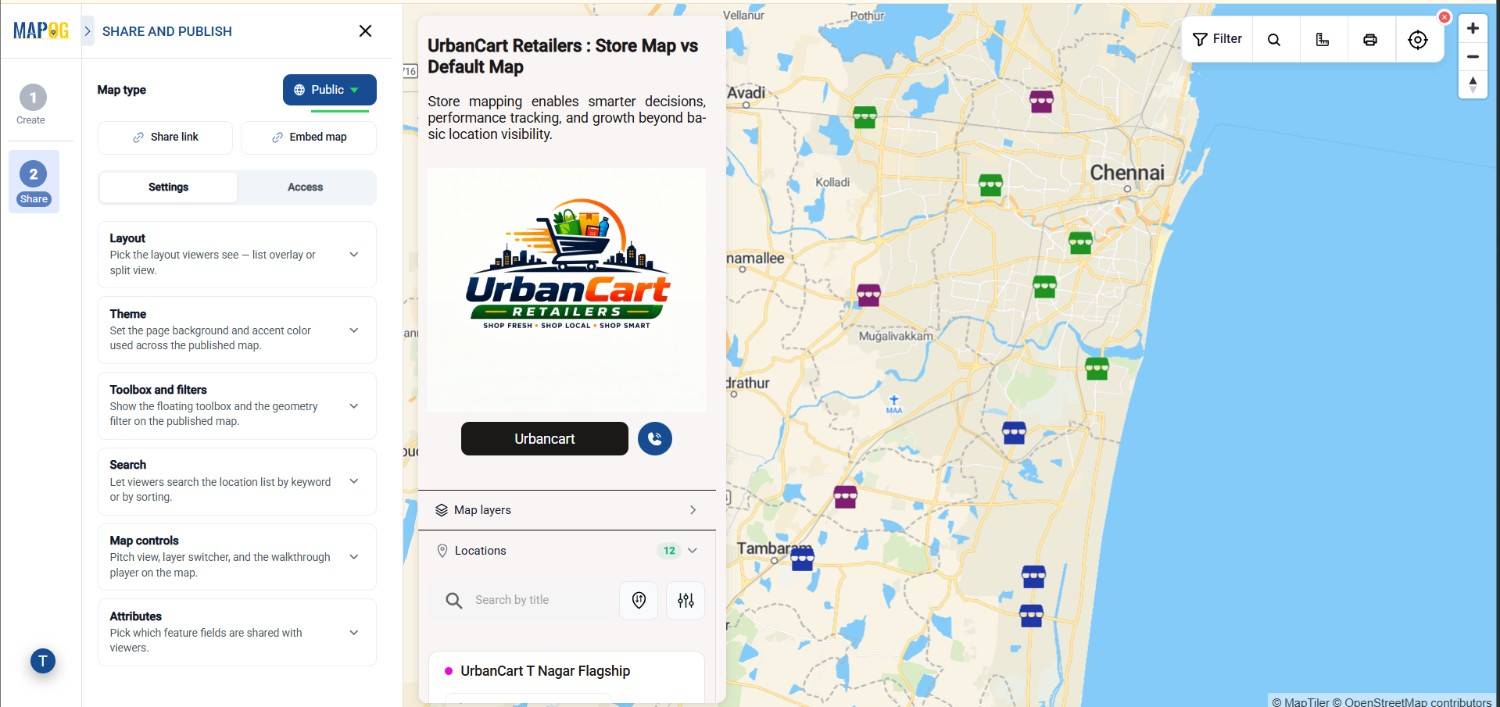
Once your project is ready to be shared with a broader audience, return to the Share & Publish section and change the visibility from Private to Public.
Immediately, your map becomes accessible through a public URL, allowing anyone with the link to explore the map without requiring an invitation.
Public sharing is ideal for:
- Story Maps
- Tourism Guides
- Marketing Campaigns
- Event Maps
- Client Demonstrations
- Public Information Portals
- Business Location Directories
Step 6: Setting up Layout and theme
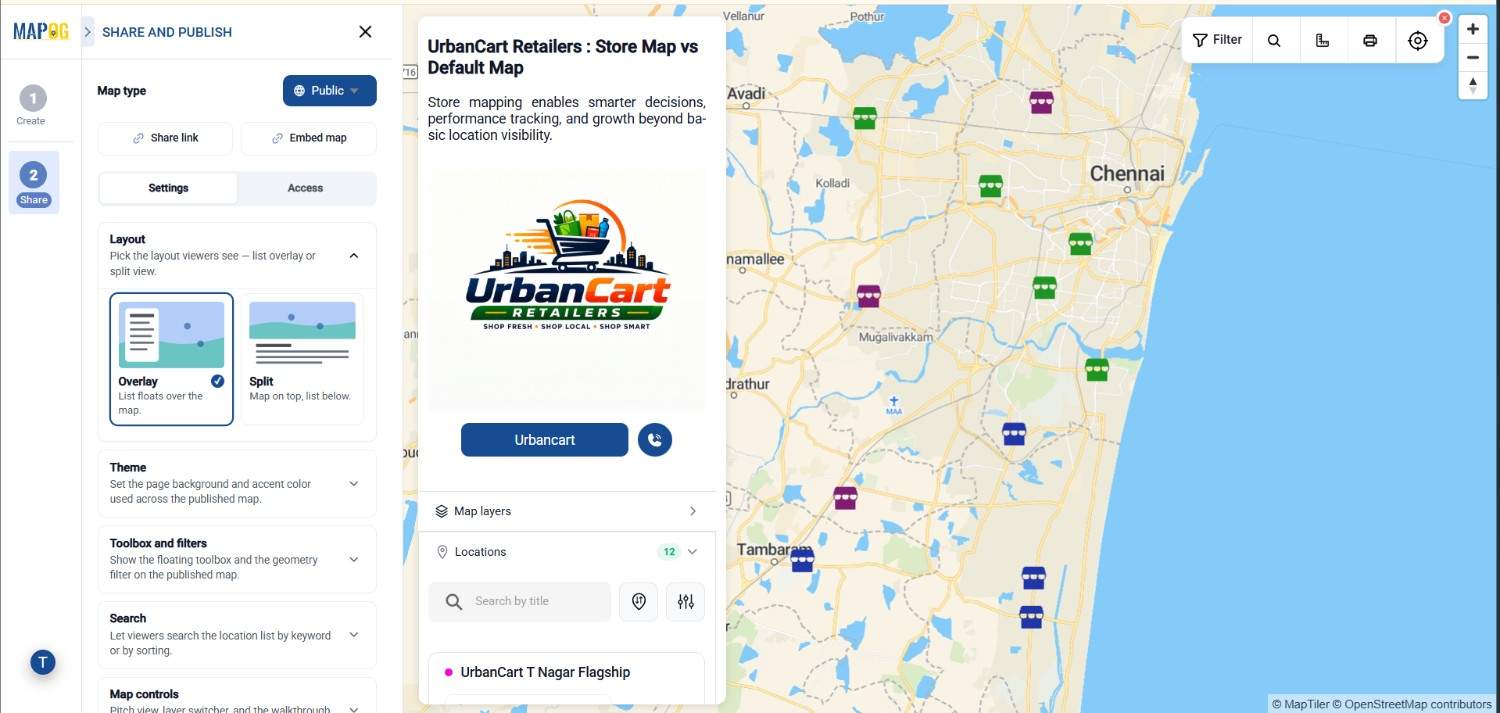
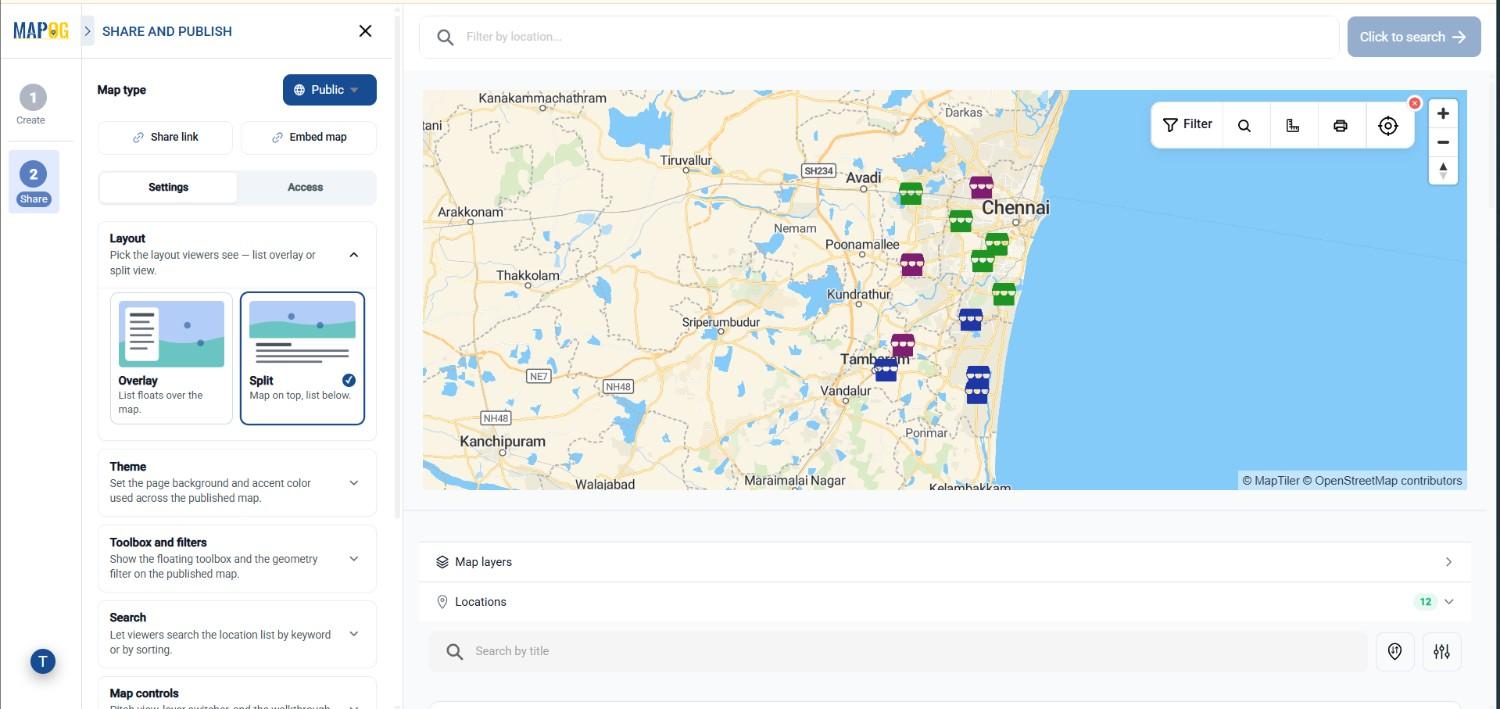
The Layout setting controls how viewers see your published interactive map. You can choose between List Overlay and Split View, depending on how you want to present your location data.
- List Overlay: Displays the map as the main focus with a collapsible list of locations. It is ideal for tourism maps, event guides, and business directories where users primarily interact with the map.
Split View: Shows the map and location list side by side, making it easier to browse multiple locations at once. This layout is recommended for larger datasets, asset management, surveys, and infrastructure projects.
Choosing the right layout improves navigation and creates a better viewing experience.
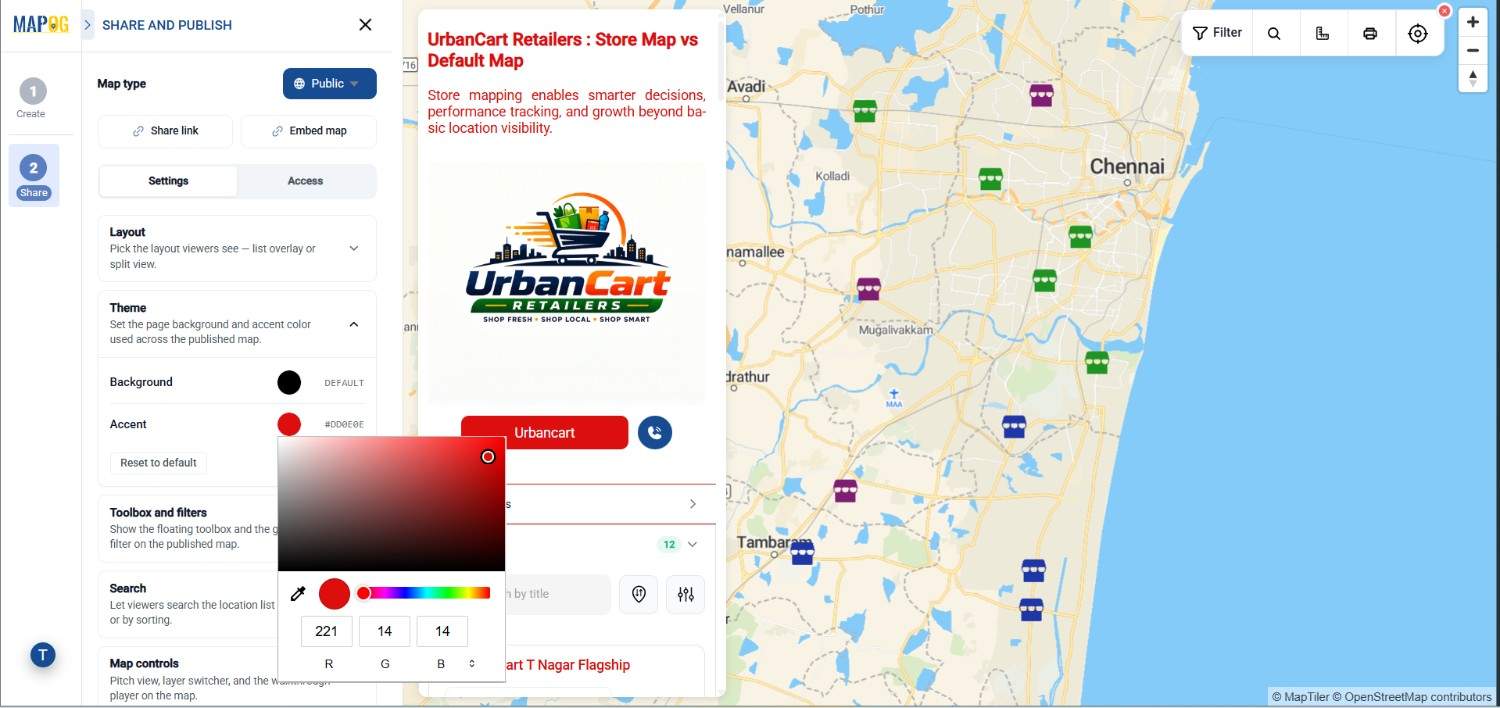
Theme – The Theme setting lets you customize the appearance of your published map by selecting the page background and accent color.
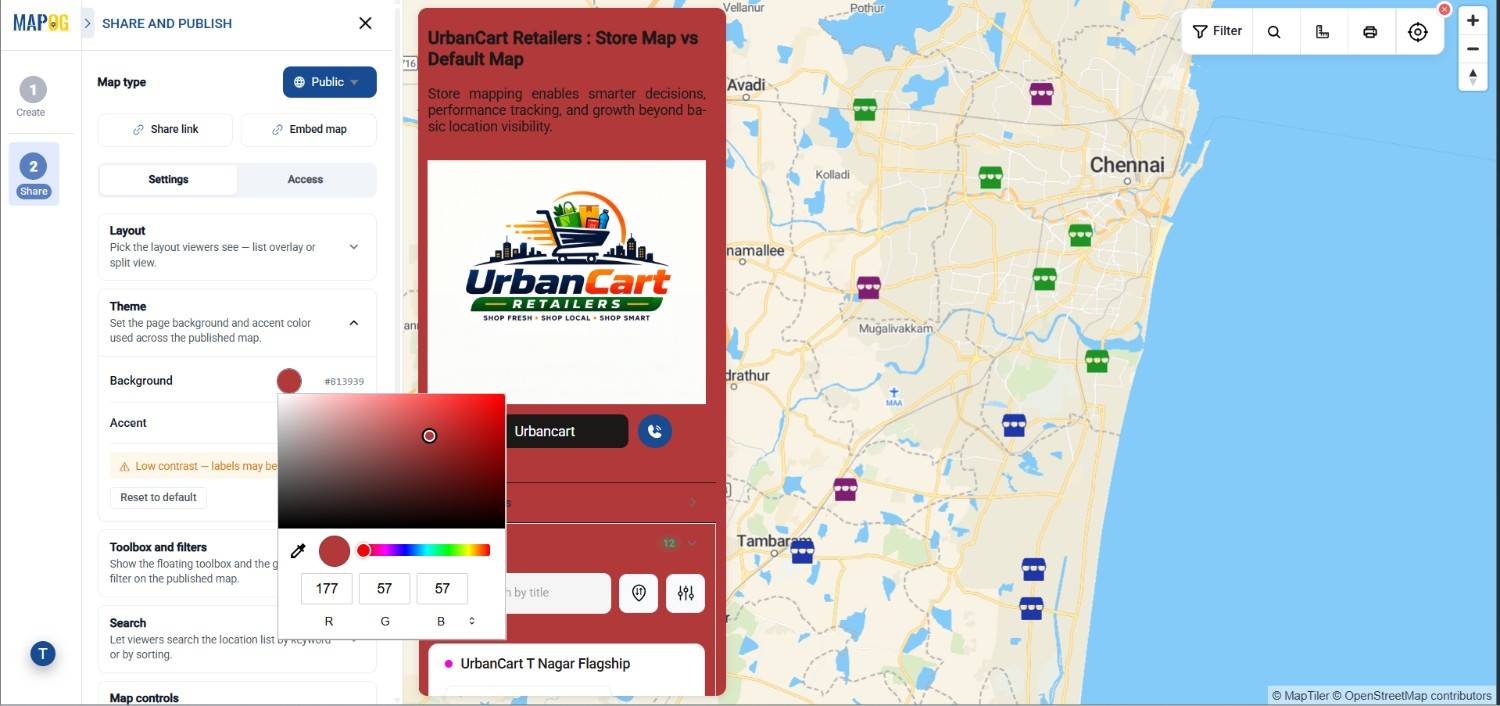
A well-designed theme helps match your organization’s branding while improving readability. Whether you choose a light or dark background, consistent colors create a more professional and engaging experience for viewers.
Step 8: Enable Search and Discovery Features
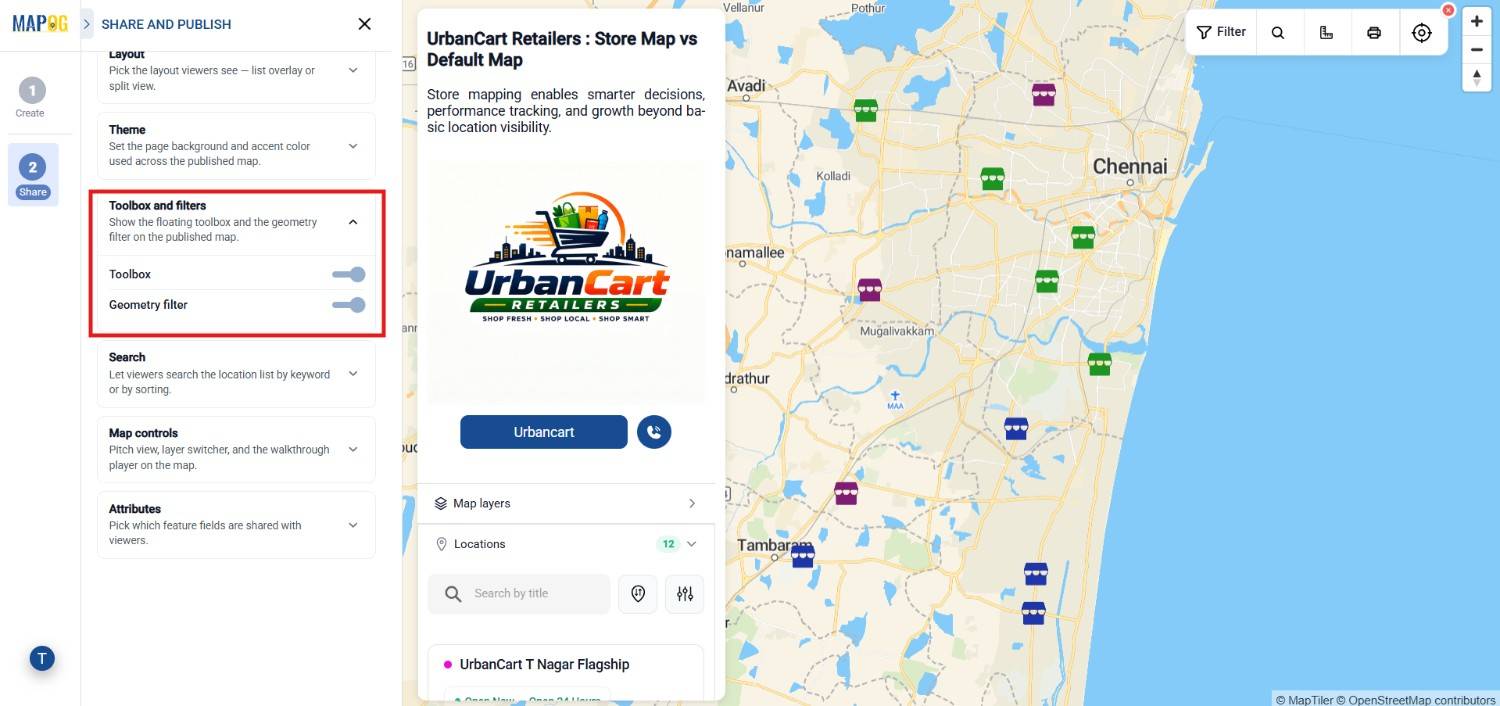
Enable the Toolbox from the top panel so users can draw, analyze, and interact with map data directly.Similarly, turn on the Geometry Filter, enabling users to draw or select a specific area and display only the locations within that boundary.
Together, these features make large interactive maps much easier to explore.
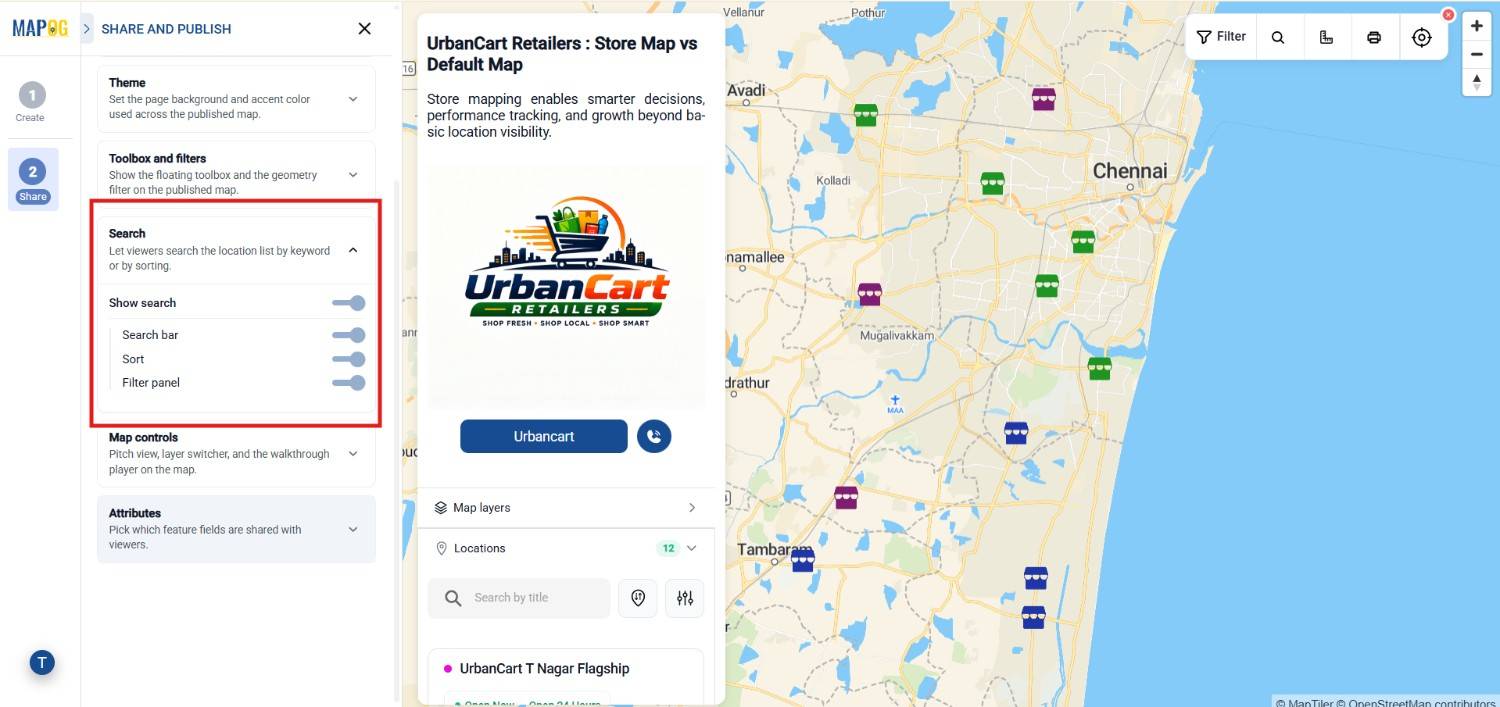
Now that your map is public, improve the visitor experience by enabling search and discovery tools.
Start by enabling Keyword Search, allowing users to quickly locate places by typing names or keywords.
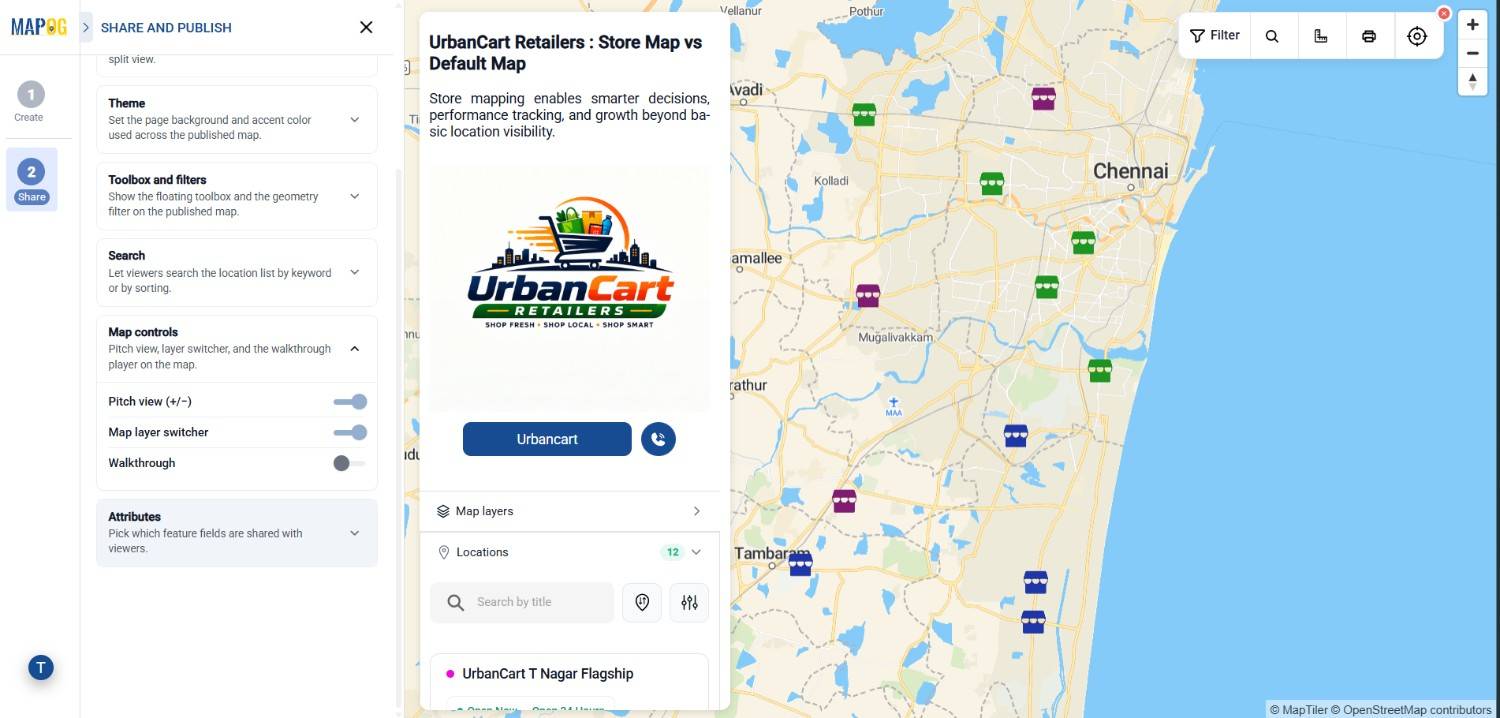
Step 9: Enable Interactive Map Controls
Finally, configure the interactive maps available to your audience.
Additionally, activate Pitch View, allowing visitors to tilt the map for a more realistic 3D perspective.
Next, enable the Map Layer Switcher, giving users the flexibility to switch between standard maps, satellite imagery, and other available basemaps.
Lastly, enable Play Walkthrough to automatically guide users through every mapped location. Rather than manually selecting each point, visitors can enjoy a smooth interactive tour, making this feature especially valuable for presentations, storytelling, tourism guides, and client demonstrations.
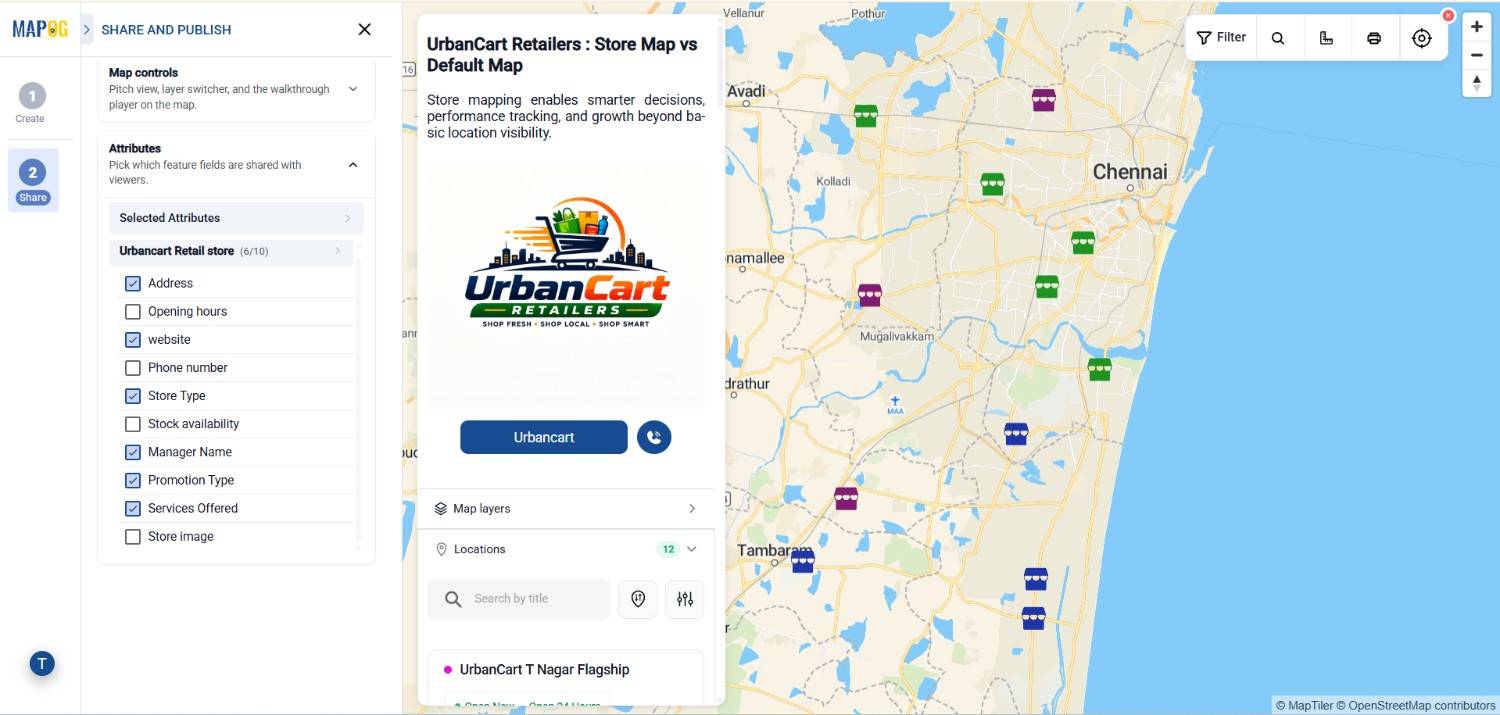
Step -10 Setting up Attributes filter
Next, enable Attribute Filters so visitors can narrow results based on categories, amenities,services, or custom attributes.The Attributes setting lets you decide exactly which information is visible to viewers after the map is published.Rather than exposing every field stored in your dataset, you can choose only the information that is relevant to your audience.
For example, you may choose to display:
- Location Name
- Category
- Address
- Description
Likewise, you can hide confidential or internal attributes that should not be shared publicly.
Selecting only the necessary attributes makes the map cleaner, improves readability, and protects sensitive information. At the same time, viewers receive all the details they need without being overwhelmed by unnecessary data.
Carefully configuring attributes also enhances the overall user experience by presenting organized, relevant, and easy-to-understand location information.
Step -11 Generate the Share Link and Embed the Map
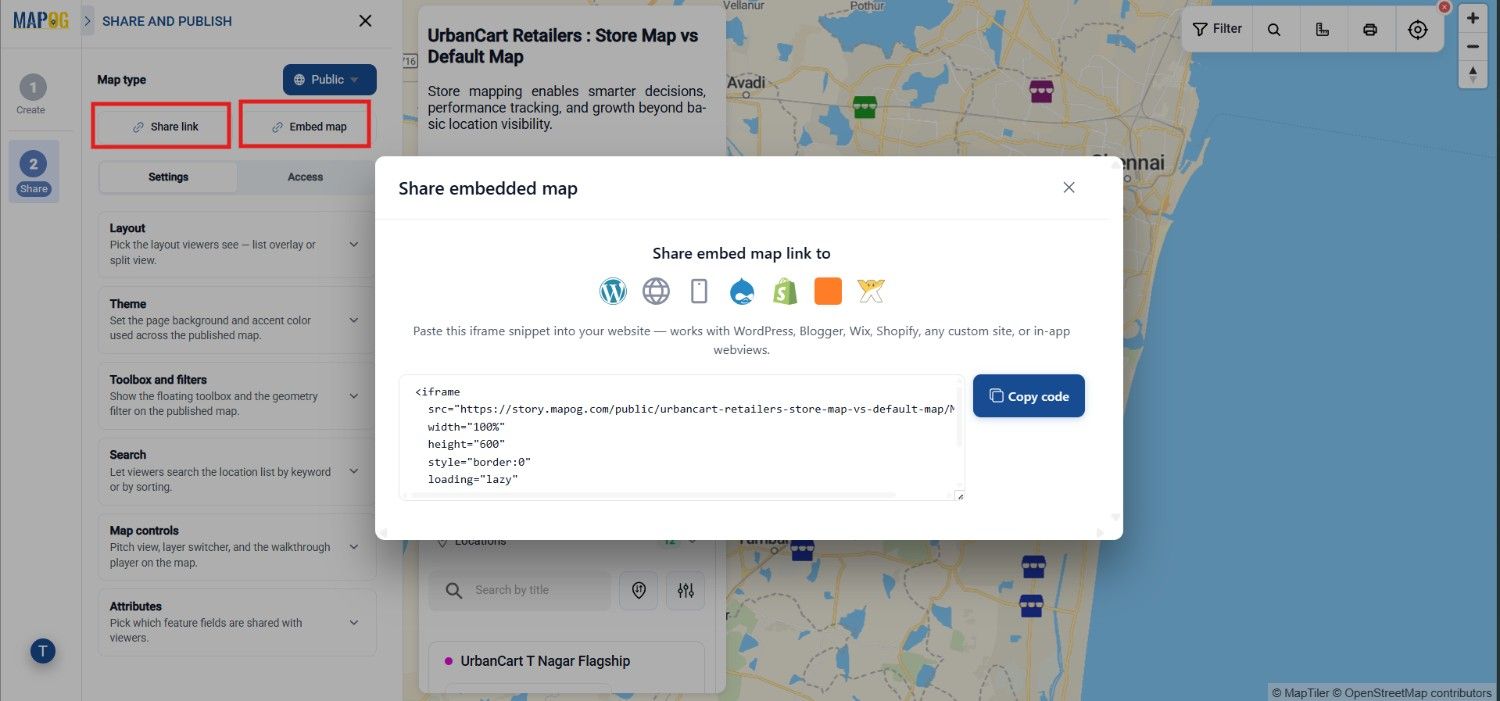
After enabling Public visibility, MAPOG provides multiple ways to distribute your interactive map.
Share Map Link
Click Copy Share Link to generate a public URL.
You can then share this link through:
- Social Media
- Newsletters
- Internal Portals
- Customer Communications
Anyone with the link can immediately open and interact with the map from any device.
Embed the Map
If you want visitors to access the map directly from your website, click Embed Map.
MAPOG generates an embed code that can be copied and pasted into your website or blog.
Embedding the map is especially useful for:
- Company websites
- Tourism portals
- Event pages
- Government websites
- Educational resources
- Business directories
Instead of redirecting users to another page, visitors can interact with the live map without leaving your website.
Benefits of Public and Private Map Sharing
Share interactive maps publicly with the appropriate access level provides several advantages:
- Share maps publicly with customers, partners, or stakeholders using a simple link.
- Restrict access to sensitive maps by inviting only authorized users.
- Control what each team member can do through role-based permissions.
- Keep everyone working from a single, up-to-date map instead of multiple file versions.
- Improve collaboration while maintaining security and data integrity.
Conclusion
Choosing the right sharing method is essential for effective collaboration. Public sharing makes it easy to distribute maps to a wider audience, while private sharing protects sensitive information by limiting access to authorized users. Combined with role-based permissions, MAPOG allows organizations to securely share interactive maps publicly , collaborate efficiently, and maintain complete control over their location data.