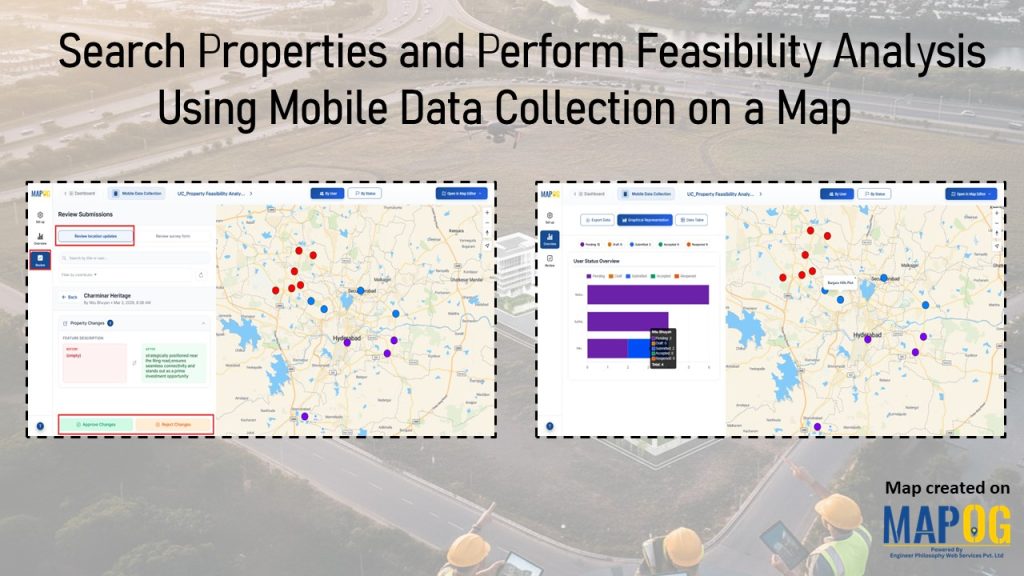
Real estate projects often stall because ownership records are unclear, zoning restrictions complicate approvals, and site accessibility or terrain conditions are poorly documented. Consequently, builders struggle to evaluate opportunities with confidence. Therefore, feasibility analysis is essential, transforming raw property data into insights on site conditions, market demand, and compliance. MAPOG streamlines feasibility analysis, enabling teams to search properties and perform feasibility quickly while turning site data into structured, risk‑free decisions.
Key Concept: The Importance to Search Properties and Perform Feasibility
Real estate goes beyond transactions; instead, it requires informed choices shaping lasting investments. Yet without evaluation, zoning limits, poor access, or weak demand reduce potential. Therefore, on‑site data collection clarifies site conditions, compliance, and financial viability. As a result, stakeholders can search properties and perform feasibility with confidence.
Steps to search properties and perform feasibility
1. Initialize the Project
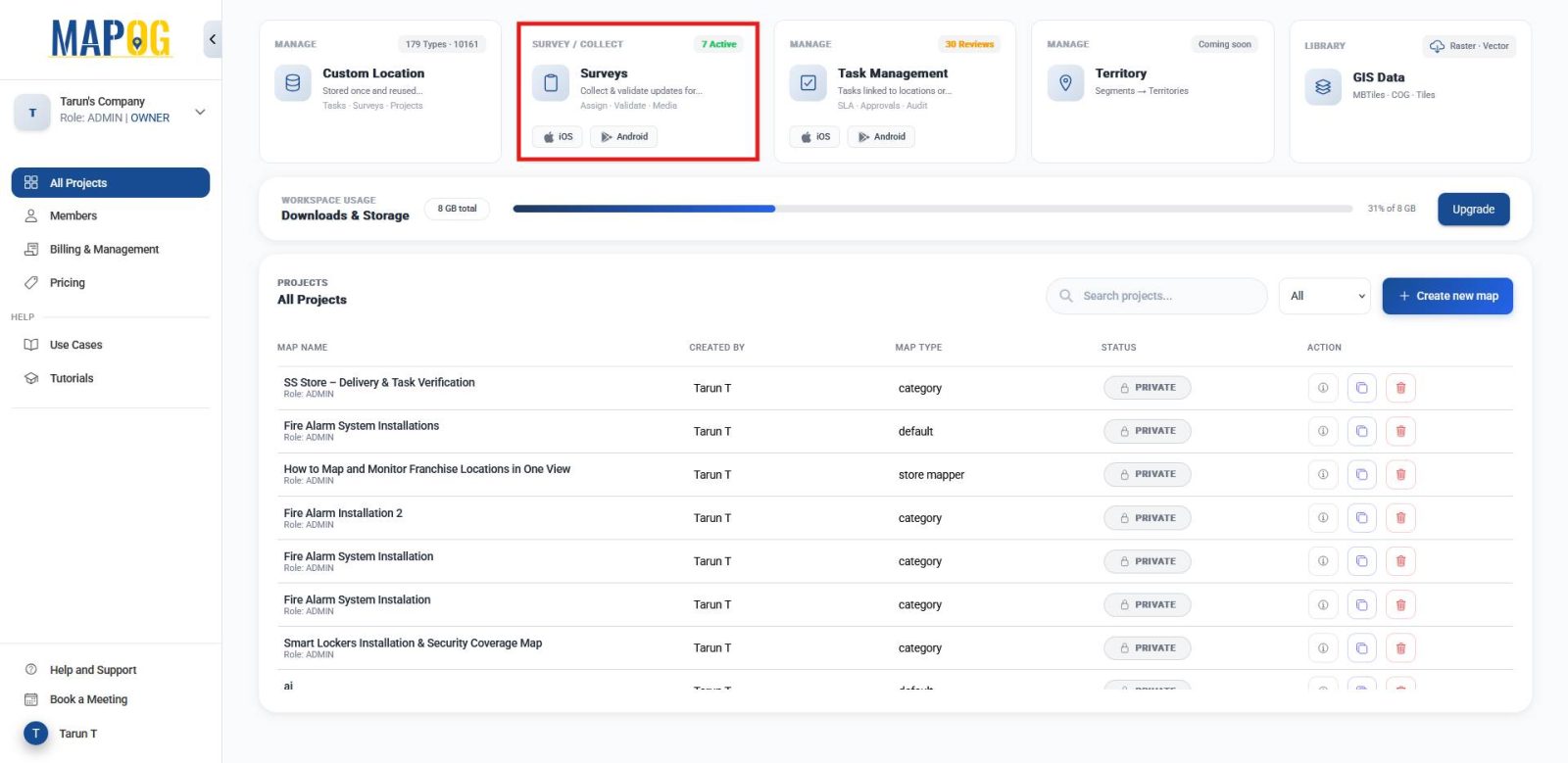
To begin with, go to MAPOG and open the Survey section.
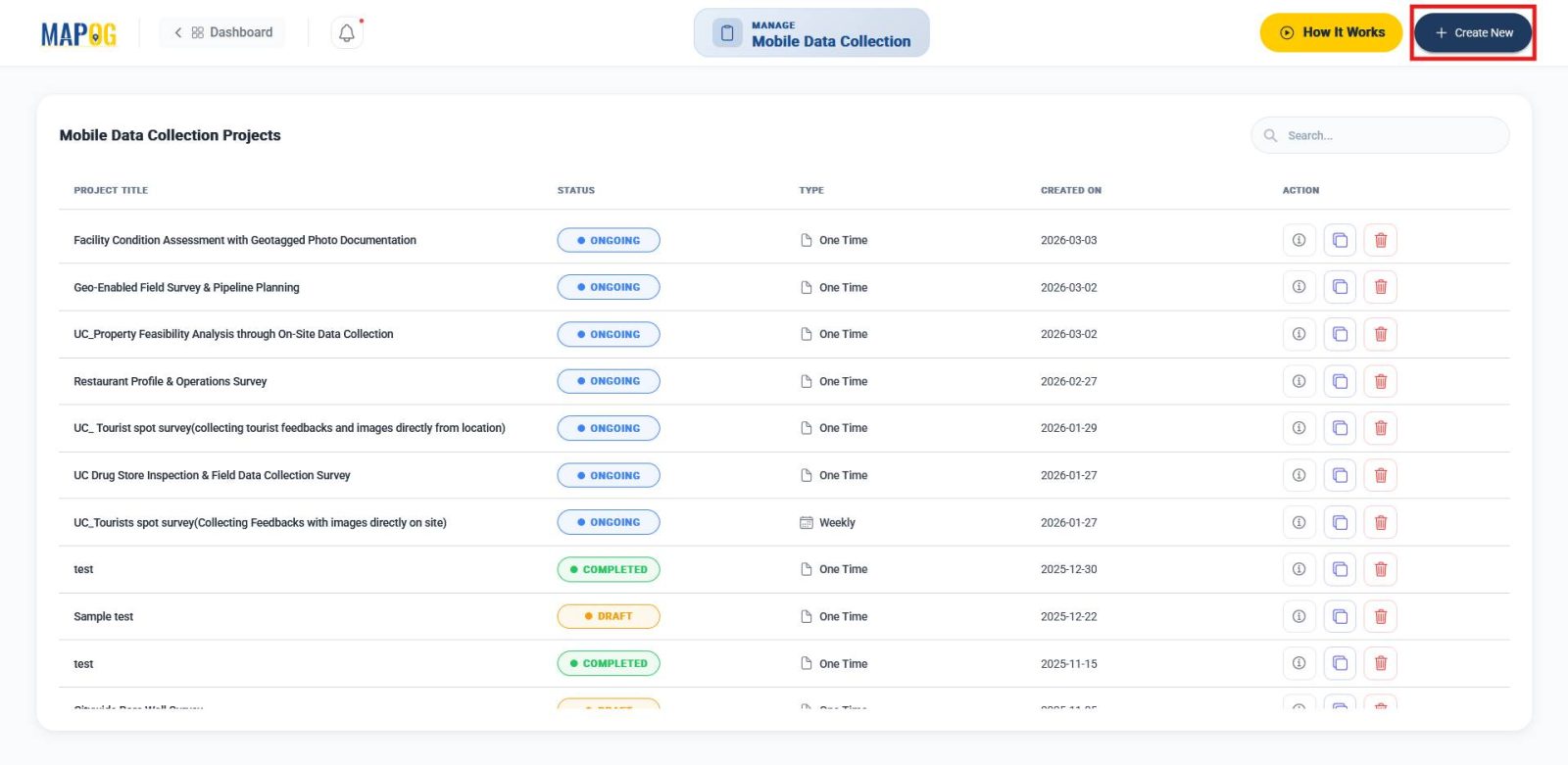
Then, click Create New under Mobile Data Collection to set up a project framework, ensuring feasibility data is captured before development.
2. Project Details and Location Template
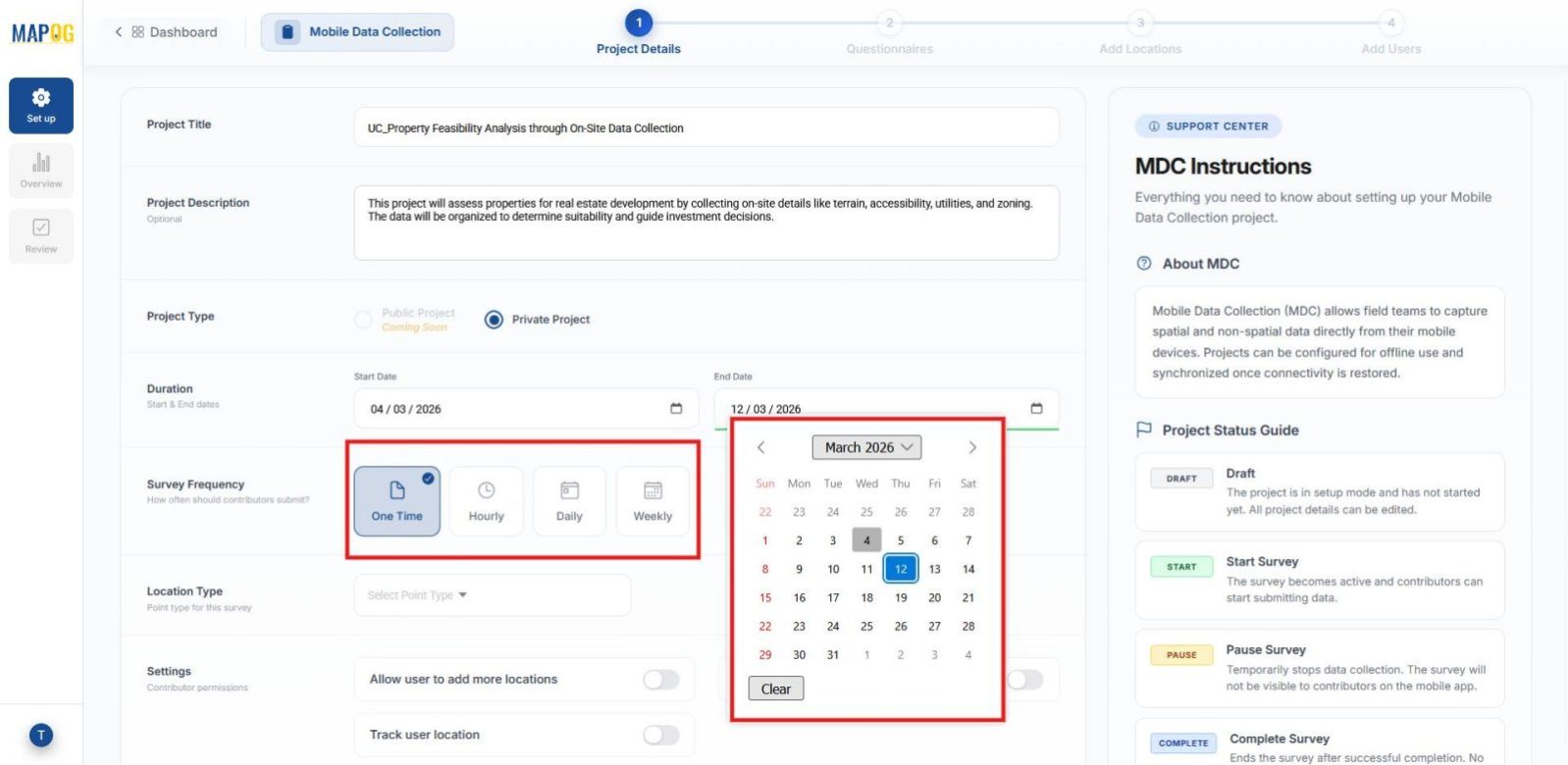
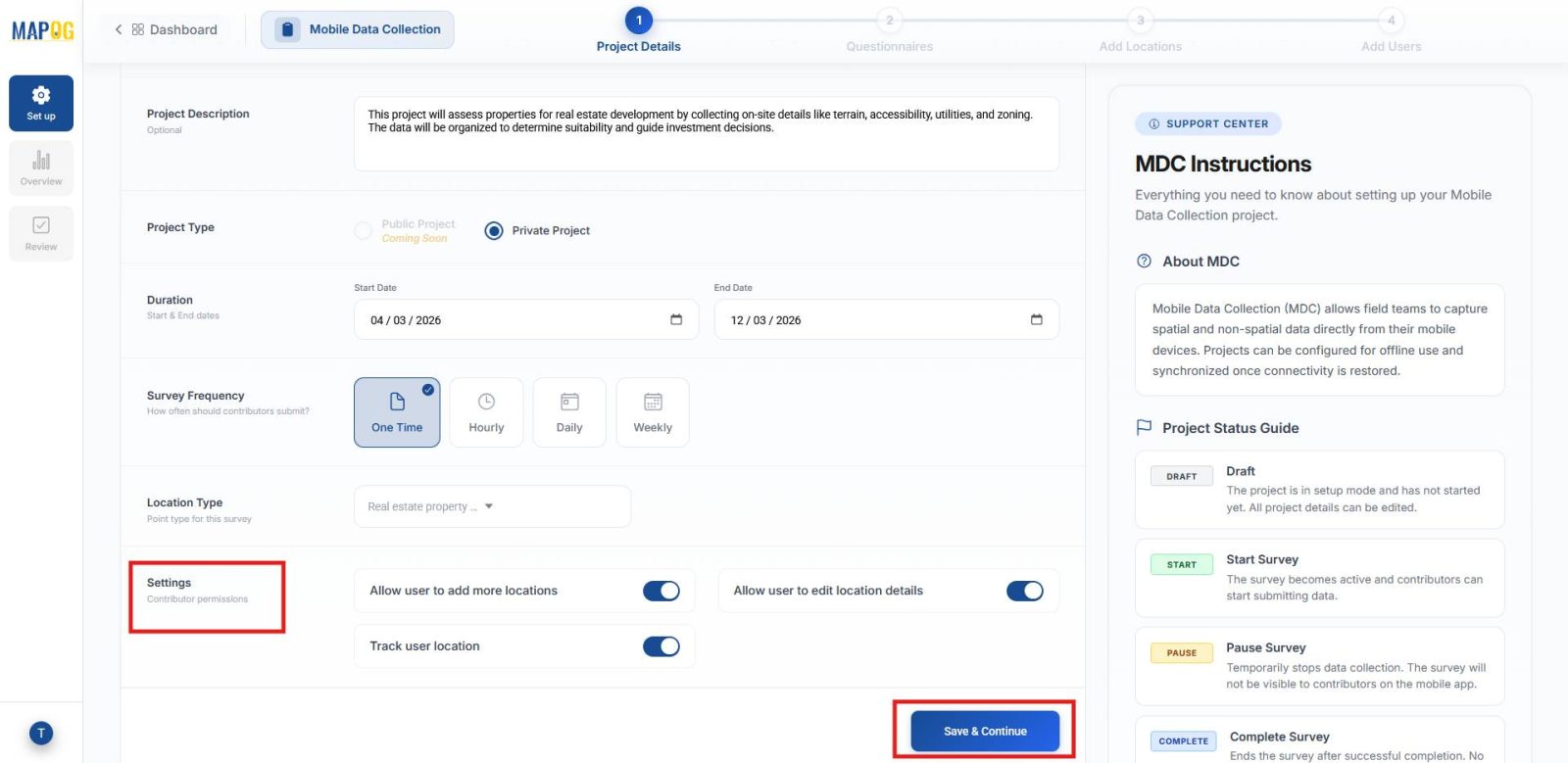
Next, give your project a title and description. After that, set duration, and choose the survey frequency, whether one‑time, hourly, daily, or weekly.
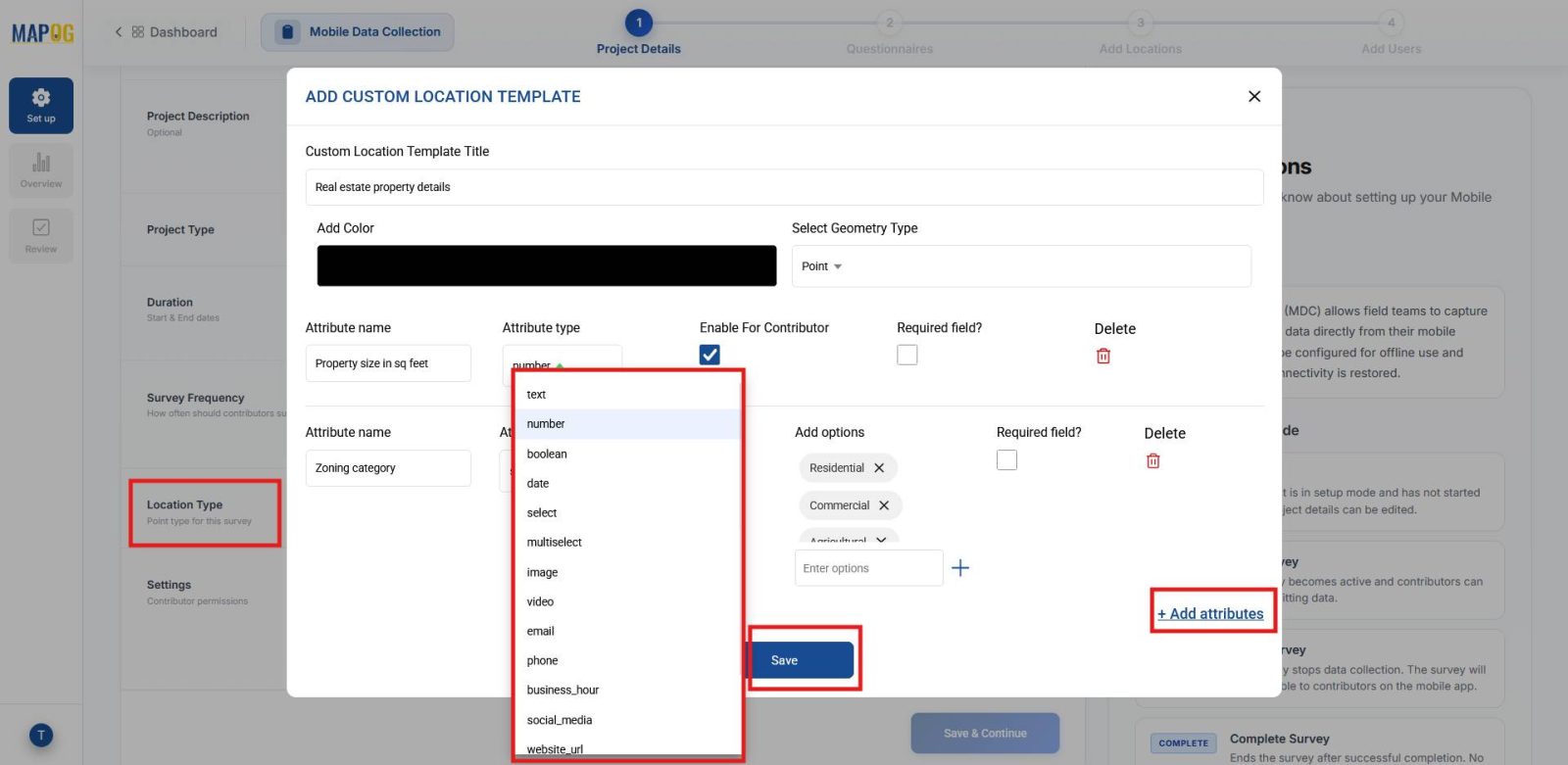
In Location Type, click Create New. Then, assign a title, set geometry to Point, and add attributes one by one with suitable types such as property size (Number), ownership (Text), or zoning category (Select). Once saved, the template can be reused for similar projects. Then select the newly created location type from the dropdown.
Finally, enable contributor permissions like Add Location or Edit Location, and click Save and continue to confirm the settings.
3. Build the Feasibility Analysis Form
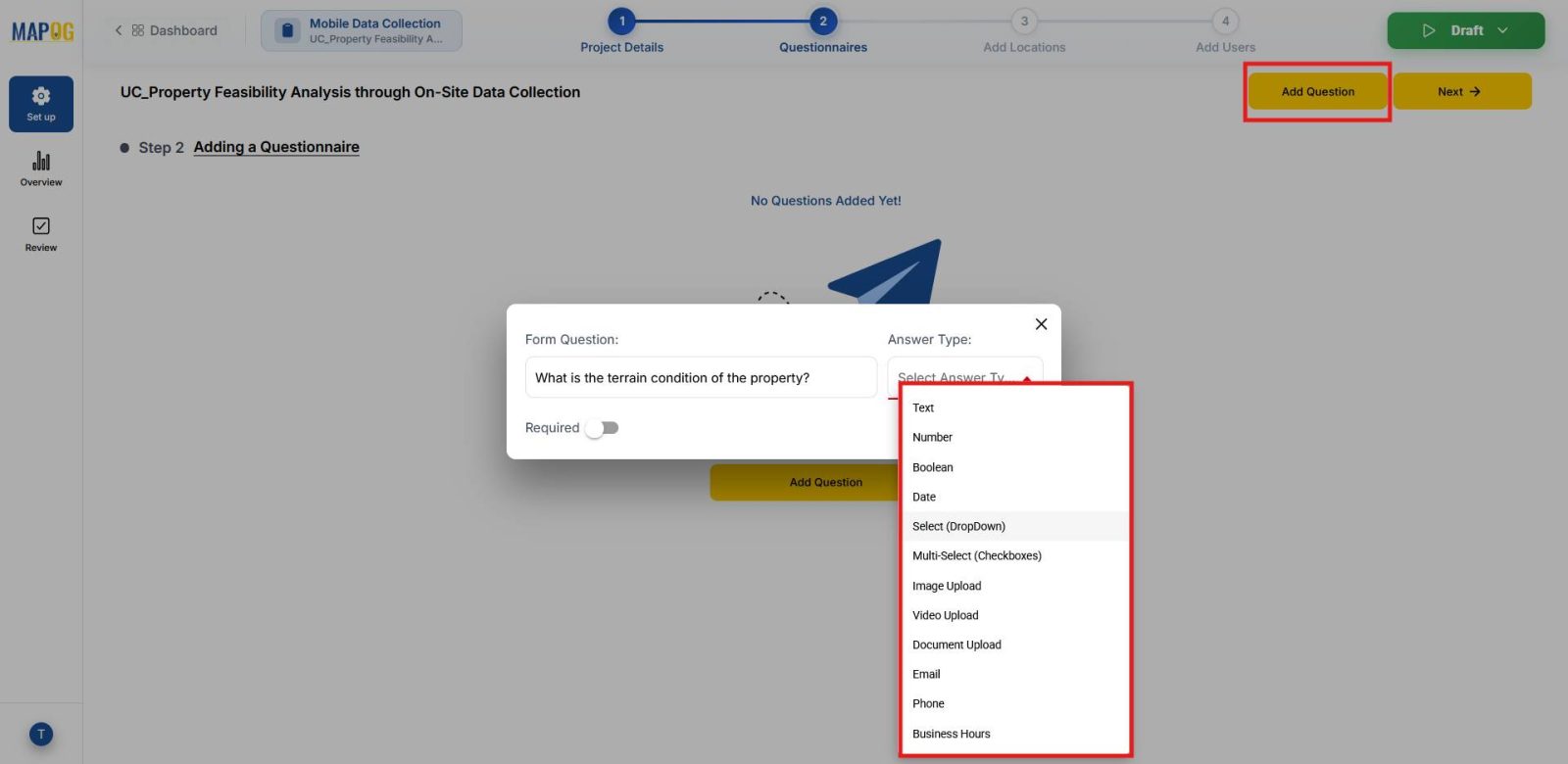
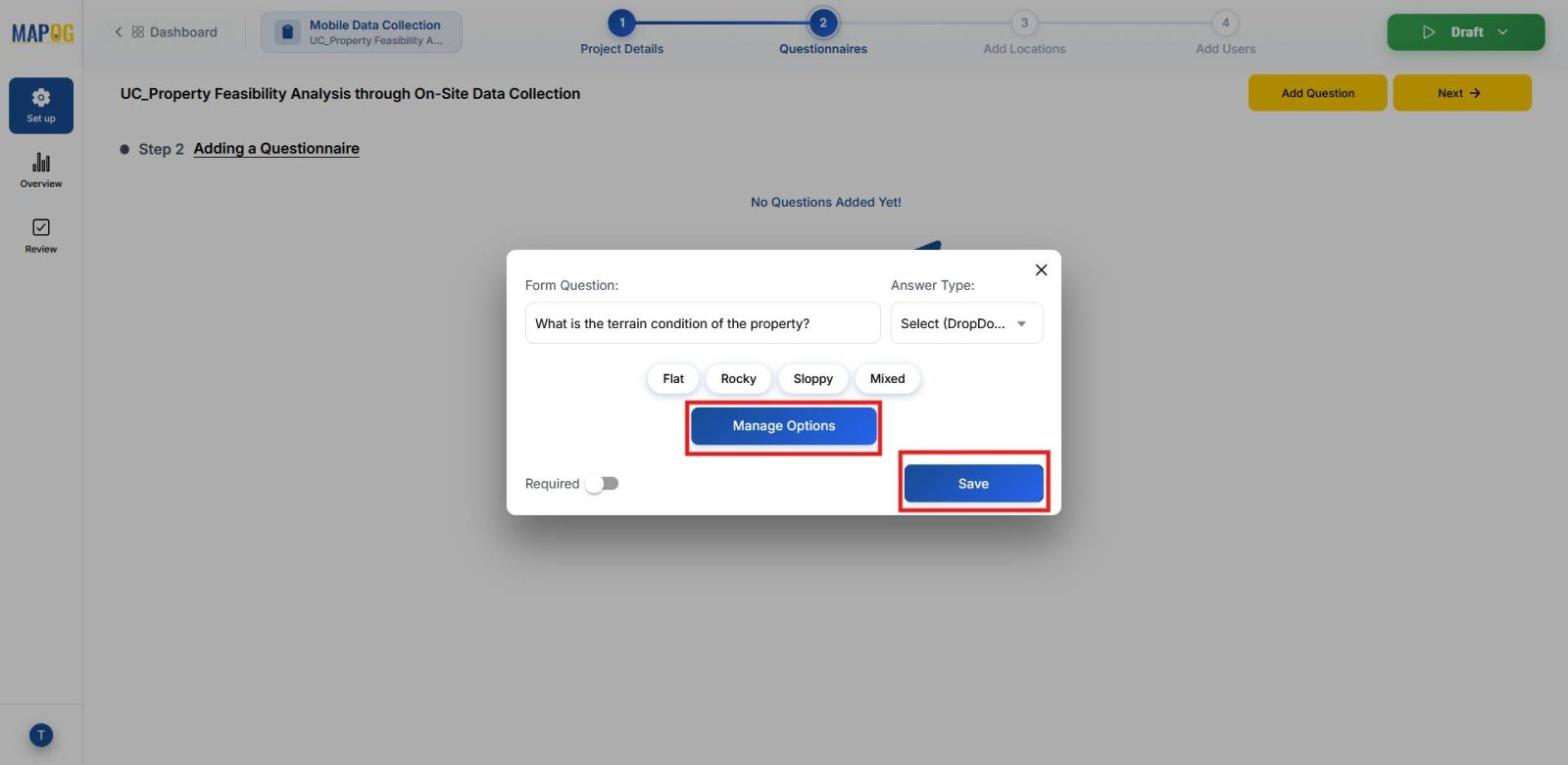
After defining the template, proceed to click Add Question. Here you can add multiple questions regarding the survey. For example, you might ask. “What is the terrain condition of the property?” and choose Select as the answer type with options like Flat, Sloppy, Rocky, or Mixed.
Once saved, you can further refine options through Manage Options. Thus, this ensures feasibility factors are captured consistently.
4. Upload Site Locations
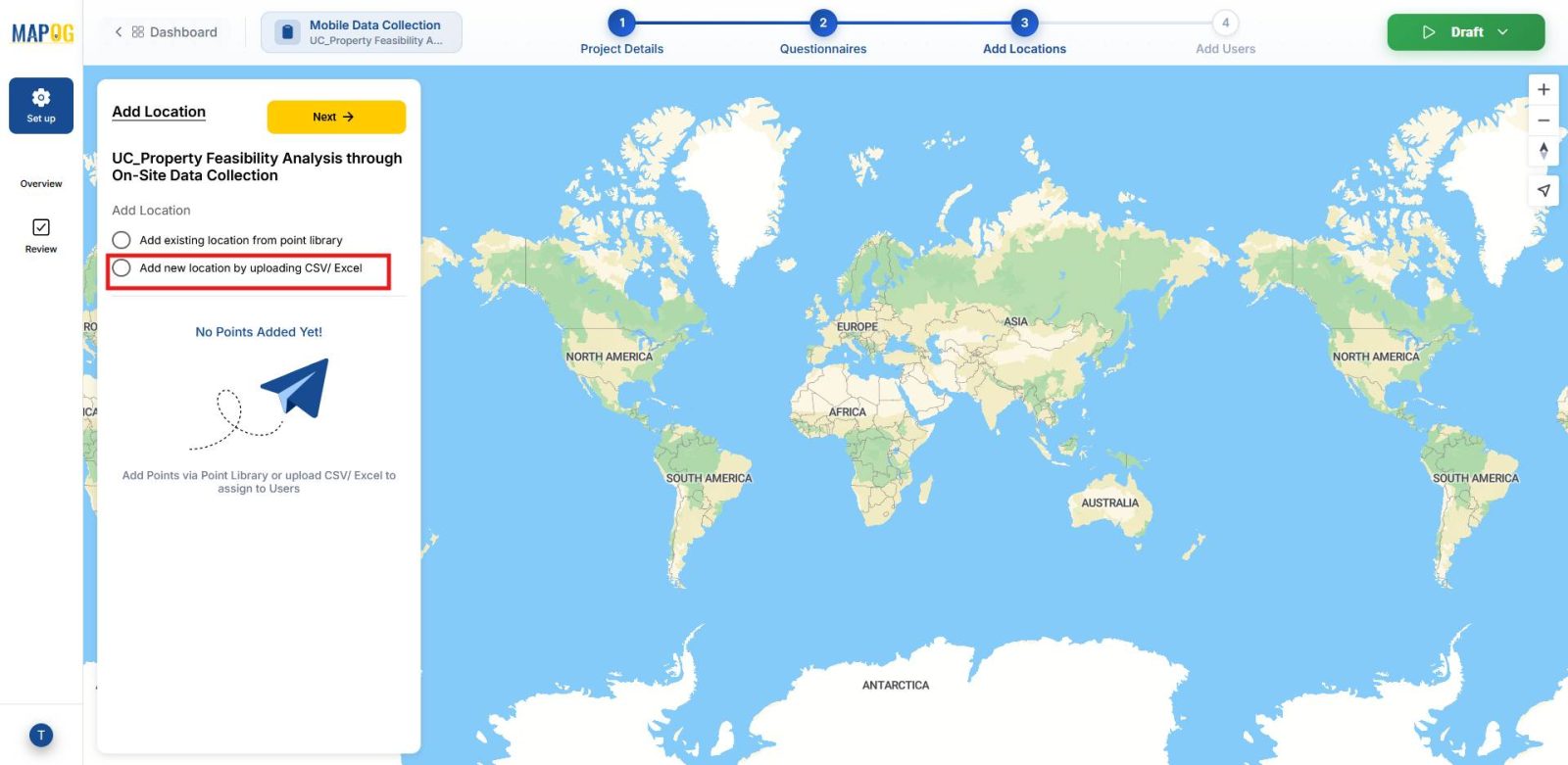
Subsequently, click Add New Location by Uploading CSV/Excel to upload all your sites in bulk.
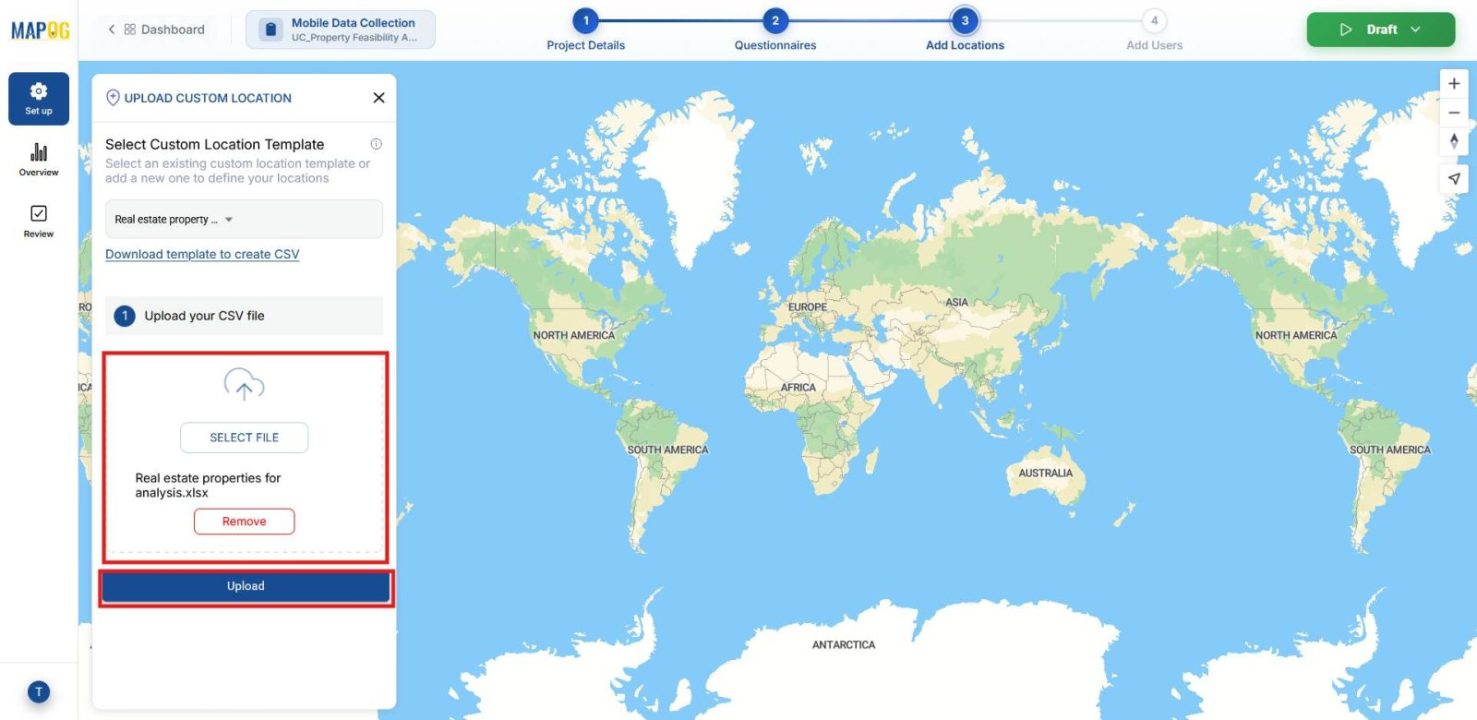
Then, browse and upload your file.
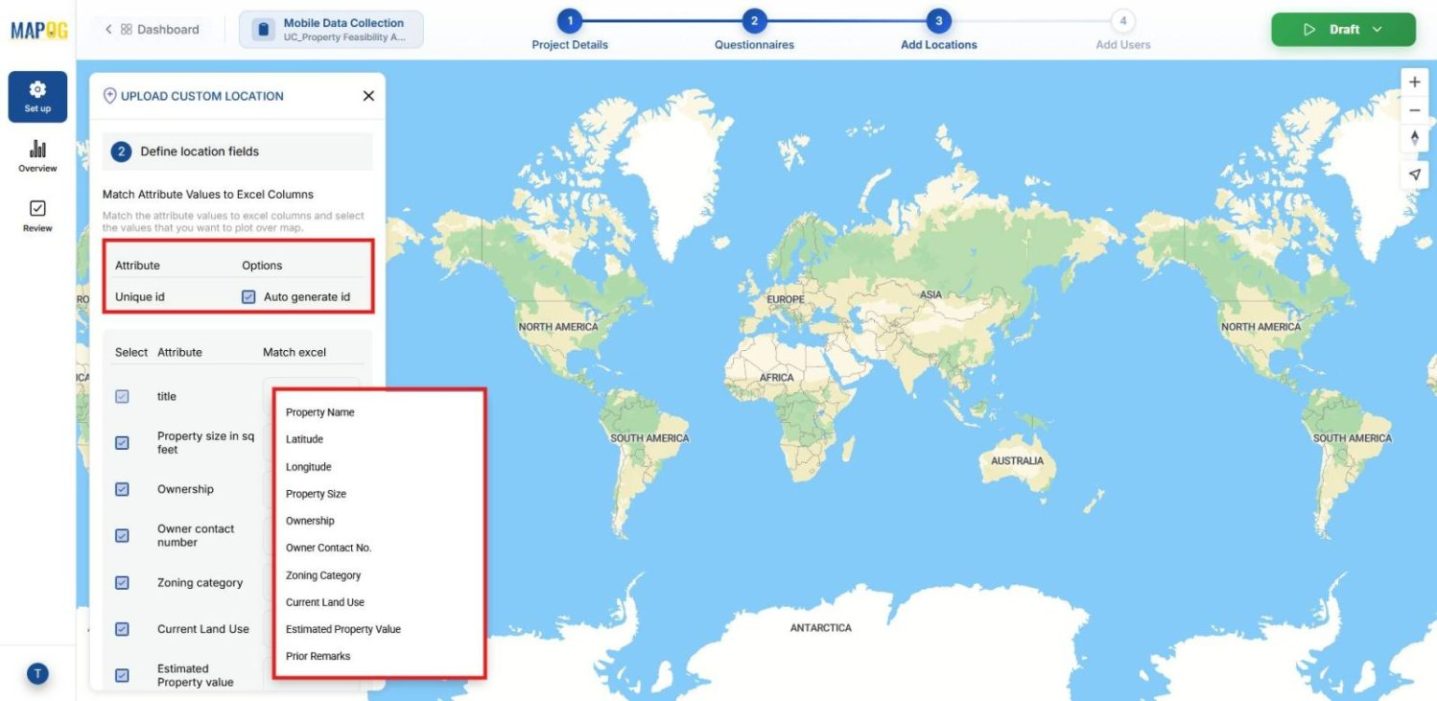
If unique IDs are missing in your file, generate them using Auto Generate ID for proper identification of points. After that, match attributes with Excel columns and choose placement using Coordinates or WKT and submit . All your sites will display clearly on the map.
5. Add Team Members and Assign Sites
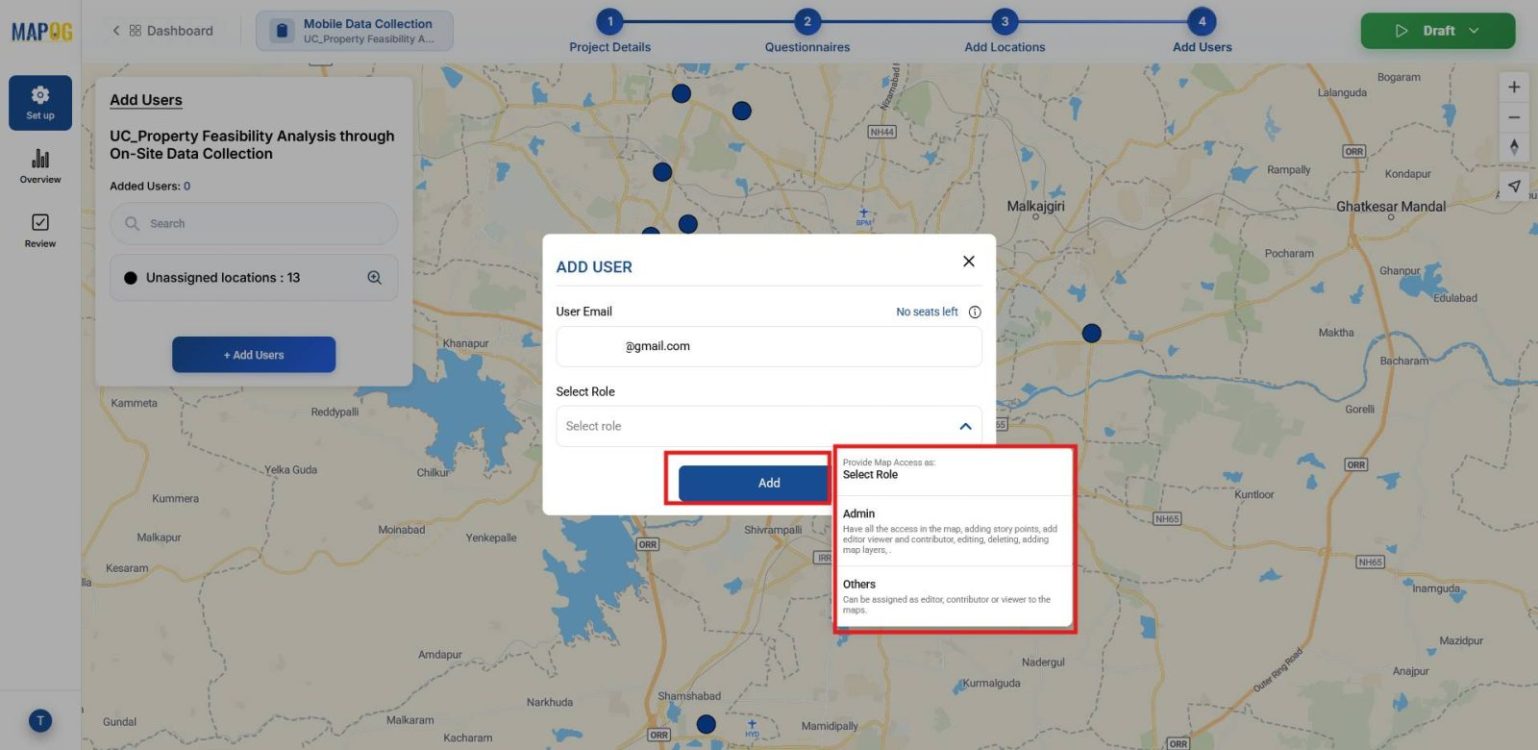
Now, click Add User and then Add Member, enter team members’ email IDs,
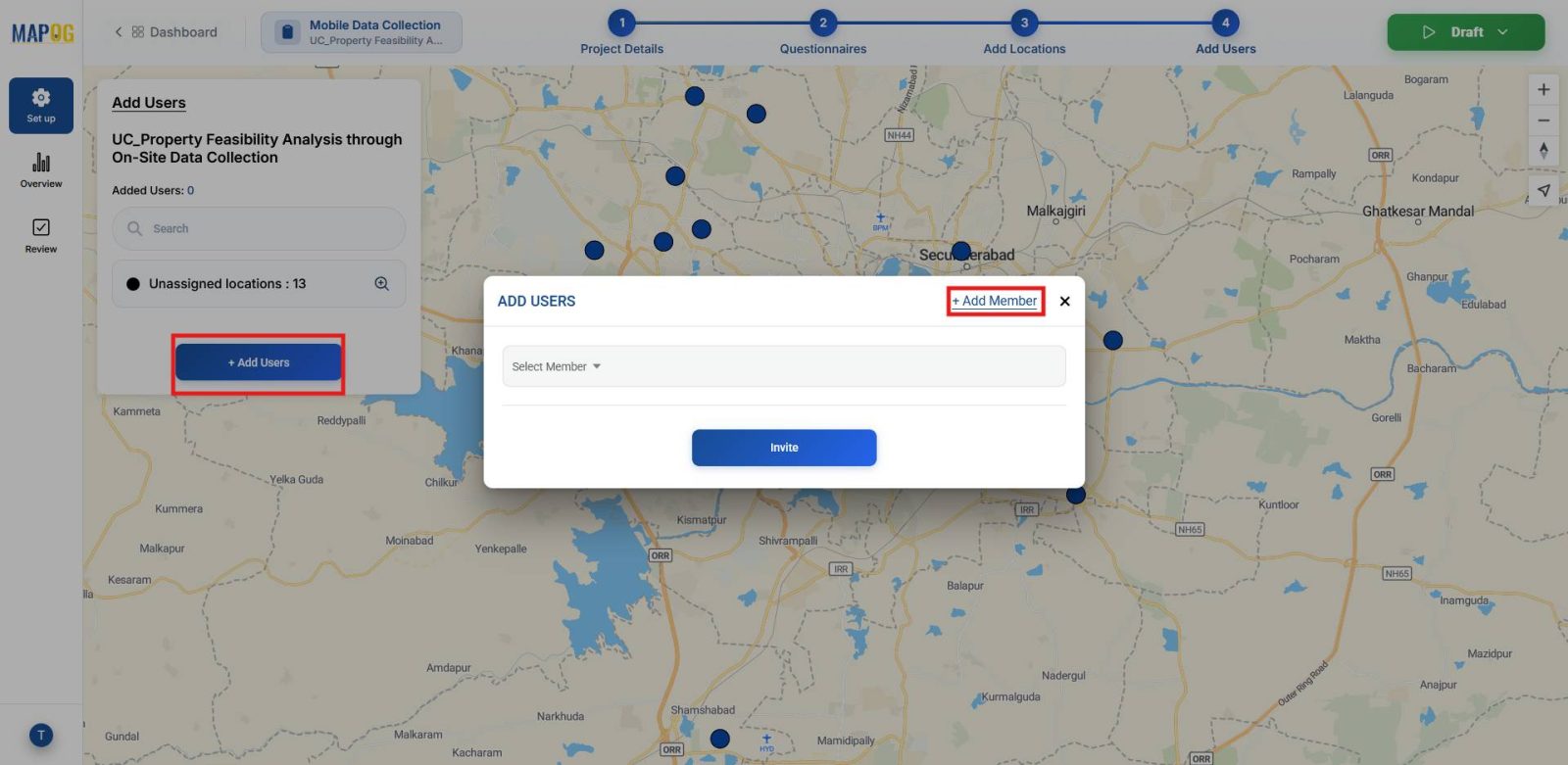
and assign roles such as Admin who have full access to the map or Others who have specific permissions such as updating details, submitting feedback or viewing the map . After assigning roles, click Add.
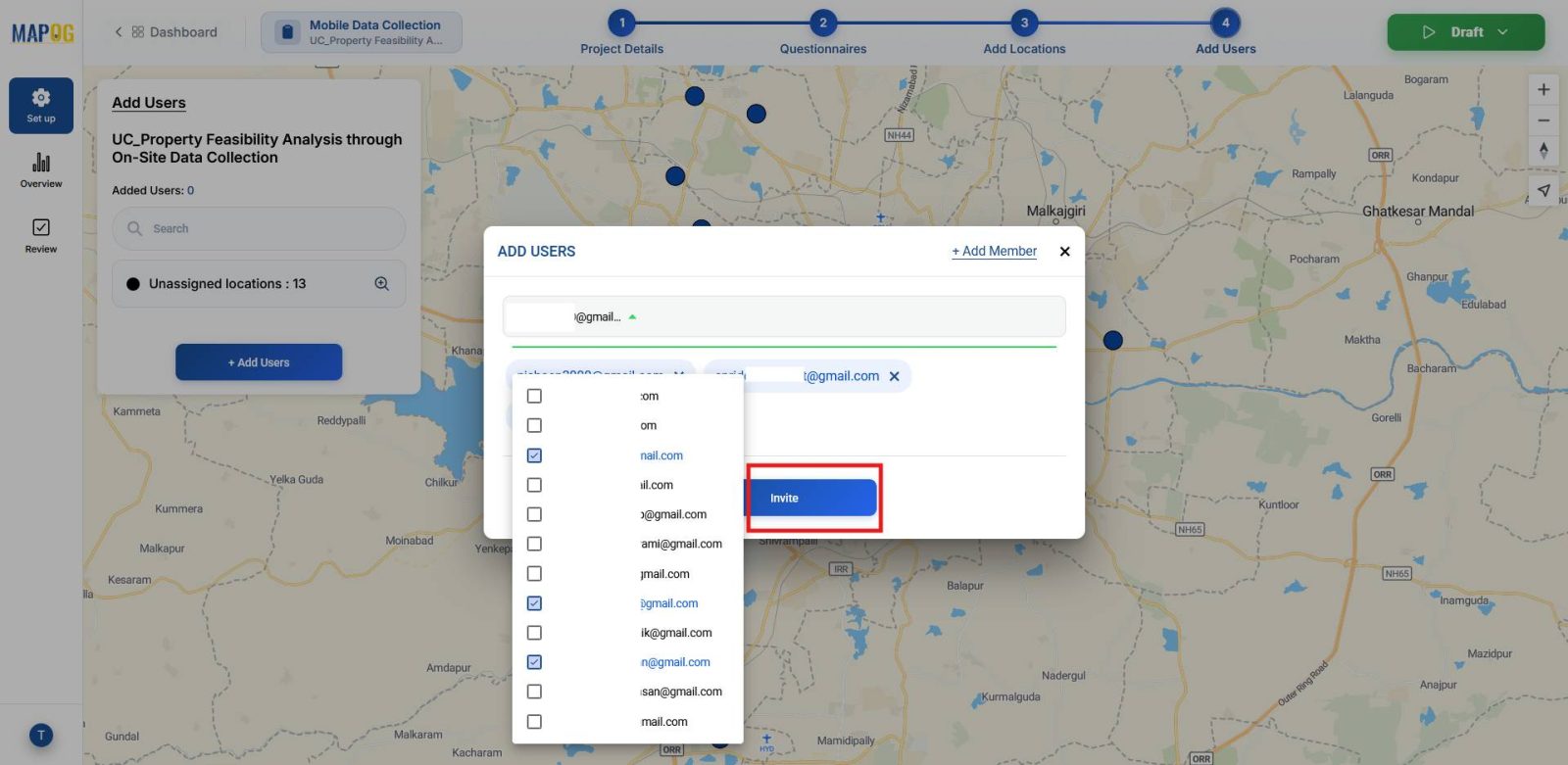
Once added, select members from the dropdown and click Invite.
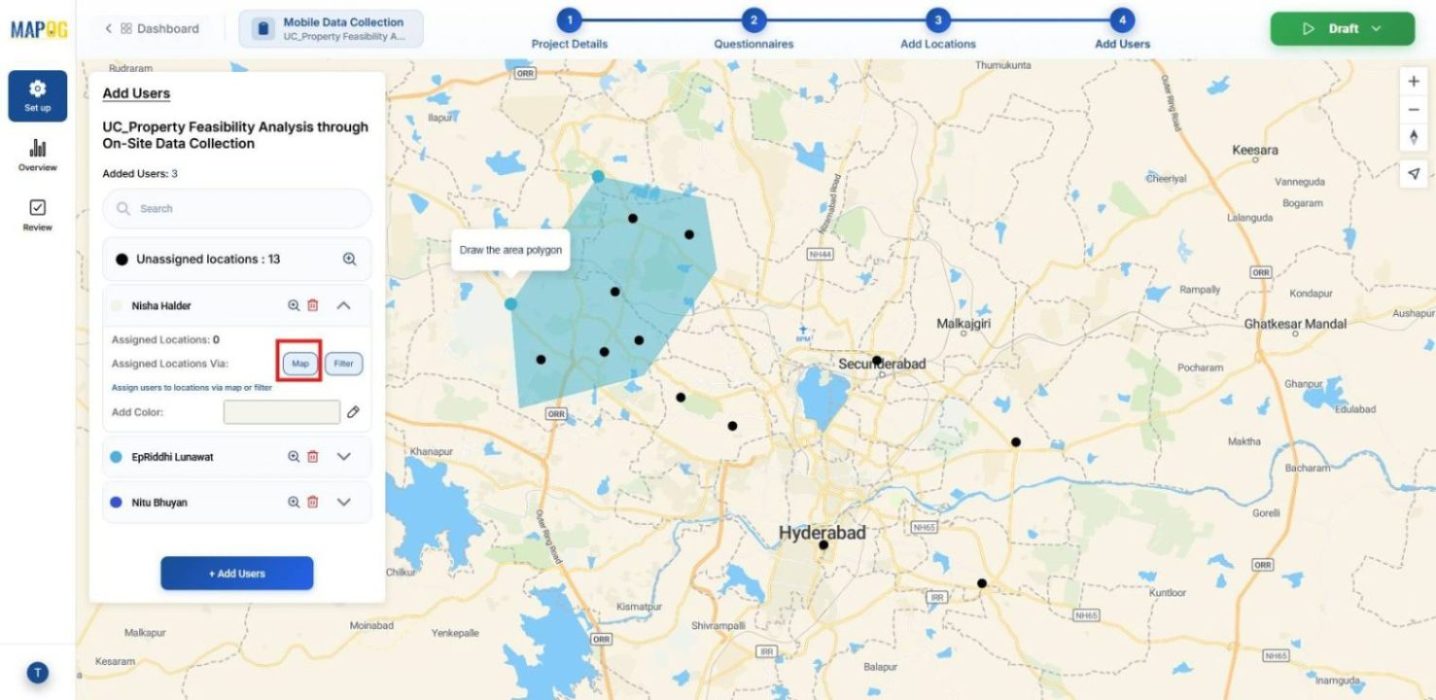
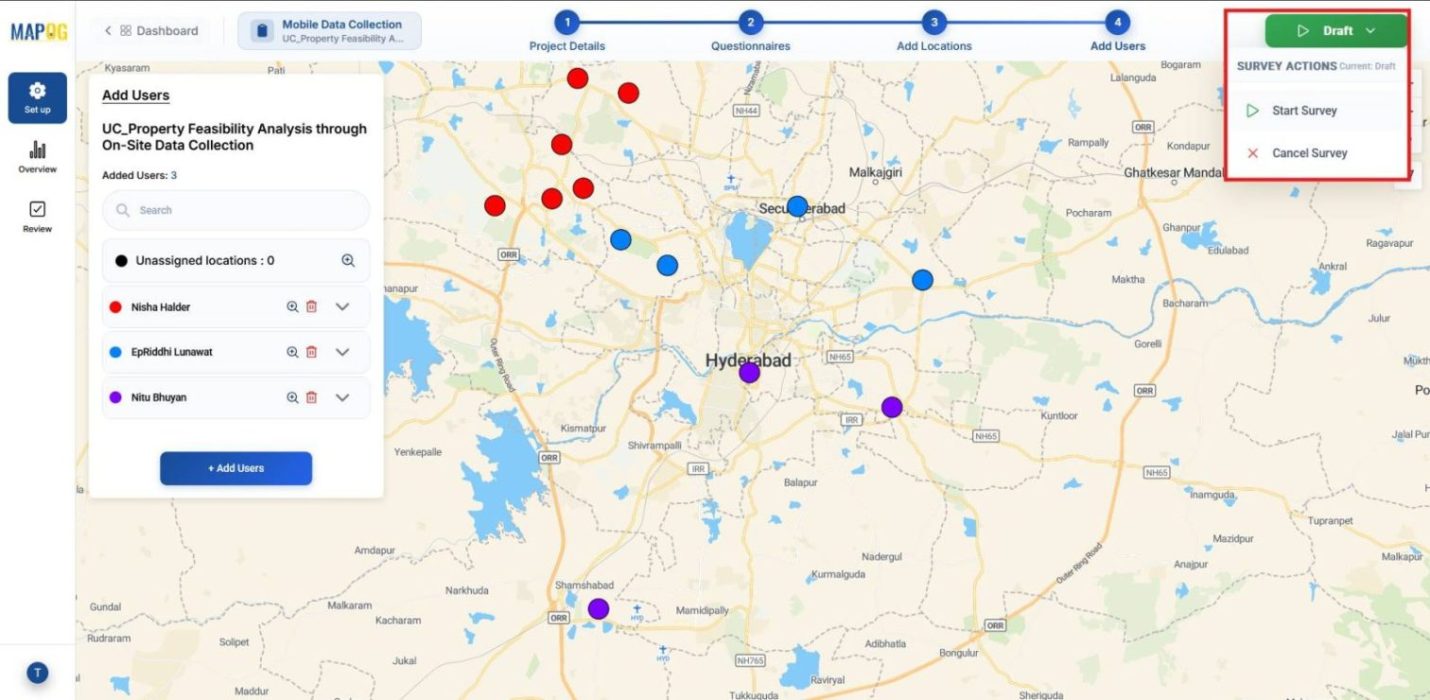
After inviting, assign plots by drawing polygons around points via the Map option.
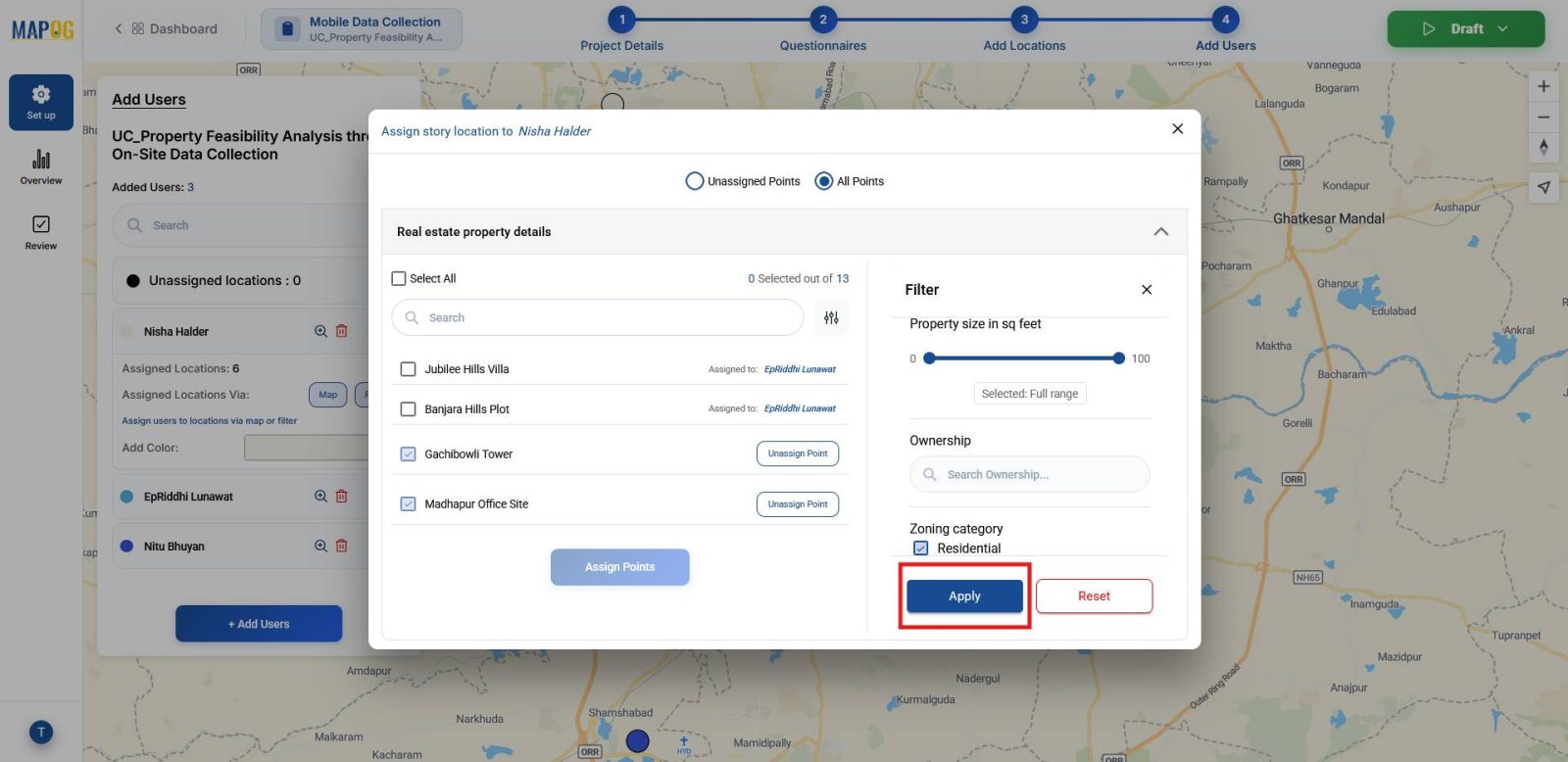
Additionally, use filters to narrow points by attributes such as zoning category, property size, or accessibility. This ensures team members concentrate only on relevant plots.
Then, to launch the survey go to the Draft section, and click Start Survey.
6. Collect Data via Contributor App
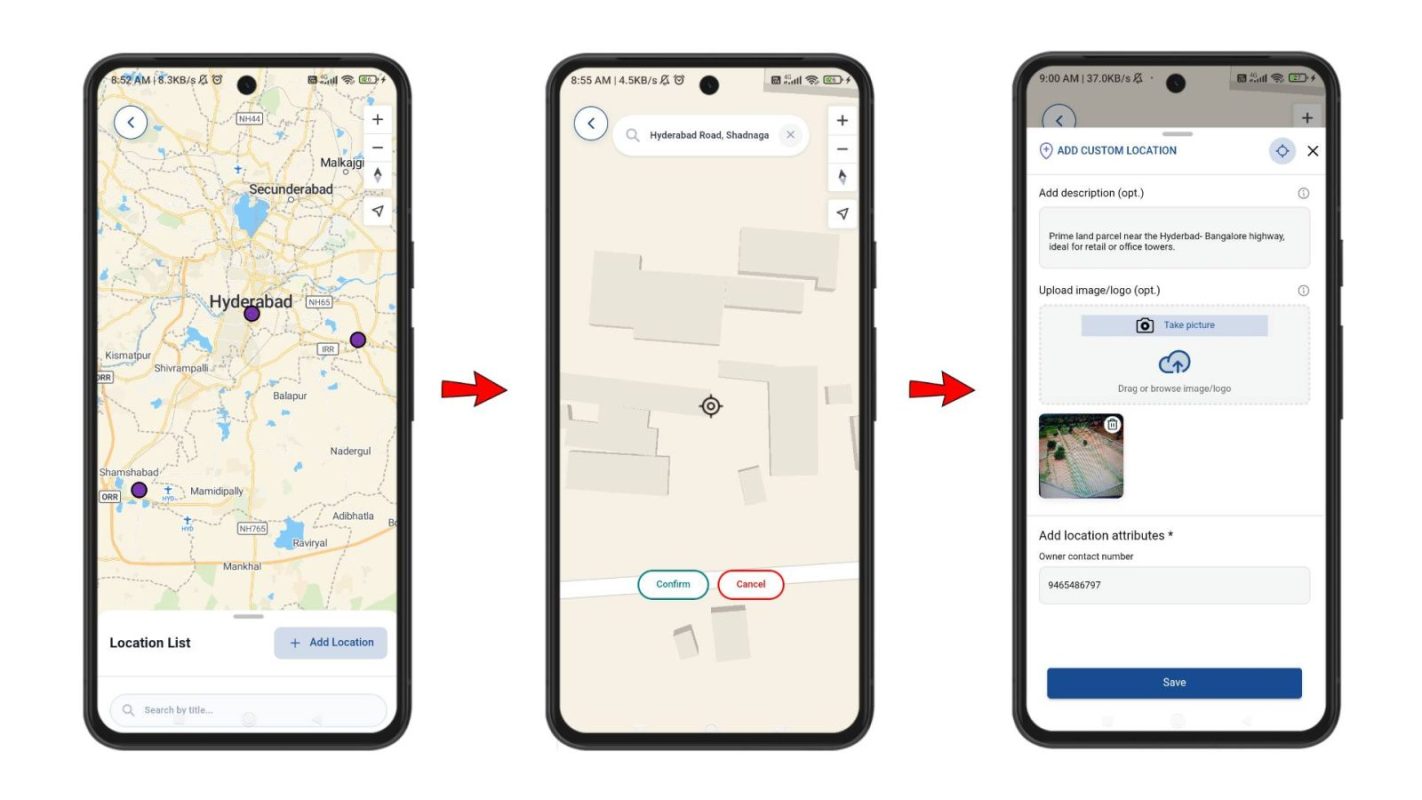
Once the survey is live, team members can access their assigned projects in the MAPOG Contributor App. Here, they see assigned points, add new locations through Add Location, search and confirm areas, and plot them. They can also add titles, descriptions, details and photos.
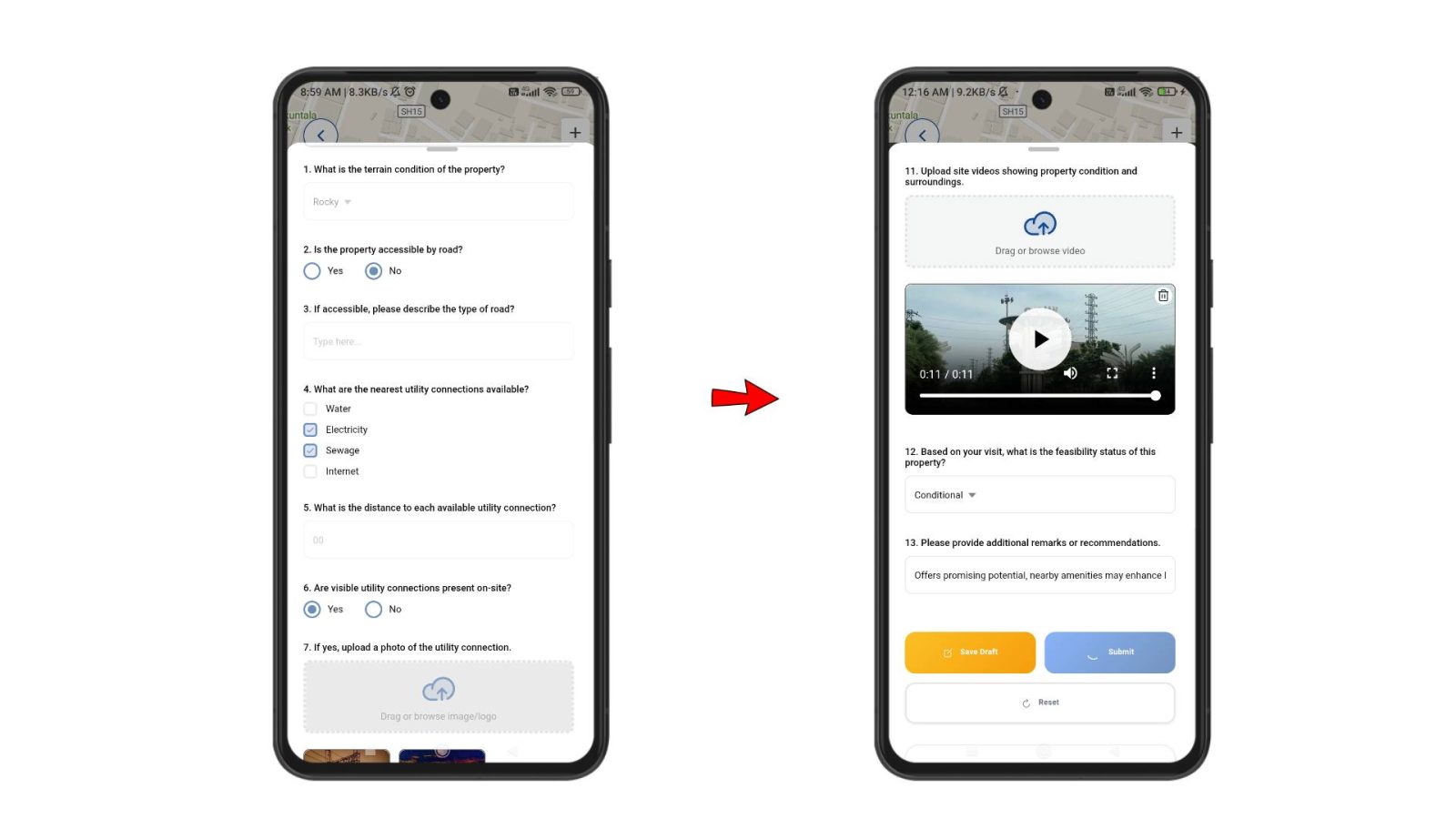
Moreover, field teams can fill feasibility forms directly on‑site, upload images or videos, and either save their responses as drafts or submit them instantly. All updates sync back to the MAPOG interface instantly.
7. Monitor and Review Survey Data
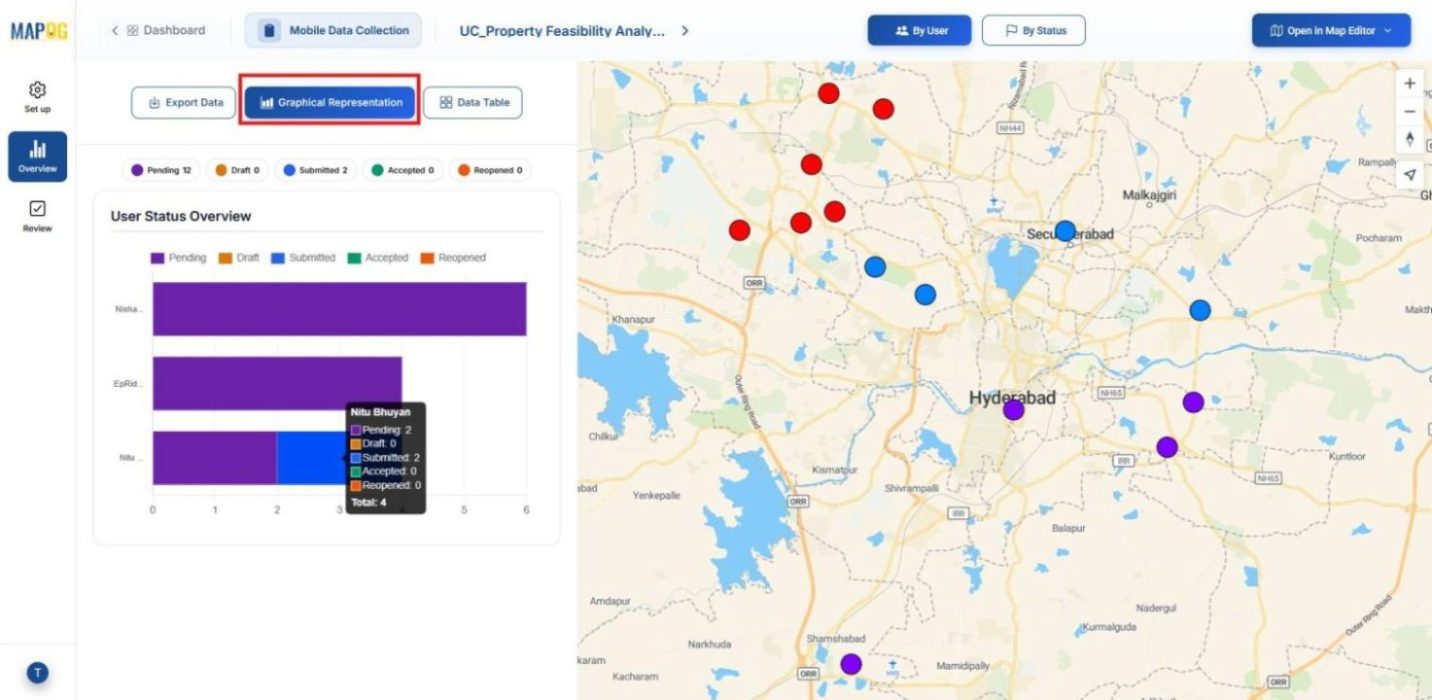
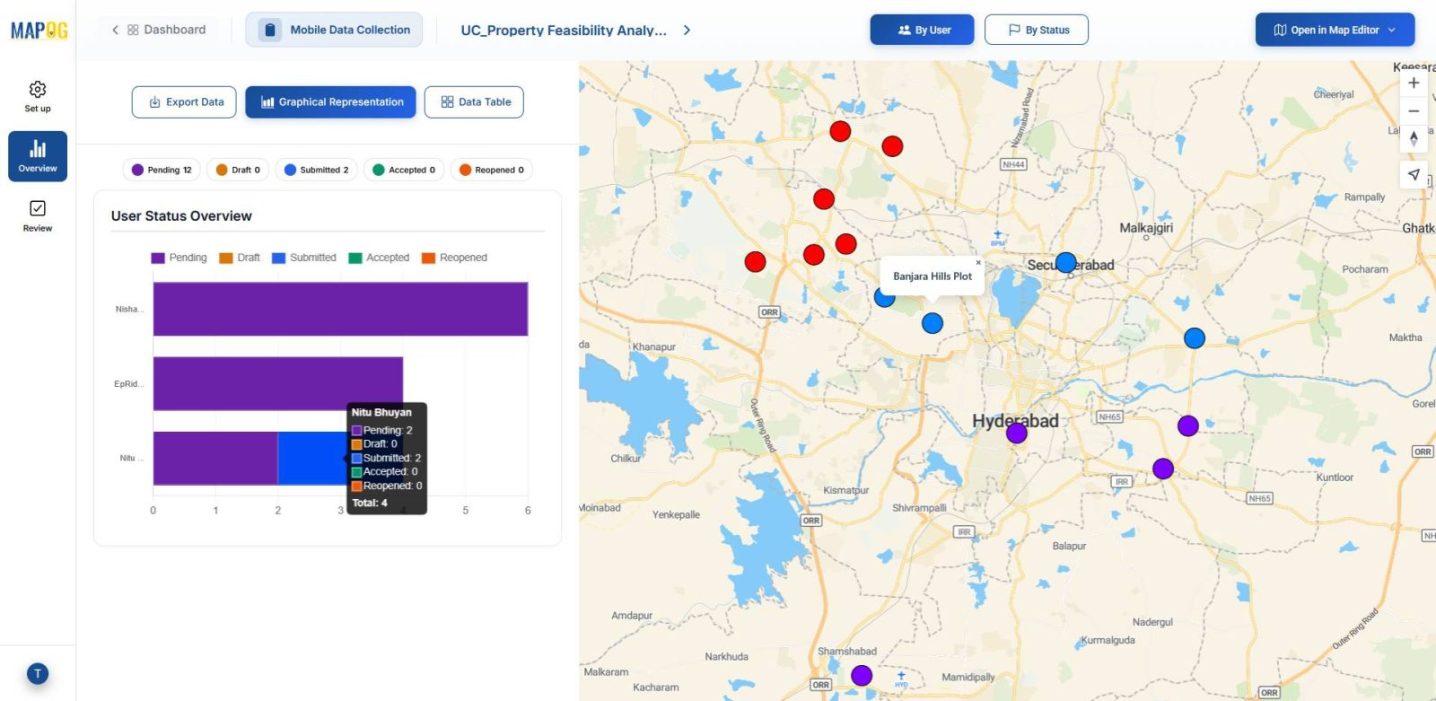
Meanwhile, in the MAPOG overview section, admins can track survey progress such as submitted, pending or draft by user.
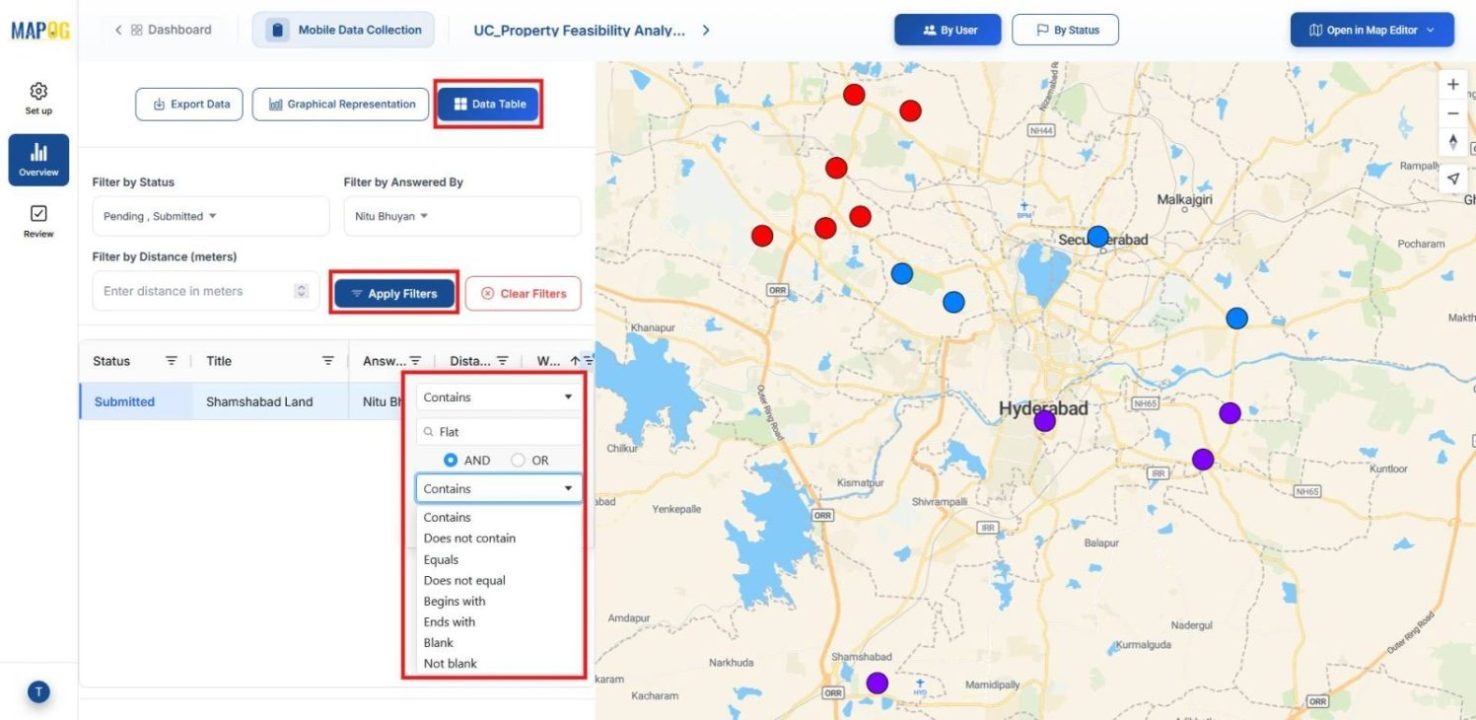
In the Data Table, admins can filter responses by status, user, or distance, and refine answers using keyword conditions with AND/OR logic.
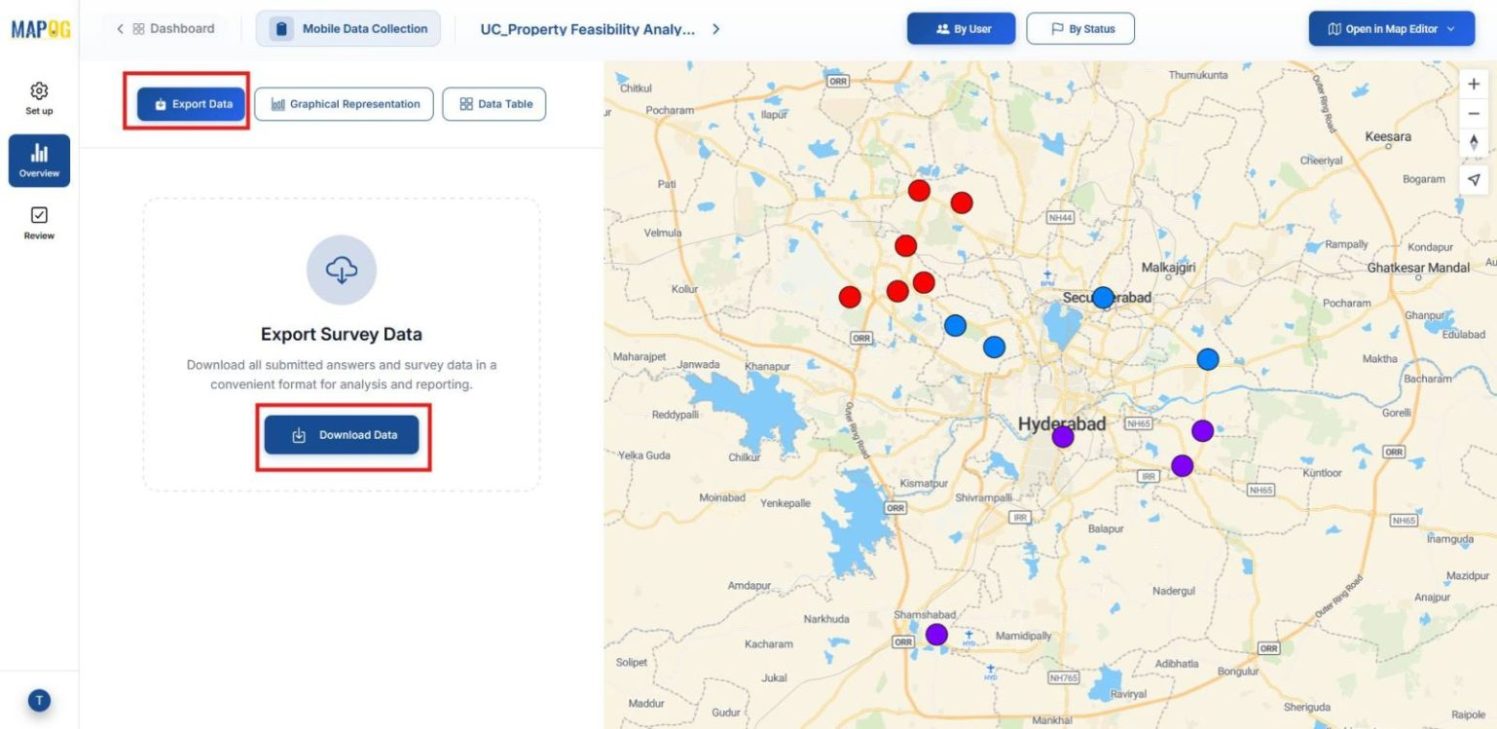
Additionally, data can be exported via the Export Data option.
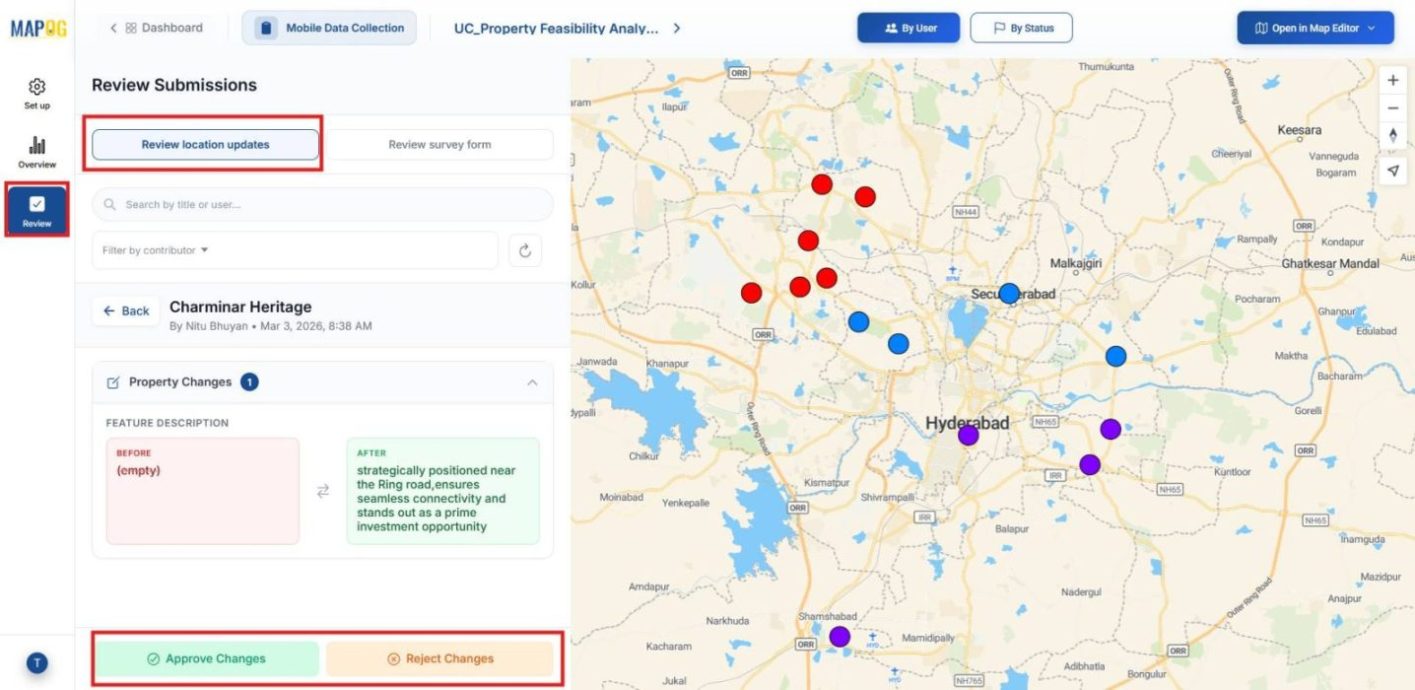
In the Review section, admins can review location updates and can either confirm or reject them.
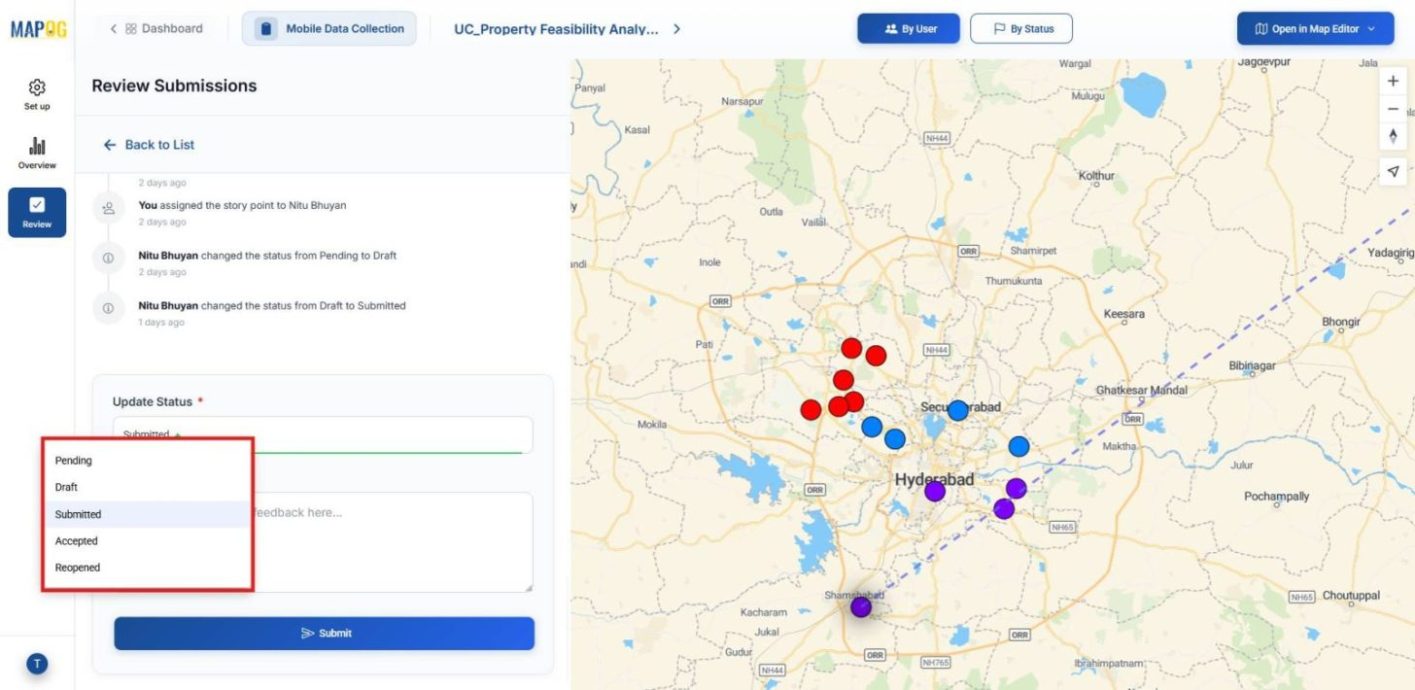
They can also review the survey forms, adjust statuses (Submitted, Accepted, Reopened), and add comments. Thus, feasibility data remains validated and reliable.
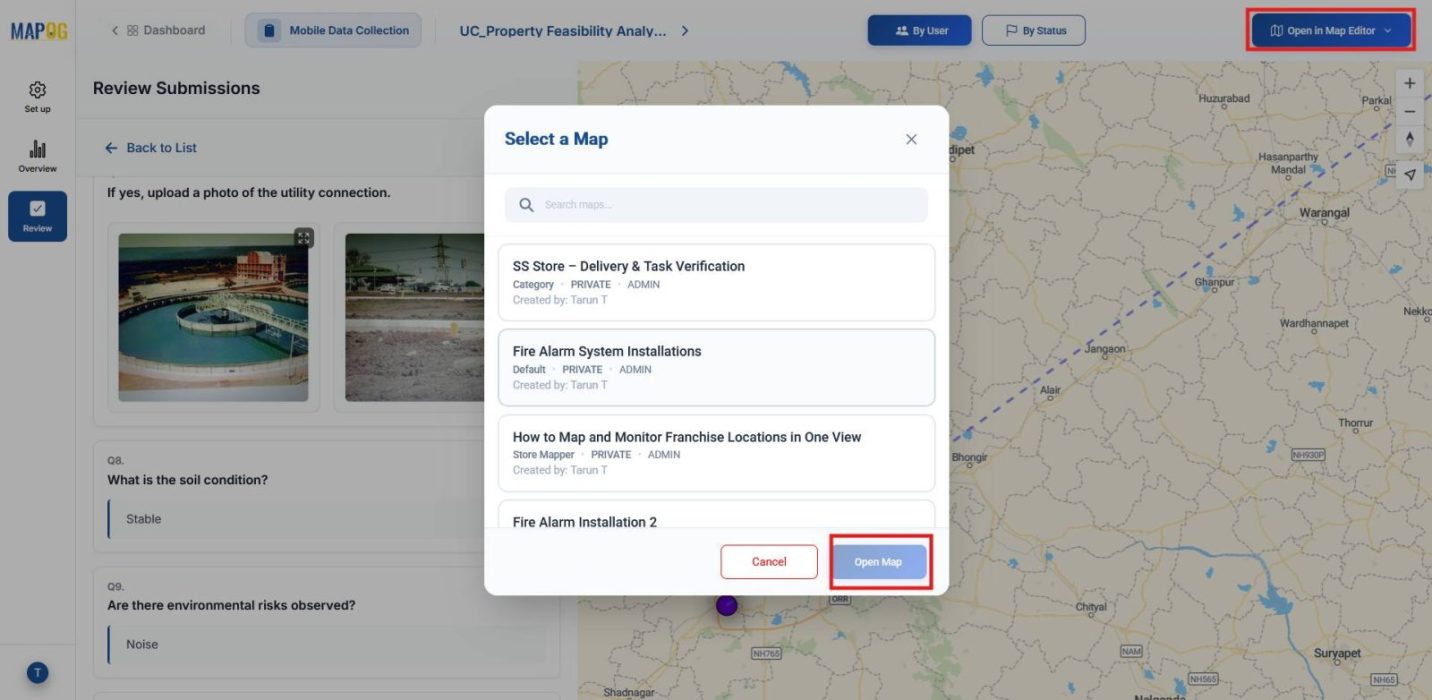
Lastly, use Open in Map Editor to visualize points either in a new project or within an existing one.
Industrial use and Benefits
Industries beyond real estate also depend on feasibility checks before investing. Retail assesses store accessibility, hospitality maps hotel sites and attractions, infrastructure documents roads and utilities, and agriculture evaluates soil and irrigation. With onsite data collection displayed on a map, evaluations become faster, risks decrease, and decisions gain clarity.
Conclusion
In conclusion, real estate property search becomes more reliable when feasibility analysis is supported by onsite mobile data collection. With MAPOG, field‑level details turn into clear insights, enabling faster evaluations, reduced risks, and confident, sustainable investment decisions.