
Today’s teams need real, unfiltered insights straight from the field. When you Collect Customer Feedback On-Ground, you get honest input right where customer experiences actually happen. MAPOG’s mobile data collection capability helps make this easier by letting teams gather feedback on-site and see it instantly on a map, giving everyone a clear and immediate view of what’s happening across different locations.
Key Concept: Collecting Customer Feedback On-Ground
Collecting feedback on-ground means your team talks to customers face-to-face during visits, service calls, store checks, events, or deliveries. Instead of waiting for long reports or scattered notes, everything gets logged on the spot with location details. This creates a live map of customer thoughts and issues.
Benefits
- Early identification of location-specific issues.
- Faster decision-making with real-time map visibility.
- Better communication and alignment.
- Improved customer satisfaction through quicker, on-site action.
When you Collect Customer Feedback On-Ground, these benefits make your operations more responsive and effective.
Step-by-Step Process to Collecting Customer Feedback On-Ground
1. Initialize the Project
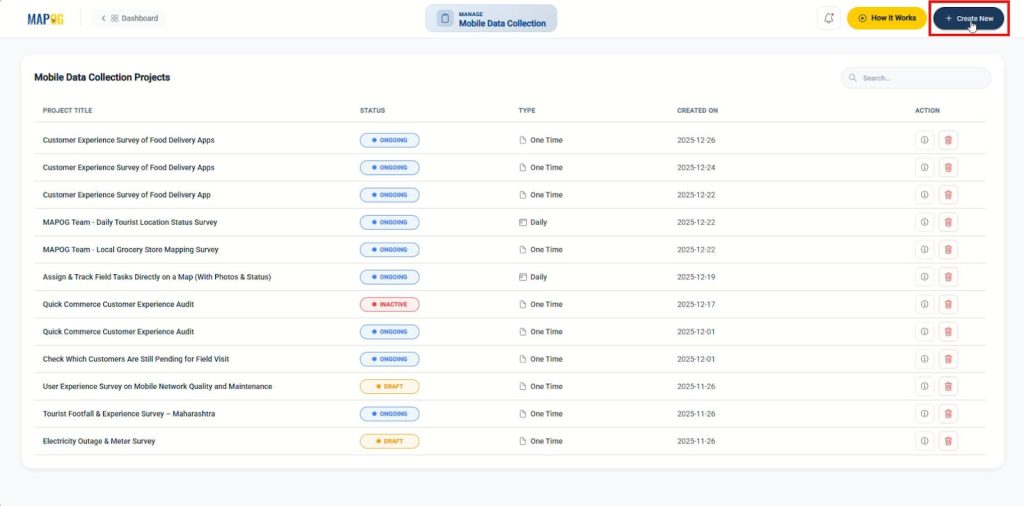
Log on to MAPOG then head to the Mobile Data Collection module and click “Create New”.
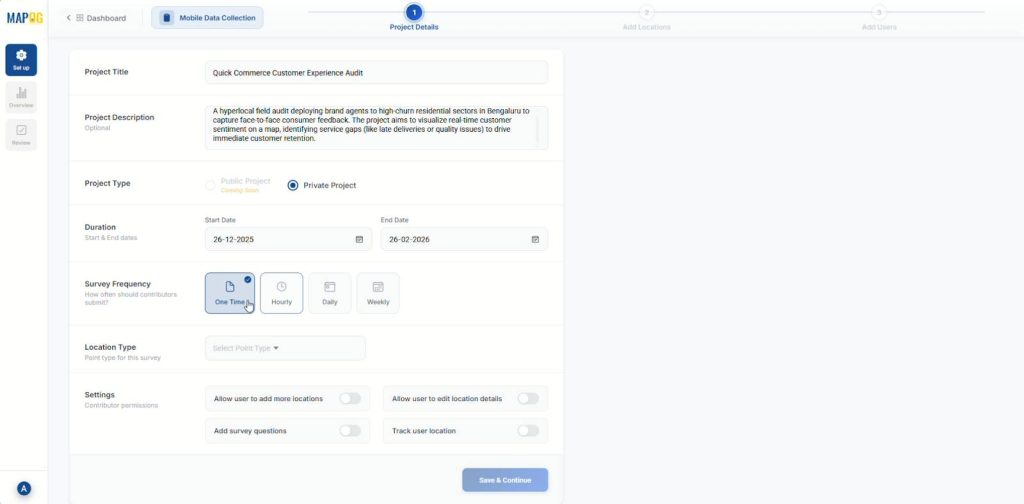
Then, set up a private project by entering the title and a description, select start and end date along with survey frequency.
2. Define the Location Type
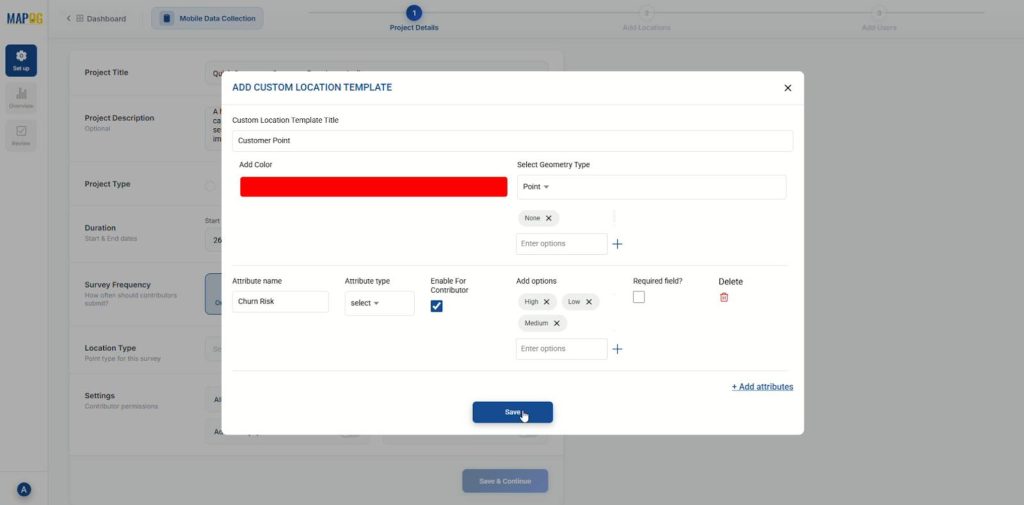
Then, create a new location type, go to select location type drop down click on “Create new” then “Add more custom location template“, give it a name, add color and set geometry type as point. Configure attributes that match your data, such as Customer Name and Churn Risk.
3. Input Survey Questions
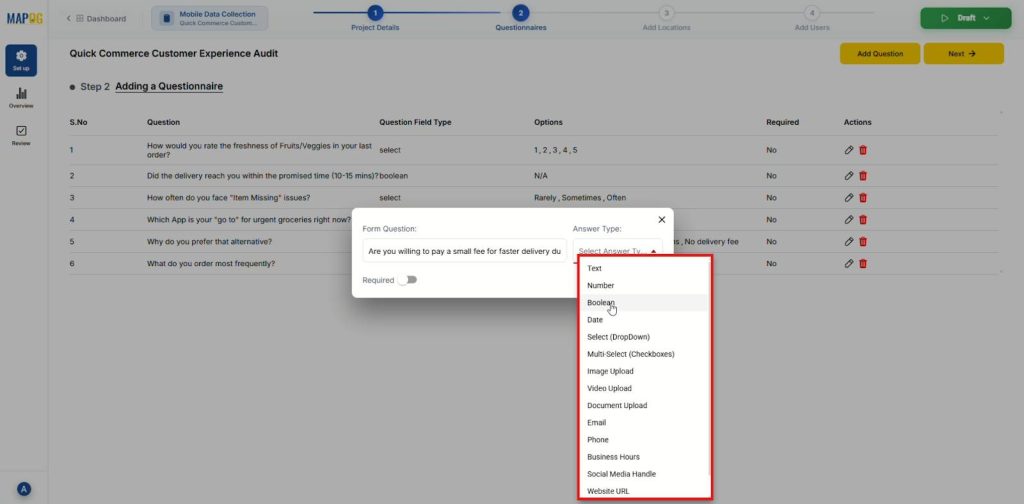
After that, click on “Add question” then add your targeted survey questions one by one. For instance, include specific queries like “Rate the freshness of fruits/veggies” or “Did the delivery arrive on time?” using the appropriate answer types (Select, Boolean, etc.).
4. Import Customer Data
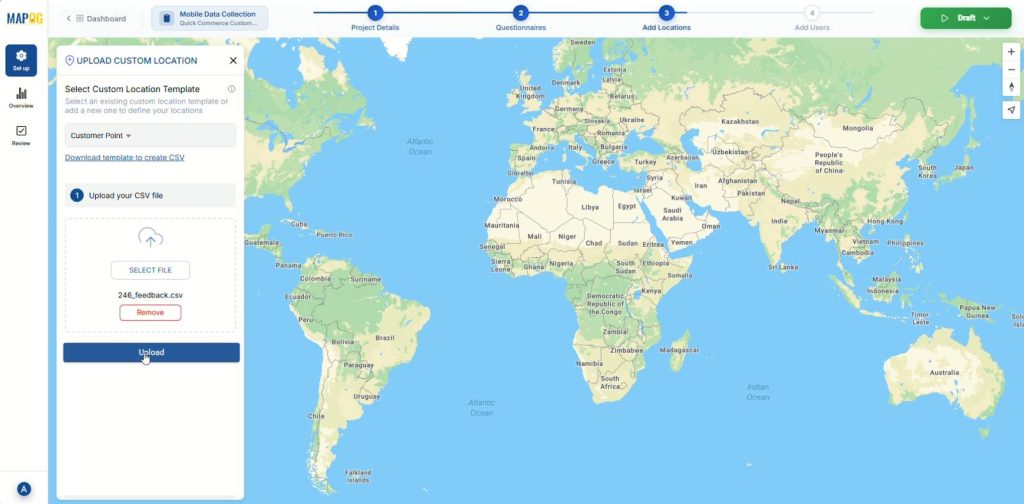
Then, in the step select “Add a new location by uploading CSV/Excel” and upload the pre-existing customer data csv file.
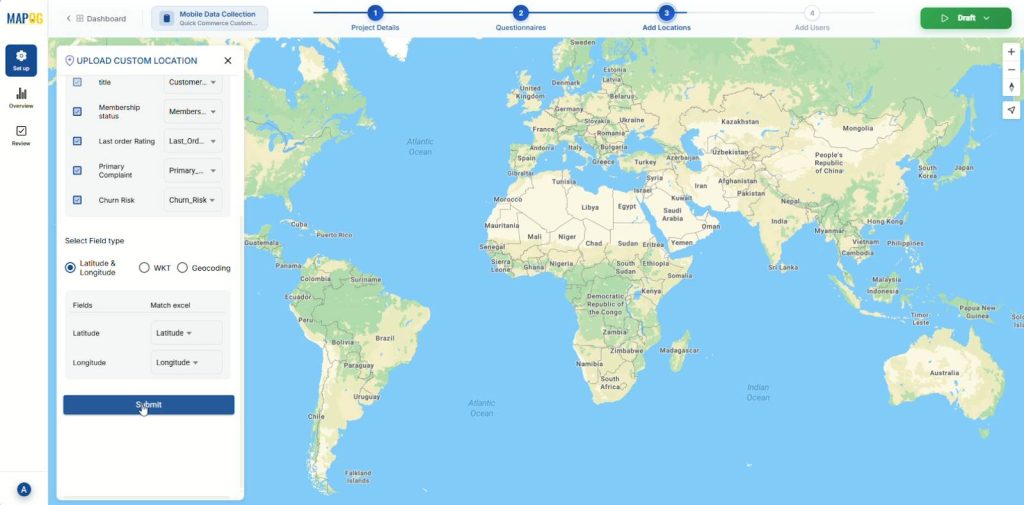
Match the excel columns to your created attributes and ensure the Latitude and Longitude fields are correctly matched for placement then Submit.
5. Onboard Your Team
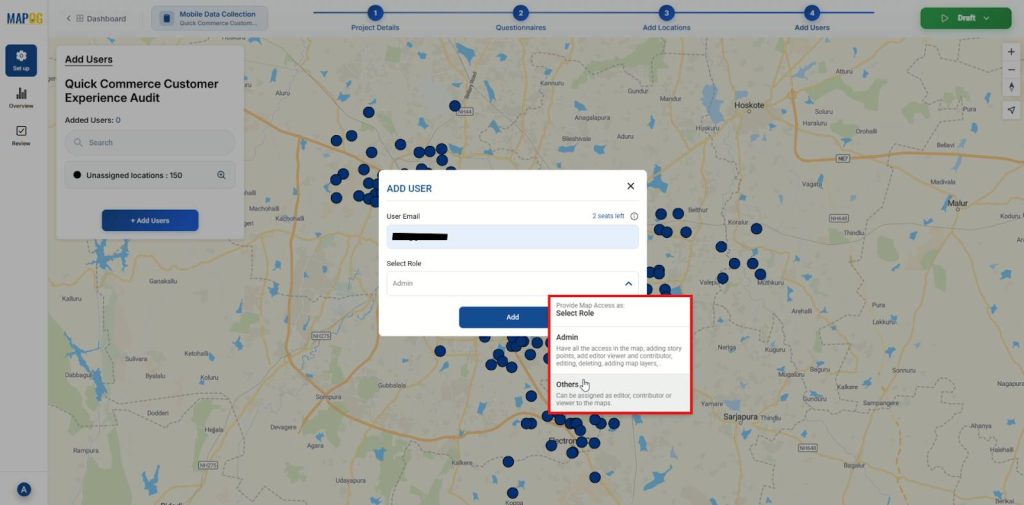
Following this, go to the “Add users” section then “Add members”, enter their emails and assign them appropriate roles either “Admin” or “Others”.
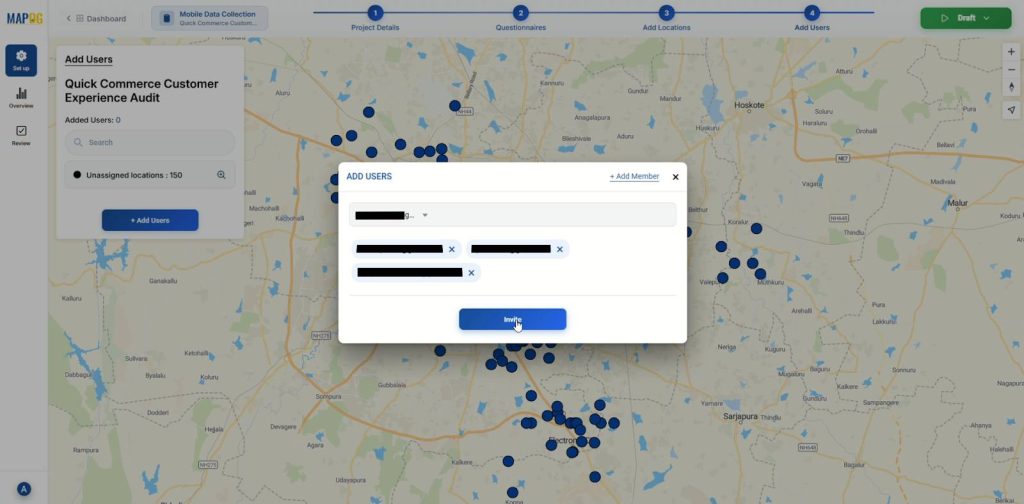
Then, select members and invite them as Customer Experience Agents.
6. Assign Tasks
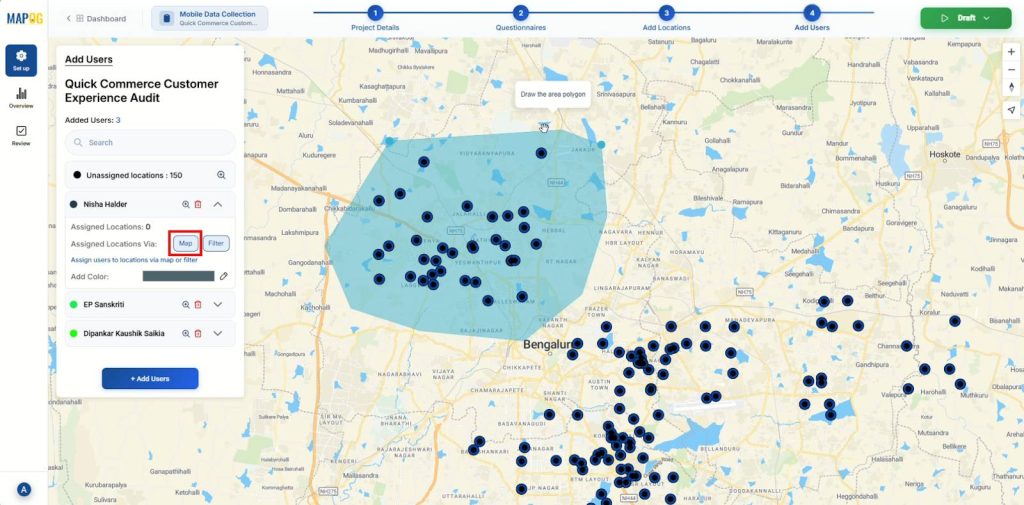
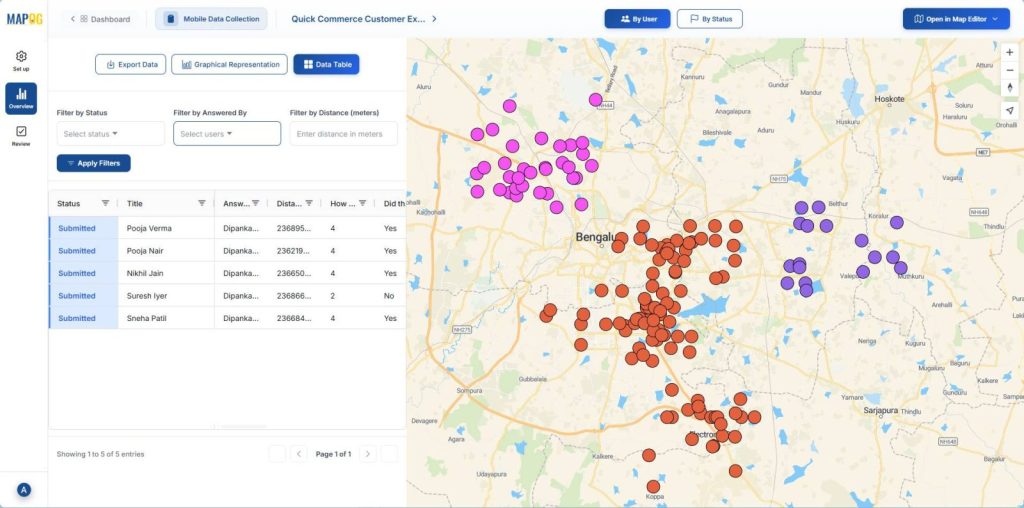
Finally, once the team is added, click on a contributor’s name. Draw polygons around customer location clusters using the “map” option then confirm and assign to that specific agent.
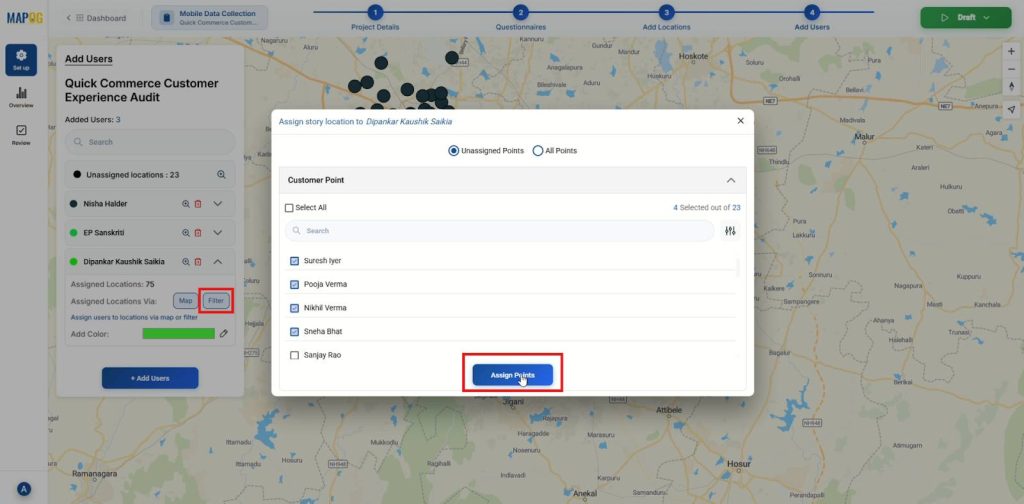
Alternatively, use the filter option to assign customer locations to specific agents. Use color coding to make it visually distinct.
7. Launch the Campaign
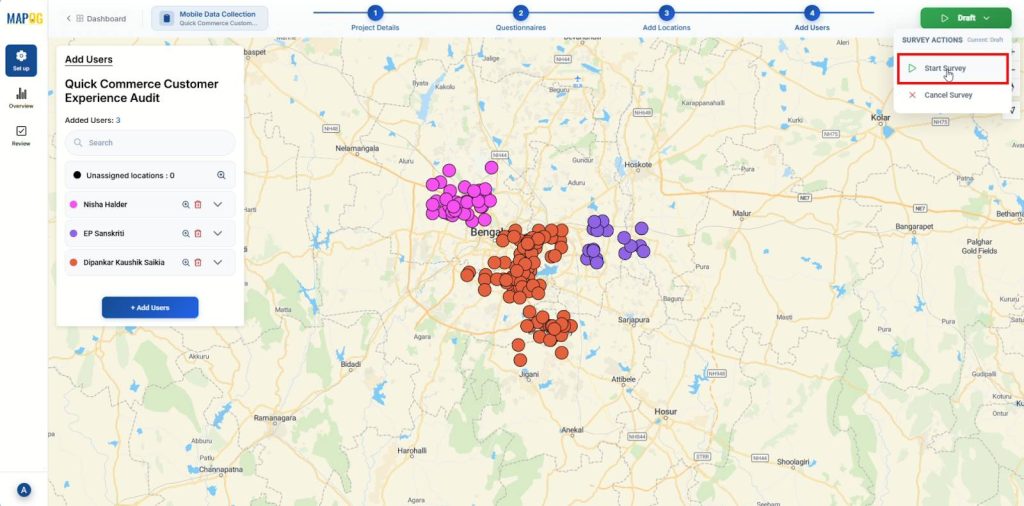
Next, click the “Launch” button at the top right corner and start the survey, making the data and forms accessible to your field team.
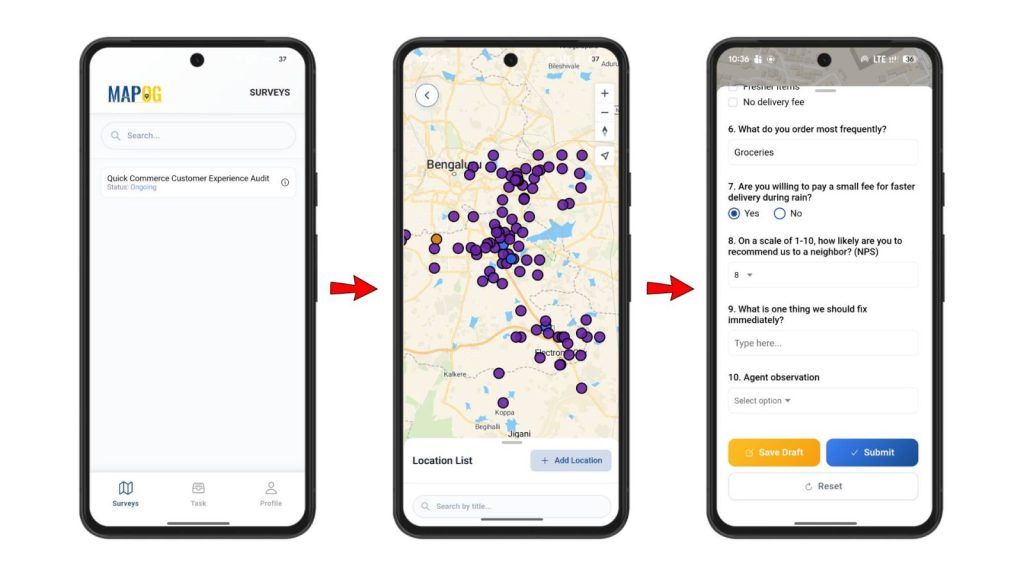
Subsequently, agents will log into the “MAPOG contributor mobile app”. They can now navigate to their assigned locations, conduct the doorstep surveys, and submit real-time feedback directly from the customer’s location.
8. Monitor and Act
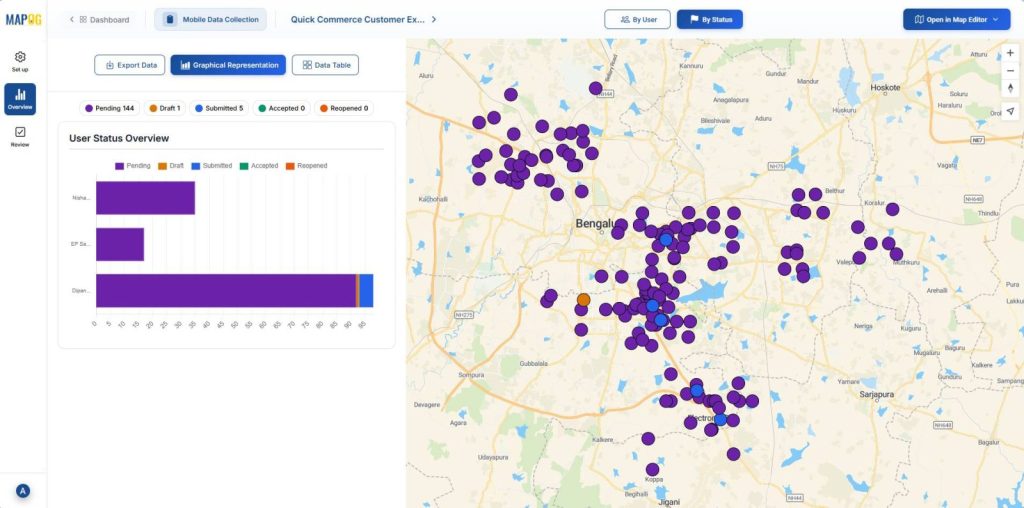
Finally, review the incoming data from live dashboard using the “Overview” panel and direct your team to take immediate corrective action.
Industries and Domains
- Retail teams tracking in-store customer experience across regions.
- FMCG brands validating product placement and shopper reactions.
- Logistics teams capturing delivery-point feedback for route improvements.
- Telecom and utility operators checking service quality across areas.
These domains gain a competitive edge by connecting on-ground insights with location-based visibility.
Conclusion
Organizations grow faster when they stay close to what customers feel and say in real time. When you choose to Collect Customer Feedback On-Ground, you build a practical, direct, and location-aware feedback loop that guides smarter actions every day. MAPOG supports this effort by offering mobile data collection, linking each on-ground insight to a real point on the map, helping teams respond quickly and make decisions with confidence.