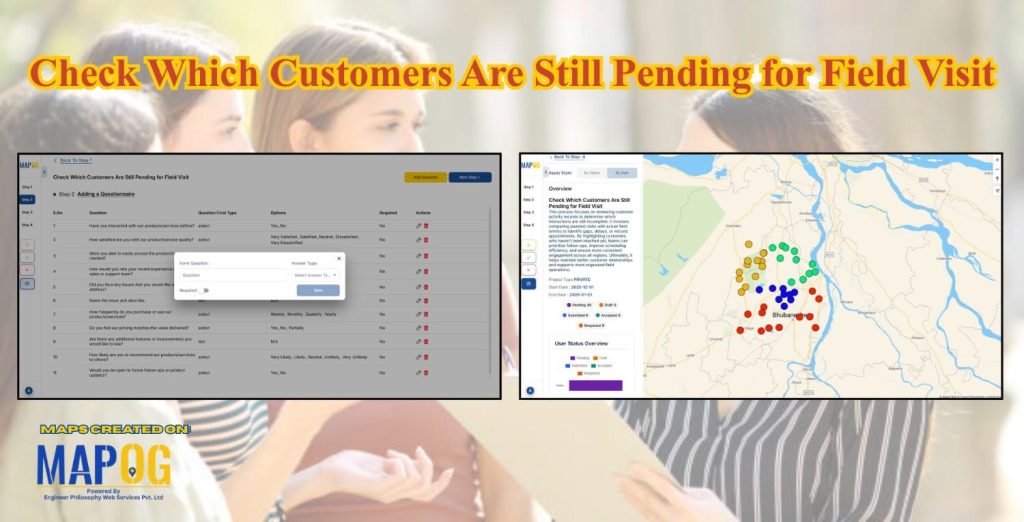
Check which customers are pending field visits with GIS mapping is an important step that allows your team to instantly identify who has been visited, who is still pending, and where follow-ups are falling behind. As a result, businesses can uncover patterns, understand field-team performance, and plan their sales operations more efficiently. Whether you manage a small regional team or coordinate national operations, interactive maps provide a clear geographic perspective.
Key Concept: Check Which Customers Are Pending Field Visits
Tracking Pending Field Visits with MAPOG shows visit status, but they rarely reveal where the delays occur. Two customers may be tagged as “pending,” yet a quick look at the map could show that one lies inside a high-priority cluster, while the other sits in a region with low sales coverage. Without a map, this important distinction remains invisible.
Process to Check Which Customers Are Pending Field Visits
1. Create New Survey
- Firstly, click on the Mobile Data Collection tab in MAPOG.
- Click “Create New Project”.
- Add a title and description for the Project.
- Keep the project Private and add the start and end date of the survey and also add a suitable location point.
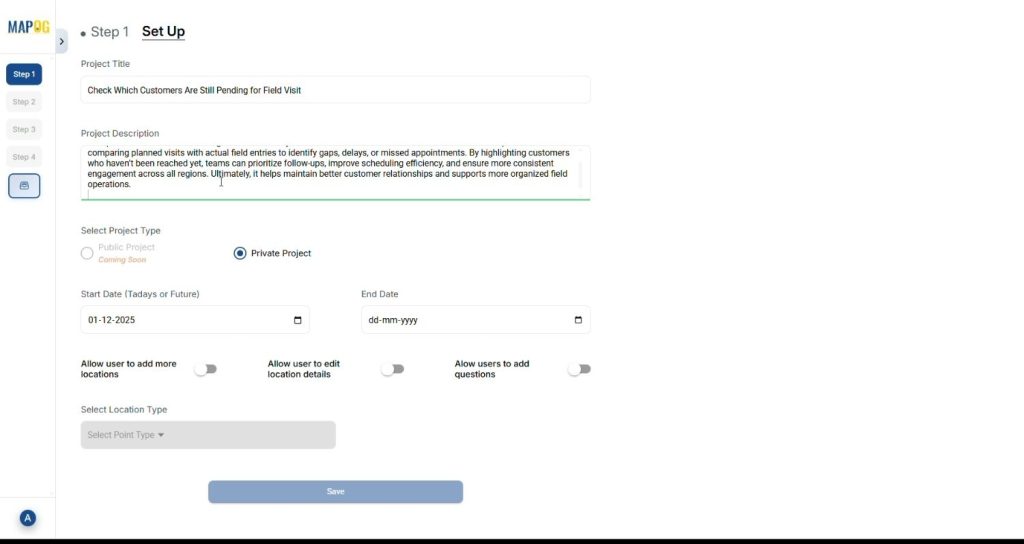
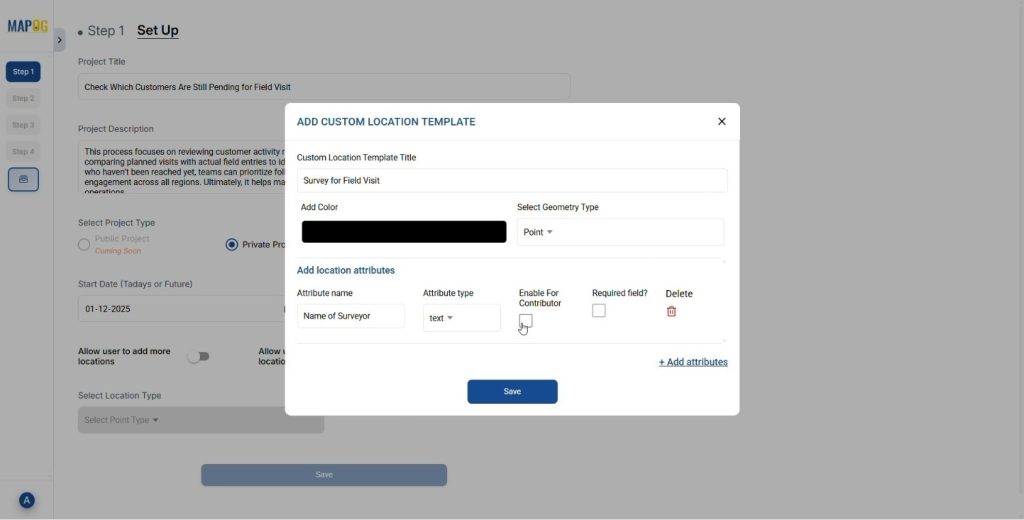
- Click on the select location type and then click on create new. Add the name of the location type, geometry and add attributes. It also allows users to add new location points or use an existing one.
- Save your Location type. Later select it from the drop down and save the details.
2. Add Suitable Questions for Questionnaire.
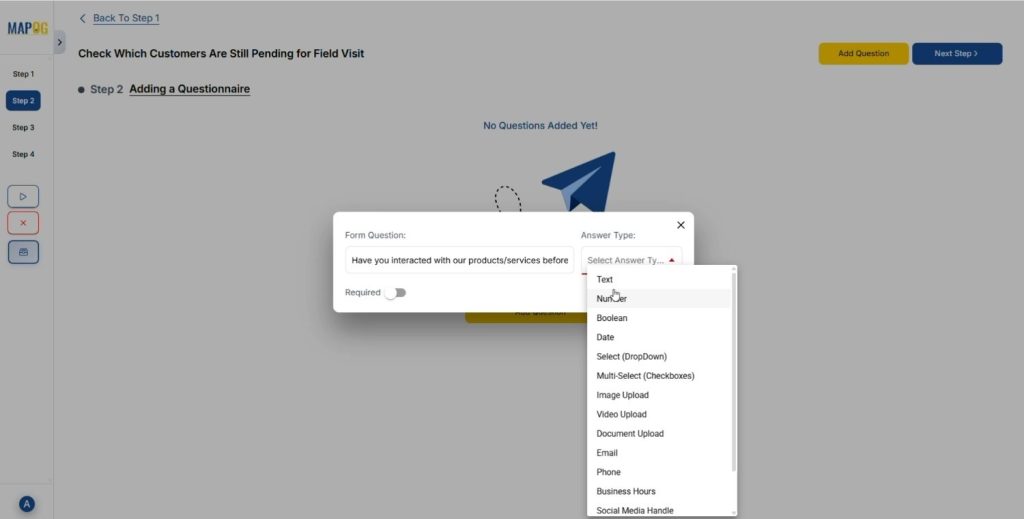
- Click on the Add Question tool and add questions for the survey.
- Frame questions according to the survey topic like review of the products, amount of product purchased etc. After adding questions add answers options in the form of drop downs.
- After completing the questions and options, click Next.
3. Add Data of the Survey.
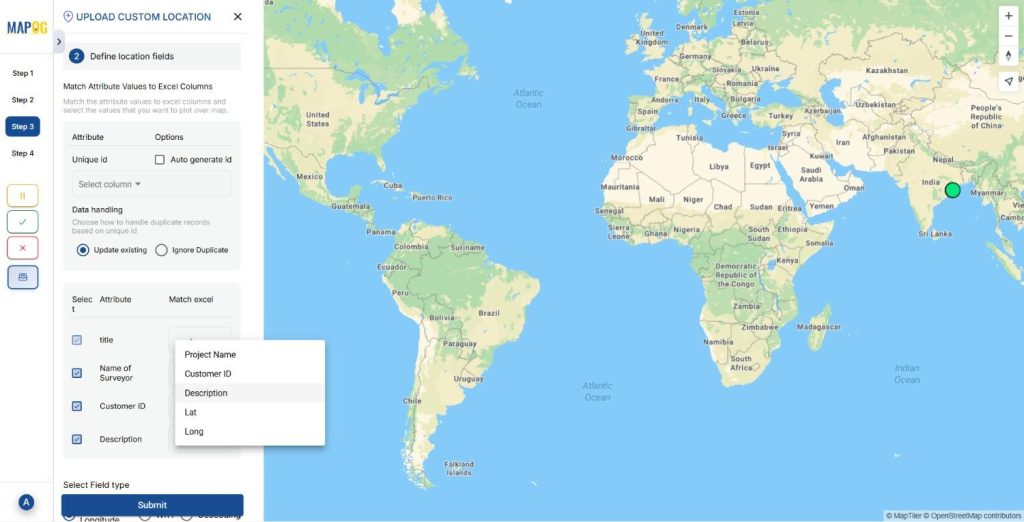
- Add point data using Add new location by uploading CSV/ Excel
- Upload your prepared Excel/CSV.
Match Excel data with attributes like:
- Customer ID
- Customer Name
- Description
Match these attributes to corresponding columns.
- Add latitude and longitude values and click submit, and the points plot on the map.
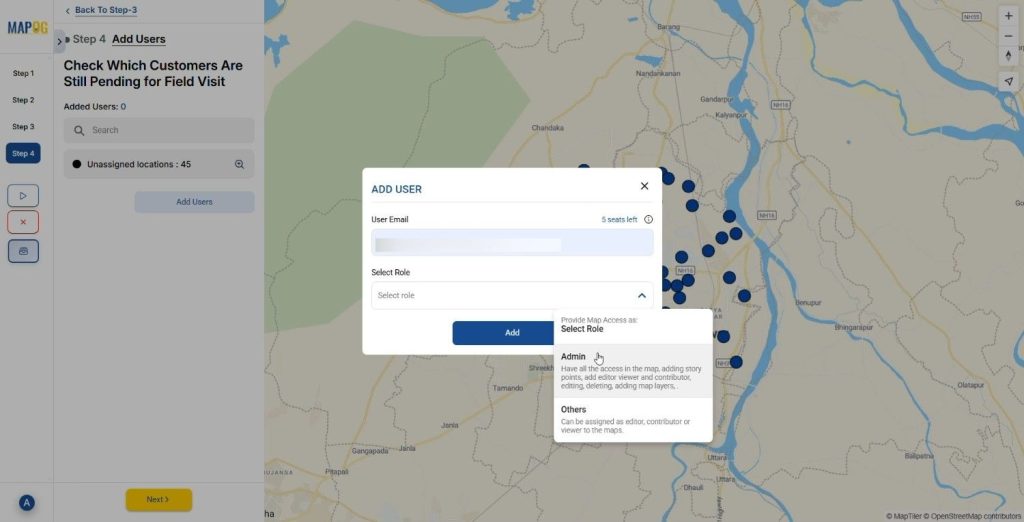
4. Add Users/Surveyors for the survey.
- Click on add users and add the representatives or surveyors, Click add members for the survey and assign roles like admin or others.
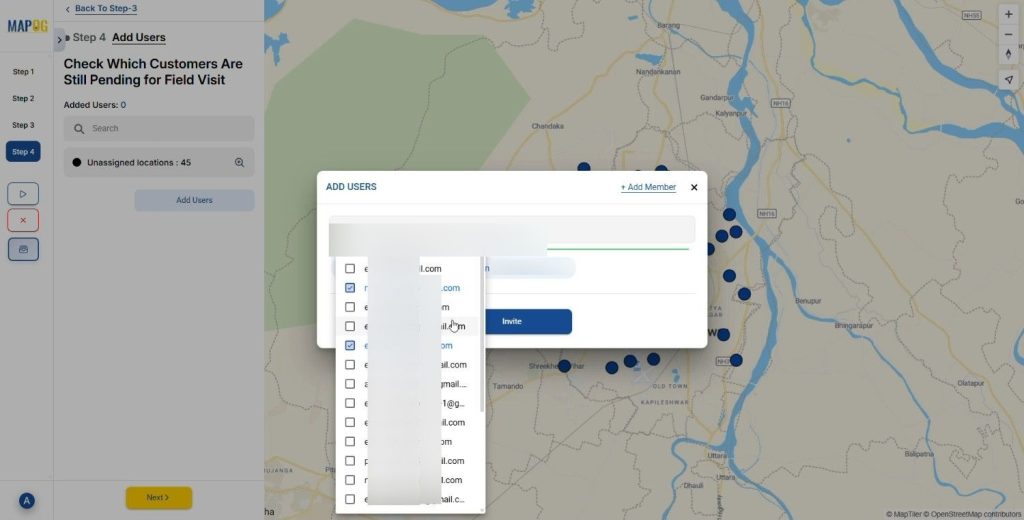
- Add users by selecting members. And click on invite to assign surveys to them.
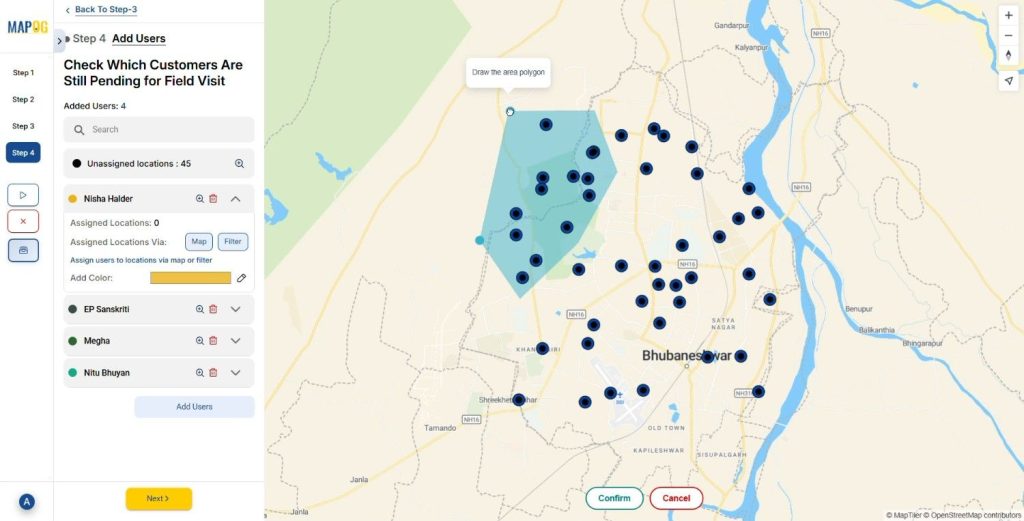
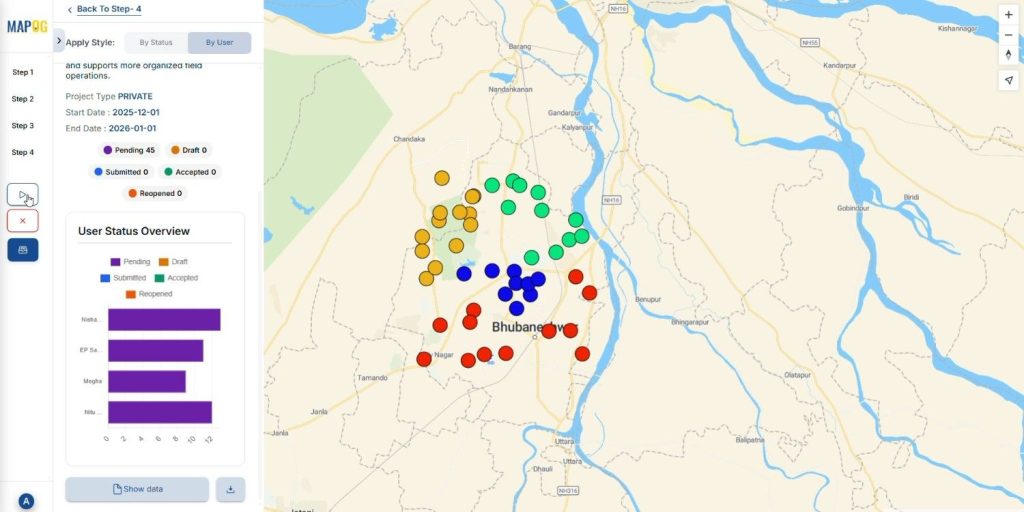
- Add members and assign points by drawing a polygon over the required locations. After the allotment of points by polygon you can color code them and filter according to users and questions.
5. Start the Survey to Check Which Customers Are Pending Field Visits.
- Click on launch Survey and the assigned people will receive a survey link in the MAPOG Contributor App.
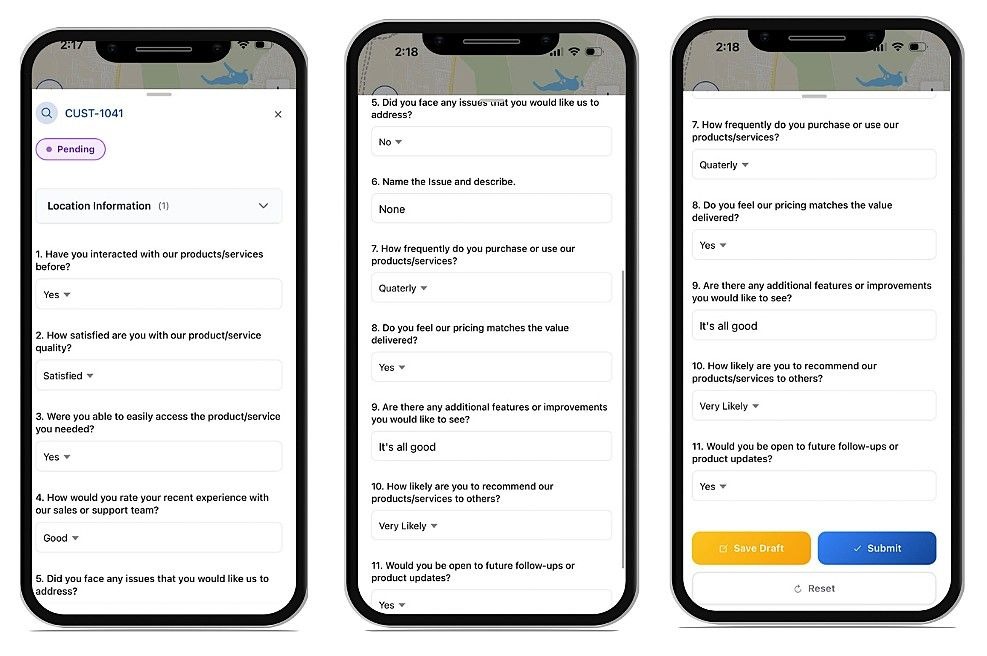
6. Survey on mobile app
Complete the assigned survey in the MAPOG Contributor app to receive the data in the main system. We can either submit or keep it on save drafts.
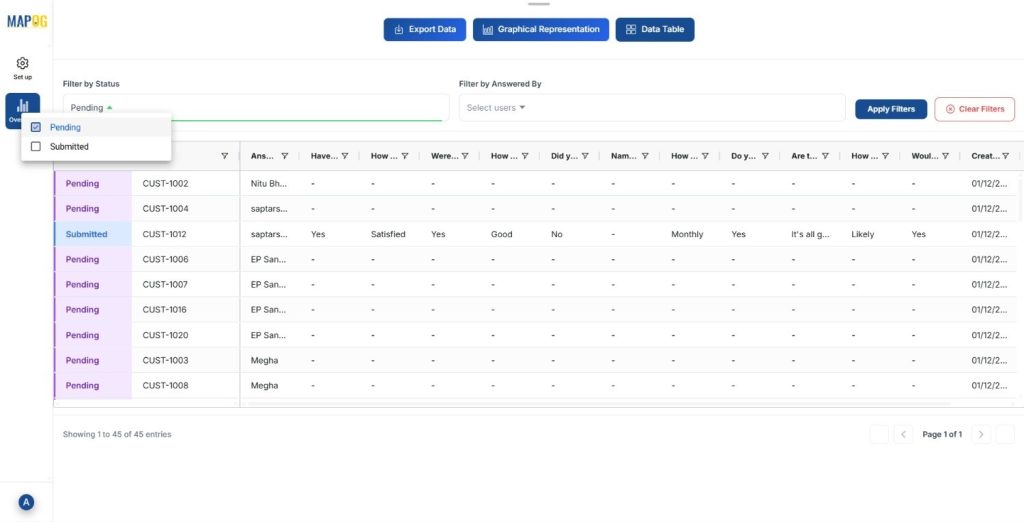
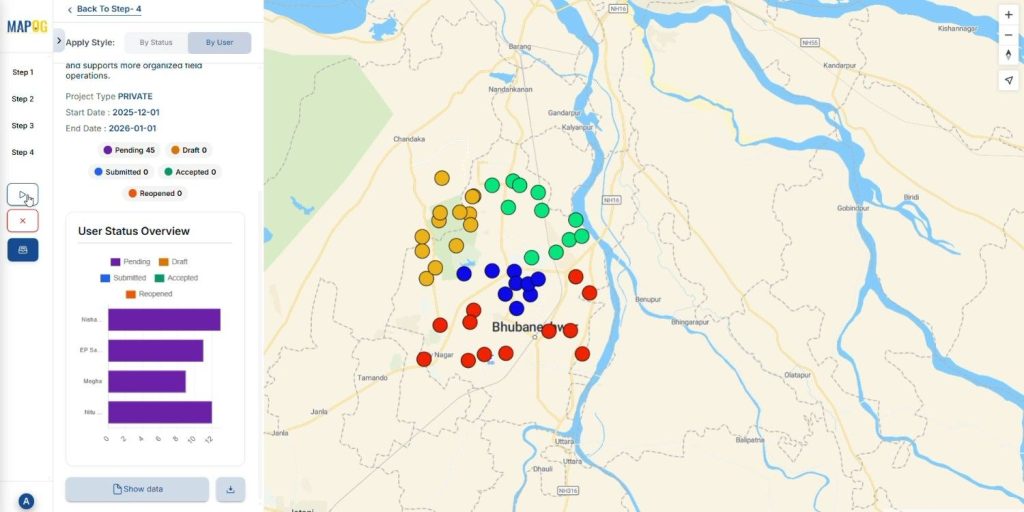
- See the stats of the survey on the user status overview on platform and simultaneously show data tab to track who has done or who is left for the field visit. You can filter the data according to the user & status i.e., pending or submitted.
The Future of Pending Field Visits Mapping
Since GIS and AI continue to evolve, the process to check which customers are pending field visits becomes an important step. Future tools however will automatically highlight neglected regions, recommend optimized routes, and even predict which customers are likely to require urgent follow-ups.
Conclusion
Mapping pending field visits also transforms scattered information into actionable strategy. It helps your team see where attention is needed, how to balance workloads, and when to prioritize follow-ups. With MAPOG, you can map customer locations, visualize pending visits, plan routes, and boost both customer satisfaction and operational efficiency.
Download the MAPOG contributor app through play store or app store today and start monitoring your surveys with ease.