
Customer data often comes in spreadsheets filled with names, addresses, coordinates, and feedback—but viewing such information in raw tables can limit insight. By importing this data into MAPOG, additionally visualize customer locations, projects or buildings ratings, or import customer feedback into online mapping tool and reviews directly on an interactive map. This not only makes data interpretation easier but also, in turn, helps teams clearly identify spatial patterns and, for instance , high-satisfaction zones that nevertheless require improved customer engagement.
Key Concept Import Customer Feedback and Ratings into an Online Mapping Tool
Customer feedback and ratings contain valuable spatial context. When visualized on a map, they reveal trends that ordinary spreadsheets can’t show—like which neighborhoods have higher satisfaction levels or where most purchases occur. Mapping customer data transforms a static Excel file into an interactive decision-support tool. Adding feedback and ratings to map points also allows non-technical users to analyze data visually without relying on GIS software. Instead of complex dashboards, a simple color-coded map helps businesses track and respond to customer experience visuals geographically.
Step-by-Step Guide to Import Customer Feedback and Ratings
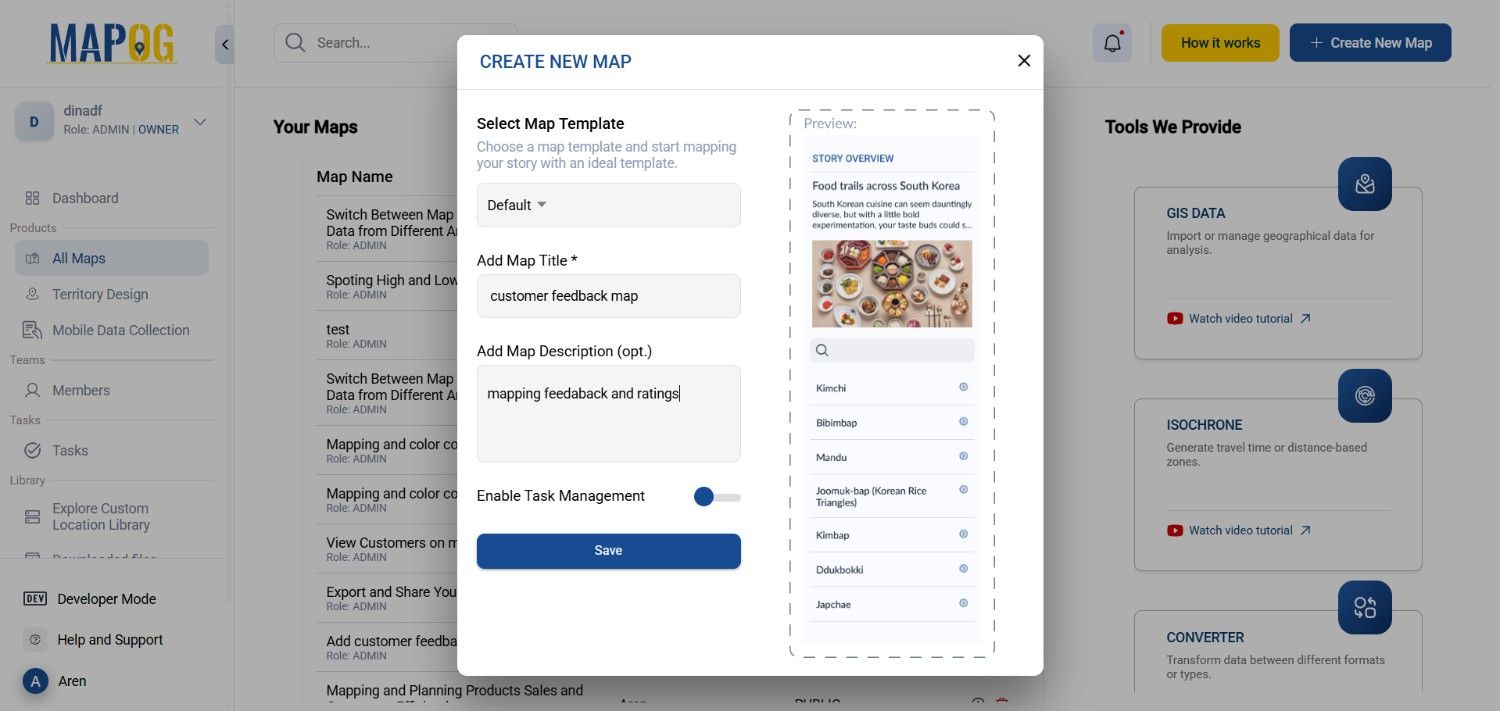
1. Create a New Map –
Firstly Start by logging in to your MAPOG workspace. From the main dashboard, click “Create New Map.” Assign a relevant project name—such as Customer Feedback Insights —to keep it organized.
2. Upload Your Excel File–
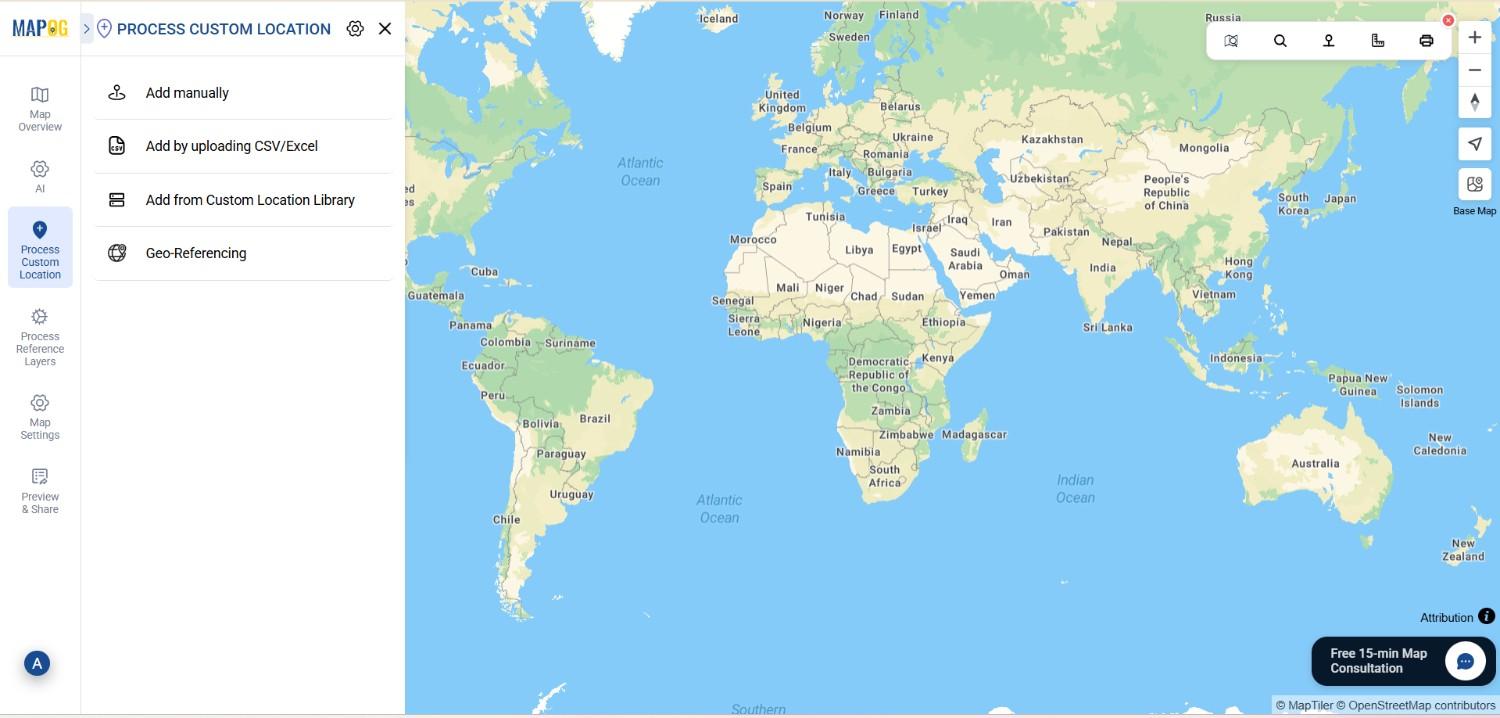
Next, click the “Process custom location ” option and Go to Add by Uploading CSV/Excel.
3. Add Attributes–
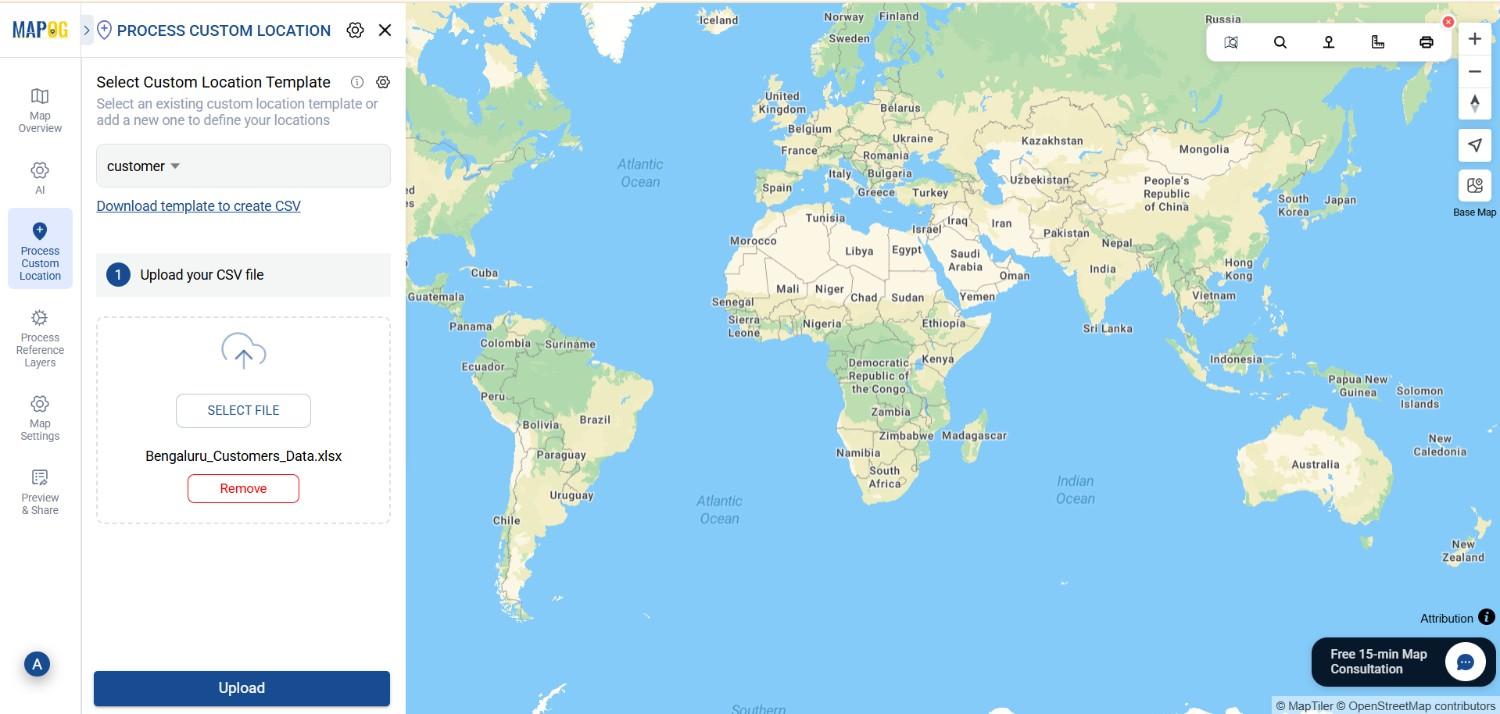
Now, go to the select custom location template section to add a new custom template called Customer. Inside this custom template, create attributes—such as “Purchase Volume,” “Payment Mode,” and “ratings.” & many more.

Browse your device to locate the Excel sheet containing your customer details—name, address, latitude, longitude, ratings, feedback, and purchase volume. Once selected, confirm the upload. check that latitude and longitude fields match correctly.
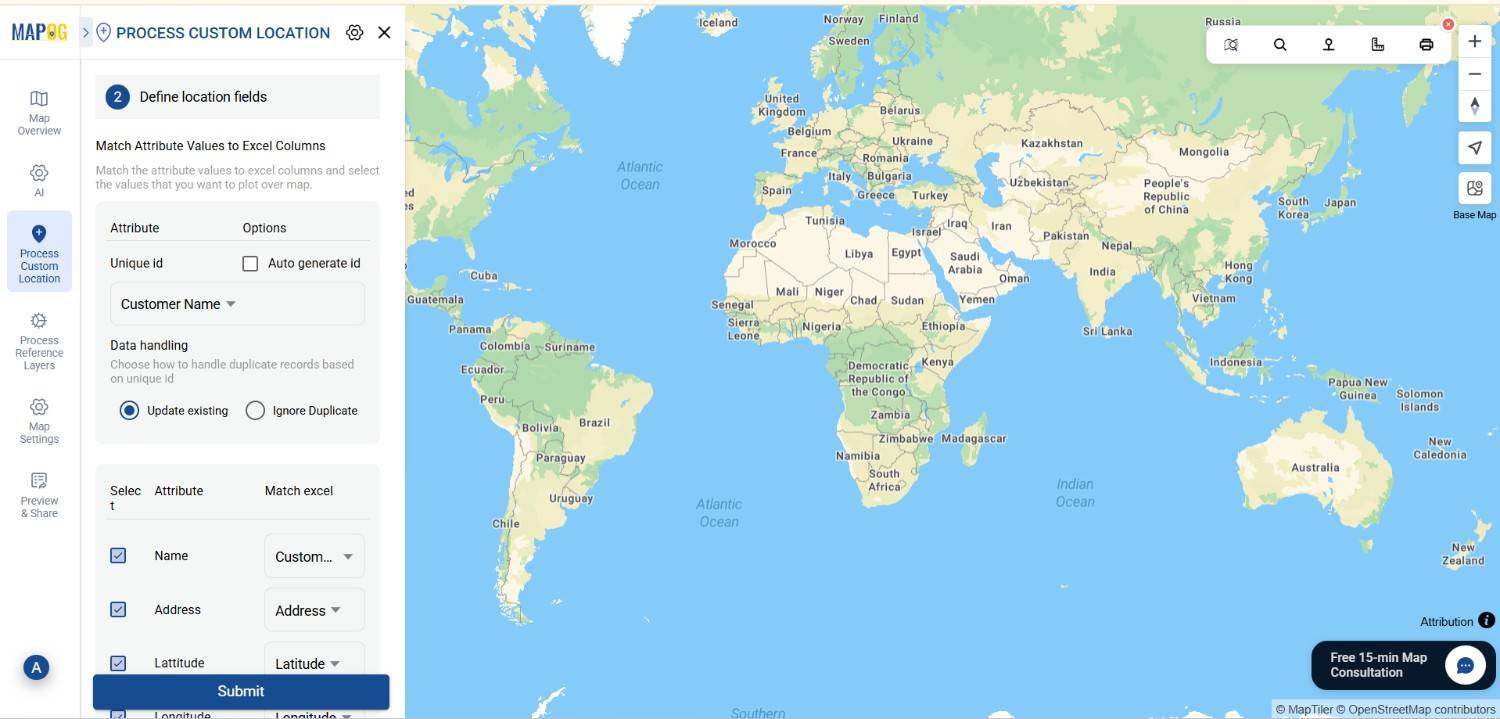
If your dataset includes additional attributes, such as payment mode or purchase date, MAPOG allows you to match all column names during the import process. After aligning attributes like “Customer Name,” “Rating,” and “Latitude/Longitude,” finalize the upload to visualize all entries instantly.
4. Style the Layer by Ratings
Now move to the add layer style section. Choose Quantity Style and select Ratings as the defining attribute.
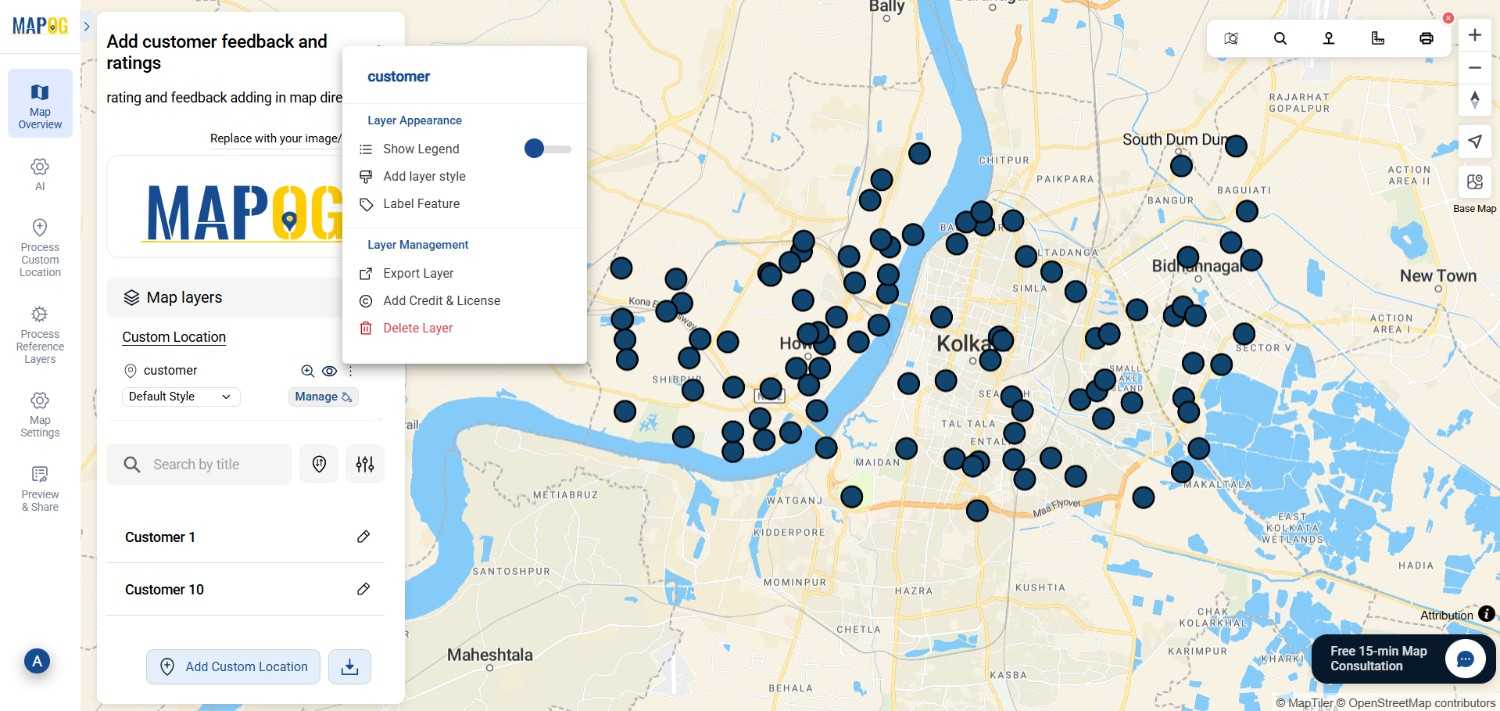
Adjust opacity and size to enhance visibility. However This step transforms your data into a visual gradient of satisfaction levels across your mapped area.
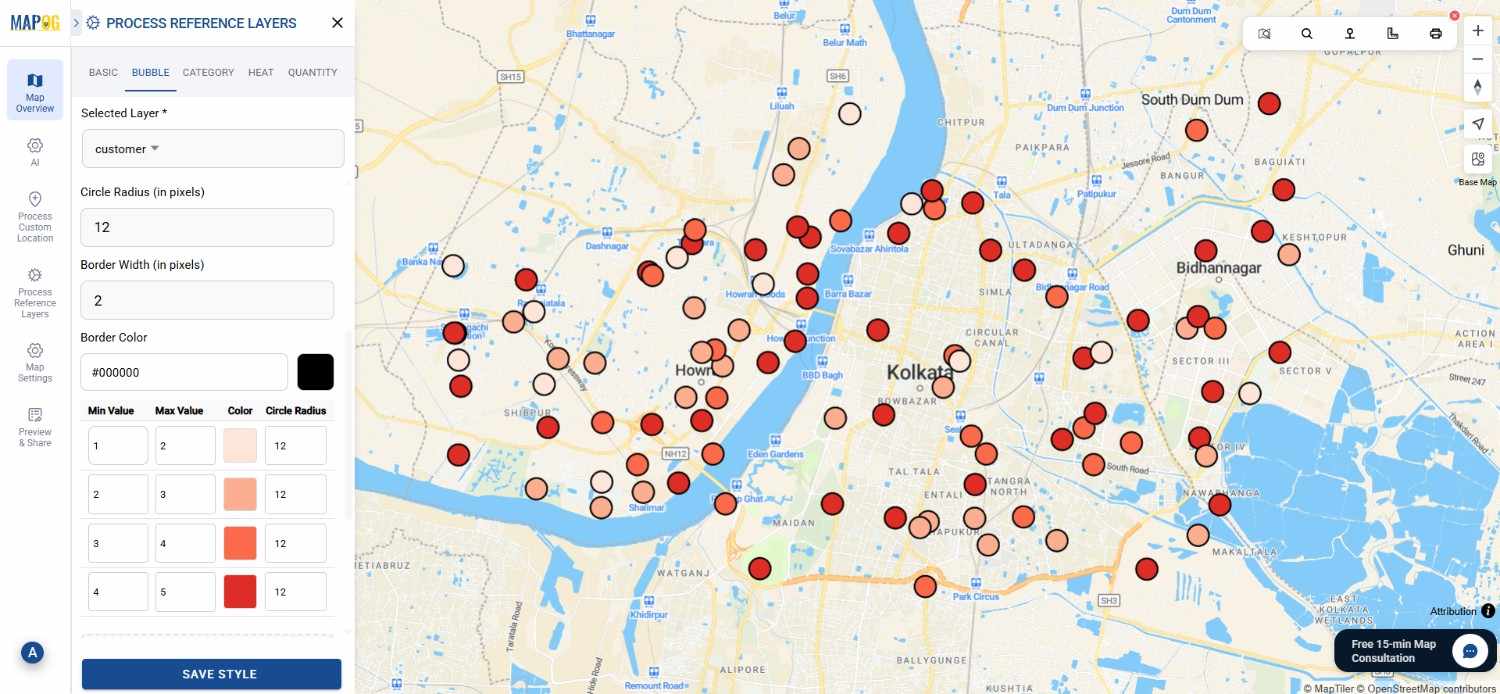
5. Edit Points and Add Feedback Details
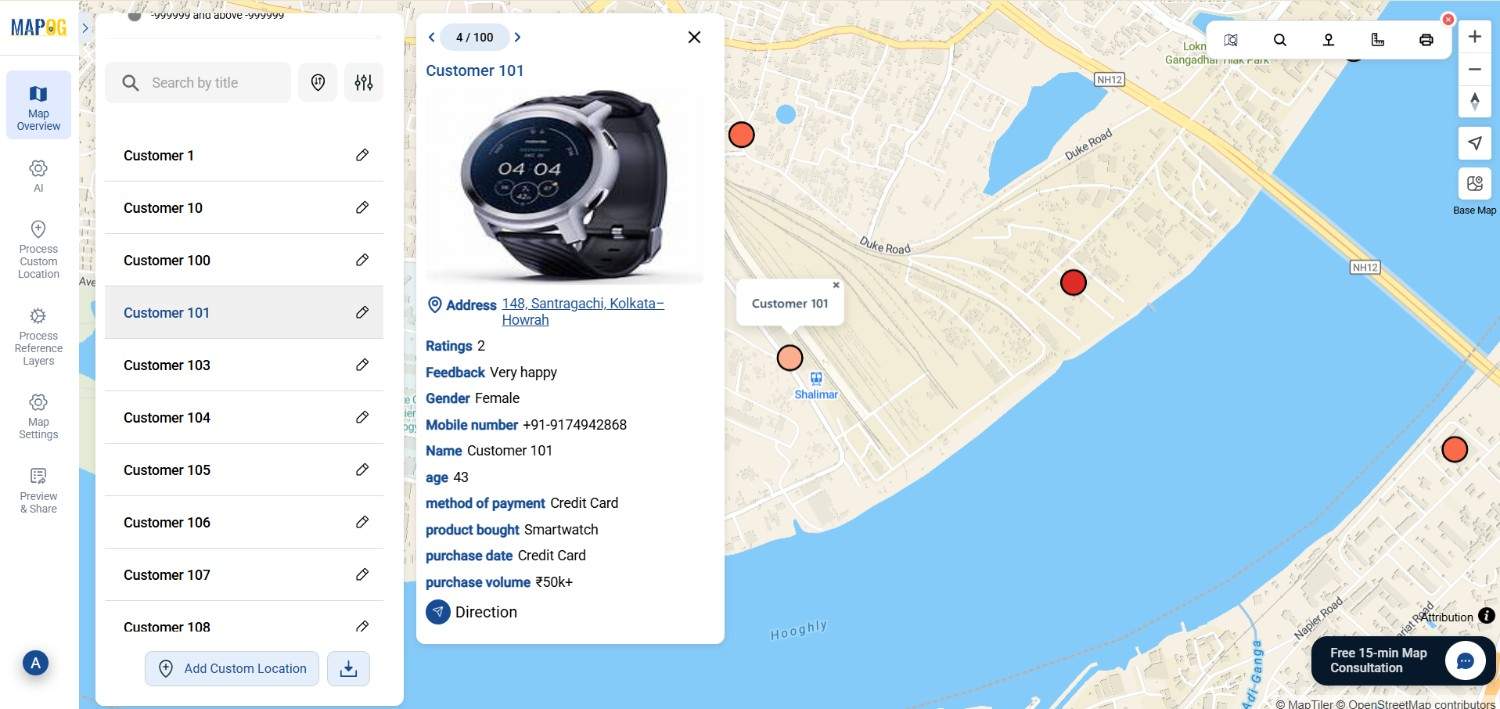
After styling, use the Edit Point option to enrich your map further. Further Click any point, open its attribute panel, and lastly add or modify customer feedback directly.
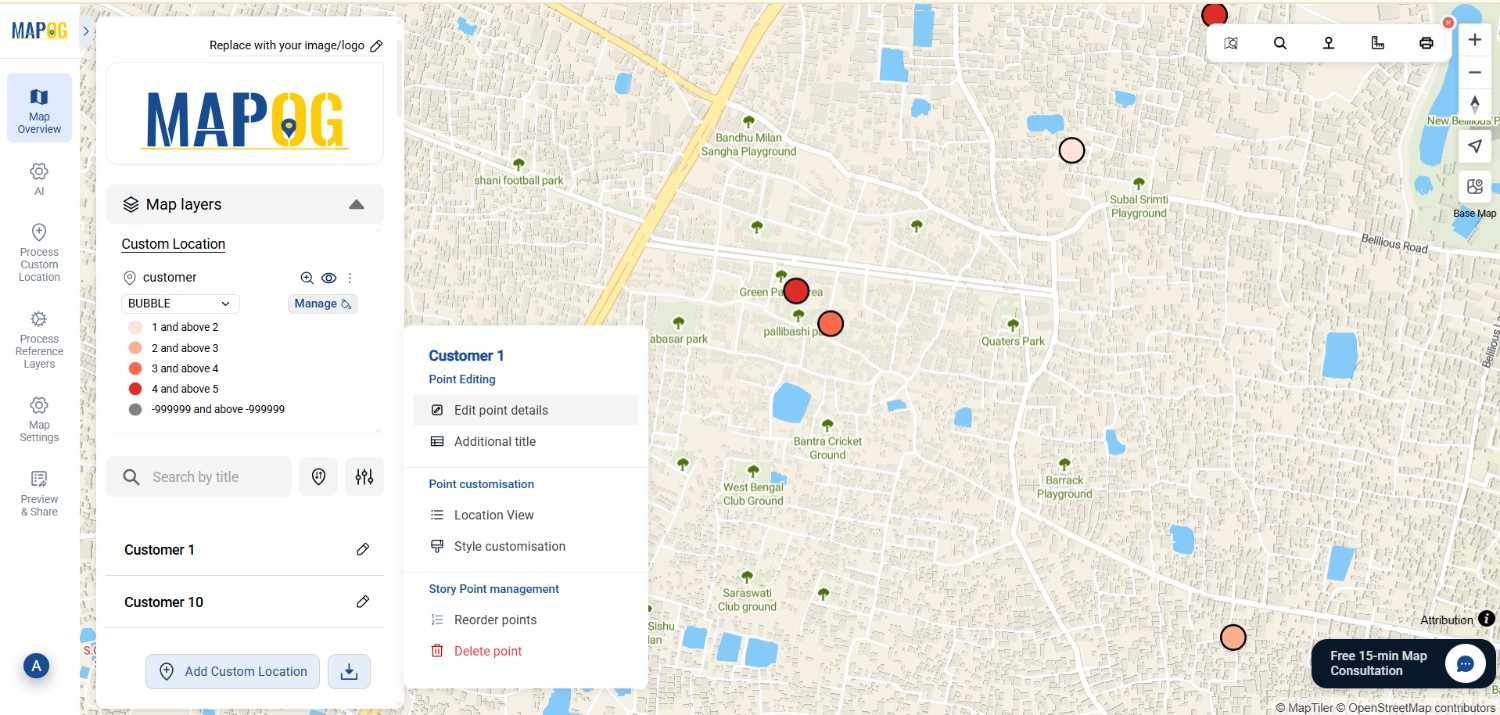
Additionally You can include short comments such as “Quick service” or “Late delivery.” This interactivity makes your map dynamic.

6. Share and Explore the Map
Finally, click Share & Publish . Once opened, viewers can further analyze satisfaction distribution. In this way, the map becomes ultimately more meaningful for decision-making.
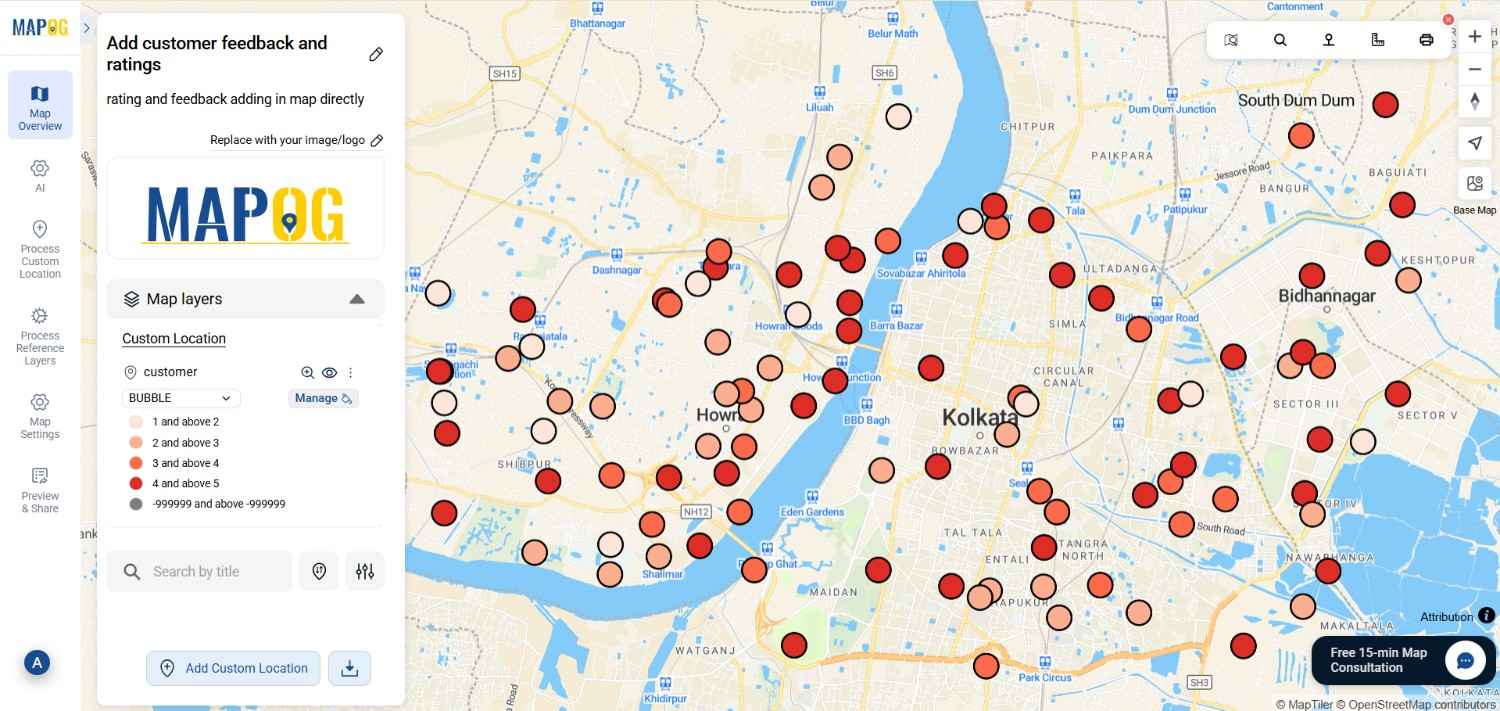
Industry Use and Benefits
Mapping customer ratings and feedback offers valuable insight across industries. To begin with, Retail and E-commerce businesses can identify areas with high or low satisfaction and therefore plan targeted offers more effectively. Additionally, Service Providers can track quality perception geographically and consequently prioritize improvement zones with greater clarity. Furthermore, Franchises can compare branch performance visually and as a result make better resource allocation decisions. Similarly, in Tourism and Hospitality, organizations can monitor guest experiences by location and thereby refine service delivery. Overall, these insights ultimately help every sector move from isolated feedback to actionable, location-based strategies.
Conclusion
In essence, importing customer feedback and ratings into MAPOG bridges the gap between spreadsheets and spatial intelligence. Moreover, it converts isolated data entries into an interactive, story-driven map that improves understanding and decision-making. Through simple steps—uploading an Excel file, defining attributes, styling layers, and editing points—you can transform ordinary customer data into geographic insights. Ultimately, this process helps businesses see beyond numbers, visualize satisfaction patterns, and create strategies rooted in real-world context.
Exploring Our Previous Blogs
- Role of GIS In Irrigation Planning and Water Resource Management
- How GIS and Smart Mapping Reduce Urban Heat Islands
- GIS in Infrastructure Development and Road Network Analysis
- Flood Risk Mapping with Interactive Web Maps: SaaS Approach
- Optimizing Warehouse Location Selection with GIS for Supply Chain Efficiency