
In today’s collaborative and data-driven environment, sharing location intelligence securely is just as important as creating it. Static screenshots or exported files often fall short—they lose context, interactivity, and control. That’s where secure Interactive map sharing becomes essential. By enabling teams and clients to explore live maps with controlled access, you ensure everyone sees the right data, at the right level, without risking sensitive information. With MAPOG, Share Interactive Maps Securely through permission-based links, allowing users to pan, zoom, filter, and analyze locations in real time while maintaining full data security. This approach improves collaboration, reduces miscommunication, and ensures confident decision-making—turning maps into trusted, shareable insights rather than just visual references.
Key Concepts
Sharing interactive maps isn’t just about sending a link—instead, it’s about enabling secure, controlled access to location intelligence without losing interactivity or trust. Rather than relying on static files or screenshots, interactive maps allow users to explore data dynamically while simultaneously respecting privacy and permission settings. As a result, sensitive location information is visible only to authorized users and only at the intended level of detail. With MAPOG, users can easily control map visibility (private or public), generate shareable or embedded links, and manage access without duplicating datasets. Meanwhile, as recipients interact with the map—zooming, filtering, or analyzing layers—the underlying data remains protected and always up to date through dynamic visualization. Consequently, teams collaborate around a single source of truth, data misuse is minimized, and insights remain consistent across all stakeholders.
Steps to Share Interactive Maps with Teams or Clients Securely
1. Select Preview & Share:
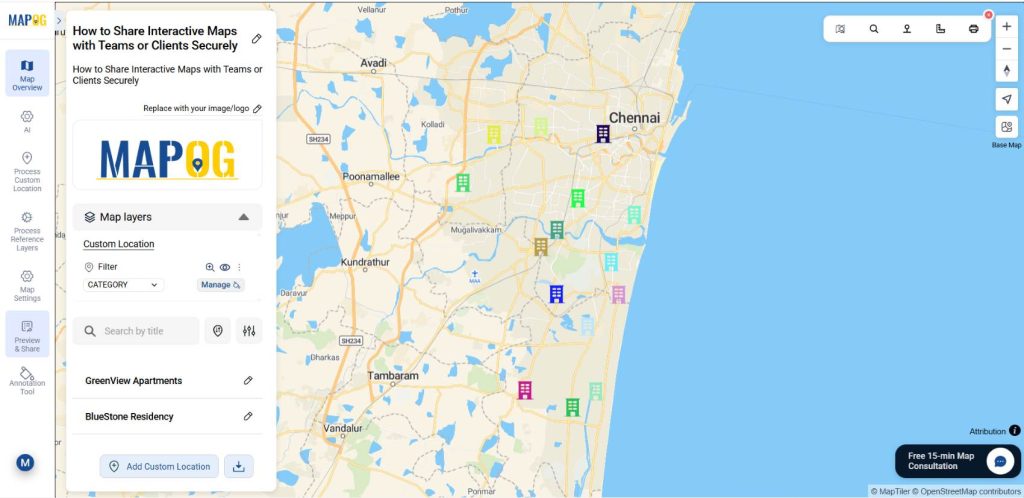
Once you are done with your map in MAPOG, go “preview & share“.
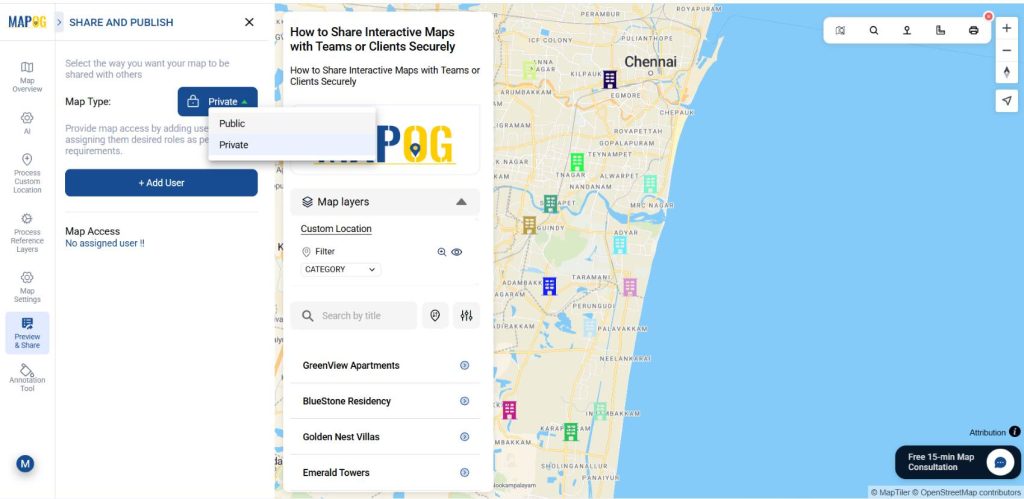
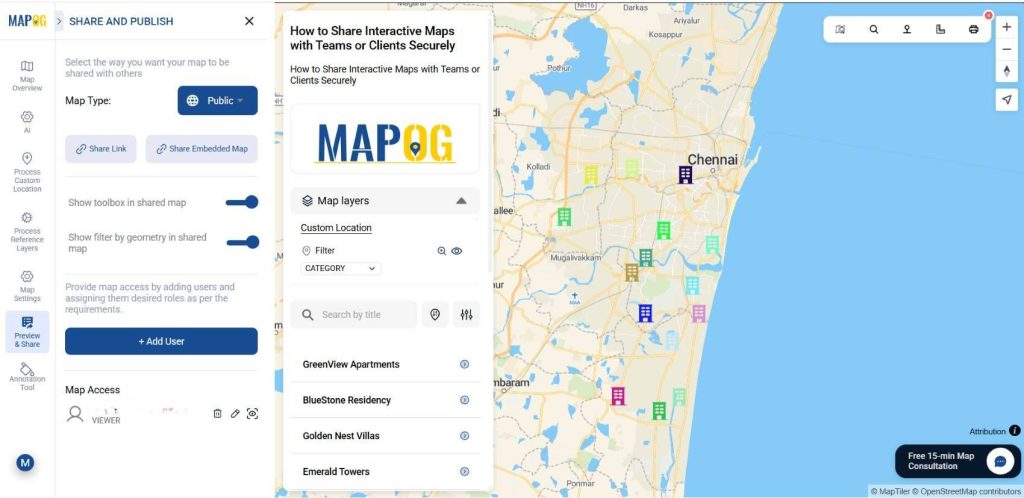
Then select how you want to share your map. Choose Private to restrict access to selected users only, or Public to make the map accessible to anyone with the link.
2. Share the link:
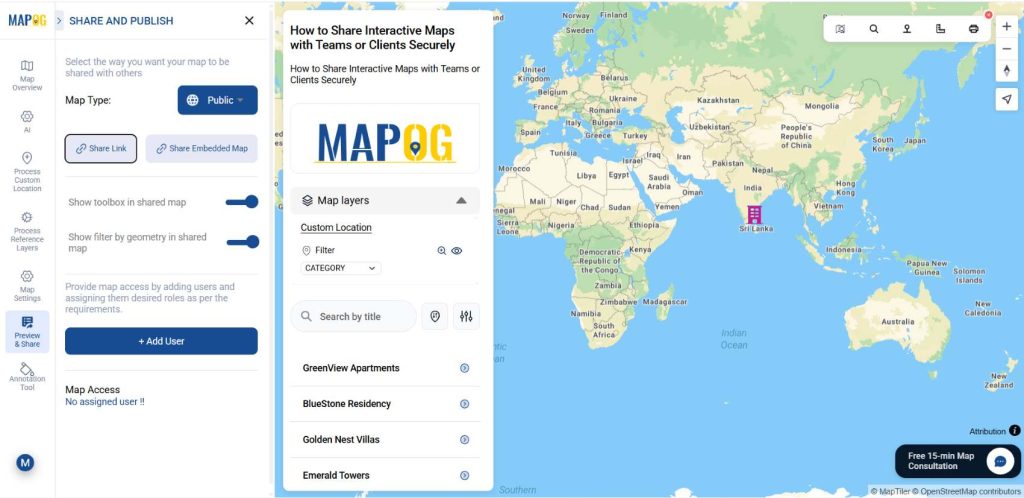
Set the map type from Private to Public to enable the share option. Click the share link option. It’s mainly used for direct sharing via email, chat, or social media so users can view and interact with the map on MAPOG.
3. Share the Embed Link:
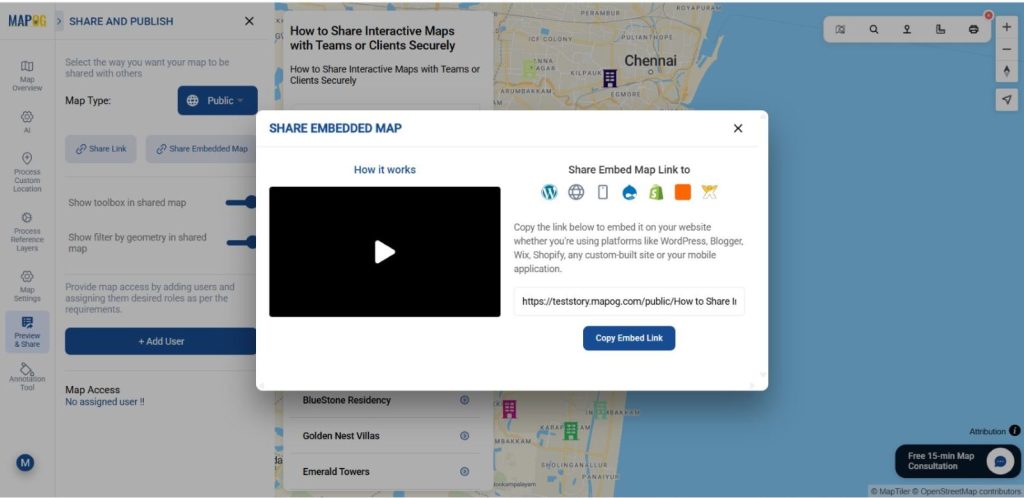
Click Share Embed Link, copy the generated link, and share links on websites. The Embed Map option is primarily used to display maps on external websites or web pages.
4. Provide access by adding users:
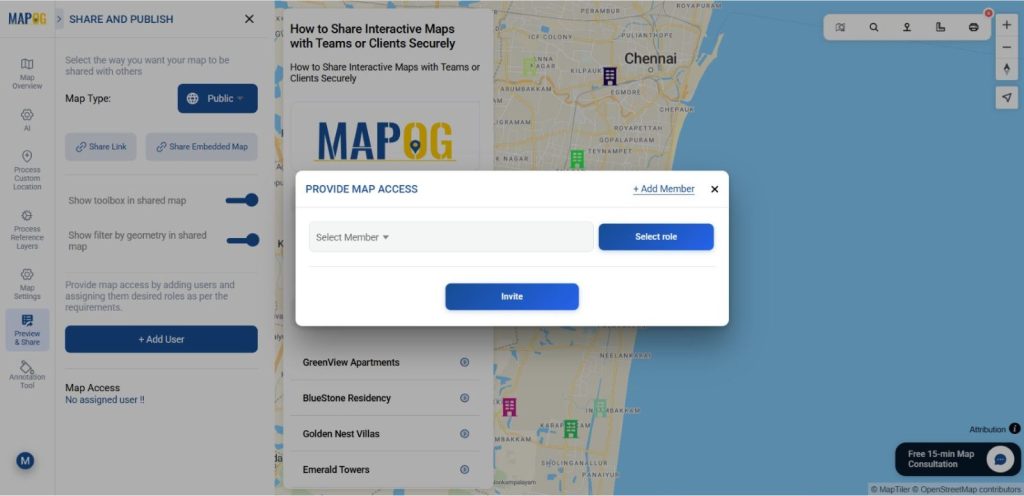
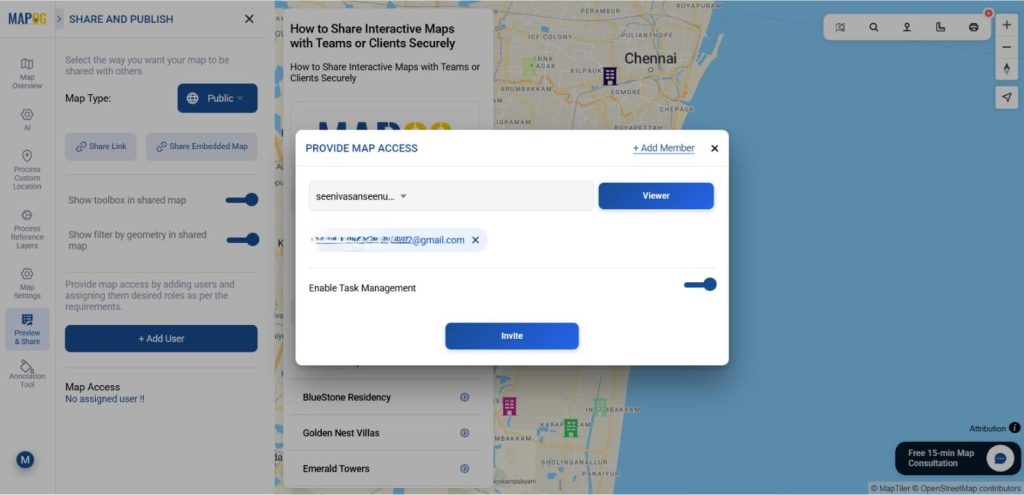
Select Add User, then click Add Member. This feature lets you give map access and assign roles based on requirements.
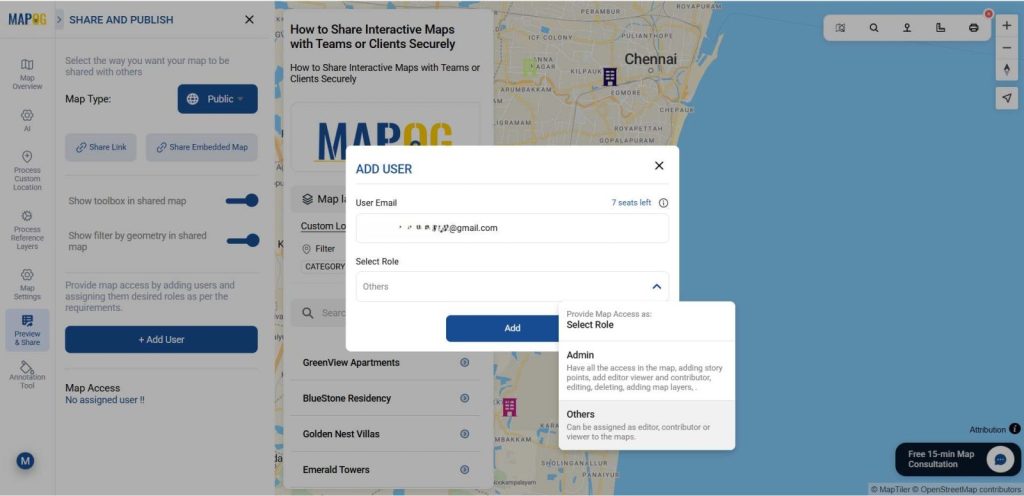
Enter the user’s email ID, then select the appropriate role. An Admin has full access to the map, including adding story points, managing users (editors, viewers, contributors), editing content, deleting maps, and adding map layers. Others can be assigned roles such as Editor or Viewer based on access requirements. Then click on add.
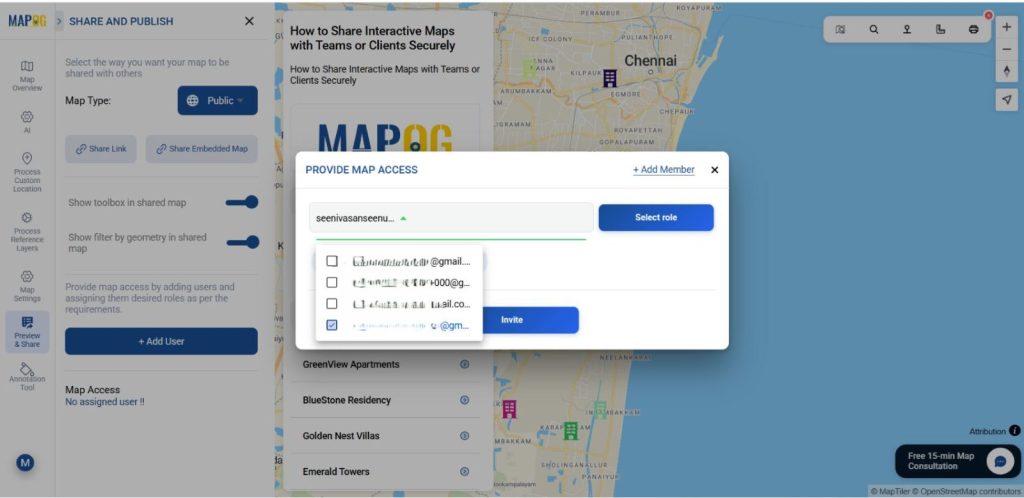
Now, select the mail ID in the select member option. In the select role option select the role of the person. Editor can edit content, manage story points, and add viewers or contributors, but cannot delete the map or create admins. A Viewer has view-only access to the assigned sections.
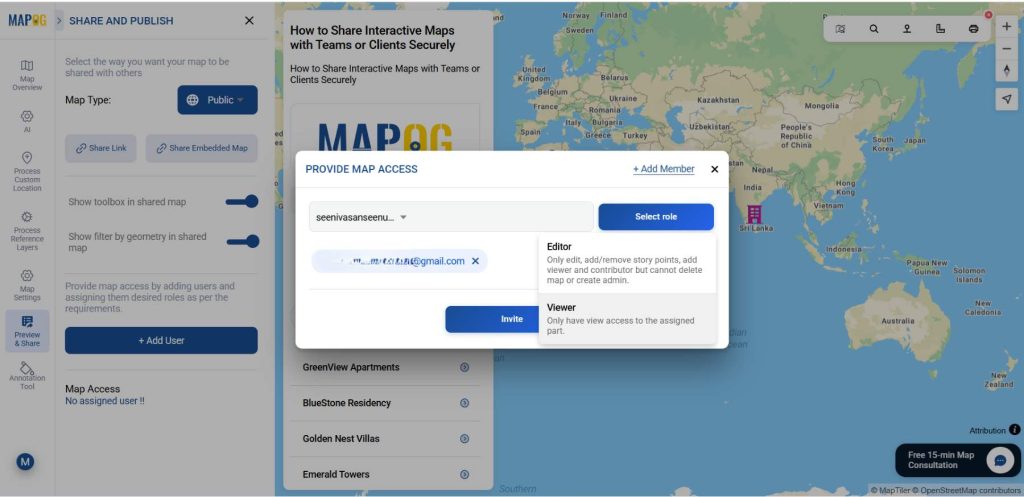
Then give an invite. Now the inviter will receive the map access link.
Applications of Share Interactive Maps with Teams or Clients Securely
Internal Teams: Share interactive maps across departments with controlled access to align planning, sales, and operations.
Client Presentations: Provide clients with live, interactive map links instead of static reports, enabling clearer discussions and faster approvals.
Consulting Firms: Securely share location insights with stakeholders while protecting sensitive data through permission-based access.
Franchise & Expansion Teams: Collaborate on site selection by allowing decision-makers to explore the same map views in real time.
Project Management Teams: Keep everyone updated with a single source of truth by sharing always-up-to-date interactive maps.
Conclusion
Securely sharing interactive maps transforms collaboration from static data exchange into meaningful, real-time insight sharing. With MAPOG, teams and clients can explore the same live map through controlled, permission-based links—ensuring data security without sacrificing interactivity. This approach reduces miscommunication, improves transparency, and accelerates decision-making.