
How to Manage Repair and Service Visits in big industries is a complex question than it appears. Whether it involves bridges, flyovers, public facilities, utility installations, or large equipment networks, maintenance teams frequently rely on scattered spreadsheets, phone calls, and disconnected reports to track service activity. As assets grow in number and age, coordinating inspections and repair schedules becomes increasingly difficult. This is where structured, location-aware service management with MAPOG becomes essential.
How to Manage Repair and Service Visit Management Why it Matters?
Unplanned maintenance often results in operational downtime, increased costs, and elevated safety risks. When repair coordination lacks structure, teams conduct repeated site visits, delay necessary interventions, or allocate resources inefficiently. In large infrastructure systems—such as networks of flyovers, public facilities, or distributed assets—some components may require urgent structural attention while others only need scheduled inspections. Without a clear system that tracks asset condition, priority levels, and location context, maintenance becomes reactive rather than preventive.
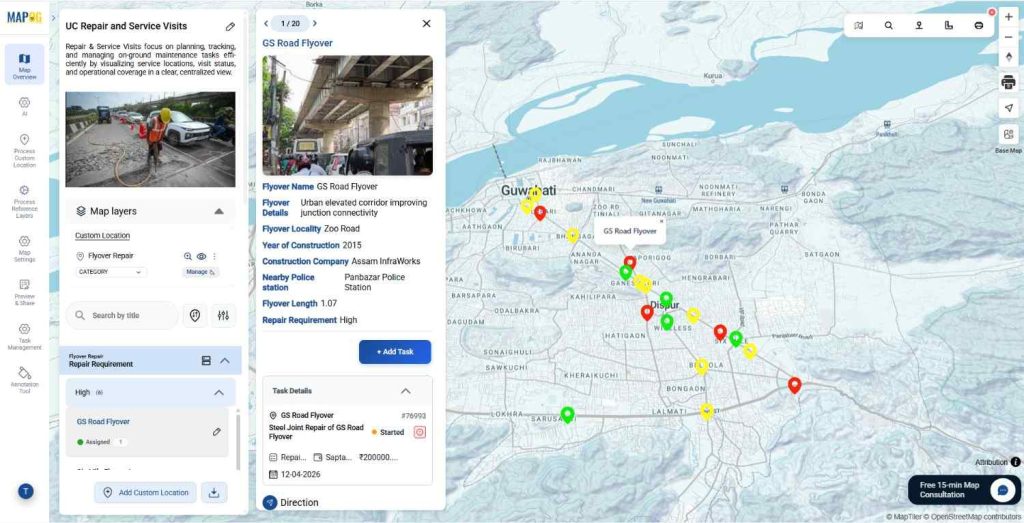
How to Manage Repair and Service Visits Using a Centralized Map
Create a New Map
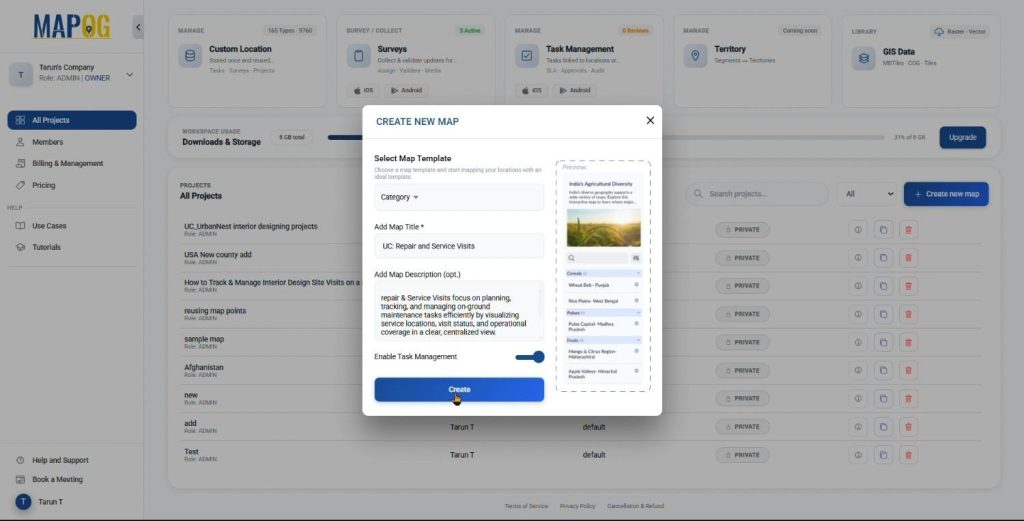
- Click “Create new map” on MAPOG
- Keep the map template as ‘category’, add a title, description, and an image symbolizing your theme for the map.
- Enable Task Management tab and click on create.
Add Visits and Maintenance Location Data
- Add the point data using Process Custom Location.
- Upload the data using the Add by Uploading Excel/CSV feature. To upload all locations at once.
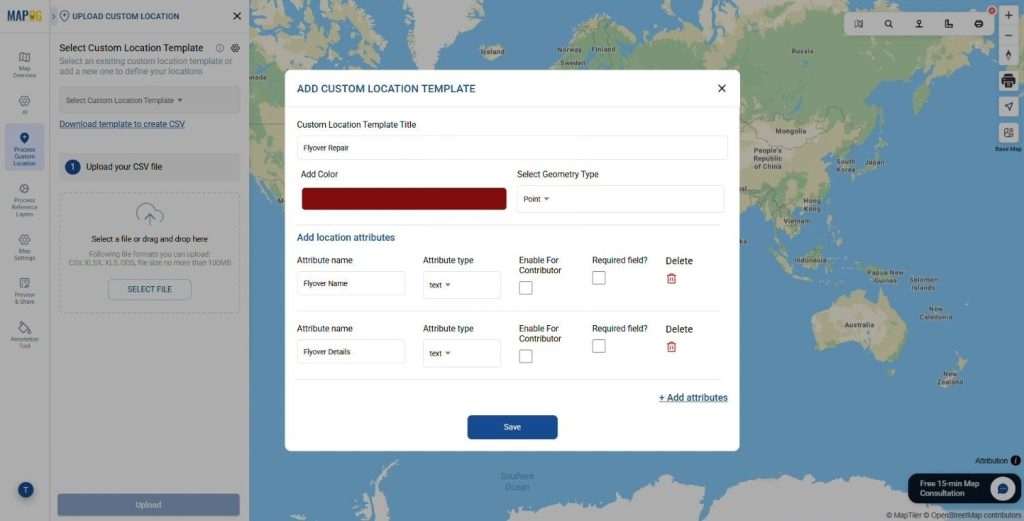
- Click on Select Custom Location Template settings option and add the required custom location type, which contains the Template name, its color and the point geometry. Custom Location Templates generally restore all the attribute data of the point locations.
- After adding the location type, include attributes such as Flyover Name, Address, Flyover description, Length etc with attribute type like text, select, image etc.
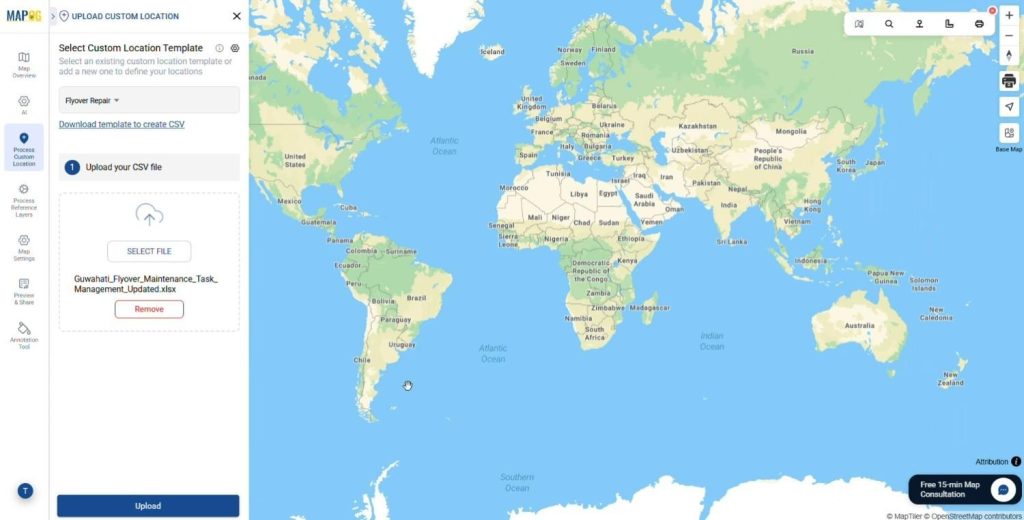
- Select the location template from the drop down and Upload the CSV/Excel file that contains the locational information about the sites.
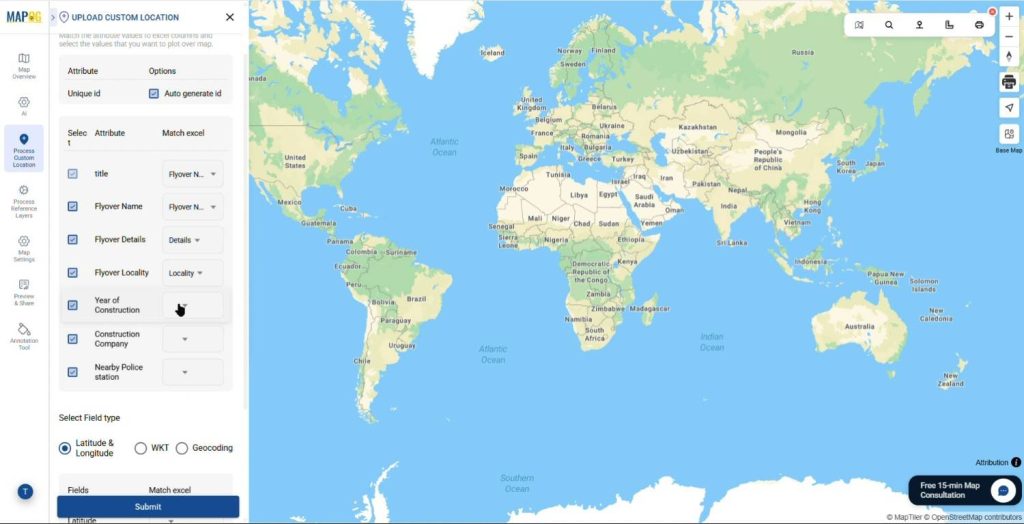
- Match the Unique Id’s which determines the points uniqueness & helps to track data. Then match attribute values with the corresponding Excel columns such as Flyover Name, Address, description, Length etc. and related fields.
- Add the latitude and longitude of the points from the table. Click submit to complete the process.
Customize Markers
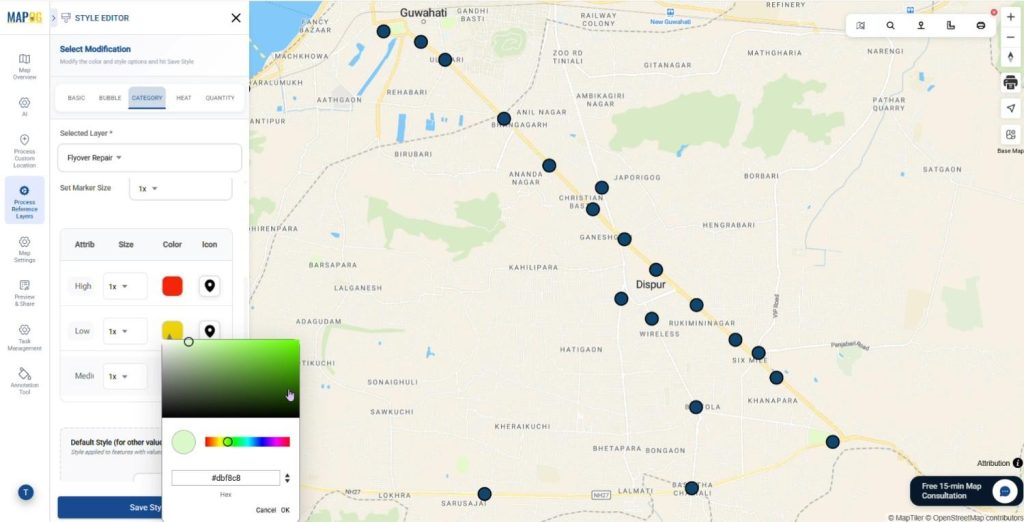
- Click on the Add Layer Style and style the Map layer.
- Click on category styling and style the layer and select the categorizing attribute with different colours and symbols to visually represent your Visits and management data effectively.
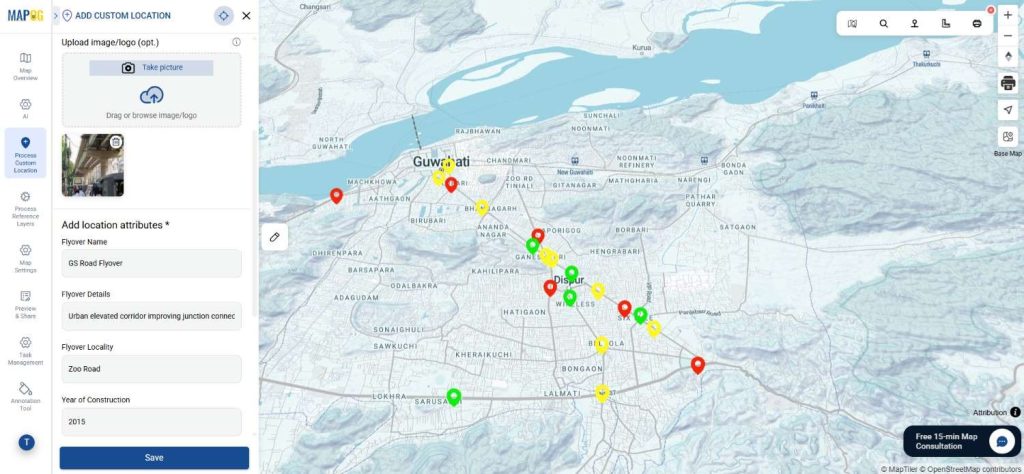
- Use the edit custom location view to attach images, description & other required details.
Sort Visits by Location and Filter
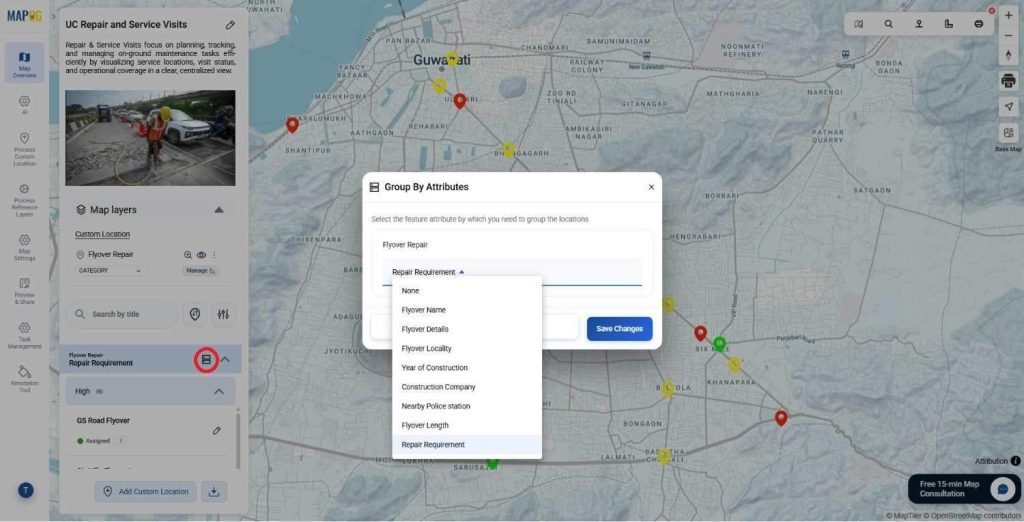
The Locations can be grouped by using the group by attributes tab depending upon the task type and task urgency level.
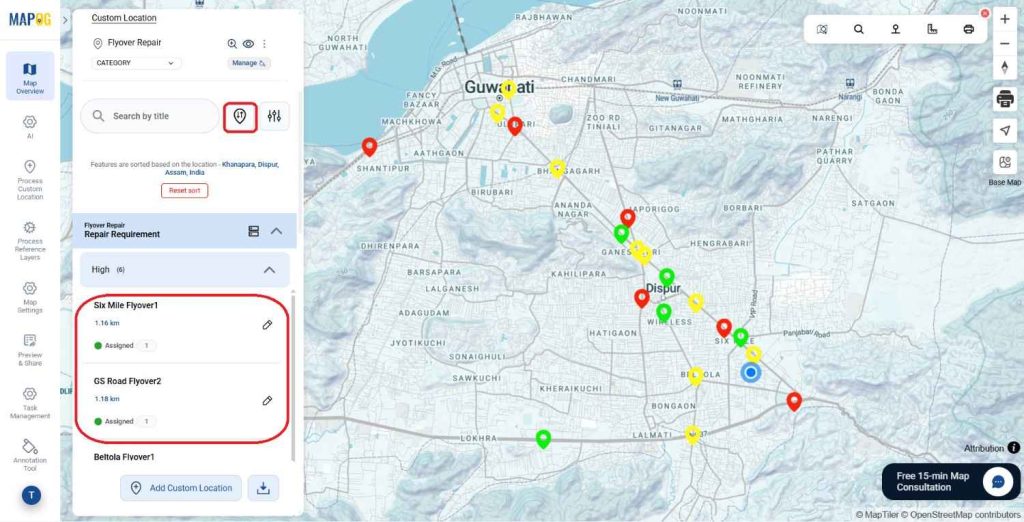
Again, Visits can be sorted by using the sort by location and live location depending upon the distance. Just write any location & it’ll show the distance from every single point there.
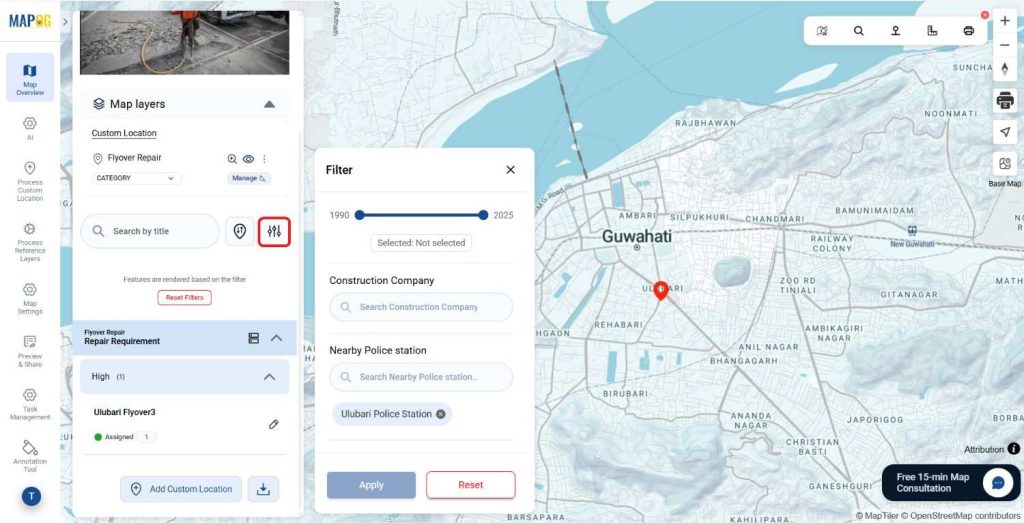
Filters can also be applied to find the specific task type of contractor name, depending upon the requirements using the filter tab.
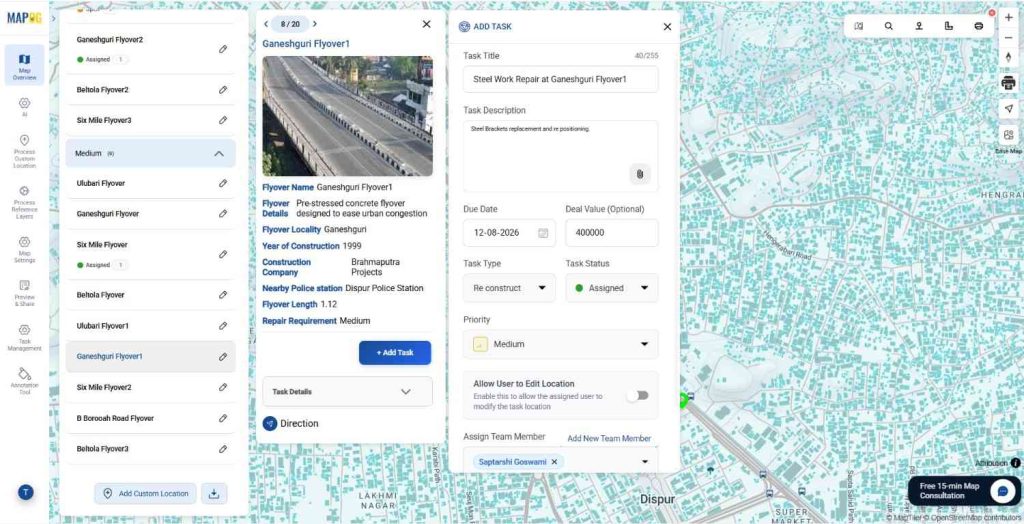
Add Tasks
- Go to the Location Point and then click on the Add Task tab.
- Add the Details of the tasks eg. Task Name, Details, Deal Value, add the Task Type that you initially created to complete the process..
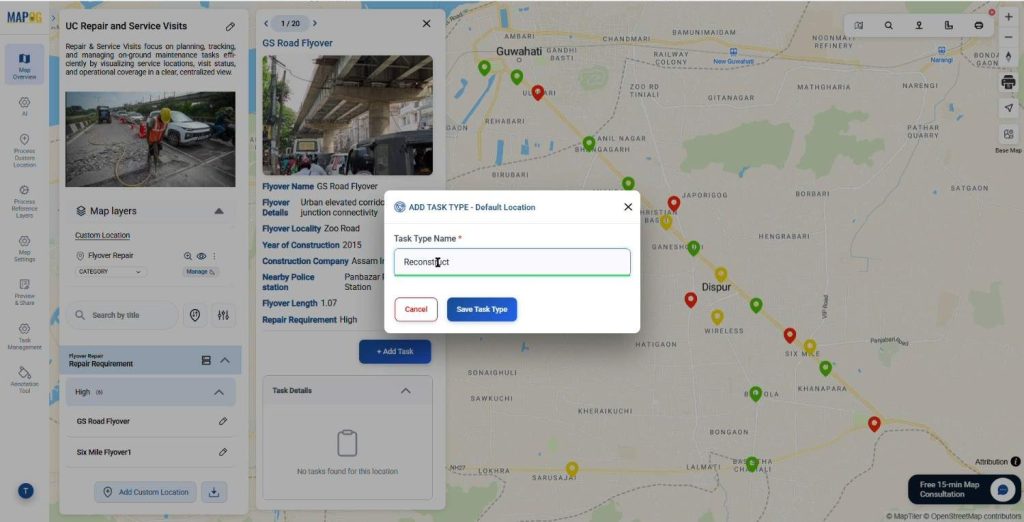
Add Task Type
- Click on Add Task Type and add the required Task Types using the manage option & save them.
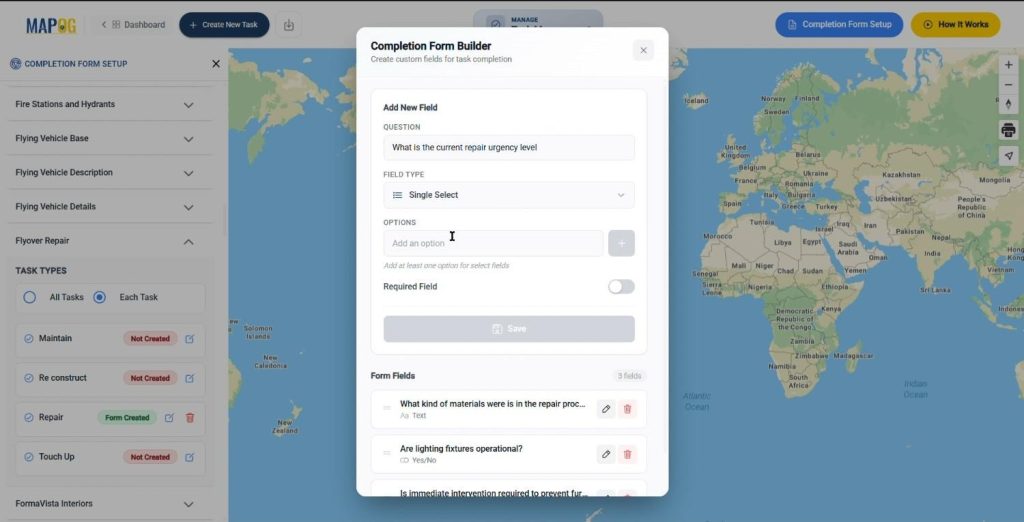
Create Completion Form
- Go on the Task management on MAPOG dashboard and then click on the Completion Form Setup.
- Select the Location Point Type you created and then Click on All task or Each Task
- Add the relevant completion questions and their answer patterns in different field types like text, select, multiselect etc. For each task that is created.
Add Members for survey
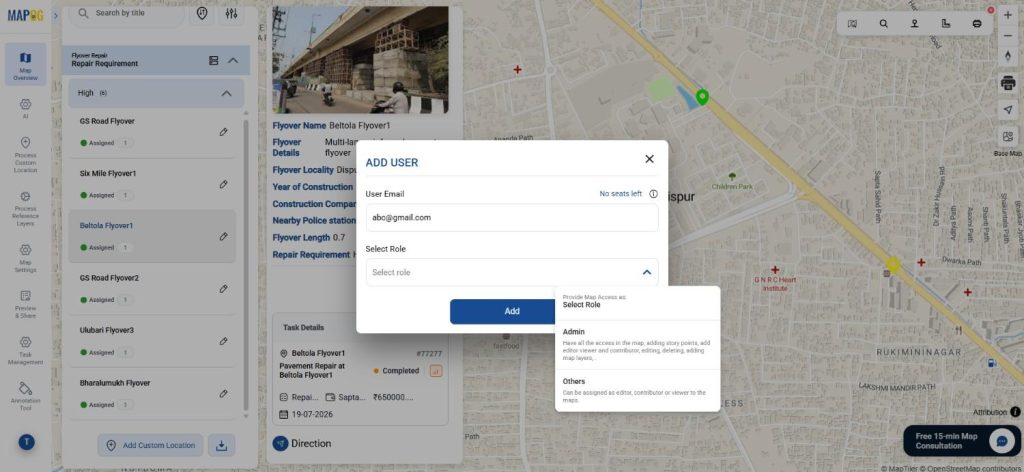
- After adding the completion form, go to the map & click add new team member tab to add their email address & provide them different roles such as admin or others & add them as new assignee.
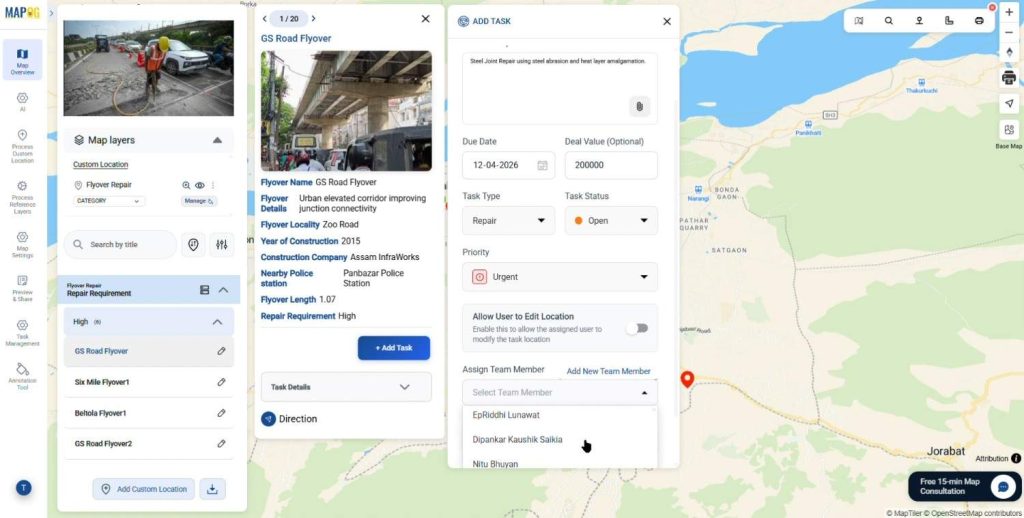
- Go to the assign team member section, select the assignee from the drop down & save the task.
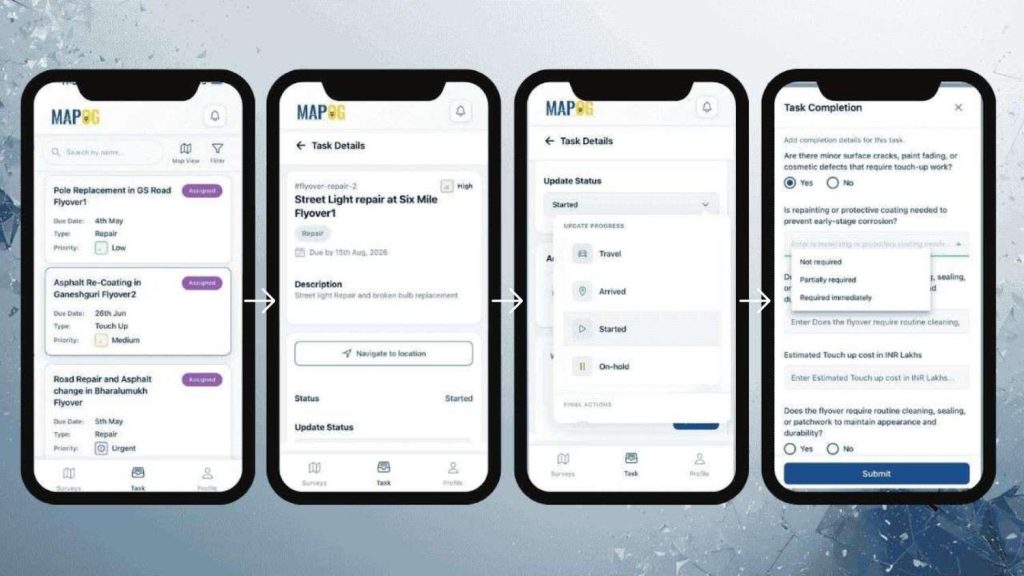
MAPOG Contributor App
- Open the MAPOG Contributor App and update the work progress.
- You can also add notes and images of the work progress.
- After the Completing the work click on Complete in the Task Status and fill the Task Completion Form
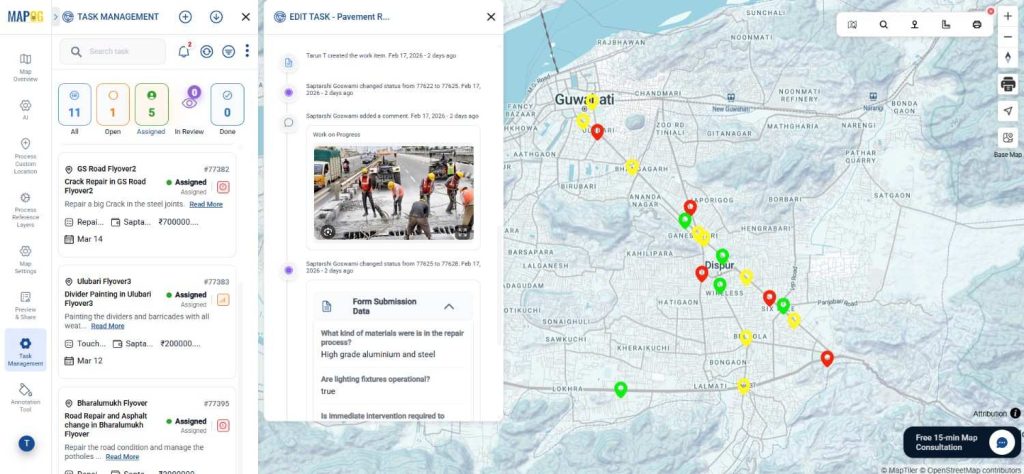
- All the details regarding the tasks can thus be viewed and monitored using the platform.
- Additionally, teams can view and monitor all tasks within the Task Management tab, and filter them based on specific requirements and relevant attributes for better control and oversight.
How to Manage Repair and Service Visits; Industry Impact
A structured approach to repair and service management significantly improves operational outcomes across industries. Similarly, organizations that centralize asset data, prioritize interventions, and coordinate service schedules experience faster response times and reduced operational costs. As a result, teams identify high-risk issues early and address them promptly, strengthening safety standards while improving budget predictability.
Conclusion
Managing repair and service visits using MAPOG is not just about sending teams to fix issues. It is about visibility, prioritization, and coordination. When asset data is centralized, categorized by urgency, and supported by structured scheduling, maintenance becomes predictable and efficient.
How does your organization currently manage repair visits?
Is it reactive—or strategically planned?
Get the MAPOG Contributor App at:
More from MAPOG: