
Managing multiple locations efficiently becomes challenging when you need to identify which sites require immediate attention. MAPOG‘s dynamic filtering system helps businesses streamline operations by pinpointing critical locations within specific geographic boundaries. Learning how to filter only the locations that need action within a 5 km radius transforms scattered data into actionable insights.
Key Concept: Filter Only the Locations That Need Action
This filtering approach combines geographic coordinates with status indicators to highlight locations requiring intervention. Moreover, the system evaluates distance from a central point while simultaneously checking for action flags like maintenance needs, low inventory, or pending inspections. Consequently, teams focus only on relevant sites rather than reviewing entire databases.
Benefits
- Reduces response times by eliminating unnecessary travel to locations outside your immediate range
- Optimizes field team routes by addressing multiple flagged locations in one trip
- Provides real-time visibility into which nearby sites demand priority attention
- Improves resource allocation and reduces operational costs significantly
Step-by-Step Process to Filter Only the Locations That Need Action Within a 5 km Radius
1. Create a New Map Project
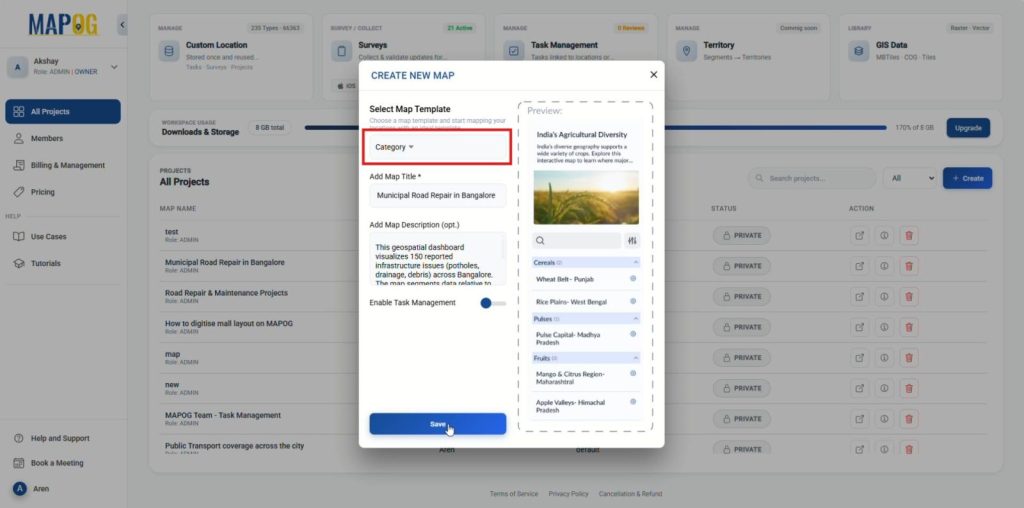
Firstly, head to MAPOG, from your dashboard, click on the “Create” button. Then, configure map details, in this example, we used “Municipal Road Repair in Bangalore”. Click “Save” to initialize the map.
2. Define a Custom Location Template and upload CSV
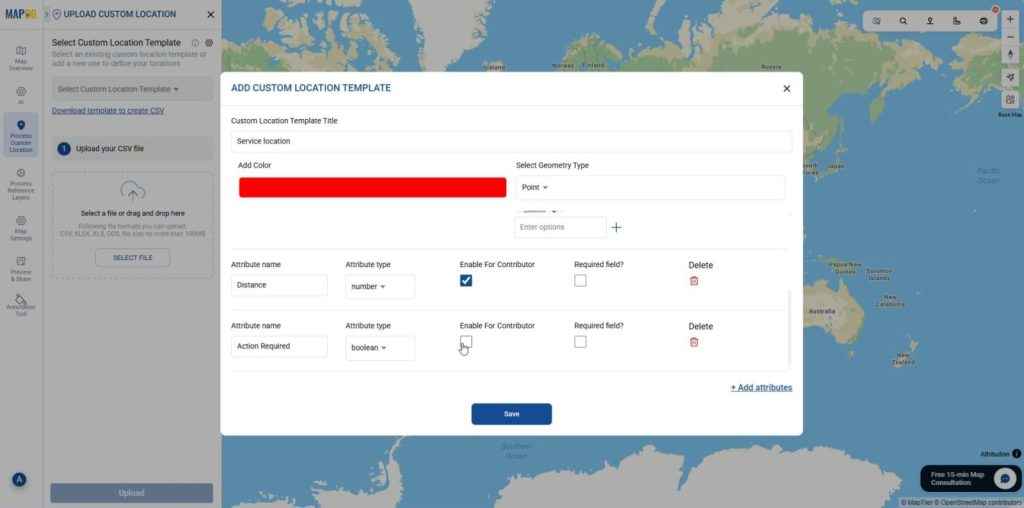
Then go to “Process Custom Location” and choose “Add by uploading CSV/Excel“. Open Select Custom Location Template settings and click on “Add more custom location template”. Configure Template with Title, color and set the geometry to “Point”. Then, click “Add attributes” to define your data columns:
- Neighborhood: Set type to Text.
- Issue Type: Set type to Select. Then add your specific options (e.g., Debris, Drainage, Pothole, Signage).
- Distance: Set type to Number.
- Action Required: Set type to Select and add options (e.g., Yes, No).
- Urgency level: Set type to Select and add options (e.g., None, Low, Medium, High, Critical).
Click on “Save” to finalize your template.
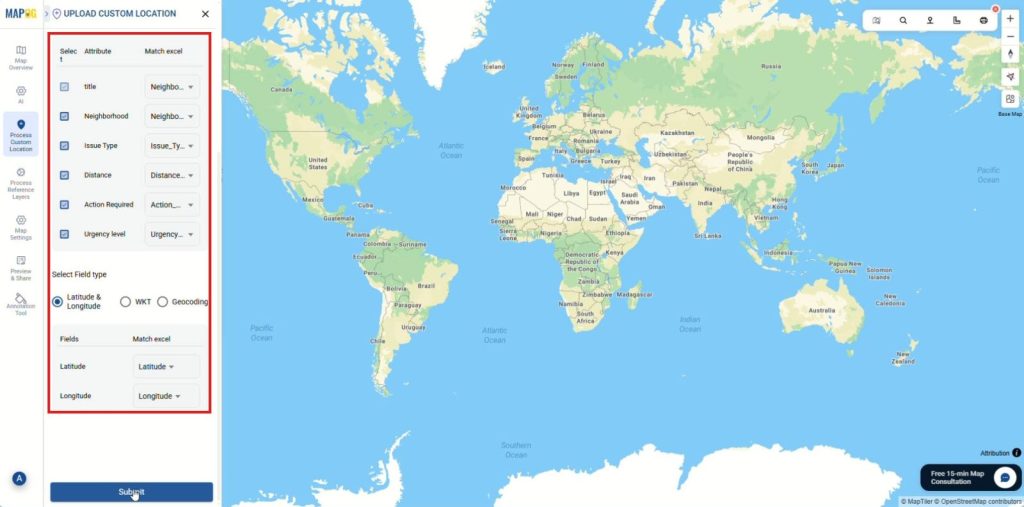
Now that the location template is ready, it’s time to import the location data, select your new template from the dropdown list. Click on browse and select your csv file then upload. Then match the columns in your CSV to the attributes you just created in the template. Match coordinates for placement and “Submit”. Your data points will now appear on the map.
3. Style and Categorize Data
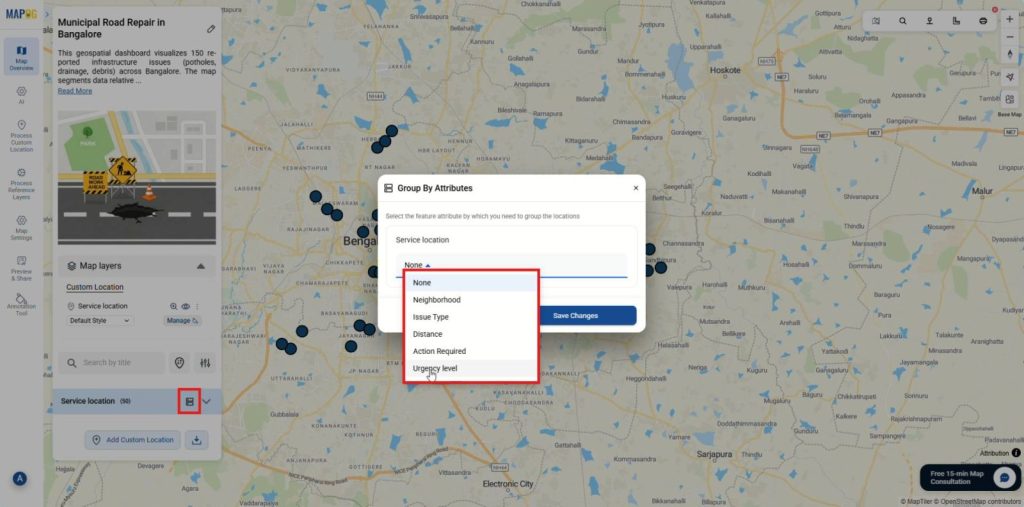
To begin, organize the raw map data into meaningful categories. Click on Group by attribute icon, a dialog box will appear. From the dropdown menu, select “Urgency level.” Once selected, click “Save Changes” to apply this grouping to your map.
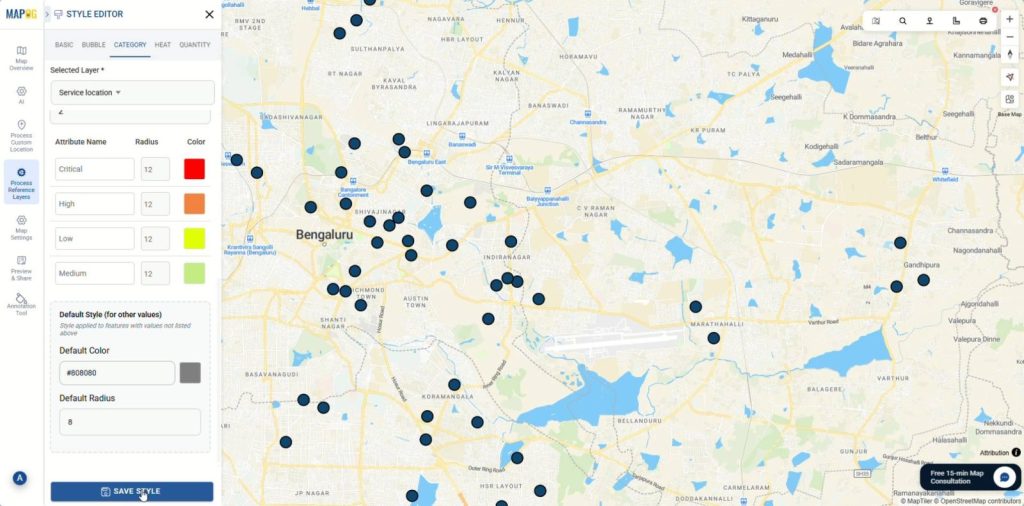
After the data has been grouped, click on the three dots next to your map layer and go to the “add layer style” to open the “Style Editor” panel, navigate to the “Category” tab and ensure the attribute is set to “Urgency level.” Then, you can begin color-coding each level for better visual distinction.
4. Filter for Insights
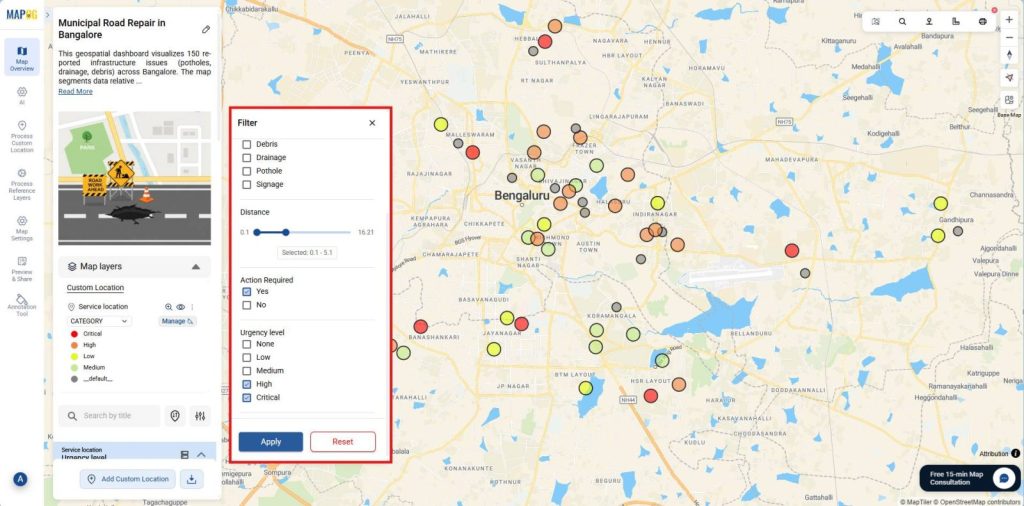
To conclude, let’s apply filter to show only the Locations that need action within a 5 km radius, click the “Filter” icon next to the search bar. First, adjust the Distance slider to 5km range. Second, under the “Action Required” section, check “Yes” so that only locations that need action remain visible. Click “Apply”.
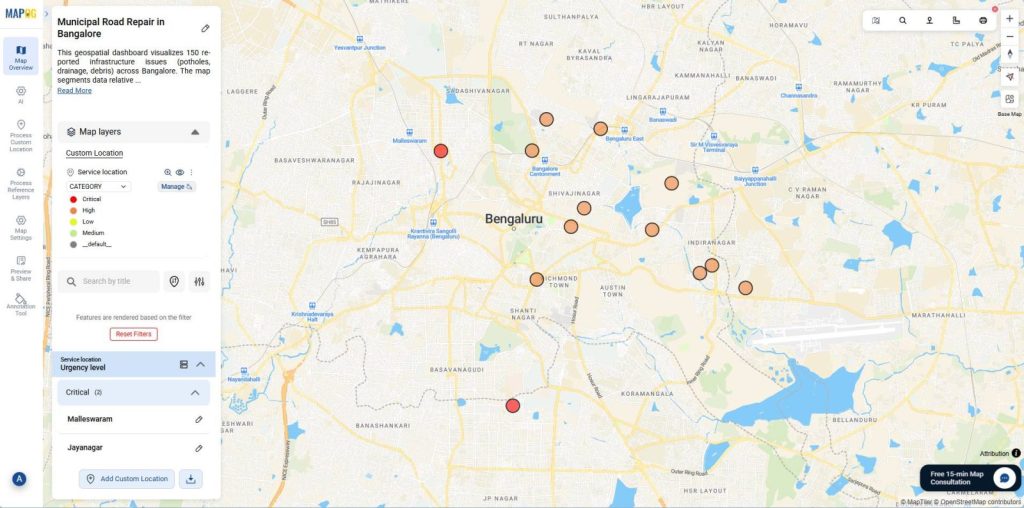
Finally, the map will now display a refined view, showing only the locations that Need Action Within your specified 5 km Radius.
Industries and Domains Benefitting
- Retail chains monitor store maintenance issues across neighborhoods.
- Logistics companies tracking delivery points needing urgent pickups within operational zones.
- Healthcare organizations identifying clinics requiring supply restocking in specific districts.
Conclusion
To conclude, location-based decisions demand precision, and MAPOG delivers that precision through intelligent proximity filtering that adapts to your operational needs. When you truly master how to filter only the locations that need action within a 5 km radius, you respond faster, deploy smarter, and build more efficient operational strategies with confidence.