
Modern real estate developments such as campuses, townships, and estates involve many buildings and amenities. However, they are still shown through static layouts or spreadsheets, which fragment information and hinder navigation. Therefore, MAPOG resolves these challenges by enabling an interactive campus map for real estate projects that combines geo-referenced layouts, structured attributes, indicators, and filters. As a result, users interact spatially, access details directly, and improve communication, while decision-making becomes faster and efficient.
Key Concept: Why Interactive Campus Map for Real Estate Projects Matters
Interactive maps improve how real estate projects are managed, marketed, and sold. For instance, geo-referenced layouts give buyers confidence by showing unit positions and road connectivity. In addition, attributes consolidate details like pricing, unit size, and amenities into one view, while filters let stakeholders instantly check availability by tower or phase. Moreover, icons, images, and videos guide navigation during site visits, while updates highlight construction progress. As a result, developers save time, partners engage effectively, and investors trust the project vision.
Steps to build Interactive Campus Map for Real Estate Projects
1. Create a New Map
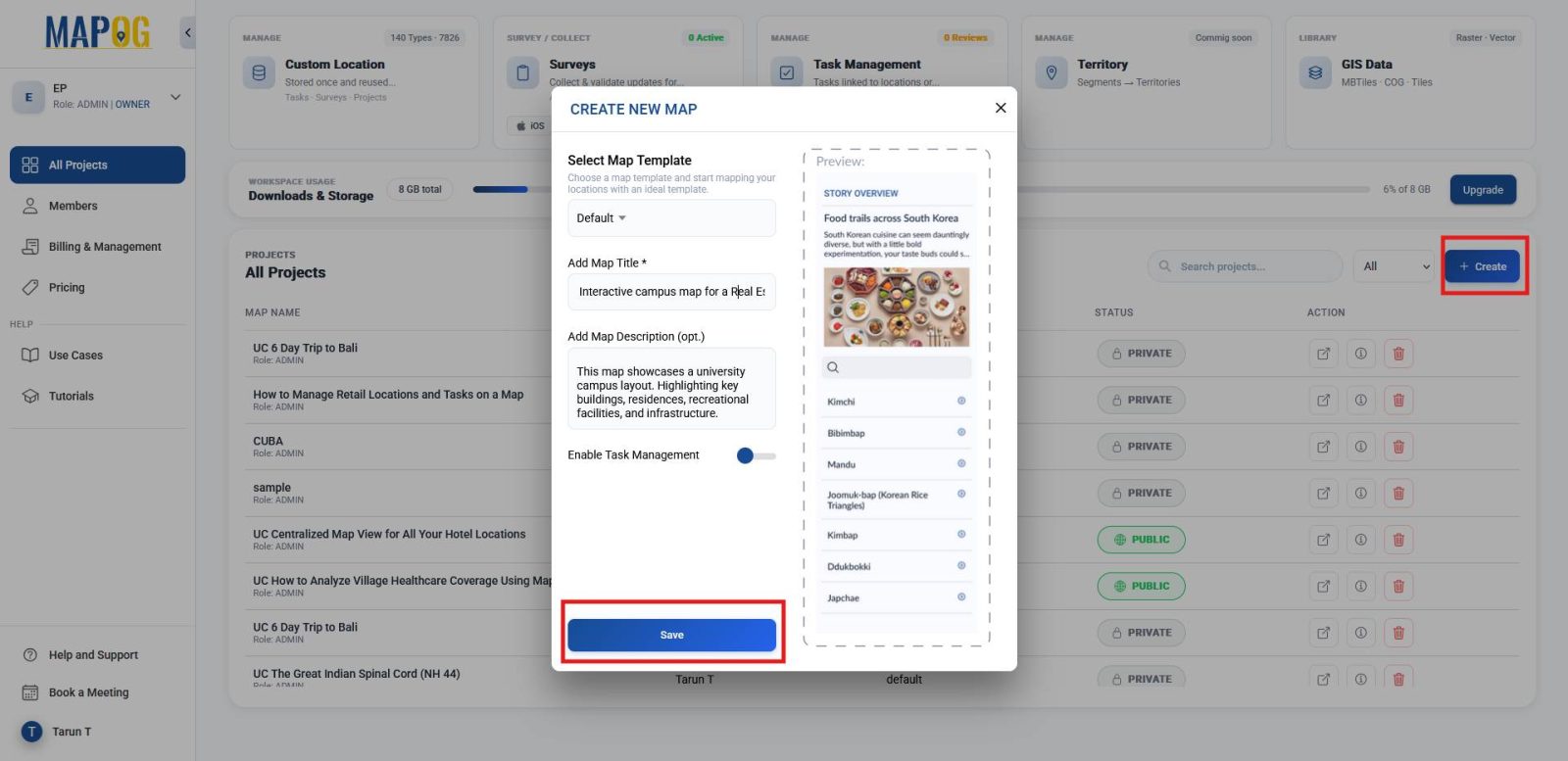
First, head to MAPOG and click on “Create”. Then provide a title and description, and click Save to initialize your project.
2. Geo‑Reference the Layout
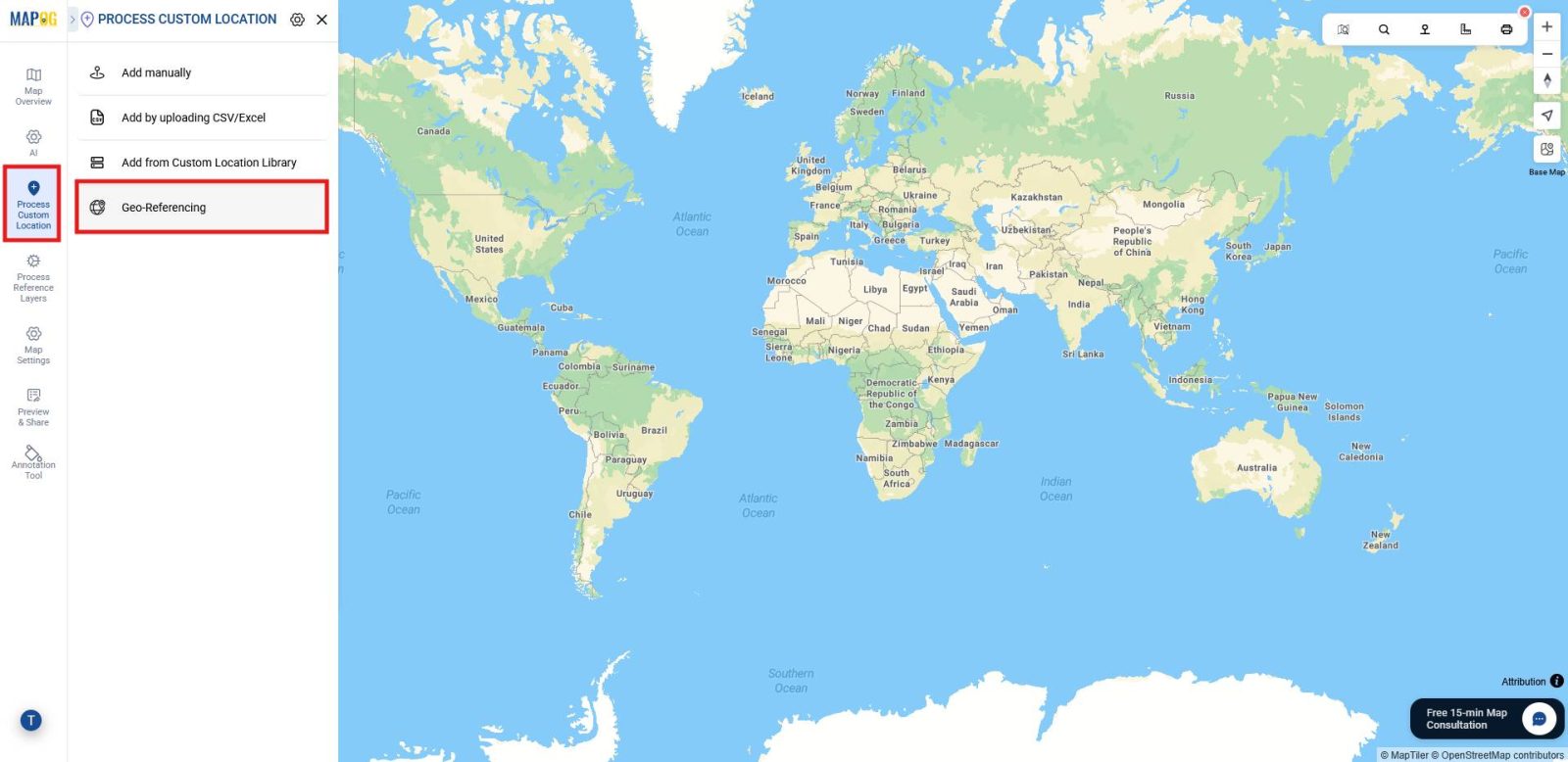
Next, go to Process Custom Location and choose the geo‑referencing option to align your layout with real‑world coordinates and ensure spatial accuracy .
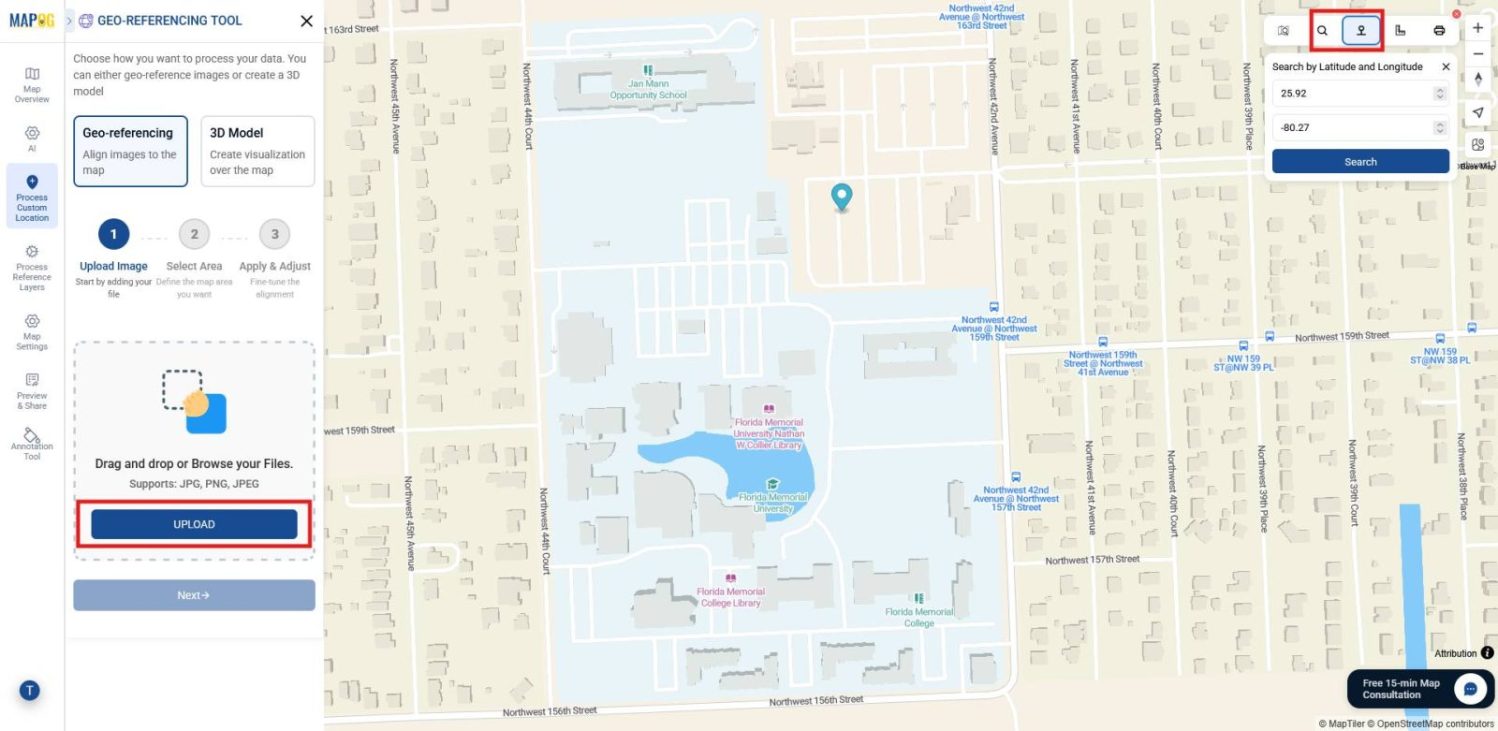
From the toolbox, locate your area by name or coordinates. After that, upload your layout image in JPG, PNG, or JPEG format.
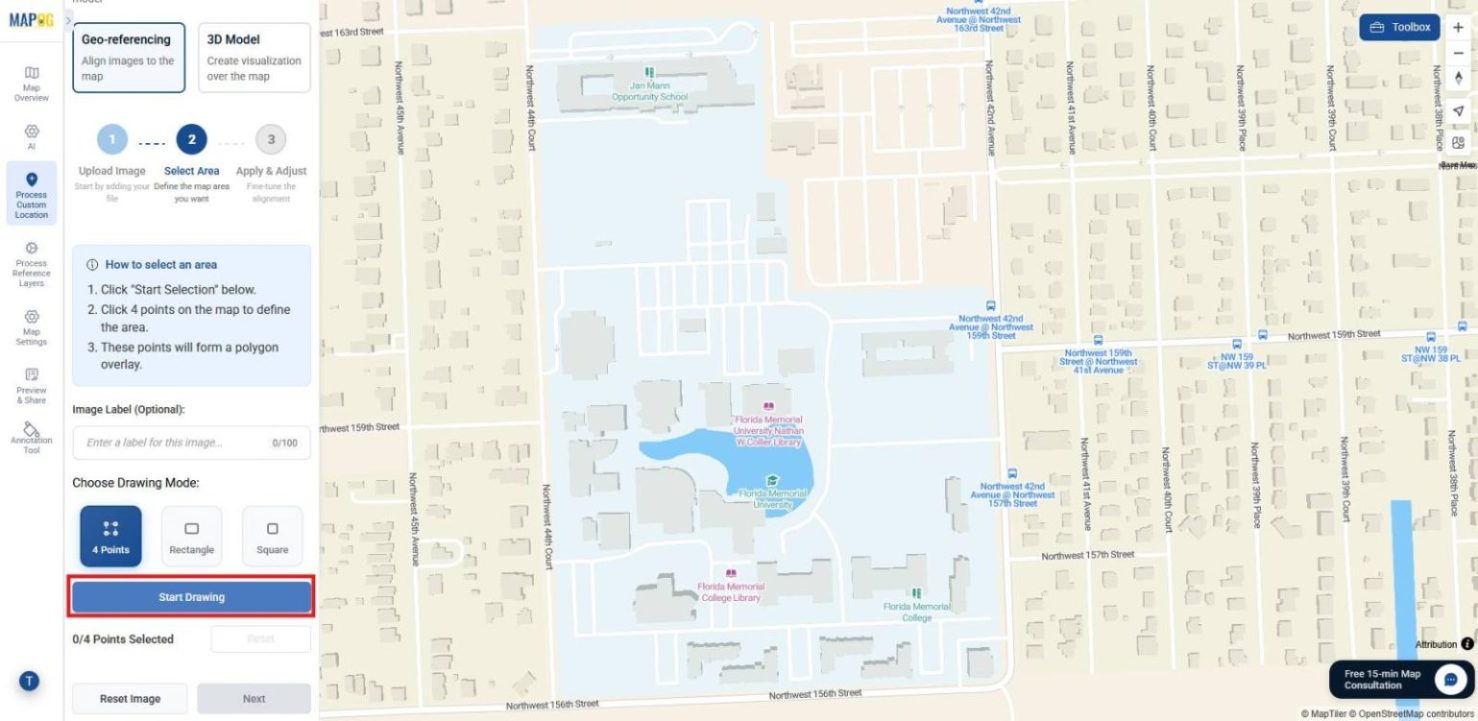
Then, select a drawing mode such as four points, rectangle, or square, and click Start Drawing.
Then add poly points.
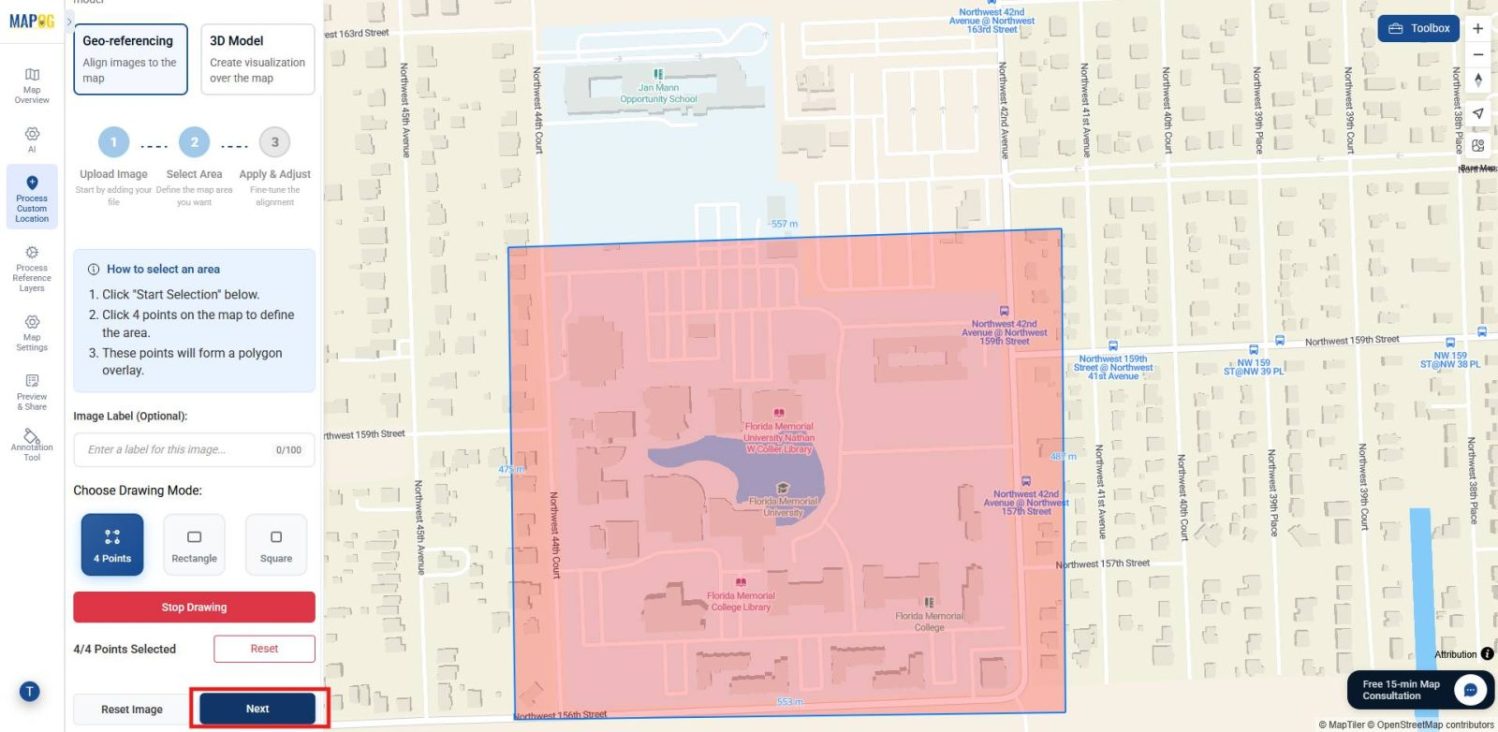
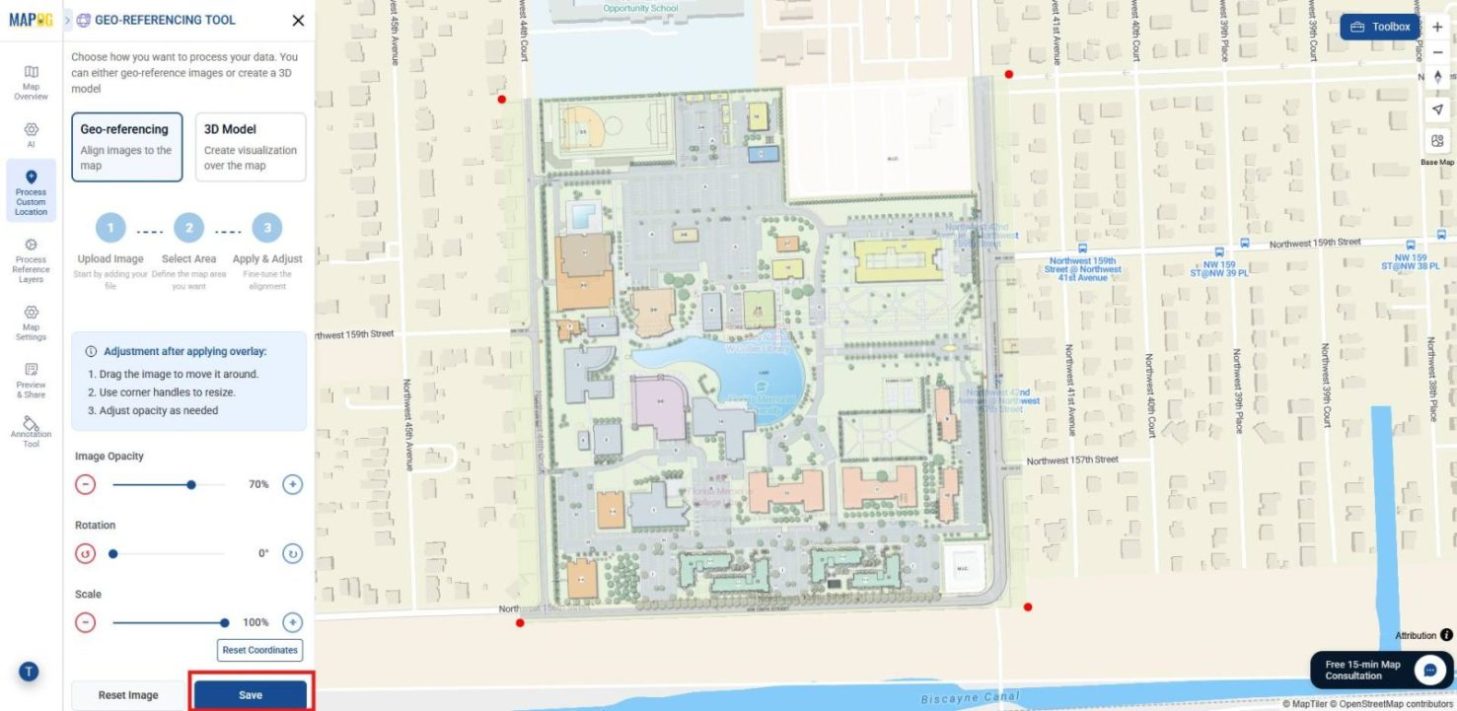
Align the image by adjusting points , opacity , rotate and scale with the base map, and save it.
3. Add Custom Locations and Attributes
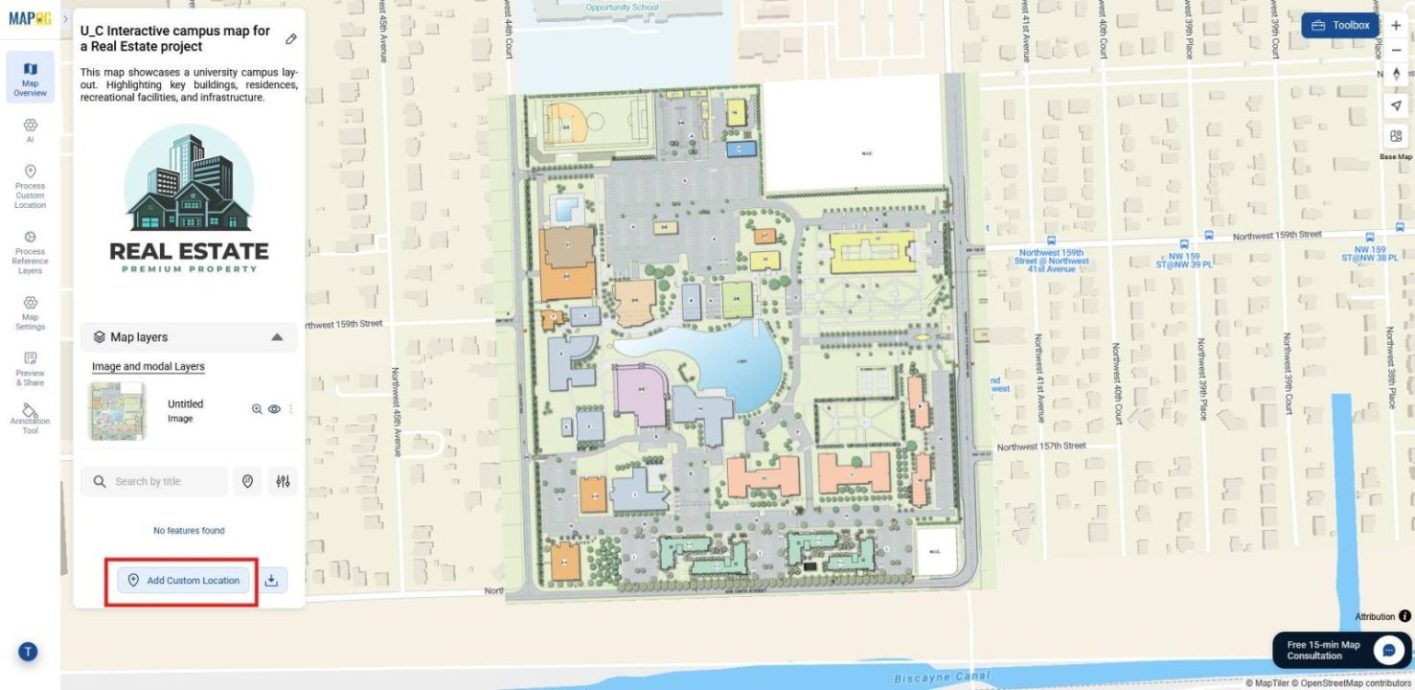
After geo‑referencing, click on Add Custom Location
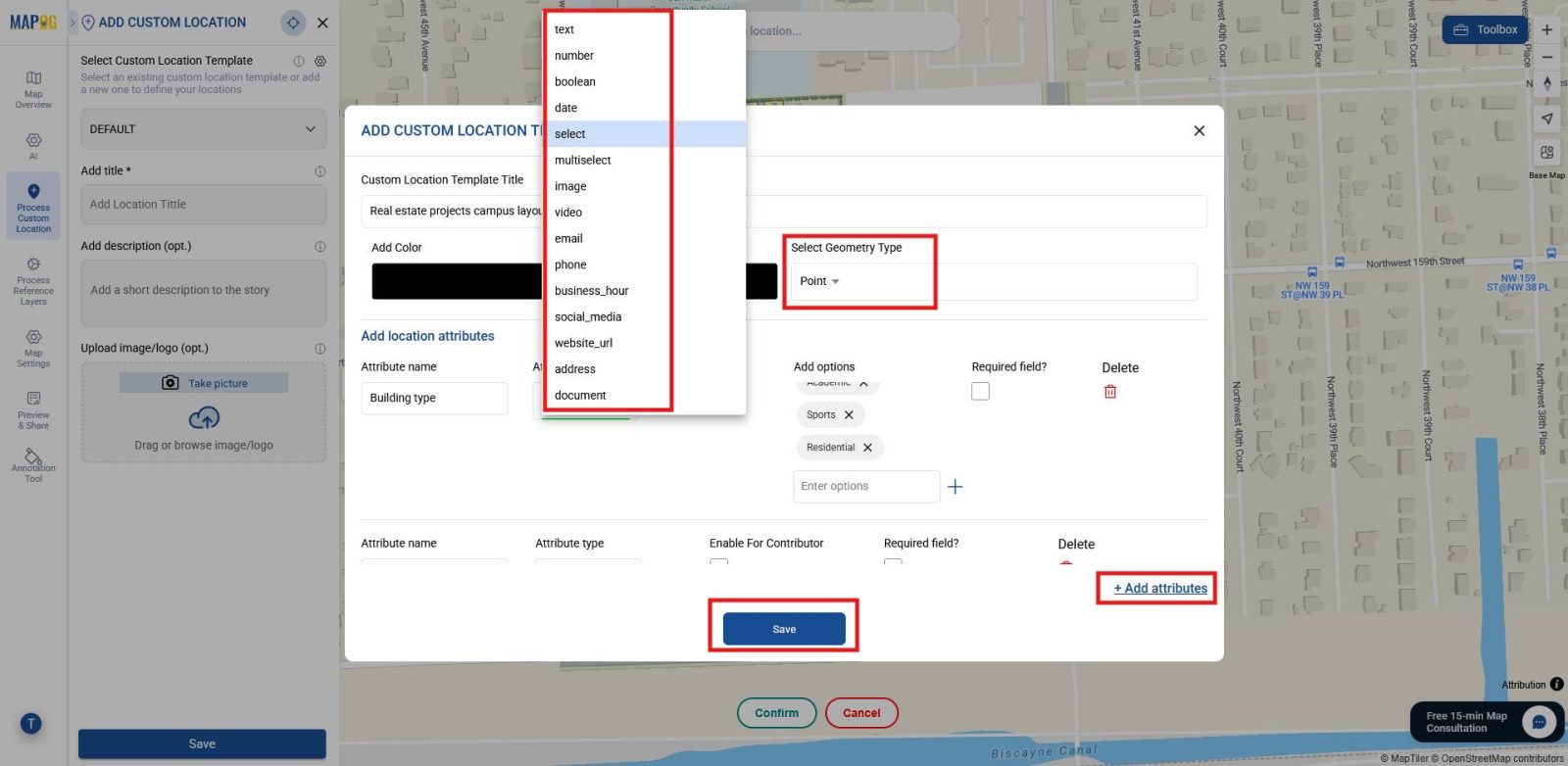
and open Select Custom Location Template settings. From there, click on Add More Custom Location Template. It lets you customize based on the details you want to show. With this, you keep data consistent while flexibly adding details to the points plotted. It can also be reused for similar map creations in future.
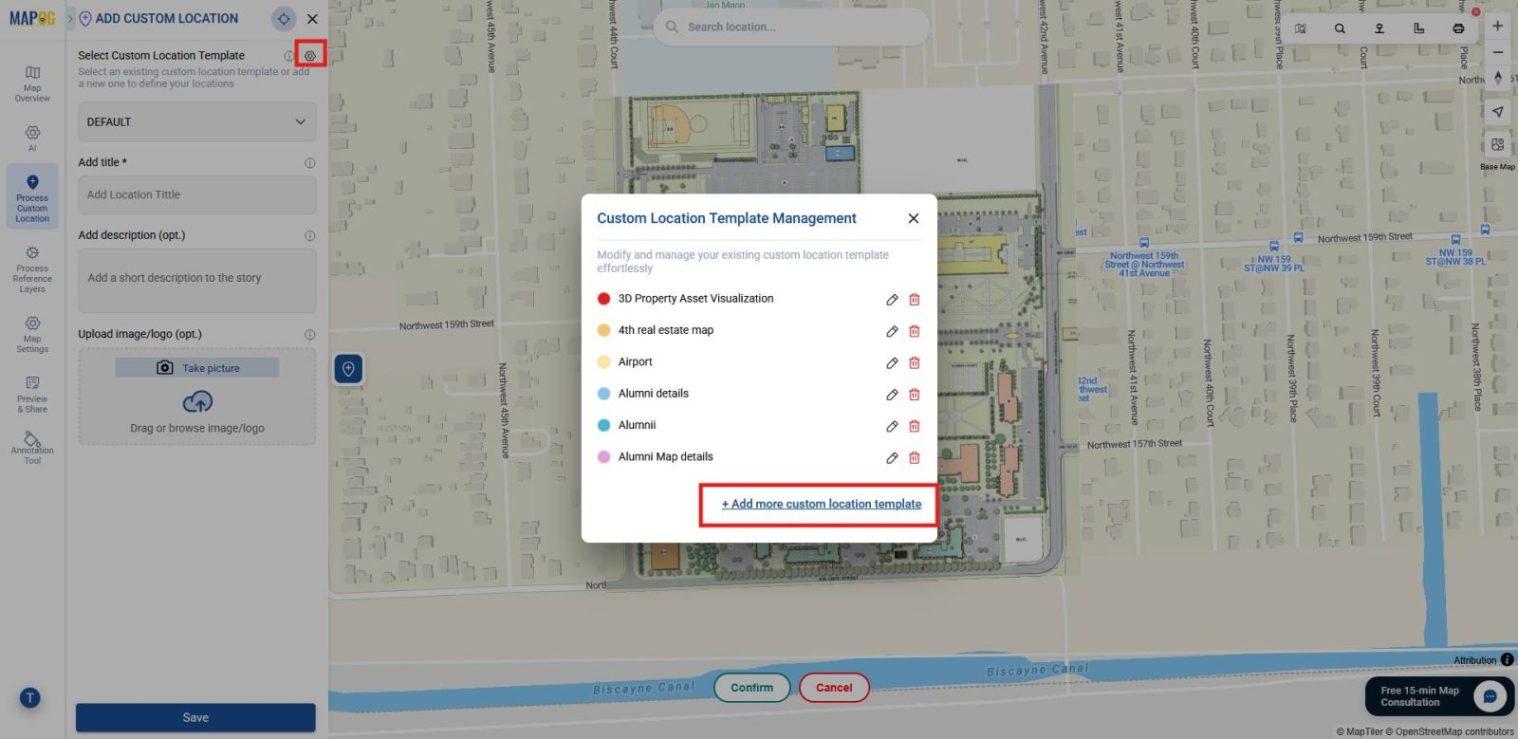
There, provide a title, and set Geometry type as point. Then add attributes one by one, using types such as select for building type, multiselect for available facilities, number for capacity or rooms, Boolean for expandability, and images for interiors, exteriors, or construction phases, then save it.
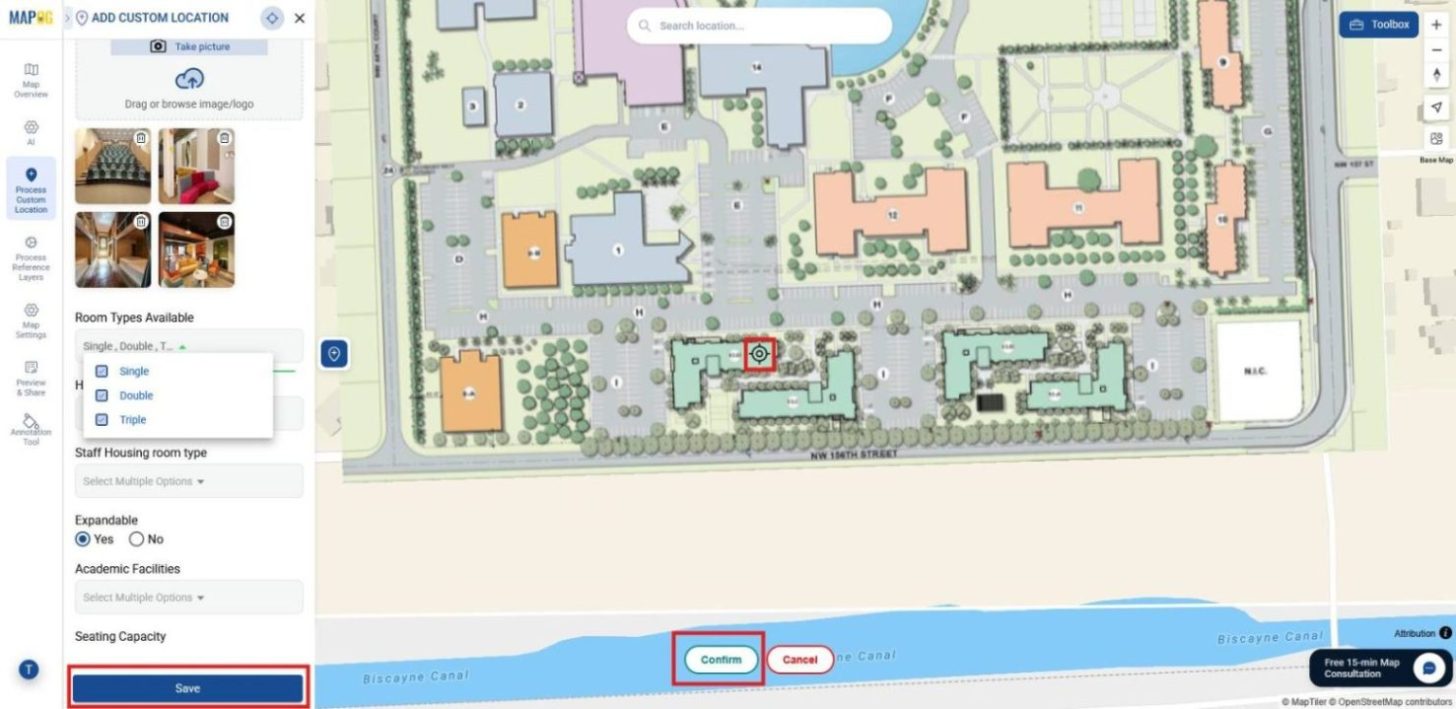
Then plot a point and confirm and fill out attributes with details and images and save it.
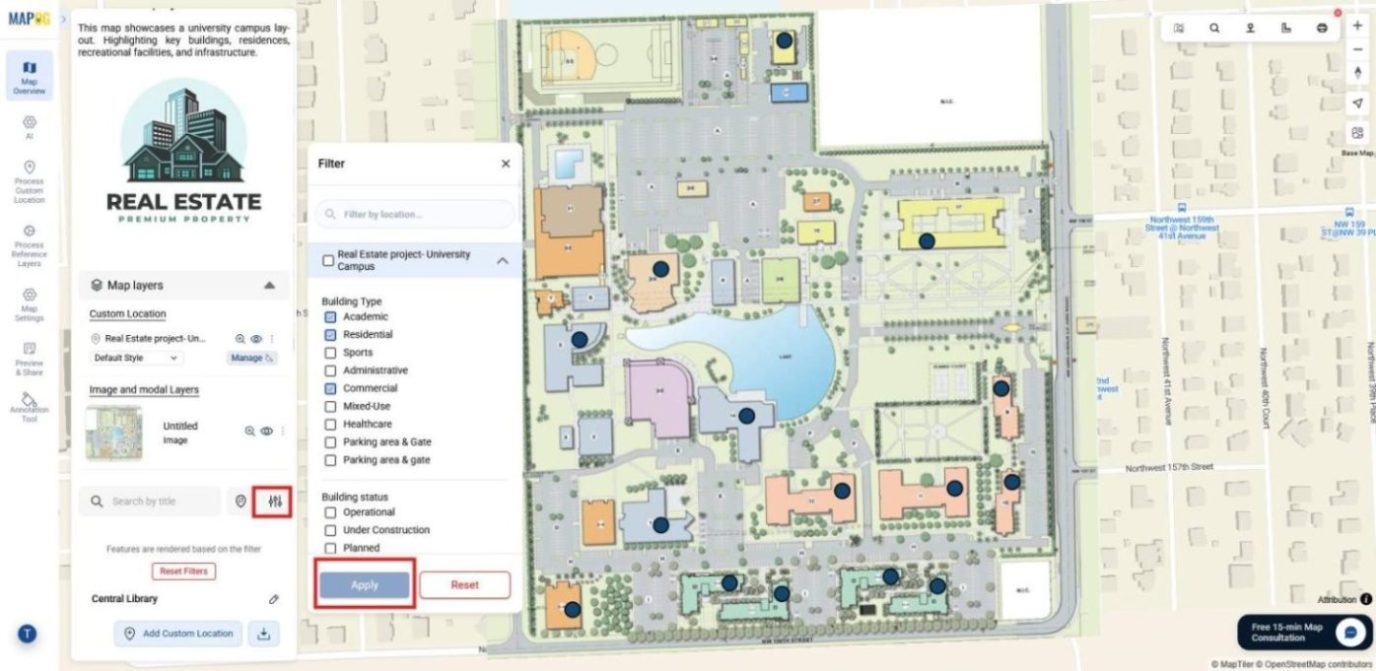
4. Filter and Group Data
Now, to make exploration easier, use the filtering option and segment points by attributes such as type, range, or category. This ensures stakeholders focus on the information most relevant to them.
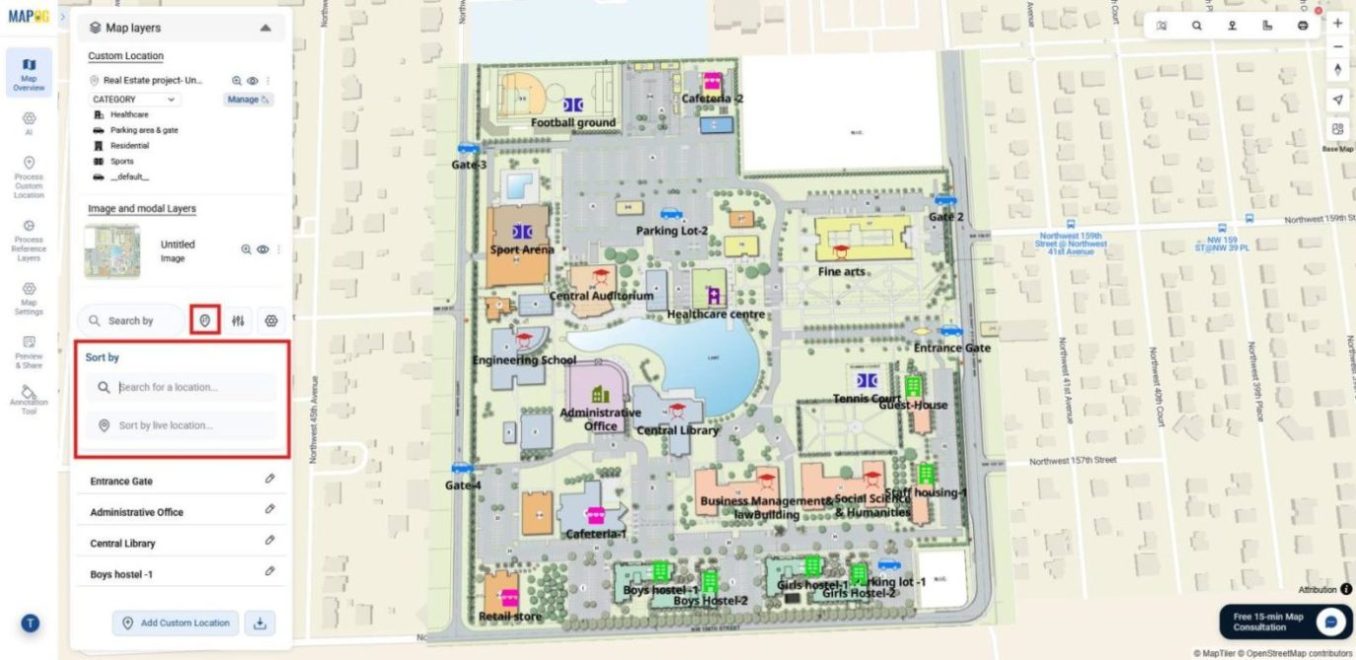
Additionally, features like Sort by Live Location and Search for Location allow users to instantly view distances between searched places and mapped points.
5. Style Layers, Labels, and Legends
Finally, open the Map Layer section and click Add Layer Style.
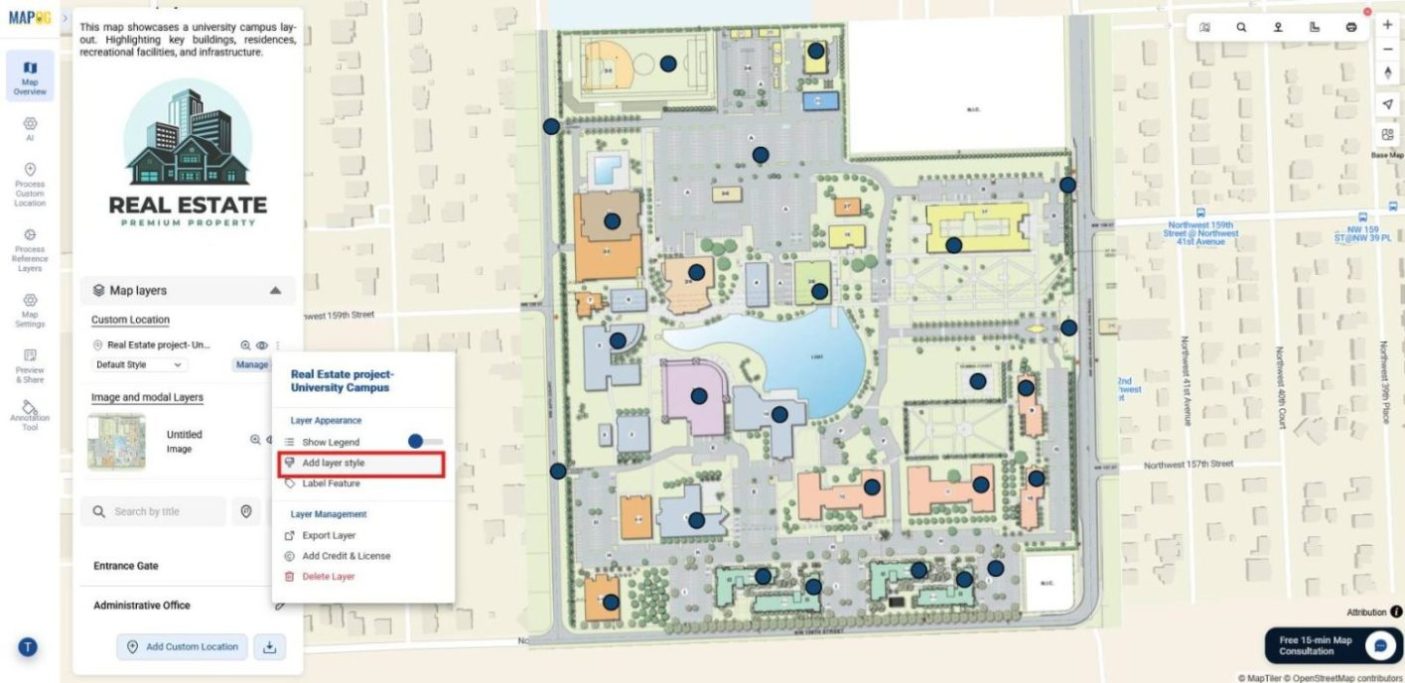
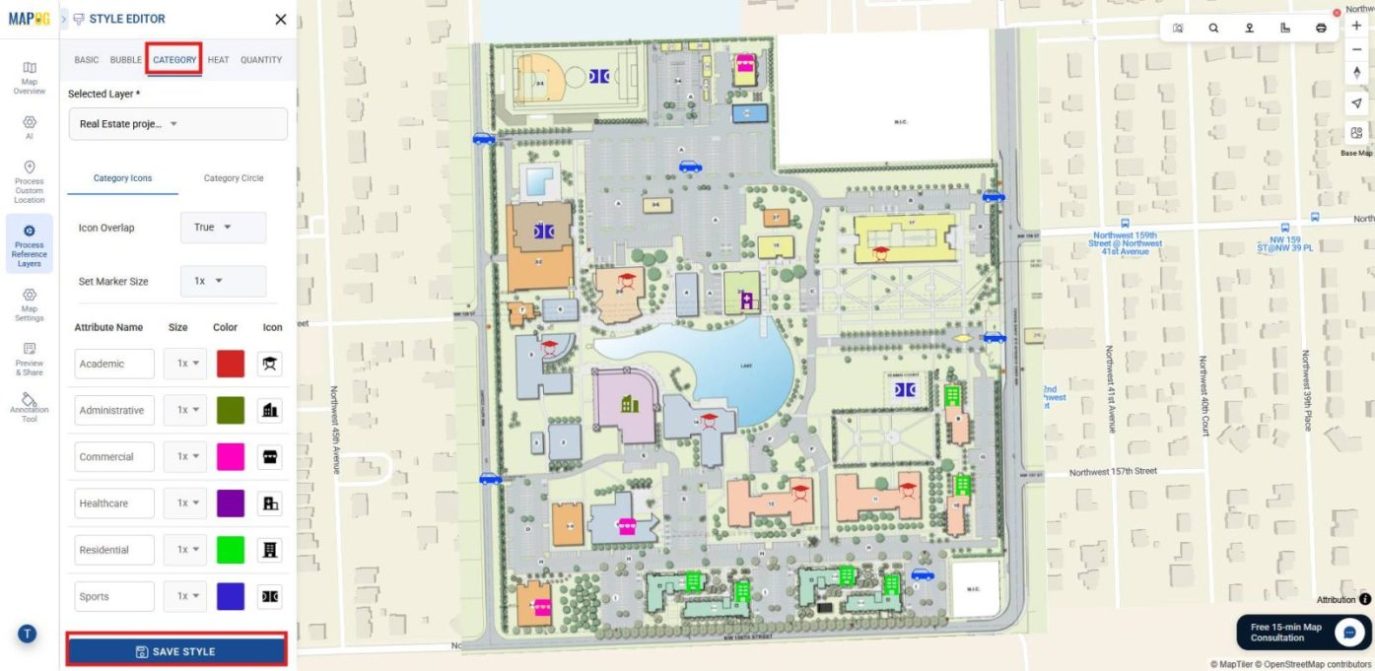
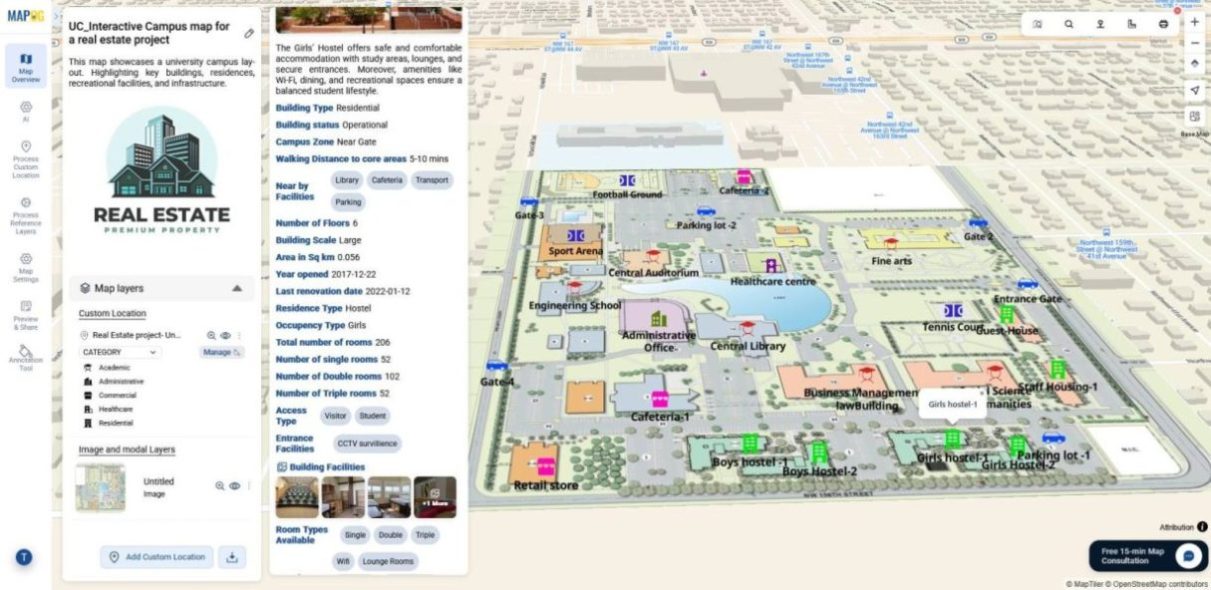
In the category section, select an attribute such as building type, then apply color coding and distinct icons. It makes the map clear, highlights differences, and helps people quickly understand the data.
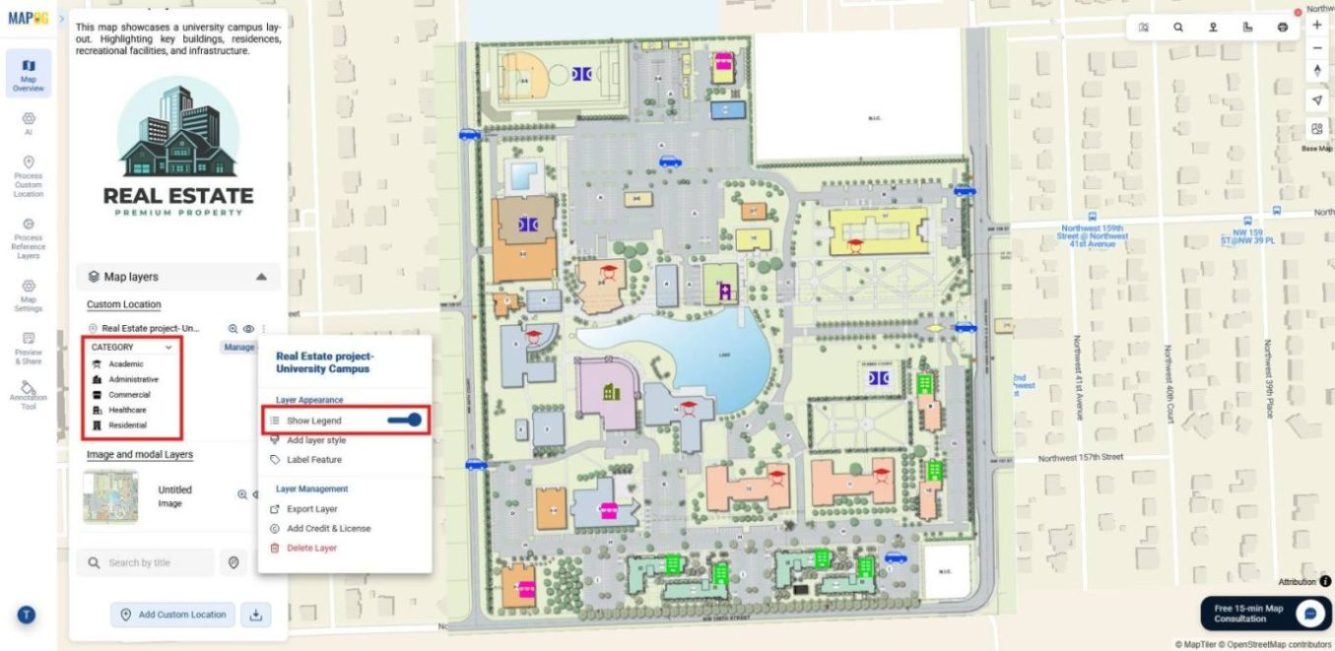
After saving the style, enable the legend for better interpretation.
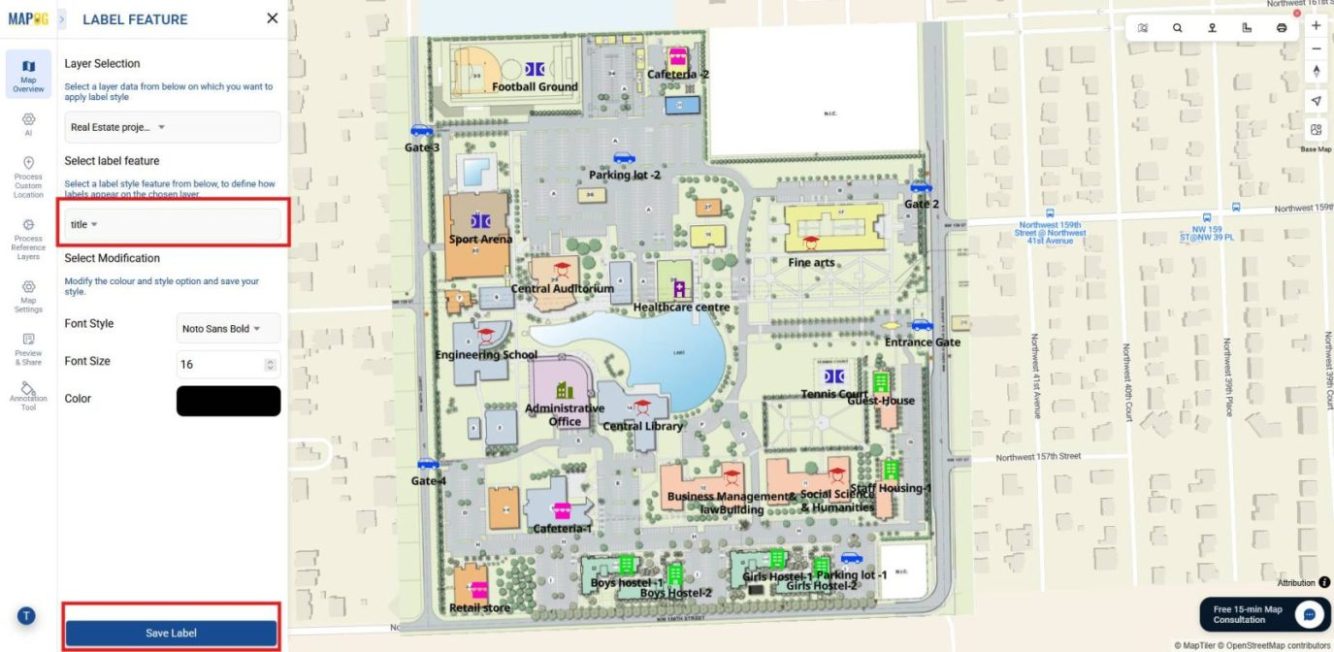
You can also use the Label Feature option to add labels to each point, making the map visually clear and easy to understand.
6.Preview and share
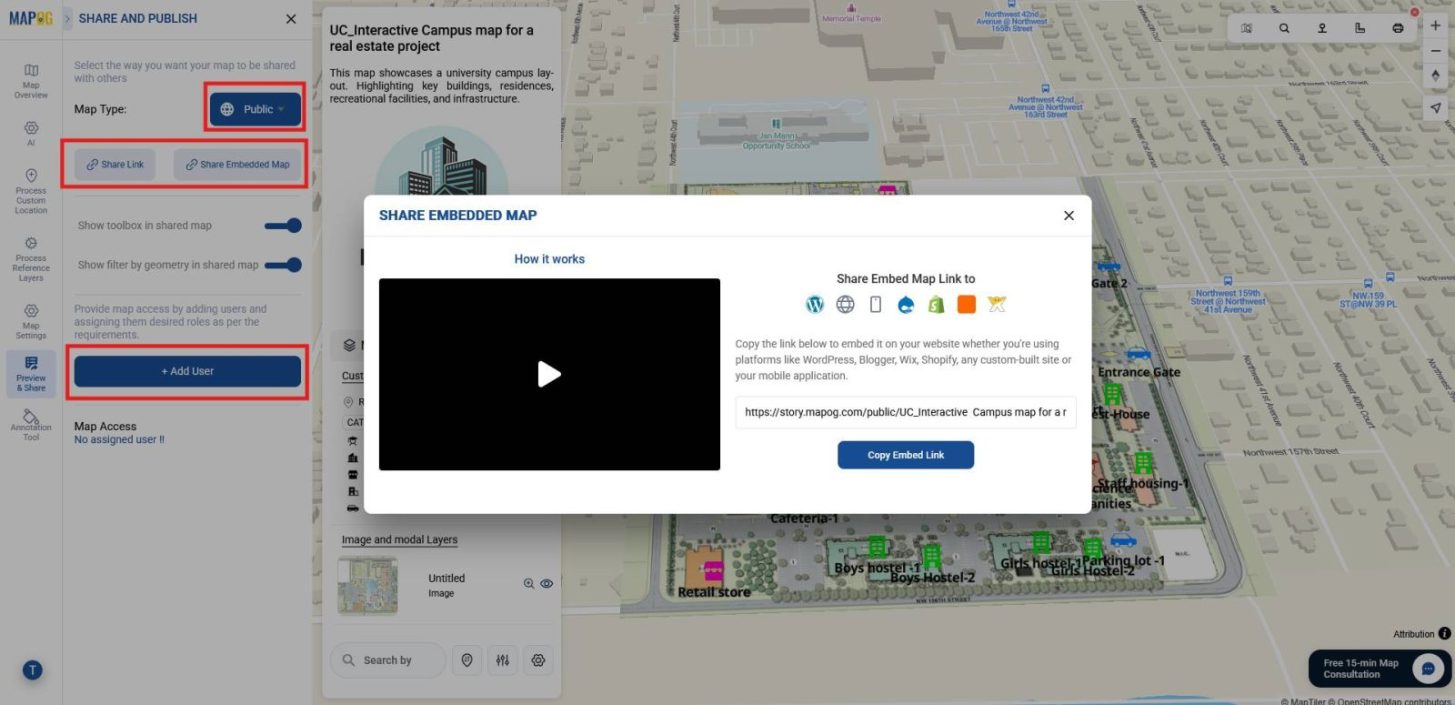
Lastly, head to the “Preview and Share” . Share privately by adding users and assigning roles such as editor or viewer, or make it public via link or embedded map option.
Industrial Use and Benefits
Beyond campuses and townships, interactive maps support commercial parks, industrial estates, and healthcare complexes by organizing spaces, amenities, and access points. In each case, they improve navigation, coordination, and planning.
Conclusion
In summary, the real estate sector increasingly adopts interactive maps for planning, sales, and investor engagement. As a result, projects gain clarity, save time, and build trust. MAPOG enables this transformation, turning maps into essential business tools for future‑ready growth.