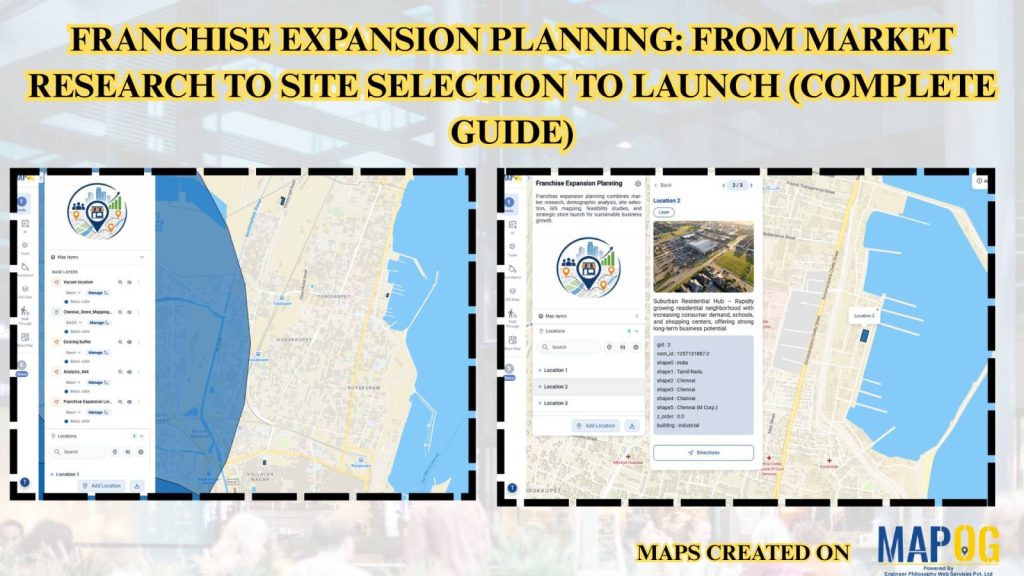
Expanding a franchise requires careful planning, accurate market analysis, and strategic site selection to maximize business success. MAPOG simplifies franchise expansion planning by enabling businesses to create, update, and share interactive maps with real-time location data, ensuring every stakeholder works with the latest information from a single platform.
Key Concept: Franchise Expansion Planning
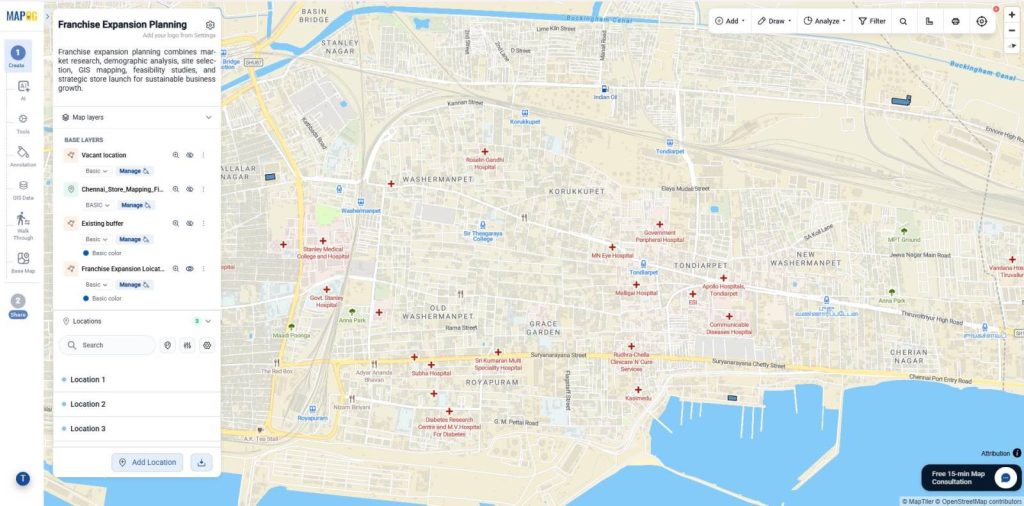
Franchise Expansion Planning helps businesses identify high-potential markets, analyze customer demographics, evaluate competitors, assess trade areas, and select the best locations for new outlets using the GIS-based mapping approach . Interactive maps and real-time updates enable teams to collaborate efficiently, make data-driven expansion decisions, reduce investment risks, and accelerate franchise growth.
Methodology: Franchise Expansion Planning
Create an interactive map, analyze markets, identify ideal franchise locations, track expansion, and collaborate in real time.
1. Create Your Interactive Map
Go to the MAPOG Dashboard and select Create & Publish Map.
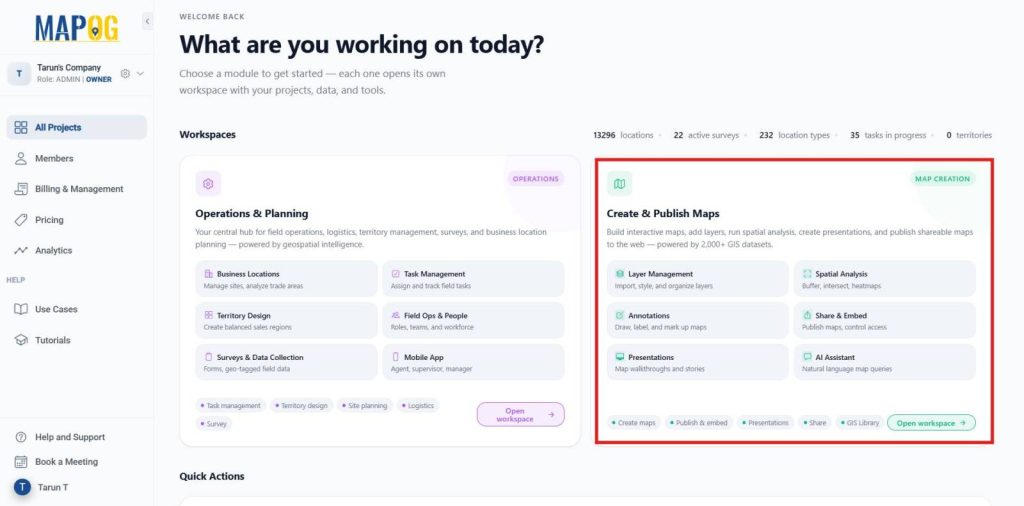
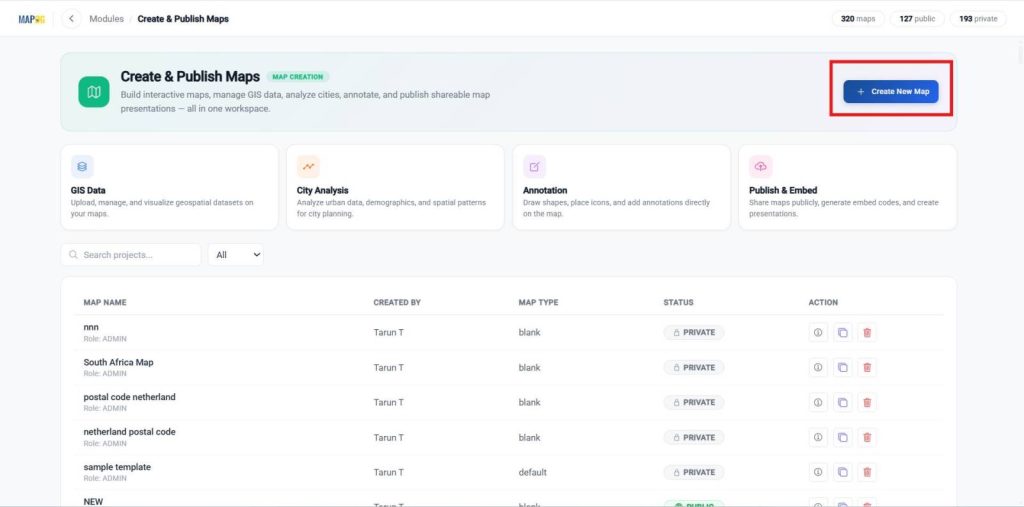
Click Create New Map to start a new project.
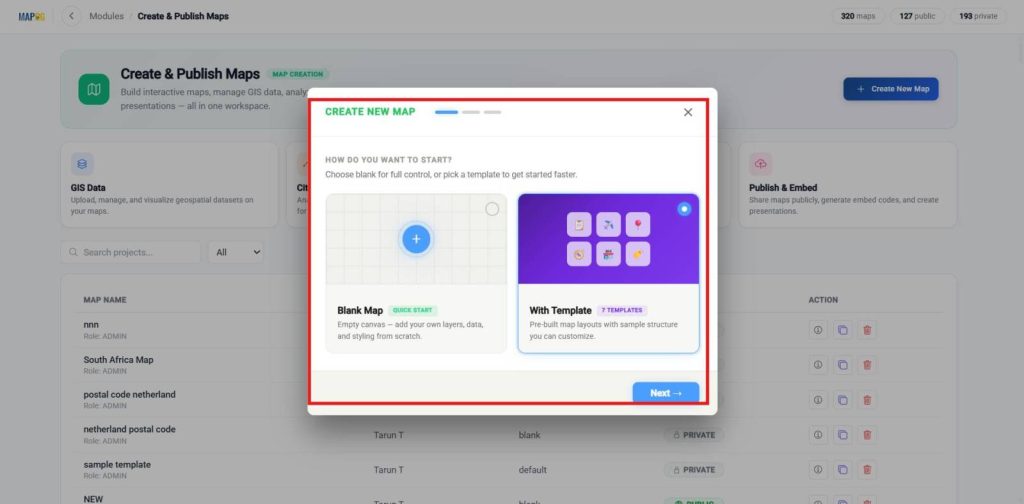
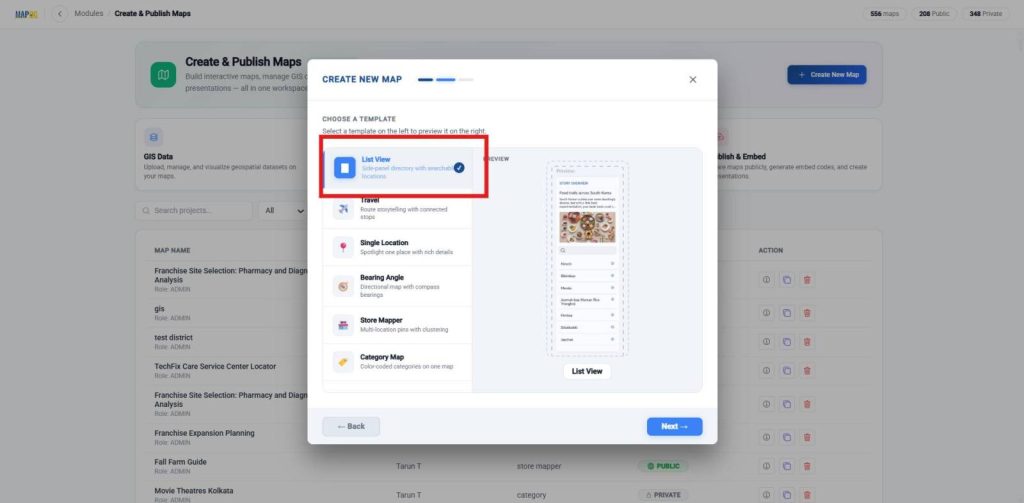
Create a new map, choose with template, and proceed to the next step.
Choose the desired map template like list view and proceed to the next step.
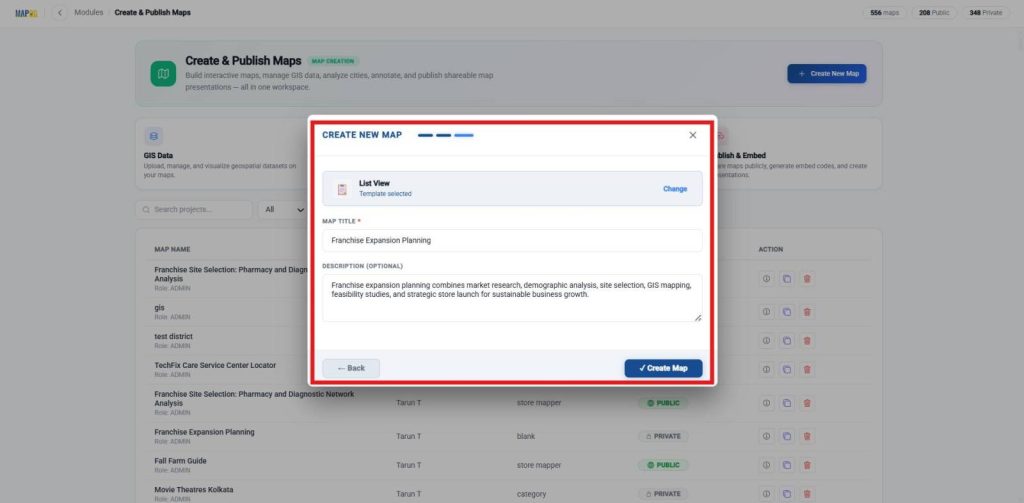
Enter the Map Title and Description, then click Create map to generate your interactive map.
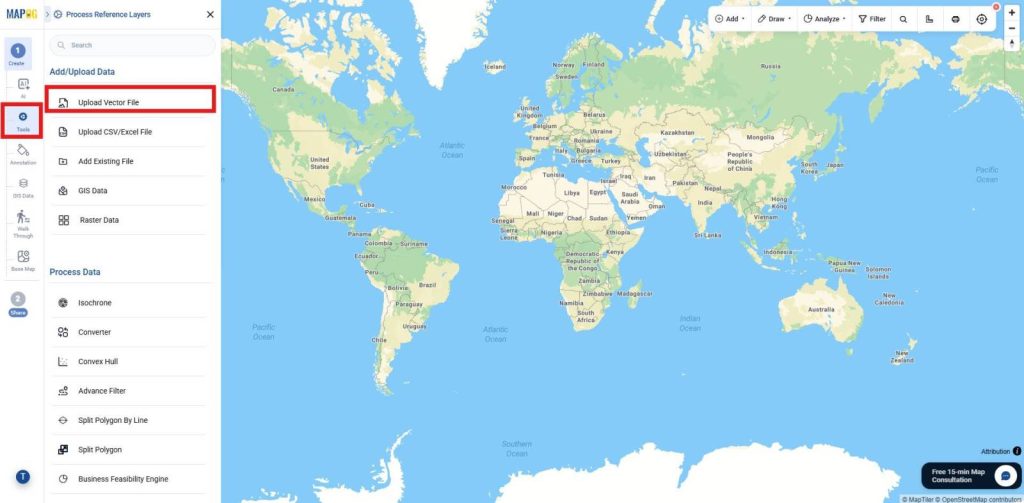
2. Upload Location Data
Click Tools and select Upload Vector file.
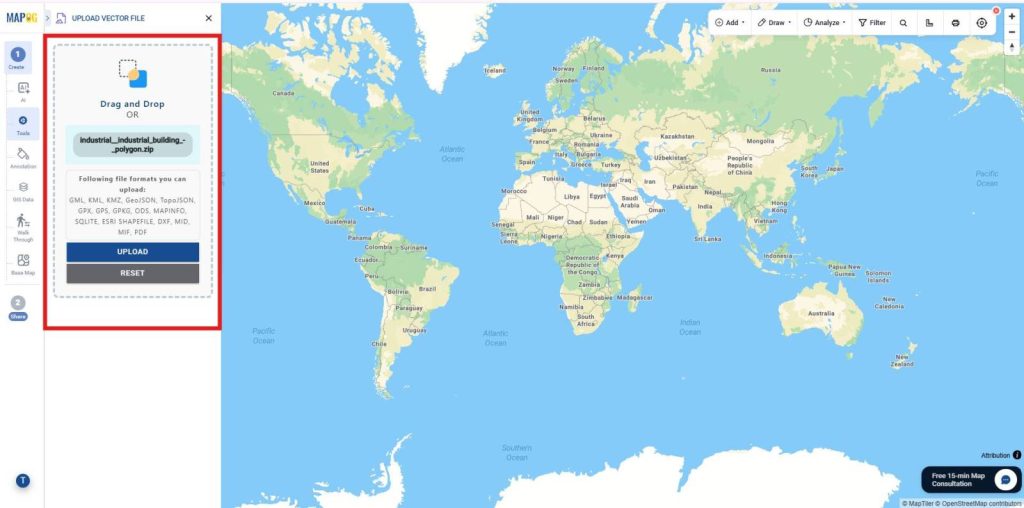
Import the vector layers for vacant location details.
Review the imported data and click Import to add both layers to your interactive map.
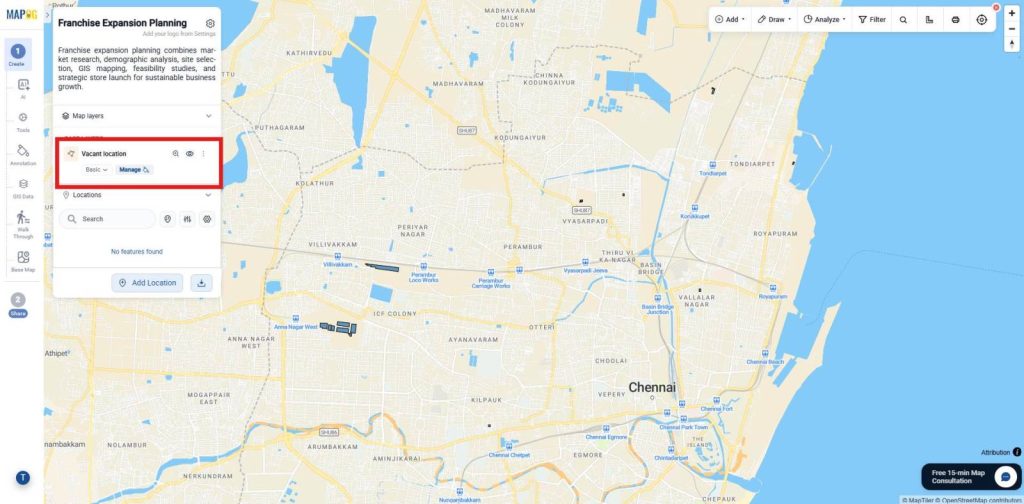
3. Upload Existing Store Location Data
Click tools and select Upload CSV/Excel file.
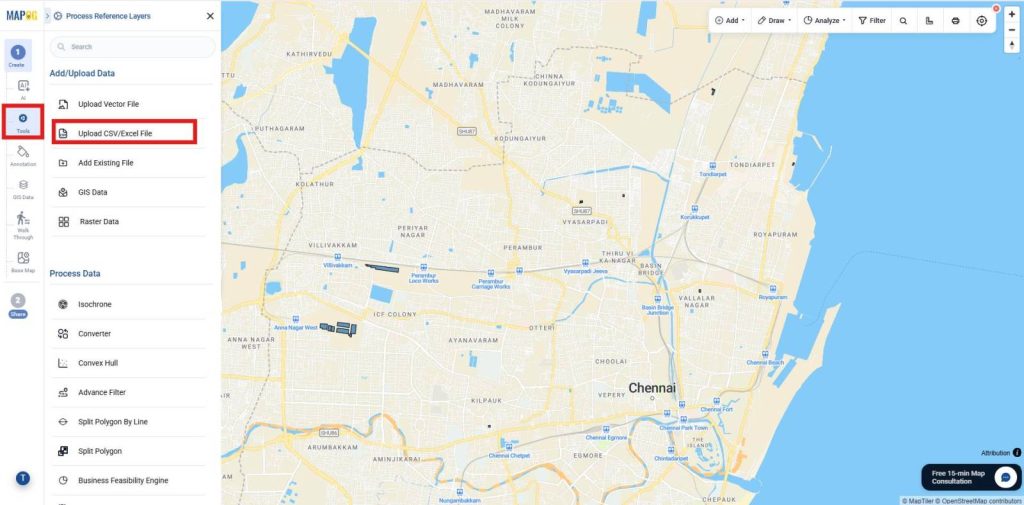
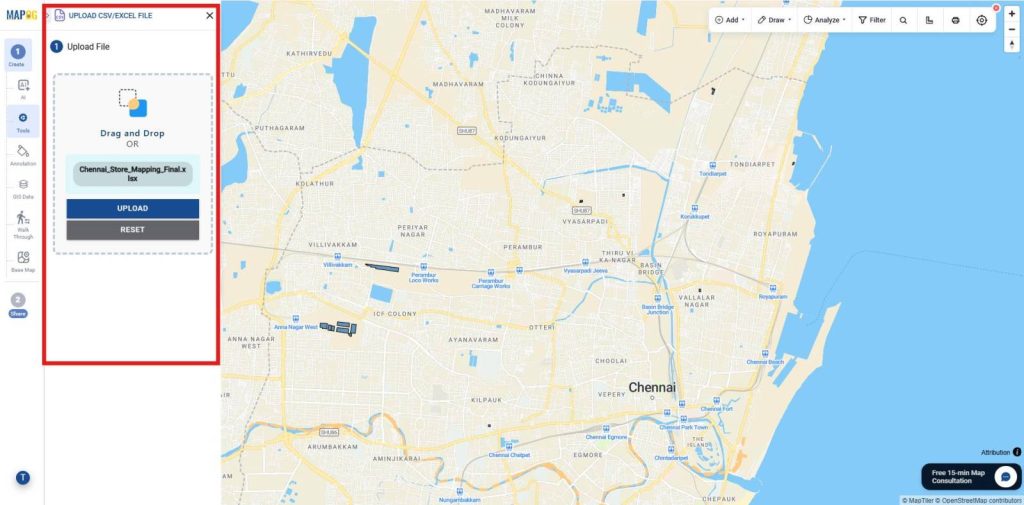
Import the Excel files containing your Existing Store locations.
Define their location fields using Map your Excel column data with the Lat/Lng.
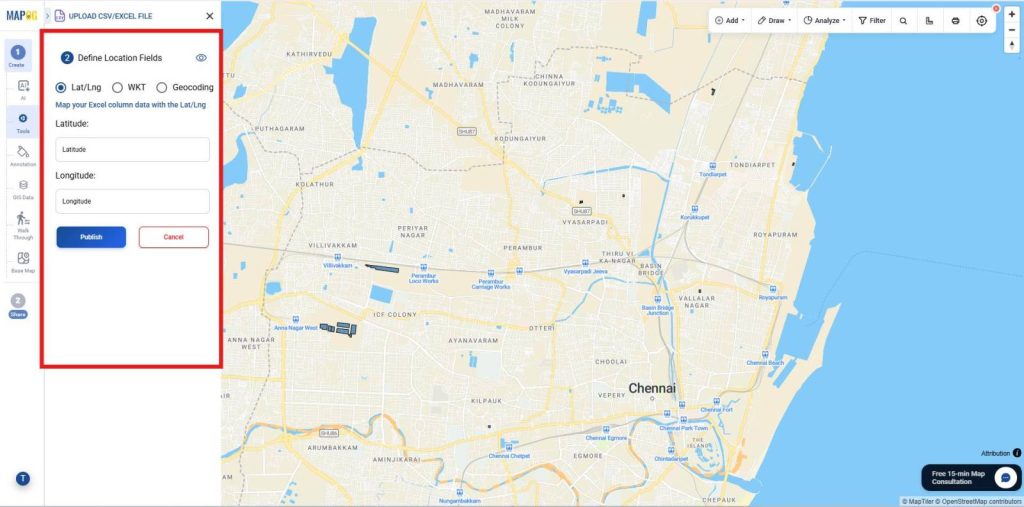
Then click Publish to add them to your interactive map.
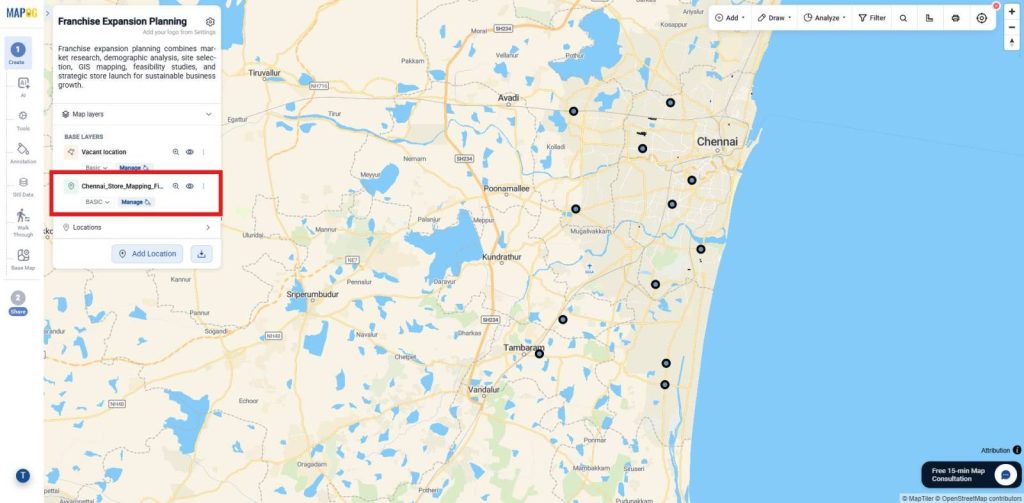
4. Create Buffer Around Existing Store Locations
Go to Process Data and select the Buffer Analysis tool.
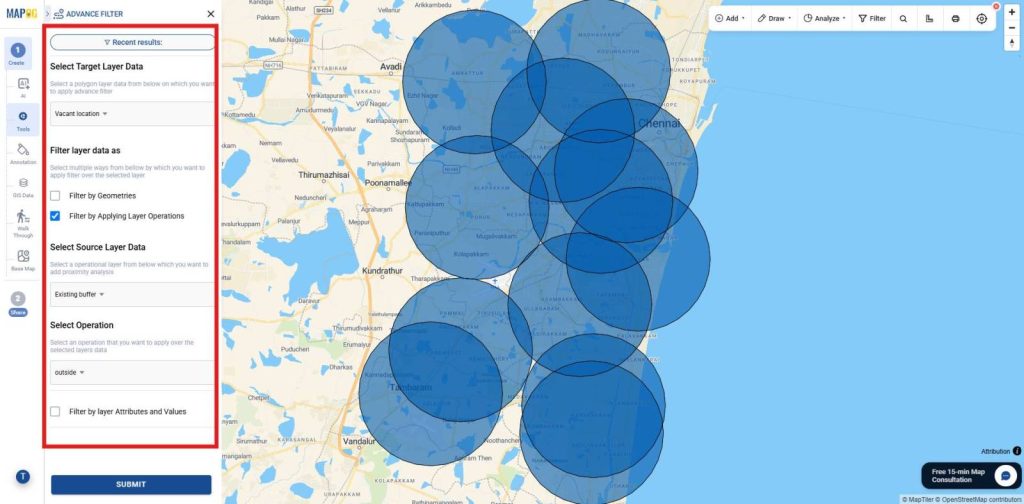
Choose the Existing Store Locations layer as the input layer. Set the desired buffer distance (for example, 5 km) based on your franchise planning requirements.
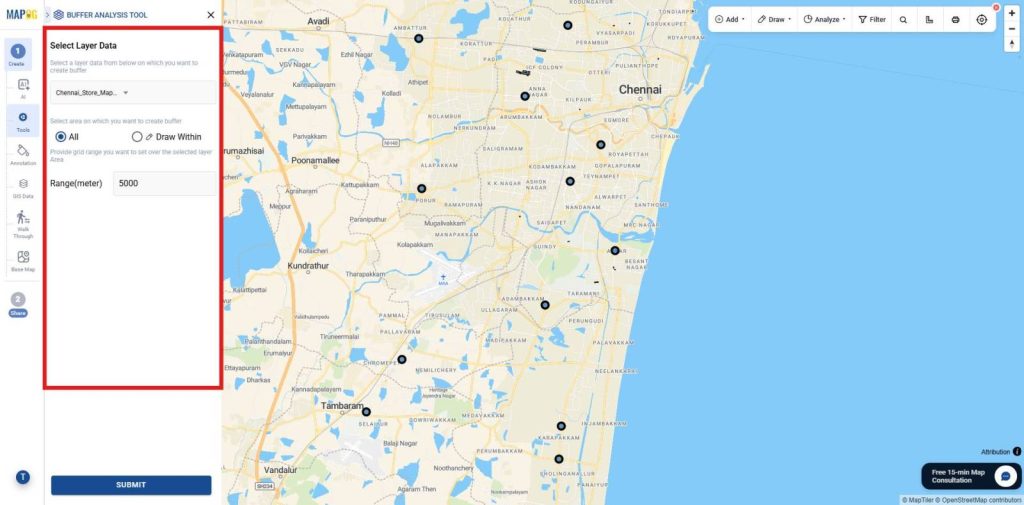
Although, Save the output and rename the layer as Existing Store Buffer.
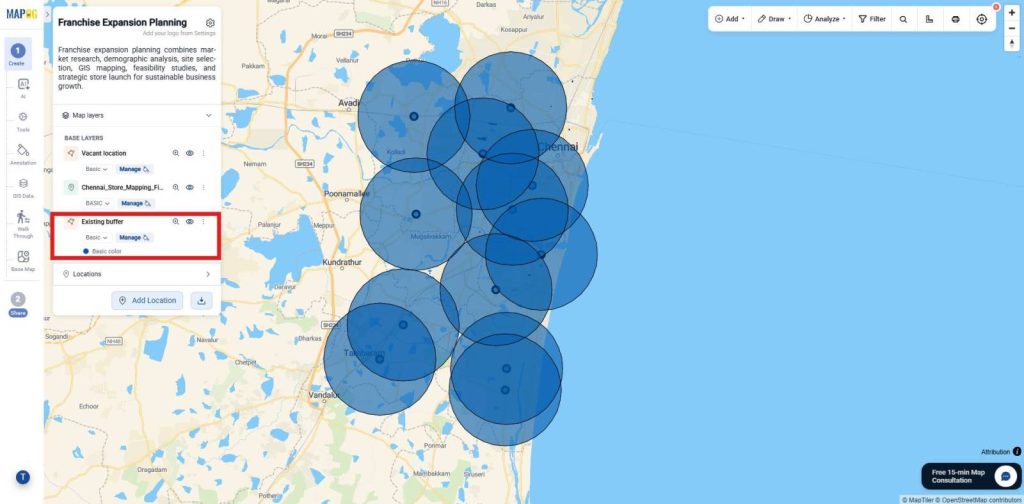
5. Filter vacant location Outside the Existing Store Buffer
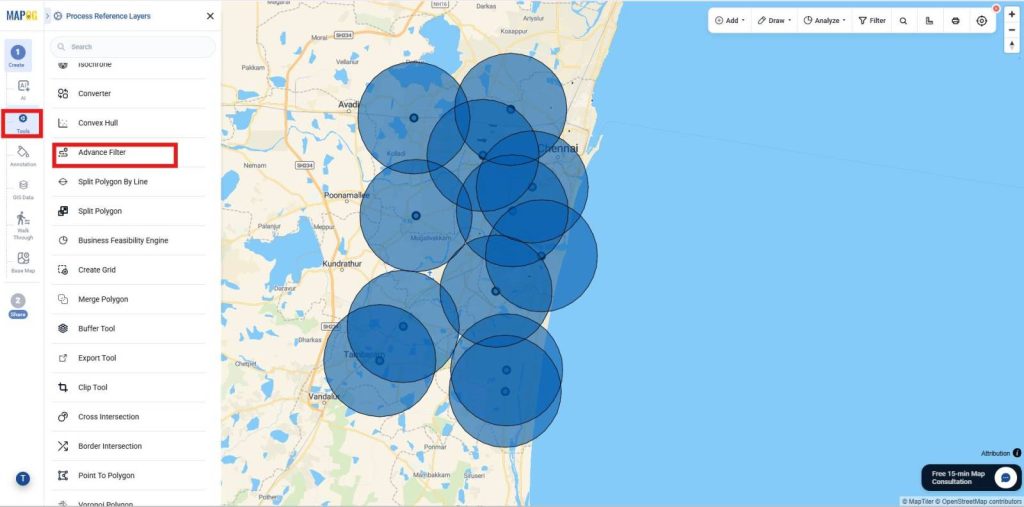
Thus, Go to Process Data and select the Advanced Filter tool.
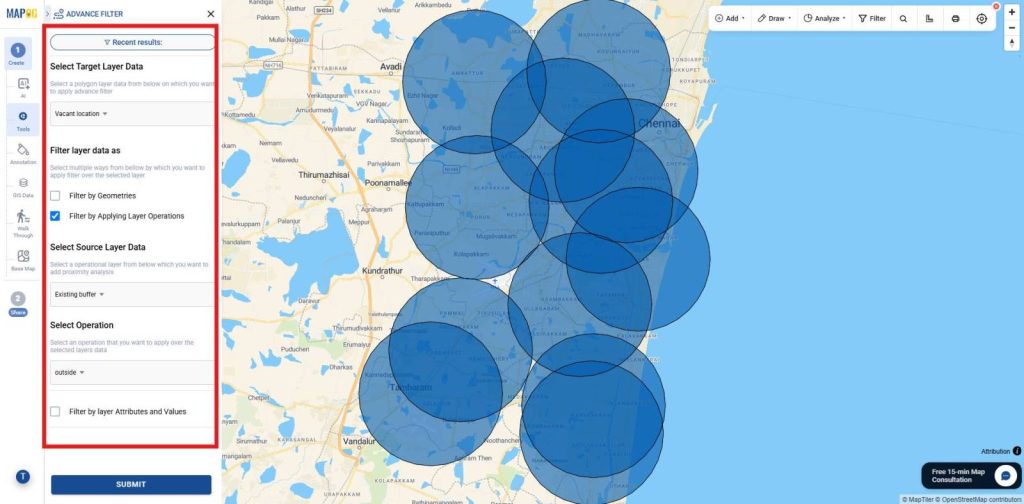
Overall, Choose the Vacant location layer as the target layer and select Filter by Applying Layer Operations.Choose the Existing Store Buffer layer as the source layer, set the operation to Outside, and click Submit to extract locatons outside the existing store buffer.
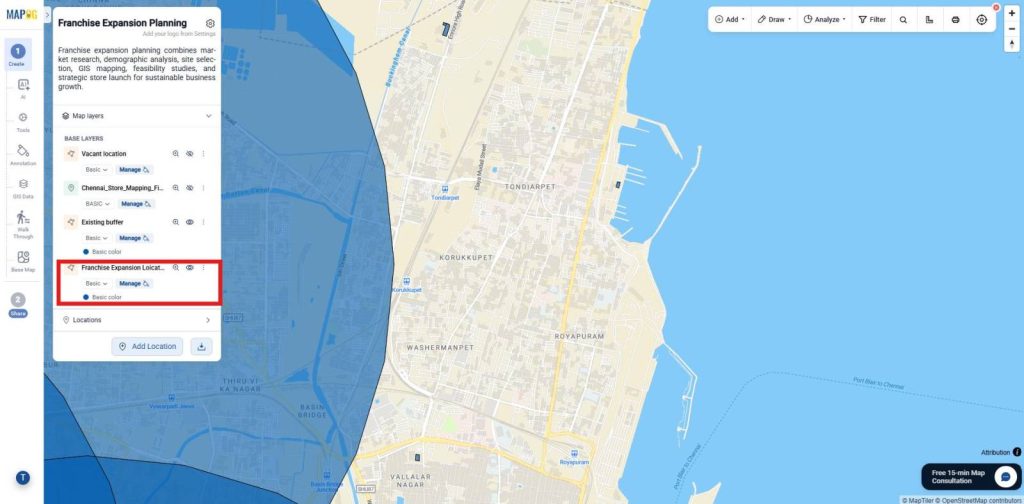
First, Publish the output layer, save it with a suitable name, and description for franchise expansion.
6. Adding details to the location
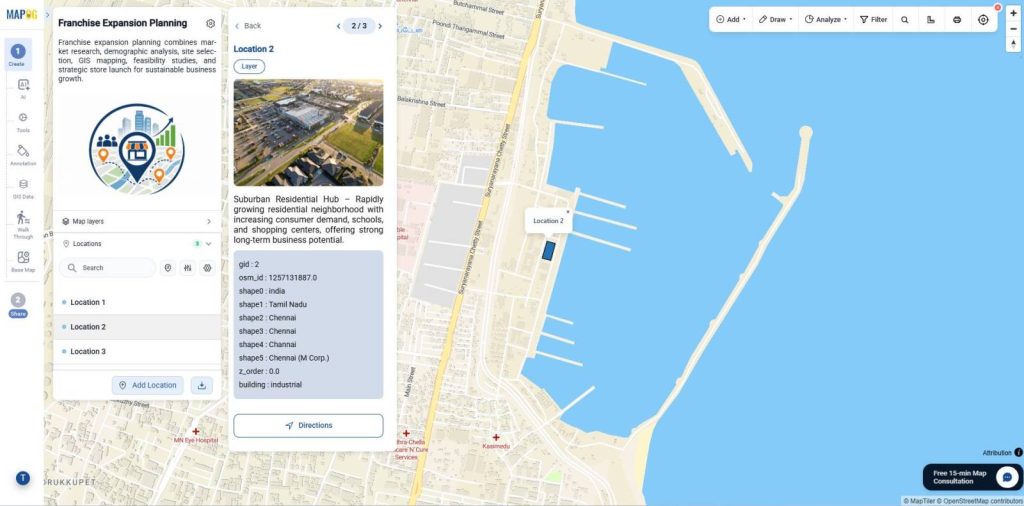
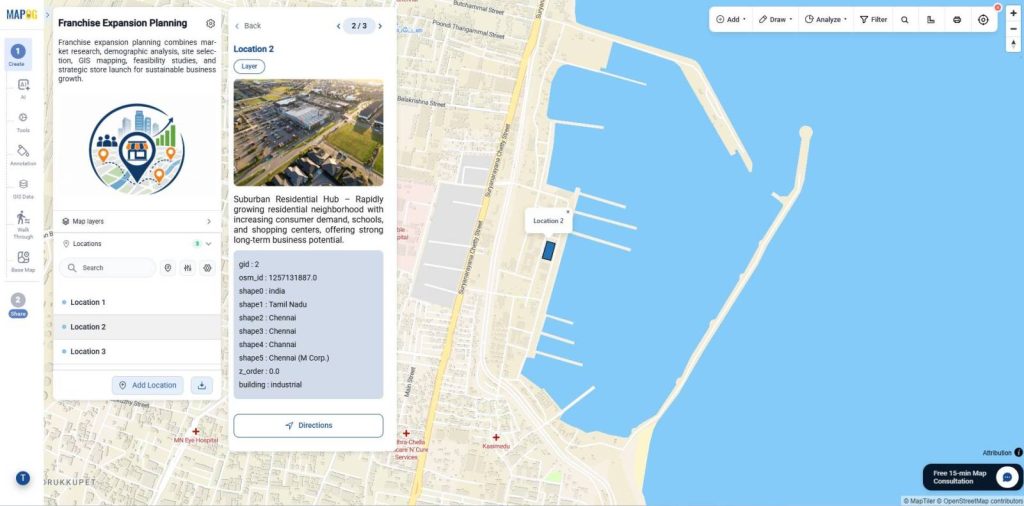
Now, select the location and select Add to overview to Add the details of the locations.
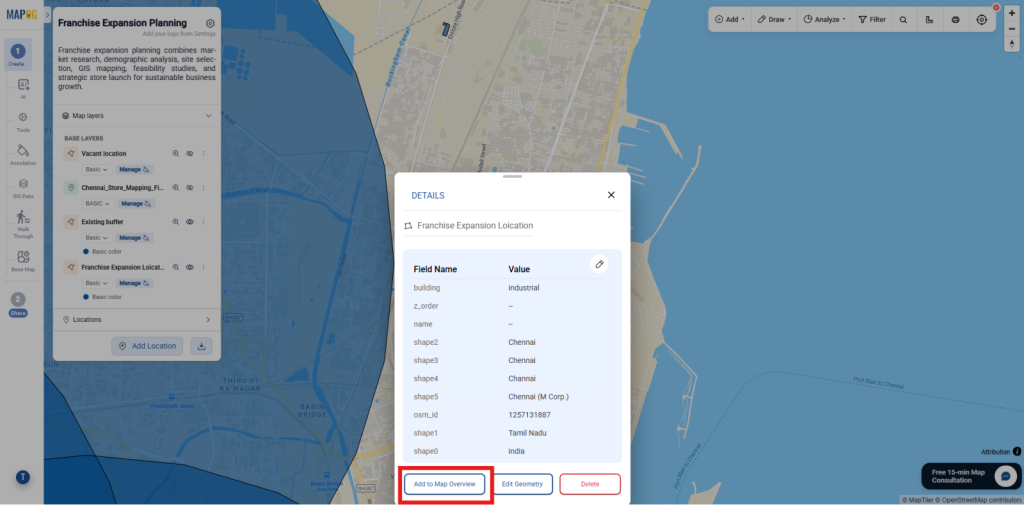
Meanwhile, The location will we saved as shown
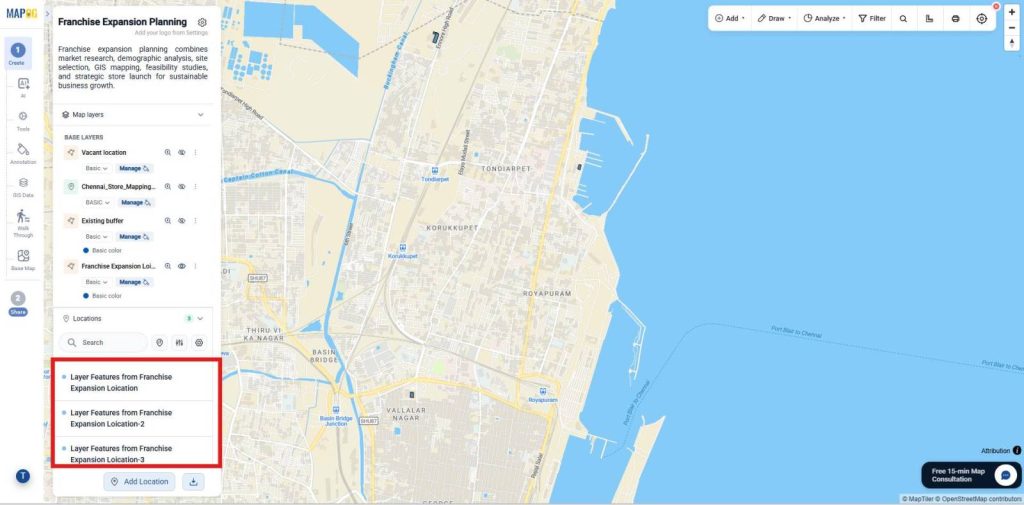
Similarly add all the locations.
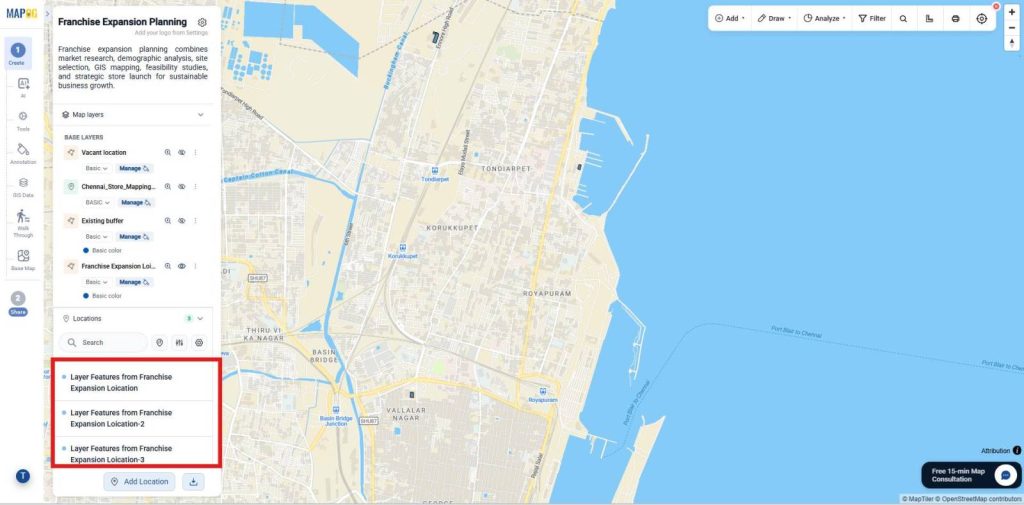
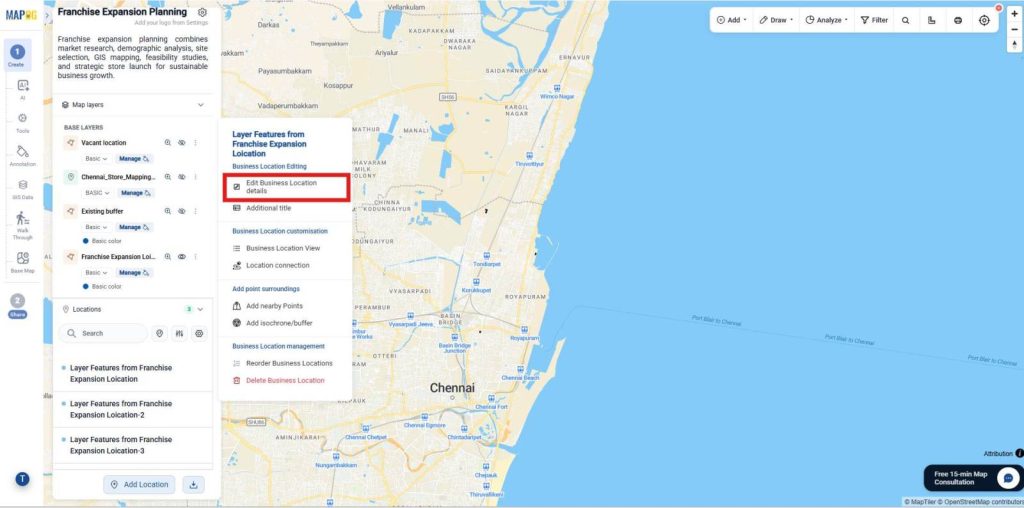
As a result, right click and select Edit Business location details.
Consequently, Give a name, description and image for reference for all the locations,
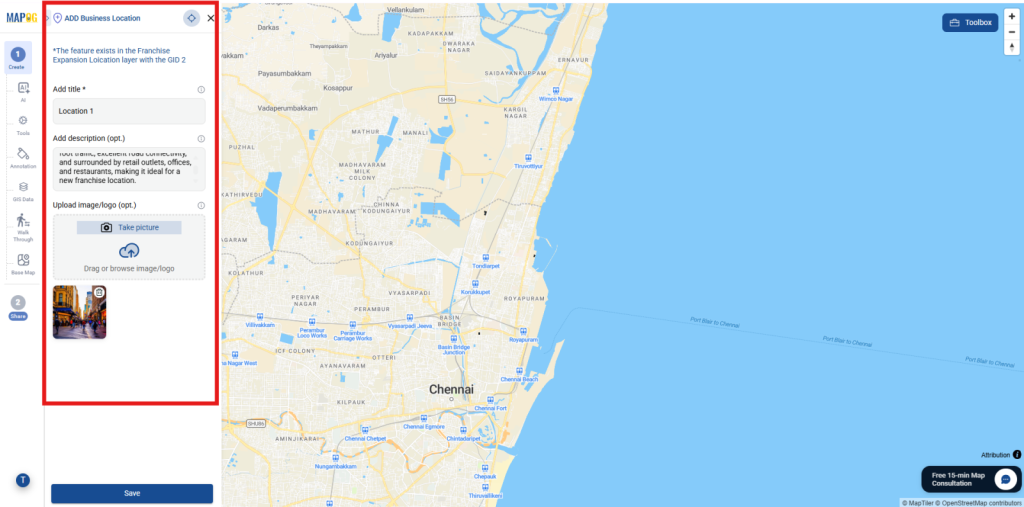
Similarly, add for all the locations.
7. Adding Brand Logo
In contrast, Now customize your project branding from Map Settings. Click Replace to upload a company logo or project image, make the required adjustments.
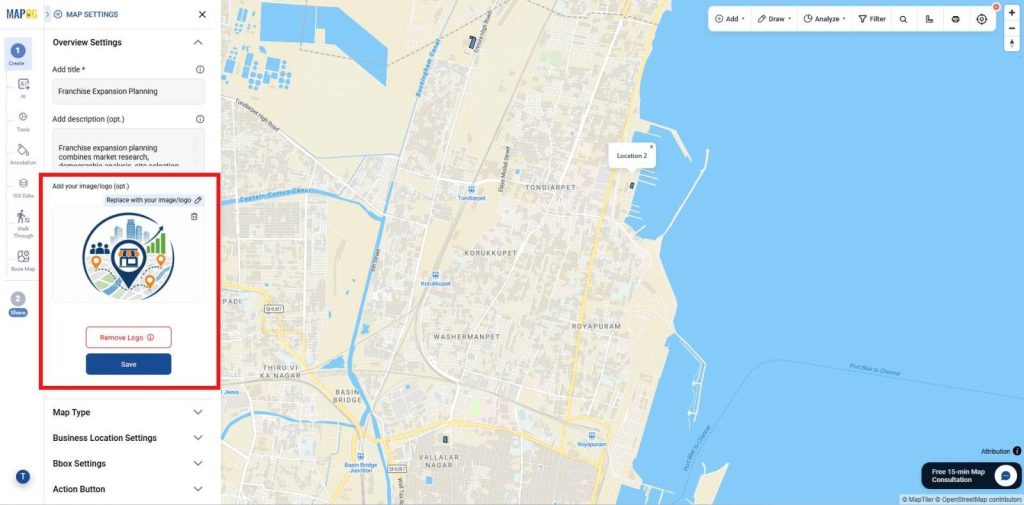
Likewise, And save it as the branding element.
8. Publish and Share Your Map
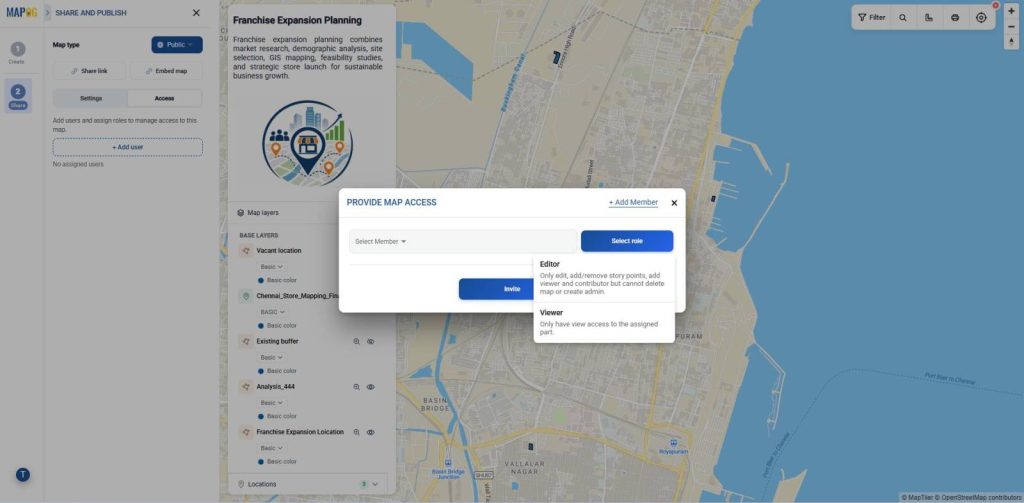
Similarly, Once setup is complete, use Preview & Share to publish your map and generate a shareable or embeddable link, letting users explore properties by all or selected attributes.
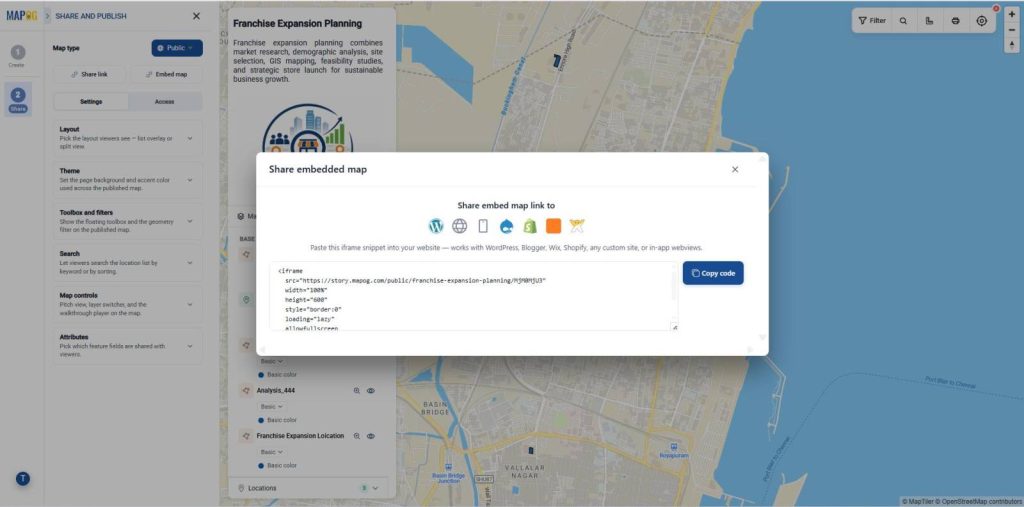
Furthermore, Provide map access by adding users, assigning roles, and enabling shared tools like geometry filters, search, and map controls. In addition, Use +Add Users to invite members, assign view/edit permissions, and enable public map features like search, filters, sorting, and shared tools.
Industry Use Cases and Benefits
Therefore, Retail chains, restaurant franchises, supermarkets, healthcare providers, banks, and real estate developers use MAPOG for franchise expansion planning. Moreover, It helps teams analyze markets, evaluate potential locations, collaborate in real time, and make data-driven site selection decisions using interactive maps.
Conclusion
Finally, MAPOG simplifies franchise expansion planning by bringing market research, location analysis, and site selection onto a single interactive mapping platform. However, Businesses can identify high-potential locations, monitor expansion progress, share maps with stakeholders, and make faster, data-driven decisions from market research to successful franchise launch.