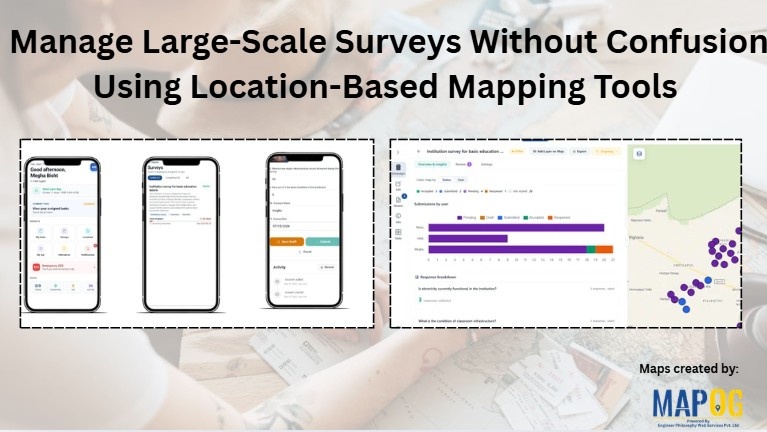
To Manage large scale survey across schools, colleges, Anganwadi centers, and other institutions often becomes difficult when teams rely on spreadsheets, paper forms, or delayed reporting systems. As survey size increases, issues like duplicate entries, missing records, incorrect locations, and poor coordination also increase. Consequently, field operations become slow and difficult to manage. Using MAPOG Survey and MAPOG Contributor, survey location mapping tools can improve field coordination .reduce confusion, and collect accurate institutional data in real time.
How to Manage large scale survey Simplifies Survey Operations
Large survey projects usually involve hundreds of institutions spread across multiple villages, wards, or districts. Therefore, managing field teams manually becomes challenging. In many cases, office teams cannot track whether schools, colleges, or Anganwadi centers were actually visited visually.
Additionally, surveyors may accidentally create duplicate records or miss important institutions entirely. Because of this, decision-making becomes less reliable.
Step-By-Step Guide to Manage Large Scale Survey
Step 1: Create an Institution Data Structure
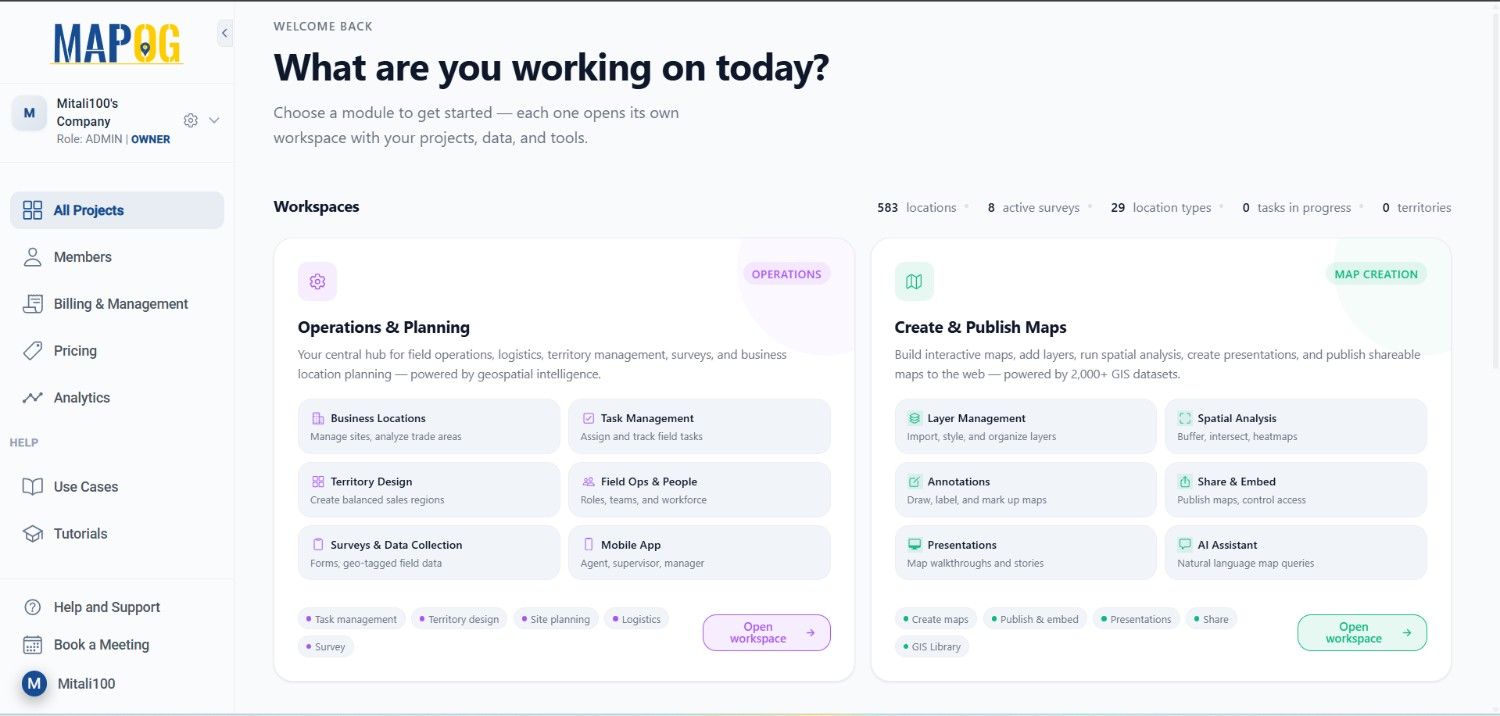
First, open the MAPOG dashboard and go to Operations & Planning workspace.
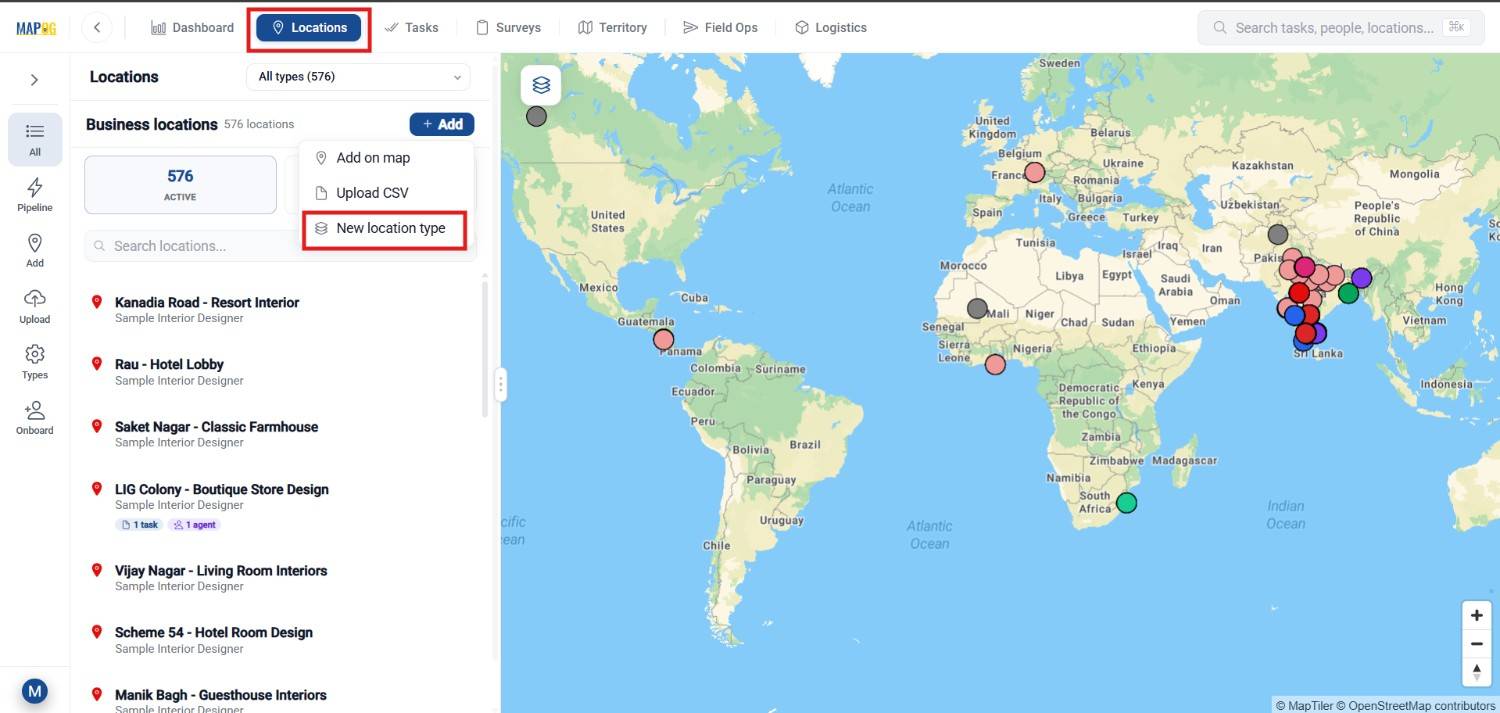
Now go to location and create a new location type so it can be reused whenever needed.
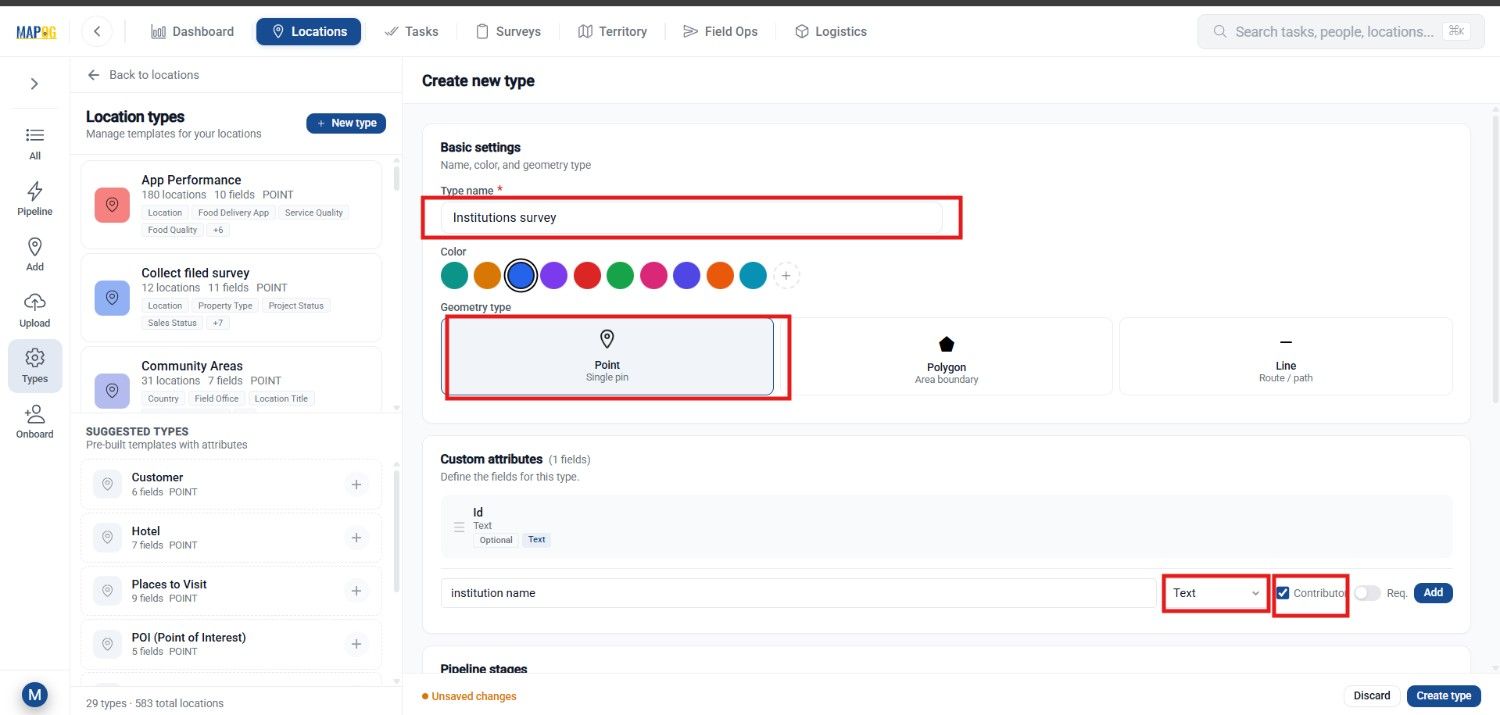
Name it institutional survey data , After that, choose point geometry because institutions need to be mapped as individual locations . Then, define fields by using different attribute type like text for Institution ID , number for Contact Details etc. Finally, enable contributor access so field teams can update information during surveys.
Step 2: Prepare the Survey Campaign
Next, move to the Survey section and create a new campaign for institutional data collection.
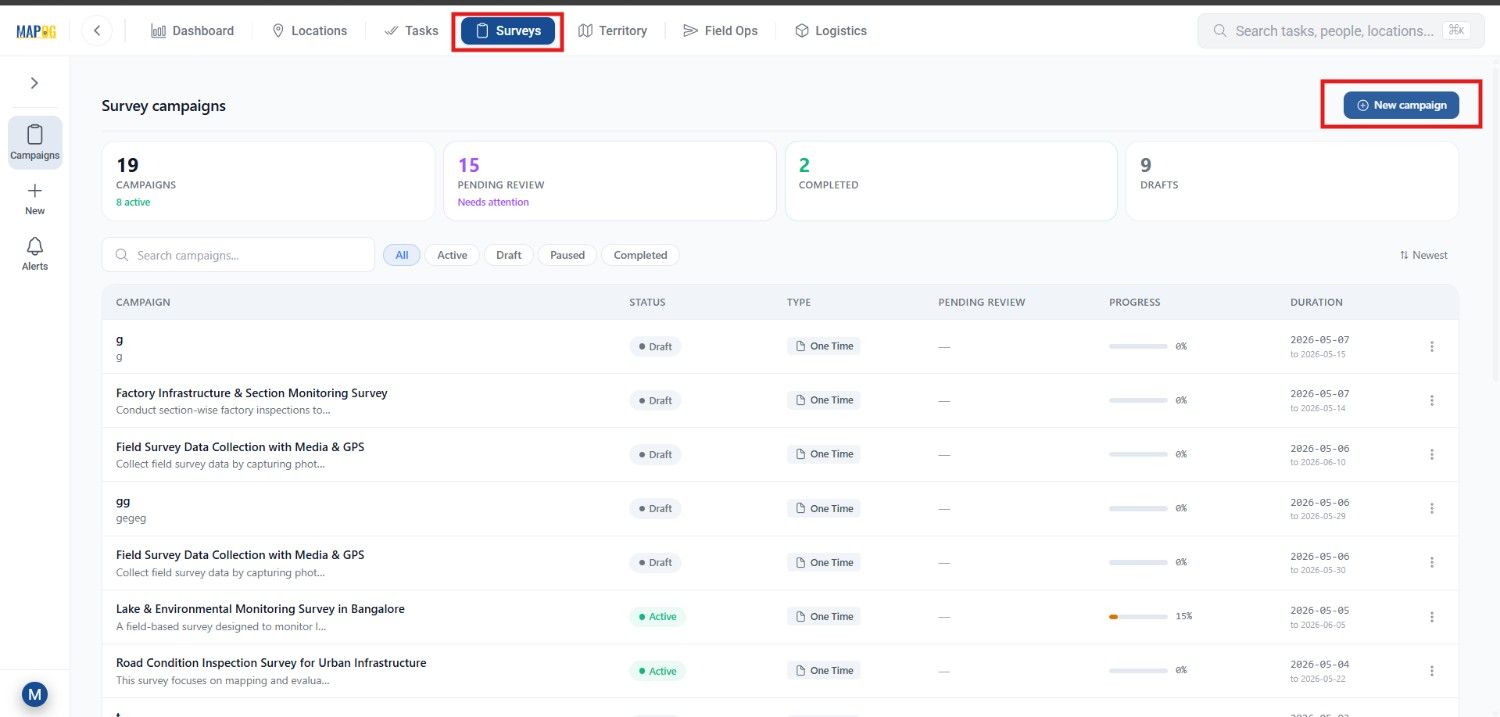
Here, in Campaign details add details such as survey title, description, project duration and project type .
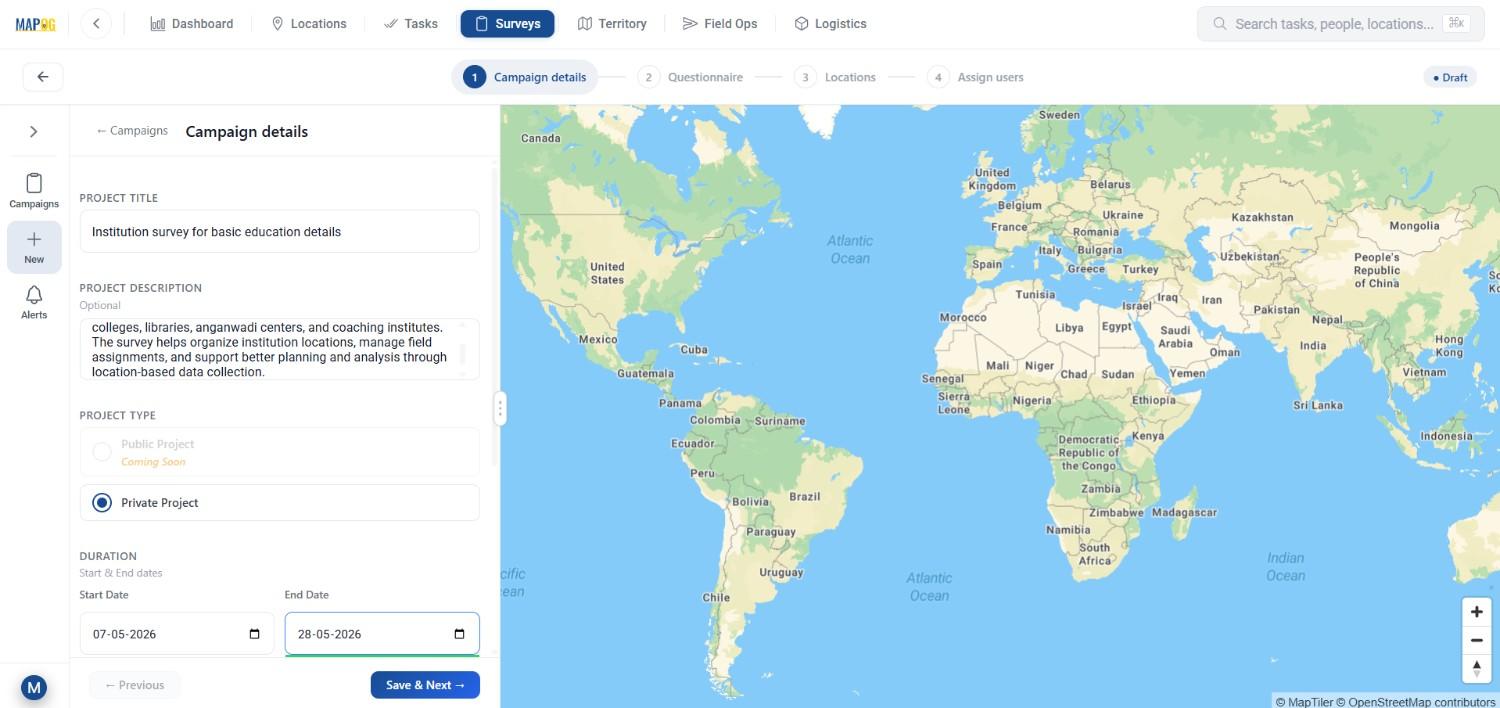
After that add the recently made location type. Moreover, enabling edit and add permissions allows contributors to update missing institution records directly from the field. Then click save and next.
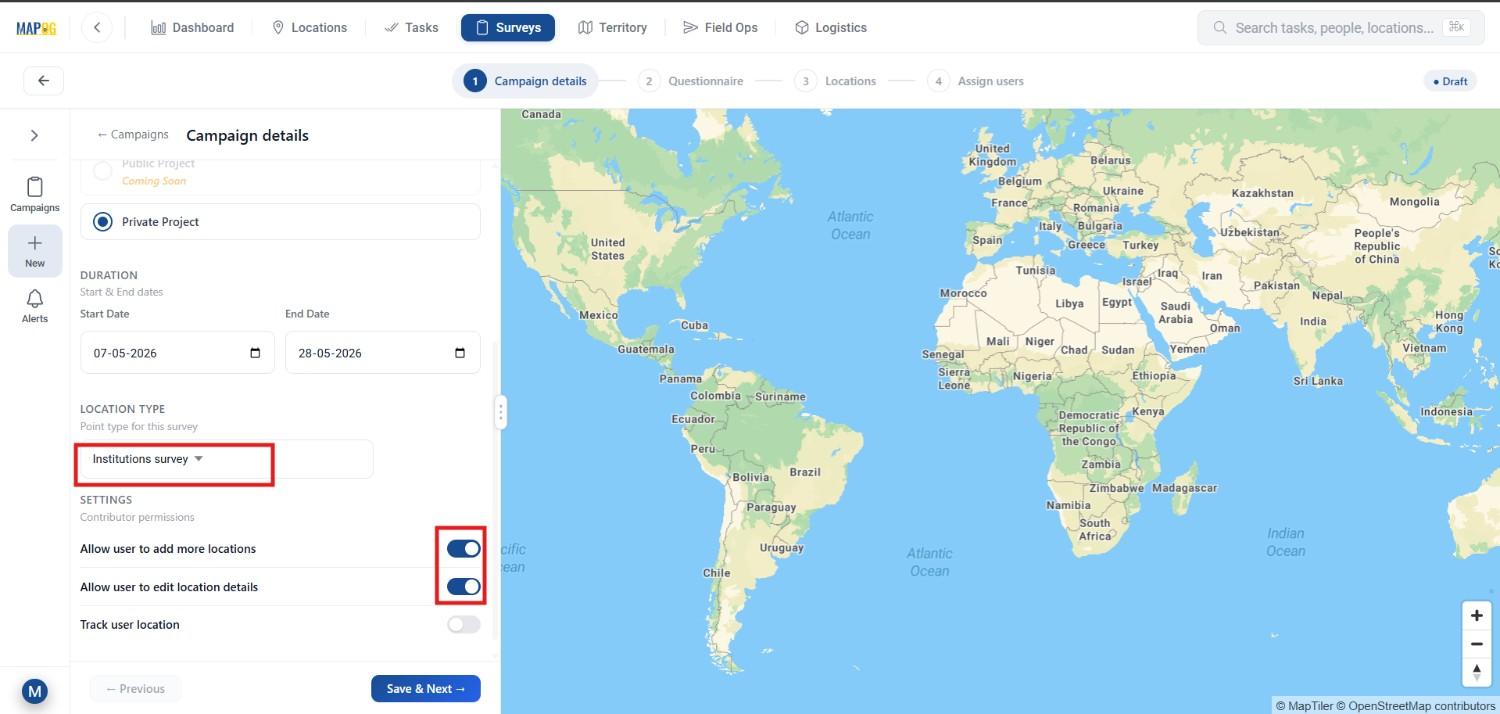
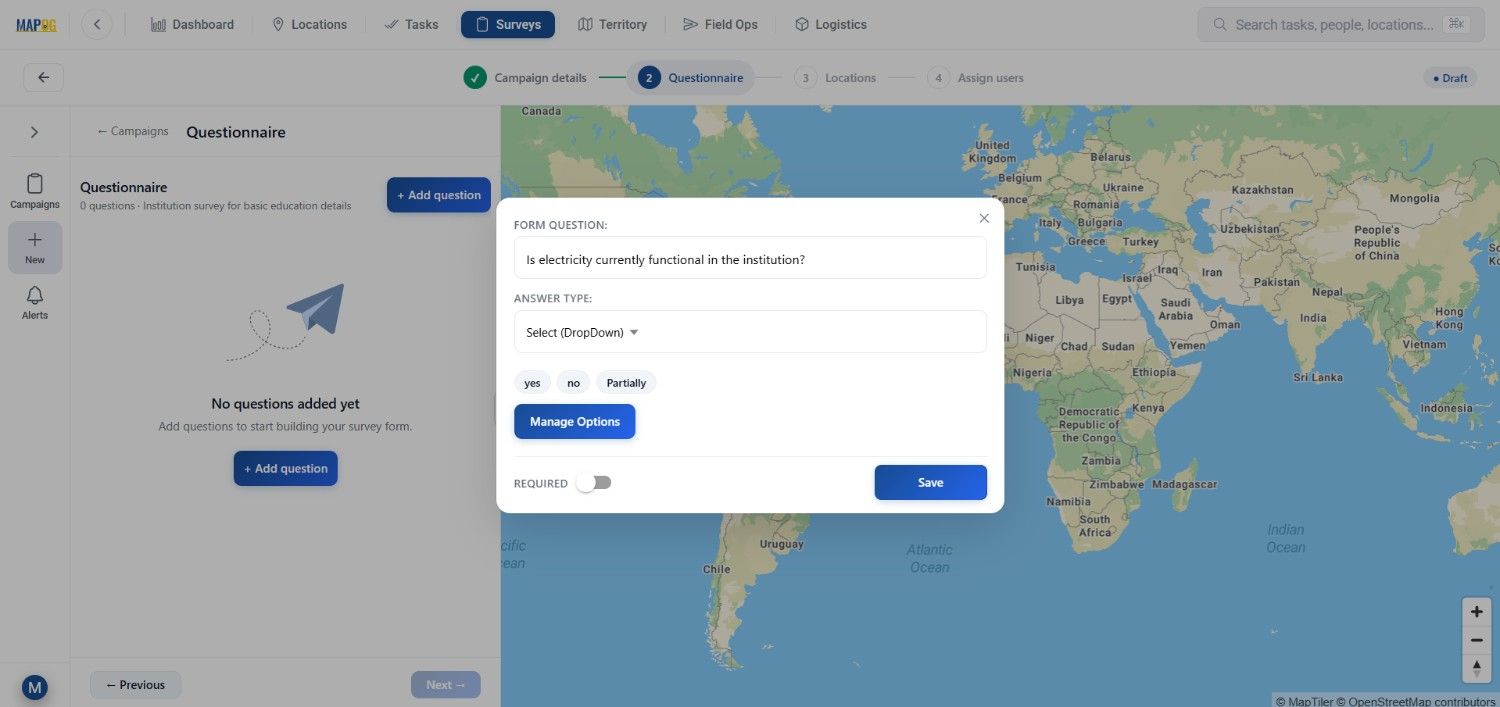
Afterward, build the questionnaire using different answer types like text fields, dropdowns, image uploads, and multi-select options.
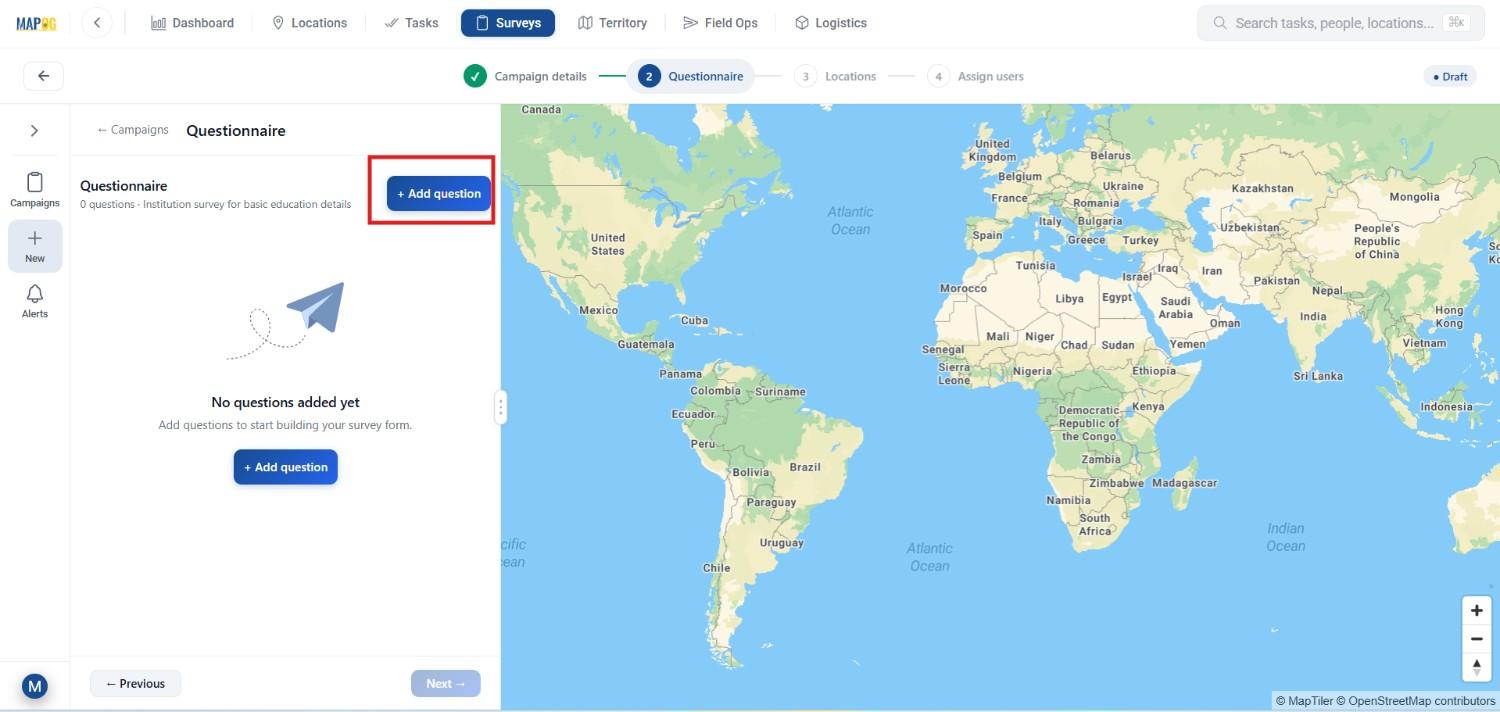
For example, users can add questions related to infrastructure conditions by choosing the select option and by using manage option add different options for answers.
Step 3: Upload and Map Institutional Locations
Now upload the institutional dataset, go to Locations section and click on upload csv/excel it should contain schools, colleges, Anganwadi centers, or other facility records.
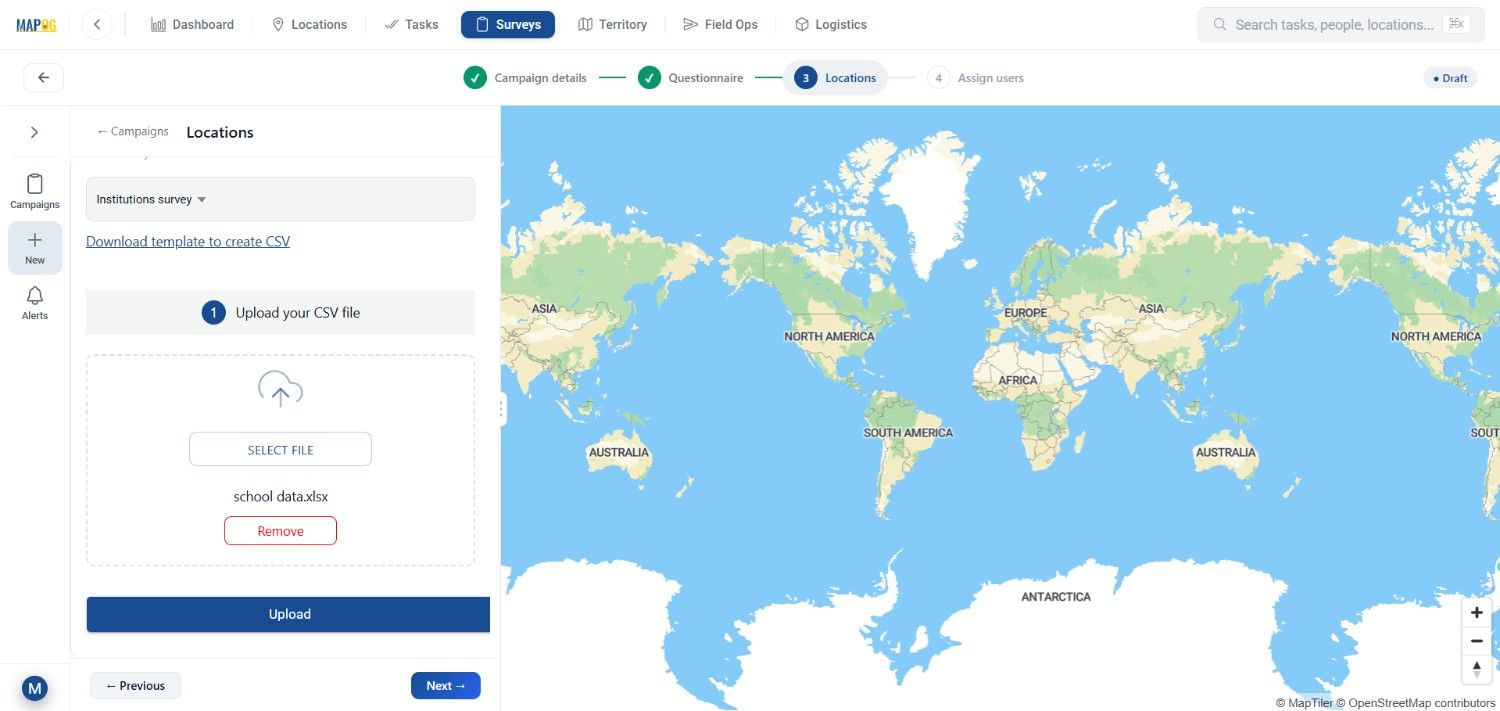
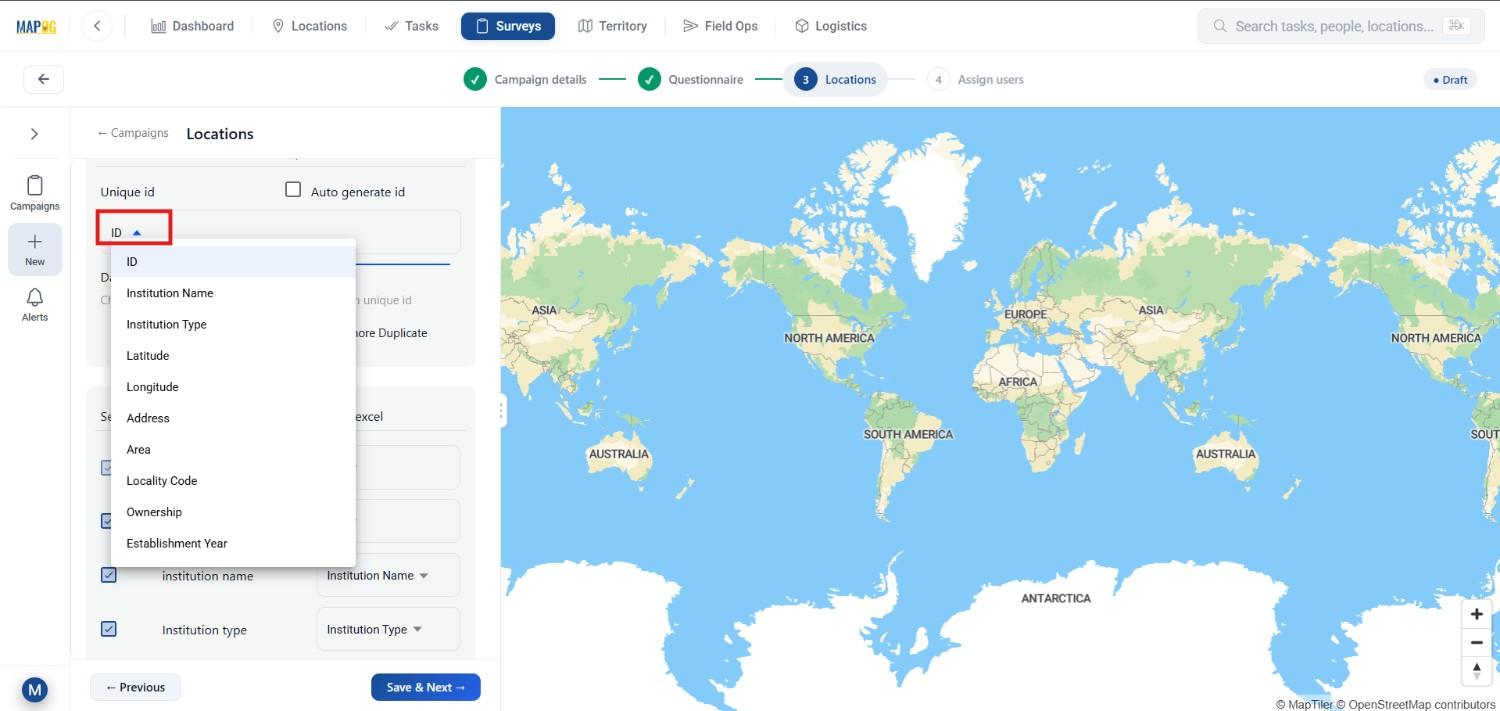
During upload, properly match attributes and select a unique ID field to avoid duplication.
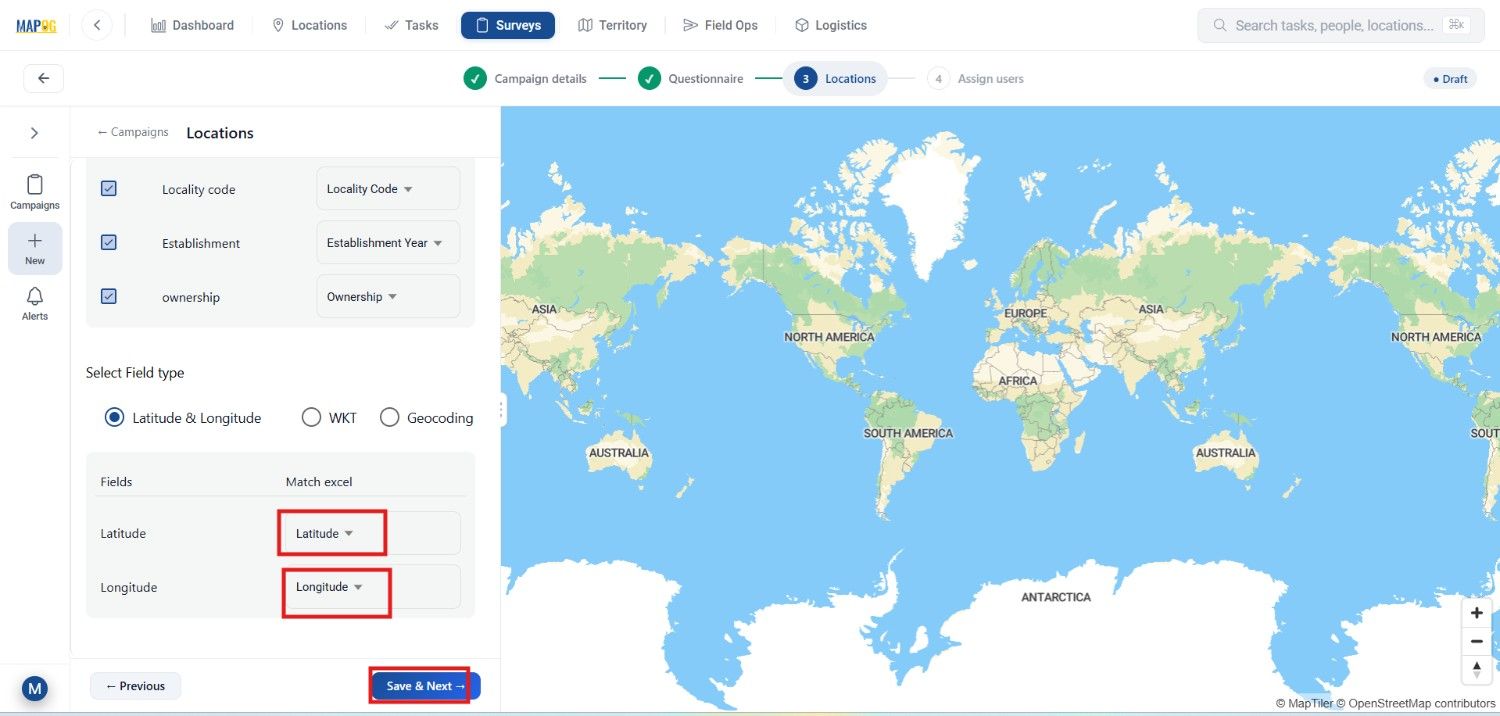
Then, use coordinate fields or WKT format for spatial plotting.and click save & next.
Once uploaded, all institutions automatically appear on the live map. Consequently, managers can quickly identify missing areas, incorrect locations, or overlapping records. Furthermore, map-based visualization improves survey planning because teams can clearly see institutional distribution across the project area.
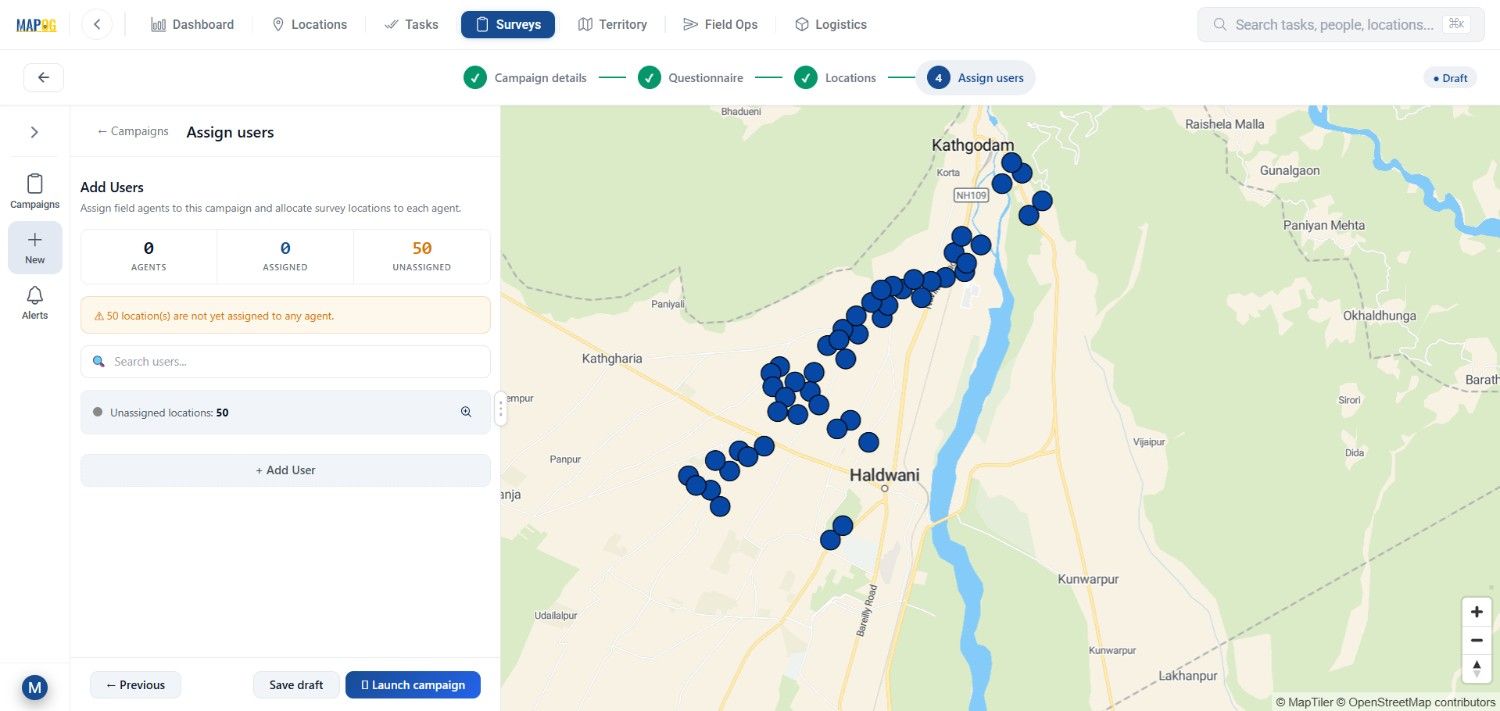
Step 4: Assign Survey Areas to Teams
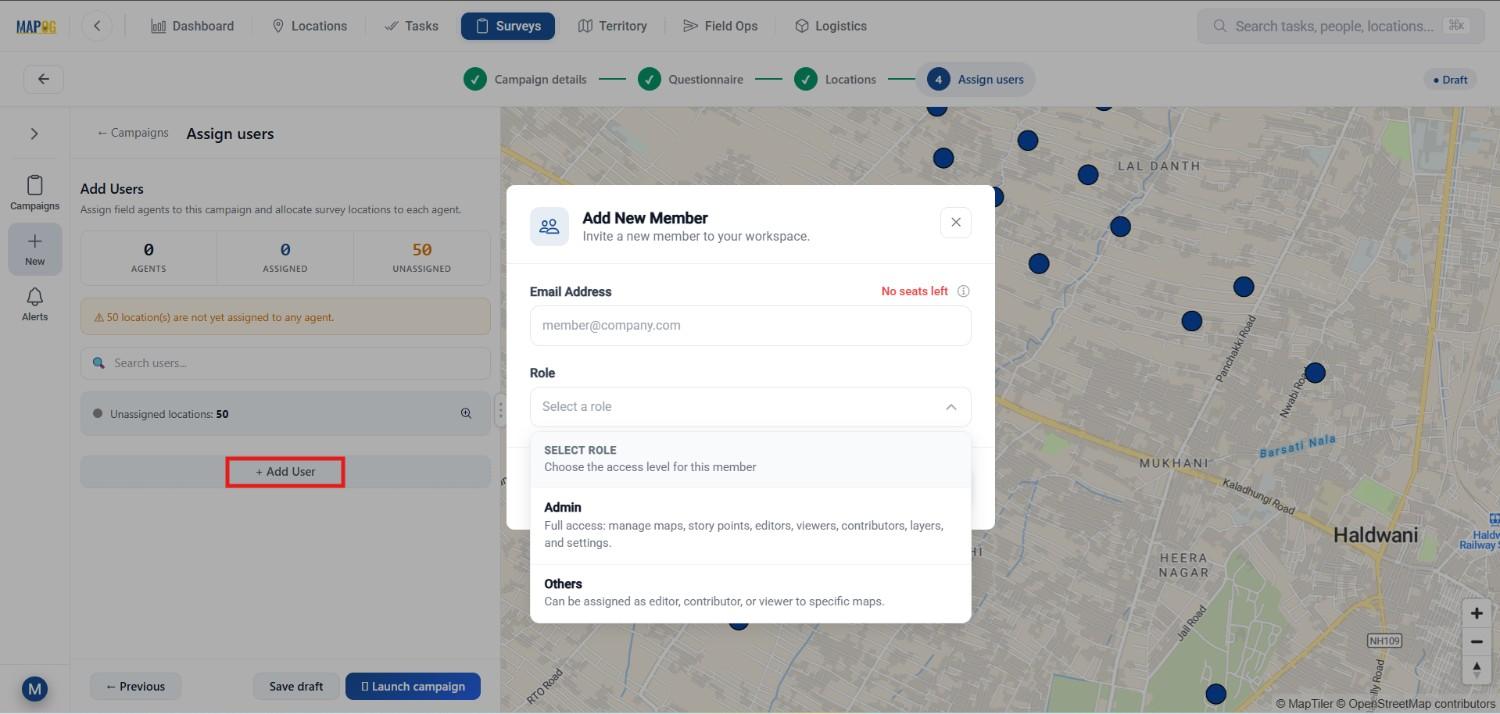
After mapping the institutions, assign survey locations to field contributors. Go to Assign Users and click Add Member through Add User. Enter the assignee’s email and set roles like Admin or others depending on access needs.
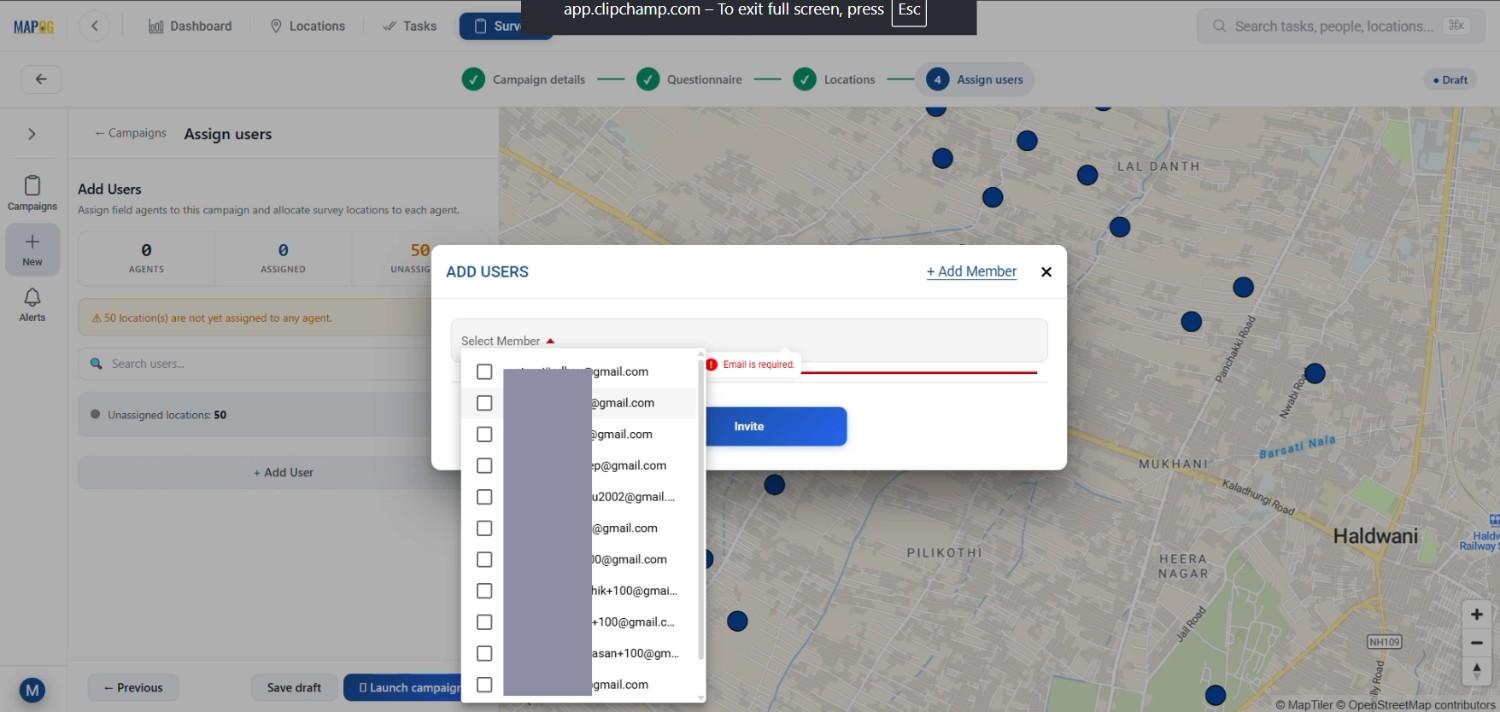
Then, select members from the drop down & invite them to participate in the survey.
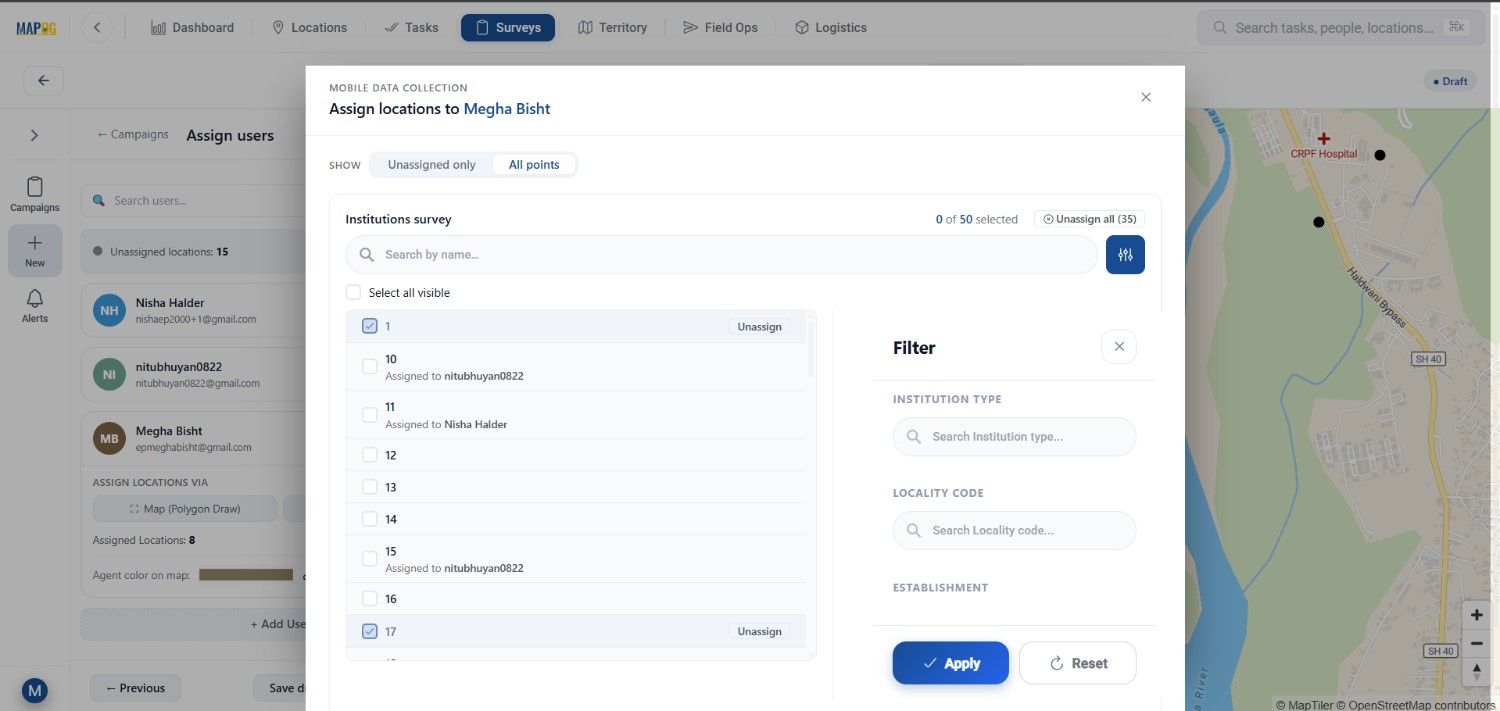
Then, use polygon-based assignment tools to divide the points among the assignees by drawing polygon in the map area and by clicking save your assigned points.
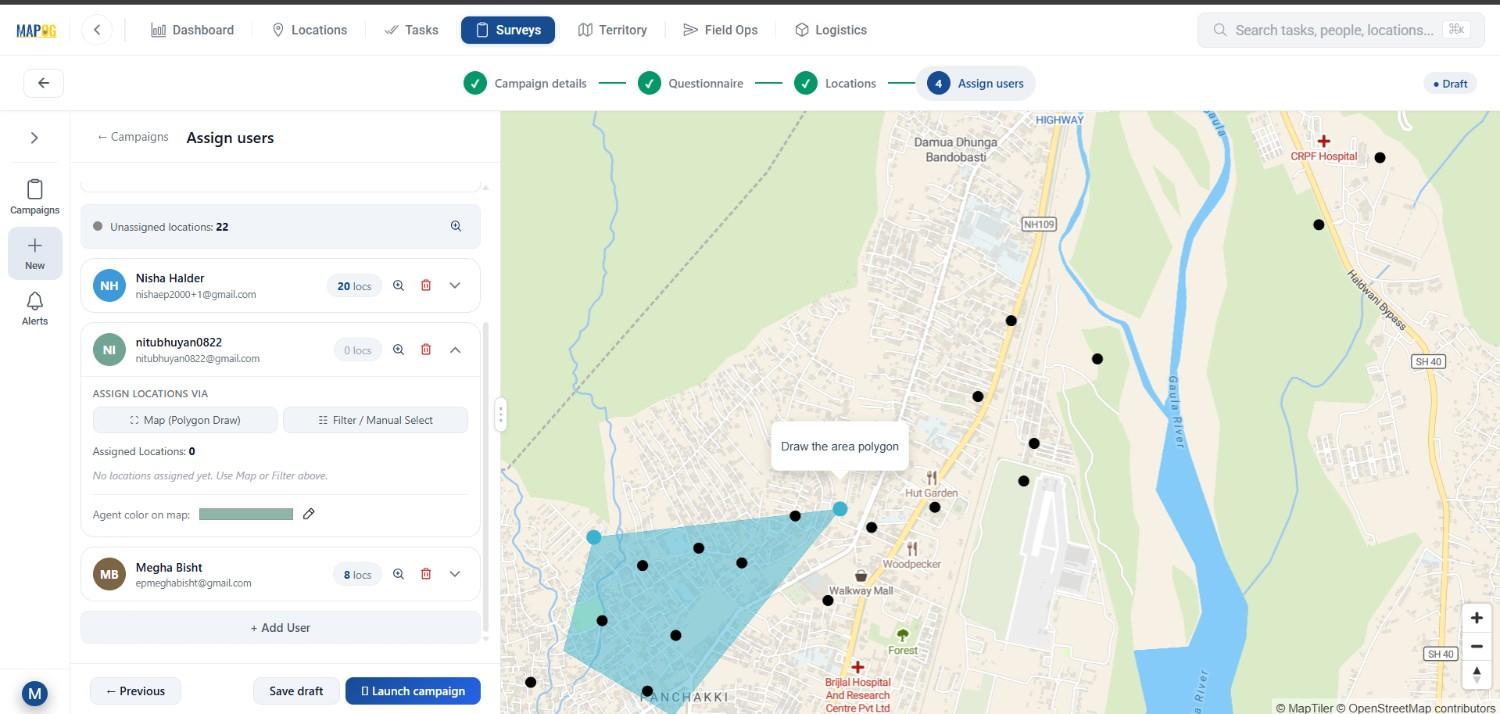
Additionally, filters help organize institutions based on category, survey status, or assigned user. As a result, field coordination becomes much easier during large-scale operations.
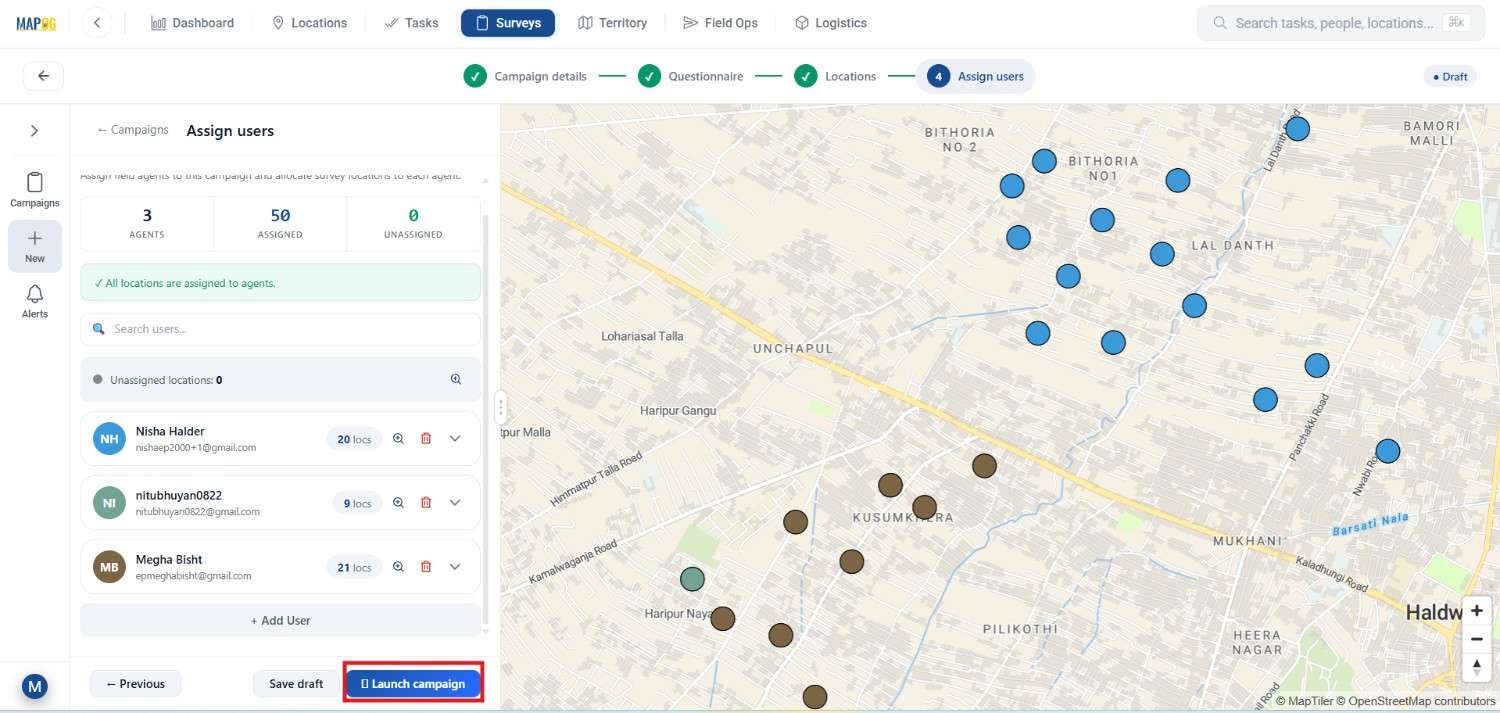
Finally, launch the campaign so contributors can access assigned tasks directly through the mobile application.
Step 5: Conduct Field Surveys Through the Mobile App
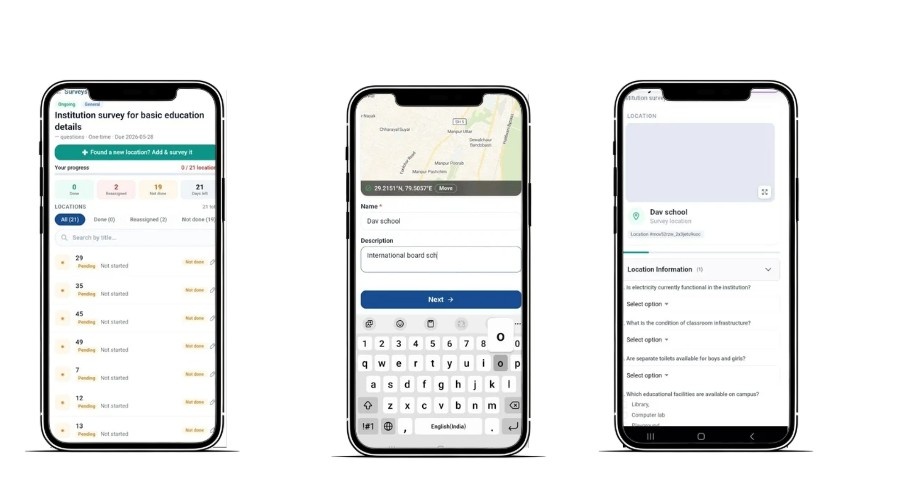
Field contributors can open the MAPOG Contributor app and access assigned institutions directly from the map.
While visiting locations, users can verify details, upload photographs, update records, and submit observations instantly. If a new institution is found, contributors can also create a new point directly on the map by clicking found a new location then add point in the map and name the point.
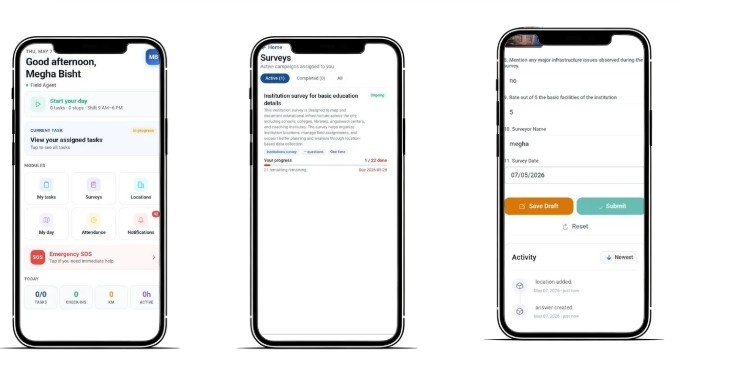
Meanwhile, office teams can monitor progress in real time. Therefore, delays reduce significantly and survey tracking becomes more transparent. You can gather all data related to survey & draft it or submit it.
Step 6: Review and Export Survey Data
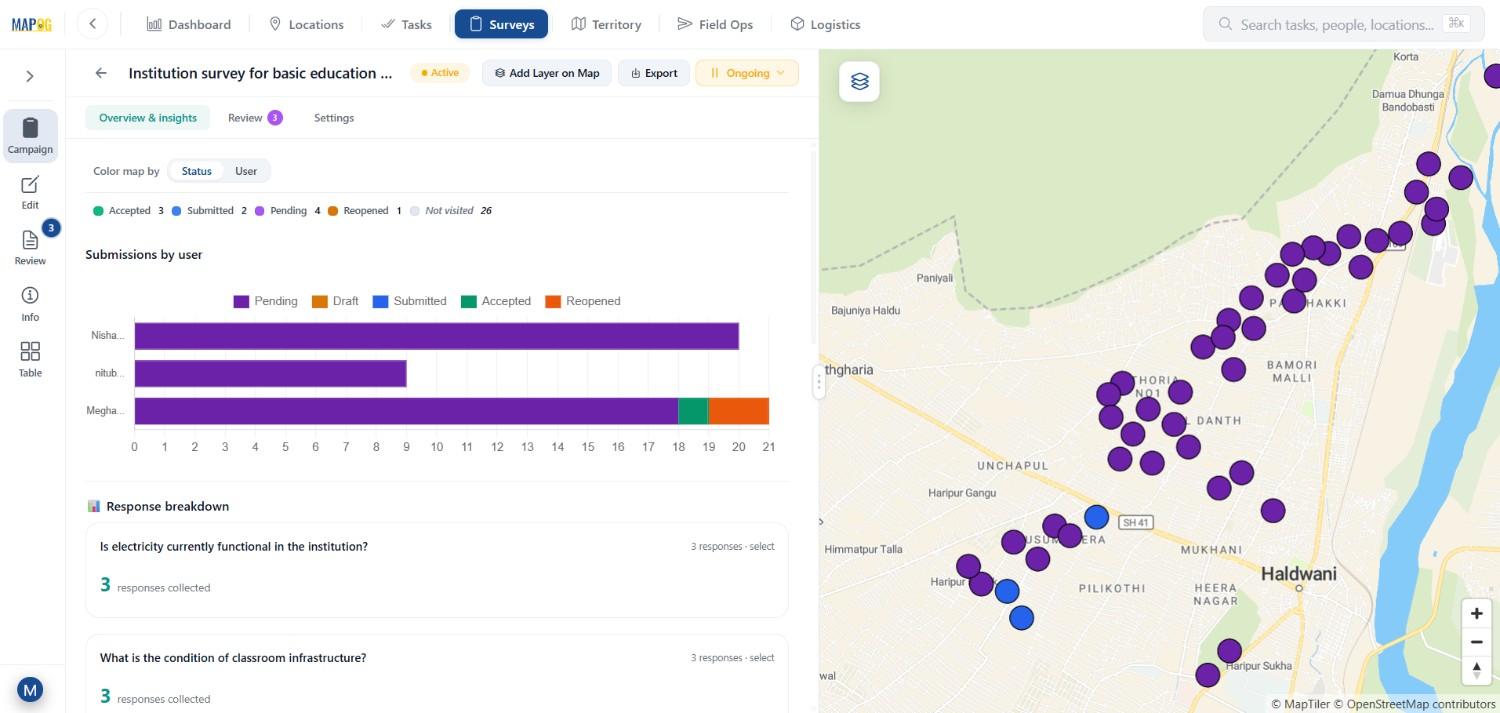
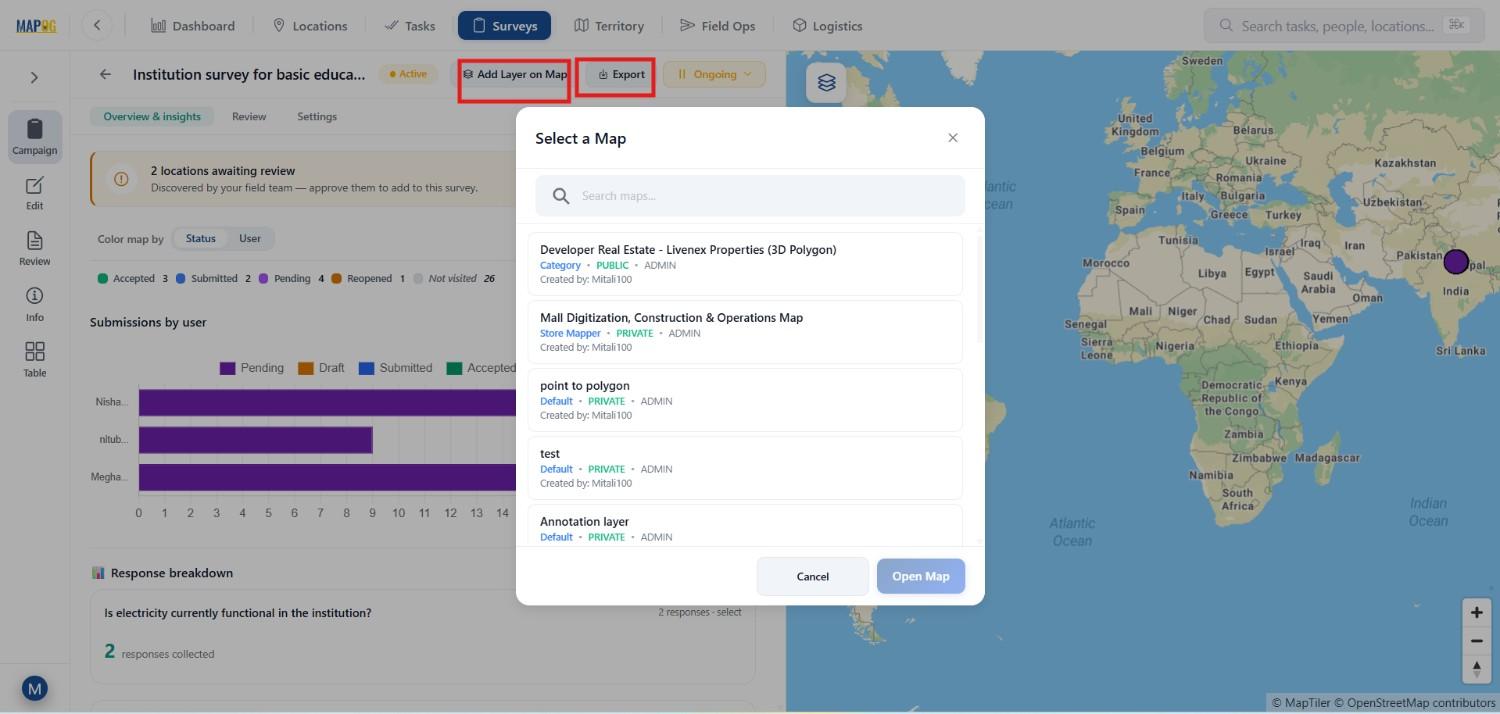
After submissions are completed, managers can review records through overview & insights to visualize by status or assignee.
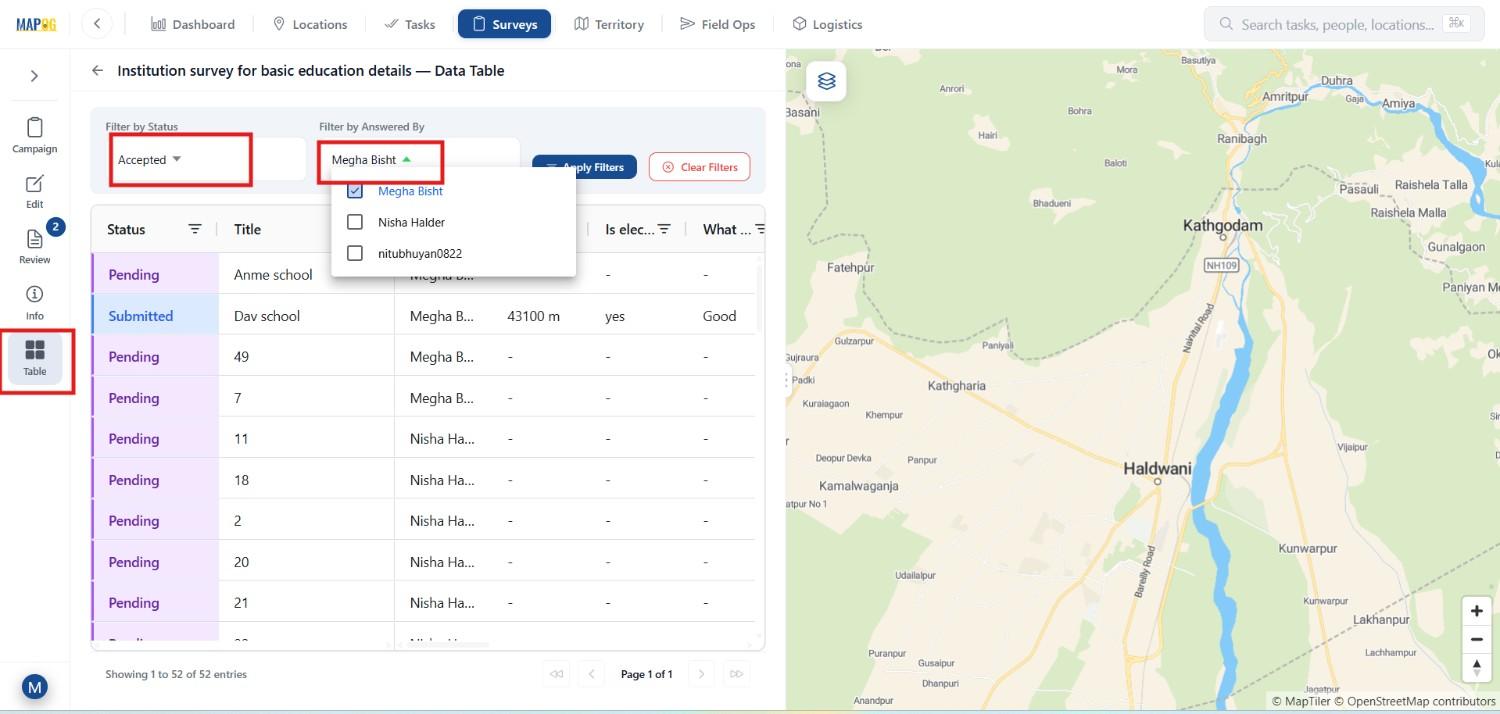
Additionally, in table tool filters help check submissions by contributor, category, or completion status.
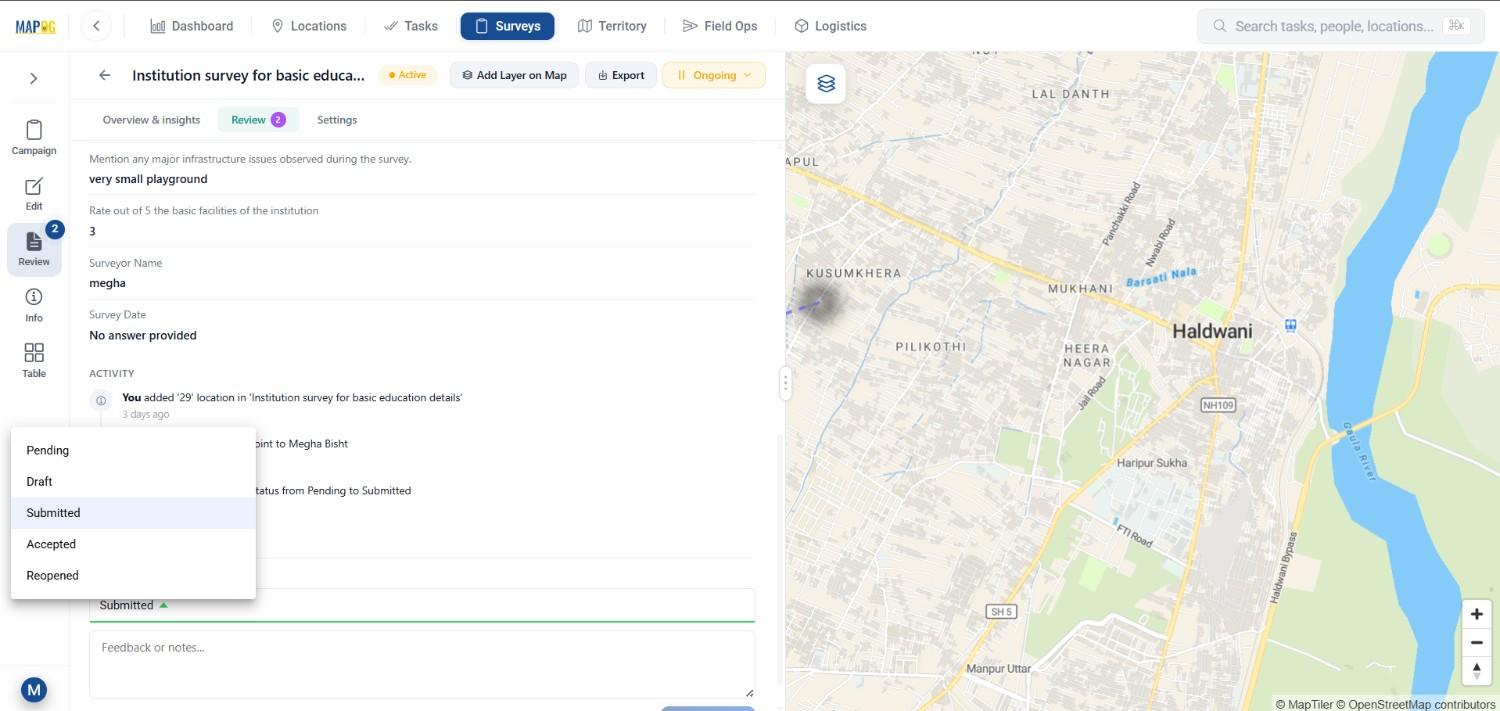
Reviewers can also verify uploaded photos, add feedback, and approve records.
Finally, the dataset can be exported for reporting .
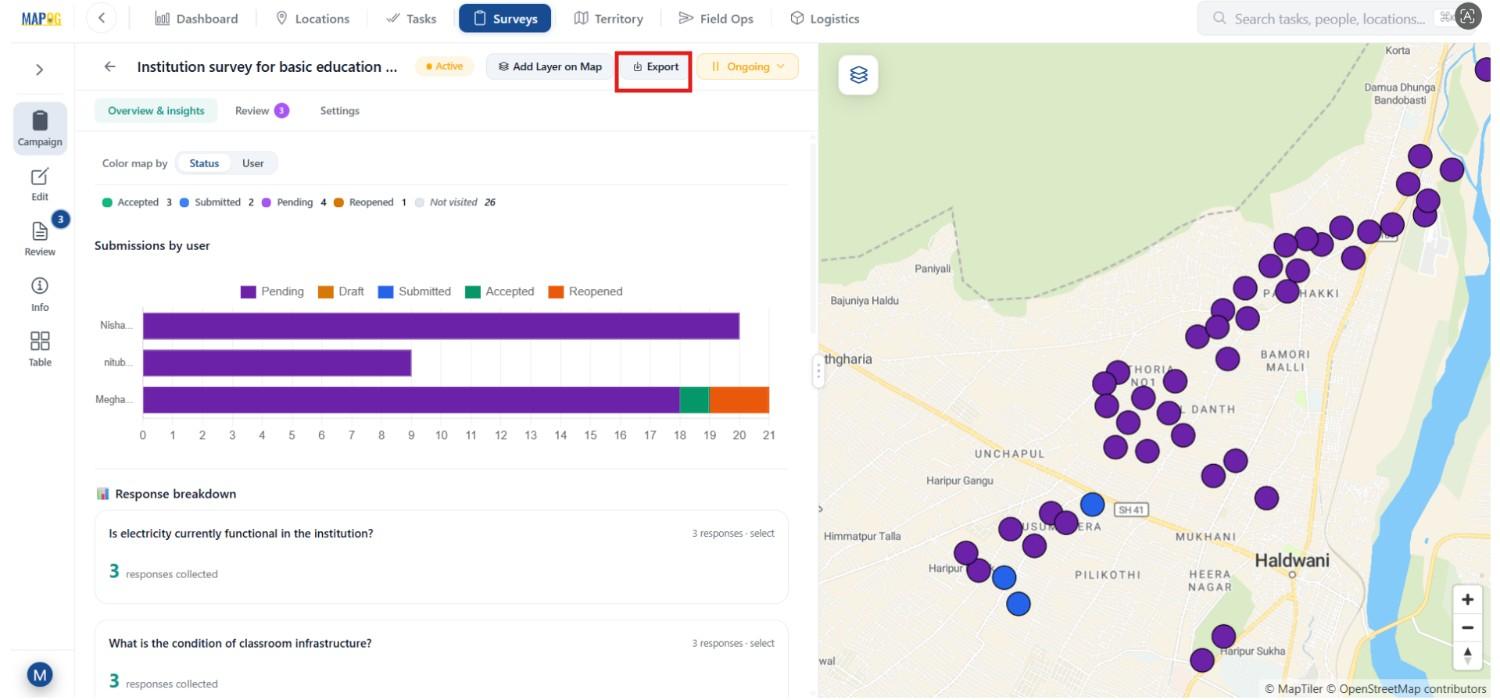
or added as a GIS layer for future analysis and planning.
Industry & benefits
- Used in education, healthcare, NGO, and government survey projects for schools, colleges, Anganwadi centers, and public facilities.
- Improves field coordination, reduces duplicate records, enables real-time tracking, simplifies verification, and helps teams manage large-scale surveys more efficiently.
Conclusion
Managing large-scale institutional surveys manually often creates confusion, delays, and inaccurate reporting. However, location-based mapping tools simplify the entire workflow by connecting institution records, field assignments, mobile surveys, and live maps into one system.
Using GIS-powered surveys by MAPOG Survey and MAPOG Contributor, organizations can efficiently manage surveys for schools, colleges, Anganwadi centers, and other institutions while improving accuracy, coordination, and decision-making.
Download the contributor app from here: