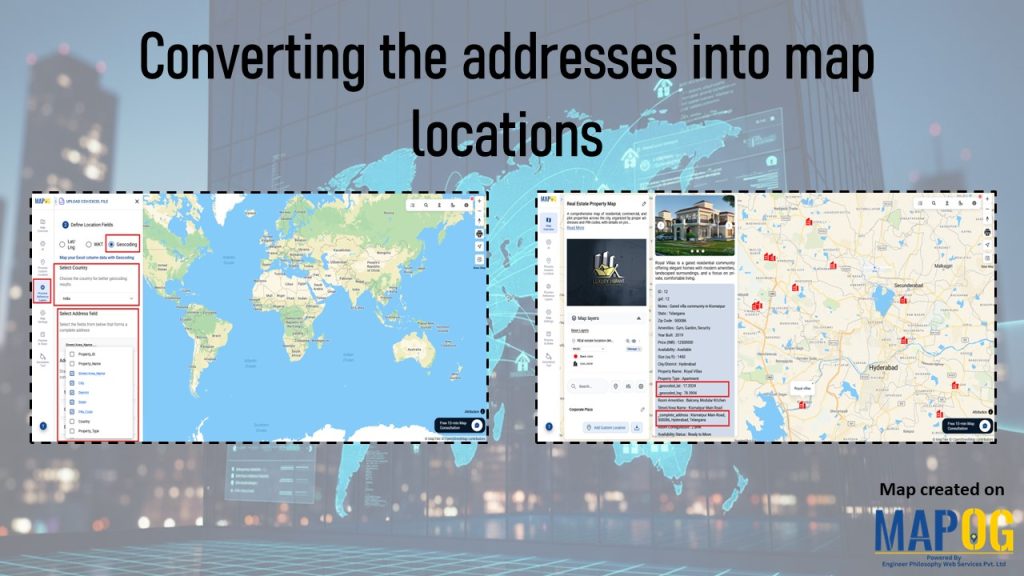
In the real estate industry, managing multiple site addresses across districts or states may seem straightforward at first. However, developers often face spelling variations, incomplete details, duplicate entries, and repeated street names. As a result, towns with identical names or missing information leave locations ambiguous. Without proper coordinates, sites risk being misplaced or duplicated. While geocoding tools can assist, they usually demand GIS knowledge or technical skills to configure correctly, which makes them difficult for non‑specialists. Therefore, converting addresses into map locations is essential to ensure accuracy and avoid delays. MAPOG provides a guided, no‑code solution that transforms messy address lists into precise map points.
Key Concept: Why Converting the Addresses in to Map Matters
Steps for Converting the Addresses into Map Locations
Let’s see how the real estate industry can show addresses into map locations.
1. Create a New Map
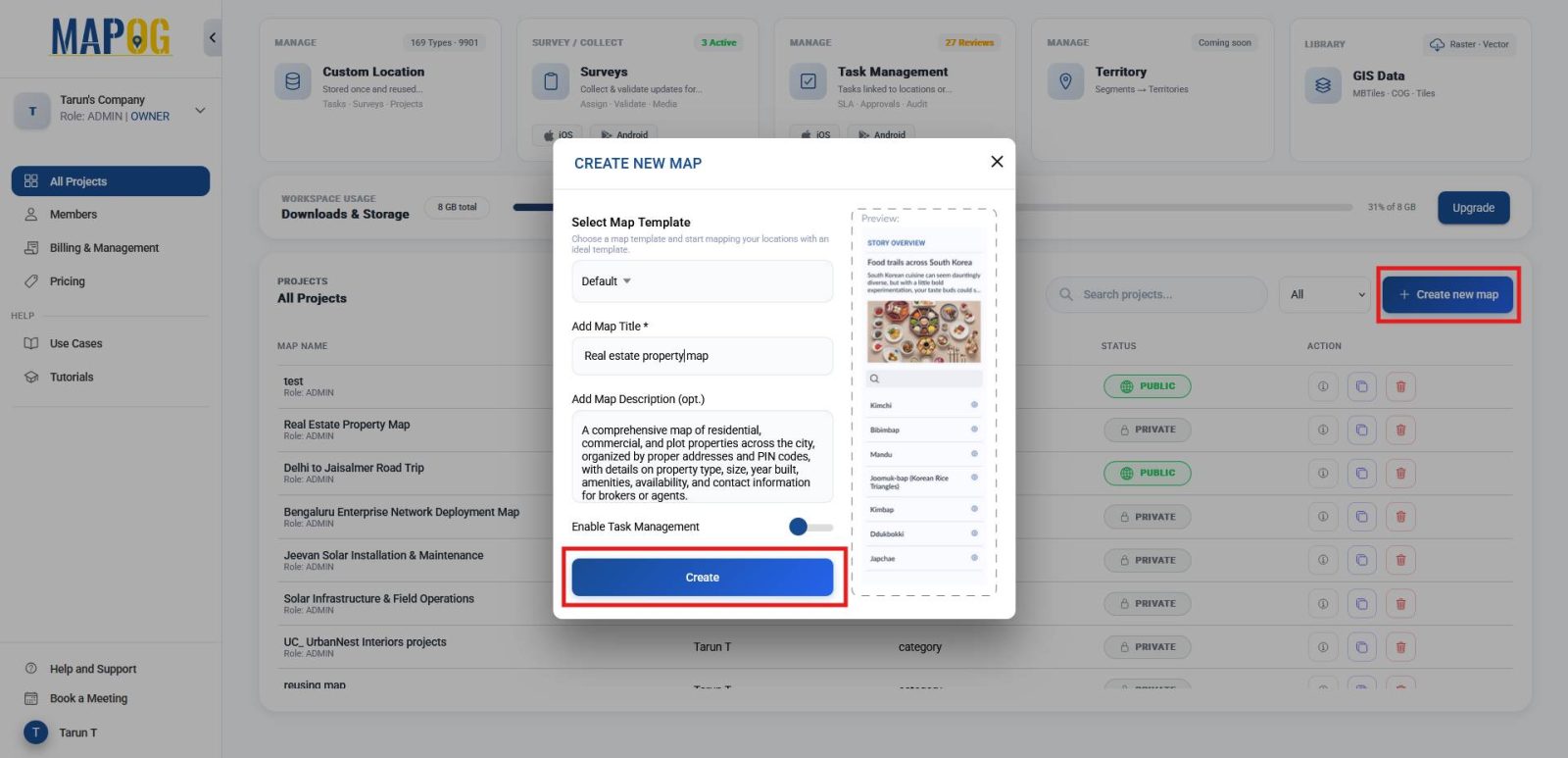
To start building the map structure, go to MAPOG and click on Create New Map. Then give your map a title and description that reflects its purpose, and click create to establish the foundation for your project.
2. Upload Your Dataset
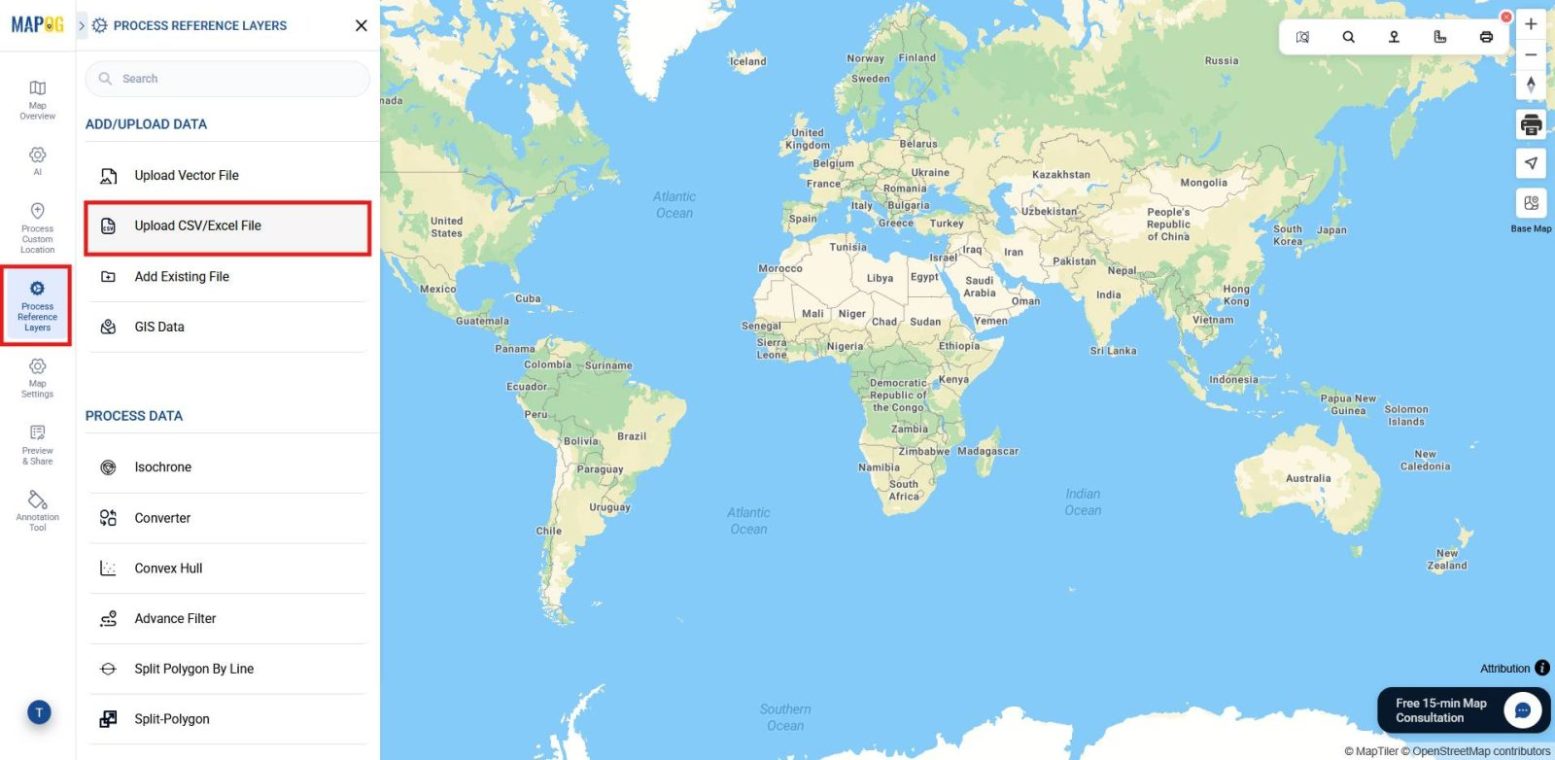
Next, move to the Process Reference Layer section and choose the option Upload CSV/Excel File in order to import bulk address data directly from spreadsheets and prepare them for mapping.
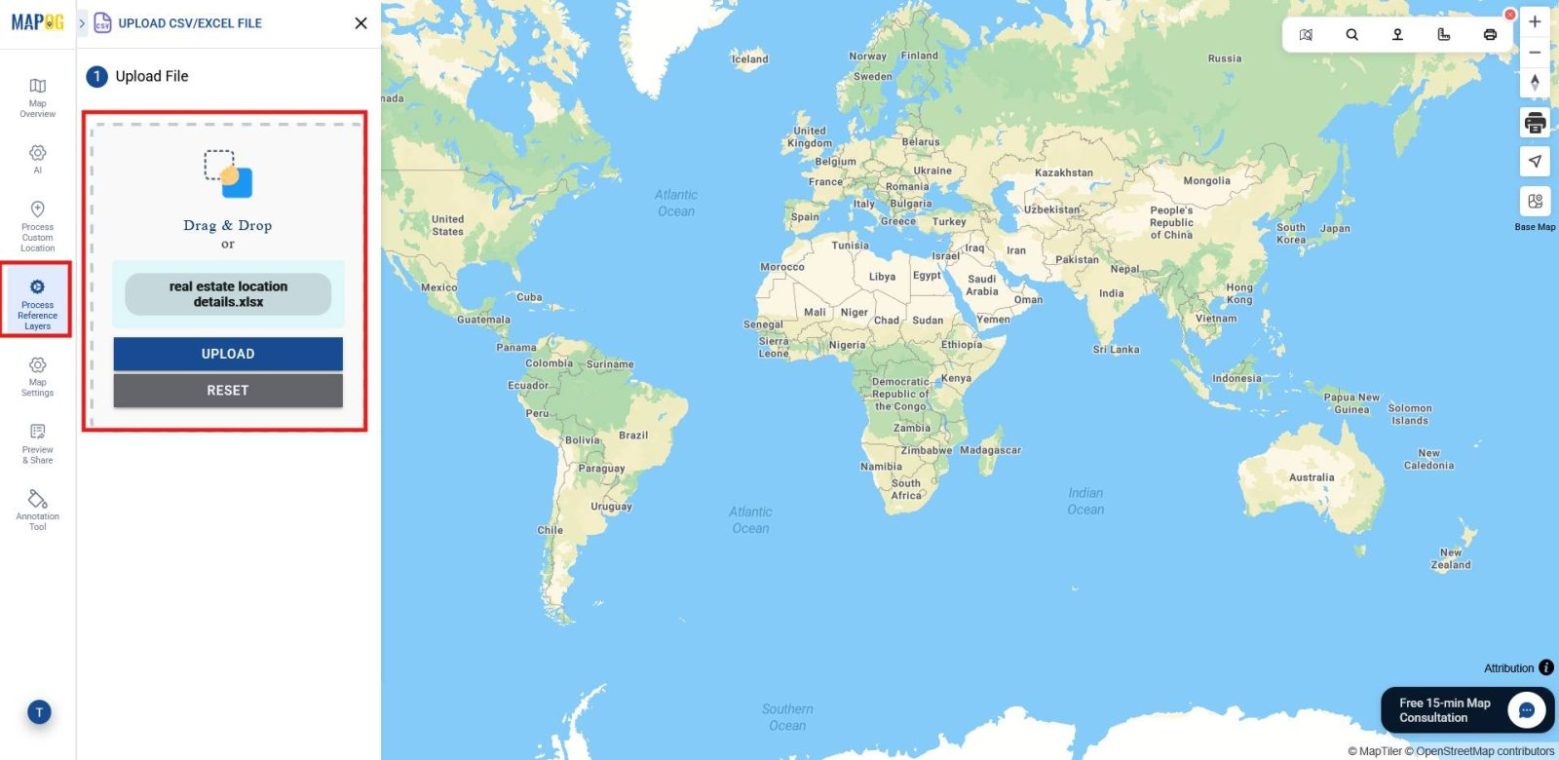
Browse and upload your dataset, ensuring it contains proper location details such as street name, zip code, district, state, country, and other. This ensures the platform has accurate inputs to work with.
3. Geocode the Addresses
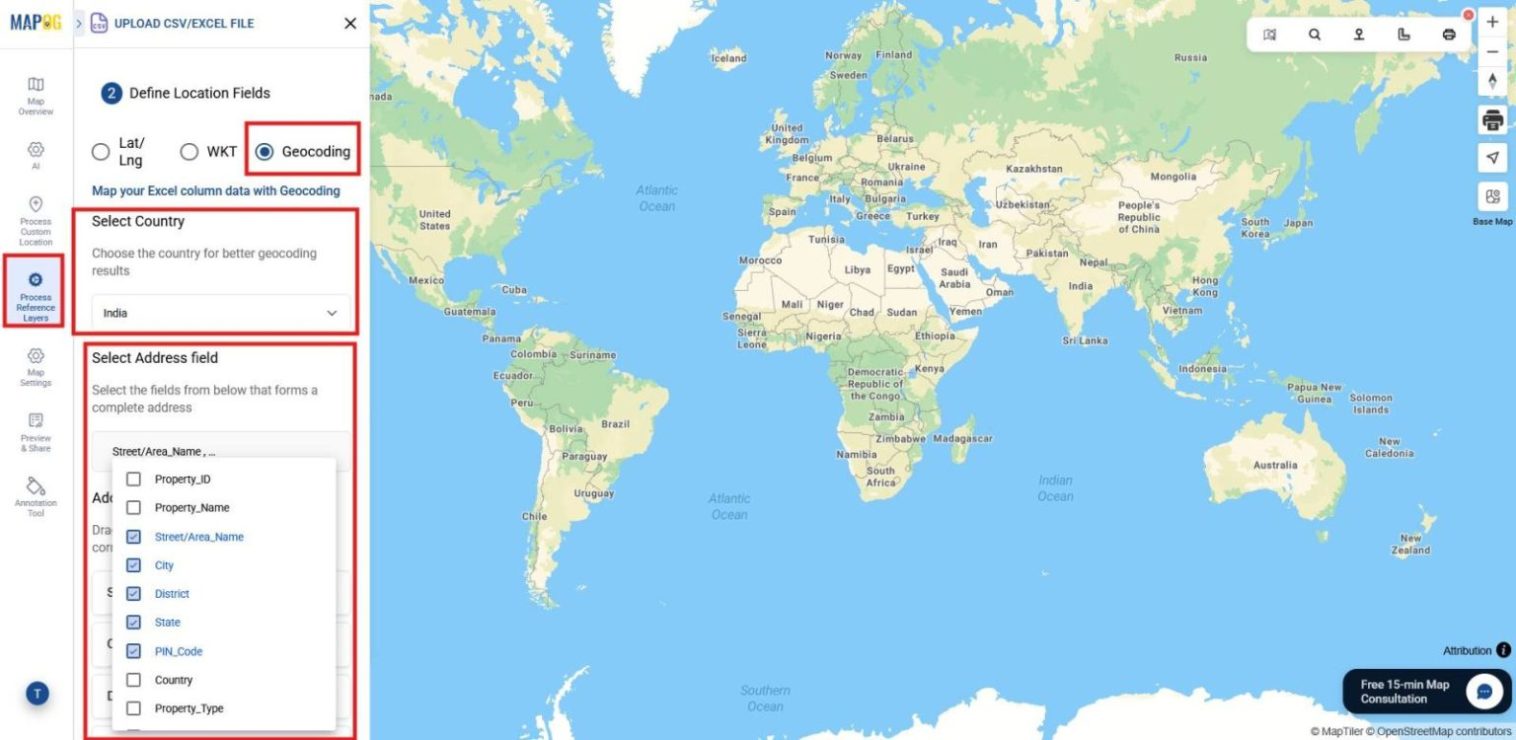
After uploading, select the Geocoding option to automatically locate your addresses on the map without needing coordinates. Choose the country where your locations are from the country list, then select the address fields from the dropdown (street name, zip code, district, country).
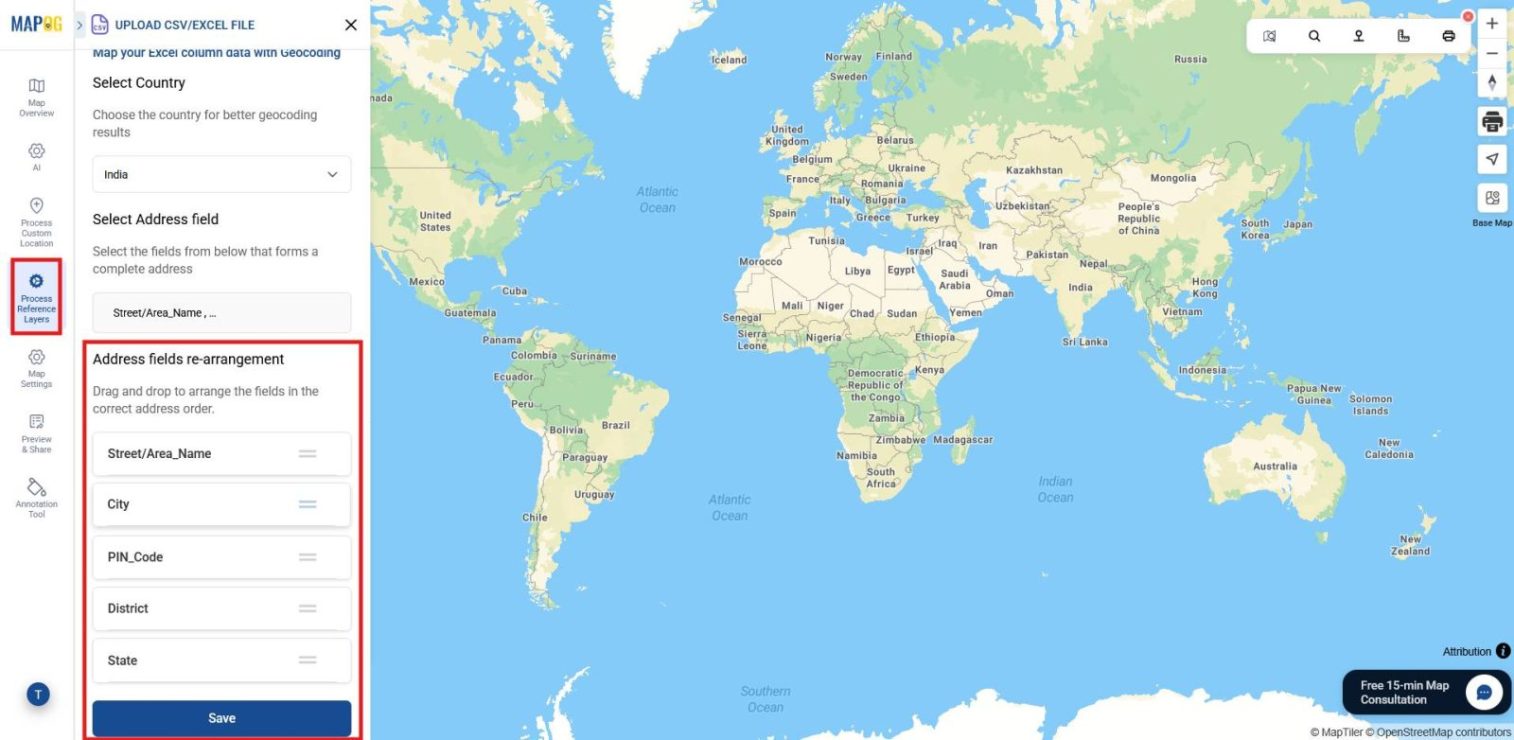
You can rearrange the order of these fields for accuracy by dragging them up & down.
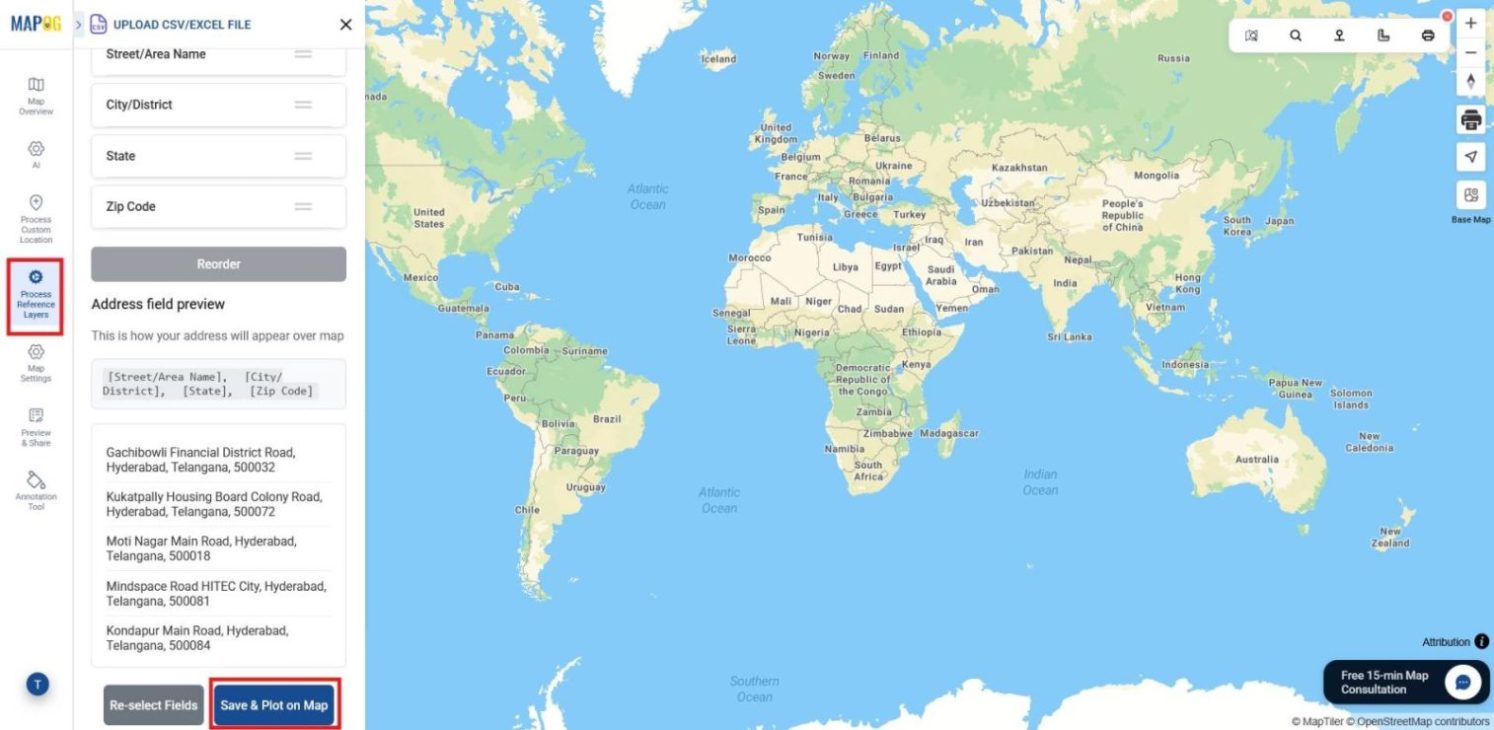
Once arranged click save, check the preview of the complete address. If the arrangements aren’t proper you can re-select the field. If it’s proper then just click Save and Plot on map. Your points will now be visible on the map.
4. Review and Download Data
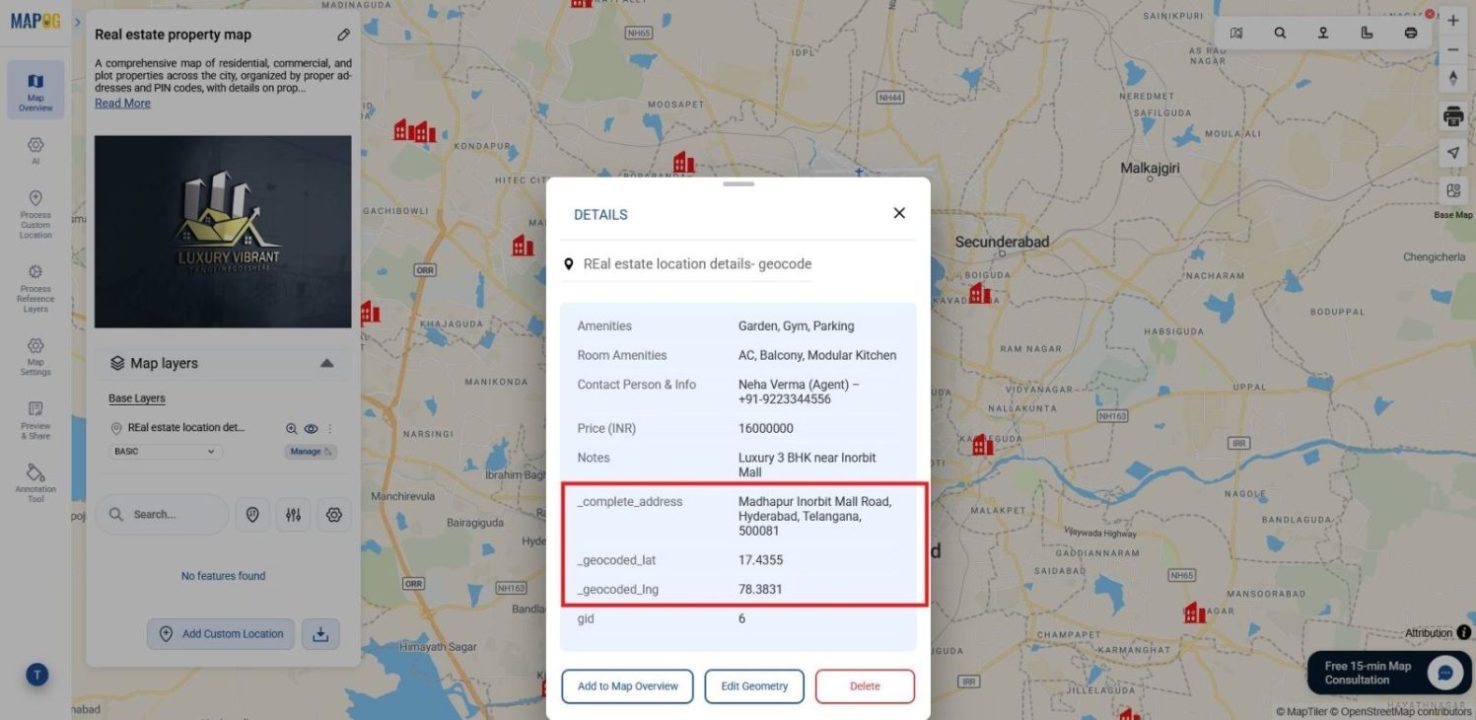
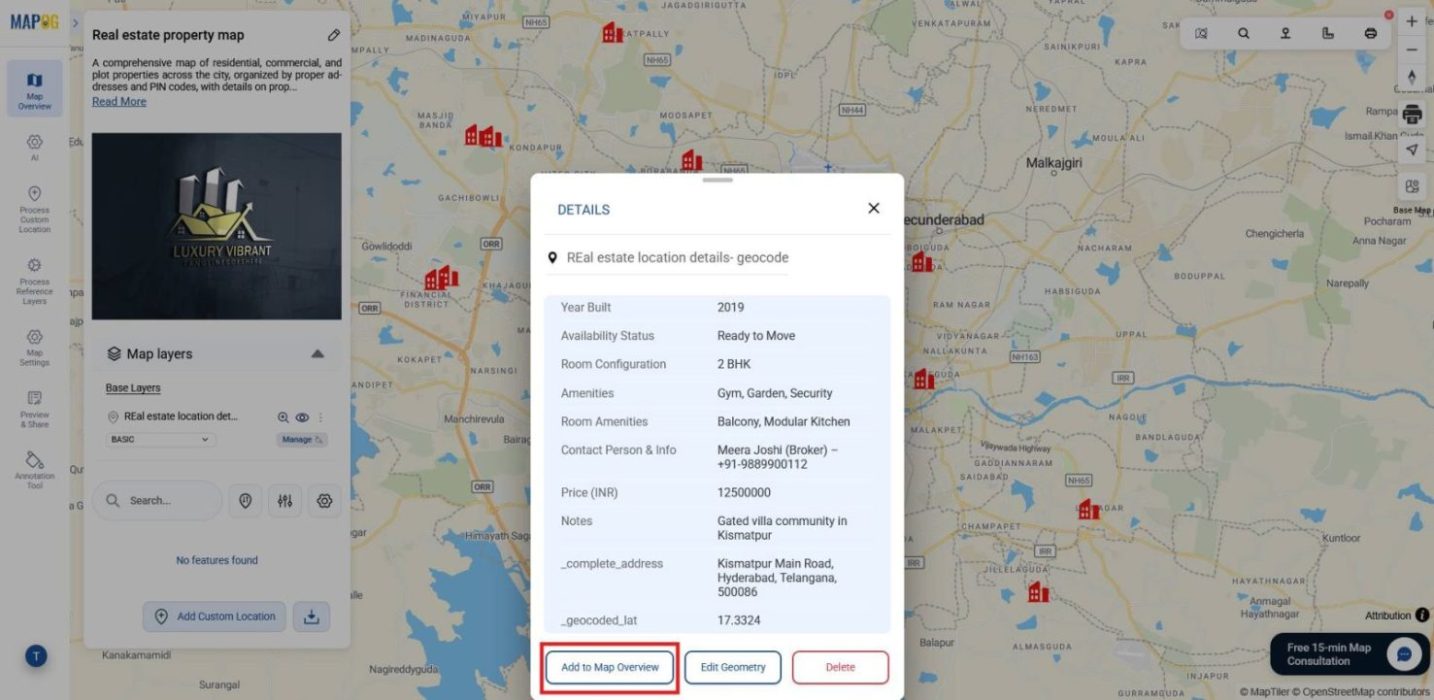
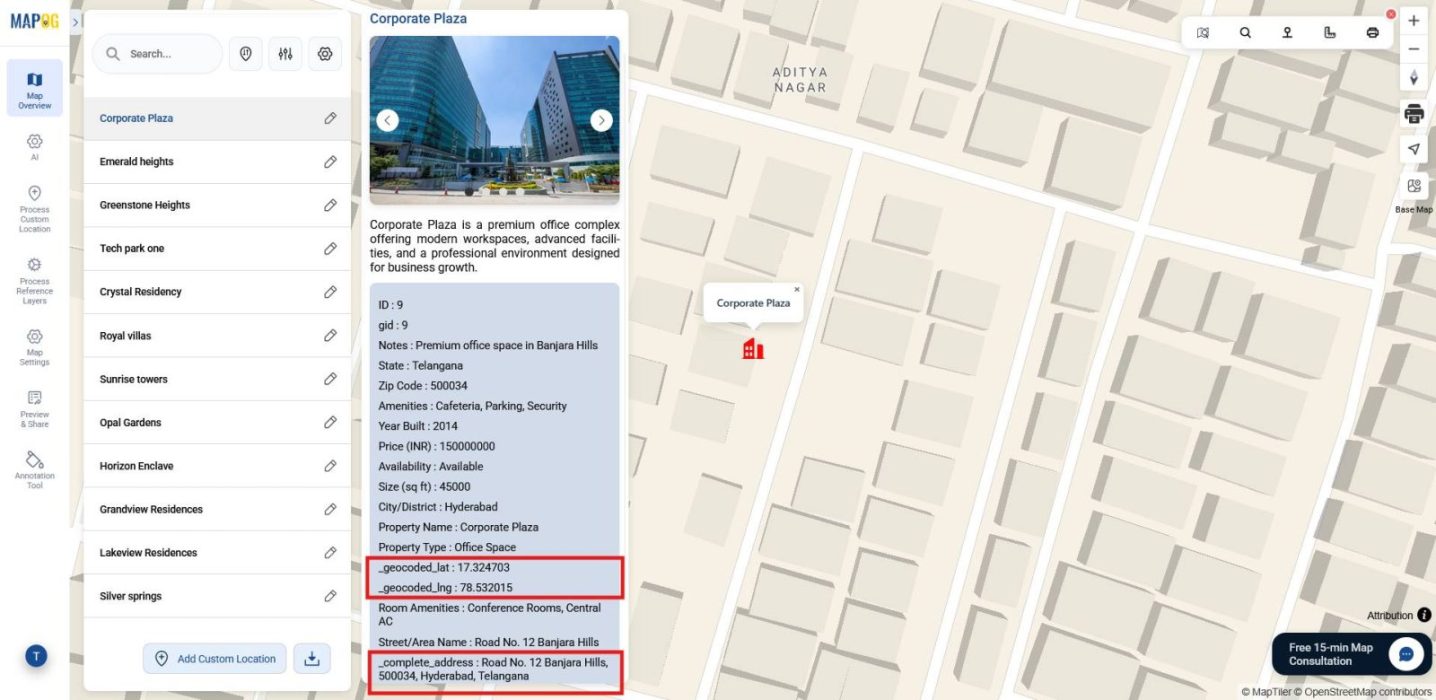
Now, check the data fields of your locations by clicking on any point. A pop‑up will display all the information along with the geocoded latitude, longitude, and complete address.
If you want to keep a copy of your mapped dataset, go to Map Layers, click Show Datatable,
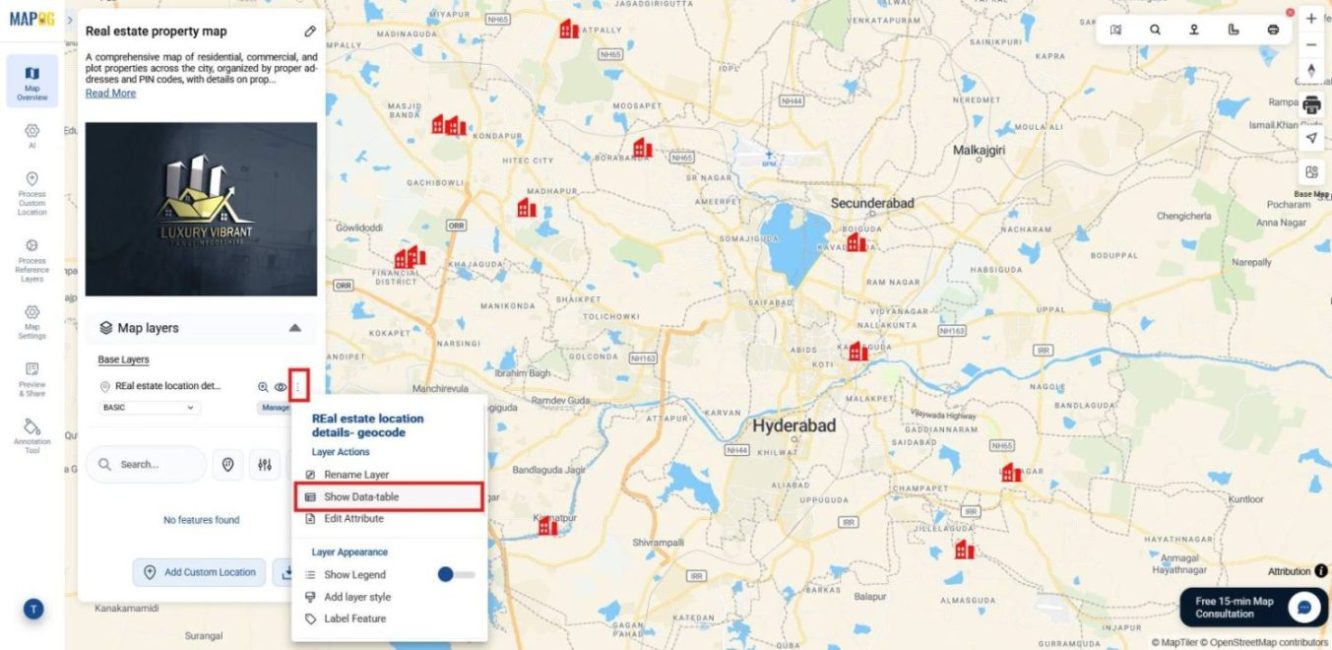
and then select Download Table. This provides a CSV file with all your mapped data and coordinates, ensuring you have a reliable backup for records or further analysis.
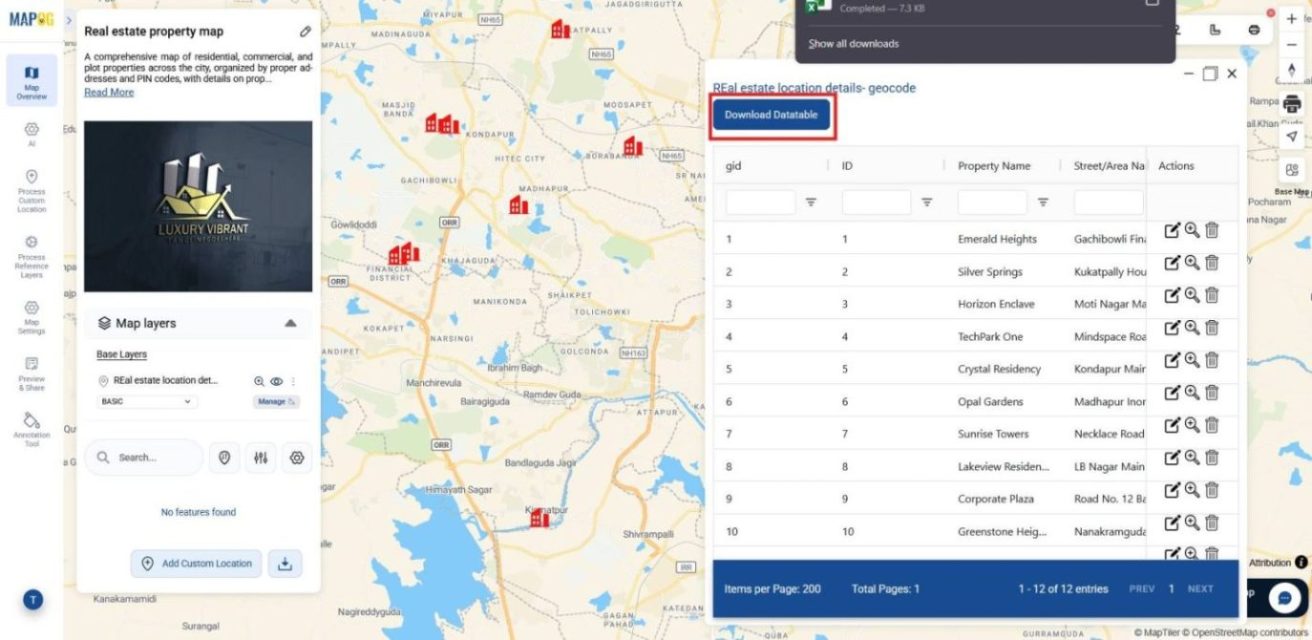
5. Add Images and Customize Details
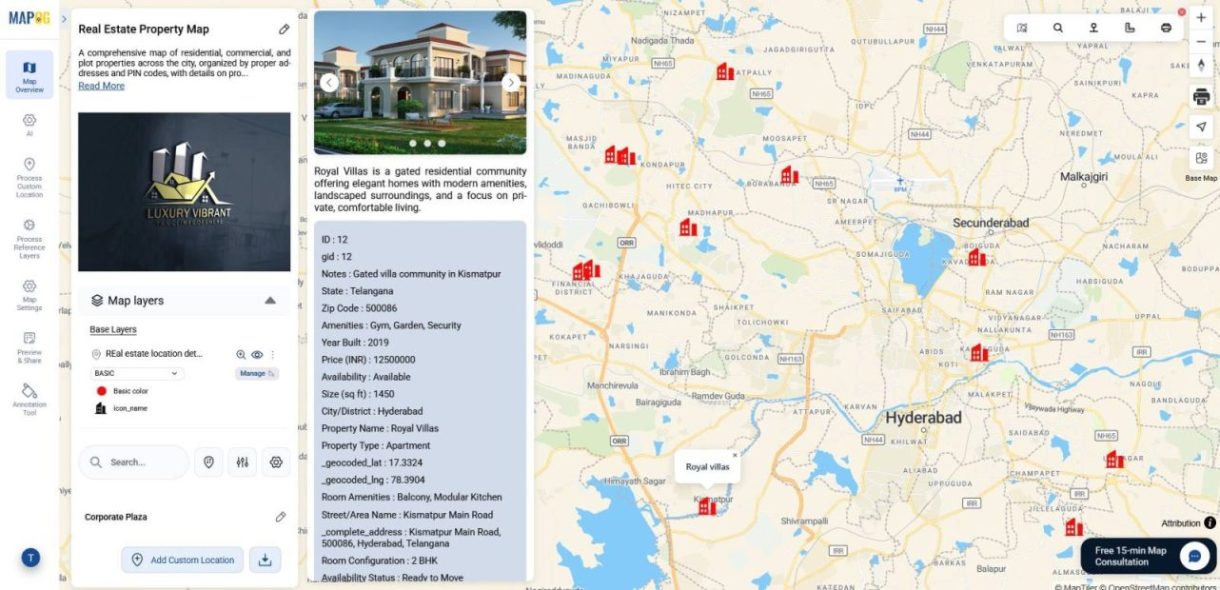
Finally, to enrich your map visually, click on a location point and choose Add to Map Overview. Your points will appear in the overview section.
Click the pencil icon and then choose edit custom location details,
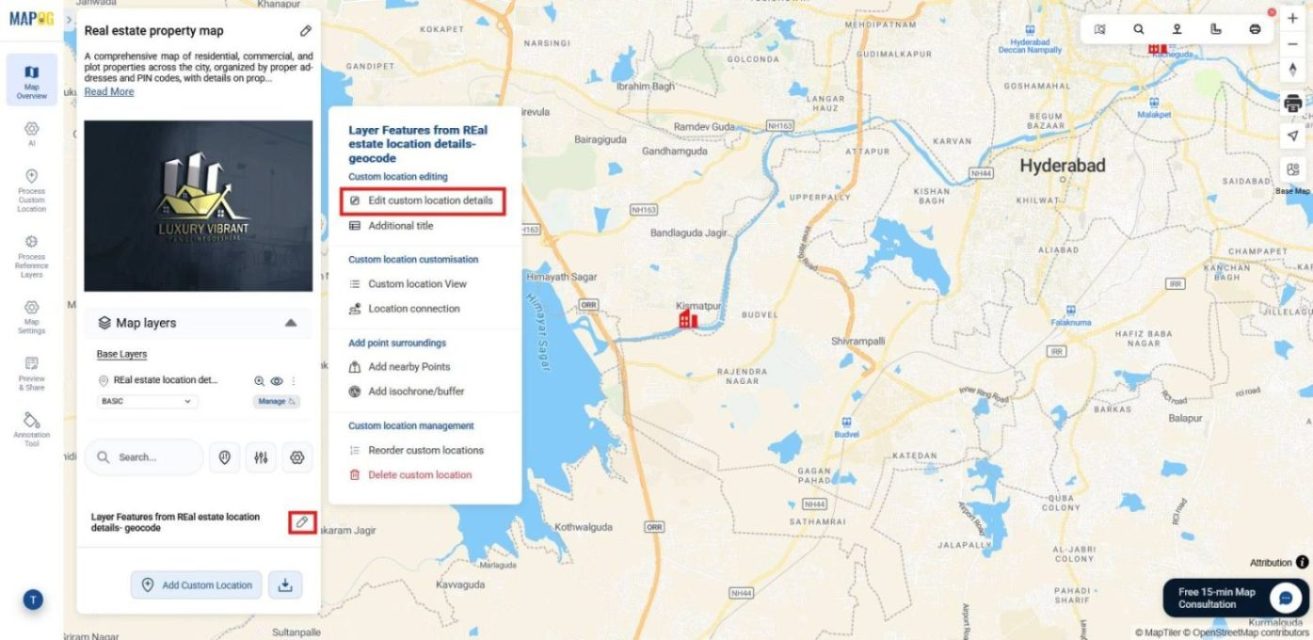
here you can add a title, description, and images of the site.
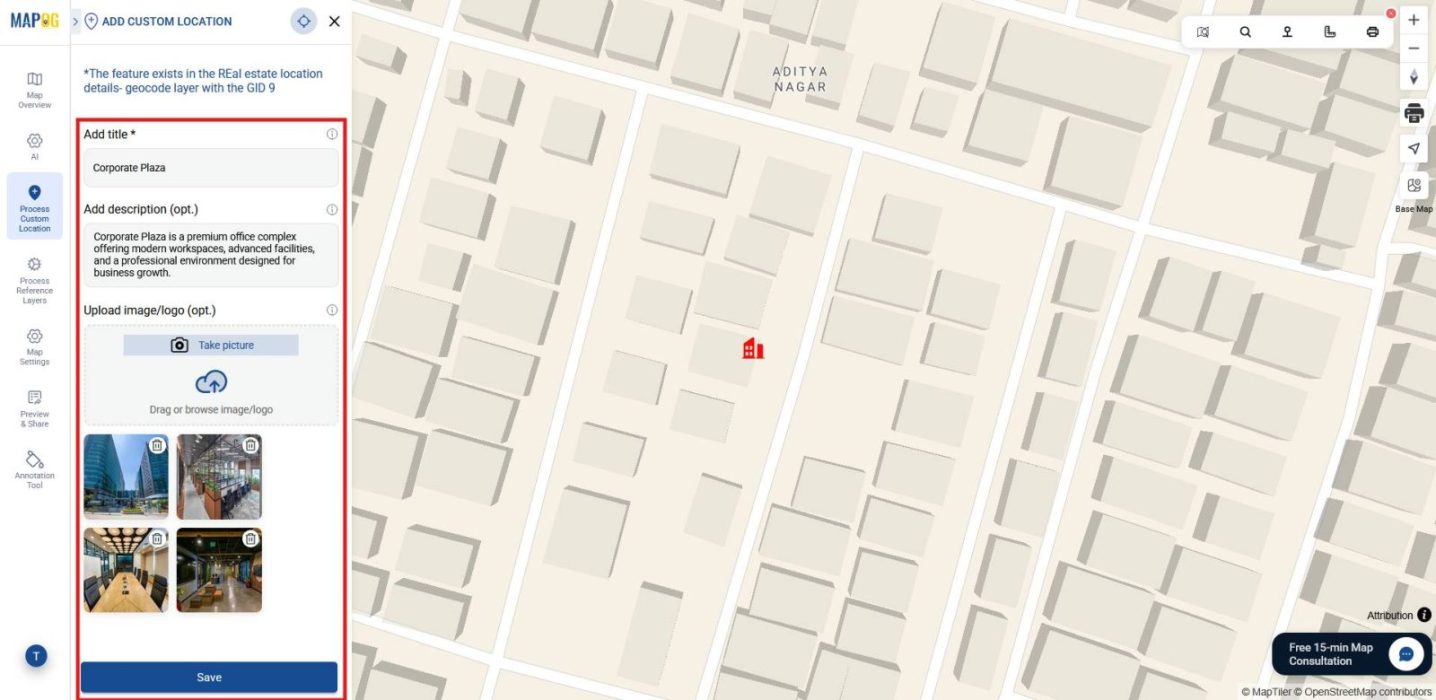
After saving, when you click on the point in the overview section, you’ll see all the location details along with the images, making your map more engaging and informative.
Industrial Use and Benefits
Converting addresses into map coordinates delivers value across industries. Emergency teams can quickly plot shelters or affected villages for faster response. Logistics firms streamline delivery routes by geocoding customer addresses. Urban planners gain clarity by mapping project sites for infrastructure design, while businesses visualize customer locations to uncover market opportunities. By removing technical barriers, this process saves time and ensures accuracy across diverse sectors.
Conclusion
In the end, converting addresses into map coordinates doesn’t have to be a challenge reserved for specialists. Instead, MAPOG makes the process straightforward and accessible, bridging the gap between raw address lists and reliable spatial data. As a result, projects gain clarity, decisions become smarter, and mapping opens up to everyone, not just technical experts.