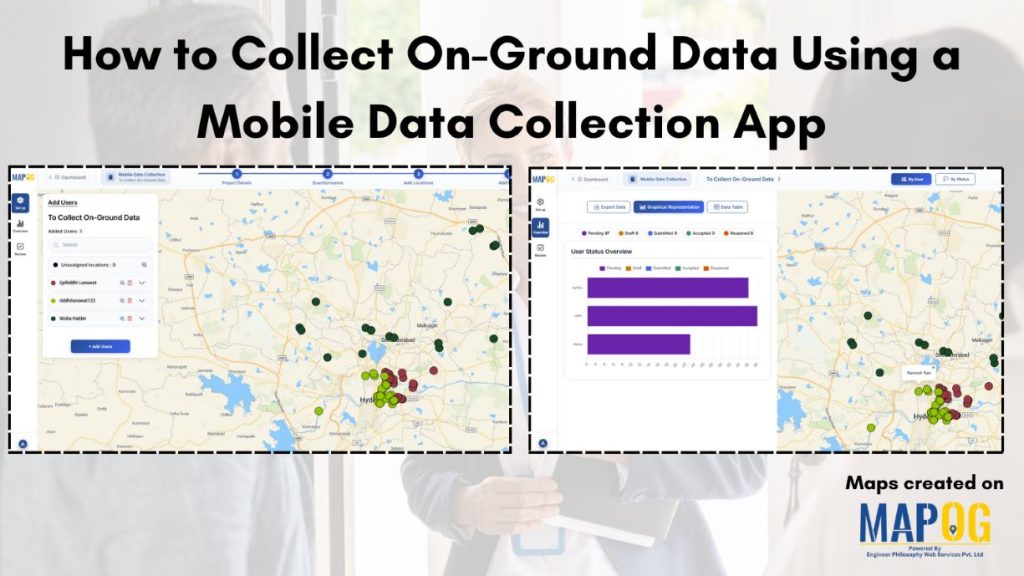
Collecting accurate on-ground data is essential for organizations involved in field surveys, monitoring, inspections and research. Traditional paper-based methods often lead to delays, data loss, and manual errors, limiting timely access to reliable information. Mobile data collection app provides an efficient alternative by enabling real-time data capture, centralized form management, task assignment, and location tracking from the field. MAPOG is one such platform that supports these capabilities, helping improve data quality, coordination, and accountability across field operation
Key Concept of the map
Collecting on-ground data using a mobile data collection app involves capturing field information digitally in real time through smartphones or tablets. The process focuses on using structured digital forms, GPS tagging and validation rules to ensure accurate, location specific, and reliable data that can be instantly reviewed and analyzed from a centralized system.
Step-by-step method of creating the map
Step 1 : Create the map
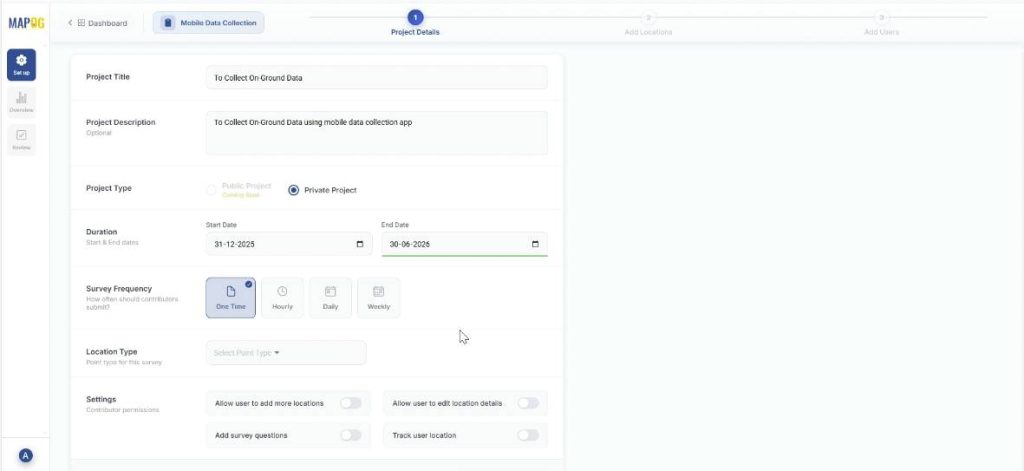
Go to MAPOG, select ‘Surveys‘ and you’ll be directed to the mobile data collection dashboard, then press ‘Create new’. Add project title and description and other basic details like duration, survey frequency.
Step 2: Create new custom location template
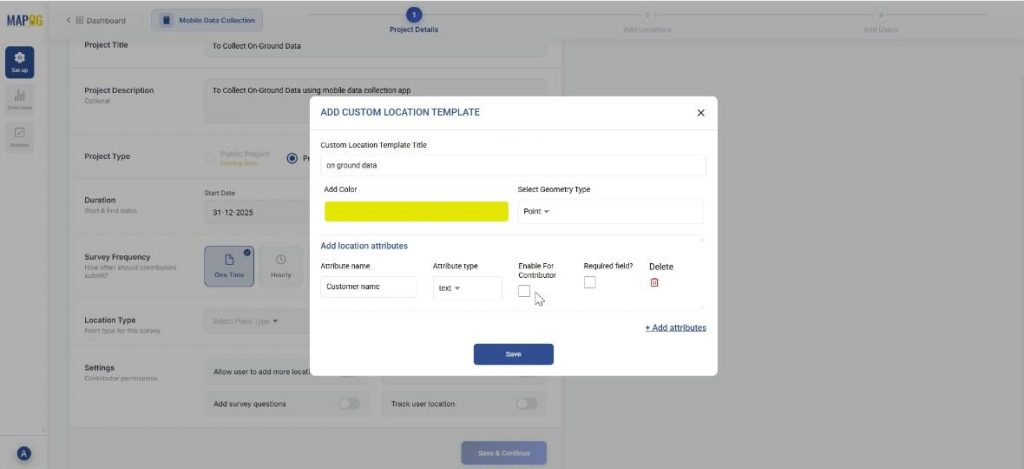
Go to ‘Select Point Type’ and create a new custom location template. Add title, color and select geometry type as point. Further, add the necessary attributes like customer name, address, etc. and save. Finally, choose this Location Type and proceed to the next step
Step 3: Adding a Questionnaire
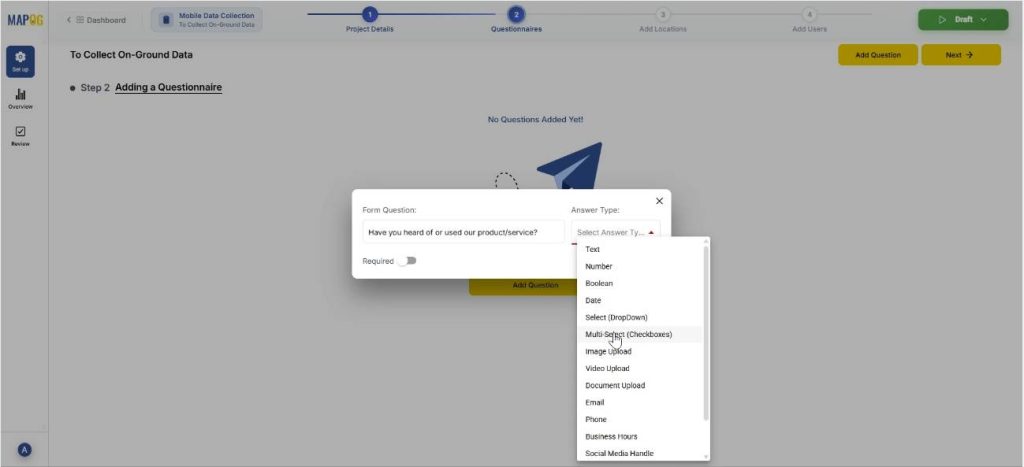
Add all the questions that seem relevant to the survey and add them one by one using the “add question” option. The questions can have different answer types like text, multiselect or select. For example, you can add a question like, ‘Have you heard of / used our products before?’ and put options like, ‘Yes’, ‘No’ or ‘Heard but not used’.
Step 3: Add New Customer Locations
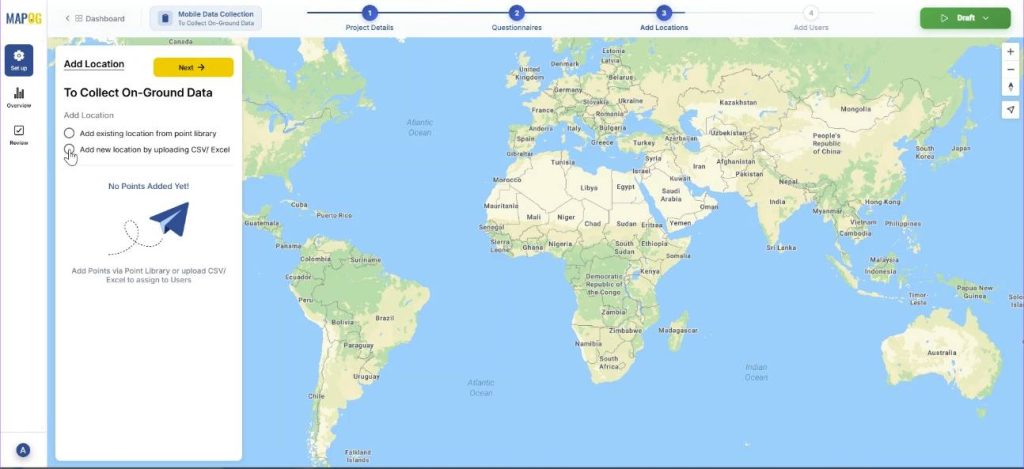
Now, in step 3, select ‘Add new location by uploading CSV/ Excel.’ The point type is already selected, just add your csv/excel file.
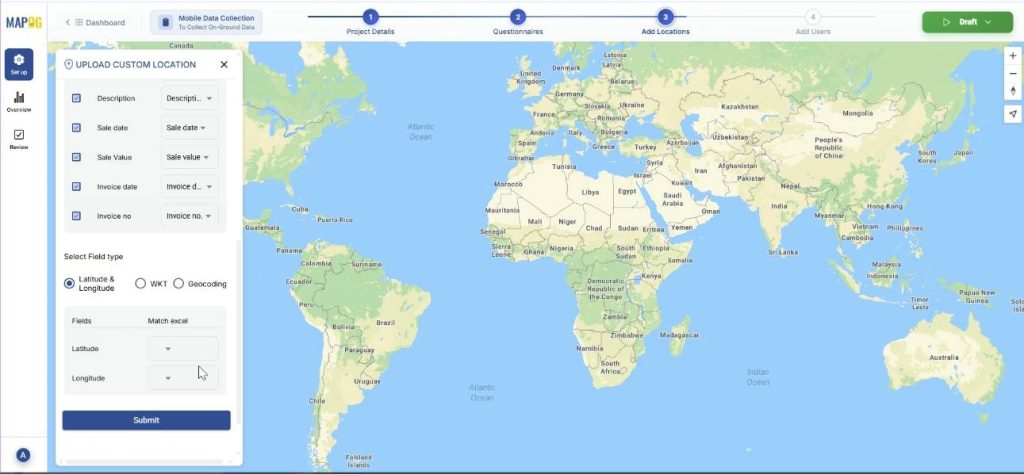
Then, match the excel columns to the attributes and submit. Further, match the coordinates to their excel values. Your data will come alive on the map.
Step 4: Add users
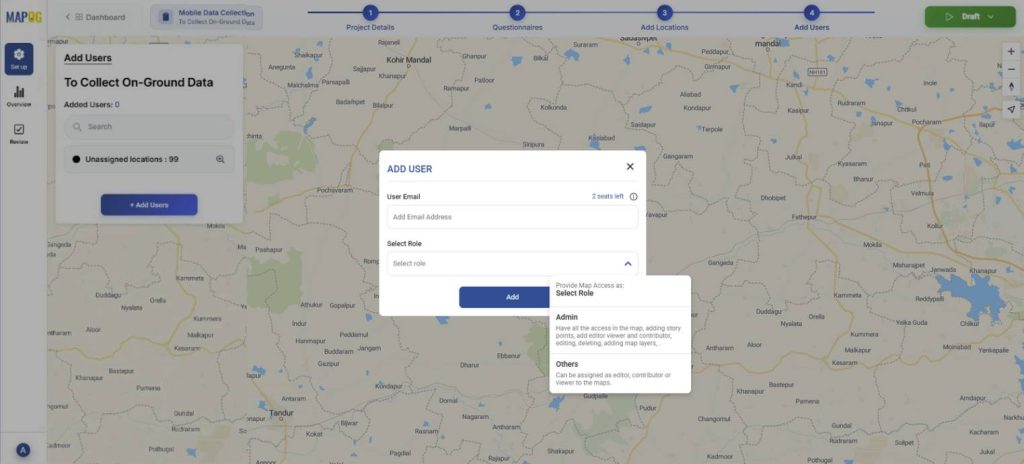
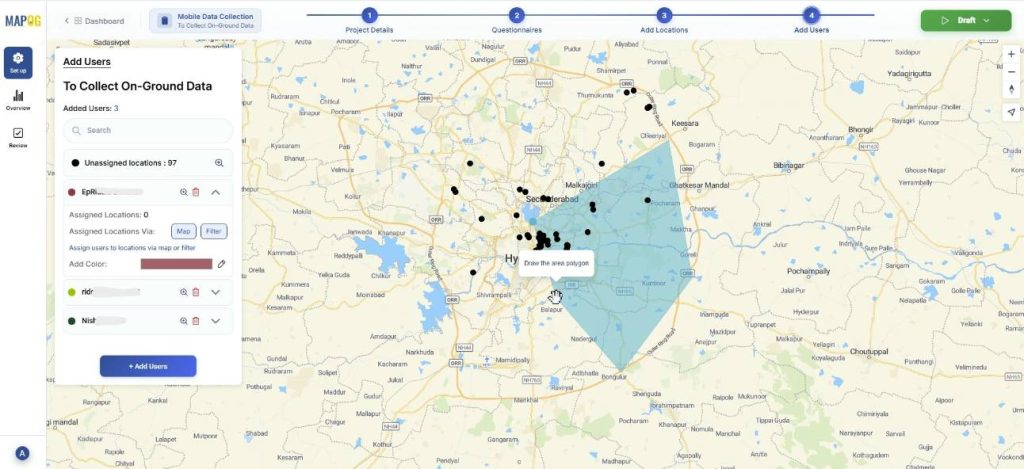
Add assignees for the task using the ‘Add user’ option. You can add new members using the ‘Add Members’ option, adding their email address and choose the role as admin or other users.
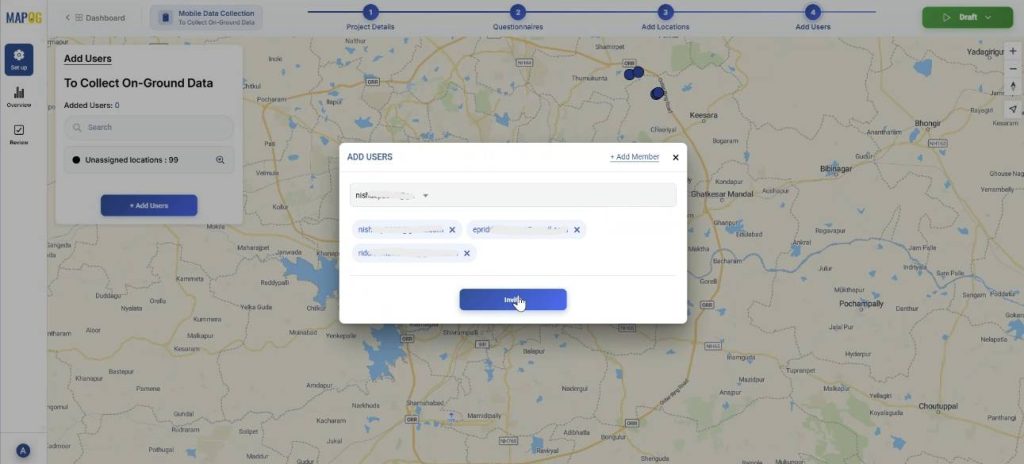
Thereafter, you can select the members and invite them.
Then, assign each user a particular area by selecting the map option and drawing out a polygon for the particular area.
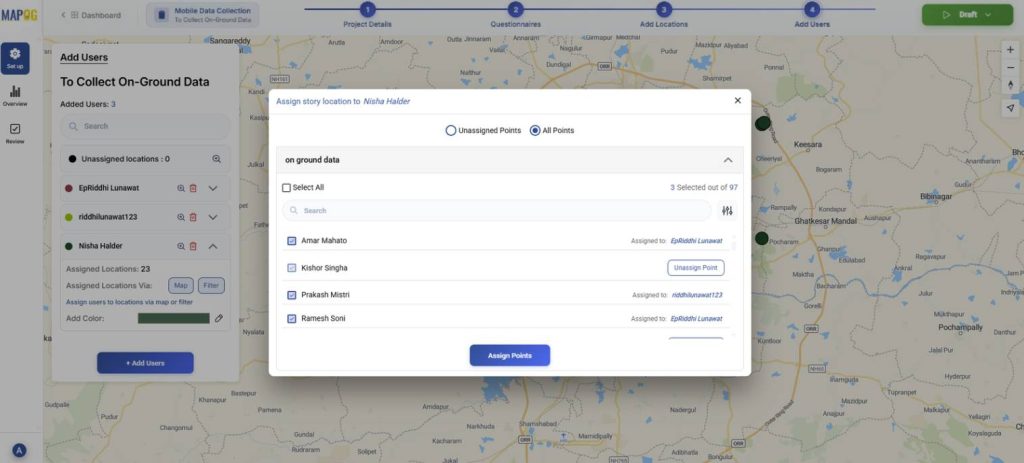
You can use the filter option to assign users from unassigned or all points.
Step 5: Launching the survey
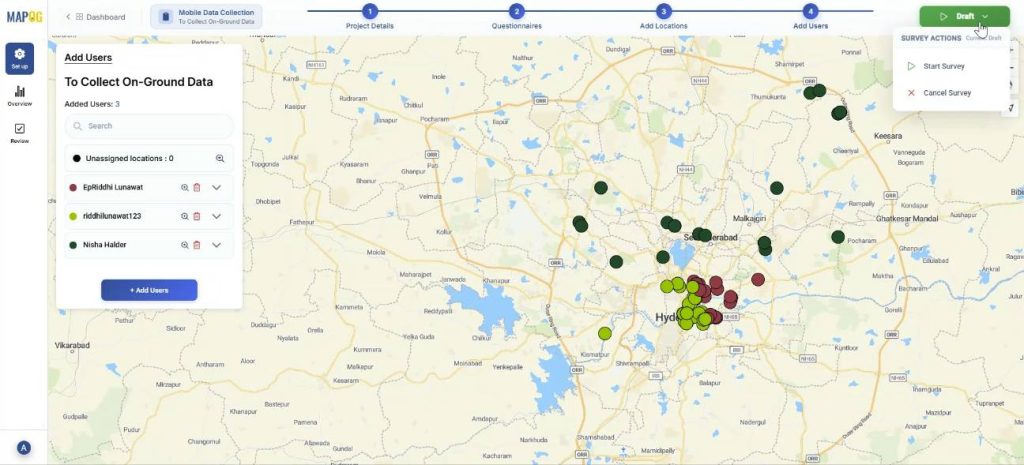
Finally, you can start the survey anytime by pressing on draft in the right corner and clicking on start survey.
Step 6: Mobile data collection
Further, the assigned users can see the locations assigned to them from the MAPOG contributor application in their personal devices.
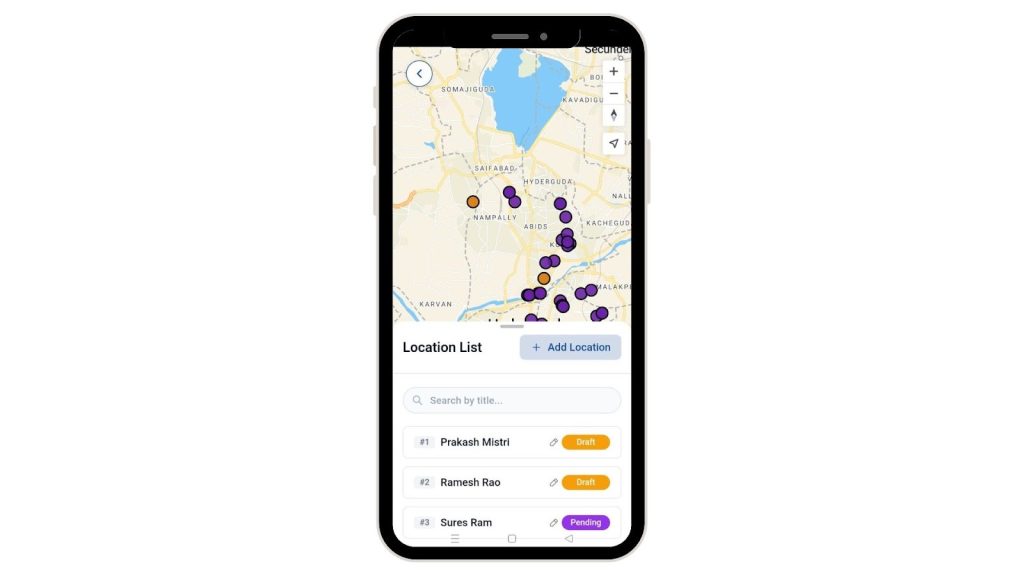
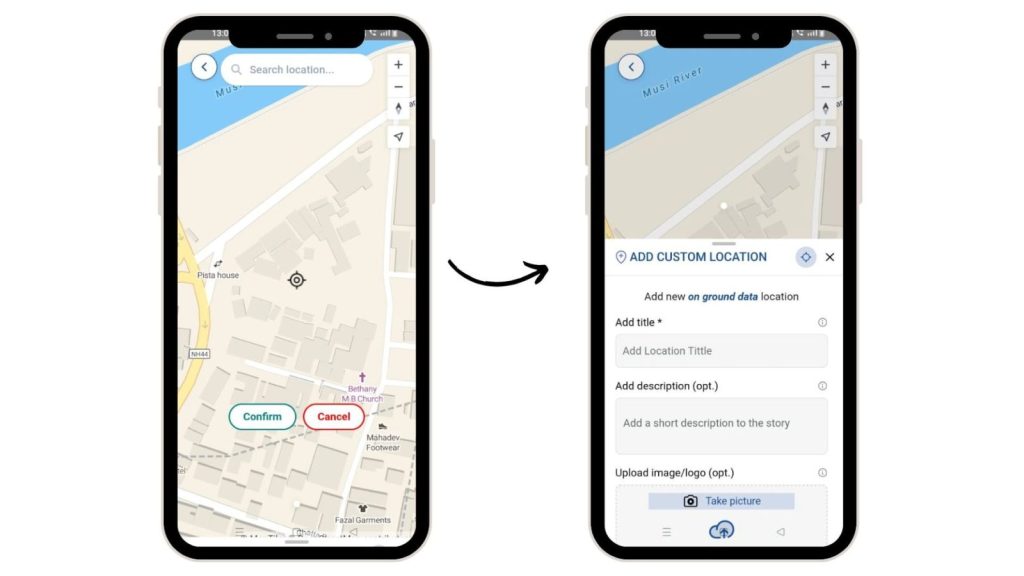
They can also add new locations while visiting them with the ‘Add Location’ option. Select ‘Add location’, confirm. Then add their title, description, optionally images for clarity.
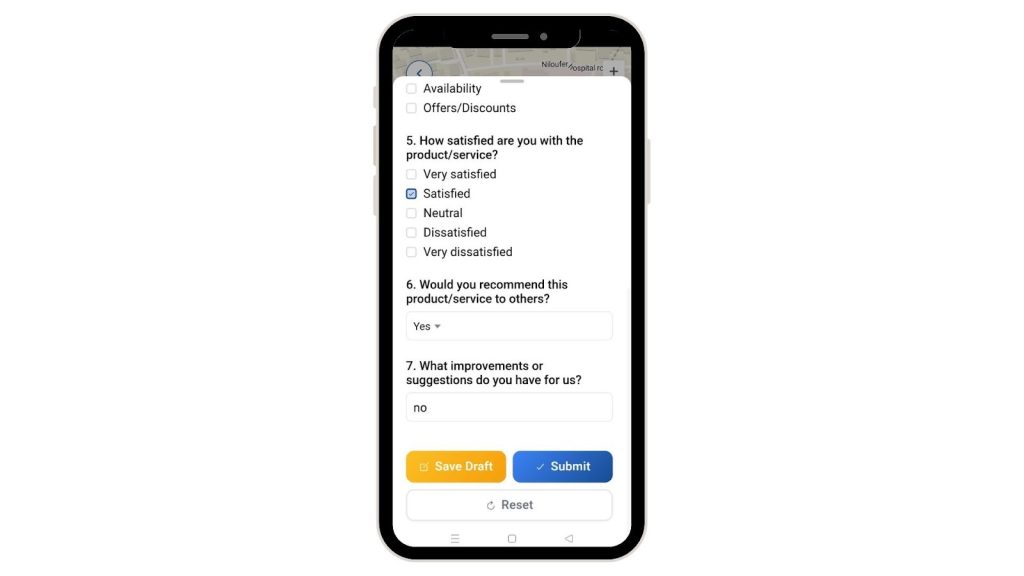
They can thereafter, fill out the surveys accordingly and collect data from their devices. There is an option in the survey to either save draft, submit or reset it.
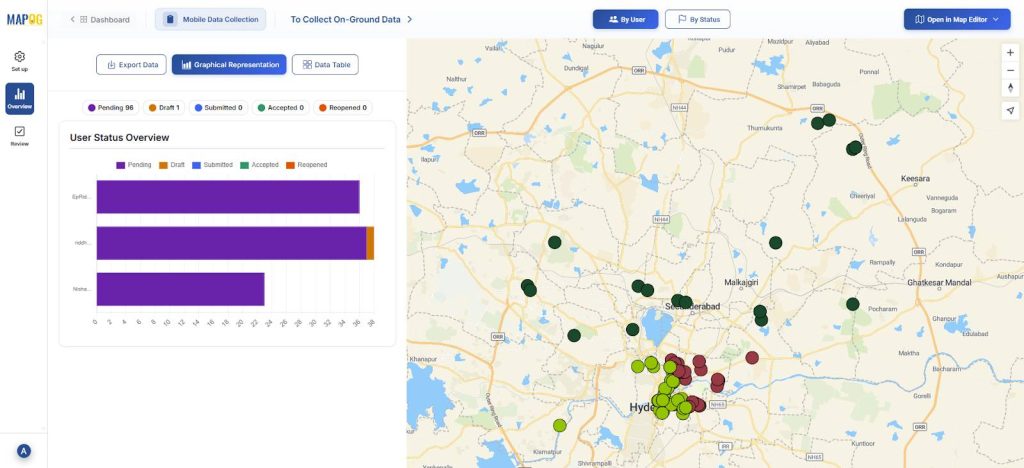
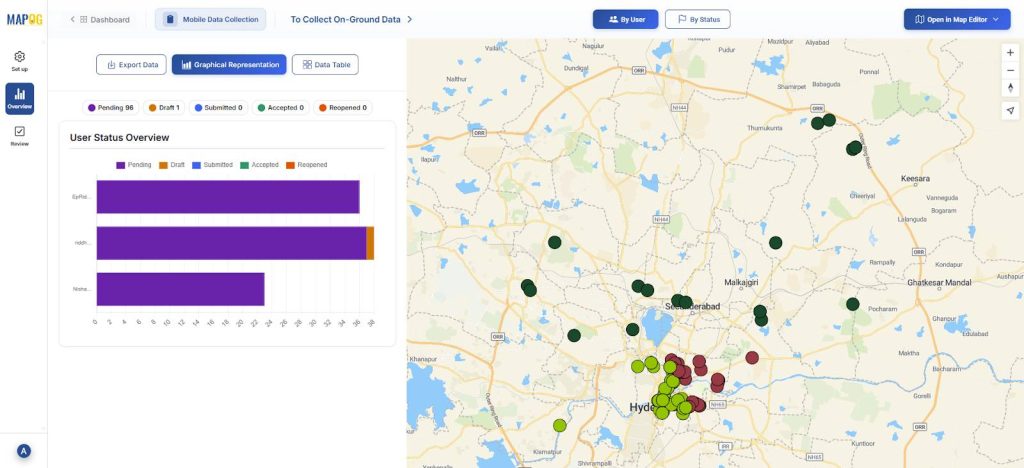
Step 7: Overview
You can see the full picture of your surveys. If a user has accepted, completed the task or if it is incomplete.
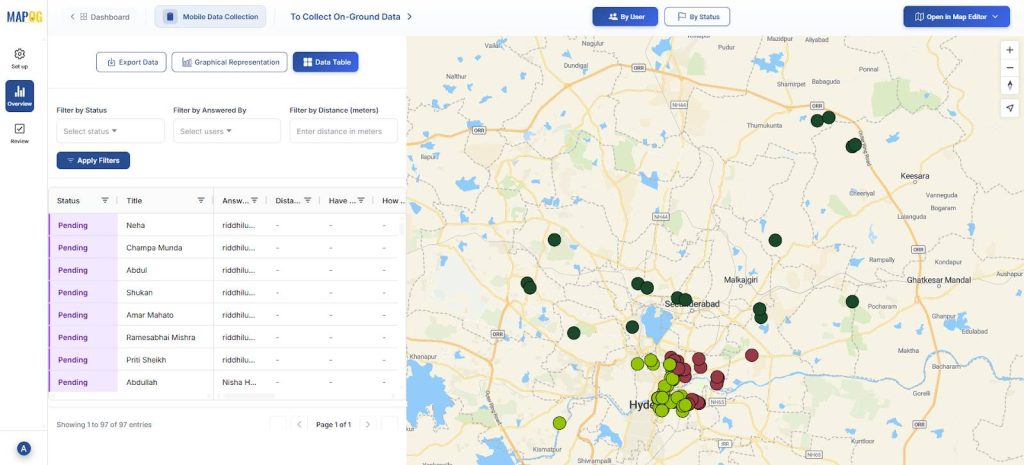
Finally, click on the data table and you can see your data filtered by status, answered by or distance.
Industrial use and benefits
Mobile data collection apps help industries capture accurate field data in real time. They replace paperwork with location-tagged digital records, reduce manual errors, and improve productivity. Field staff receive clear task assignments, while supervisors get instant visibility through live data syncing. This boosts efficiency, accountability, and reliable decision-making.
Conclusion
Mobile data collection apps enable accurate, real-time capture of on-ground information by linking every record to a verified location. With MAPOG, organizations can centrally manage field data while ensuring GPS-based validation, full area coverage, and minimal duplication.
MAPOG Contributor App:
App Store: https://apps.apple.com/us/app/mapog-contributor/id6754868956
Play Store:https://play.google.com/store/apps/details?id=com.mapog.contributor