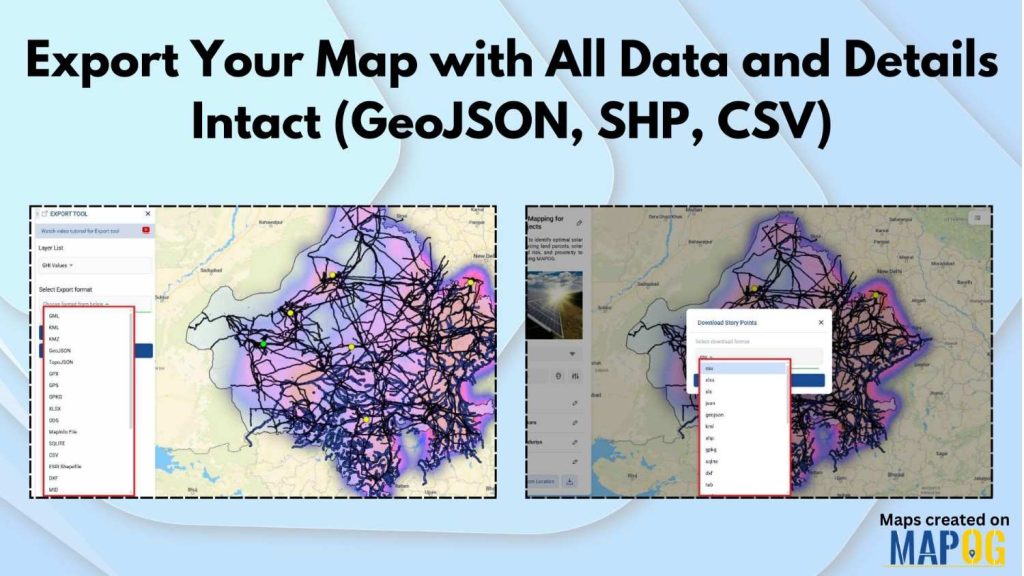
In mapping and spatial data, live interactive maps are incredibly powerful; however, there are times when offline access becomes essential. That’s why MAPOG lets you export your map seamlessly, ensuring all data and details remain intact. As a result, you can analyse, present, or share your information with your team without losing any important elements.
Key Concept of Exporting Maps
When you export a map, you’re essentially transforming your interactive project into a downloadable file that still preserves everything. This means every point, line, layer, or polygon stays exactly as it was, and all attributes and metadata move along with it. Consequently, your data remains ready for further analysis, collaboration, or use in other tools.
Moreover, MAPOG allows you to choose from multiple formats—CSV, GeoJSON, SHP, KML, and more—so you can work effortlessly in whichever workflow suits you best.
For example, a solar planner working on Solar Suitability can export points and layers with all data and details intact for GIS analysis, reporting, or presentations. This flexibility ensures the map data is versatile, reusable, and actionable.
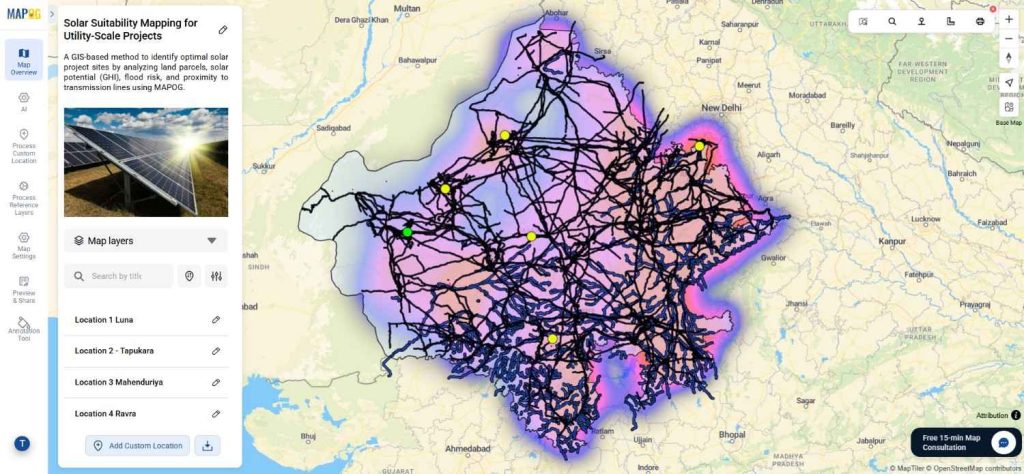
Step-by-Step Guide to Export Your Map with All Data and Details Intact
1) Export Points from Your Map with All Data and Details Intact
1. Locate the Download Button
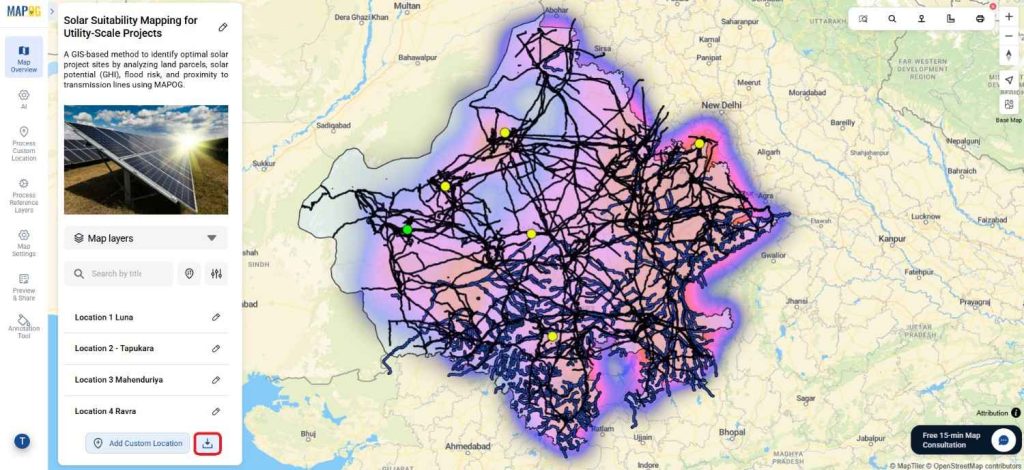
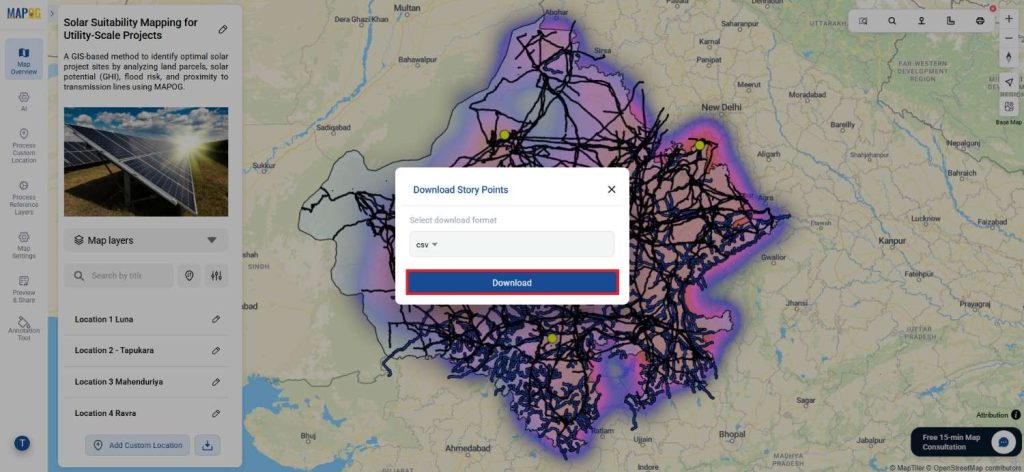
On your map dashboard in MAPOG, first, go to the bottom-right corner next to the “Add Custom Location” button, and then click on the Download button.
2. Open the Download Banner and Select Point Type
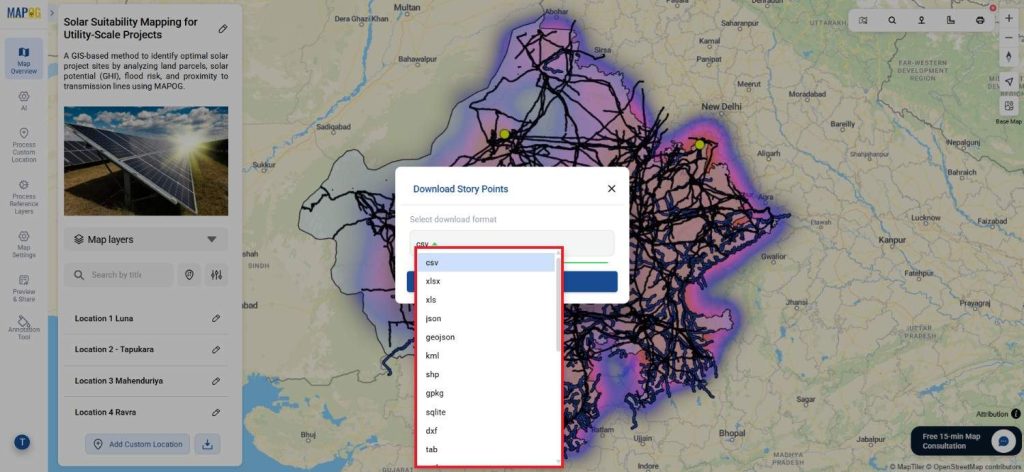
Immediately after that, a banner titled “Download Story Points” will appear. MAPOG supports a wide variety of formats, and you can choose from:
- Data formats: CSV, XLSX, XLS, JSON, GeoJSON, KML, SHP, GPKG, SQLite, DXF, TAB, MIF, TopoJSON, ODS, MD, GRS
- Image formats: TIFF, TIF, JPG, JPEG, PNG, GIF
- Other spatial formats: KMZ, GPX
3. Start Download
Once the format is selected, simply click Download
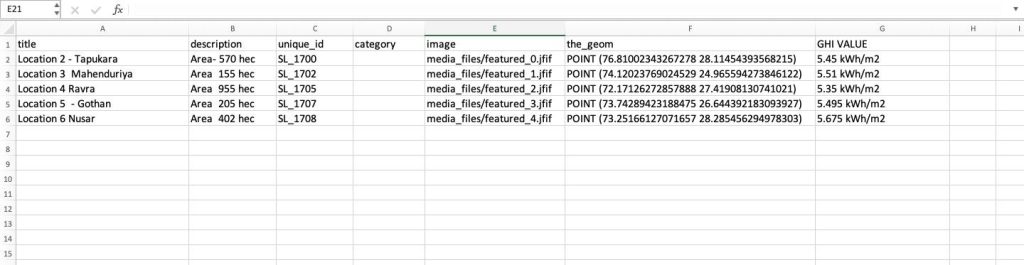
Your map data will be exported and saved to your device with all points, attributes, and details intact
2) Export Layers from Your Map with All Data and Details Intact
1. Open Map Layers
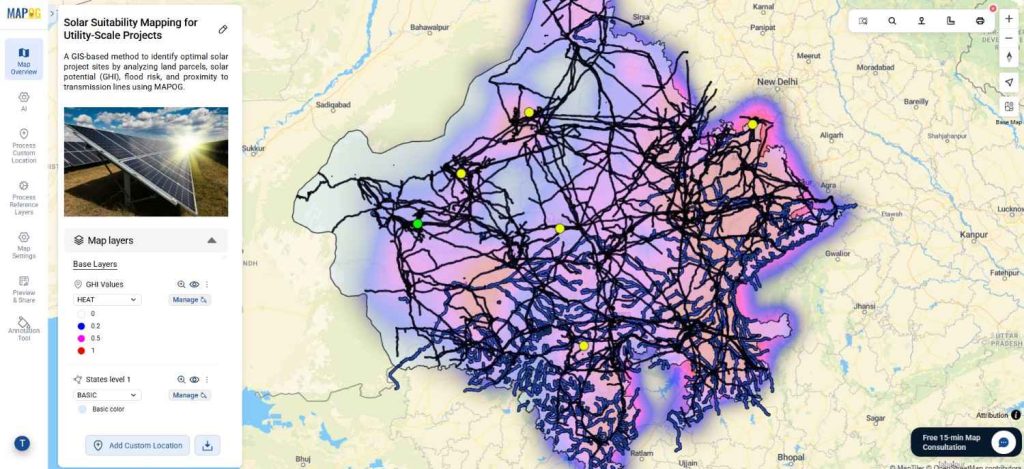
On your map dashboard, go to the Map Layers section.
2. Select Layer Export Option
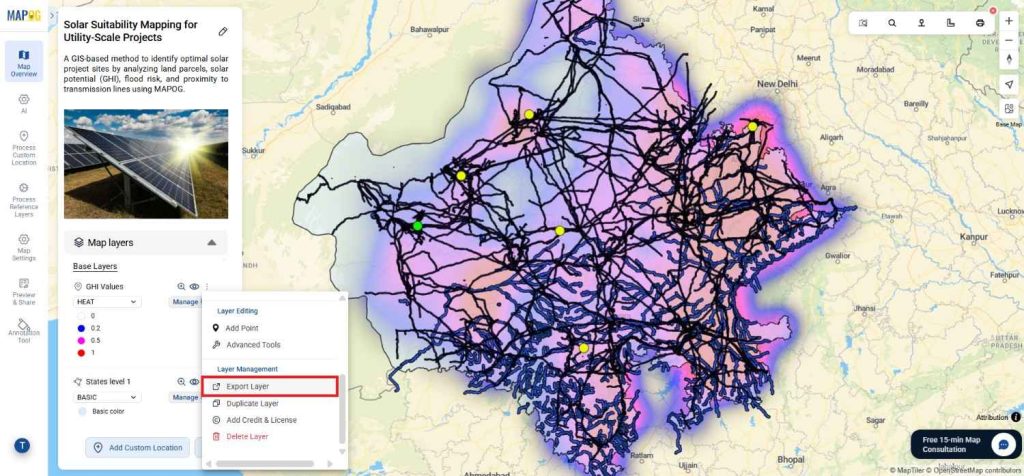
Click the three dots on the desired layer, then select Export Layer under the Layer Management heading.
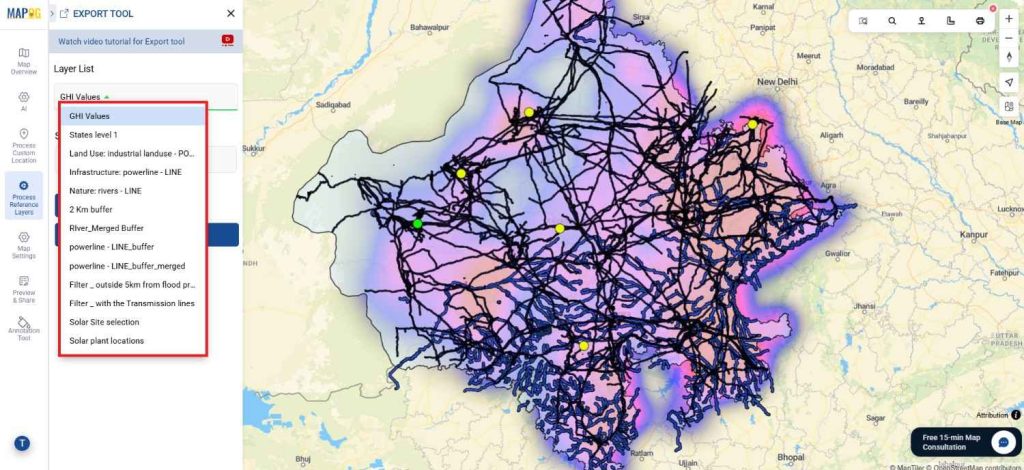
3. Export Tool
Select Layer List (e.g., “Solar plant locations”).
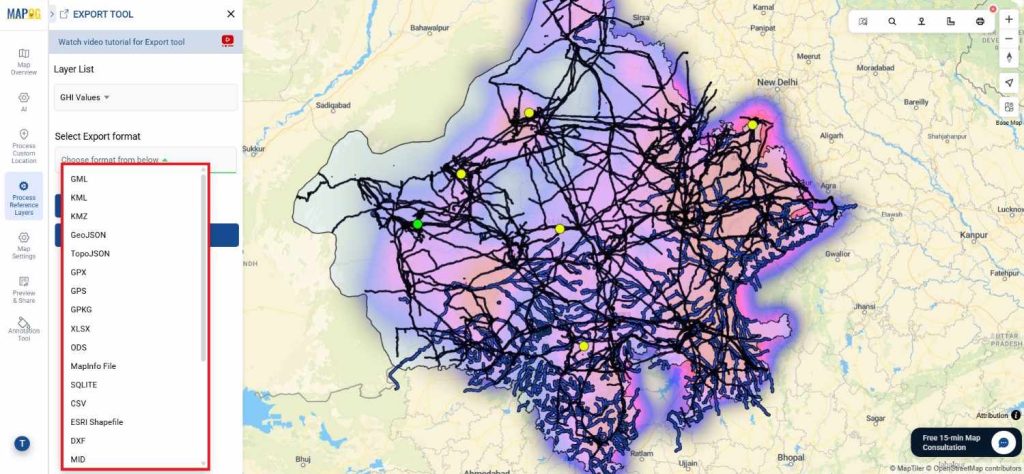
- Choose your Export Format from options such as:
GML, KML, KMZ, GeoJSON, TopoJSON, GPX, GPS, GPKG, XLSX, ODS, MapInfo File, SQLITE, CSV, ESRI Shapefile, DXF, MID, MIF, PDF, GeoTiff, JPEG, PNG, GIF, AAIGrid, netCDF.
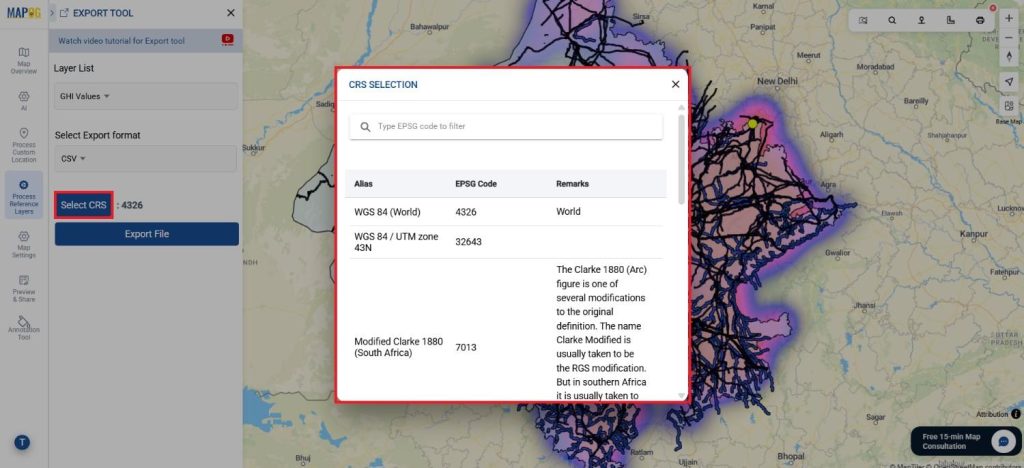
4. Select CRS (Coordinate Reference System)
Choose the appropriate CRS for your use case.
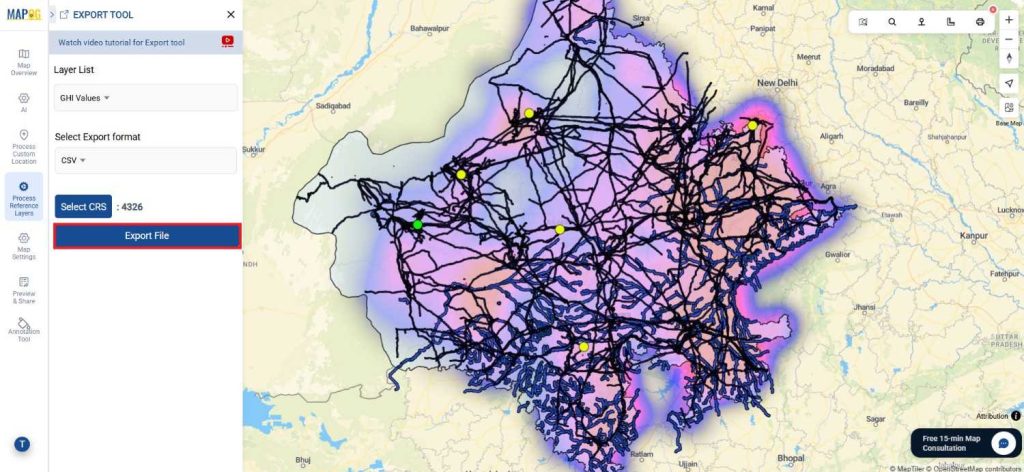
5. Start Export
Click Export File. The layer will be downloaded with all attributes, geometry, and details preserved.
Benefits of Exporting Your Map with All Data and Details Intact
Exporting your map with full data in MAPOG gives you both flexibility and control. To begin with, it allows easy analysis in GIS or Excel; moreover, it supports professional reporting, while also providing a secure backup for sharing without risking your live map. In addition, the exported file works across different platforms, making it simple to recreate or duplicate maps. Finally, you can update information effortlessly by downloading, editing, and then re-uploading your data..
Conclusion
Furthermore, MAPOG makes exporting maps effortless and future-ready by letting you export specific points, layers, and formats with all details preserved. As a result, your data stays complete, flexible, and reusable.
Whether you’re an analyst, creator, or business owner, you can use exported maps for reports, presentations, deeper analysis, or even new applications. Ultimately, it’s more than just downloading a file; it’s about easily duplicating maps, updating attributes, and sharing datasets with confidence.
👉 Ready to try it out? Click the Download button on your map and see how easy it is to get all your data in the format you need.
Explore other Blogs:
- How to Use GIS Mapping for Solar Development: A Step-by-Step Guide to Smart Site Selection
- Mapping Water ATMs and Community Taps for Equitable Access to Clean Drinking Water
- Create & Share a Safari Itinerary Map for Your Trip
- Famous Alumni Map: Showcase Notable University Graduates, Achievements & Success Stories
- Fire Station Mapping: How GIS Fire Safety Maps Improve Emergency Response & Community Safety