Attaching images & details to any kind of map provide a value that people could easily relate to themselves. For example, instead of scrolling through long property listings or dealing with brochures, MAPOG provides a platform to create interactive maps that makes it simple to display available real estate rooms, buildings, or commercial spaces on a map.
With MAPOG, creating interactive maps becomes easier, therefore it allows you to combine geospatial data, photos, and detailed descriptions into one seamless experience.
Key Concepts of An Interactive Map
To understand how to create interactive maps with MAPOG and how it works, it’s important to break down the key concepts that make the platform effective:
- Interactive Markers –User can and clickable icons on the map that show property photos. Similarly, rent prices, and details can also be added.
- Visualization – Turning location data into a map view. For instance, addresses or GPS coordinates.
- Dynamic Storytelling – Using the map not just as navigation, but as a way to tell the story of each property.
- Scalability – From a single rental apartment to an entire real estate portfolio, MAPOG handles both small and large datasets.
Step To Step Process: How to Create an Interactive Map with MAPOG
1. Adding ‘story’ to the Map
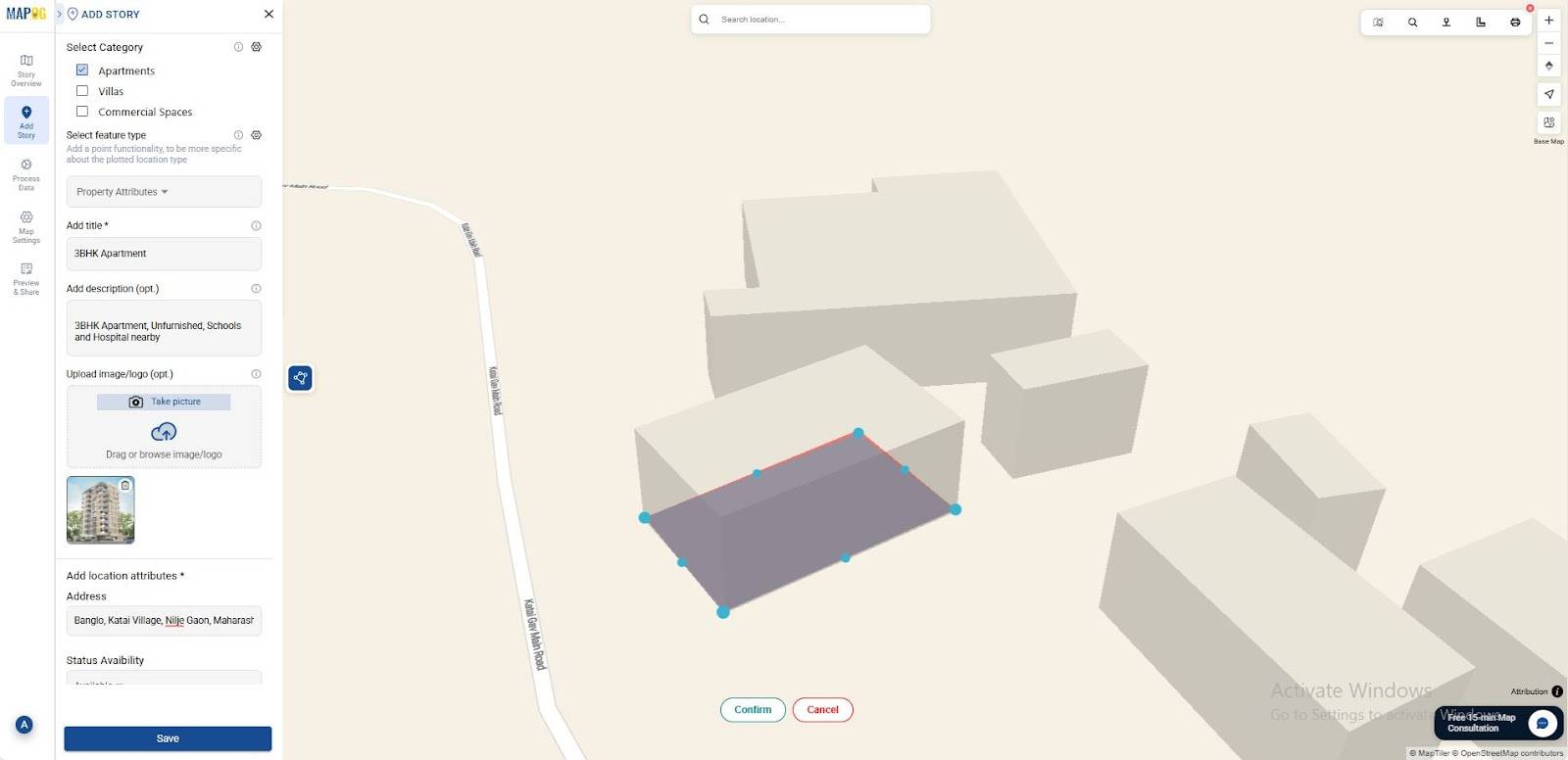
- First come to MAPOG & create a new map. Then, Go to Add Story & and select Add Manually
- Open Category Settings and add more categories as needed (Eg, Apartments, Villas, etc.)
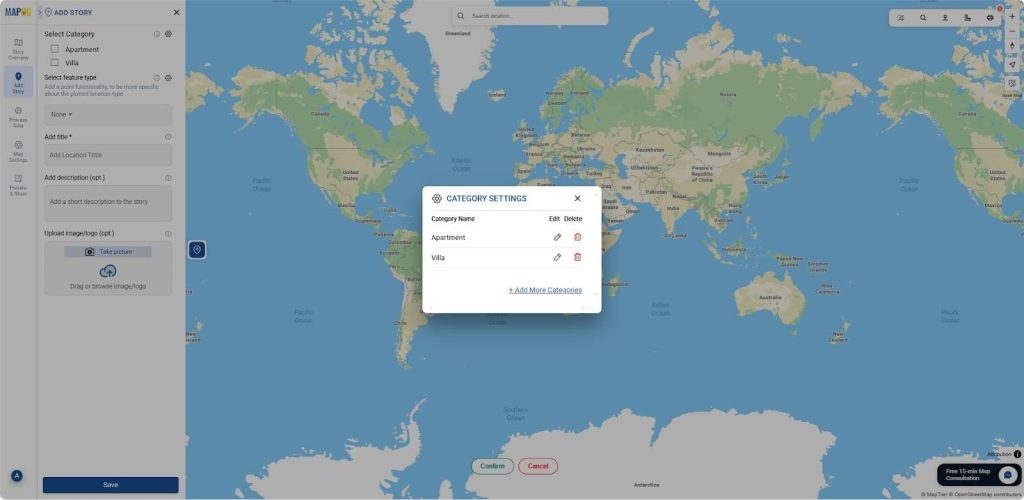
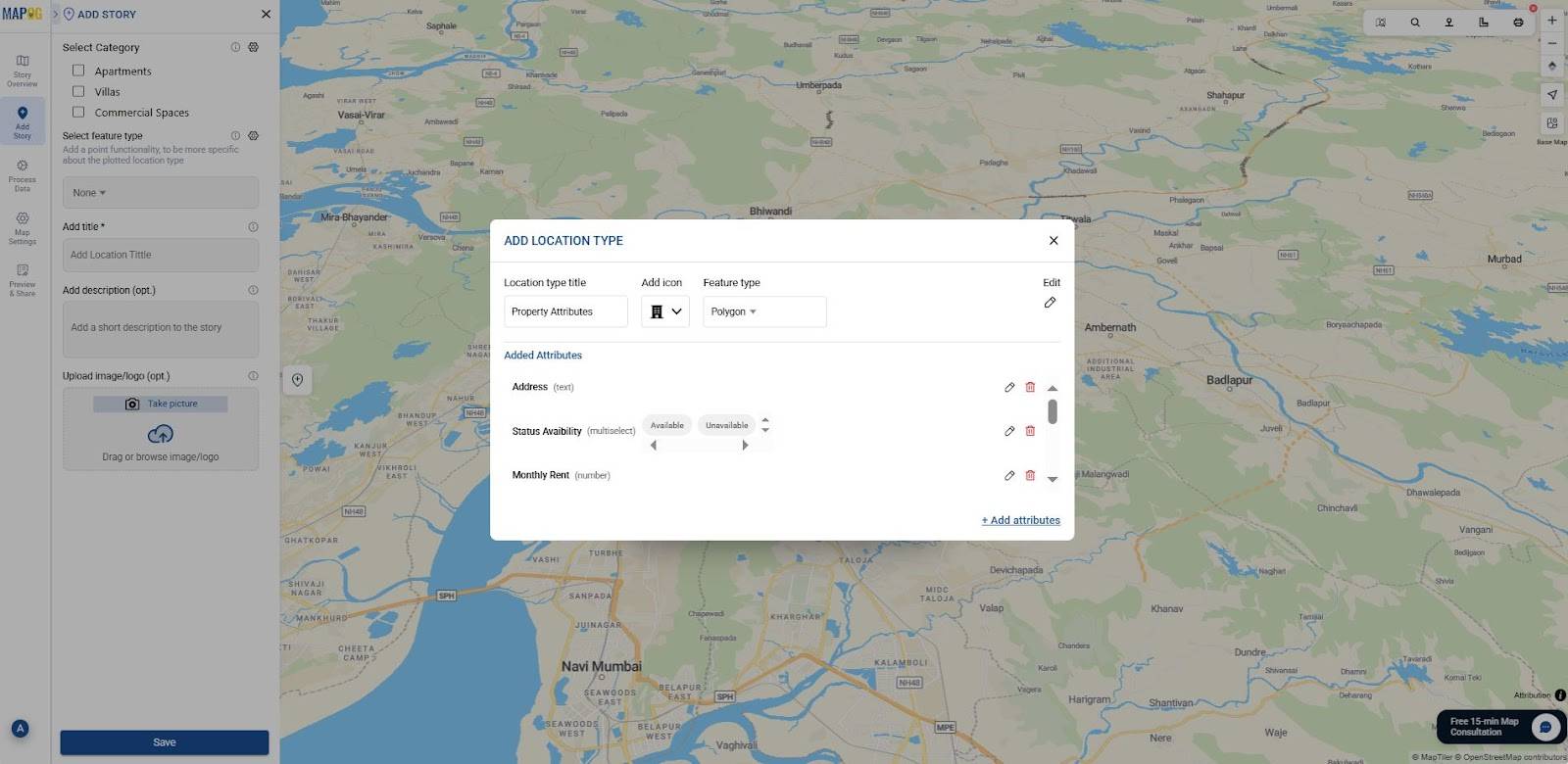
- Click on Select feature type settings option and then Add more location type. Here you can create a location type called property attributes, select feature type as polygon & you can add all the Attributes needed in the project (E.g. Address, Monthly Rent, Amenities, Social media links, etc)
- Select the Attribute in the drop-down menu to display all the attributes added.
2. Add Photos & Details
- Then, Add title and descriptions like “2BHK available,” “Office floor with 1200 sq. ft.,” or “Shared co-living space”
- Attach room images, floor plans, and rent prices to each marker.
- Add Availability Status, Monthly Rent, Furnishing Status and Social Media links.
- Add location through search option or by giving the area’s latitude and longitude.
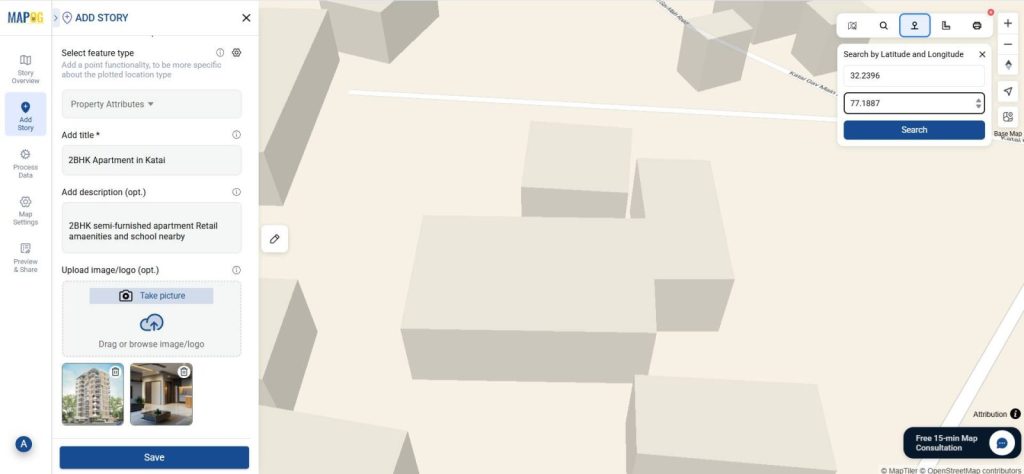
- Click on the polygon tool to draw the apartment area on the map. Click confirm to save the polygon.
- After adding all the required data, click save.
Insights and Applications
Using MAPOG to create interactive maps for real estate, provides deep insights and practical applications:
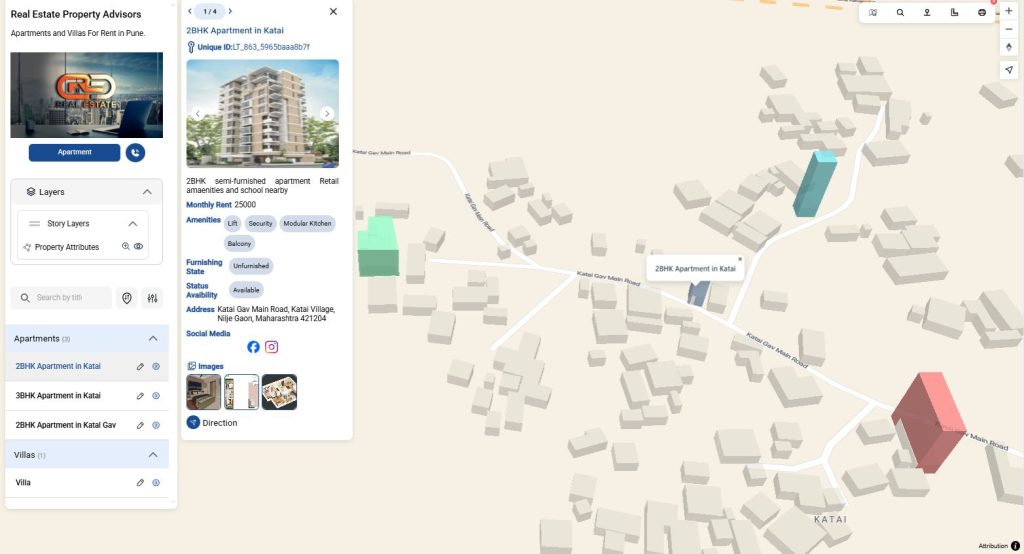
- Better Property Visualization – Clients can see exactly where buildings are located.
- Enhanced Digital Storytelling – Properties are not just listed; they are mapped with images.
- Neighborhood Exploration – Tenants can explore surroundings before booking a visit.
- Data Sharing Made Simple – MAPOG projects can be shared via links, thus making it easy for clients and teams to collaborate.
Benefits of Using MAPOG for Real Estate Maps
MAPOG is not only user friendly, but is also interactive and easily accessible. Links can be shared with anyone for easy viewing, hence, saving time for both agents and clients. Clients can also filter through properties quickly according to their needs and make their decisions. The interactive maps also showcase the neighboring areas and amenities like schools, hospitals and retail locations.
Conclusion
MAPOG provides tools to create an Interactive Map with photos and details at each location. It is both a simple and innovative way to showcase all the properties in a comprehensive manner. For real estate, this means showcasing rental rooms, highlighting amenities, and offering a complete property experience online. By using MAPOG, you can engage clients, save time, and improve decision-making. Interactive mapping is more than just a trend—it’s a game-changer for property showcasing.
Related Reads:
- Create Story Maps for Education: A Visual Way to Teach History, Geography, and More
- How to Upload and Visualize CSV Data on a Map
- Adding Points on a Map: Create Your Custom Icons
- How to Map and Share Retail Store Locations for Your Franchise?
- Mapping Village Coverage within 60 Minutes of Each Hospital