
Medical facility mapping with GIS is rapidly transforming how healthcare accessibility is planned, managed, and experienced. In modern cities and growing regions alike, both citizens and authorities face a common challenge: healthcare facilities are scattered, information is fragmented, and finding the right service at the right time is often difficult. A GIS-based healthcare map therefore addresses this gap by bringing hospitals, pharmacies, and diagnostic centres into one clear, interactive view. Moreover, as healthcare demand increases, decision-makers need more than lists and directories, they need spatial clarity.
Why Use GIS to Map Hospitals, Medical Stores, and Diagnostic Centres?
To begin with, healthcare is inherently location-sensitive. Similarly, In emergencies, reaching the nearest hospital quickly can save lives. also, access to nearby diagnostic centres and medical stores is critical for routine care, follow-ups, and chronic treatments. However, without spatial context, identifying the most accessible facility becomes guesswork.
GIS solves this problem by analysing spatial relationships such as distance, surrounding infrastructure, and service availability. Additionally, it allows multiple healthcare layers to exist on the same map. As a result, users can compare hospitals, diagnostics, and pharmacies simultaneously. With MAPOG’s web-based approach, healthcare networks become easier to visualize, manage, and share.
How to Map Hospitals Using MAPOG
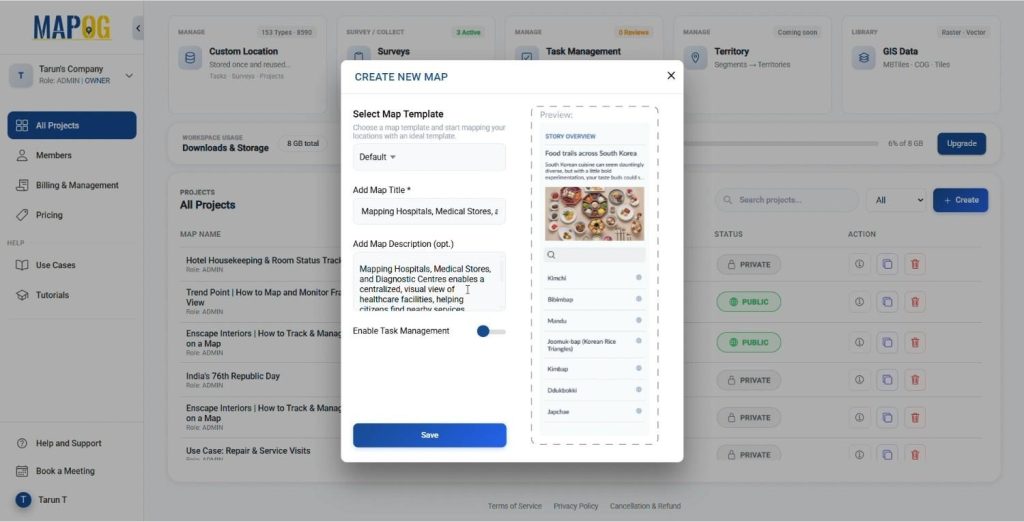
Create a New Map
- Click “Create ” on MAPOG
- Keep the map template as default, add a title, description, and an image symbolizing your Hospital, Health or Diagonastic Center.
- Save your map.
Add Map Data
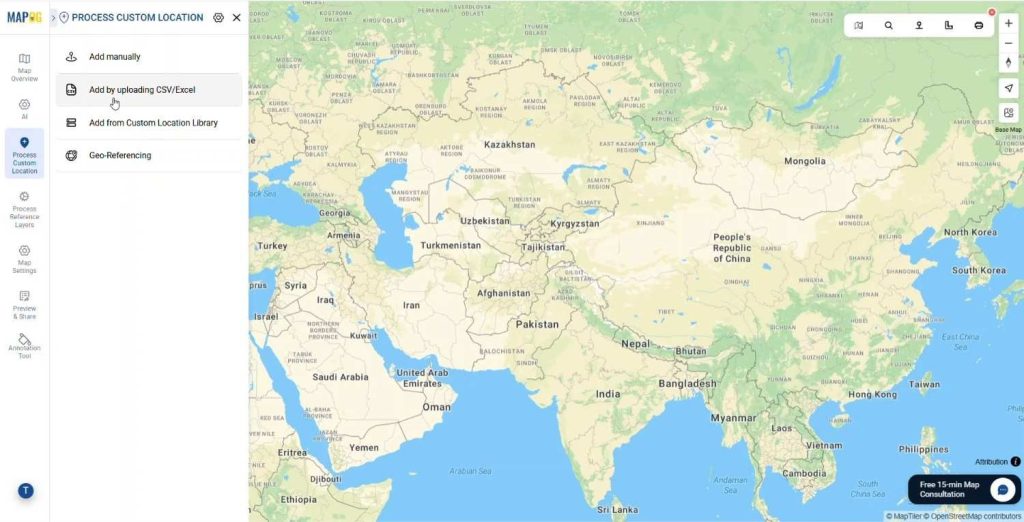
- Add the Point data using Process Custom Location
- Upload the data using Add by uploading Excel/CSV feature.
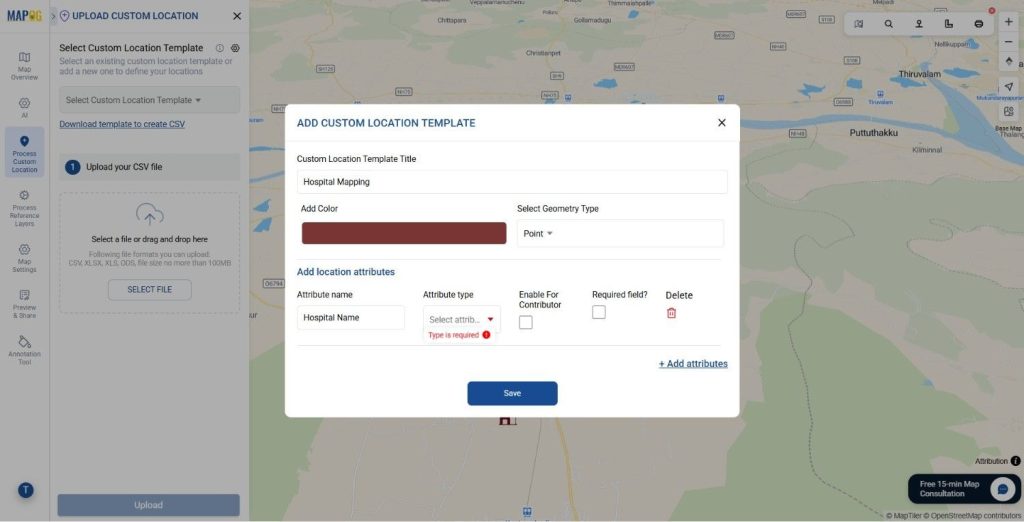
- Click on select custom location template and create the custom location type to add different locational attributes to display on the map.
- After adding the location type Add the attributes like Facility name, Facility Type, Address, Speciality etc. Add the options/ attribute types in the form of text, dropdowns, multi select etc.
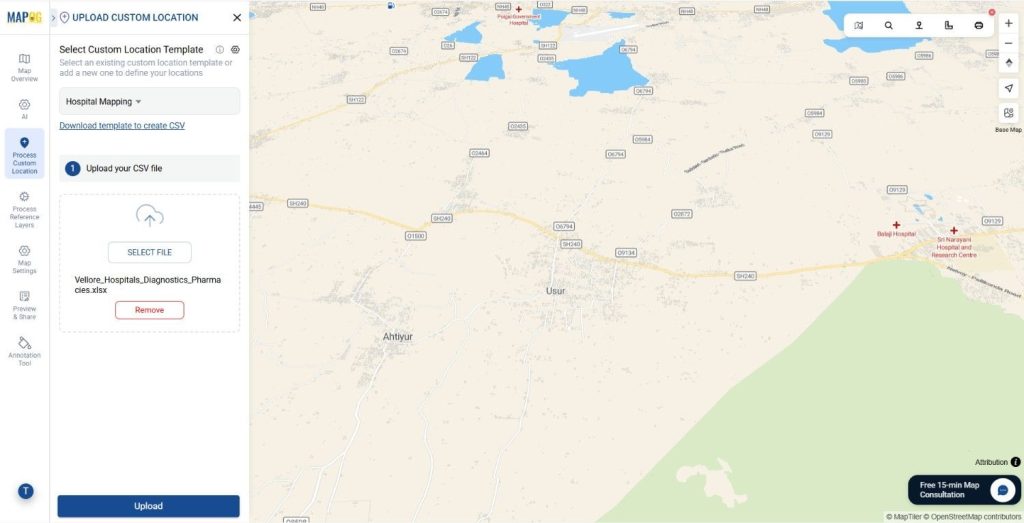
- Similarly, select the recently created Custom Location template from the drop down menu and upload the CSV/ Excel file that contains the information about the Hospital, Health or Diagnostic Centre.
- Match the Attribute Values to Excel Columns like Facility name, Facility Type, Address, Speciality etc. Assign a Unique ID to each location so MAPOG can consistently identify, update, and manage points on the map. This ensures existing locations are updated correctly during imports, prevents duplicate entries, and preserves all attributes as your data changes over time.
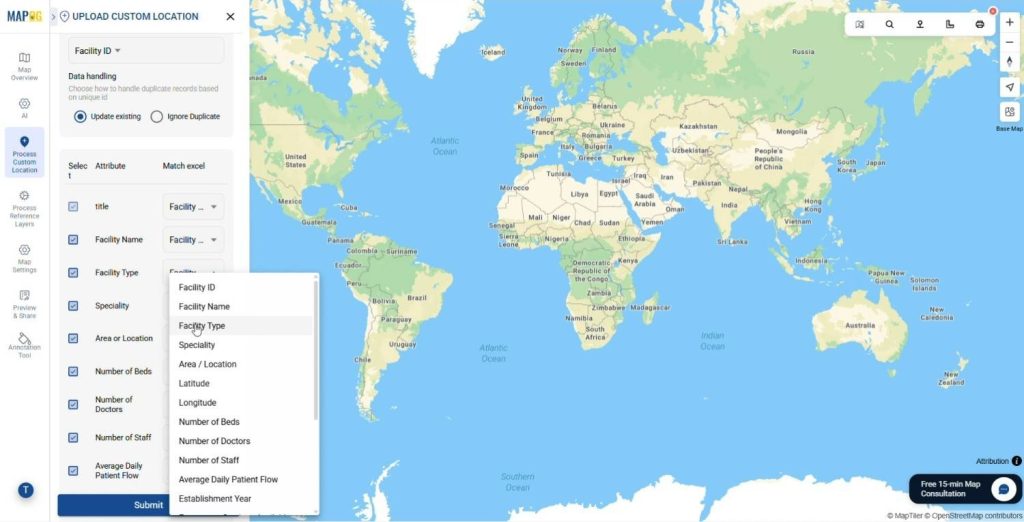
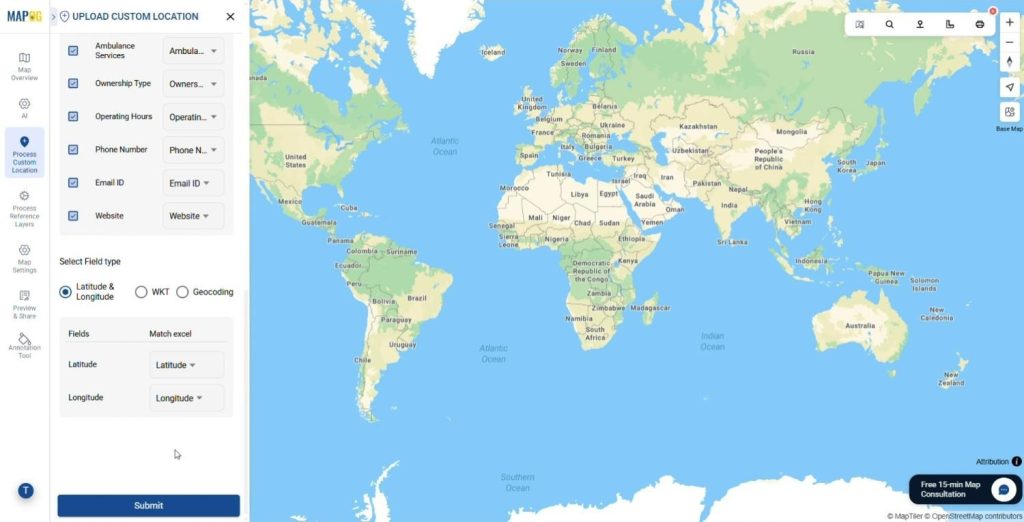
- Add the latitude and longitude of the points from the table and click Save. All the points will automatically be plotted on the map.
Customize Markers
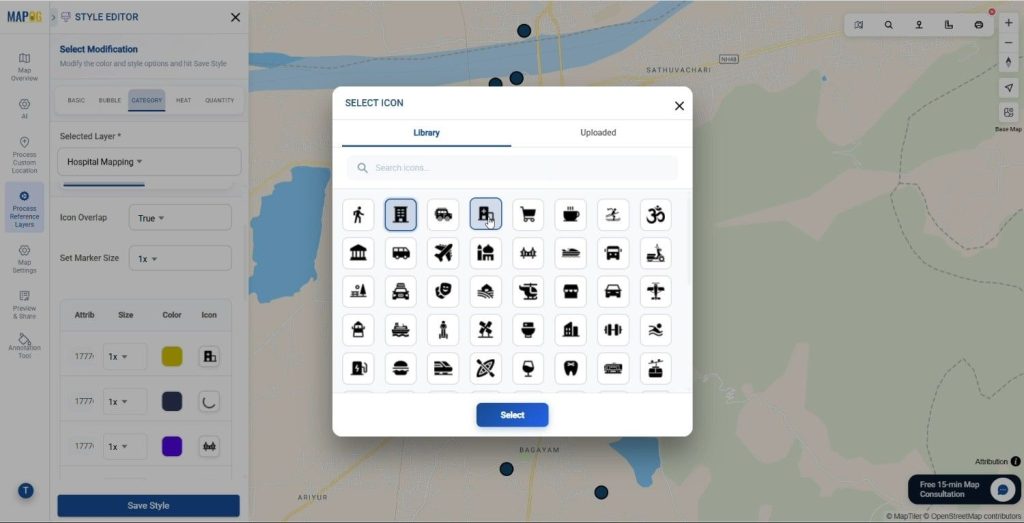
- Click on the Add Layer Style and style the Map layer.
- Click on Category Style to map the Hospitals, Digonastic centers and Health centers separately.
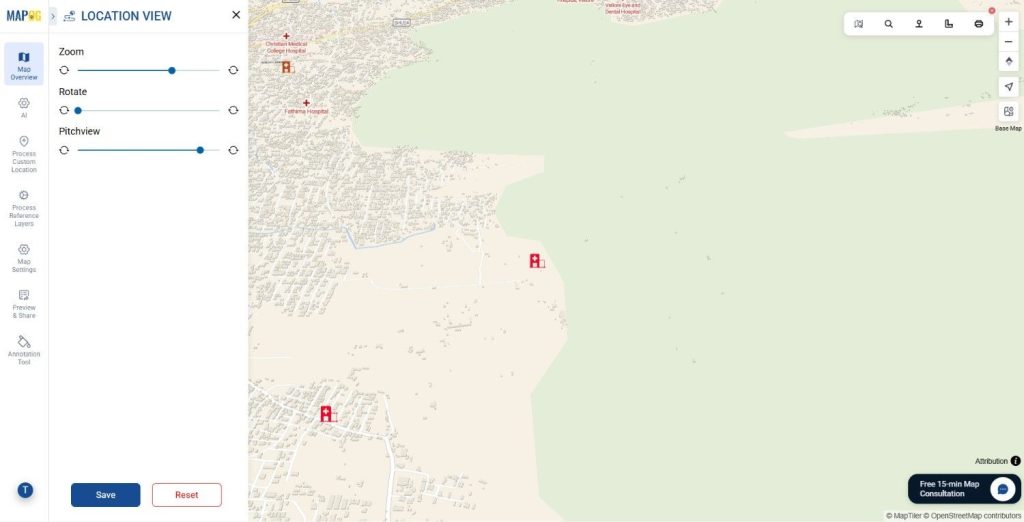
- Set the Pitch view by clicking on Custom Location View to make the points more interactive and aesthetically appealing.
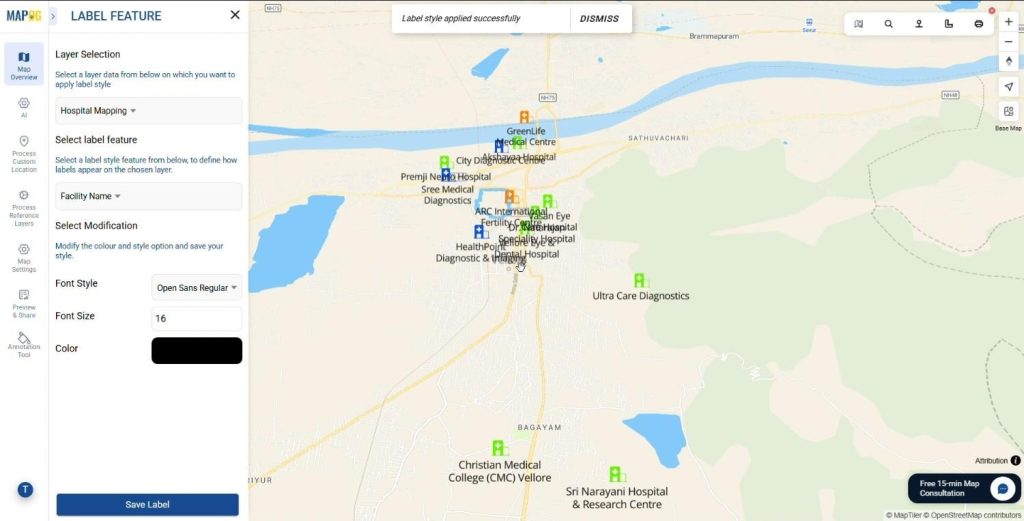
- Also Add the labels on the Label Feature tab. Click on the Layer options and then click on Label Feature tab. Add the attribute to show as the label and add the font and size of the labels.
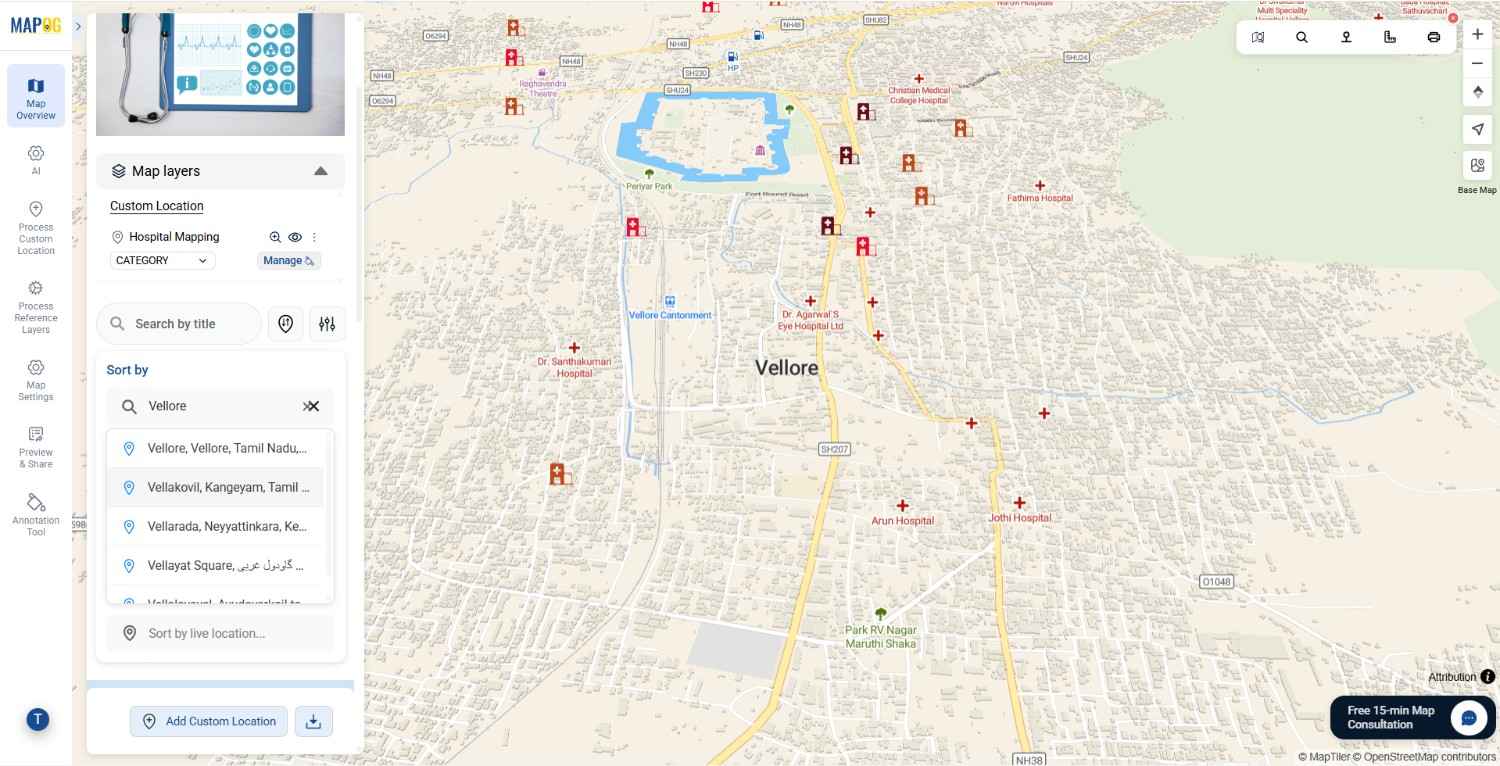
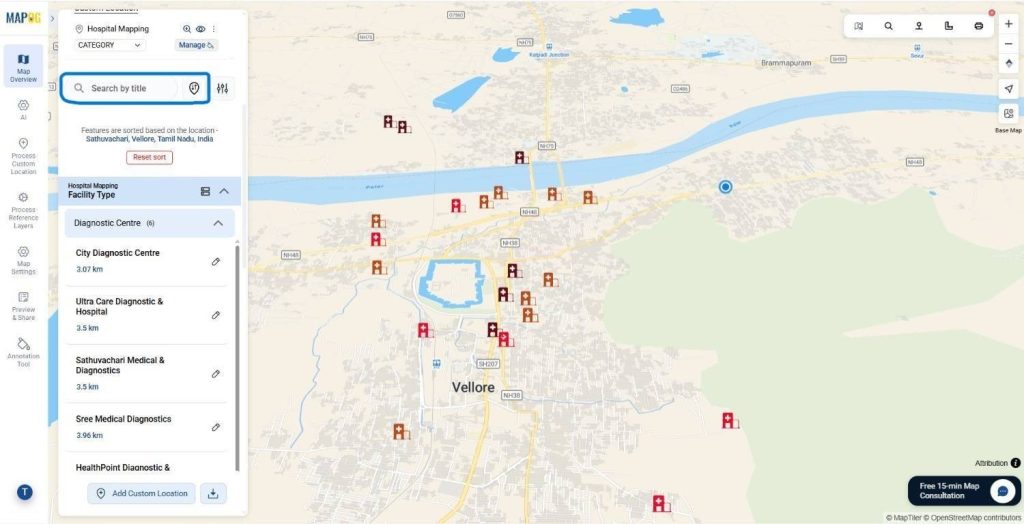
Sort Facilities by Location and Filter
The locations can be sorted by using the sort by location and live location depending upon the distance
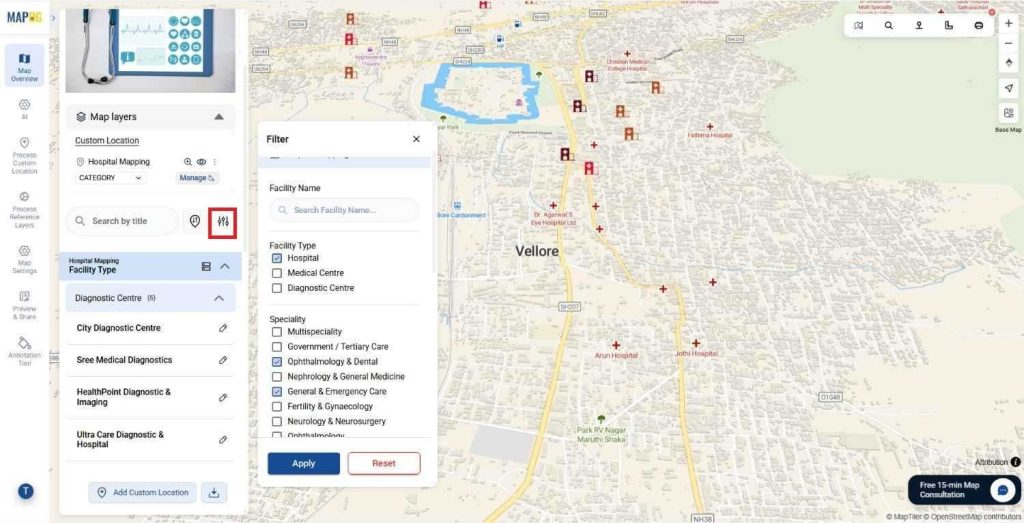
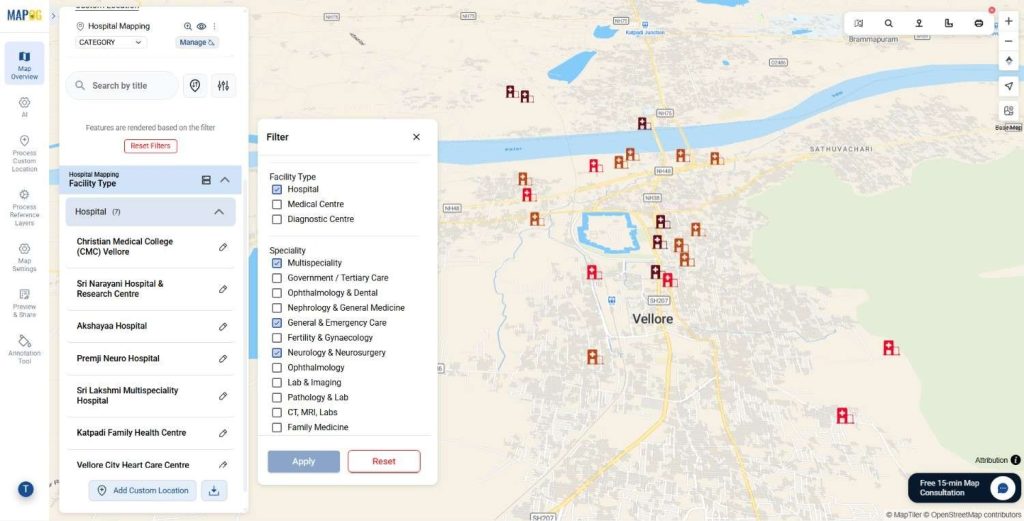
filters can also be applied in the fields of Speciality, Facility types, Emergency options etc. using the filter tool. Click on the filter tool and adjust the different attributes that you desire according to the need. Filters minimize the time to actually find a suitable medical facility, and aids in situations of medical emergency.
Preview & Share
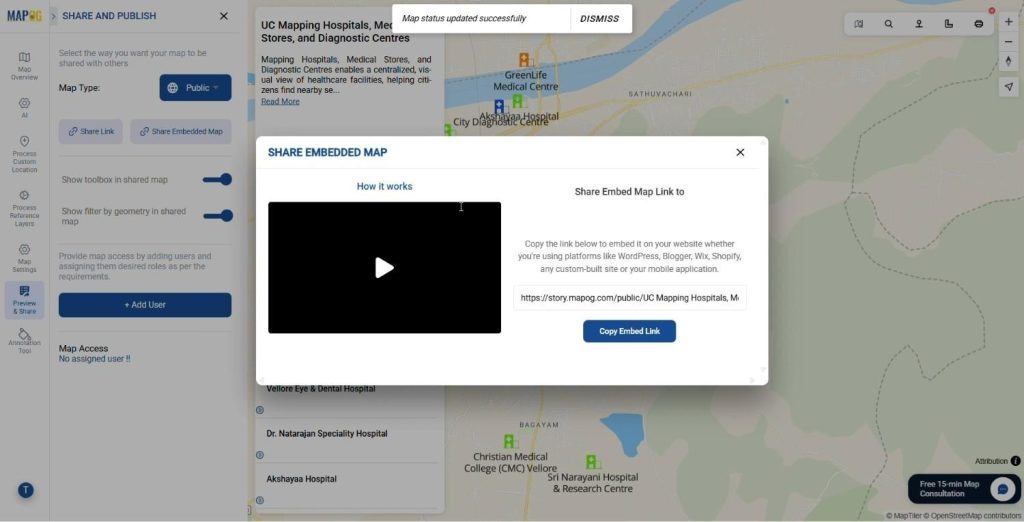
Use the Preview & Share option to review your map and set it to public. You can share it through a link, embed it on websites, or add users for controlled access, making it easy to present healthcare facilities to citizens, administrators, and stakeholders.
How to Map Hospitals: Industry Applications and Impact
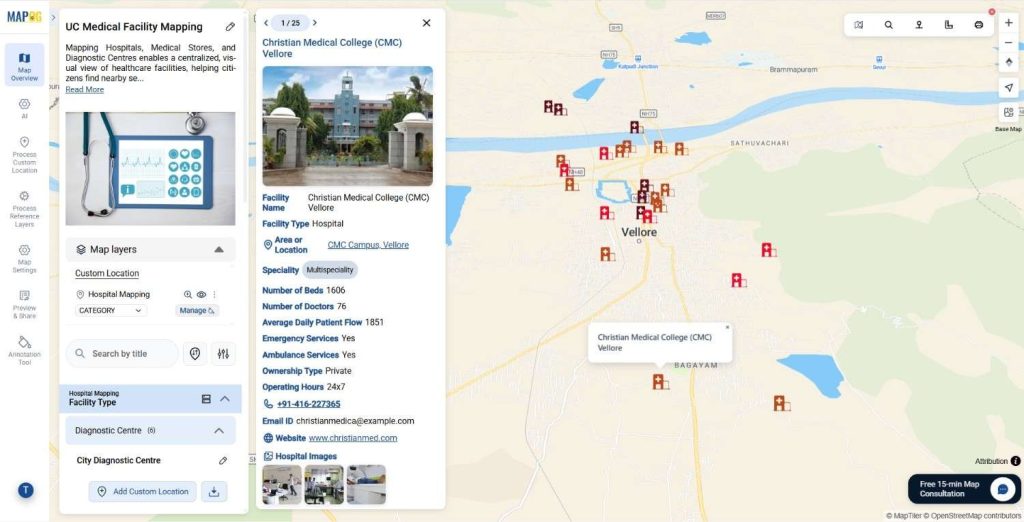
From a broader perspective, GIS-based healthcare mapping benefits multiple sectors. Municipal authorities can use it for public health planning. Hospitals can manage referral networks more effectively. Diagnostic chains and pharmacies can visualize market coverage and optimize expansion. Meanwhile, citizens gain a reliable tool to locate essential healthcare services with confidence.
Conclusion
Mapping hospitals, medical stores, and diagnostic centers using GIS is no longer just a visualization exercise. Instead, it is a strategic approach to improving healthcare accessibility, efficiency, and equity. With MAPOG, healthcare data transforms into a living map that supports smarter planning and faster decisions.
Have you ever explored healthcare mapping using GIS tools?
Share your thoughts in the comments below.