
Businesses today prioritize maintaining customers and collecting on-site feedback. Manual methods slow teams down, so digital mapping workflows help them work faster. MAPOG, especially its Mobile Data Collection feature, gives teams a location-based system to maintain Your Customers and gather insights during visits.
Key Concept: Why Maintaining Your Customers On-Site Matters
When field executives visit customers, they capture real-time behavior, feedback trends, and location clusters. But without a unified workflow, data scatters across different sources. MAPOG solves this by letting teams create structured surveys, upload customer data using CSV/Excel, assign locations to team members, and track feedback in one place.
Step-by-Step Process: How to Maintain Your Customers with On-Site Feedback Collection
Step 1: Setting Up a Project to Maintain Your Customers Setup
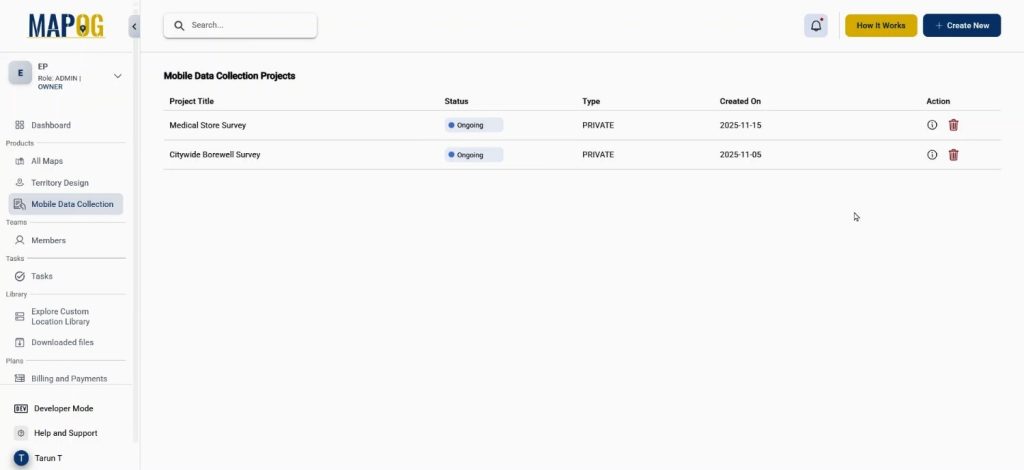
First, open the MAPOG. After entering, navigate to the Mobile Data Collection section and click “Create New.”
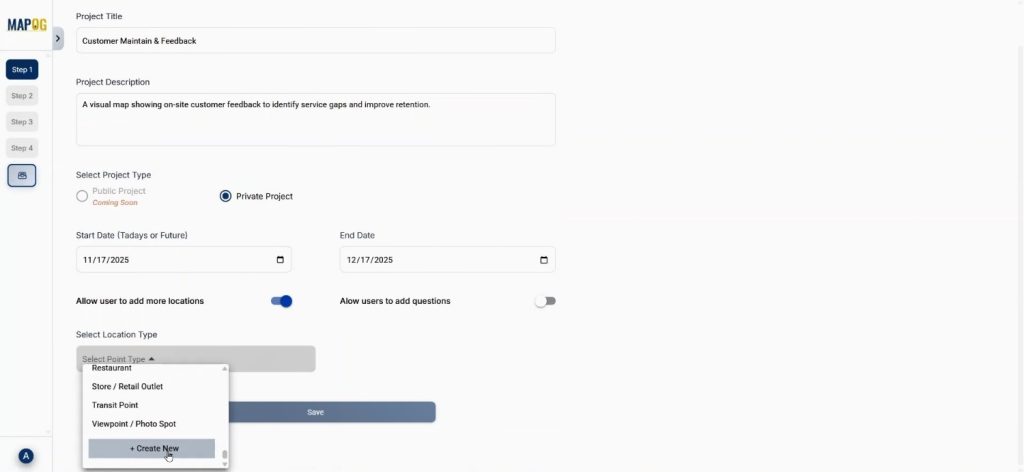
Provide a clear title and a short description. The project type can be set to Private Project, and afterward, add a start date along with an end date for the survey timeline. Allow users to add more customer locations, since this helps you continuously maintain your customers during growing operations. Next, go to “Select Location Type” and choose Create New, where you can build a location type.
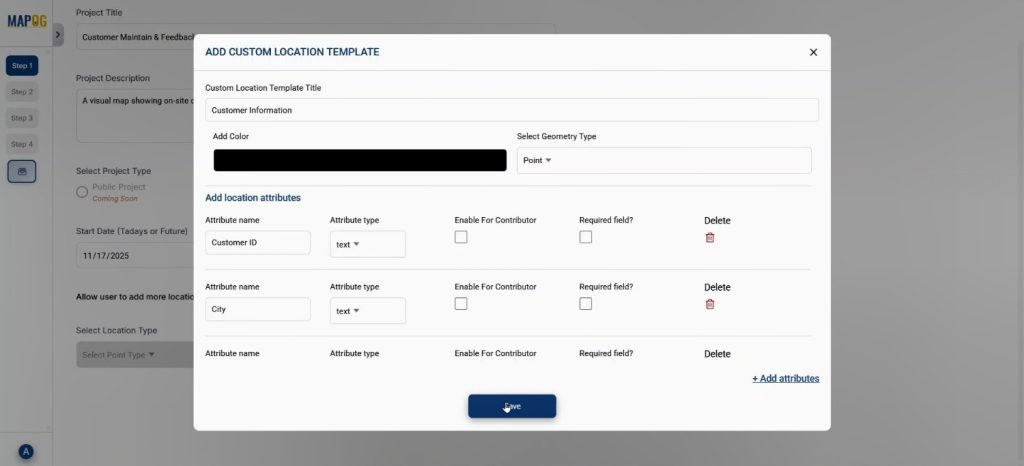
Step 2: Creating Customer Location Type
Add meaningful attributes such as purchase volume, spending level, purchase frequency, sales volume etc. These attributes help teams maintain your customers more systematically because structured fields allow consistent data recording. Save this location type and select it from the dropdown.
Step 3: Adding Survey Questions
Move to Step 2 and click “Add Questions.” Here you may mix text and numeric question types. For example, “Rate today’s visit experience,” or anything else. These flexible question types ultimately support efforts to maintain your customers, since field teams can capture detailed on-site insights.
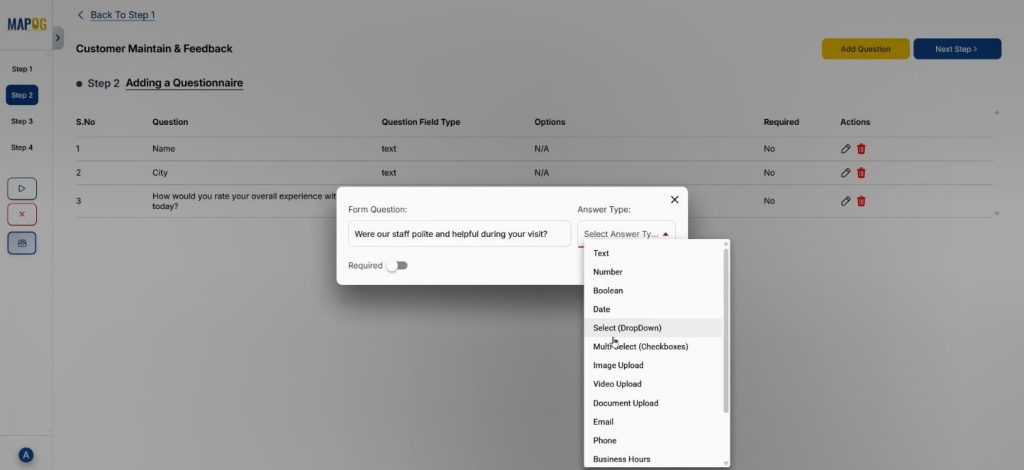
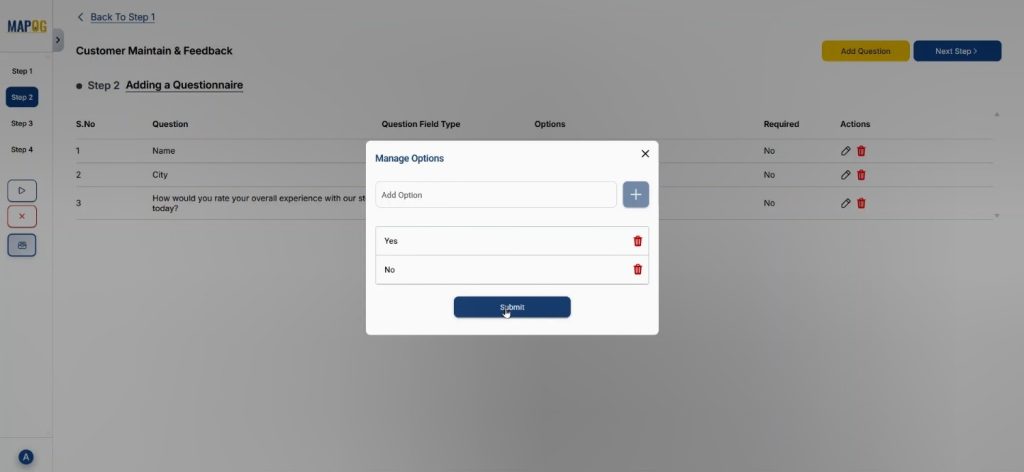
You can even manage the question with multiple options also.
Step 4: Uploading Customer Data
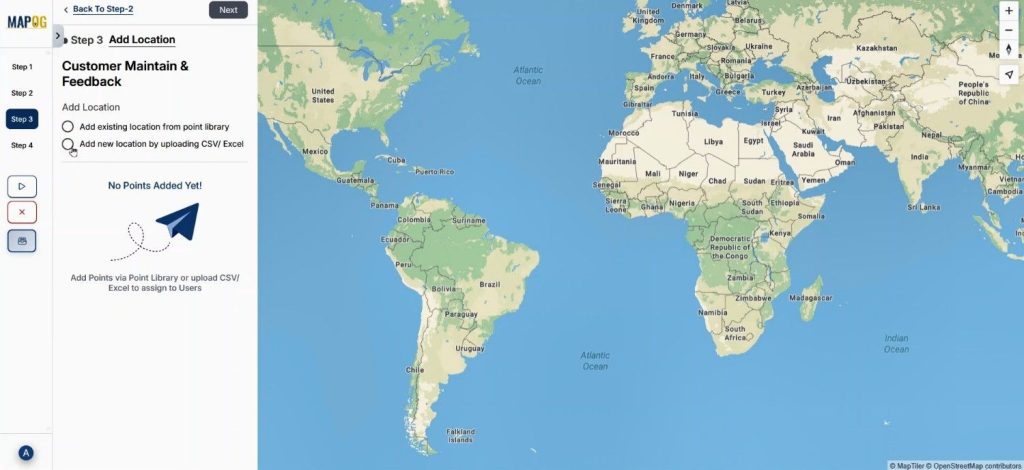
Afterward, step into Step 3 and click Add a new location by uploading CSV/Excel.
Upload your prepared customer dataset,
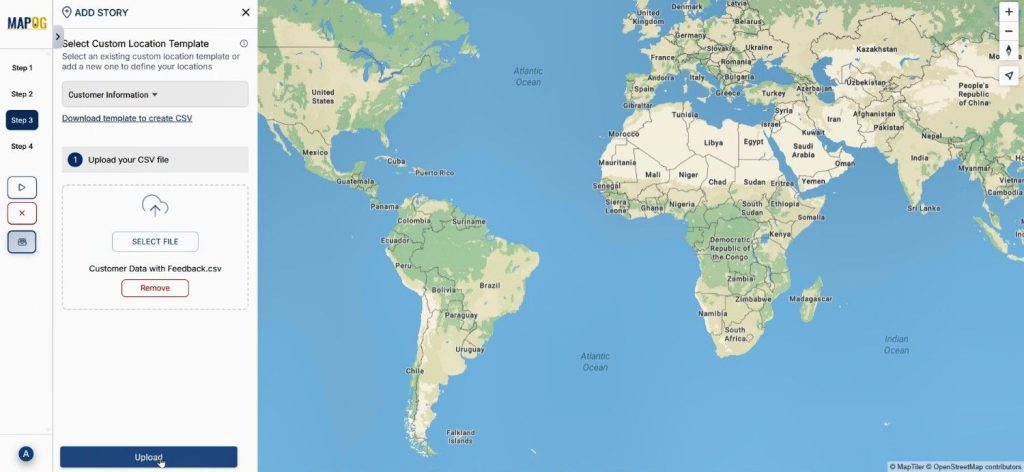
then match the attributes with column names along with coordinate details.
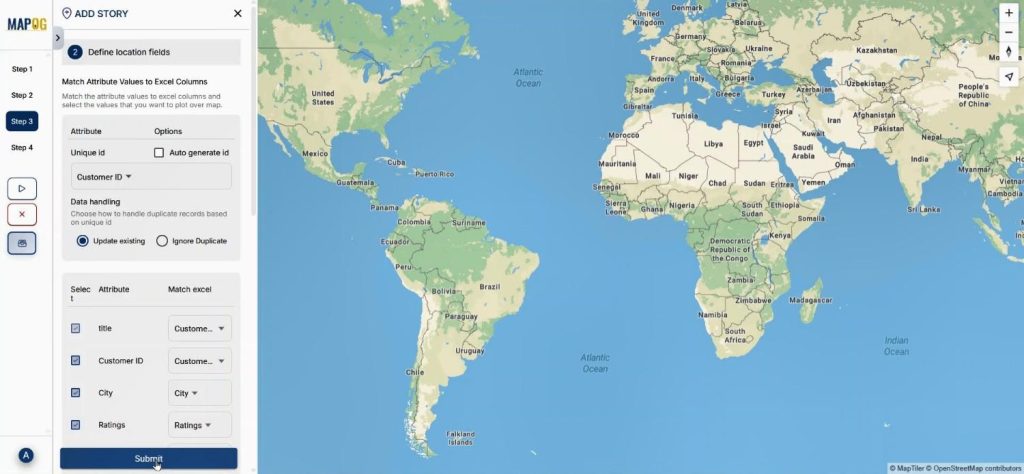
Once submitted, the data automatically plots on the map, thus making it easier to maintain your customers by analyzing their distribution visually.
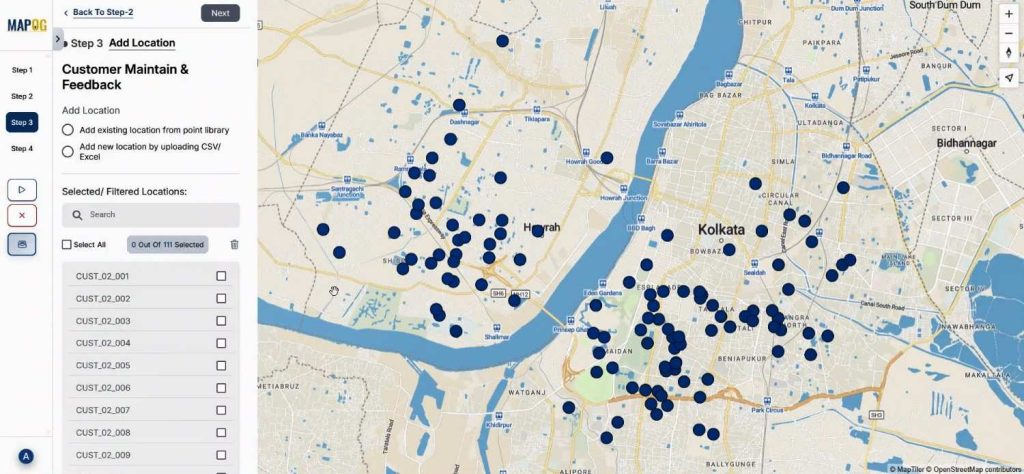
Step 5: Adding Members & Assigning Areas
In Step 4, click “Add User,” then choose “Add Member,” insert their email, and assign roles like Admin or Contributor.
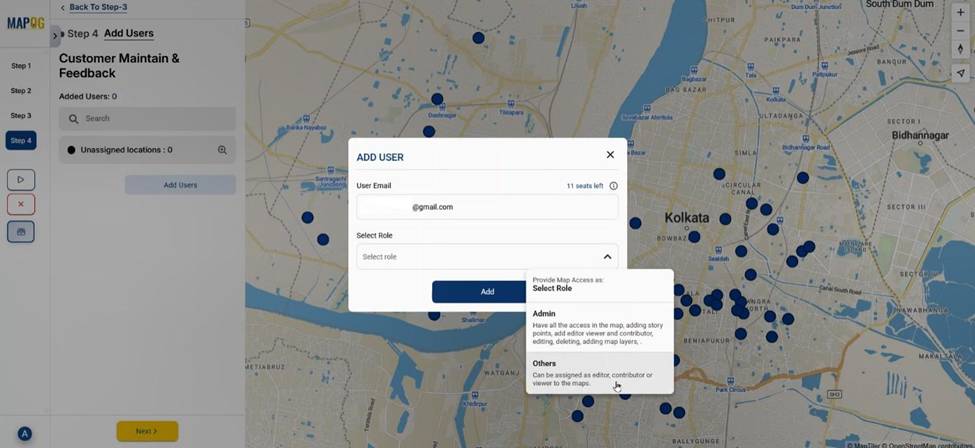
After adding the significant user you can come to add users again and select different members from the select member option & invite them to be a part of this survey.
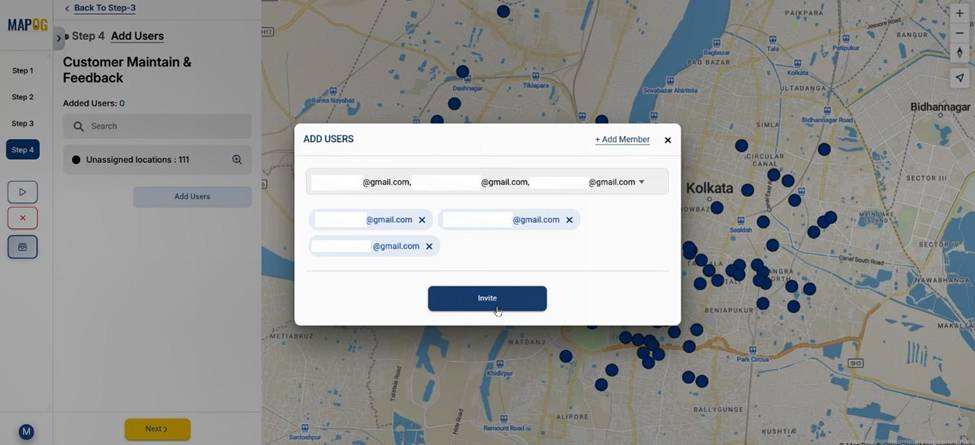
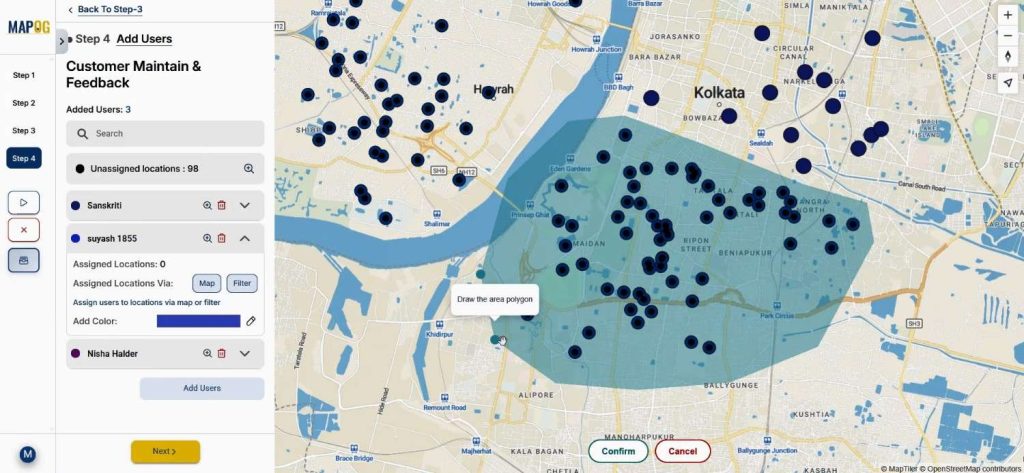
Later, open any member’s section and using the map option draw a polygon around the customer points; the points inside that polygon will be assigned to that member automatically.
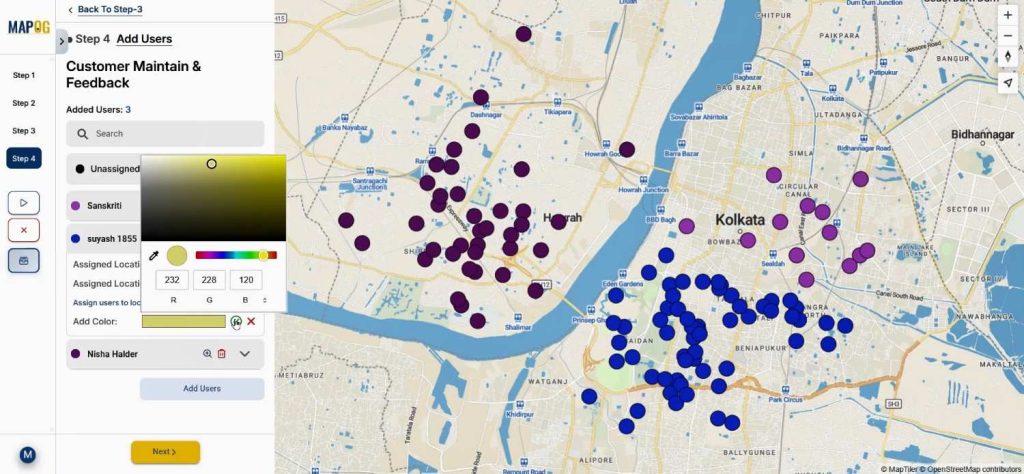
Colors can be changed using the add color option, it helps different points allot to different users.
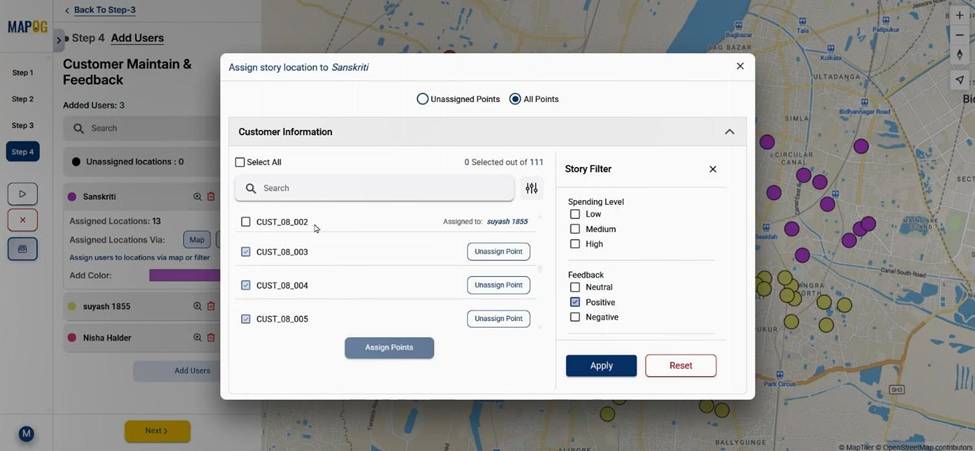
and filters can be applied to view customers by rating, spending or frequency. As a result, this helps teams maintain your customers efficiently in the field.
Step 6: Launching Survey & Monitoring Progress
Finally, launch the survey by clicking on the launch button.
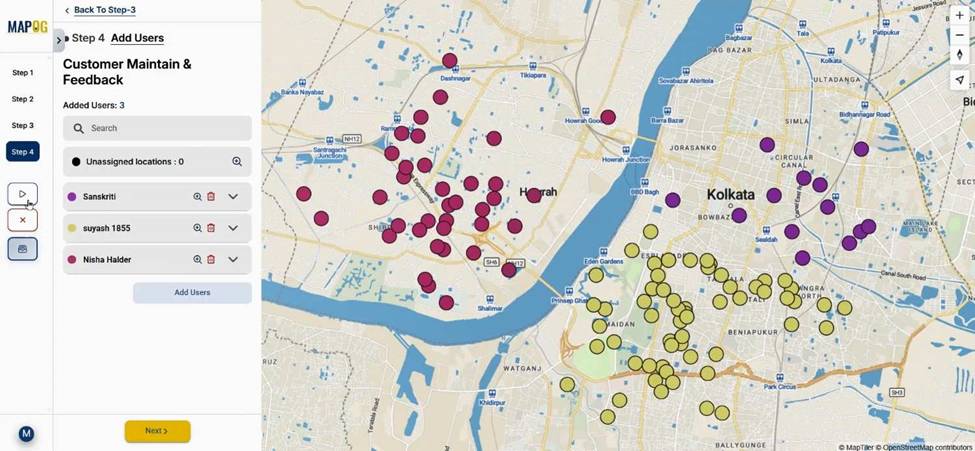
The assigned members will receive customer points in the MAPOG Contributor App.
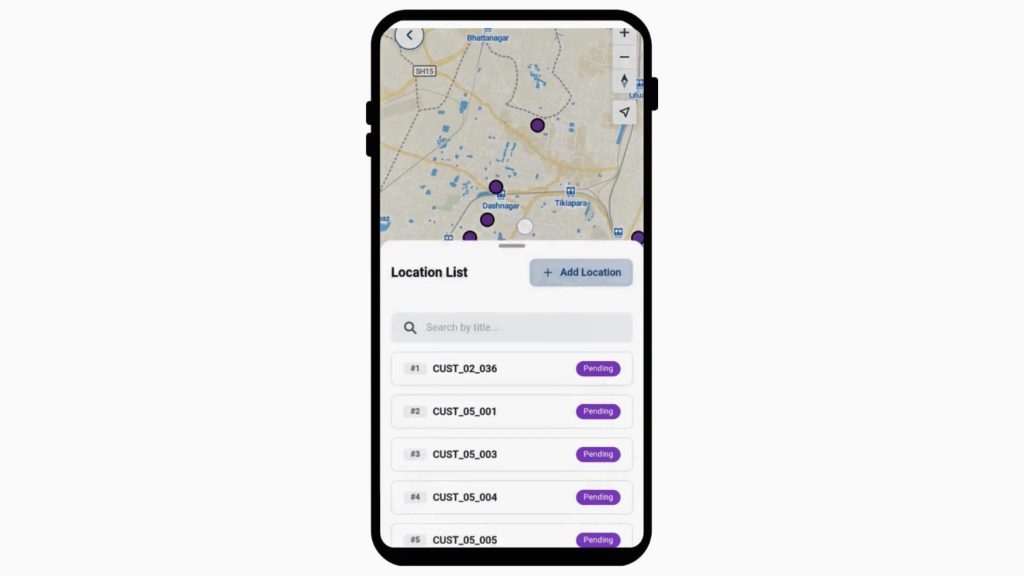
and can fill the survey on-site based on their experience.
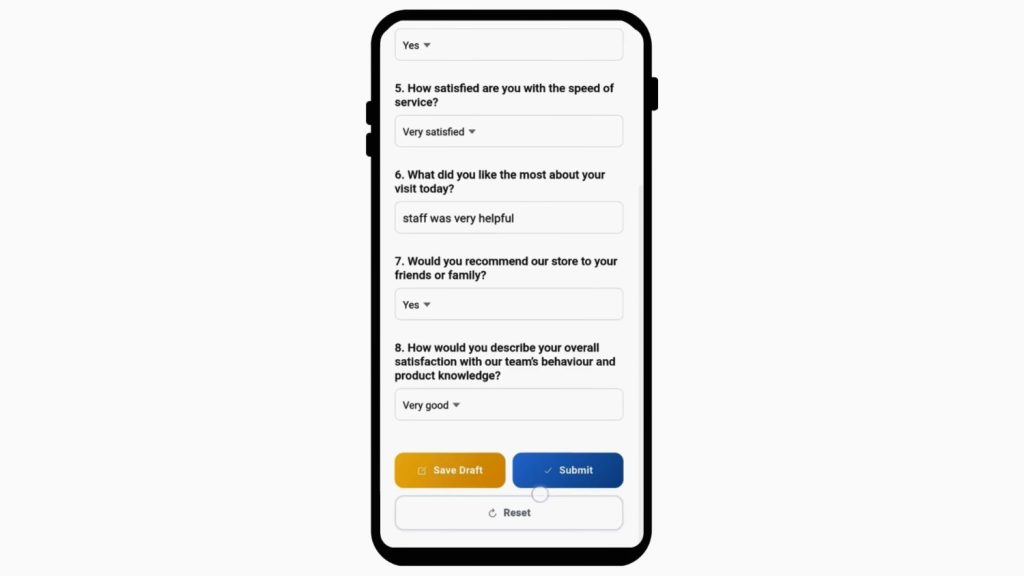
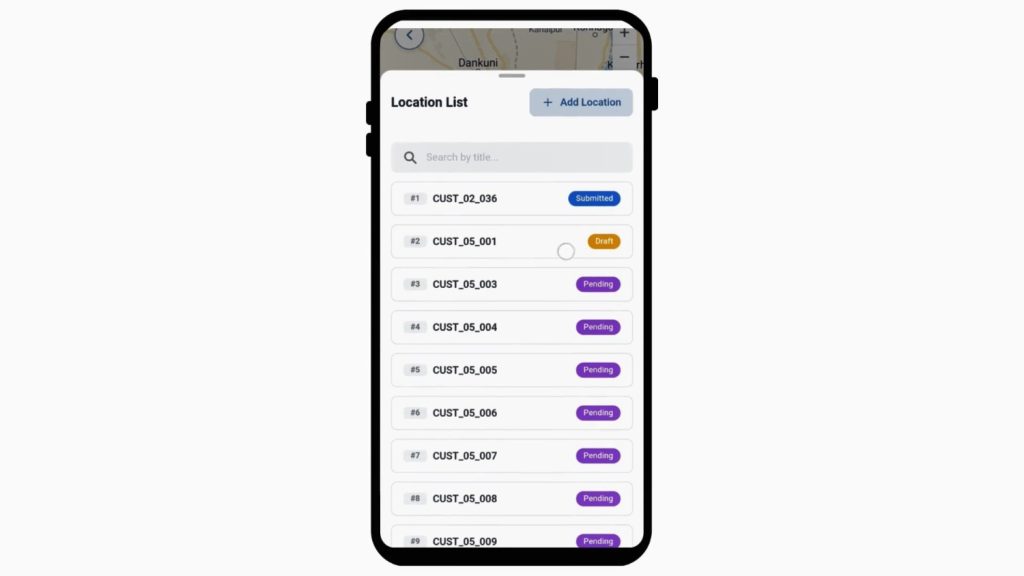
They can submit or keep drafts.
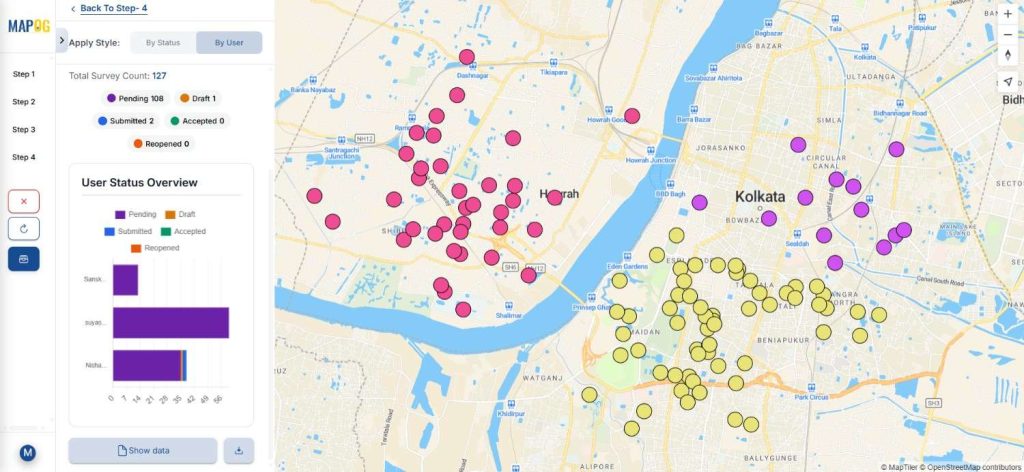
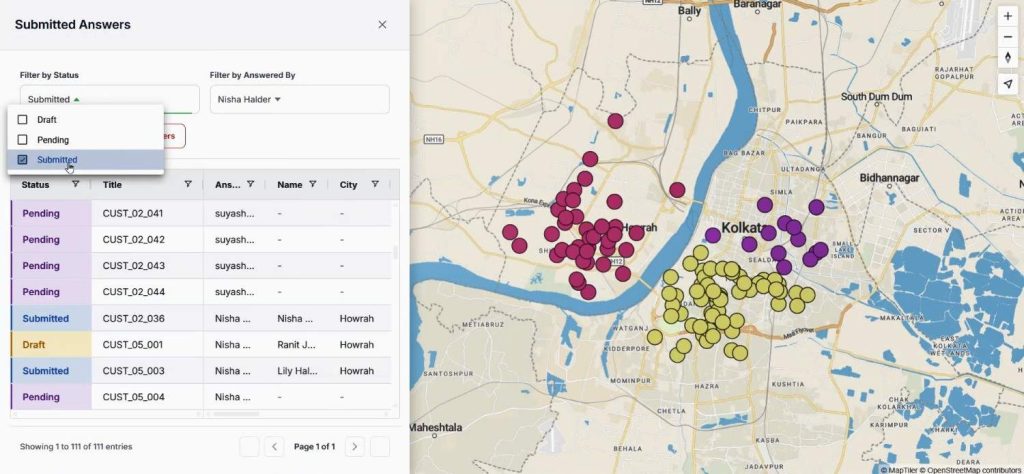
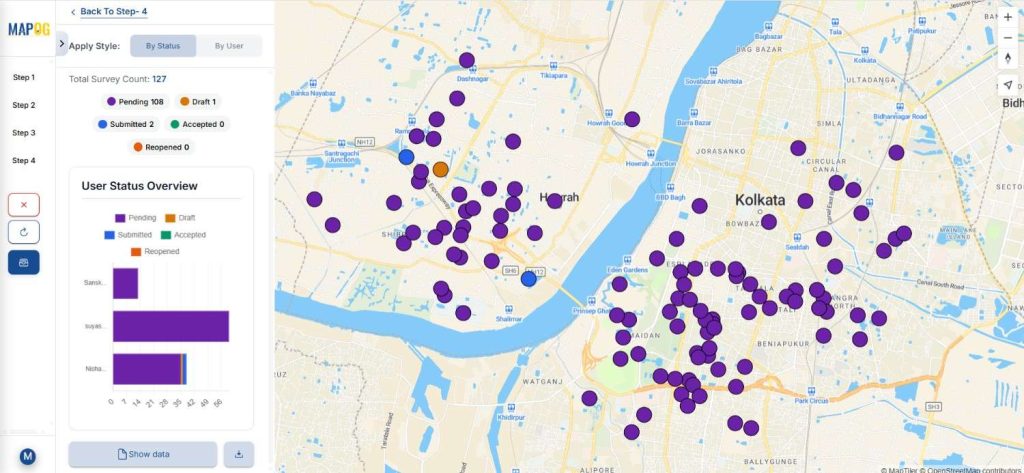
Using the “Show Data Overview” option, you can filter by user or status to track progress and maintain your customers through consistent follow-ups.
Industry Use & Benefits to Maintain Your Customers
Industries like retail, FMCG, distribution, and services depend heavily on field executives. These teams handle regular customer interactions, so mapping tools help them plan smarter and avoid confusion. Mobile Data Collection supports clear processes, boosts transparency, and ensures teams record every customer insight during visits.
Conclusion
To maintain growth, businesses must learn how to maintain your customers using organized feedback systems. With MAPOG, teams can collect insights, assign regions, map customer clusters, and improve service experiences consistently.