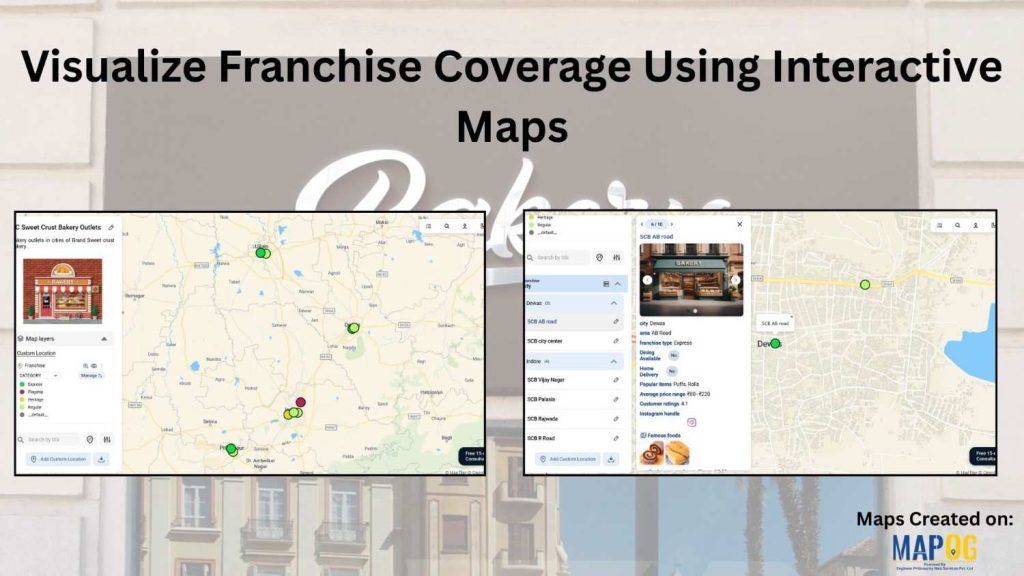
Running a franchise business is no longer just about opening outlets in multiple cities. Instead, it is about understanding where your outlets are located, how they perform, and which areas remain untapped. This is where interactive maps play a crucial role. Visualize franchise coverage on a map, businesses can instantly see location patterns, service reach, and market gaps.
For example, a bakery franchise with outlets spread across nearby cities can use an interactive map to showcase its presence. Moreover, when combined with meaningful attributes in MAPOG maps become powerful decision-making tools rather than simple visuals.
Key Concepts Behind Franchise Coverage Mapping
Before creating a map, it is important to understand why these core concepts matter. To begin with, accurate location data ensures Visualize franchise coverage outlet appears in the correct place, making the map reliable.
Additionally, attributes add meaningful context to each outlet. While points show where locations exist, details such as outlet type, dining options, buildings type, and social media presence explain how each outlet operates.
Steps to Visualize Franchise Coverage Map
1: Prepare Your Data
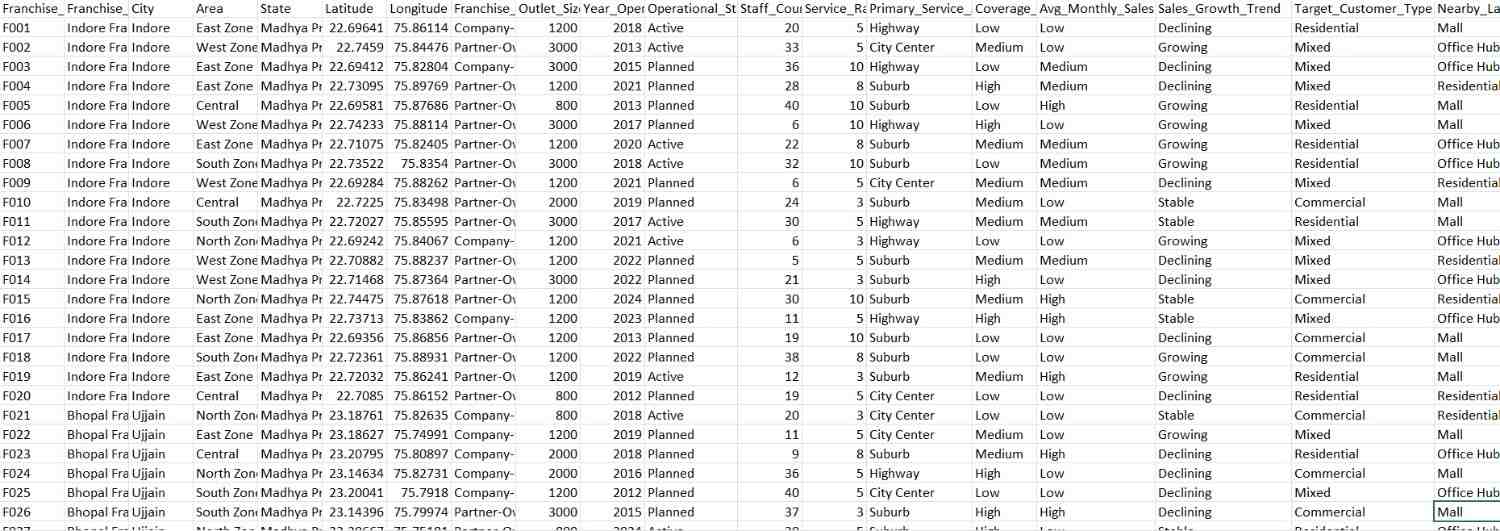
Start by organizing your franchise data in Excel. Include columns such as outlet name, city, area, latitude, longitude, dining availability, home delivery, customer rating, and social media handle. At this stage, ensure the data looks realistic and consistent.
2: Upload Data to the Mapping Platform
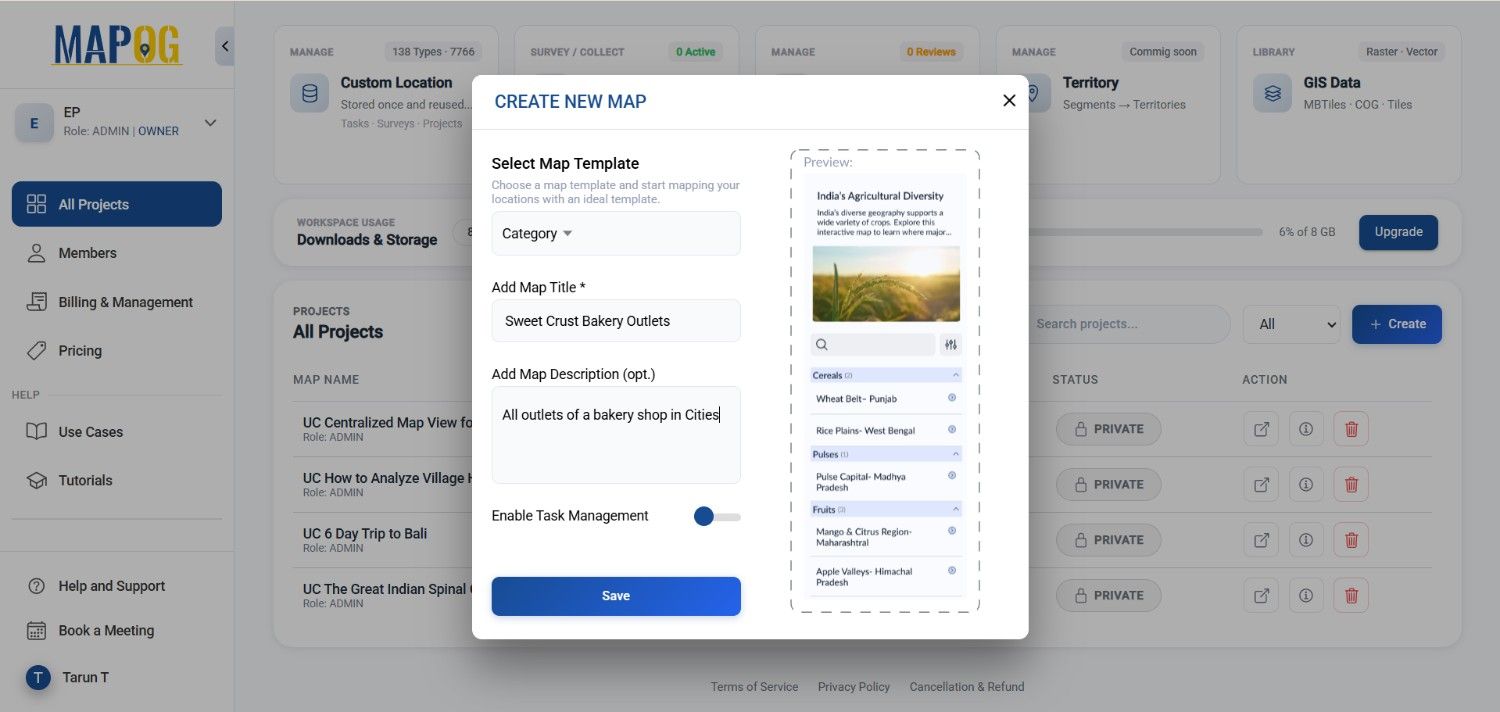
Next, log in to your MAPOG workspace and choose the “create” option and choose category template to create a new map add a title and a description and save it .
3. Upload Your Excel File
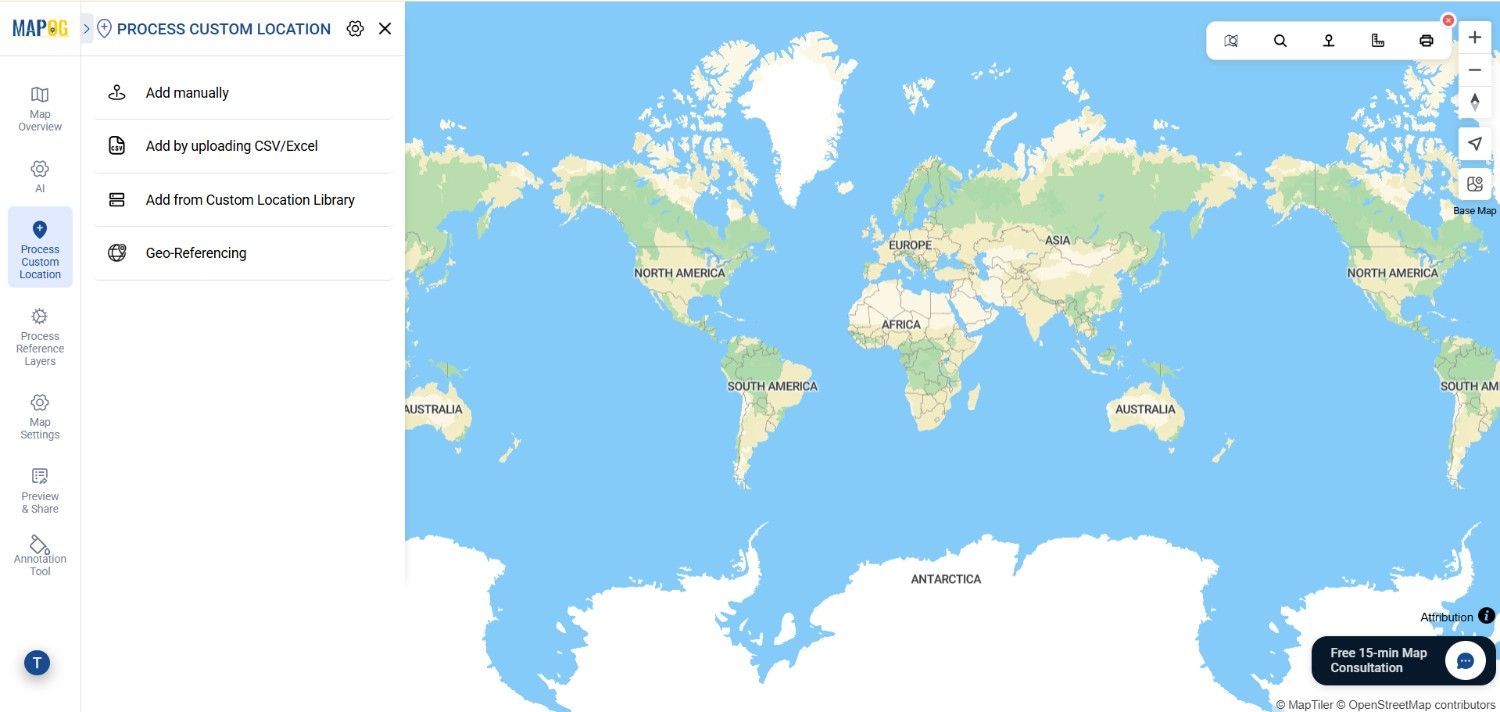
Next, click the “Process custom location ” option and Go to Add by Uploading CSV/Excel.
4. Create and Assign Attributes
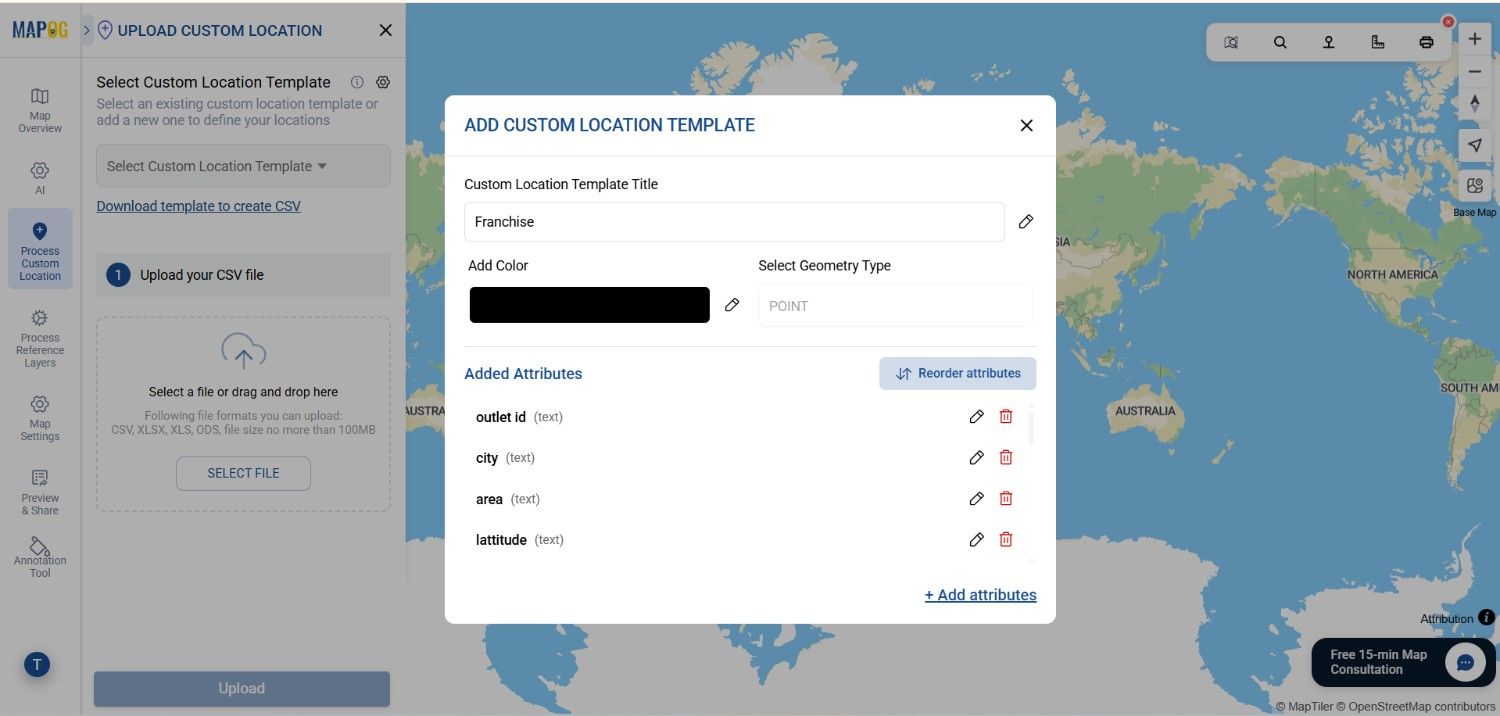
Now, go to the select custom location template section to add a new custom template called Franchise . Select the geometry type as point. Inside this custom template, create attributes—such as “Outlet Category,” “Purchase Frequency,” and “Revenue Range.”
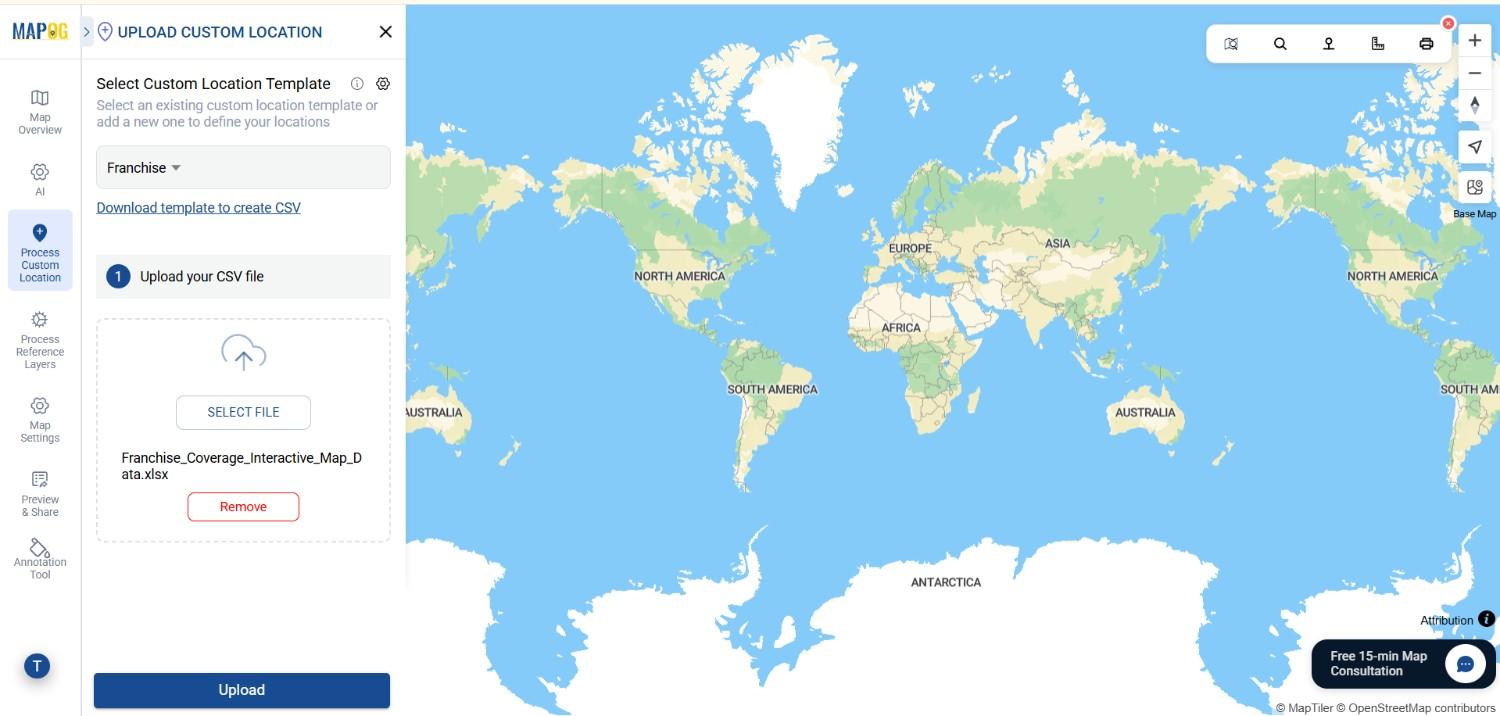
Browse your device to locate the Excel sheet containing your Franchise details. Once selected, confirm the upload.
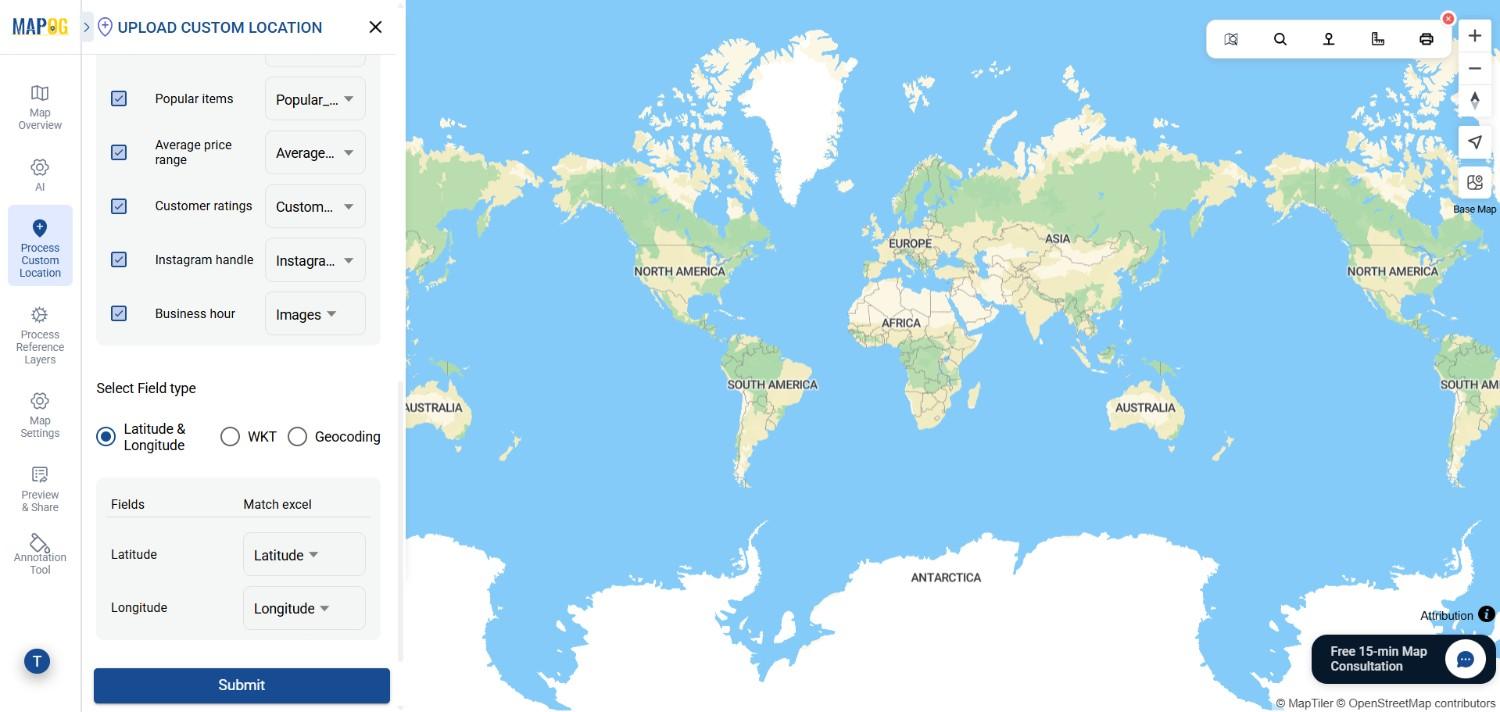
After that, match each Excel column to its corresponding attribute. Because many GIS tools auto-detect data types, this step becomes faster and more intuitive. If your dataset includes additional attributes, MAPOG allows you to match all column names during the import process. After aligning attributes like “Title ,” category” and “Latitude/Longitude,” finalize the upload to visualize all entries instantly.
5: Style the Map for Clarity
Once the data appears on the map, move to the add layer style.
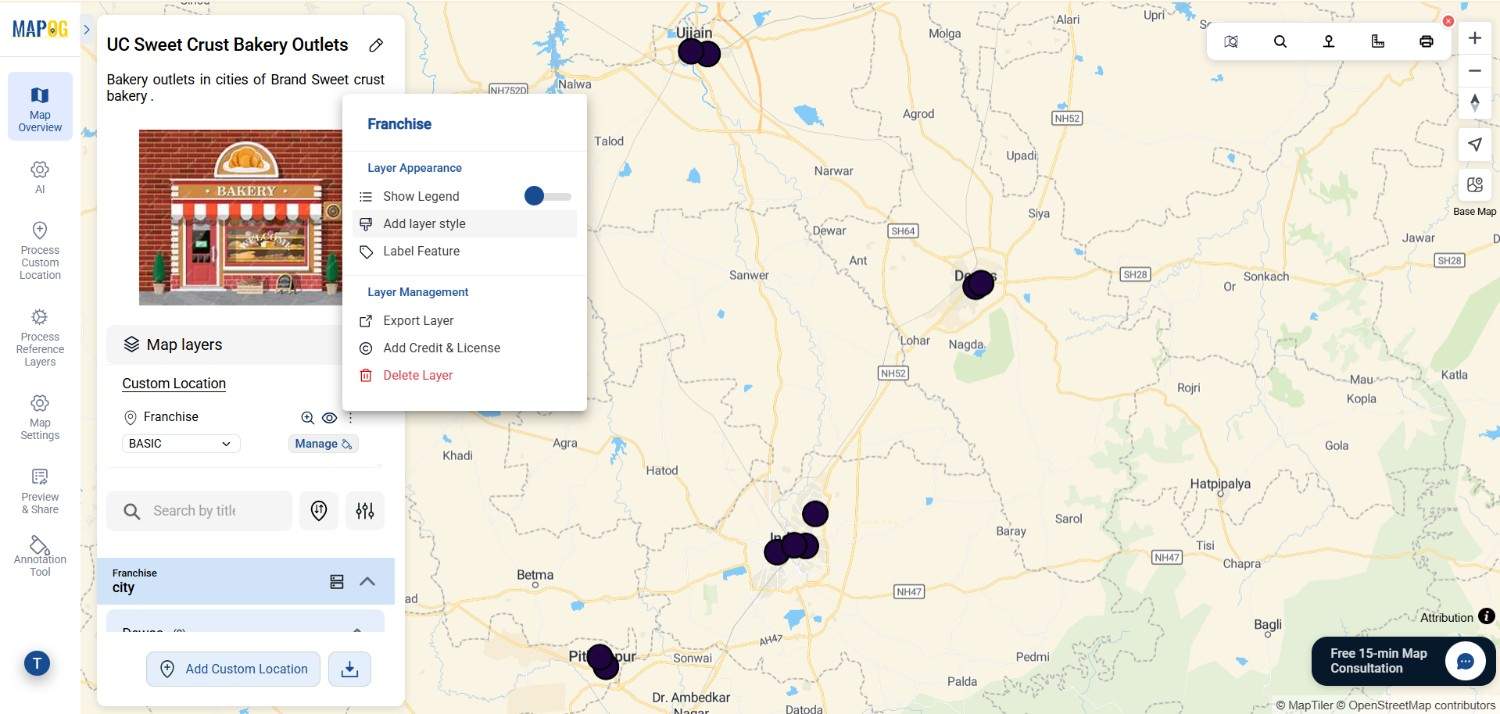
Choose a category-based style and choose franchise type attributes to assign different colors for outlet types such as flagship, regular, or express outlets. As a result, users can quickly distinguish between locations at a glance.
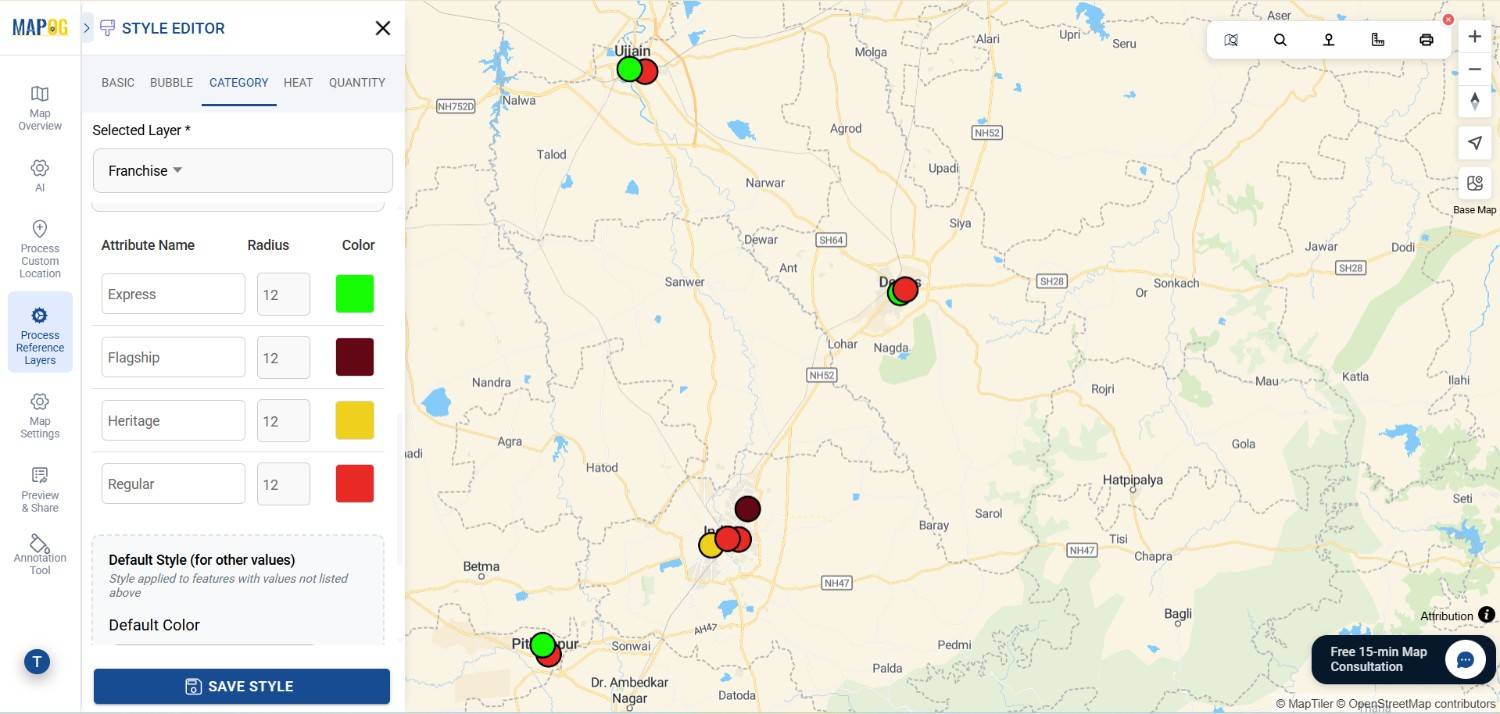
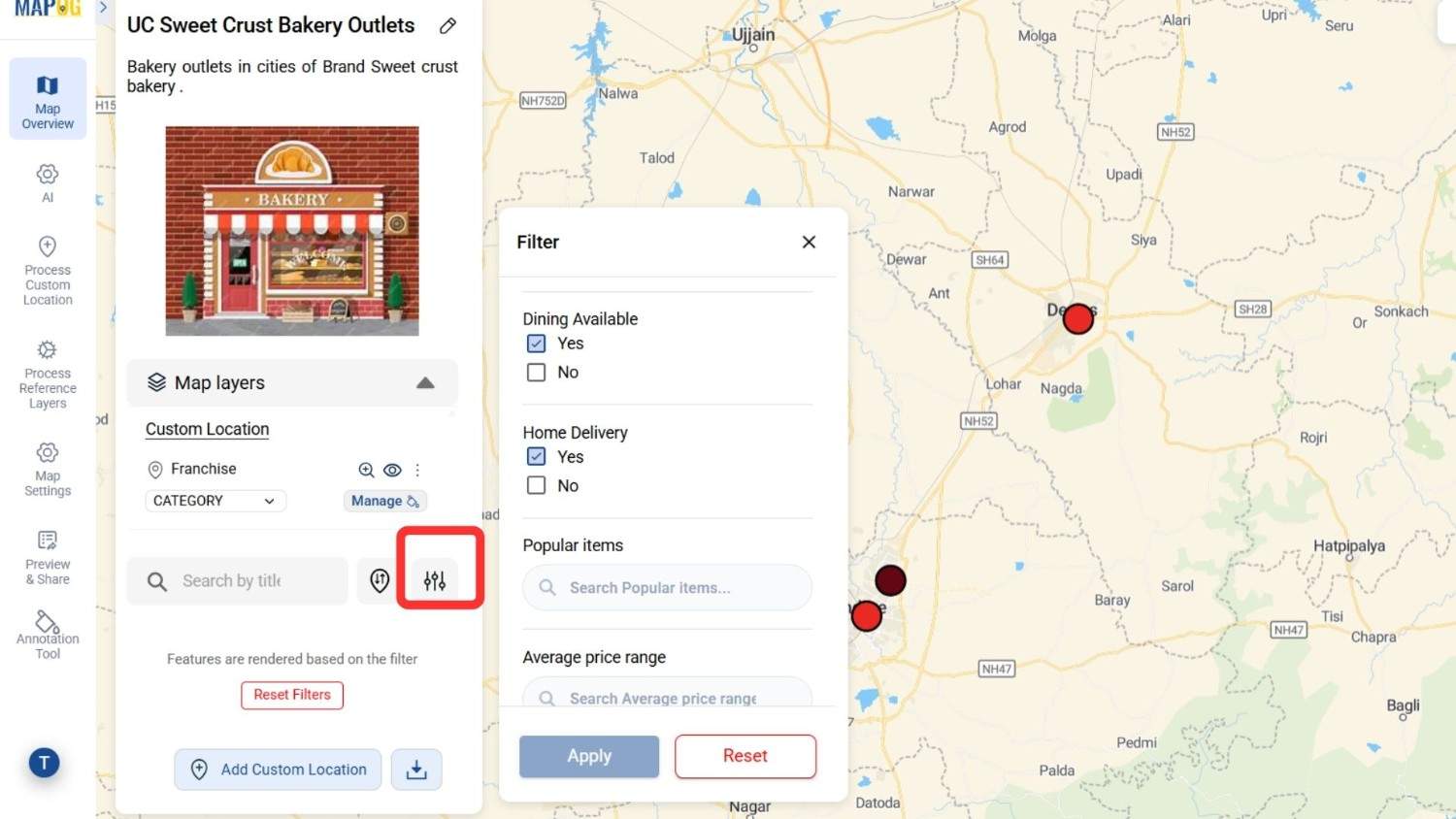
6: Configure Attributes and Filters
After uploading, enable filters for attributes like city, outlet type, dining availability, and delivery options. Choose any attribute from the filter panel, and click apply. Immediately, your map updates.
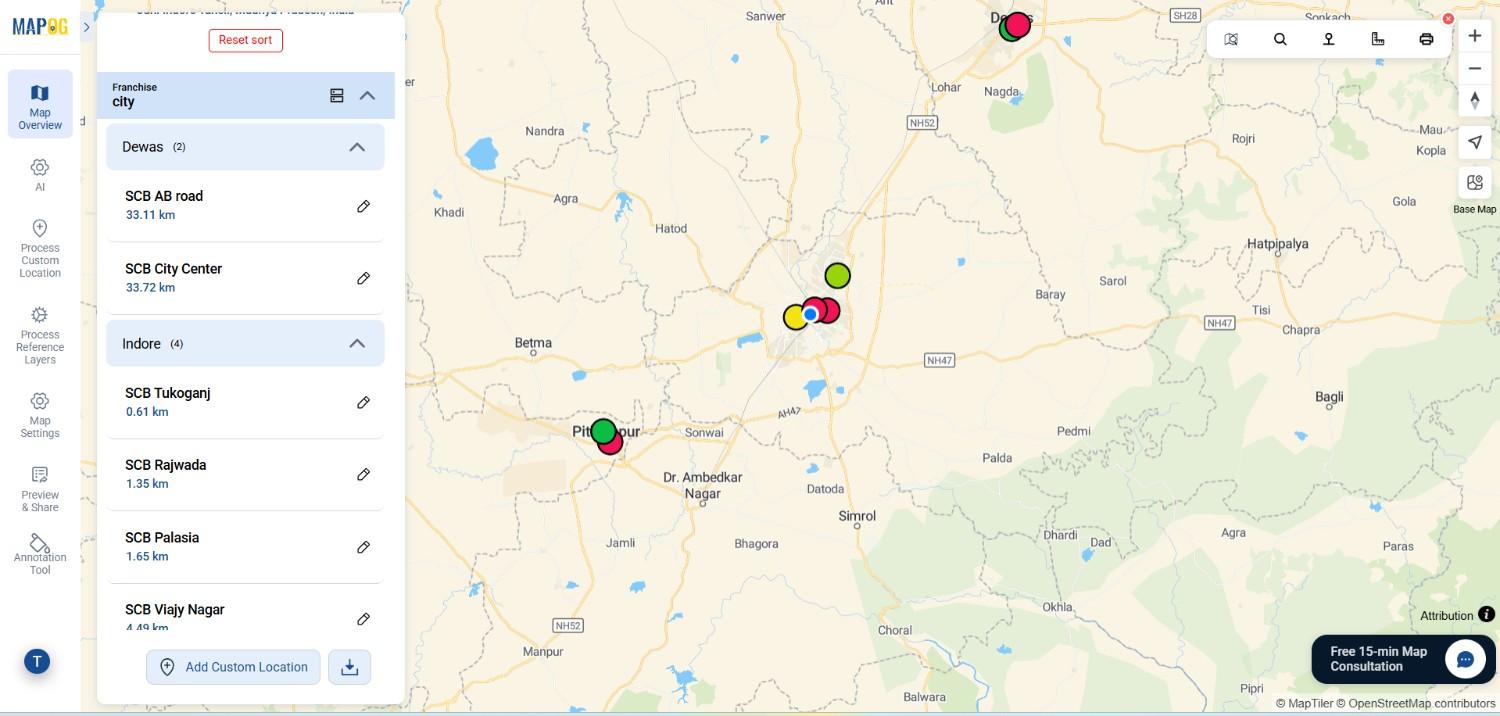
7. Sorting or Grouping the map
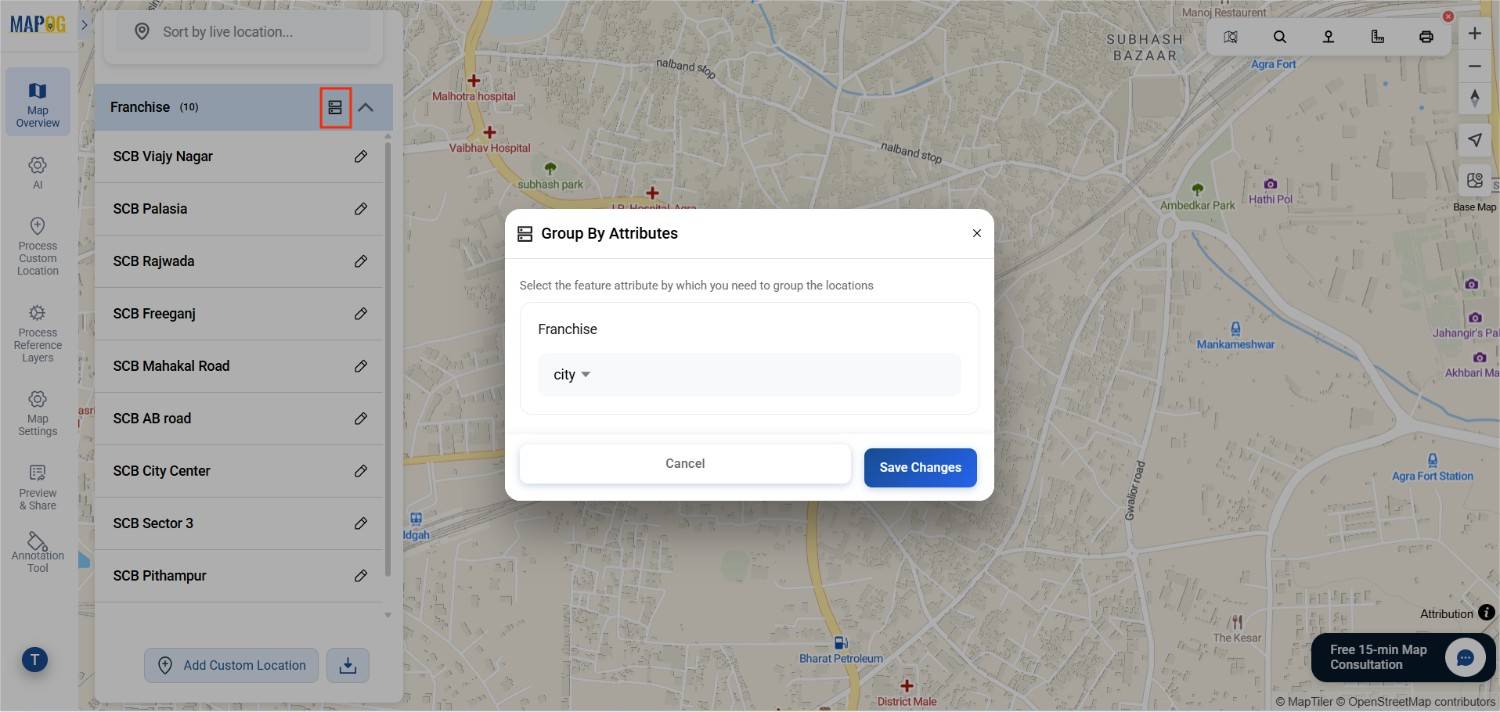
Click the “Group By” button.
Select your attribute from the dropdown (e.g., category , rating, ).
The map will automatically group the points according to the attribute you selected.
or you can click on sort by button and sort the points by searching locations
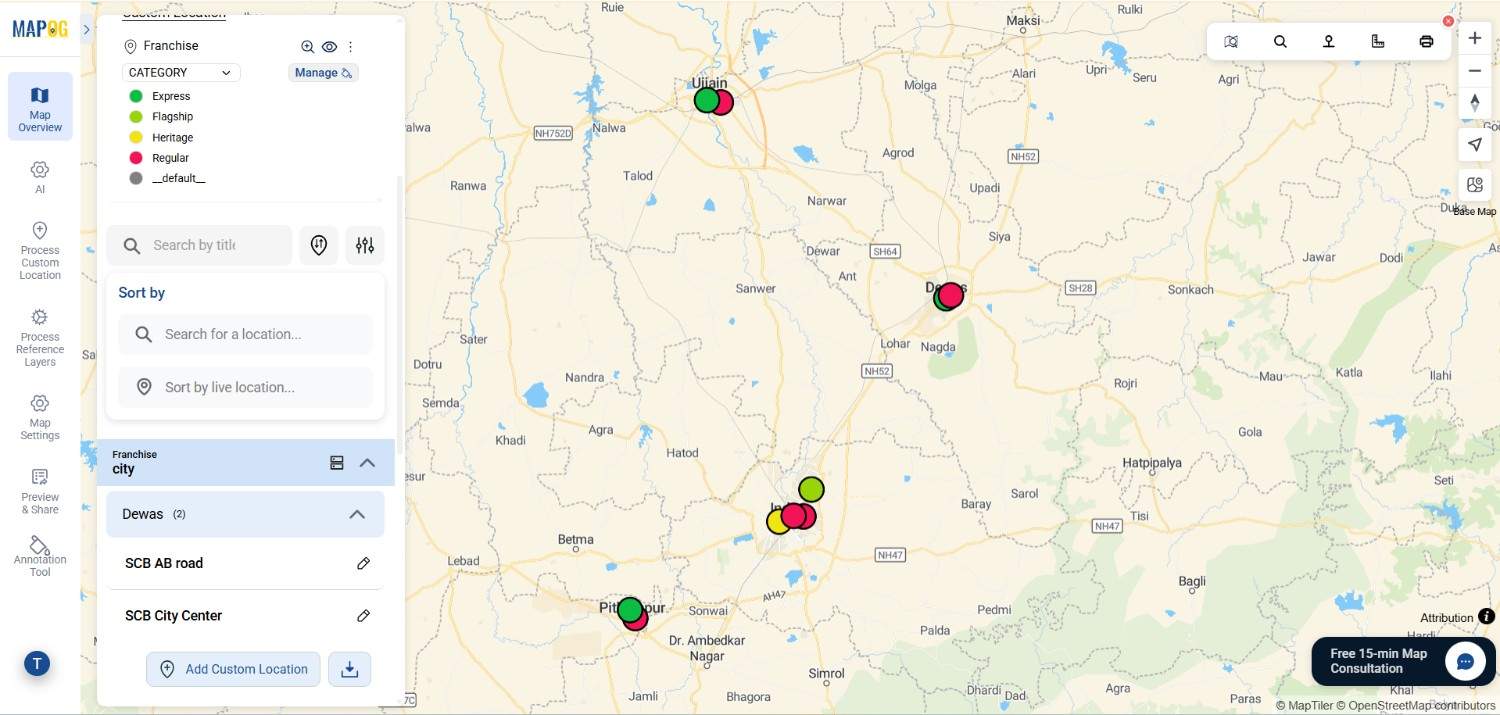
or sorting by live location .
8: Review and Share
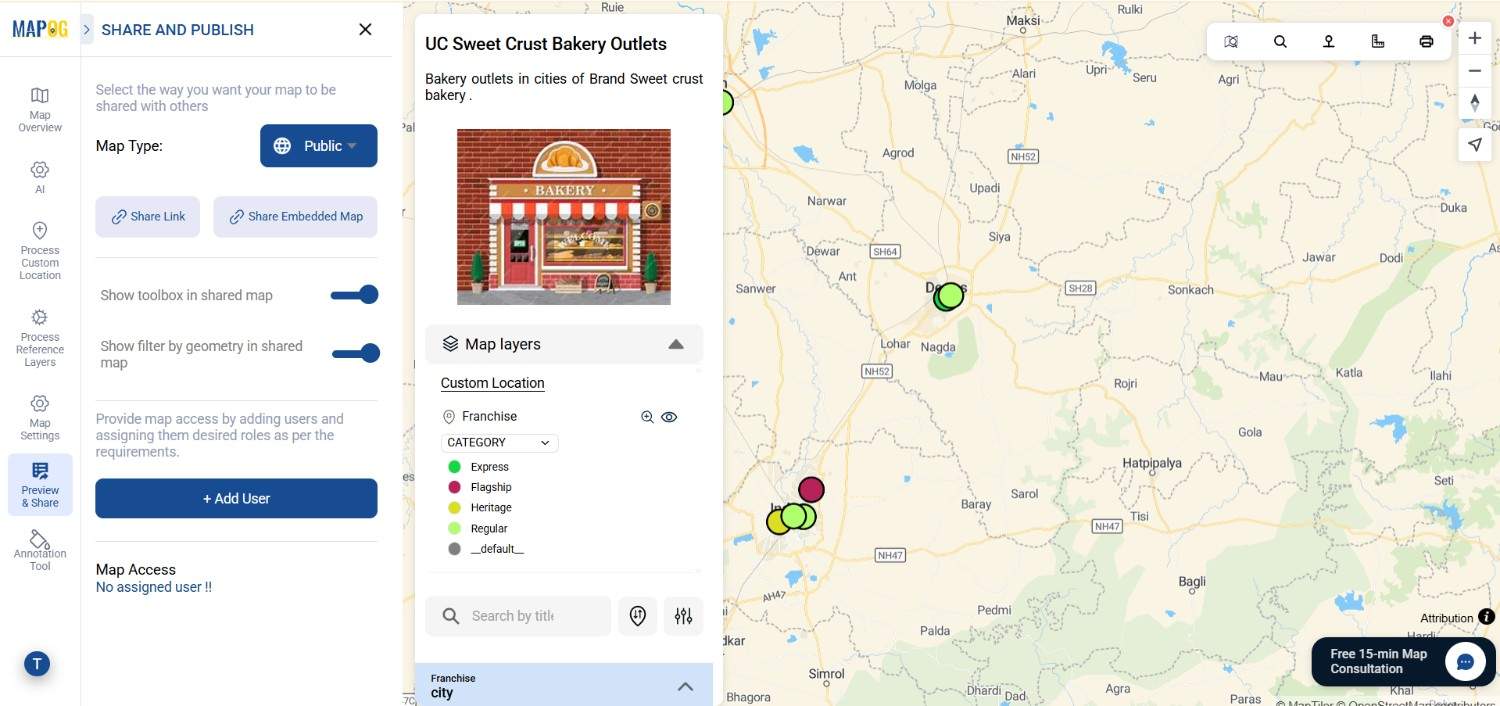
Finally, click on preview & share. This allows teams, managers, to explore the data interactively. Moreover, shared maps make effective.
Industry Benefits of Franchise Coverage Map
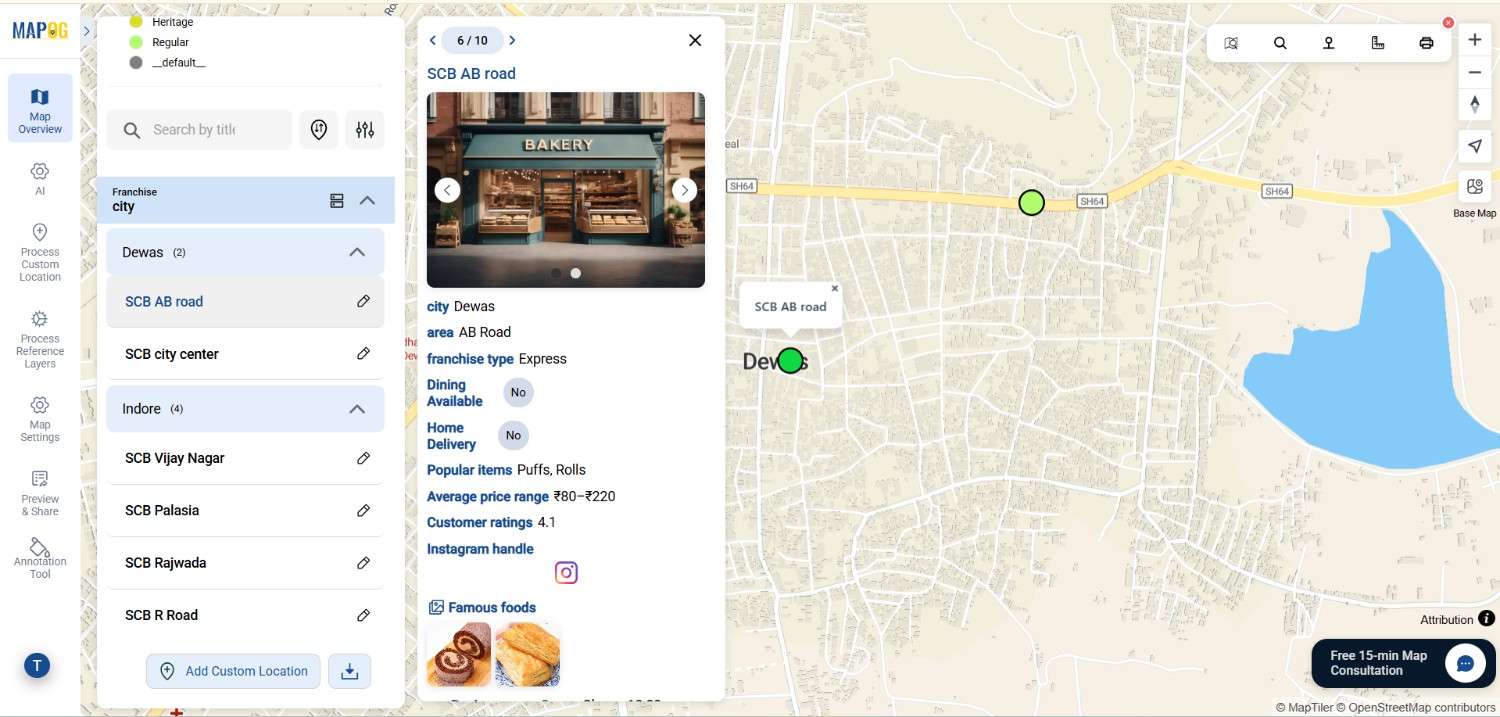
Interactive franchise maps offer multiple benefits across industries. Additionally can show your entire scale on a map to your customers by sharing or embedding on your store website which boosts engagement and builds trust by showing what services you offer, your service locations, can add direct call to action and visualize franchise.
Conclusion
In conclusion, visualizing franchise coverage using interactive maps is no longer optional—it is essential. Whether you manage a bakery franchise or any multi-location business, MAPOG helps you understand today’s presence and plan tomorrow’s expansion. Therefore, investing time in creating a well-structured franchise coverage map can deliver long-term strategic value.