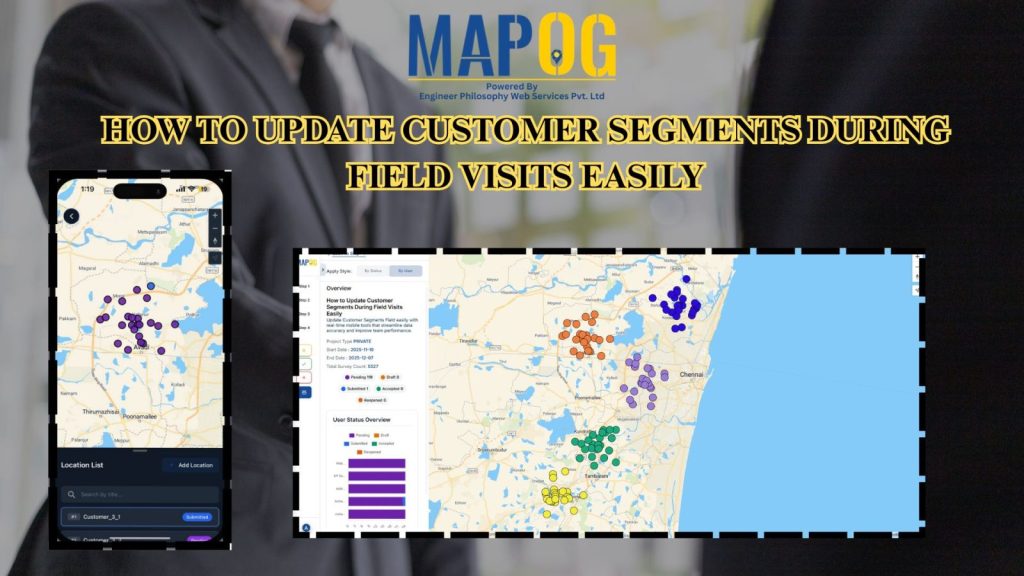
Field teams meet customers for checks or update Customer Segments Field, but manual recording makes data outdated and unclear. MAPOG solves this by letting teams update customer segments on-site with GPS-verified changes that sync instantly to the dashboard. Managers then get clean, real-time information without manual follow-ups.
Key Concept: Update Customer Segments Field
Updating customer segments during field visits keeps data real-time and accurate. Admins create templates with custom fields and surveys, while field teams update assigned customers through the MAPOG app.
Step-by-Step Method to Update Customer Segments During Field Visits
Interactive mapping simplifies customer data, MAPOG enables quick segment updates during insurance field visits.
Update and create Customer Segments Field
- Go to MAPOG → Mobile Data Collection → Create New.
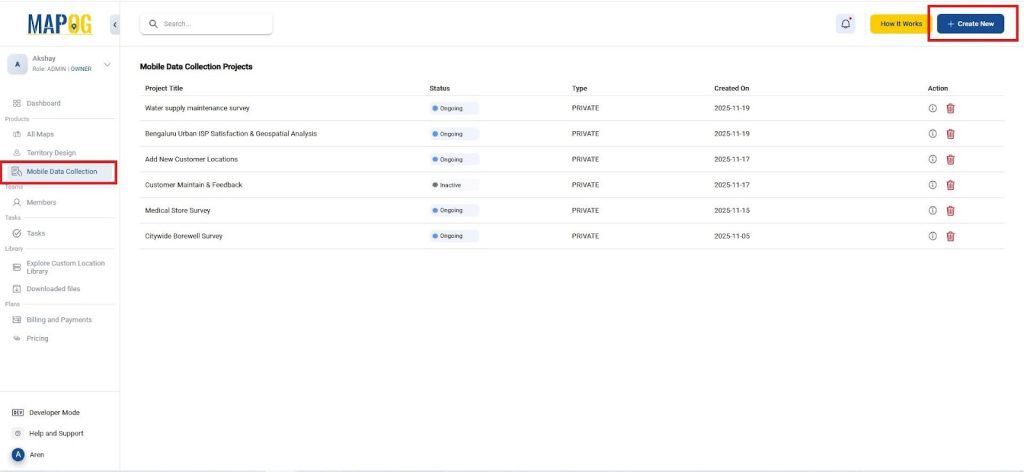
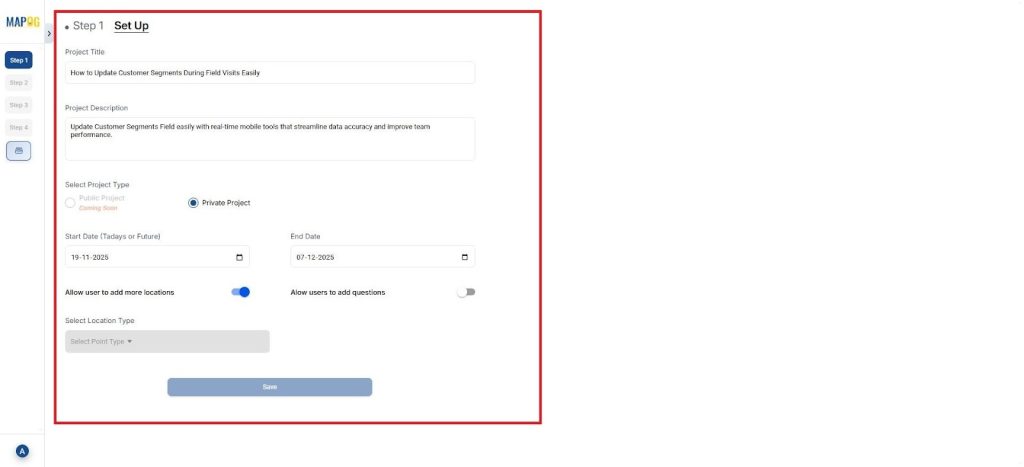
- In step 1, Give the project a clear title like Customer Segment Update and add a short description & complete other details.
Create Update Customer Segments Field Template
- Now, Go to Select Point Type → Create New Template
- Assign a name, choose a color, and select Point as the geometry.
- Add common fields such as: Customer Name, Customer Category, Segment Status, Contact Details, Location Address,Notes and Last Visit Date and mention its type too.
- These fields can be adapted for any industry (retail, telecom, finance, FMCG, healthcare, etc.).

Add Questionnaire for Field Verification
- Add all the questions in step 2 that seem relevant to the survey and add them one by one using the “Add Question” option. For example, you can add a question like:
- How satisfied are you with your current insurance policy? with options ranging from Very satisfied to Very dissatisfied.
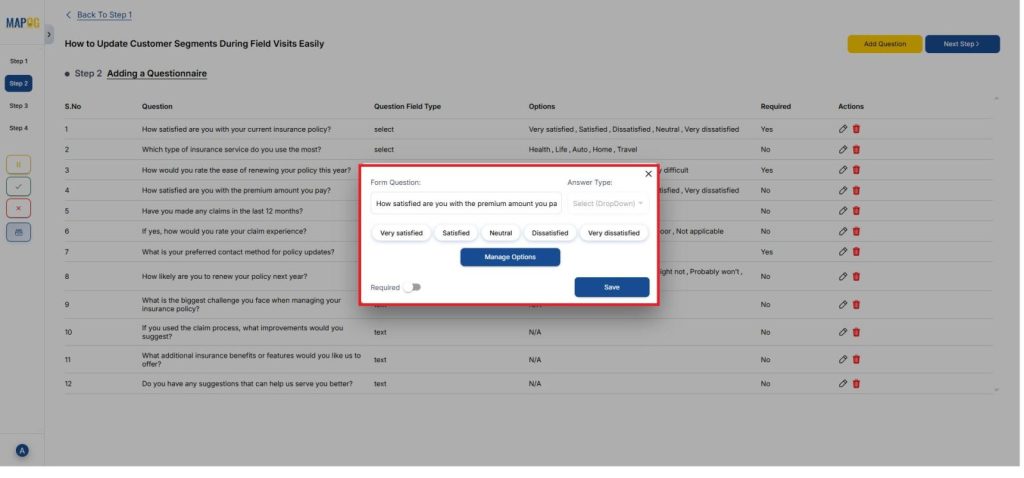
- You can list choices, and each question supports various answer types that you can fully customize.
- Similarly, you can include other visit-related questions in the same format.

Upload Customer Locations
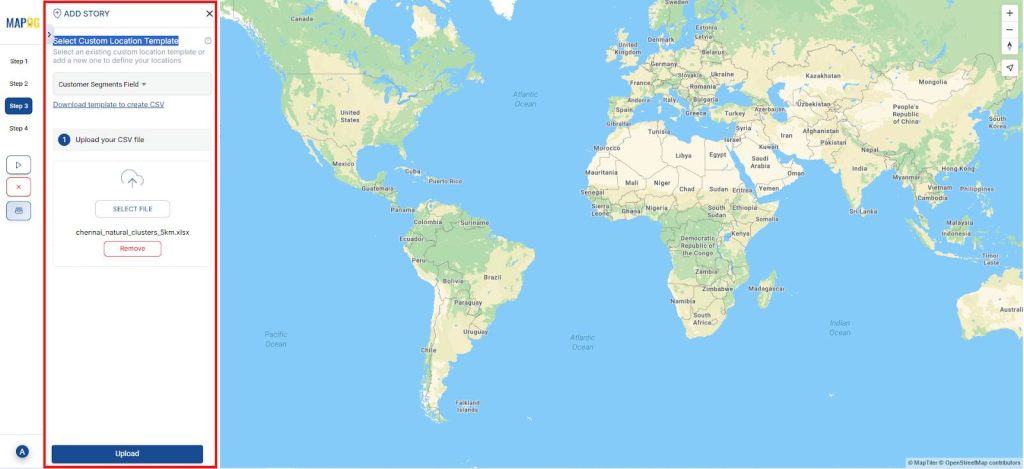
- In step 3 Add location using the Add new location by uploading CSV/ Excel.
- Upload your CSV/Excel file containing customer coordinates and attributes and Select Custom Location Template will automatically update you created before.
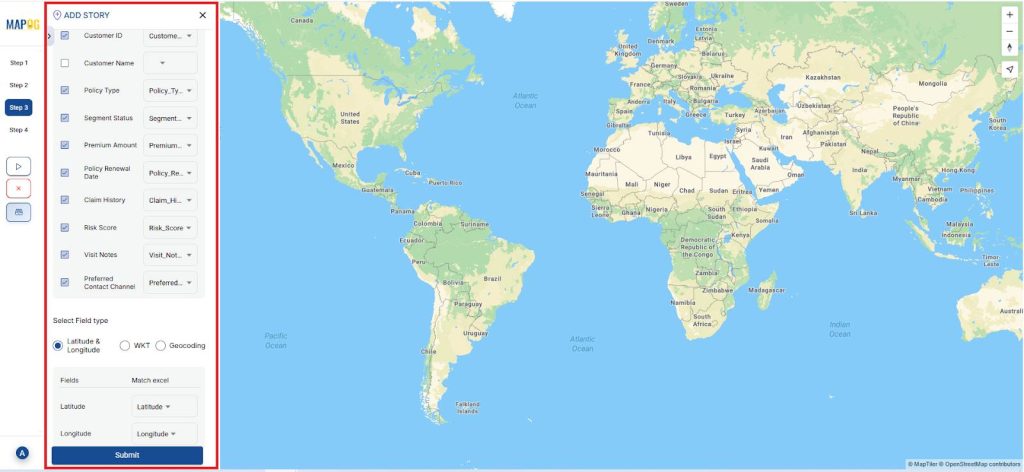
- Match columns such as: Customer name, Segment, Address, Status, Contact number and Existing classification.
- Customers will now appear as map points.

Add and Assign Field Users
- In step 4, Add new users to the project and assign each team member a specific set of customers or regions using the ‘Add user’ option.
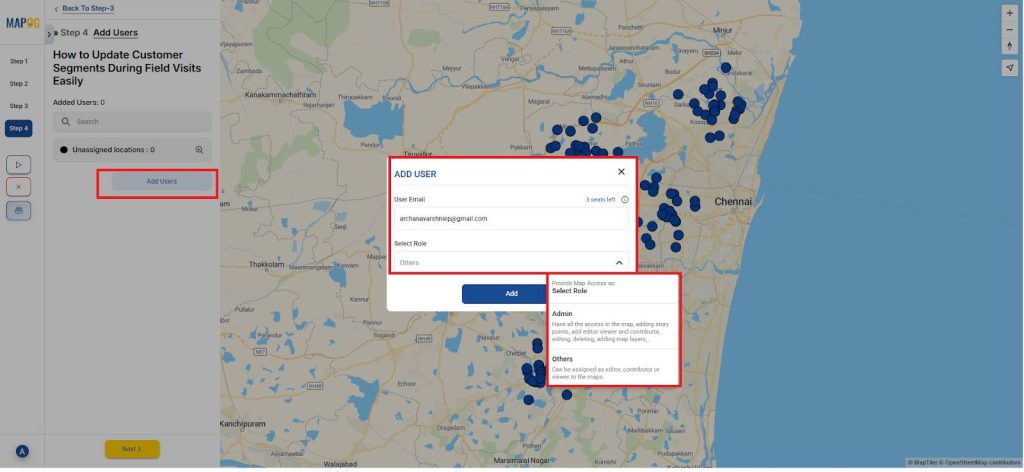
- Then, add all the assignee to this project here.
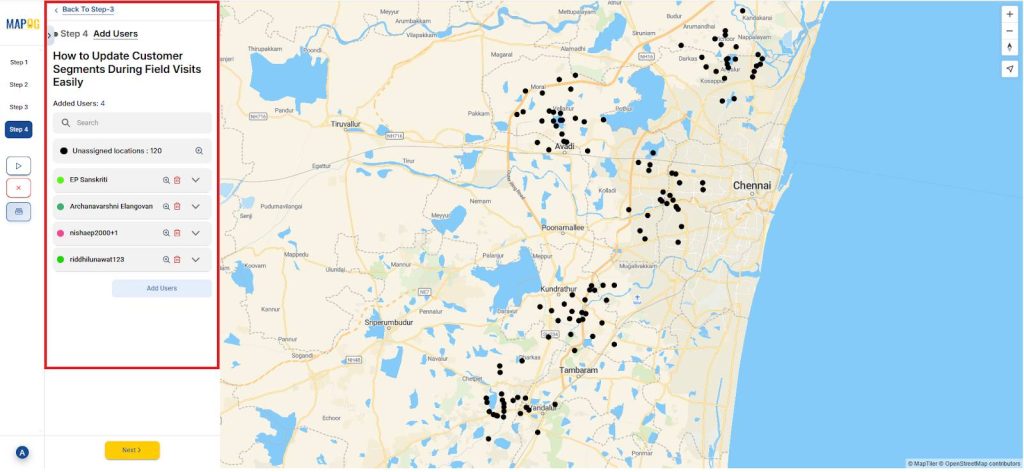
- After that, use the map tool to outline a polygon that defines the exact area you want to allocate to each user.
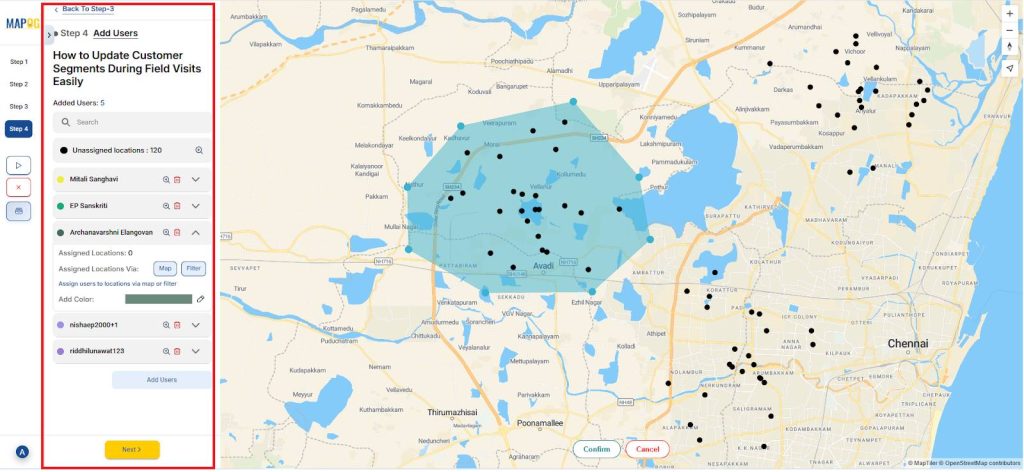
- You can also choose to use the filter feature to filter out points based upon their details
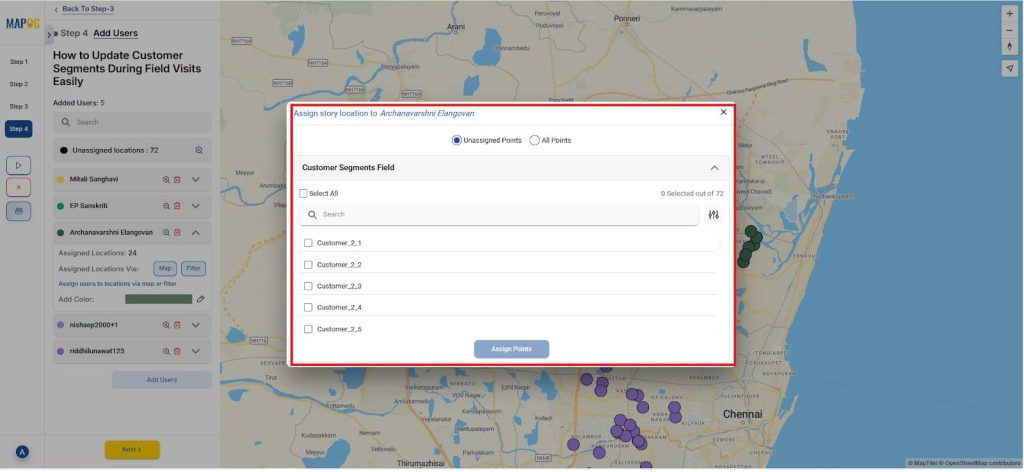
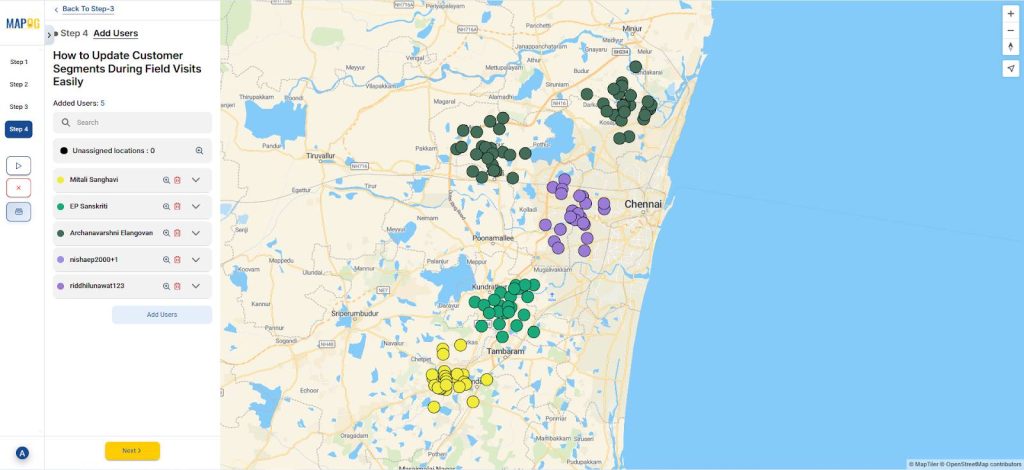
- Finally, all the locations are assigned to respective members.
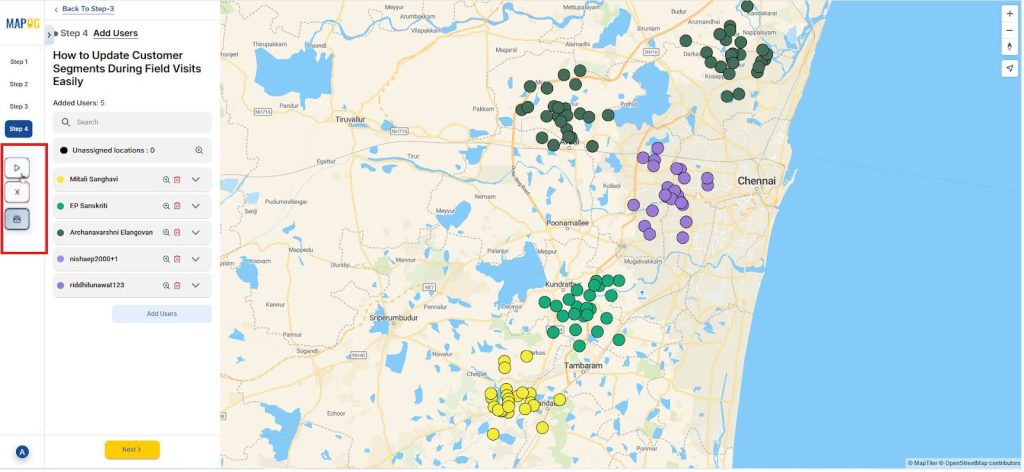
Launch the Project
- Click the triangular Launch button to activate the update task for your field agents.
Field User View (Mobile App)
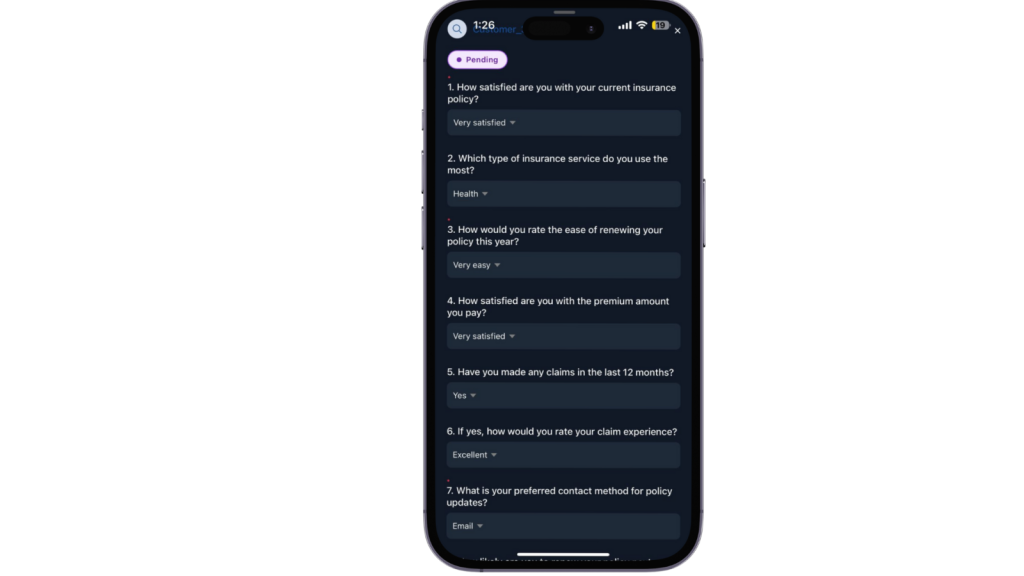
- Field agents can view assigned locations, update customer info, and complete questionnaires in the MAPOG Contributor app.
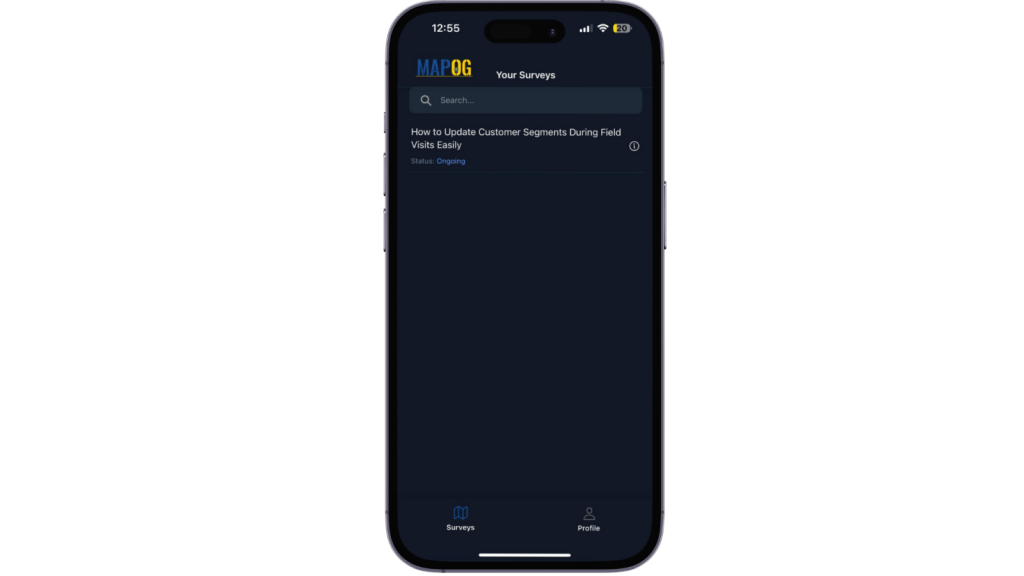
- Every update draft or final is time-stamped and GPS-tagged.
Updating Customer Segments During Visits
- Further, the assigned users can see the locations assigned to them from the MAPOG Mobile contributor application in their personal devices.
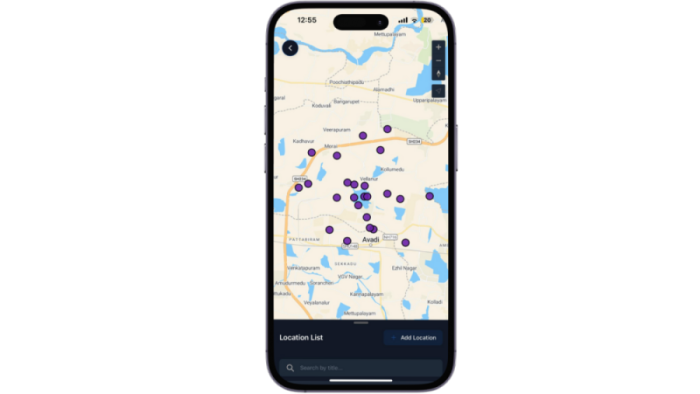
- Use Add Location to create a new point with a title, description, images.
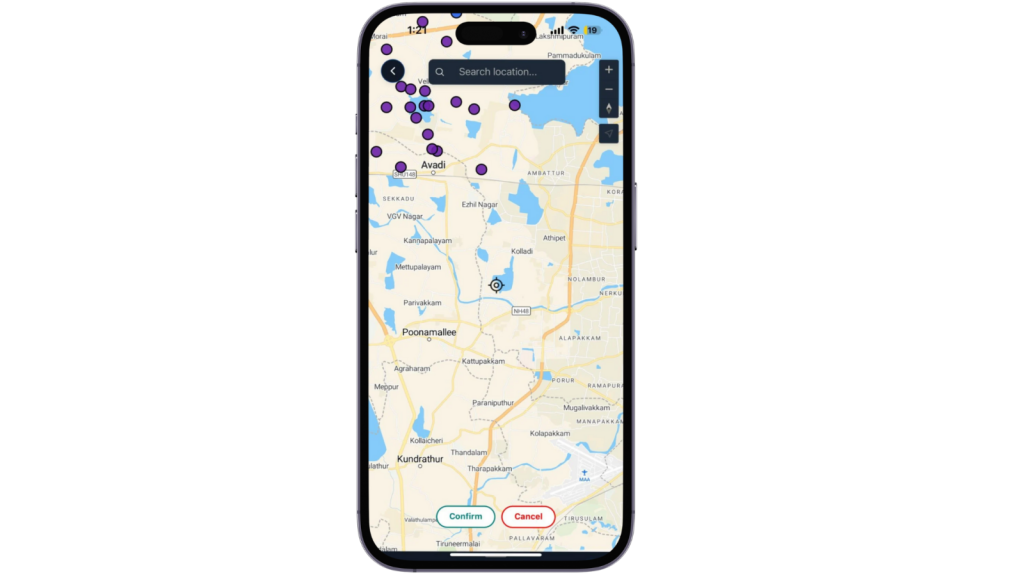
- After that, agents complete the survey and choose to save as draft or submit.
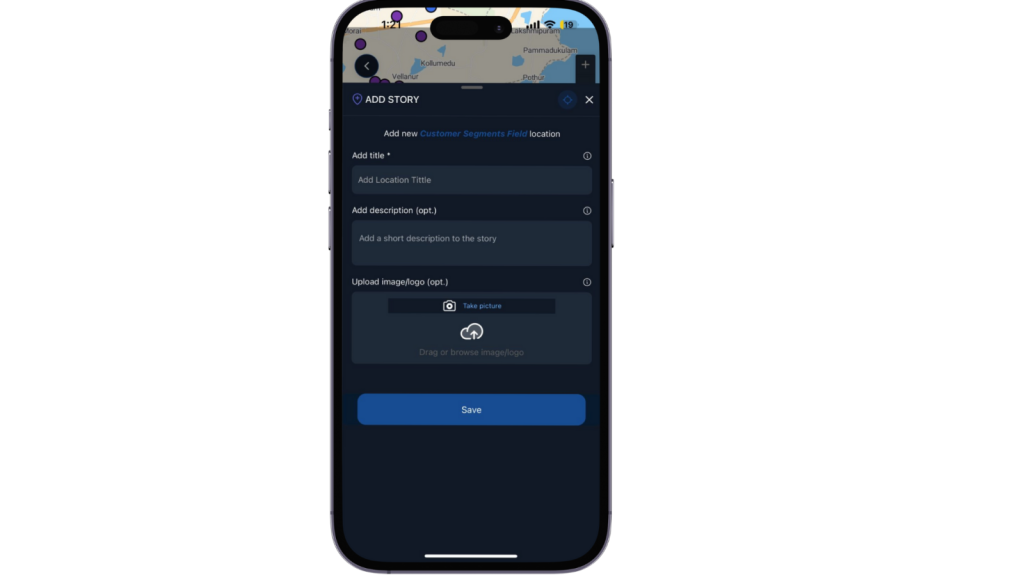
- They can then complete the surveys and choose to either save them as drafts or submit them.
Admin Dashboard Monitoring
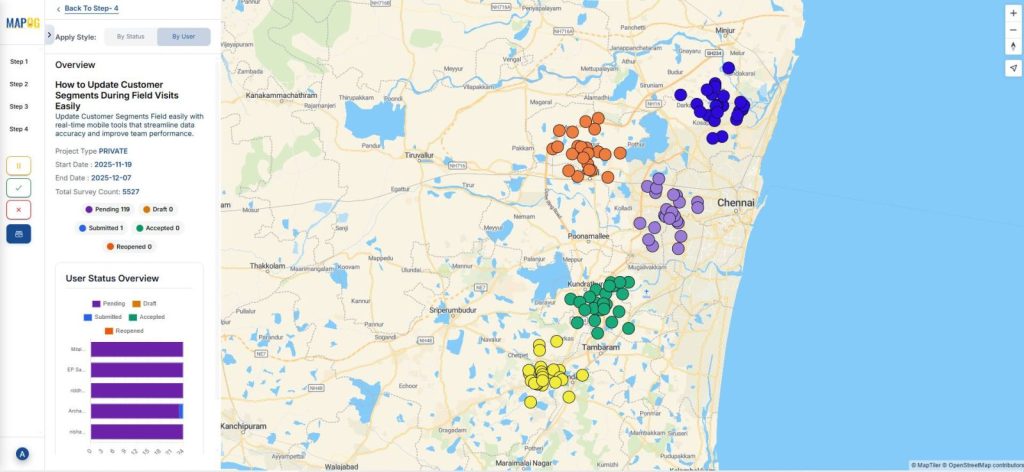
- View the overall progress of all surveys, including accepted, completed, and pending tasks.

- Use Show Data to filter entries by status or by assigned user.
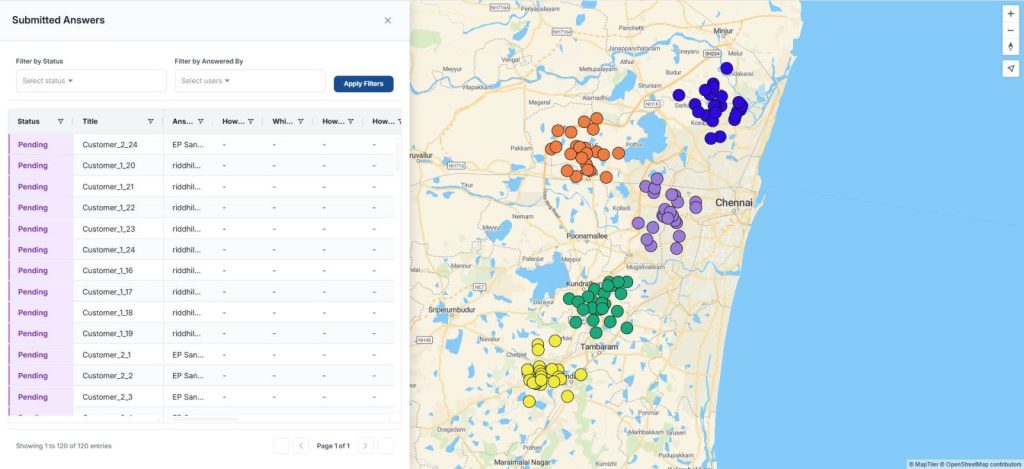
- This ensures complete transparency and faster operational decision-making.
Benefits Across All Industries
- Useful across industries like insurance, retail, telecom, home services.
- Offers real-time segmentation, accurate data, GPS-verified visits, and stronger planning insights.
- Boosts field efficiency while improving customer experience.
Conclusion
Updating customer segments in the field becomes fast and accurate, with MAPOG. Field teams can adjust categories, statuses, and attributes on-site, while Admins receive instant updates on the dashboard. This boosts overall efficiency and ensures decisions are based on the latest customer data.