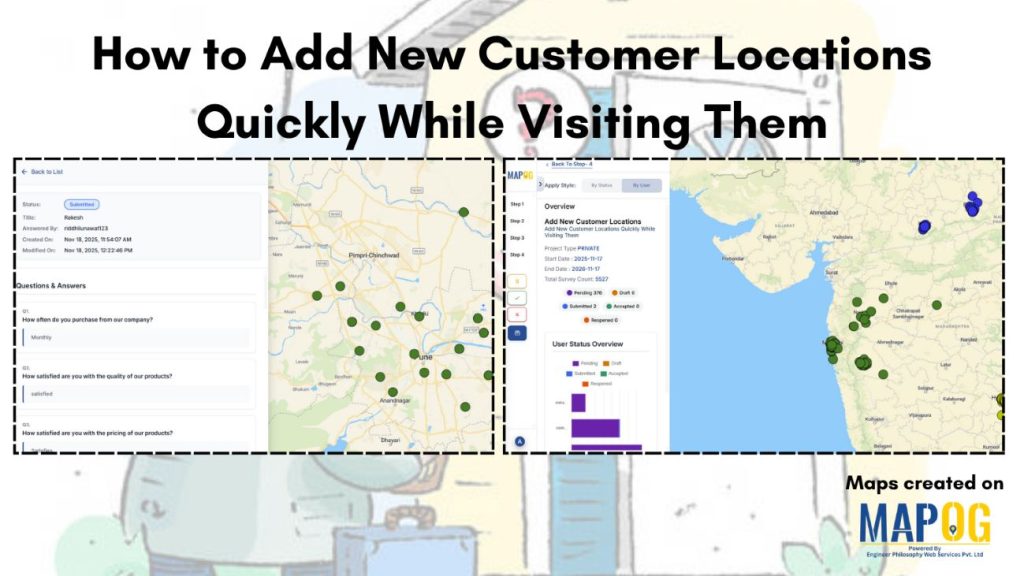
In field surveys, speed and accuracy are everything. Whether collecting customer data, mapping market outlets or conducting household surveys, field teams often struggle with manually recording locations or entering customer details long after the visit. MAPOG solves these challenges by allowing surveyors to capture and register new customer locations instantly, right at the point of contact. This ensures accurate data collection, smooth operations, and reliable geo-tagged records that can be used for planning, analytics, and reporting.
Key concept of adding new location
Adding customer locations during visits allows field teams to capture precise, real-world data instantly. Admins manage the survey environment by creating or importing locations and assigning them to specific users, who see only their allocated sites. Field staff then visit the locations and complete GPS-verified survey forms. Once submitted, data syncs instantly to the admin dashboard, ensuring real-time visibility, full coverage, and no duplicate or missed entries. This on-site approach speeds up data collection, keeps information current, and builds a reliable location map for better planning and follow-ups.
Step-by-step method of creating the map
Step 0: Create the map
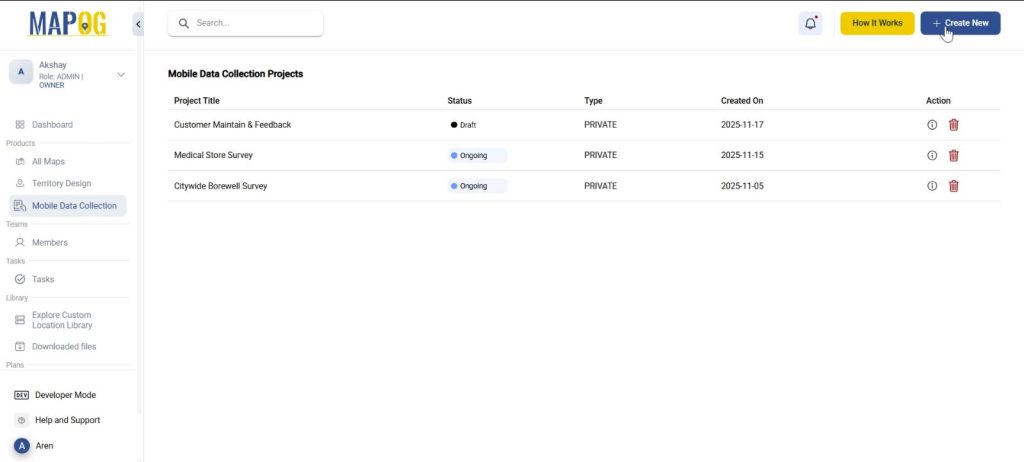
Go to MAPOG, select mobile data collection and press ‘Create new’. Add project title, description and other basic details.
Step 1: Create new custom location template
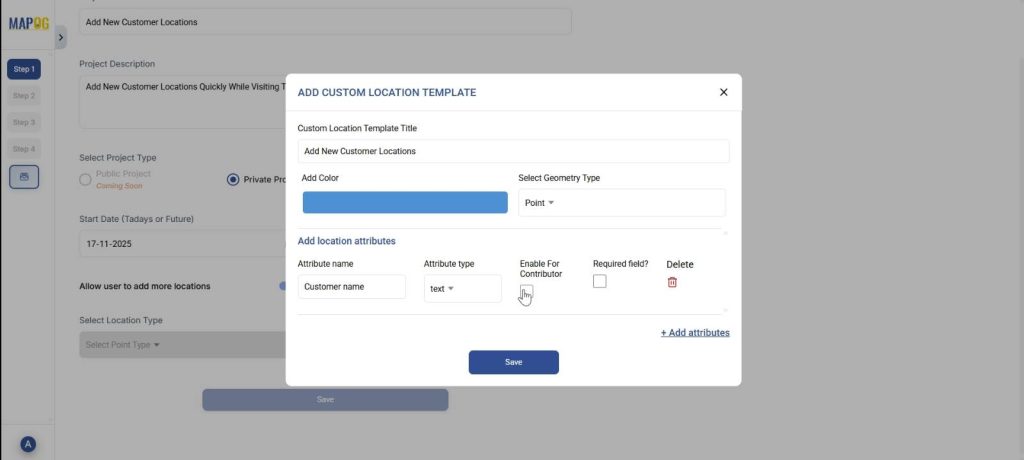
Go to ‘Select Location Type’ and create a new custom location template. Add title, color and select geometry type as point. Add the necessary attributes like customer name, address, etc. and save. Finally, choose this Location Type and save.
Step 2: Adding a Questionnaire
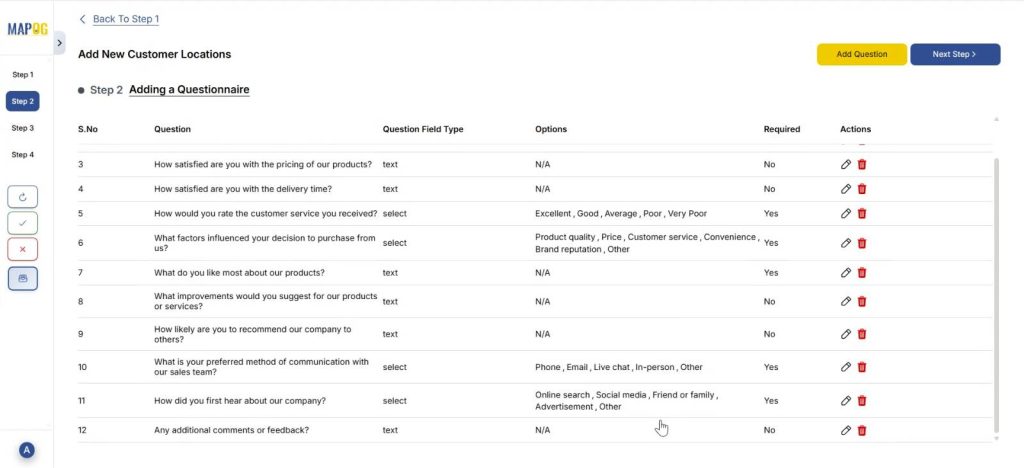
Further, add all the questions that seem relevant to the survey, one by one using the “add question” option. For example, you can add a question like, ‘How often do you purchase from our company?‘ and put options:
- Daily
- Weekly
- Monthly
- Rarely
- First time
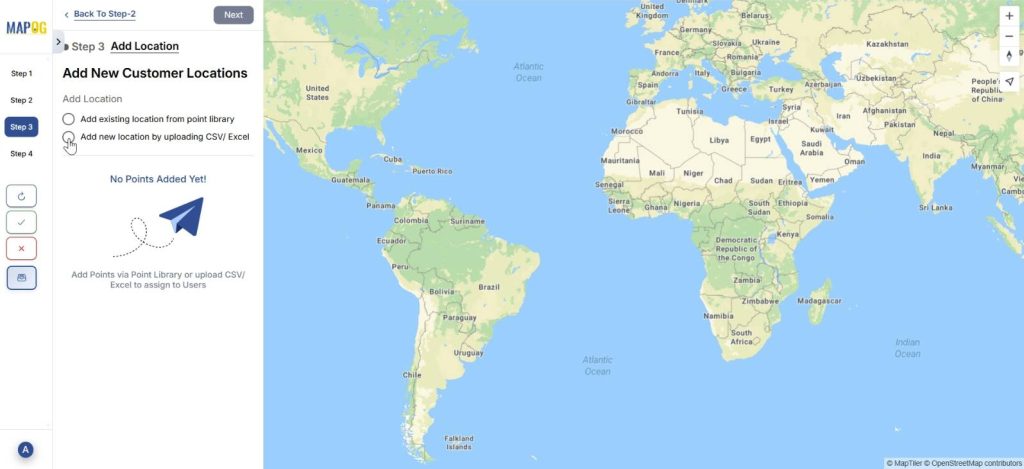
Step 3: Add New Customer location
In Step 3, select ‘Add new location by uploading CSV/ Excel.’ The point type is already selected, just add your csv/excel file.
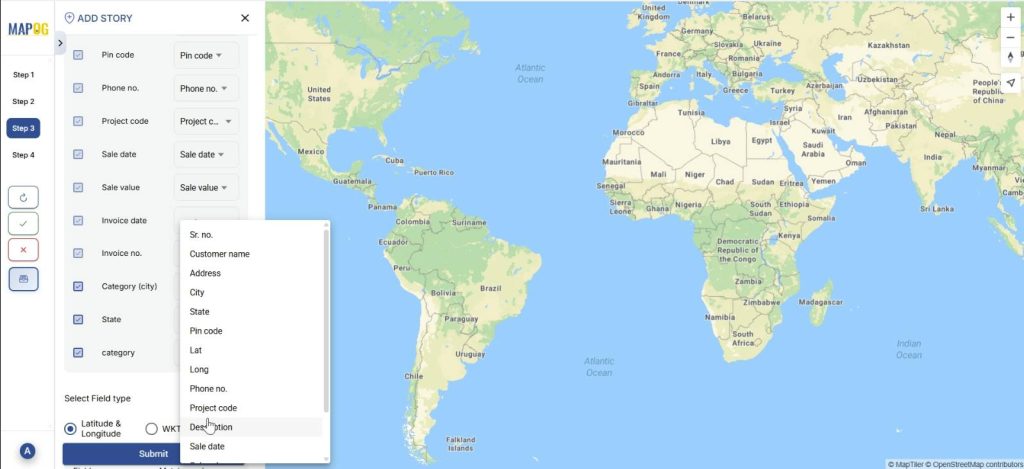
Then, match the excel columns to the attributes and submit. Your data appears on the map.
Step 4: Add users for specific location
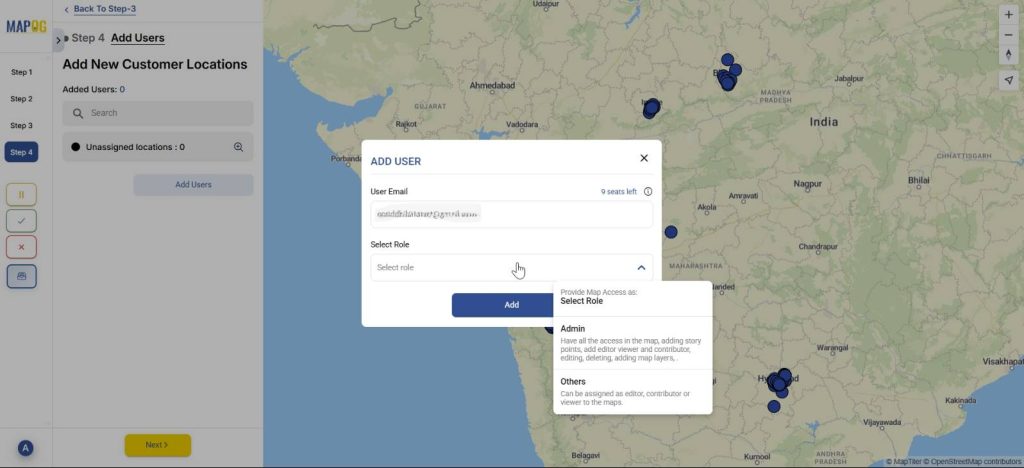
Finally, add new users for the task and choose role as admin or other users using the ‘Add user’ option.
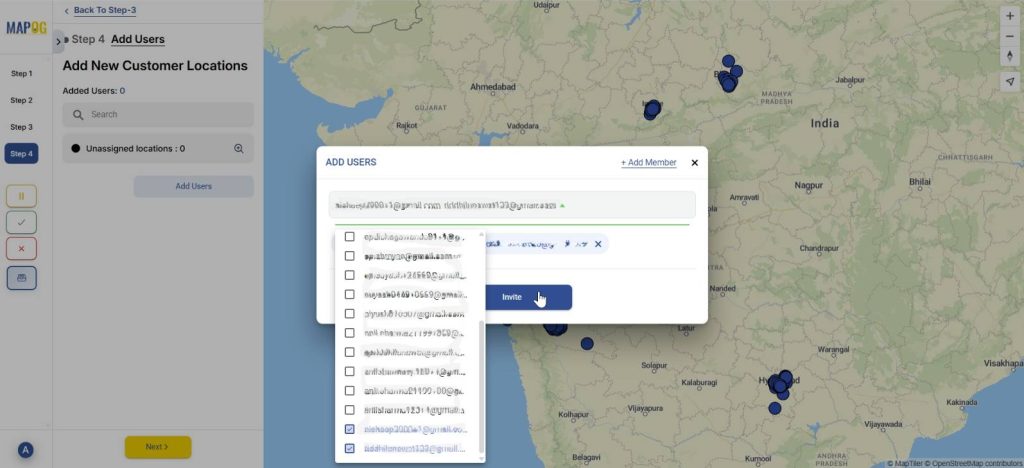
Select other members and invite them as users.
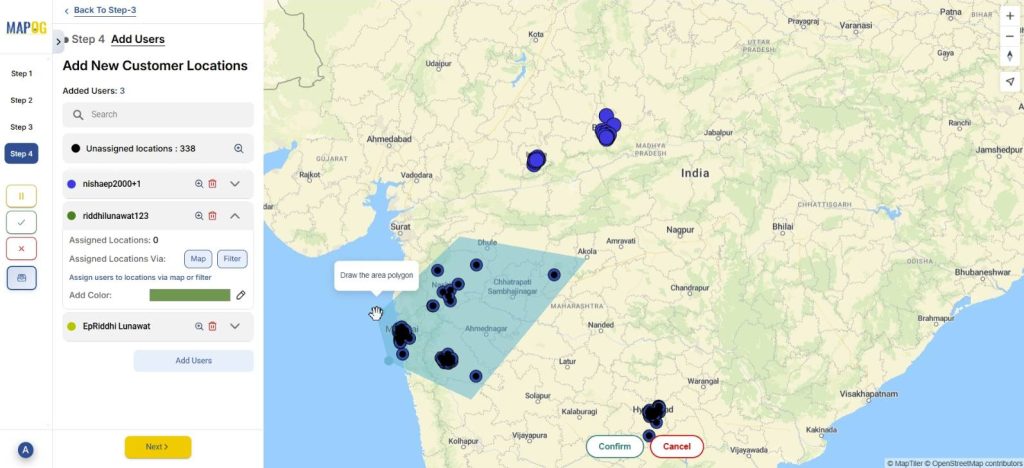
Then, assign each user an area by selecting the map option and drawing out a polygon for the particular area.
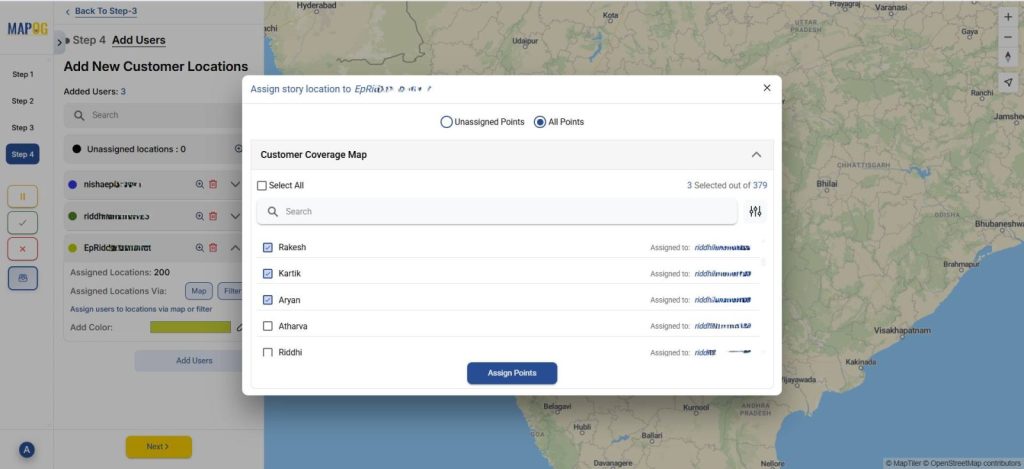
Optionally, you can use the filter option to assign users from unassigned or all points.
Step 5: Launching survey
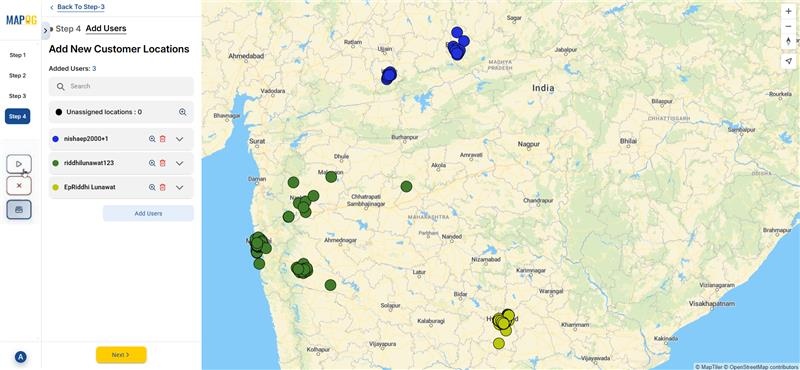
You can launch the survey anytime with the triangular launch button to the left.
Step 6: The user interface
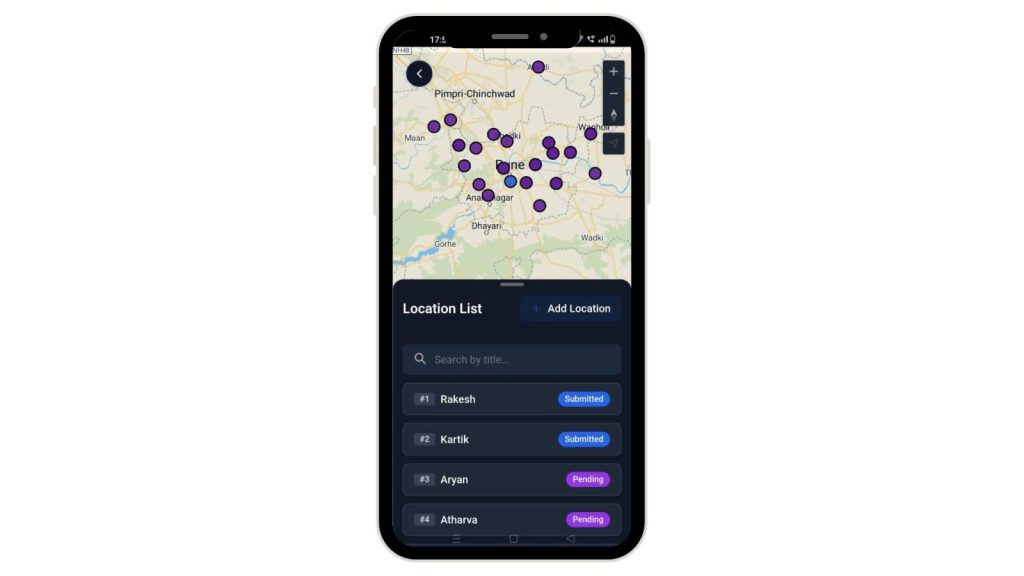
Further, the assigned users can see the locations assigned to them from the MAPOG contributor application in their personal devices.
Step 6: Adding new location while visiting
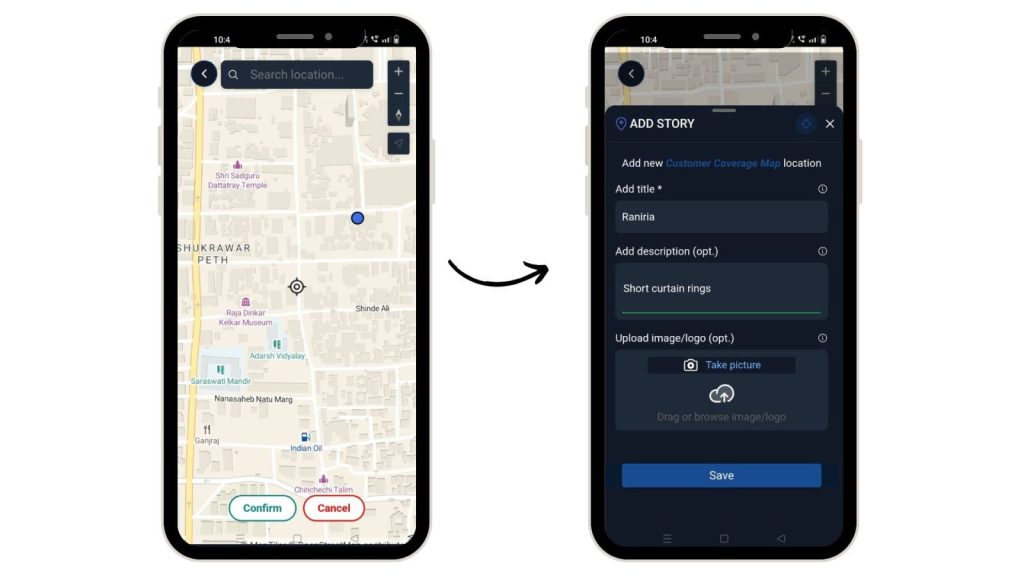
You can use the Add Location button and therefore add any new location along with their title or description and optionally, images.
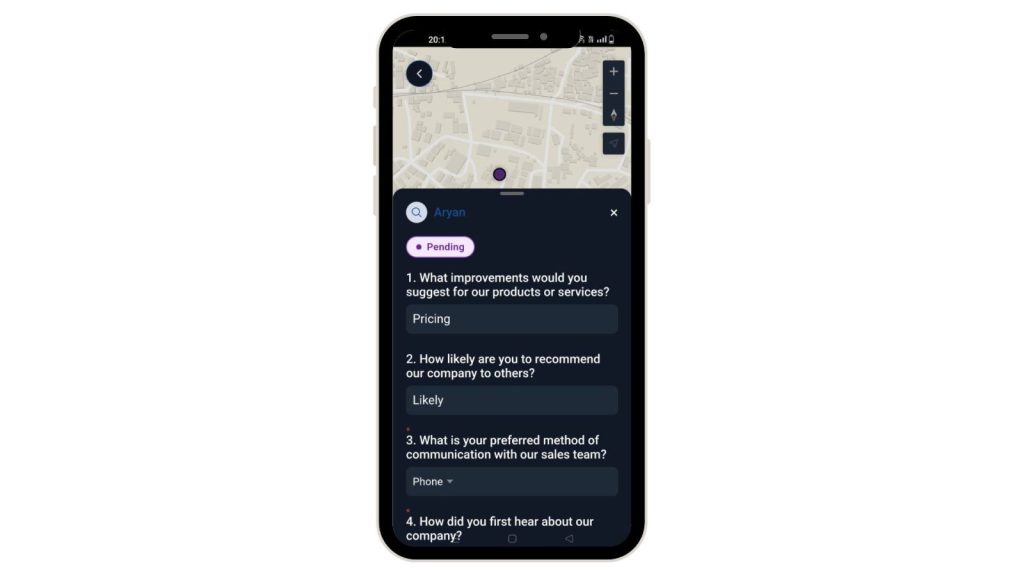
They can, thereafter, fill out surveys with the option to either draft or submit it.
Step 7: Overview
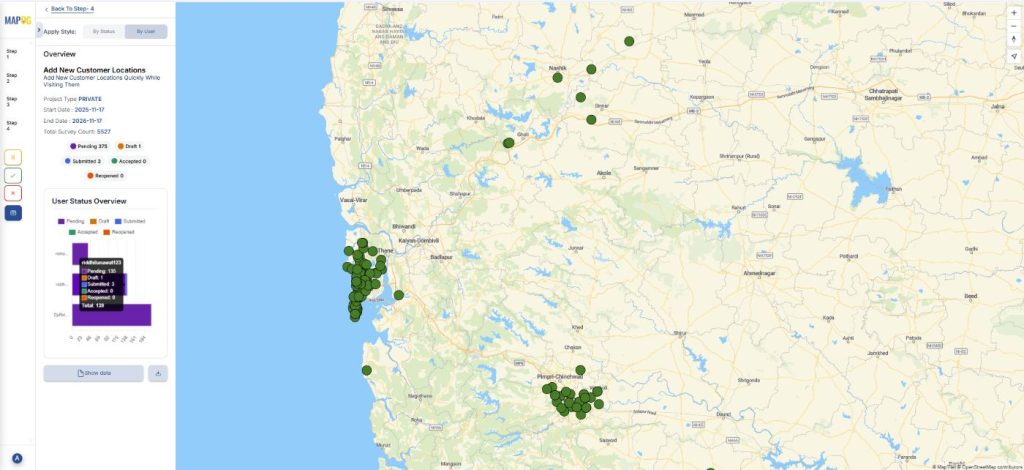
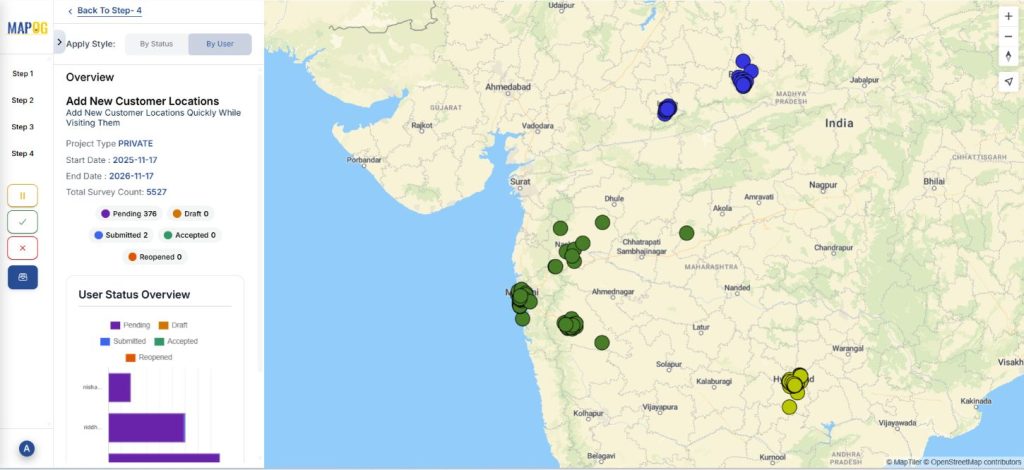
Finally, you can see the full picture of your surveys. If the task is submitted, drafted or pending.
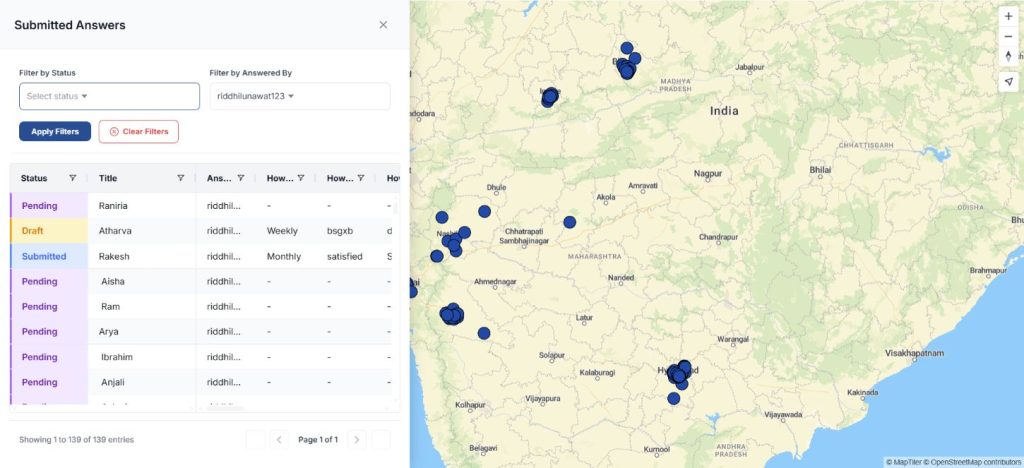
Click on the show data option, you can therefore see your data filtered by status or assigned user.
Industrial use
This workflow benefits industries like retail, utilities, logistics and government programs that depend on accurate field and location-based data. Therefore, by capturing customer location and assigning tasks through a central admin dashboard, organizations ensure clean, geo-verified, duplication-free records. Field users receive clear, focused assignments, while real-time syncing gives supervisors instant visibility into progress. This improves operational efficiency, strengthens accountability, and provides reliable ground-level information for planning, audits and strategic decision-making.
Conclusion
Every location logged, every opportunity captured. With MAPOG, you can capture customer locations on-site with a centralized admin-controlled system that streamlines field data collection and management. Field teams record accurate information while admins monitor progress, ensure coverage and prevent duplication. Overall, this approach accelerates data collection and provides reliable insights which enable better decisions and growth.
Want to check out MAPOG Contributor App, here’s the links below:
App Store: https://apps.apple.com/us/app/mapog-contributor/id6754868956
Play Store: https://play.google.com/store/apps/details?id=com.mapog.contributor