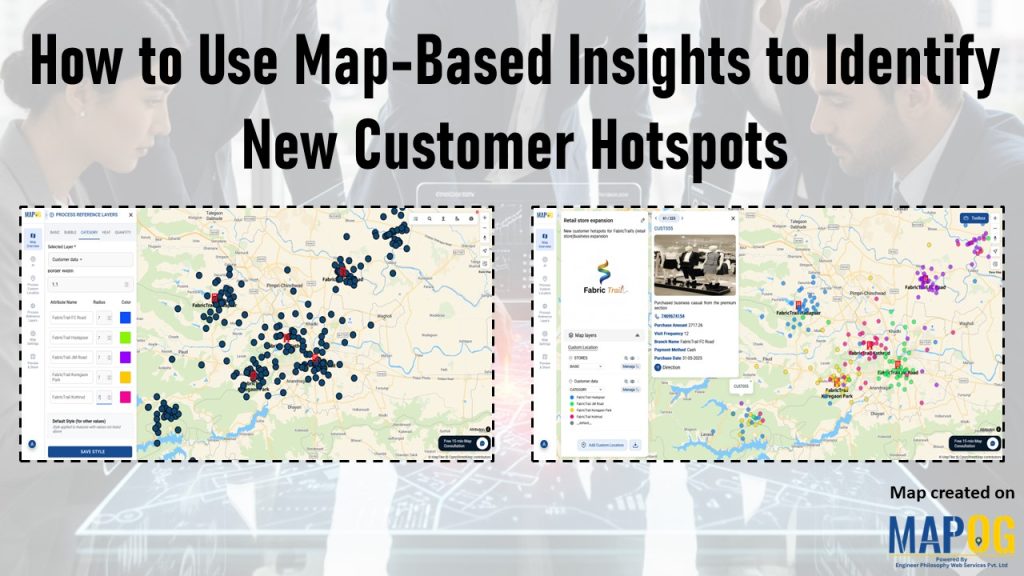
In fast-changing markets, the real challenge isn’t gathering data, it’s knowing where demand is quietly building. Many teams still rely on static reports and broad assumptions, which often miss the early signals of emerging customer interest. As a result, high-potential areas go unnoticed while resources stay concentrated in familiar zones. That’s why it’s important to use map-based insights to identify new customer hotspots. With MAPOG, teams can spot these shifts early, turning scattered data into clear, timely signals that guide smarter decisions across sectors.
Key Concept: Identify new customer hotspots for smarter expansion
When customer data is viewed through a spatial lens, the picture starts to shift. Instead of relying on static reports, teams can detect tight clusters, loyalty-rich zones, and underserved areas that were previously overlooked. As these patterns emerge, they reveal where demand is rising and coverage is thin, the very definition of a new customer hotspot. As a result, strategies become more focused, outreach becomes smarter, and decisions align more closely with real-world behavior. Ultimately, it’s not just about growing bigger, it’s about growing where it counts.
Steps to Identify new customer hotspots with map insights
1. Open Your Map
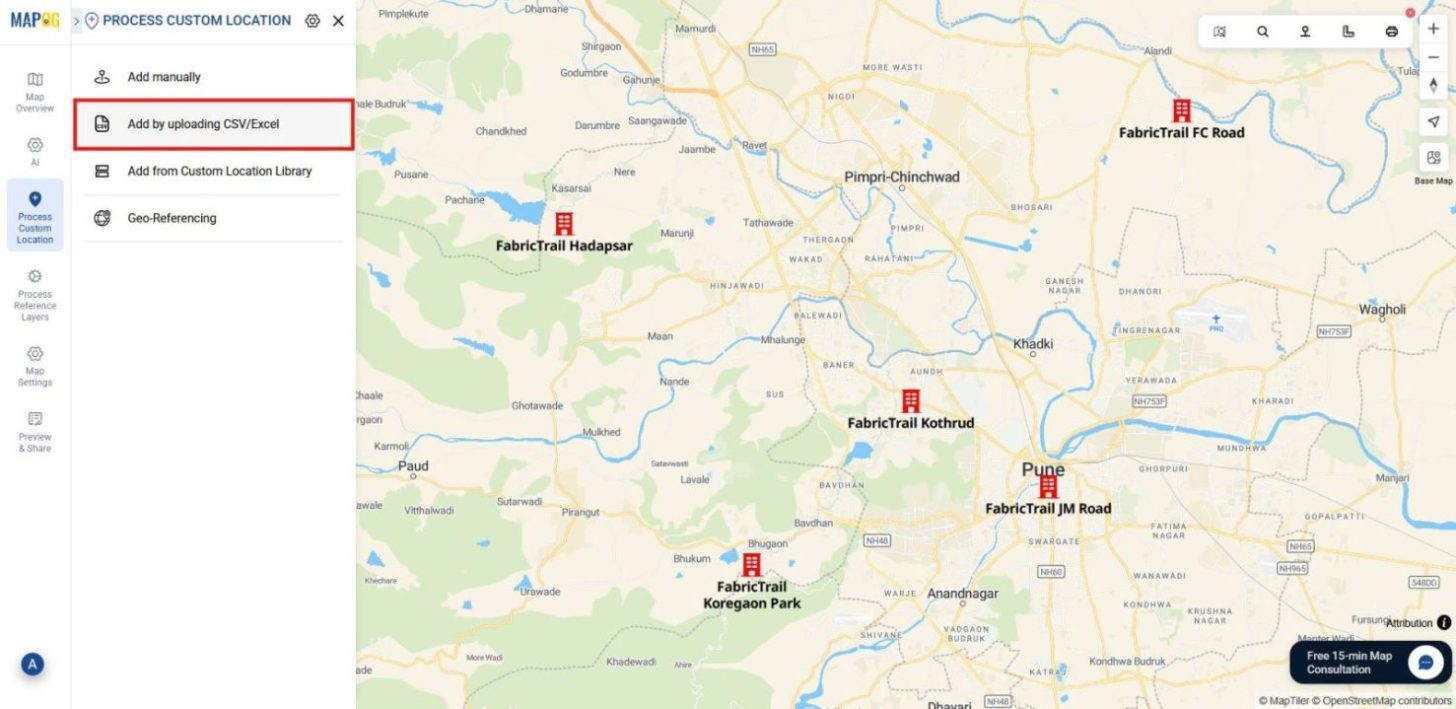
To begin, log into MAPOG and open your pre-existing store location map. Then, head to Process Custom Location and select Add by Uploading CSV/Excel to start uploading your customer data.
2. Create a Customer Location Type
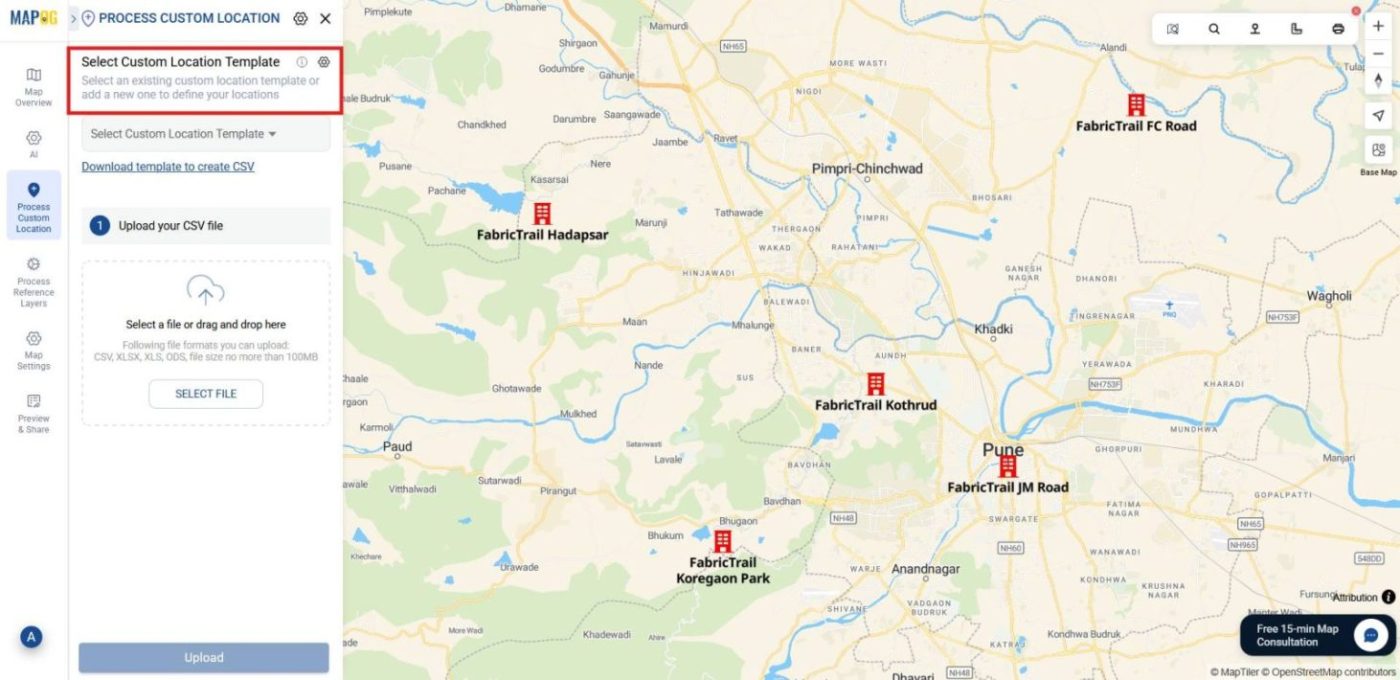
Next, click the select custom location template Settings icon and choose add More custom location template.
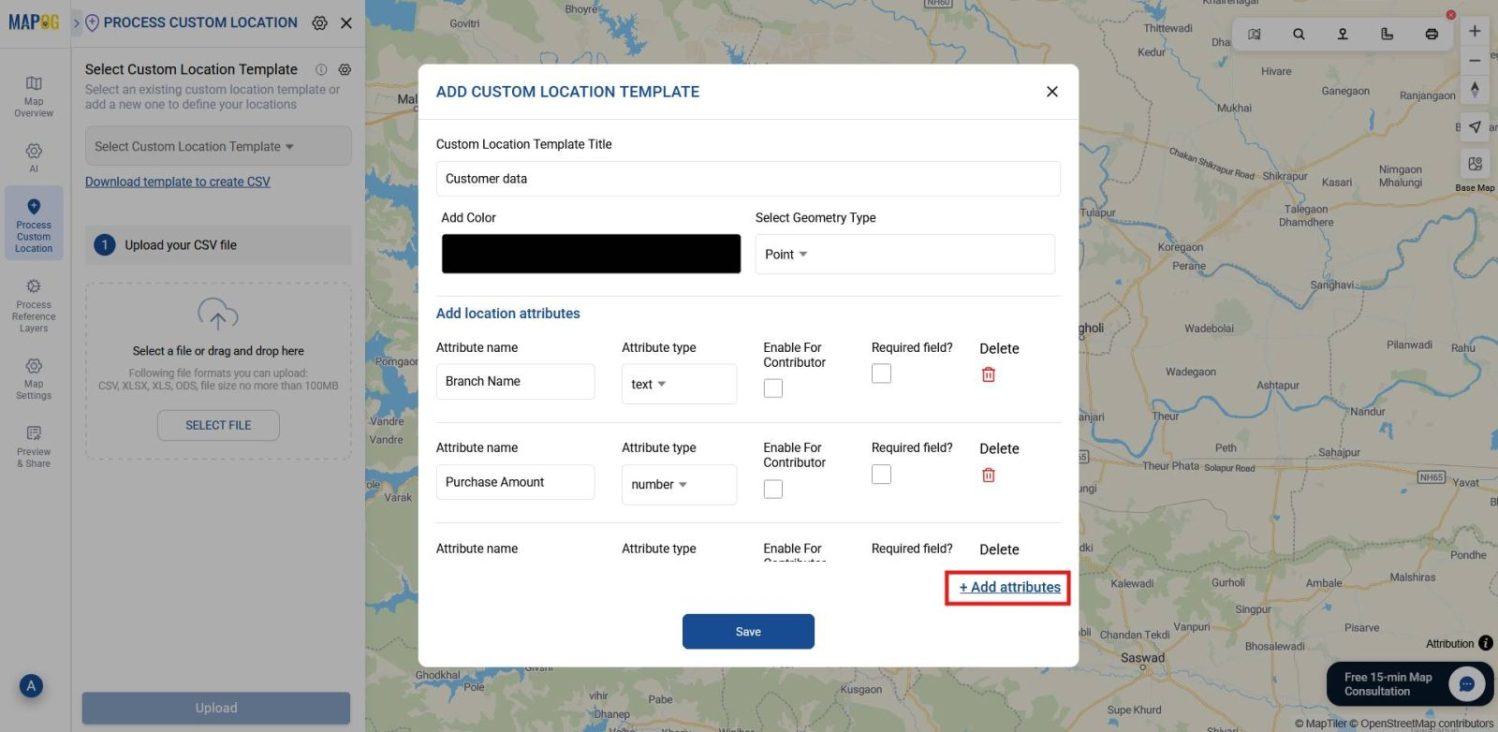
Then,define a new template (e.g., Customer Data) and set the Geometry Type to Point.
After that, add relevant attributes like branch name, visit frequency, purchase amount etc. Be sure to assign correct formats, for example, use “Text” for names and “Number” for amounts. Finally, click Save to lock in your template.
3. Upload Your Customer Dataset
Once your template is ready, select it from the dropdown.Then, browse and upload your customer data (CSV/Excel) file containing coordinates and attribute details.
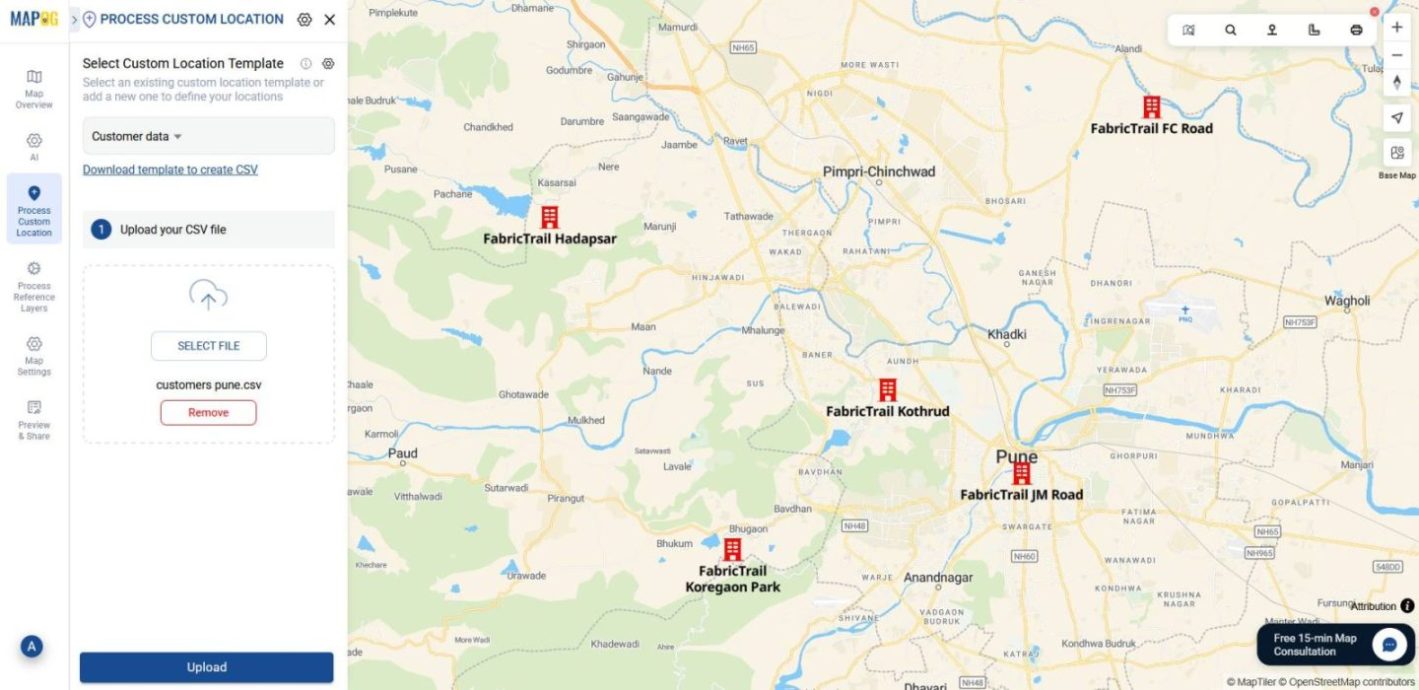
4. Match Attributes and Submit
After uploading, select a Unique ID and match each attribute to its corresponding column.
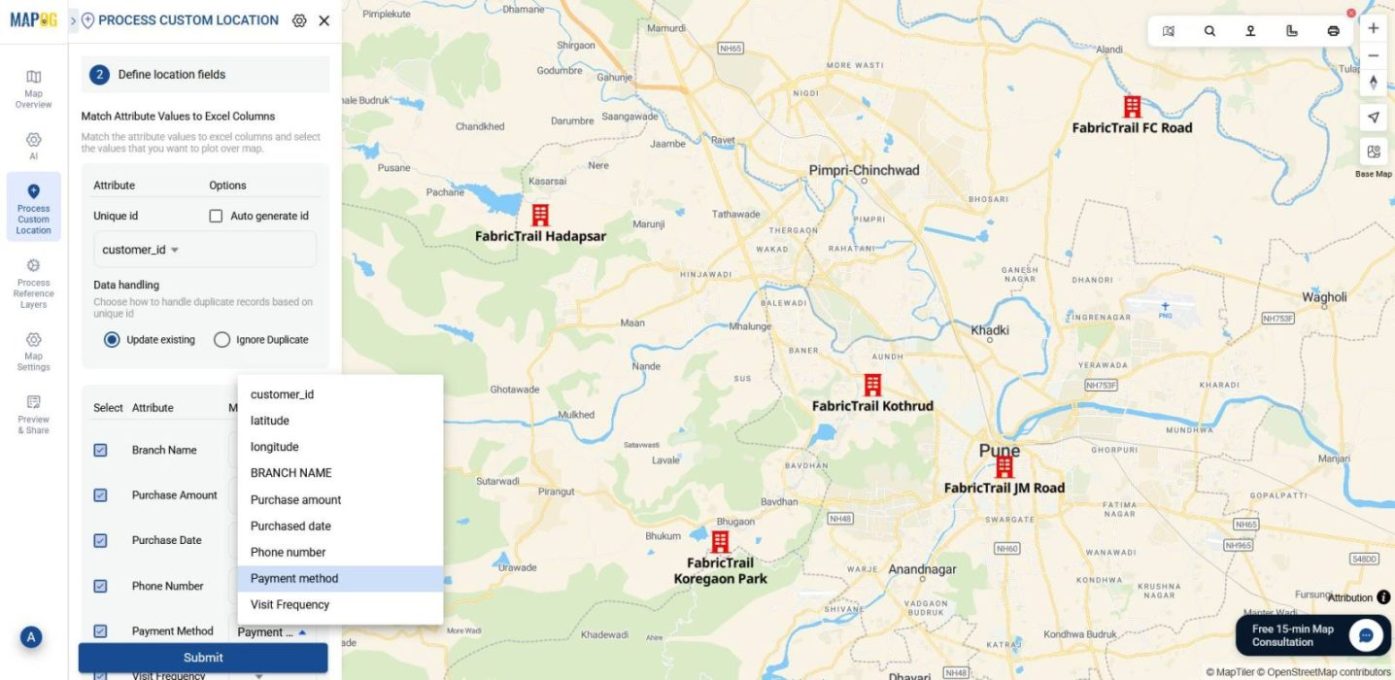
For location placement, choose either Latitude/Longitude or WKT. Once everything aligns, click submit.
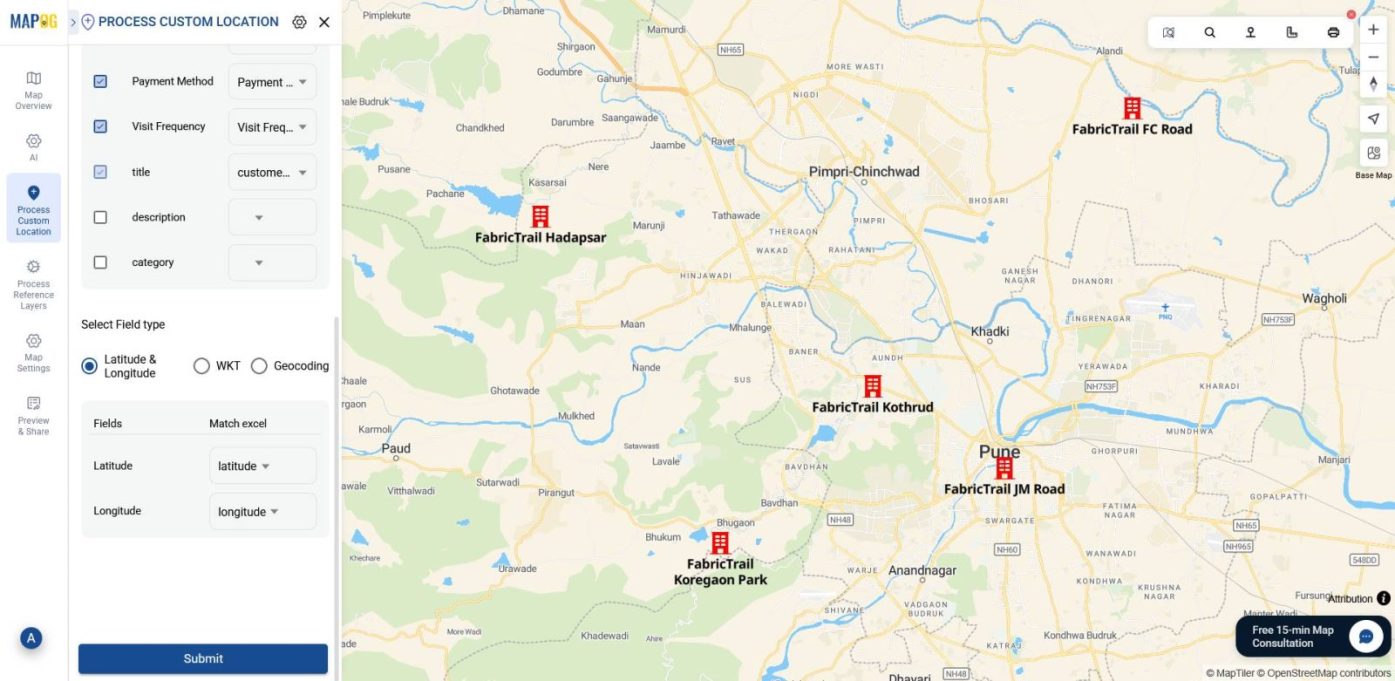
5. Style the Customer Layer
Now that your points are plotted, go to the Map Layer Section and open the Customer Data Layer Panel. Then, click Add Layer Style.
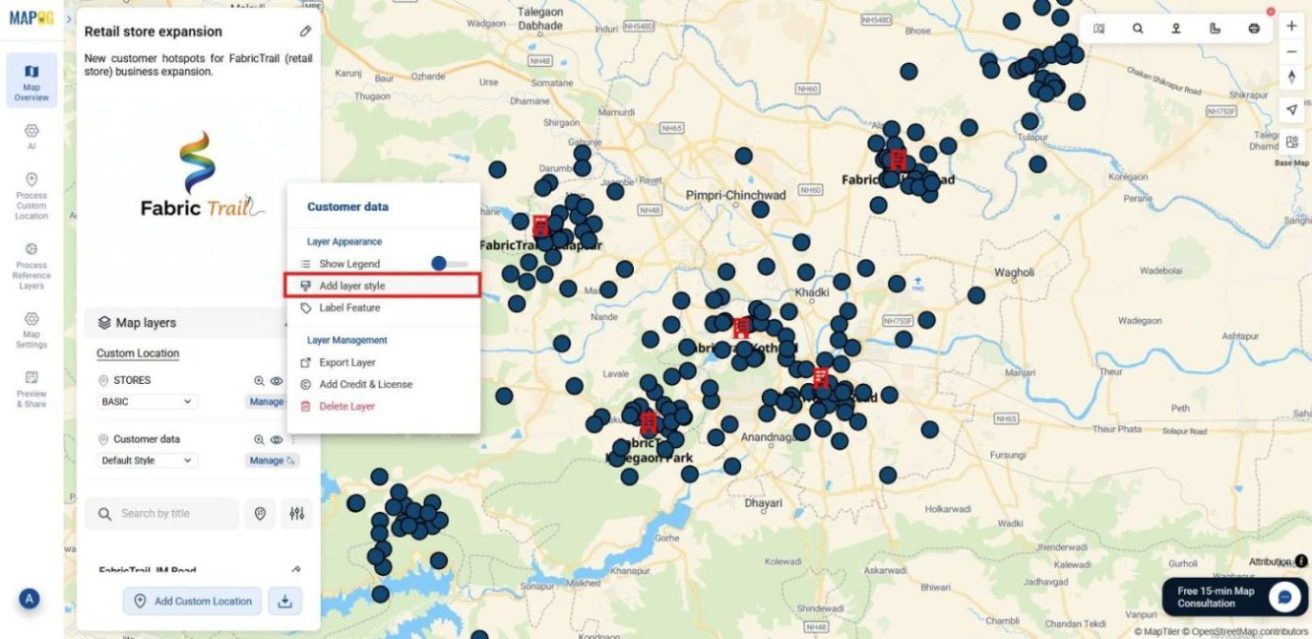
After that, go to the category section and select the attribute as branch name.
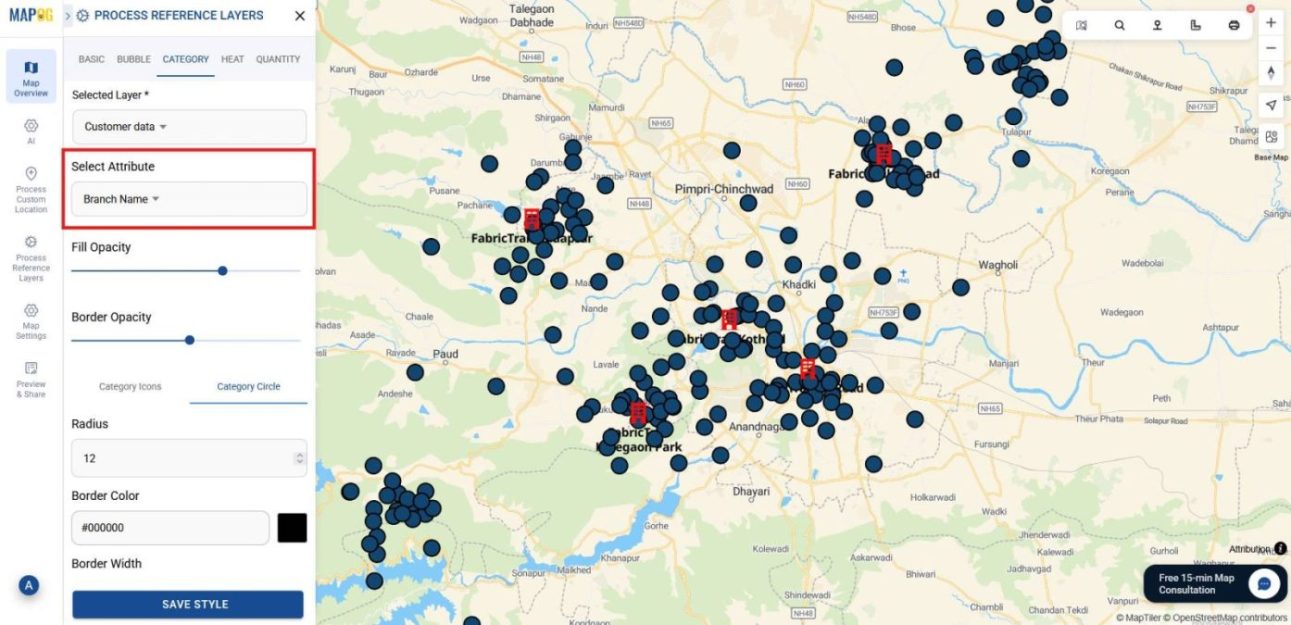
Next, color-code customer points by branch and adjust point size for visual clarity and then click save style.
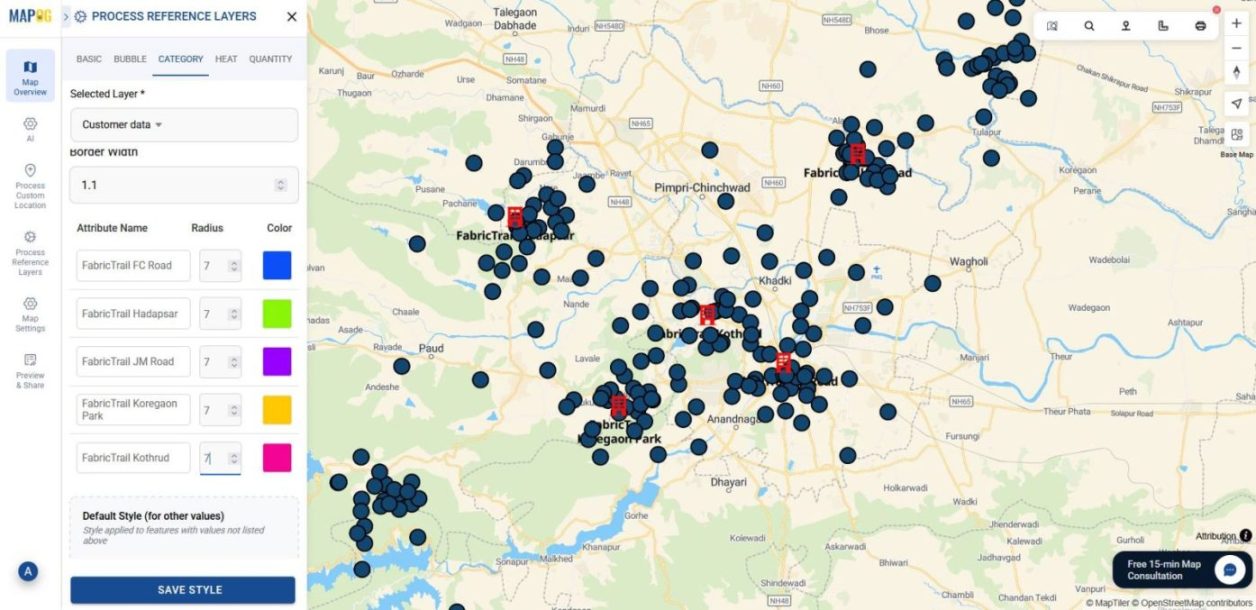
6. Edit Points for Insights
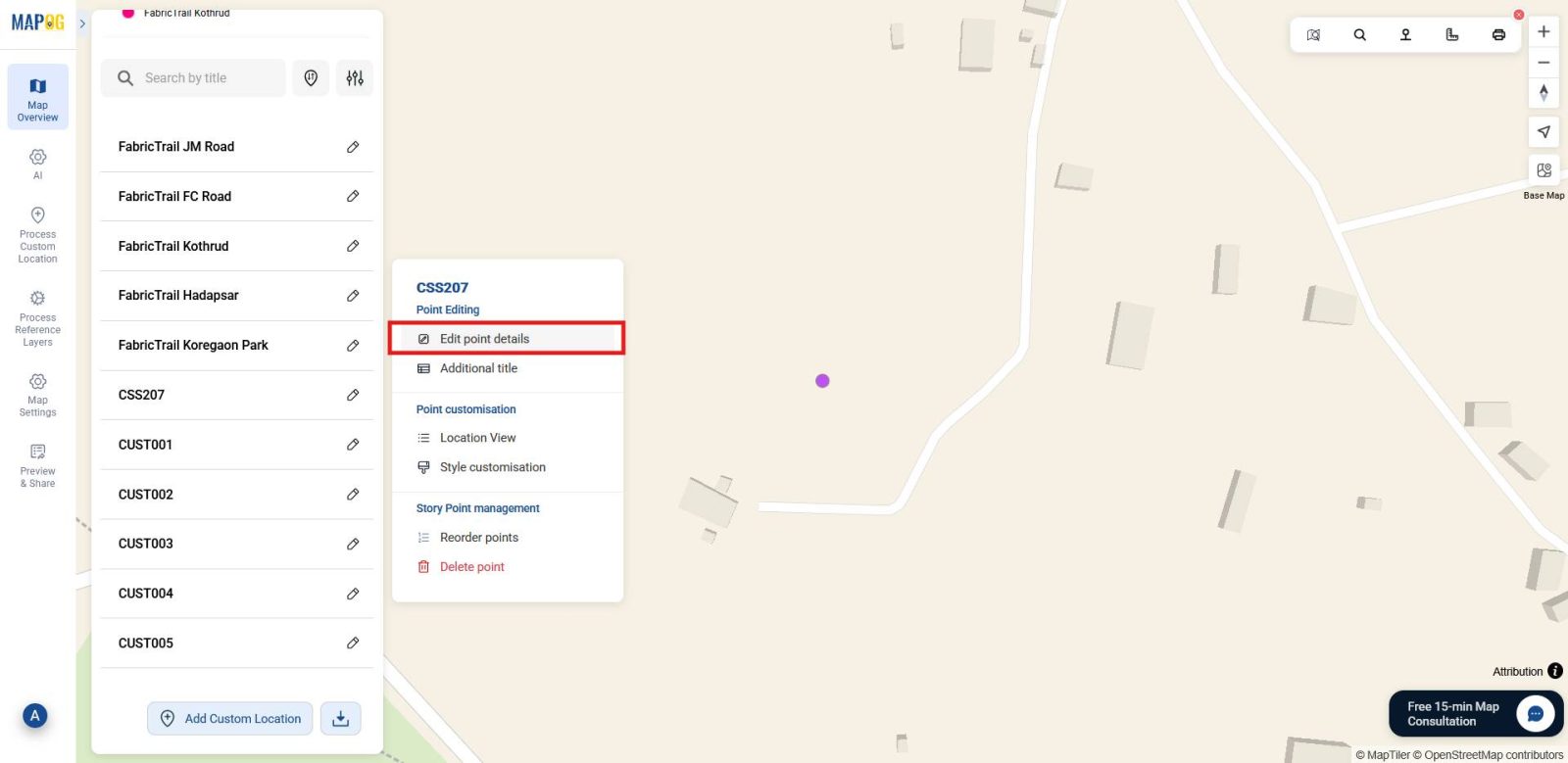
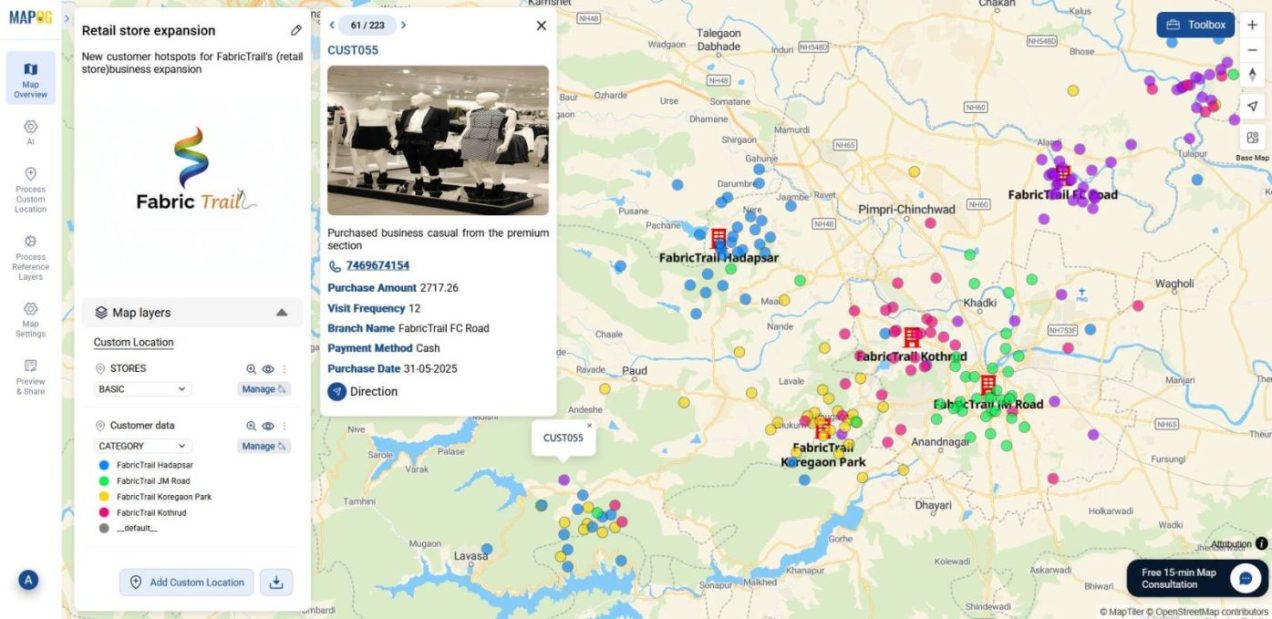
To enrich your data, click the pencil icon on any customer point and choose Edit by Point Details.
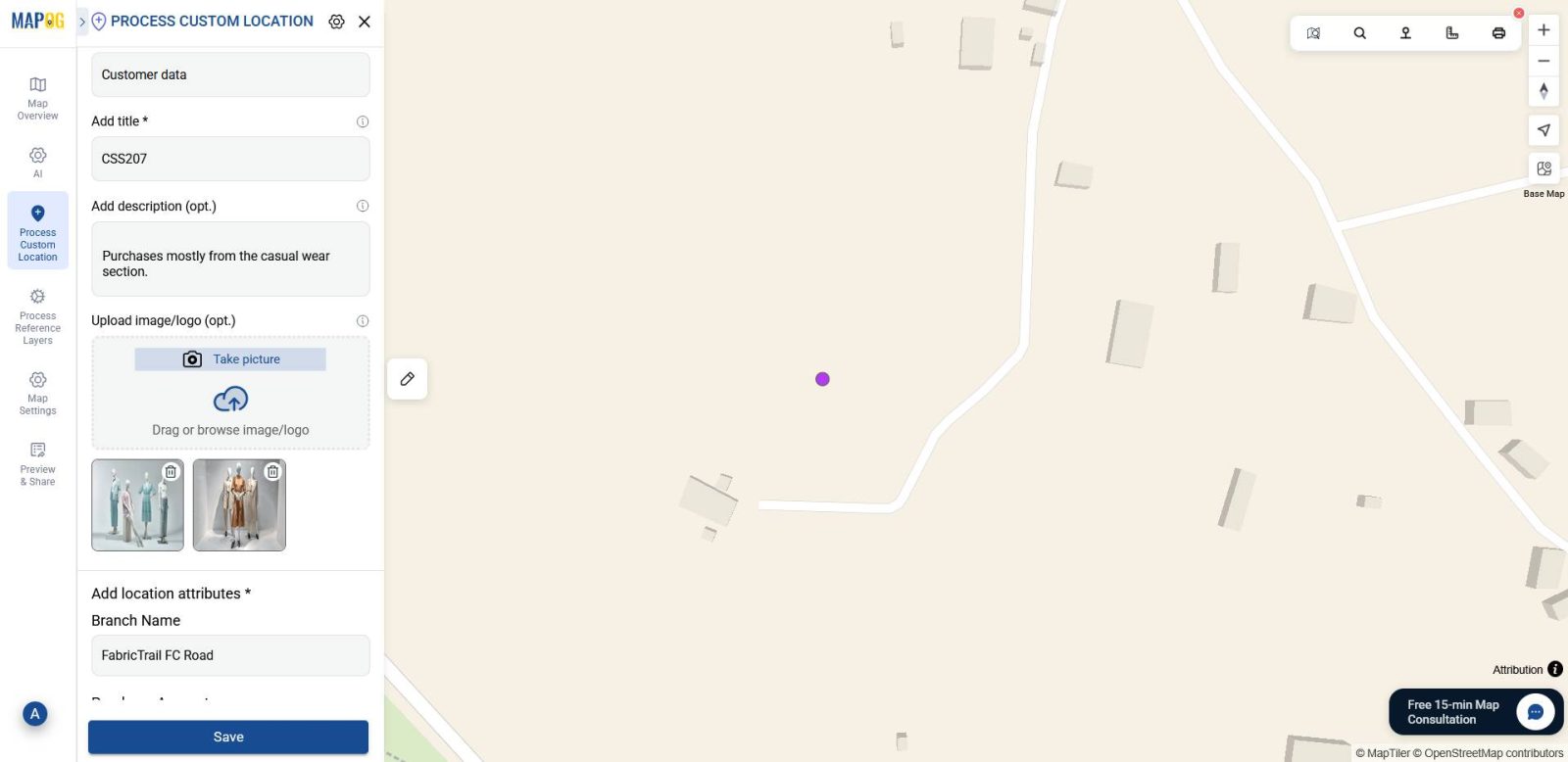
Here, you can update attributes and add relevant images to enrich each point. Once done, click Save to apply your changes.
7. Enable the Legend
Finally, return to the Customer Data Layer Panel and toggle the Legend ON to make the map easier to interpret.
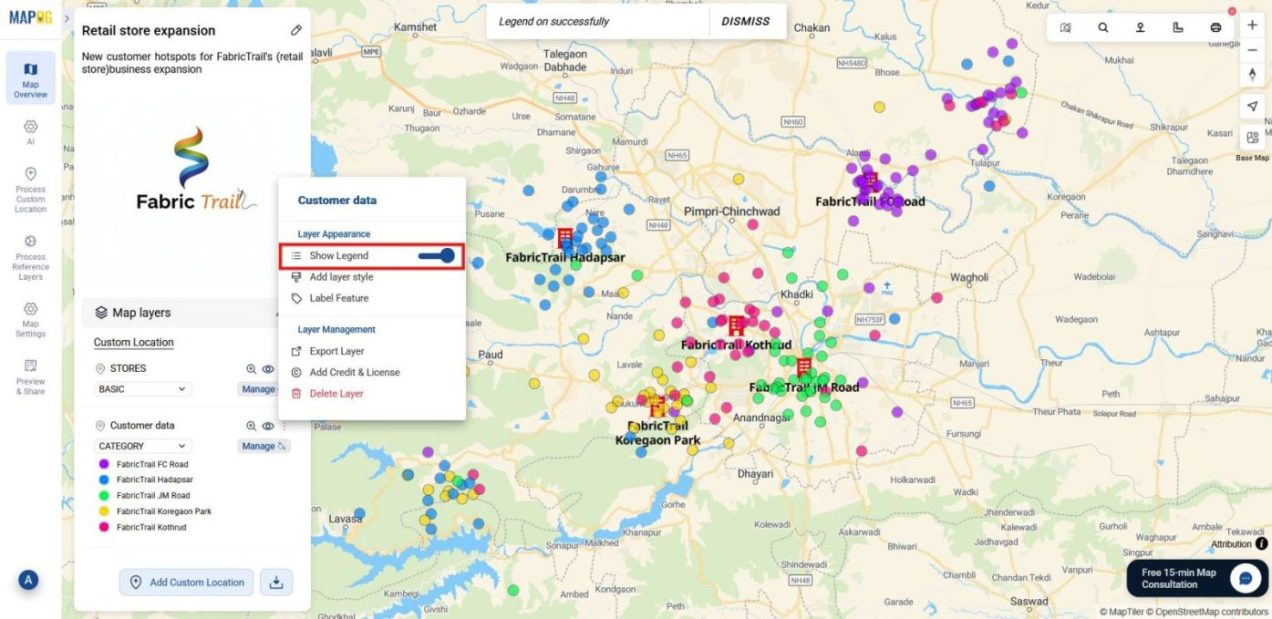
That’s it , now you’ll be able to visually identify high-density customer zones where store coverage is low to make smarter decisions.
Industrial use and benefits
Identifying new customer hotspots benefits multiple industries.
For example, retailers use it to target high-demand zones and reduce store overlap. Similarly, healthcare providers locate underserved areas for clinics. In addition, real estate teams spot emerging residential or commercial clusters. Meanwhile, FMCG brands align distribution with consumption trends.Likewise, education centers find student-dense zones for outreach. As a result, hotspot detection turns scattered demand into clear direction, helping organizations grow where it counts.
Conclusion
Ultimately, spotting customer hotspots isn’t just a data task, it’s a strategic move. As industries shift from broad assumptions to targeted action, knowing where demand is growing makes all the difference. That’s where MAPOG helps. It connects the dots, turning scattered signals into clear direction so teams can act faster, smarter, and with purpose.
Here are some other blogs you might be interested in:
- Mapping Crime Hotspots Using Grids and Heat Bubble Tools
- How to Create a Car Delivery Map with Customer Photos & Reviews [Step-by-Step Guide]
- How to Map and Manage a Franchise Business with Location and Service Filters
- How to Choose the Perfect Retail Shop Location Using Isochrone Maps – Boost Foot Traffic & Sales