
Facility managers often struggle with paper checklists and delayed updates when tracking cleaning staff. Modern teams use visual dashboards to see which rooms need attention. This article shows how to manage housekeeping tasks using location-based maps with MAPOG.
Key Concept: Manage Housekeeping Tasks Using Location-Based Maps
A location-based map system digitally marks and color-codes each room or zone. Supervisors get real-time progress views, enabling quick task assignment, photo-based accountability, and data-driven planning for high-traffic areas.
Step- by- Step Process to Manage Housekeeping Tasks Using Location-Based Maps
Step 1: Create Your Map Project
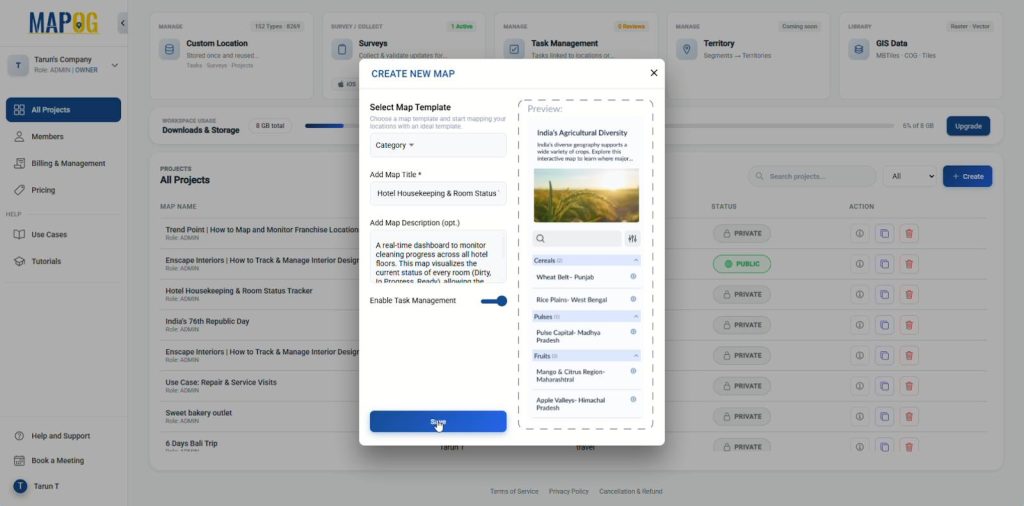
First, open MAPOG and click Create. Select the category template, add a title and description, toggle on Task Management, then click Save and proceed to the map interface.
Step 2: Geo‑Reference the Layout
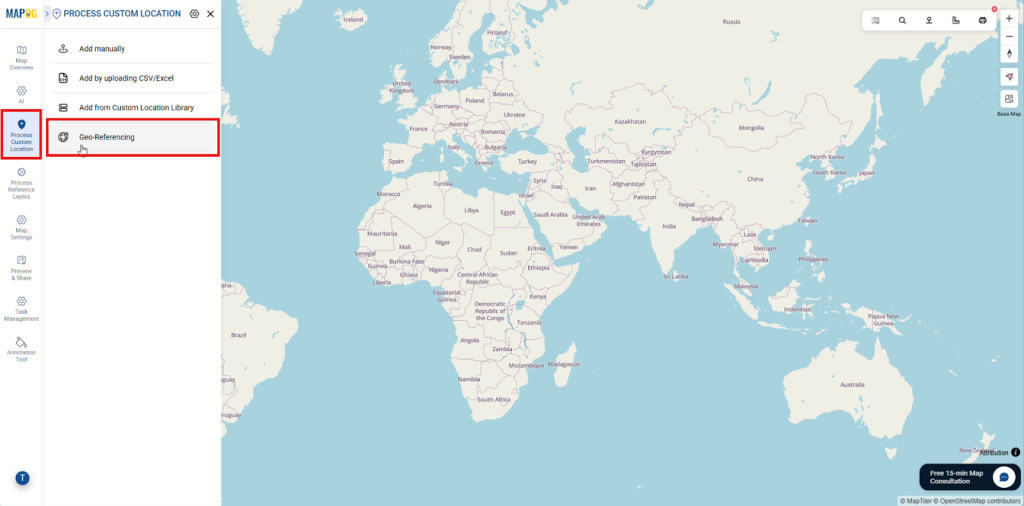
Next, go to Process Custom Location and select Geo-Referencing to align your layout with real-world coordinates.
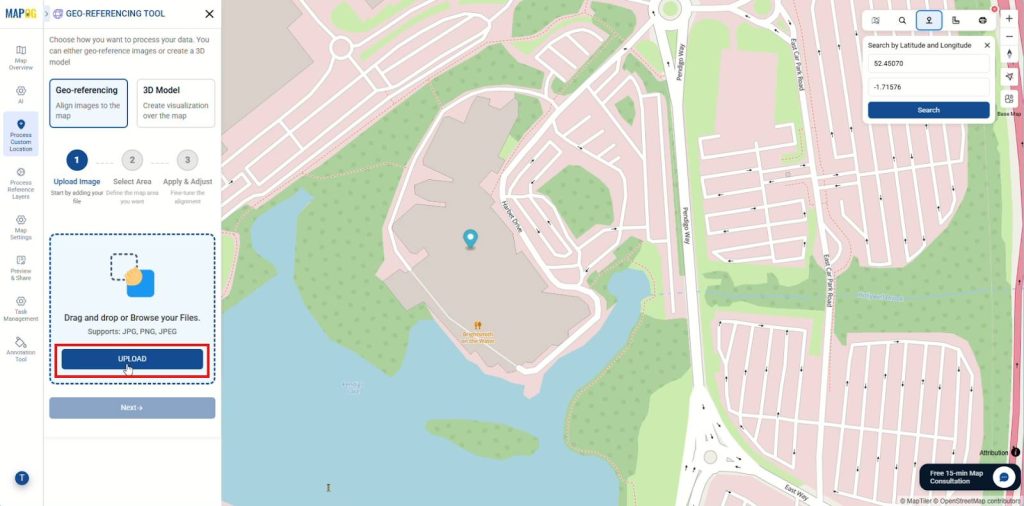
From the toolbox, search for your area by name or coordinates for precise location. After that, upload your layout image in JPG, PNG, or JPEG format.
Then, Choose a drawing mode (e.g., four points, rectangle, or square), click Start Drawing, and then define your area by adding points.
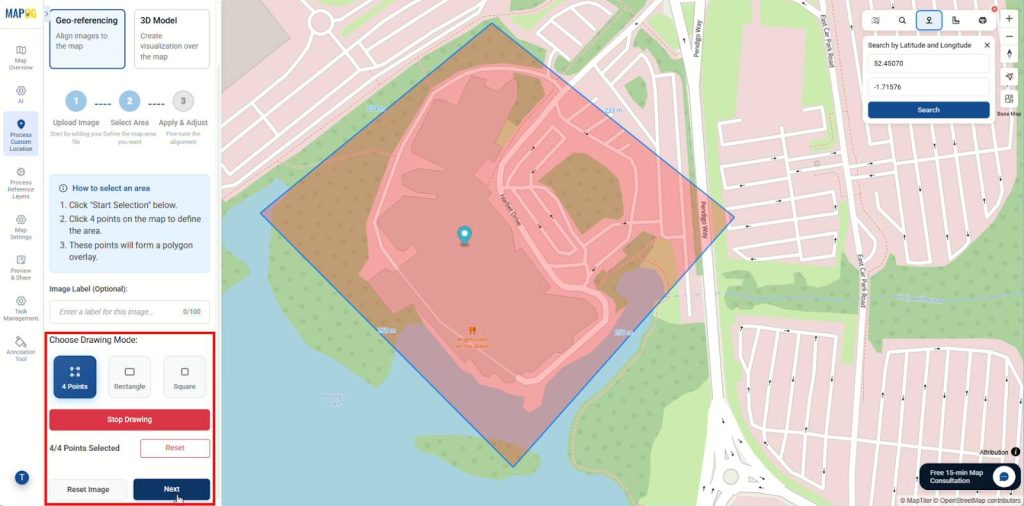
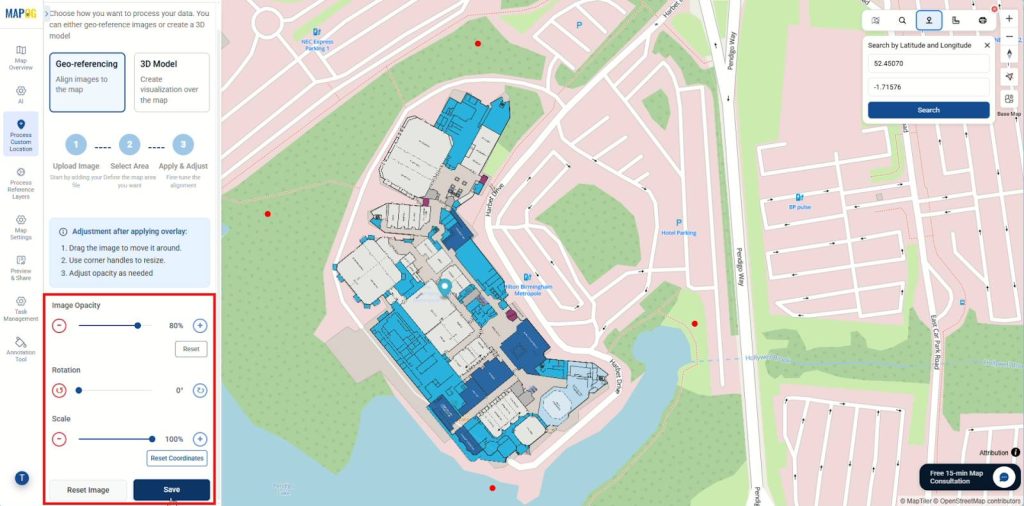
Align the image with the base map by dragging points to match features, adjusting opacity, rotation, and scale as needed, and then save your work.
Step 3: Set Up and Add location
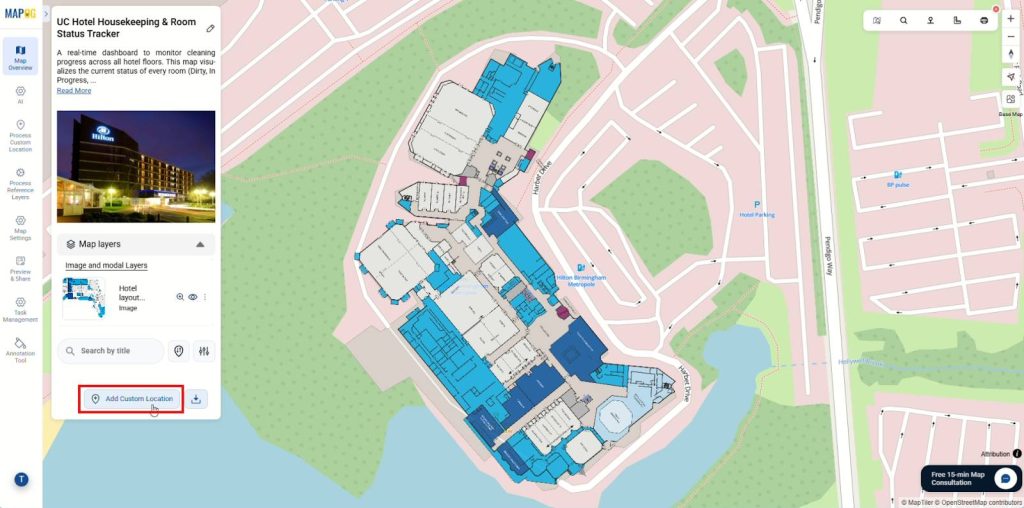
After geo-referencing, Click on Add Custom Location to mark specific rooms, zones, or areas on your map.
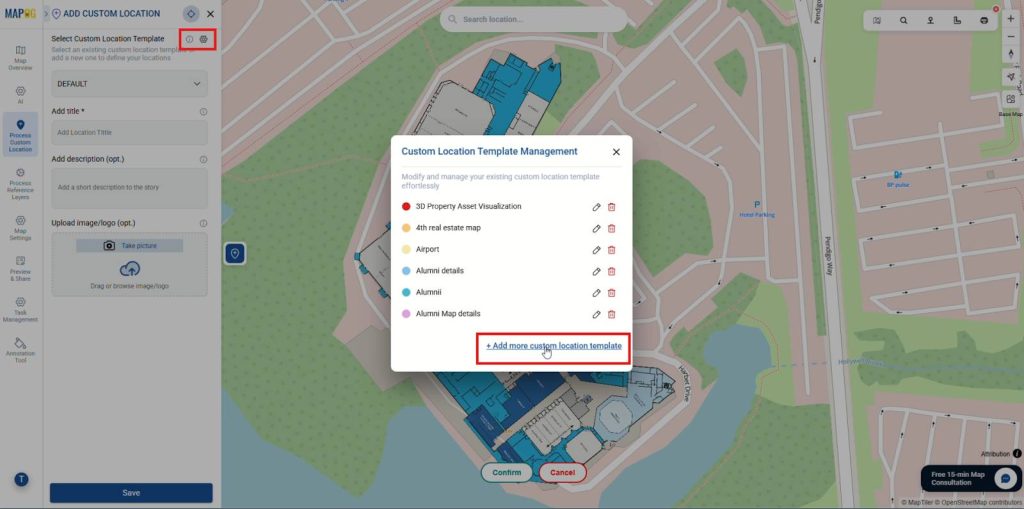
then go to Select custom location template settings and click Add More Custom Location Template to create a reusable location template with relevant attributes.
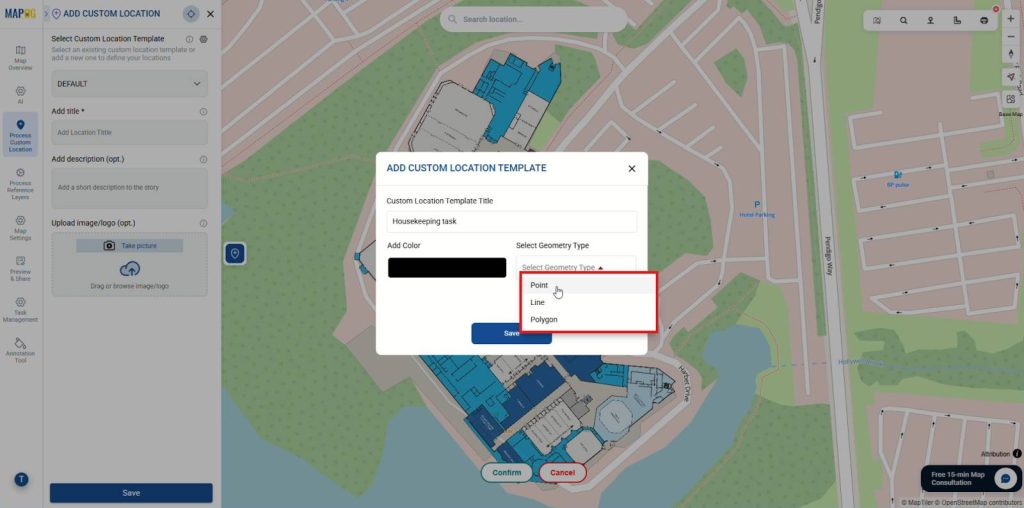
Then, assign a name, choose a color, and set the geometry type to point.
Next, add attributes using types like select, multiselect, number, and photos. Once done, Save the template and select it from the dropdown.
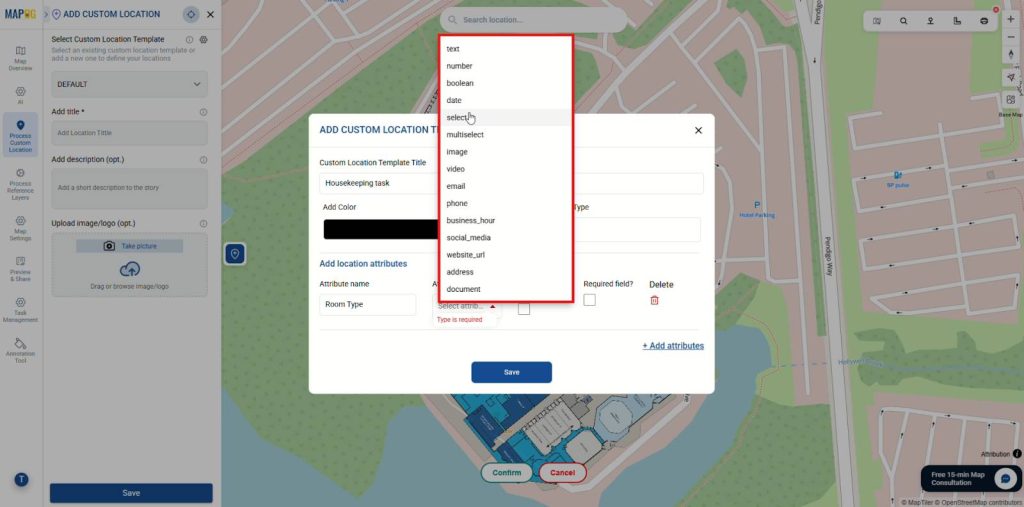
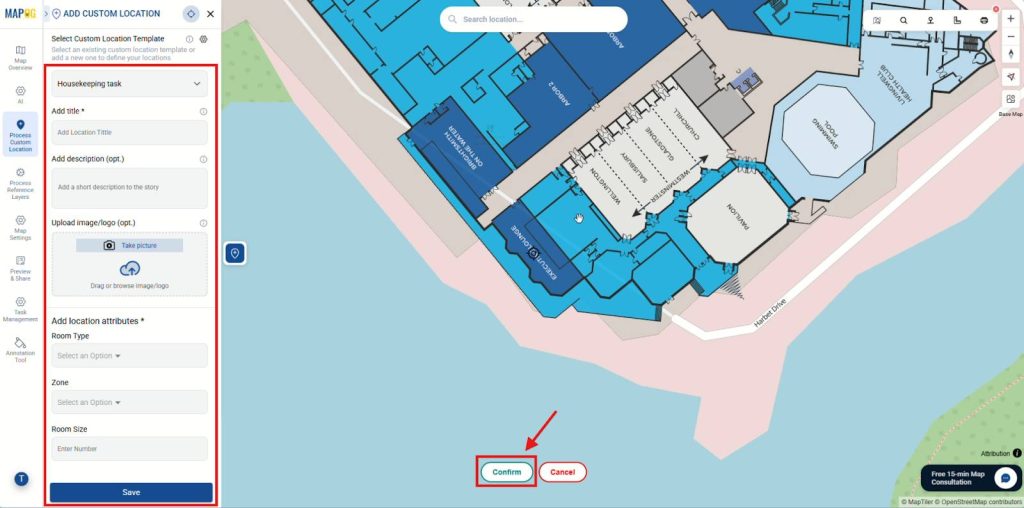
Then plot location point, Confirm it, and fill in the attributes with details and images before saving.
Step 4: Group by Attributes
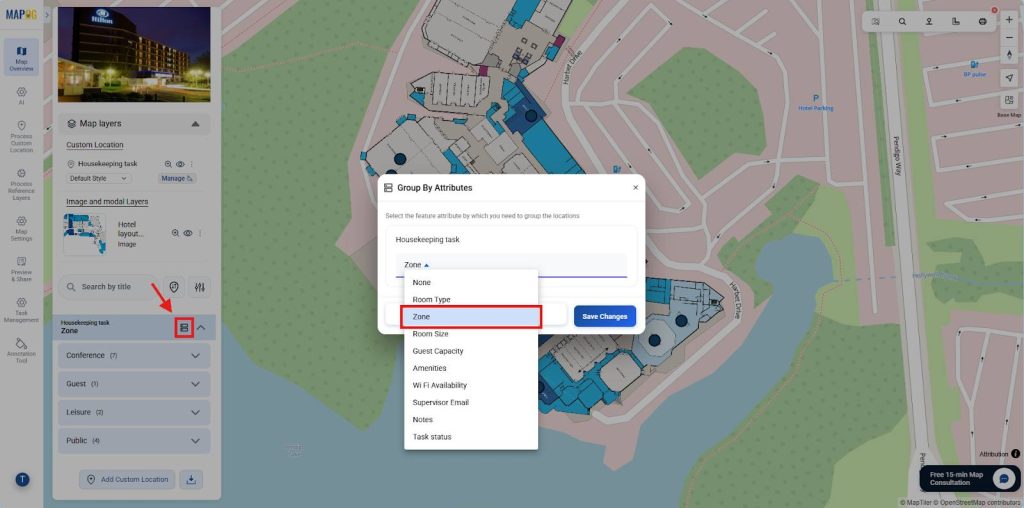
Next, click Group by Attribute, select the attributes to categorize by, and click Save Changes. This groups similar rooms or zones (by floor, building, or status) for easier oversight.
Step 5: Style Layers, Labels, and Legends
Finally, open the Map Layer section and click Add Layer Style.
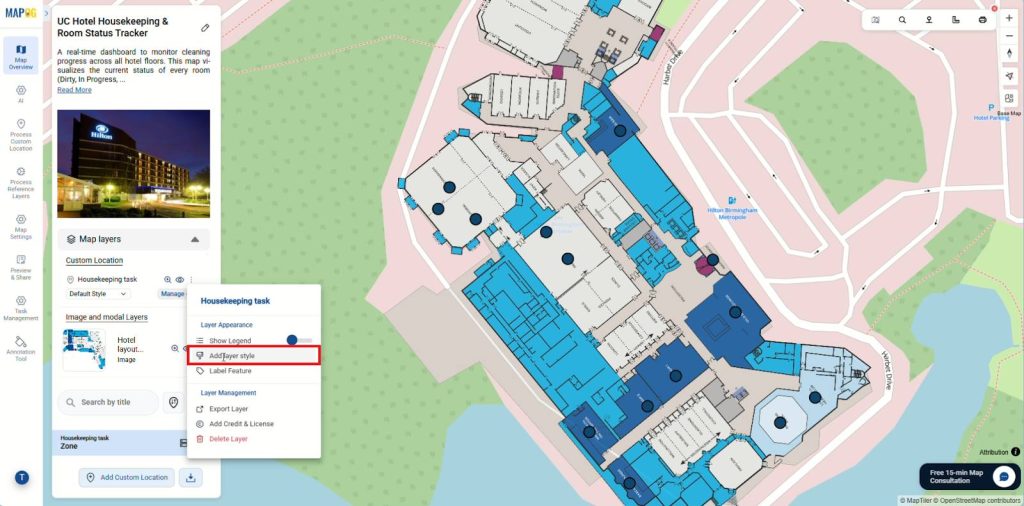
In the category section, select an attribute like task status, then apply color coding and distinct icons to make the map clear and easy to understand.
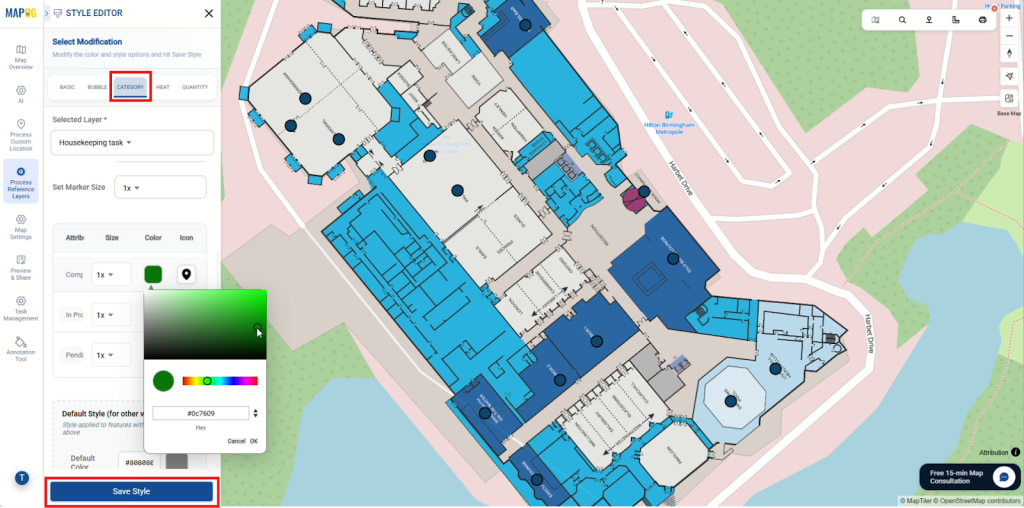
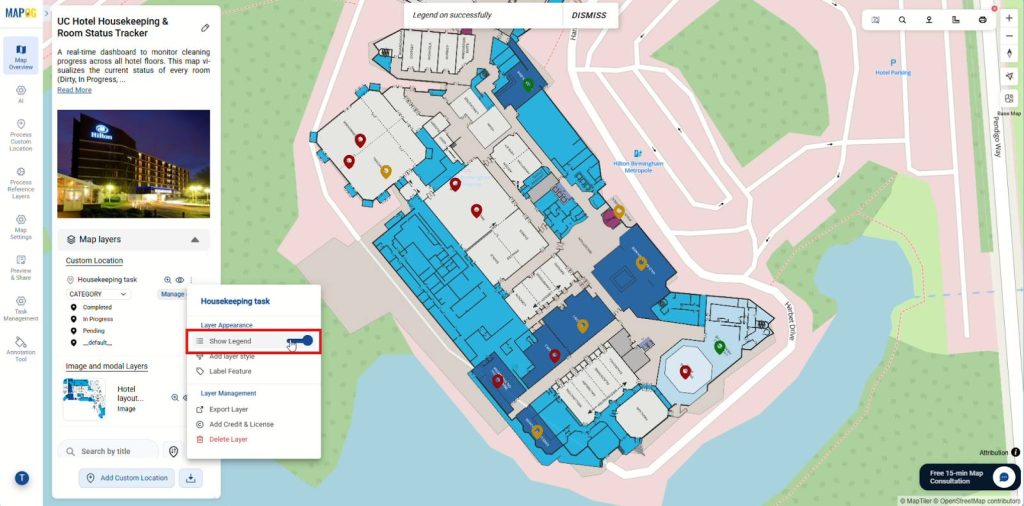
After saving the style, enable the legend for better interpretation.
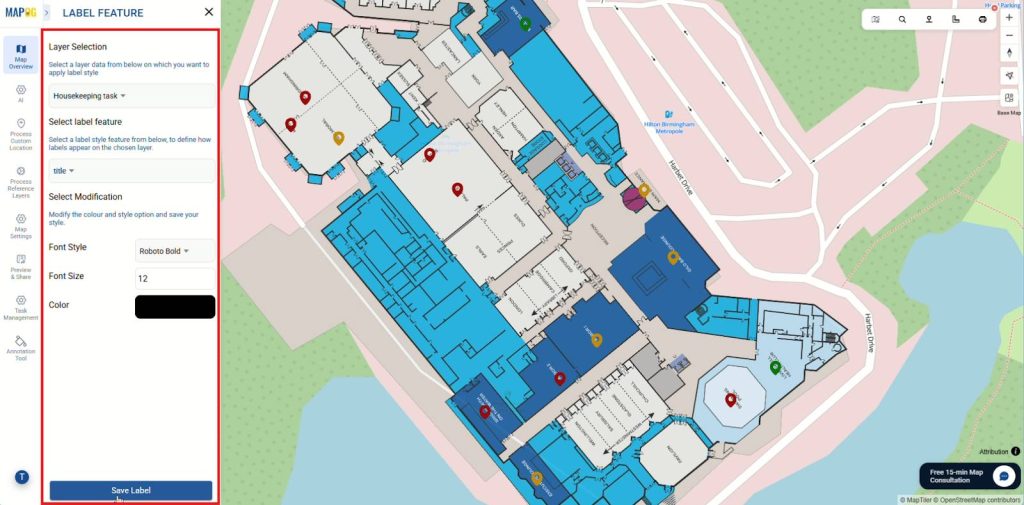
You can also use the Label Feature option to add labels to each point, making the map visually clear and easy to understand.
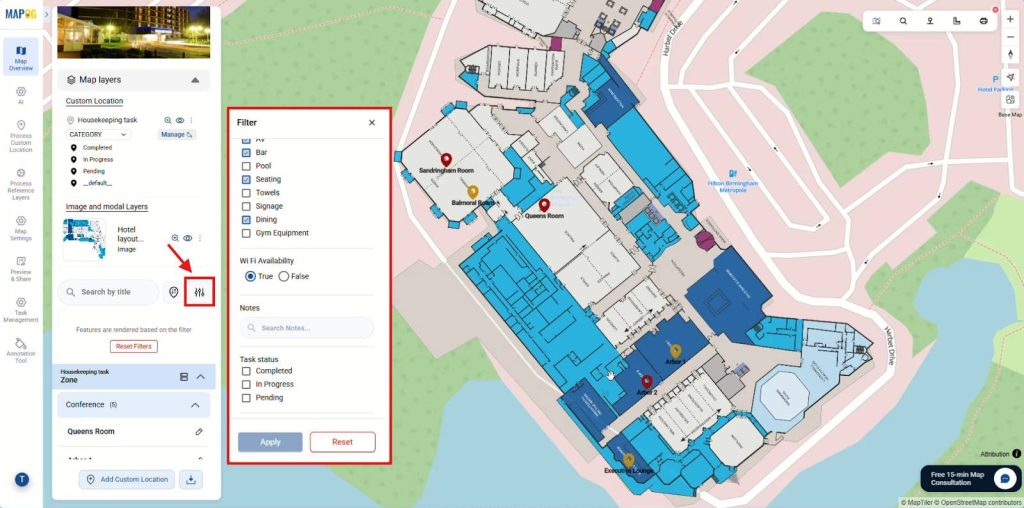
Use the filtering option to segment points by attributes like room type, size, or task status, helping managers focus on relevant information.
Additionally, features like Sort by Live Location and Search for Location let users quickly view distances between searched places and mapped points.
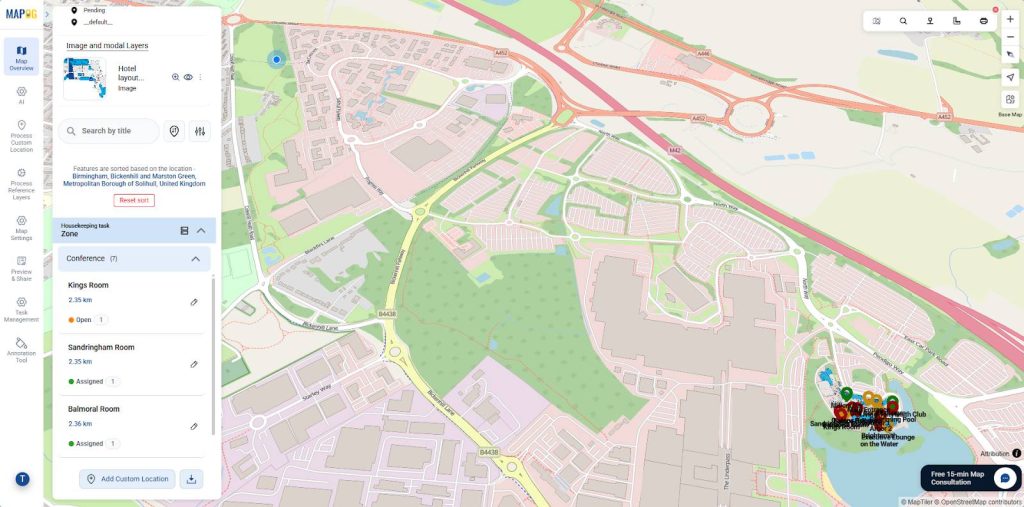
Step 6: Configure and Assign Tasks
Subsequently, navigate to the MAPOG Dashboard and open the Task Management section.
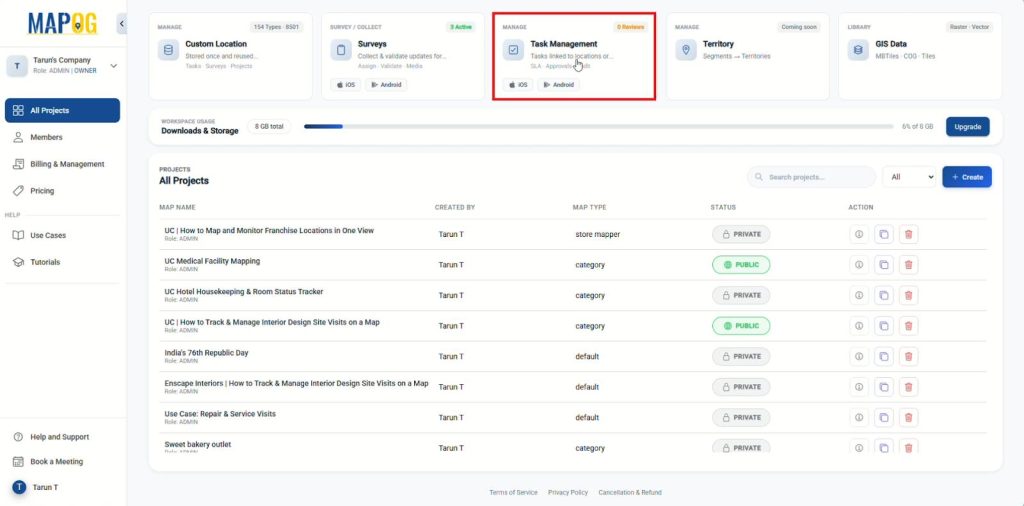
Click Completion Form Setup, then select the location template you created.
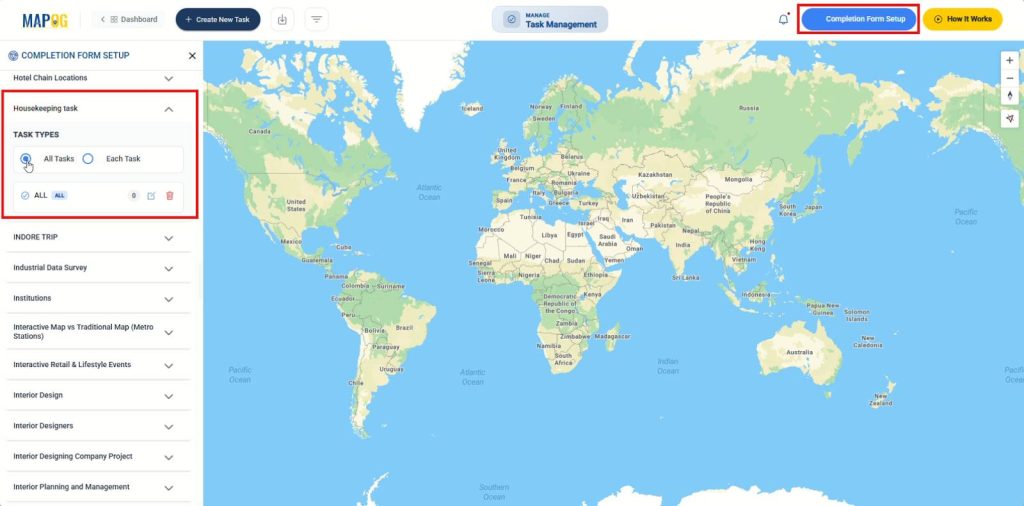
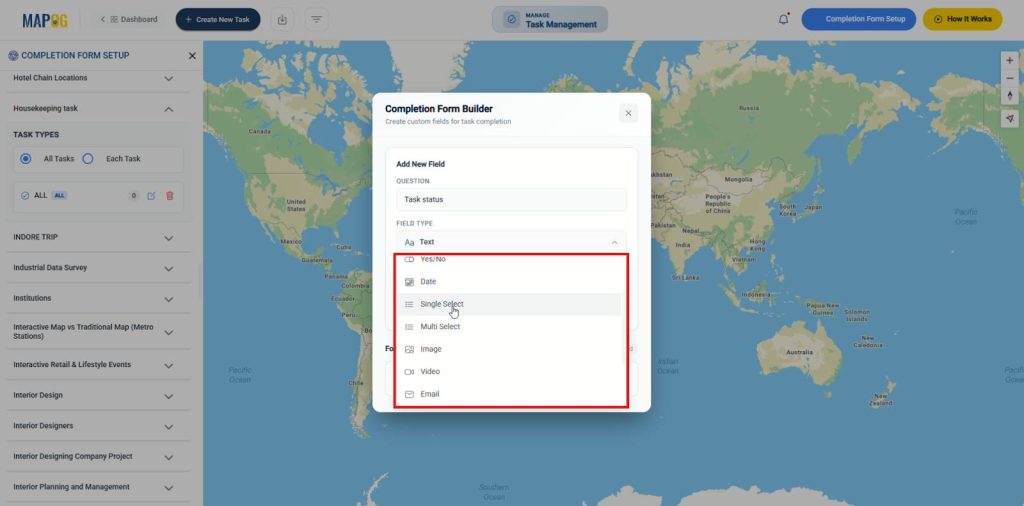
Add relevant questions for all tasks or each task type using field types such as: Yes/No, Single Select, Multiselect, Photos, etc. Completion form documents work quality, captures photo evidence, and maintains accountability.
Back in your map, click any location point and select Add Task. Fill in the task details, due date, status, and priority level.
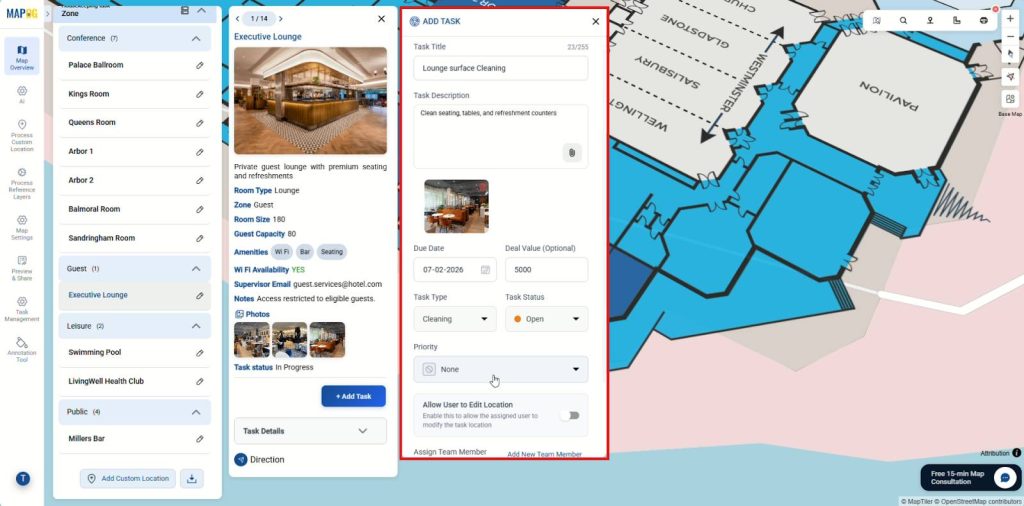
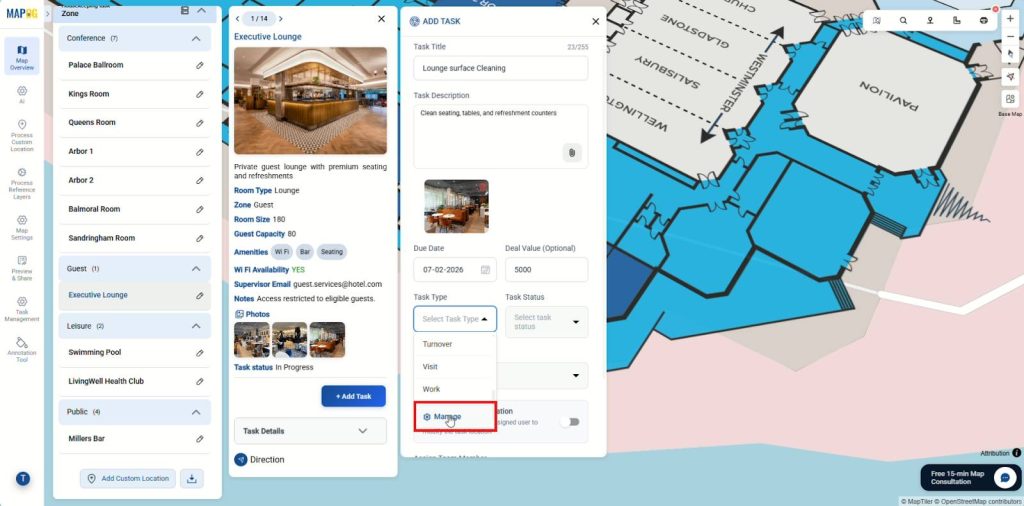
For task types, choose from the dropdown or create new ones by clicking Manage and Add More Task Type to customize for your specific needs.
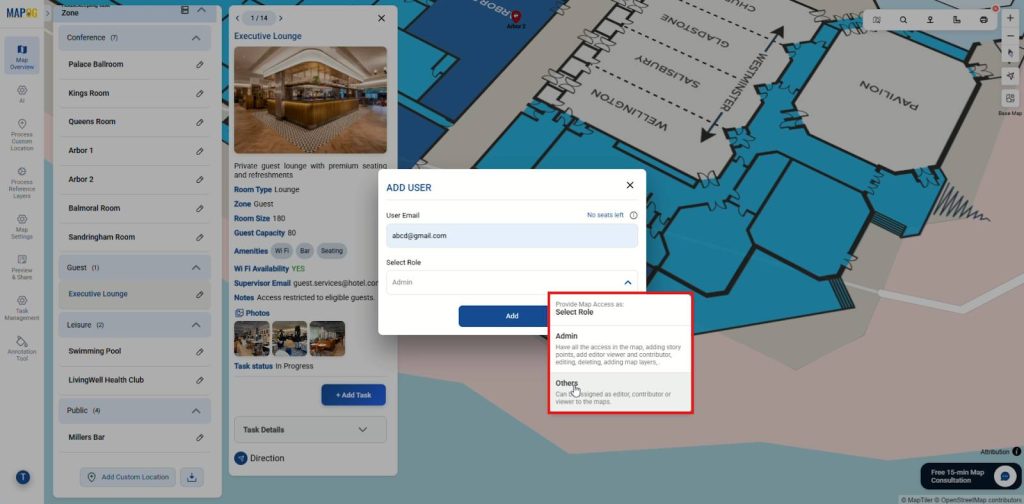
To assign, click Add New Member, enter their email, and assign a role (Admin for full access or others for limited permissions).
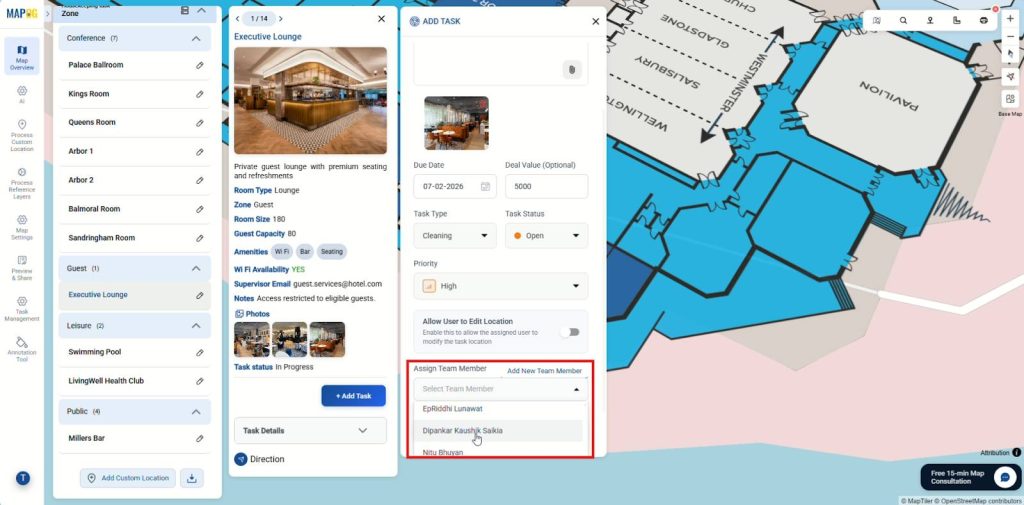
Select the member from the dropdown and click Save Task.
Step 7: Monitor and Track Progress
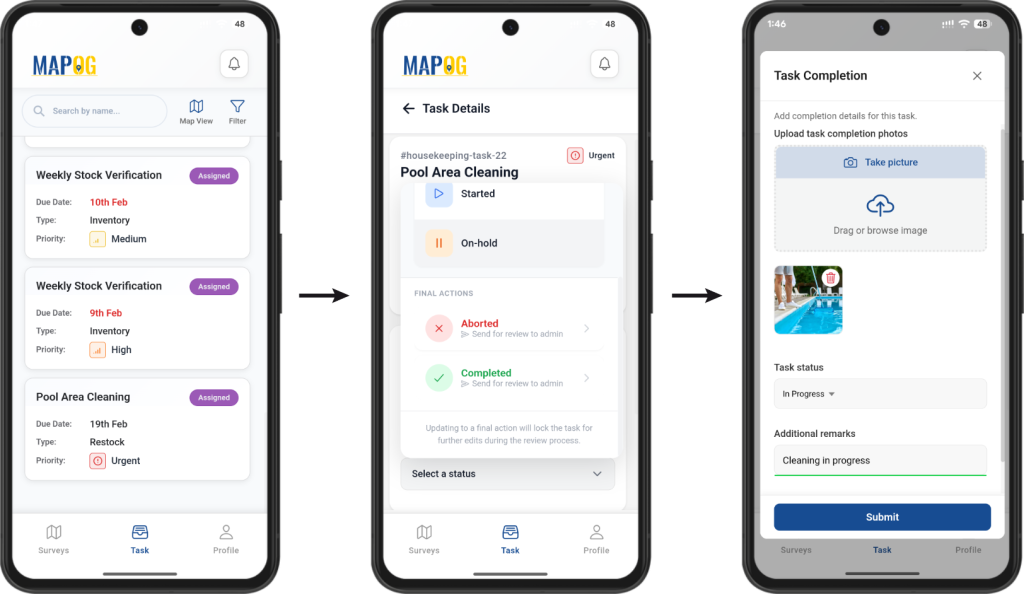
Assigned Team members access tasks through the MAPOG Contributor App to update status, answer questions, and upload photos.
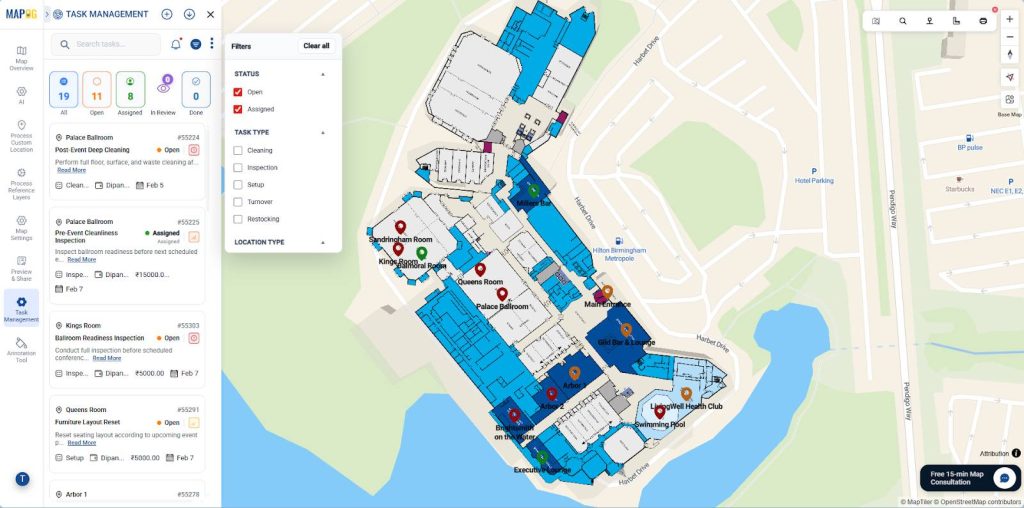
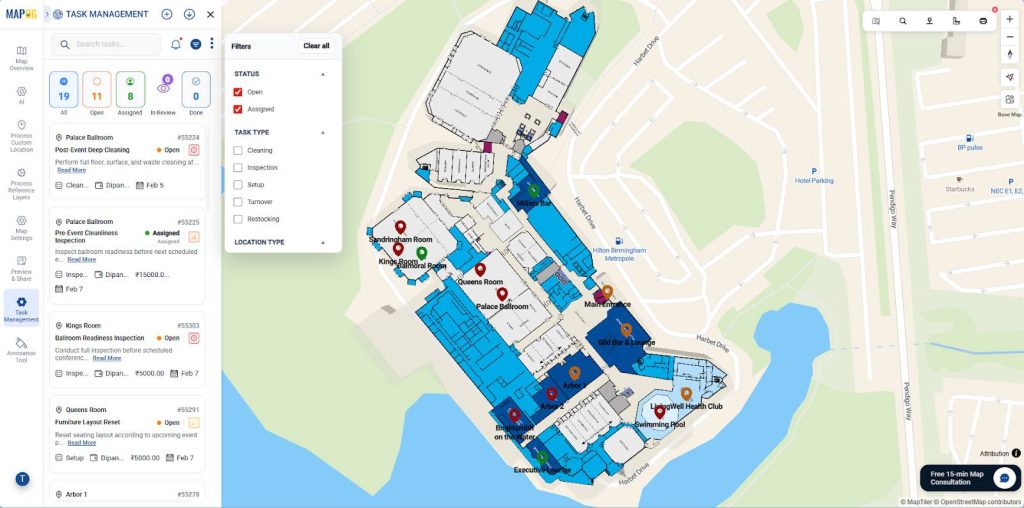
Meanwhile, from the Task Management panel, managers can filter tasks by status, type, or location, monitor progress, update details, save changes, or delete tasks as needed.
Industries and Domains Benefitting
Specific industries gain a competitive edge managing housekeeping tasks with location-based maps:
- Hospitality: Hotels instantly signal when rooms are ready for check-in.
- Healthcare: Hospitals monitor sanitation cycles for compliance and safety.
- Corporate Campuses: Facility directors oversee maintenance across multiple buildings efficiently.
Conclusion
In conclusion, shifting to visual dashboards transforms facility management from reactive to proactive. Managing housekeeping tasks using location-based maps ensures higher hygiene standards and optimizes productivity. MAPOG gives you total control over facility operations today.