
Tourist destinations often rely on scattered surveys, paper forms, or informal reviews that fail to capture on‑site realities. Consequently, managers struggle to detect problems, and tourists feel their feedback brings no change. However, MAPOG resolves these challenges by mapping surveys interactively and collect tourist feedback and images transparently, making destination management faster, clearer, and more trustworthy.
Key Concept: Collect Tourist Feedback and Images Matters
Traditional methods like paper forms or delayed reports miss real visitor experiences. Consequently, managers lose timely insights, and tourists feel disconnected. By contrast, collecting feedback on‑site makes responses immediate and authentic. Moreover, images provide evidence, while transparent sharing builds trust. Therefore, destinations improve communication and achieve sustainable tourism.
Steps to Collect Tourist Feedback and Images
1. Access Mobile Data Collection
To begin, head to MAPOG and open the survey section.
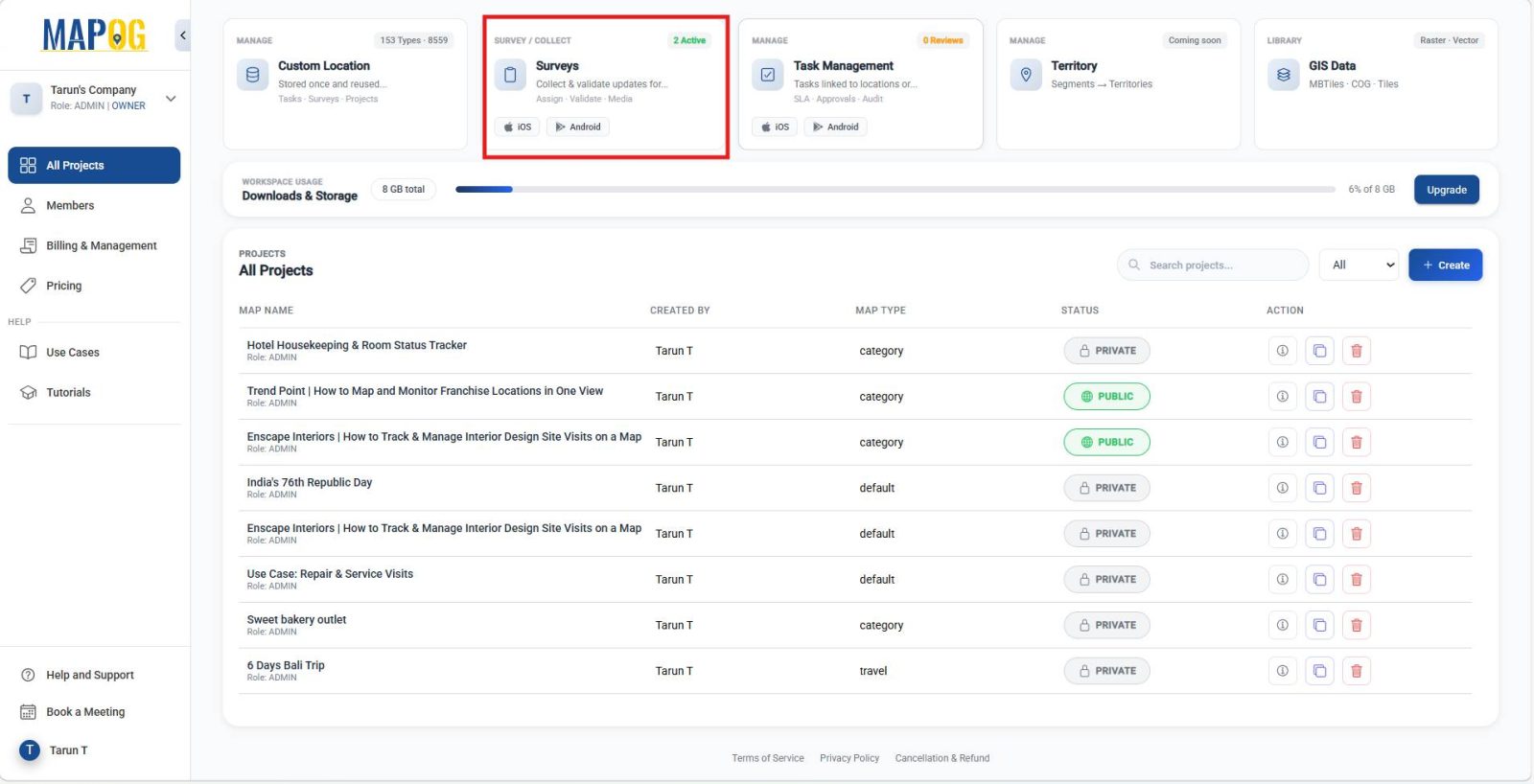
Click Create New under Mobile Data Collection to initialize your project.
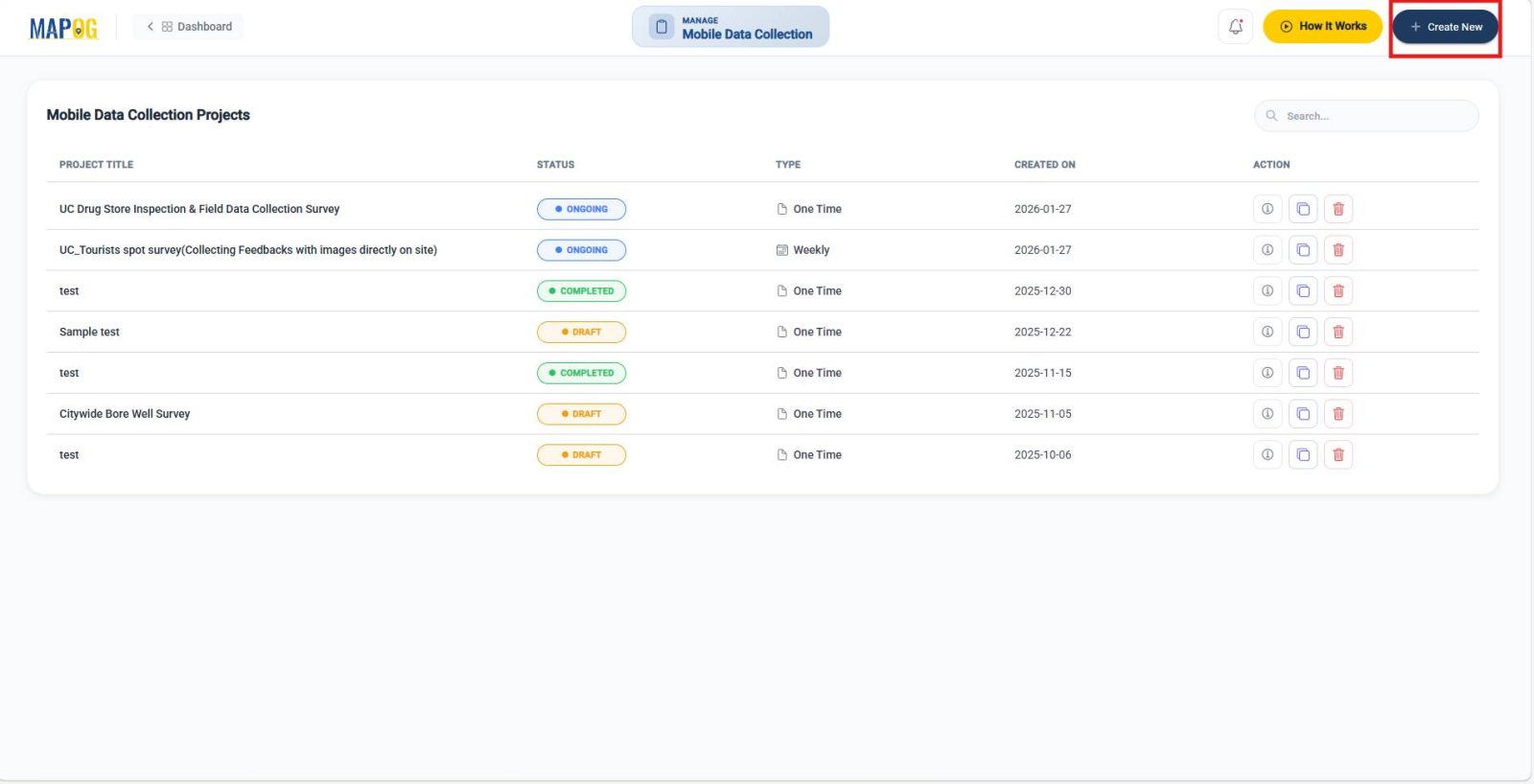
2. Fill in Project Details
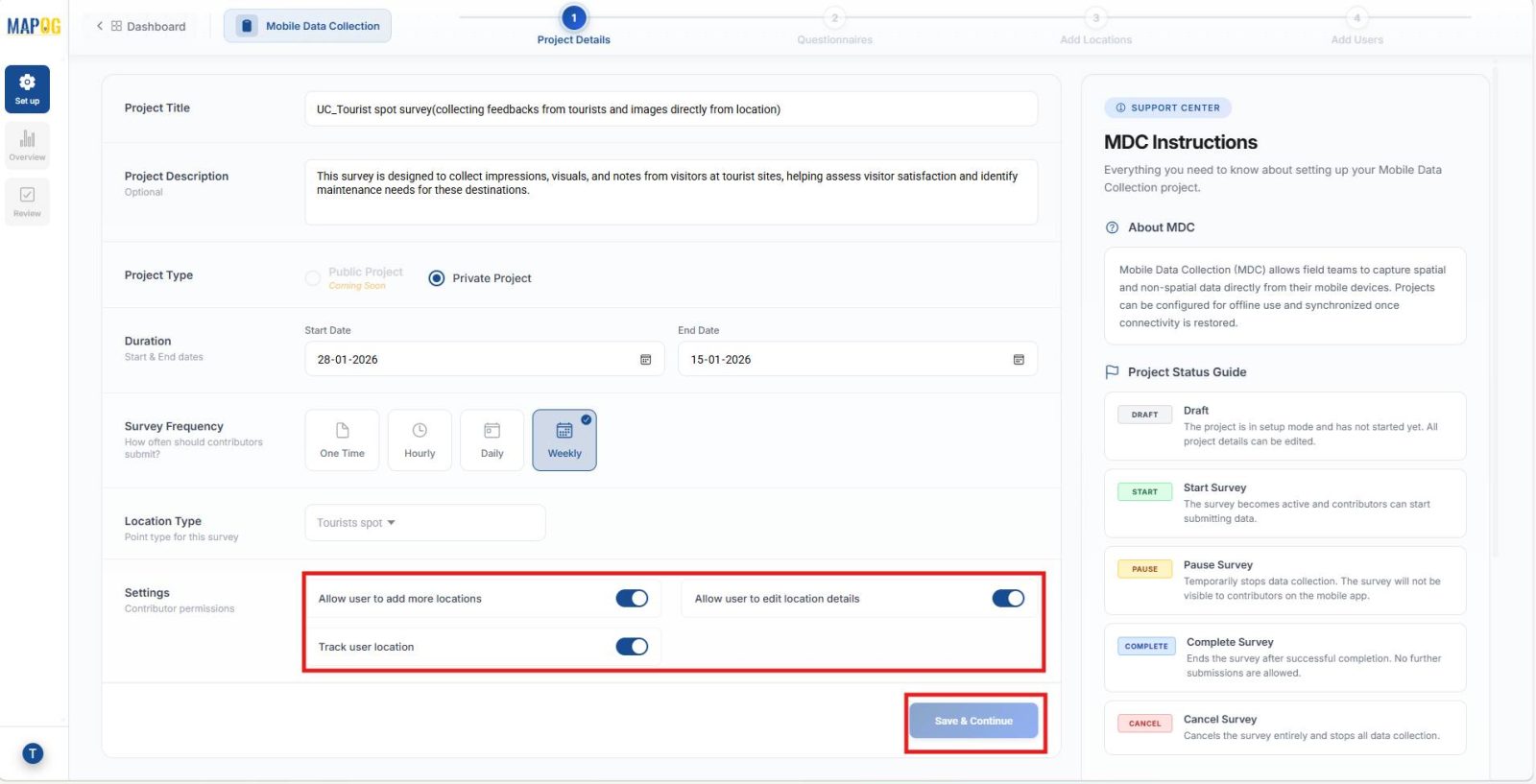
Provide essential details such as project title and description. Then, set survey duration by choosing start and end dates, and define frequency one‑time, hourly, daily, or weekly.
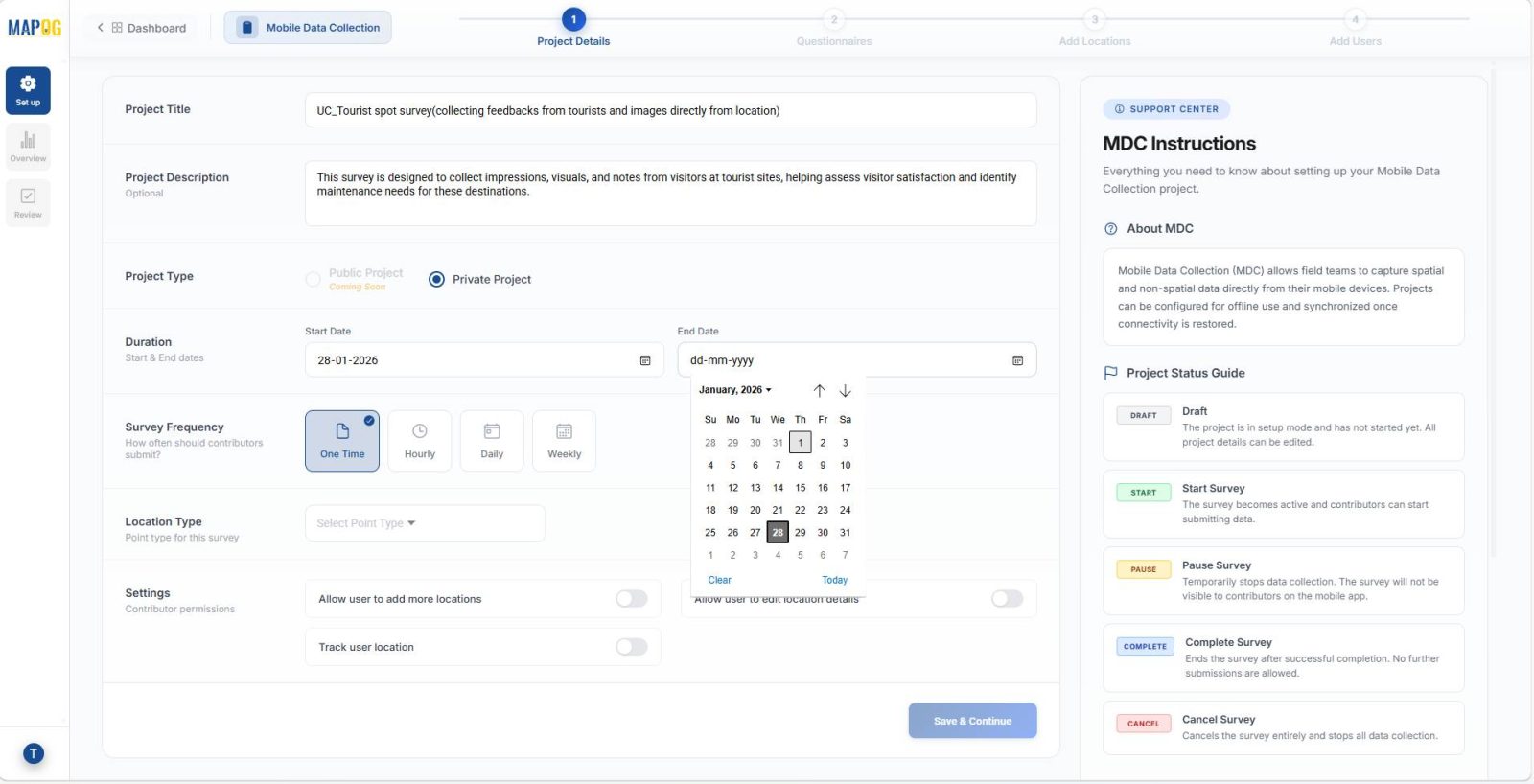
Next, create a new Location Type by giving it a title, selecting geometry type as point, and adding attributes (select, multiselect, Boolean, text, etc.). Once saved, it becomes reusable for other projects. Then select the newly created location type from the dropdown.
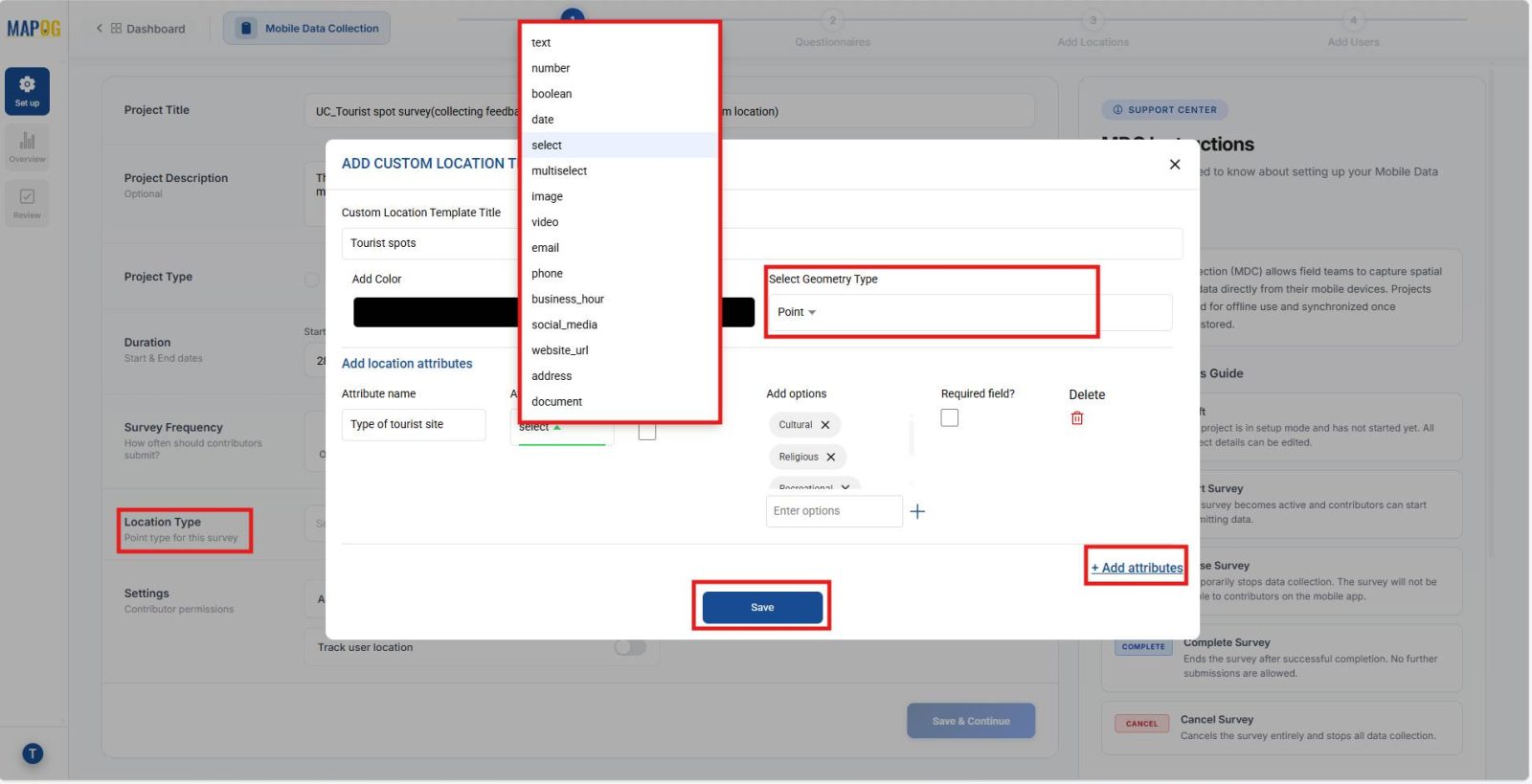
Moreover, enable contributor permissions so users can add or edit locations and track user location. Finally, click Save & continue to confirm the settings.
3. Add Survey Questions
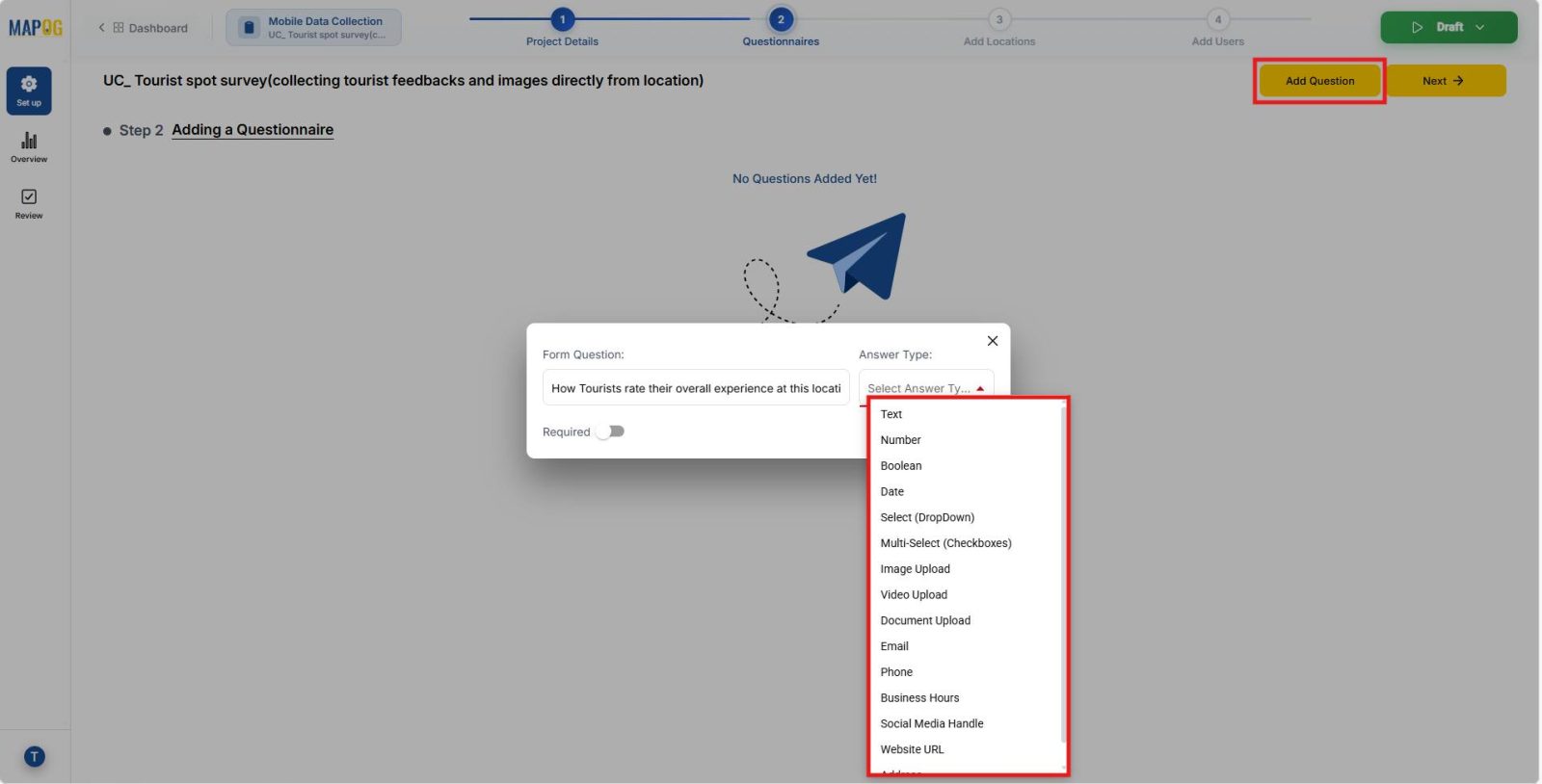
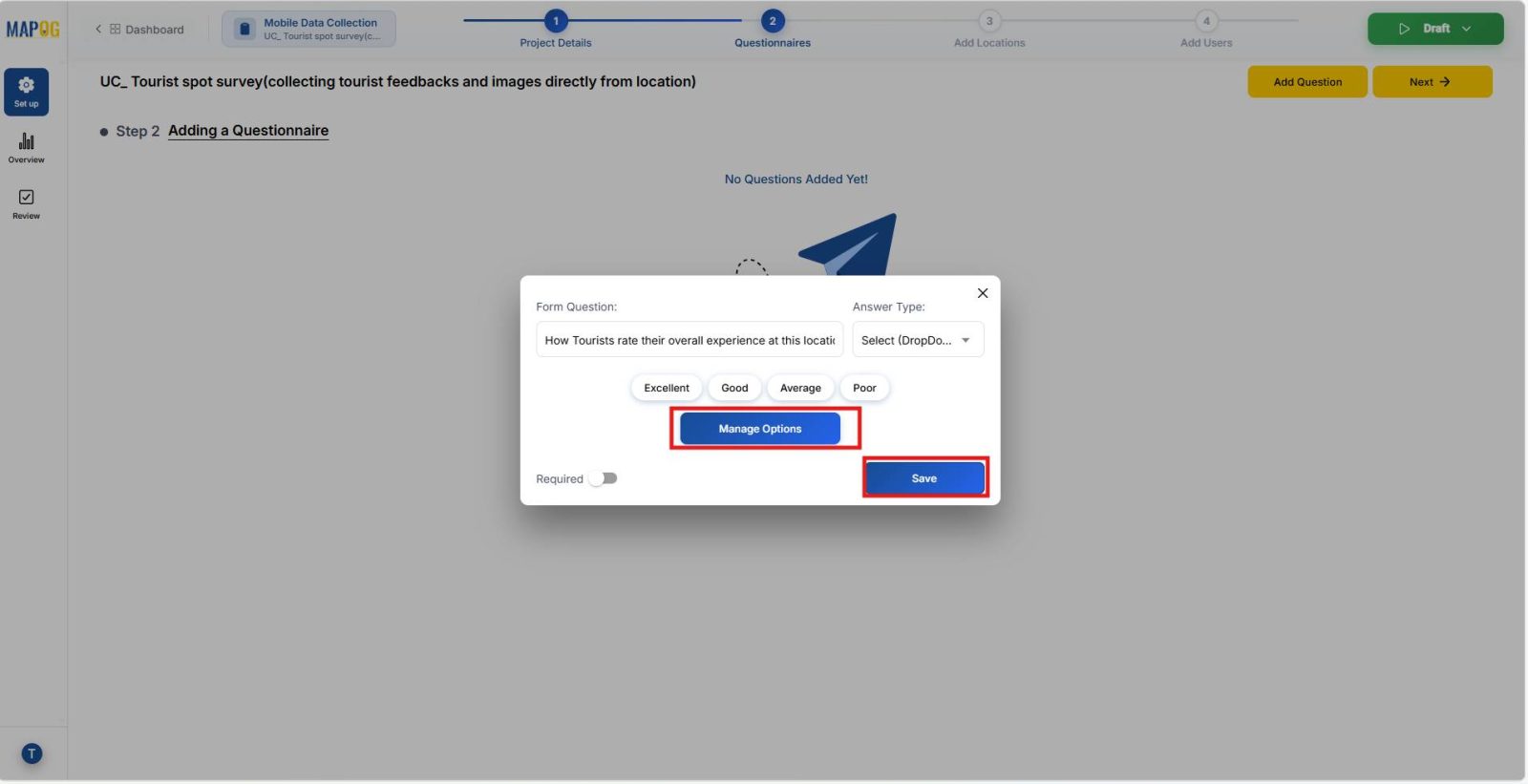
Then, click Add Question and start building your survey. For example, ‘How tourists rated the amenities?’ can use a Select type with options Excellent, Good, Average, Poor.
If needed, edit options through Manage Options and save.
4. Add Location Points
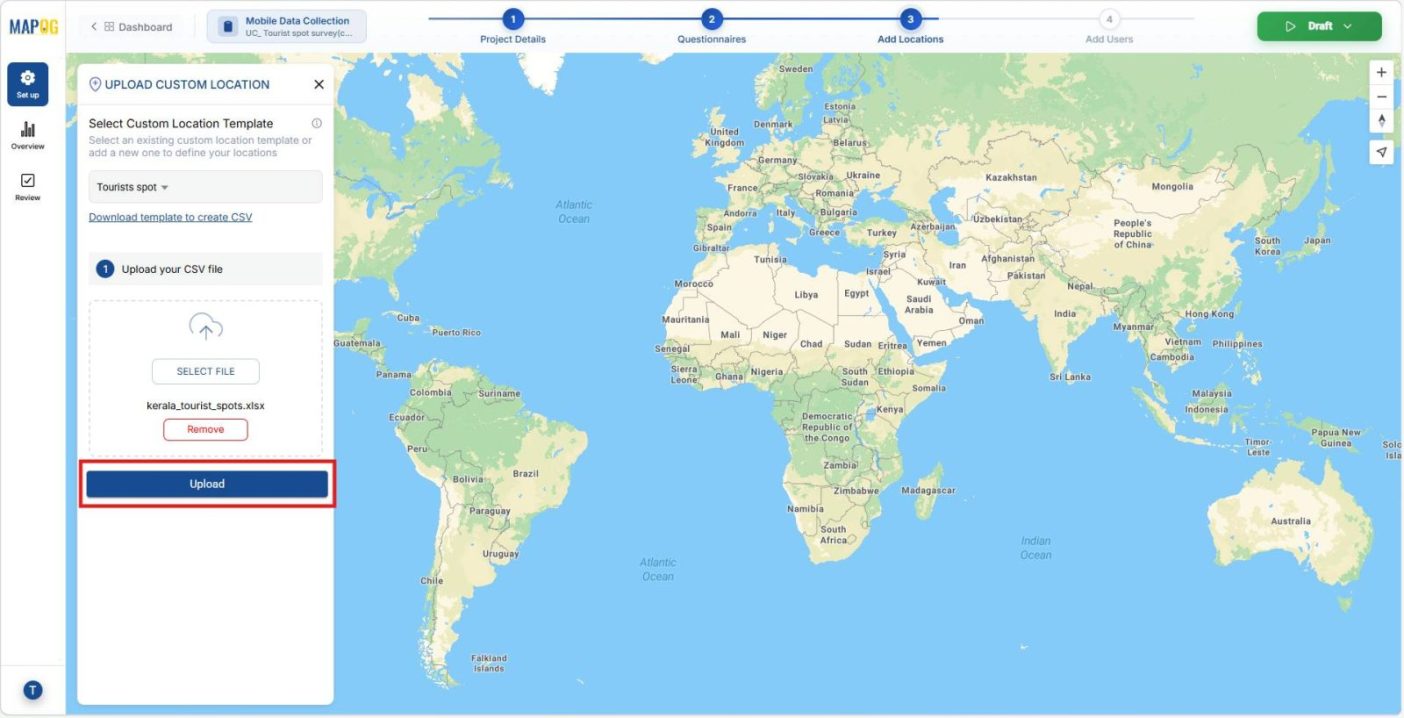
Subsequently, add location points by choosing the Add by Uploading CSV/Excel option.
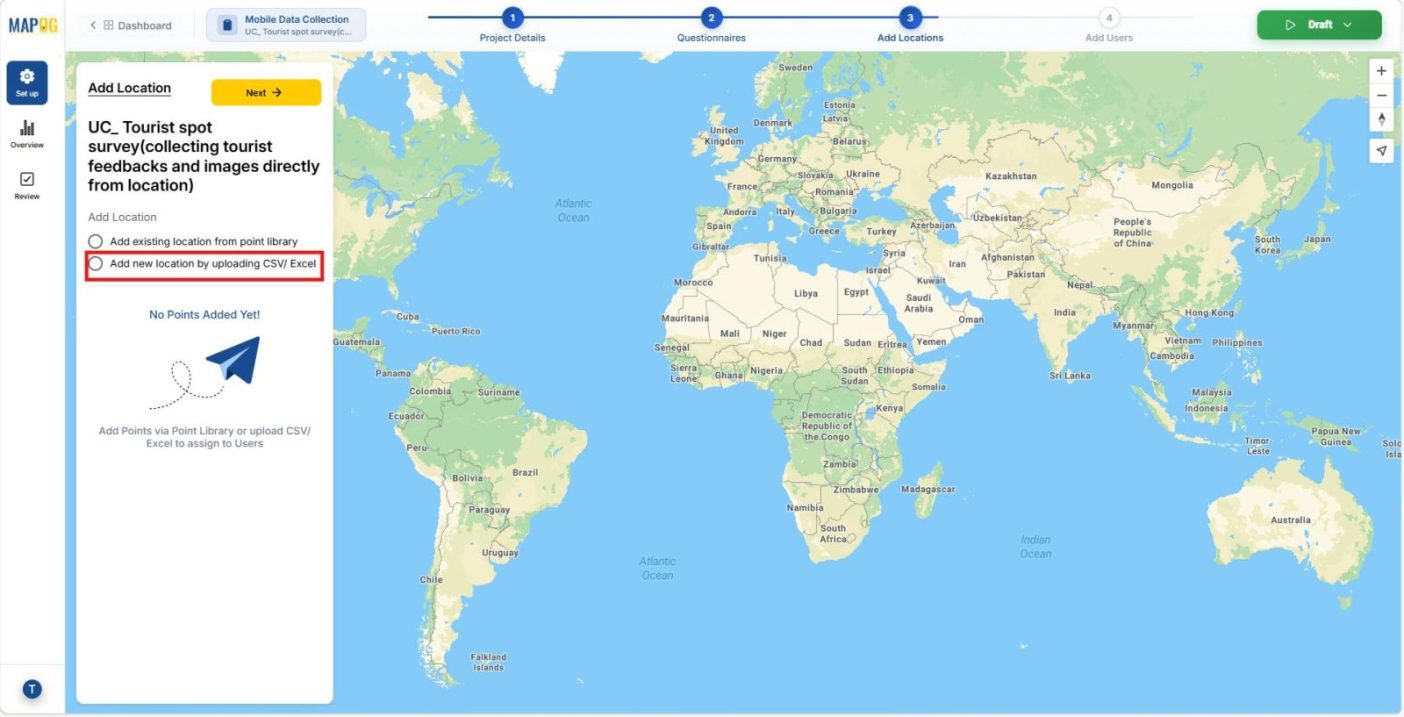
Then, browse your file and upload it.
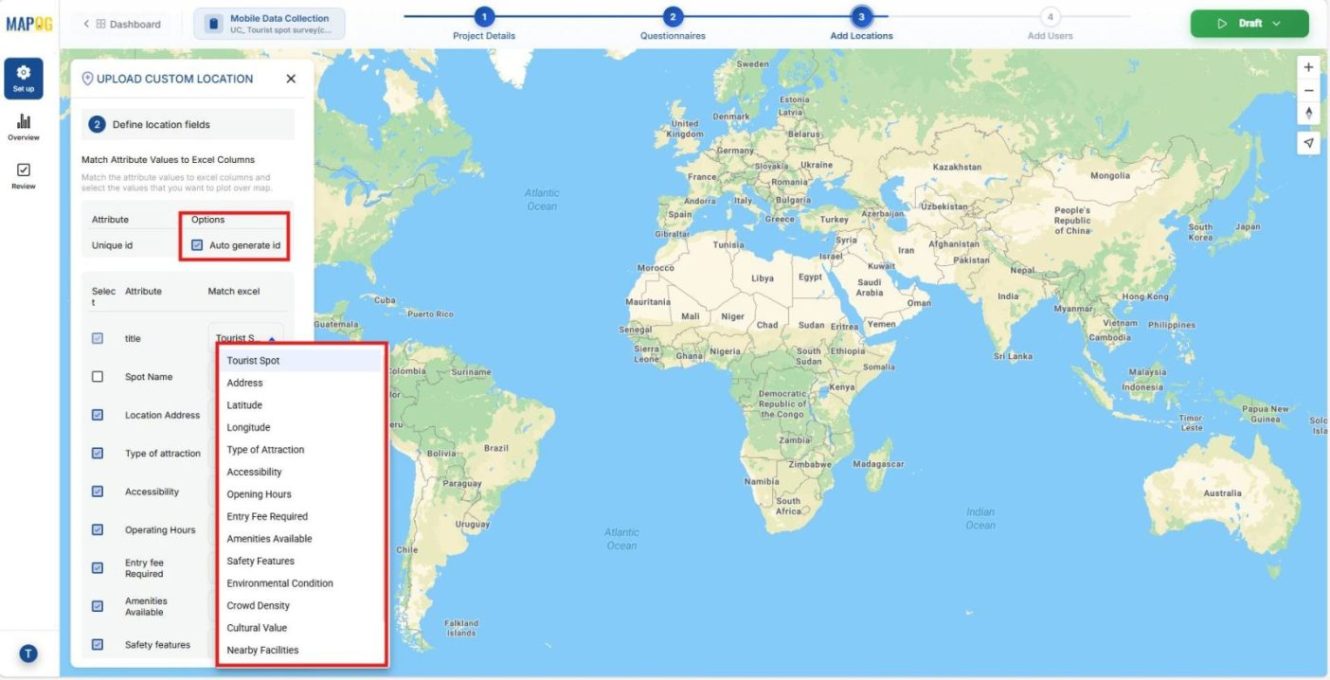
If your file doesn’t have unique IDs, generate them through auto generated ID for proper identification. Then, match attributes with columns and submit. Once done, points display clearly on the map.
5. Add and Invite Users
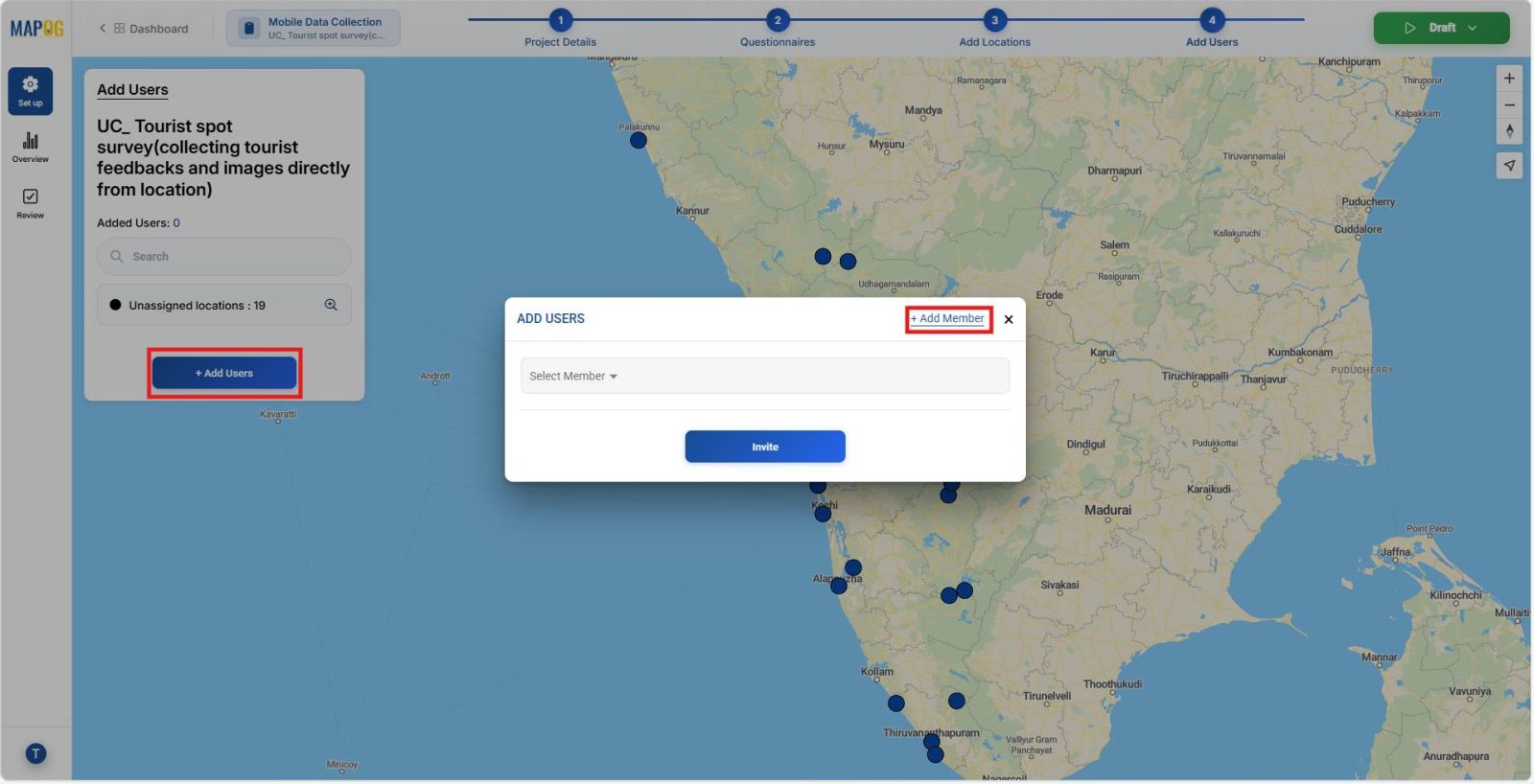
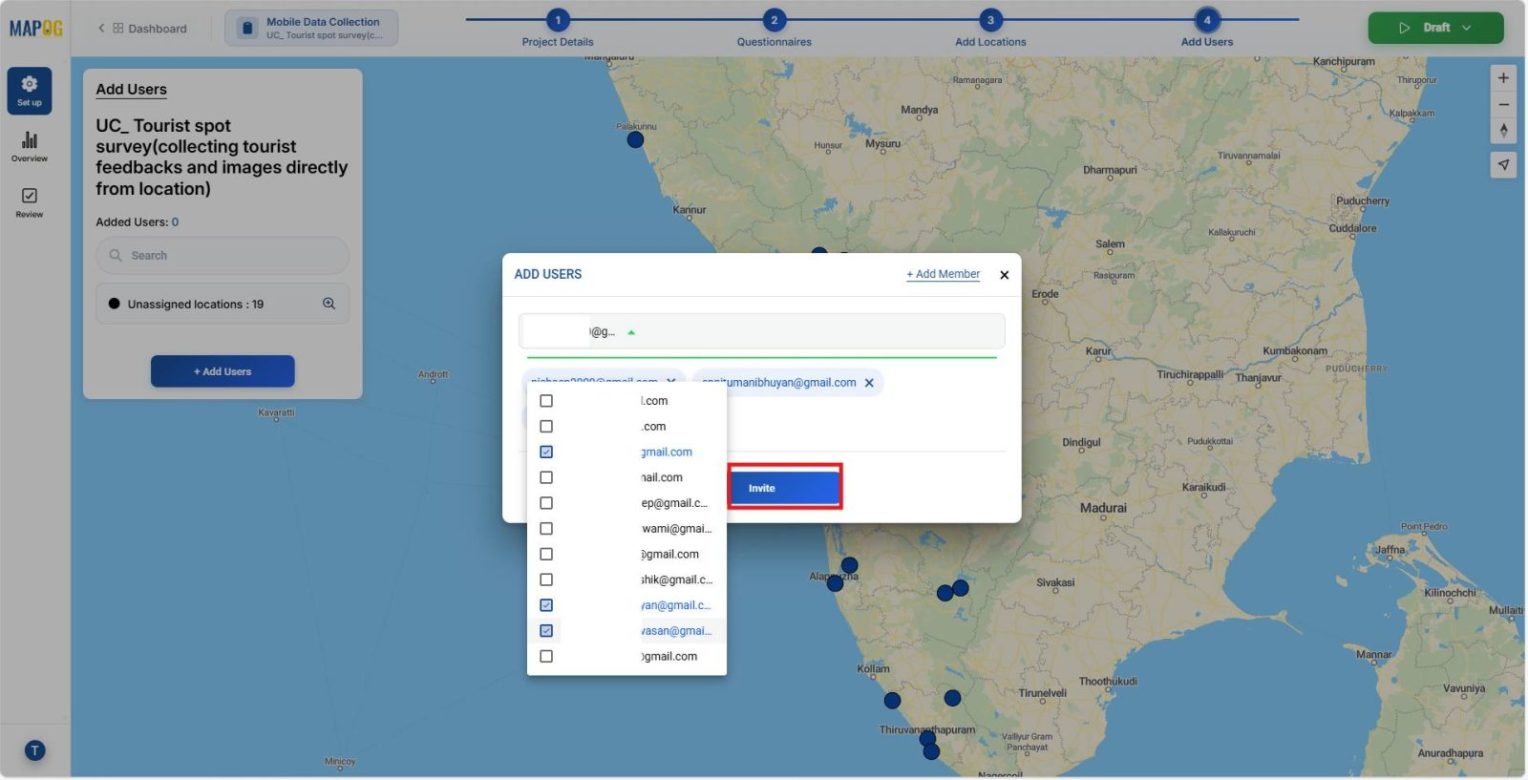
After points are visible, click Next and select Add User. Click add member and Enter member email IDs,
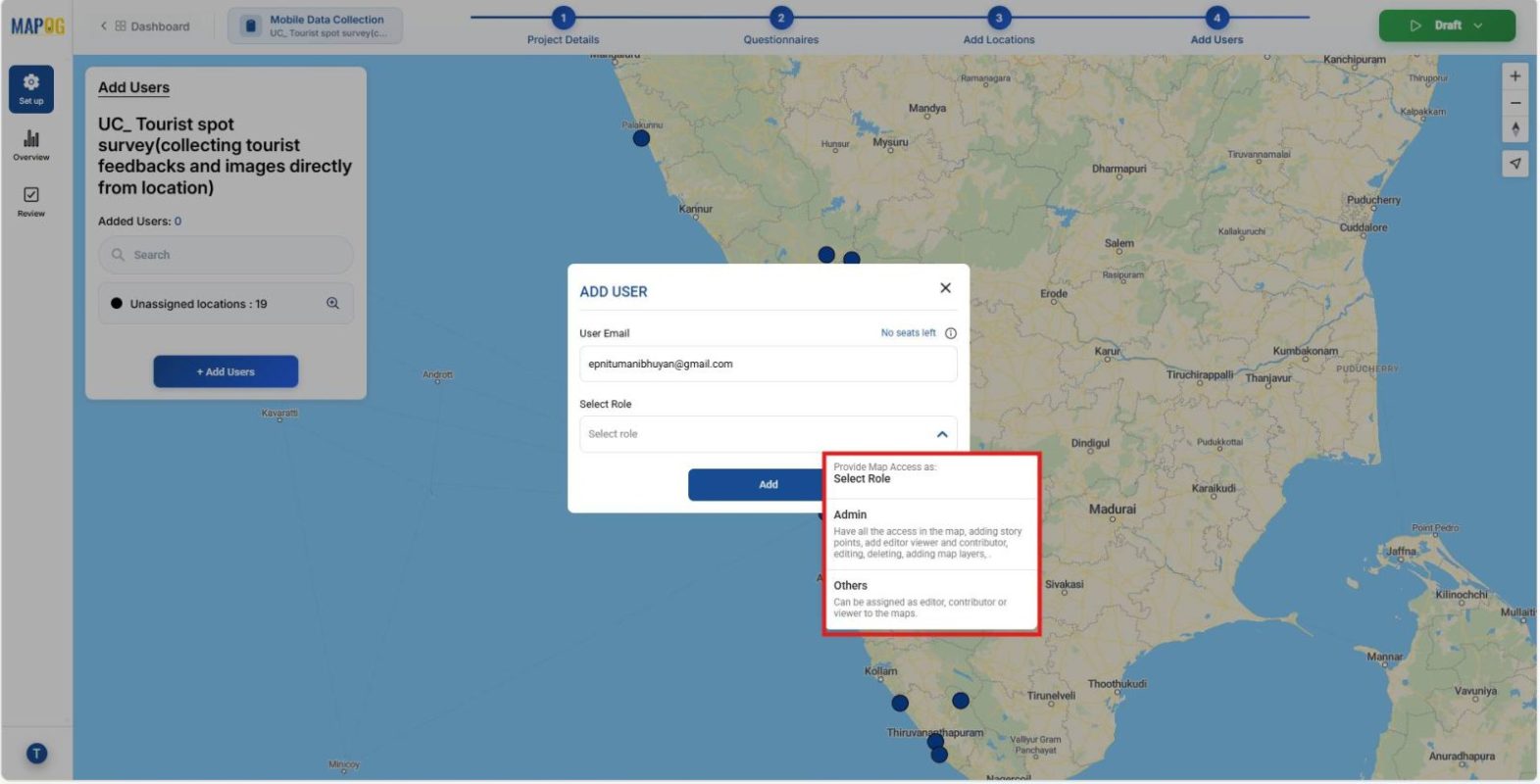
And assign roles as
- Admins who have full access to the map. They can add story points, manage editors, viewers, and contributors, edit or delete content, and control map layers.
- Others (Editors, Contributors, and Viewers) who have specific permissions, such as updating details, submitting feedback, or viewing the map.
After assigning roles, click Add,
Then select them via the drop‑down list and click invite .
6. Assign Locations to Members
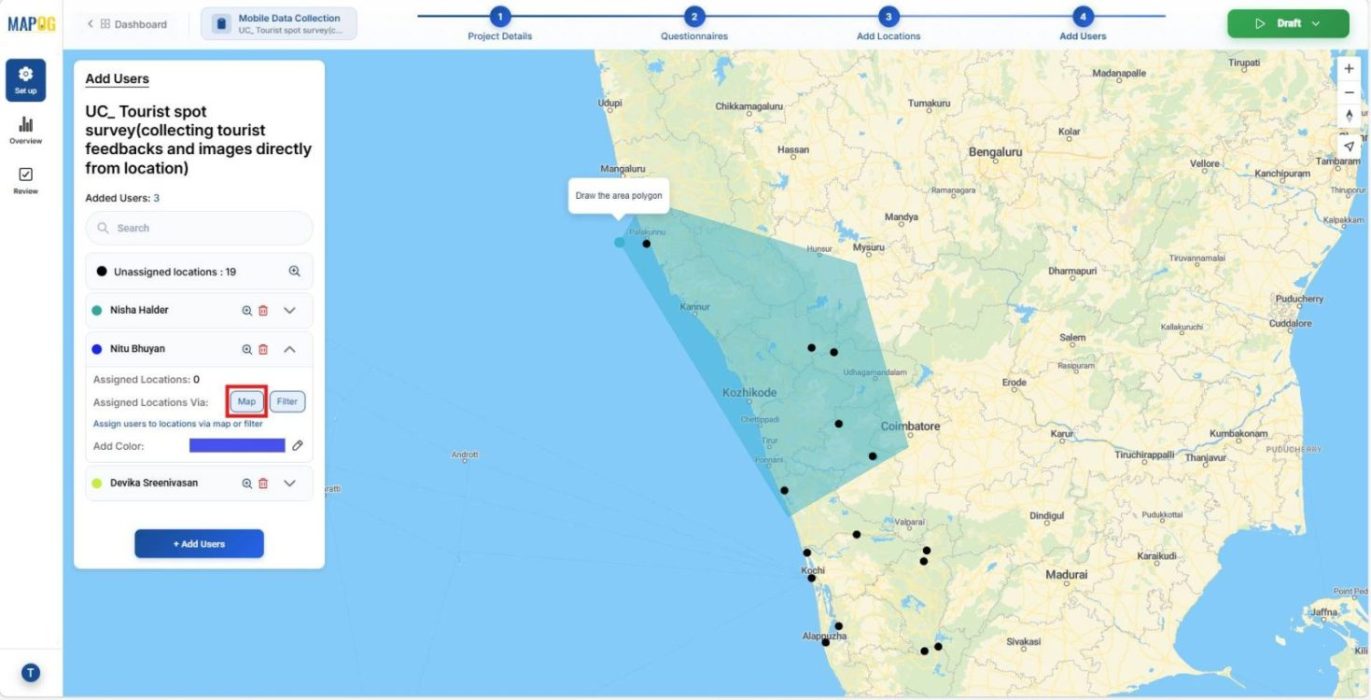
After inviting members, assign specific locations by drawing polygons around points through the map option.
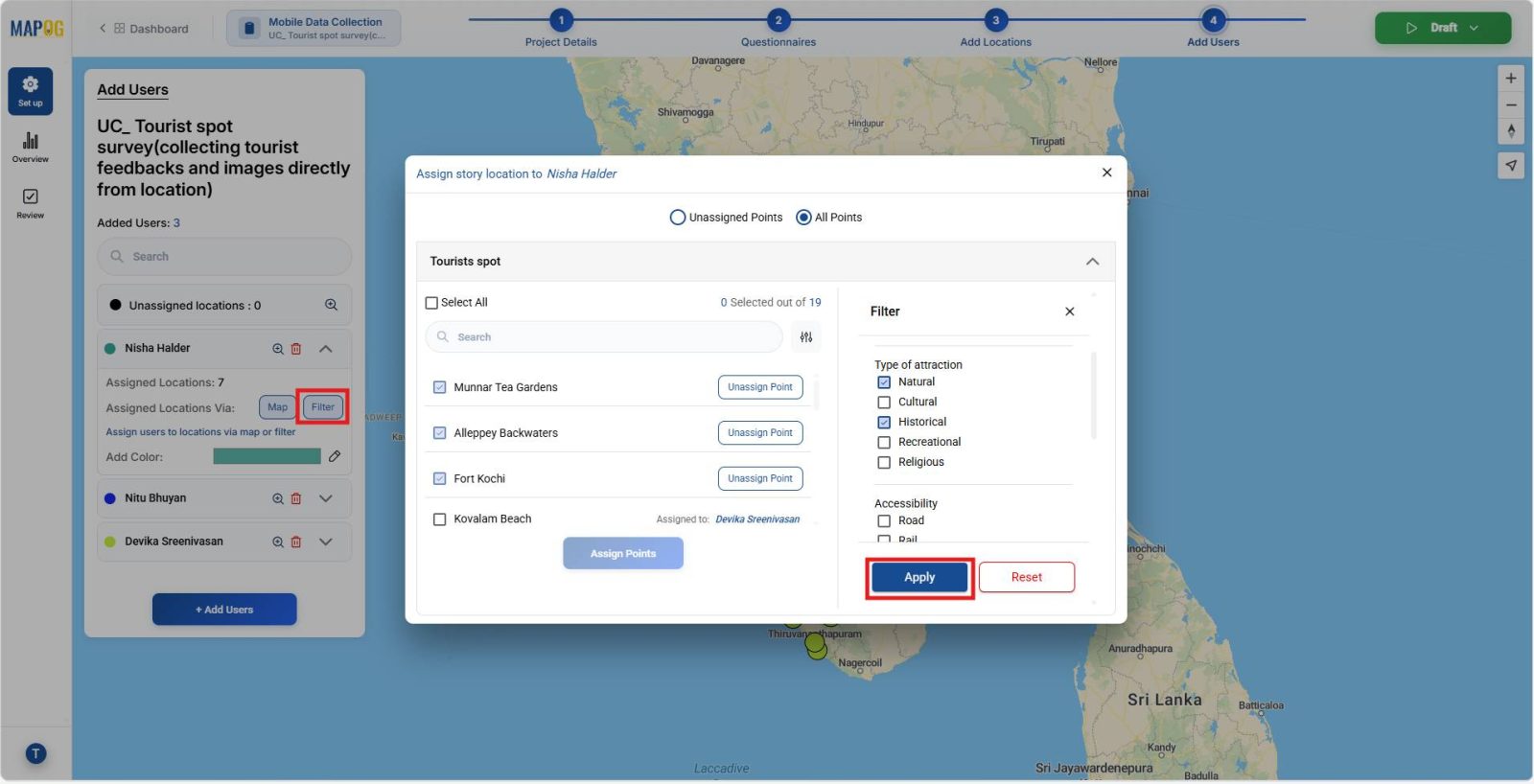
Additionally, use filters to narrow points by attributes such as attraction type, or accessibility notes. This ensures members focus only on relevant areas.
7. Launch the Survey
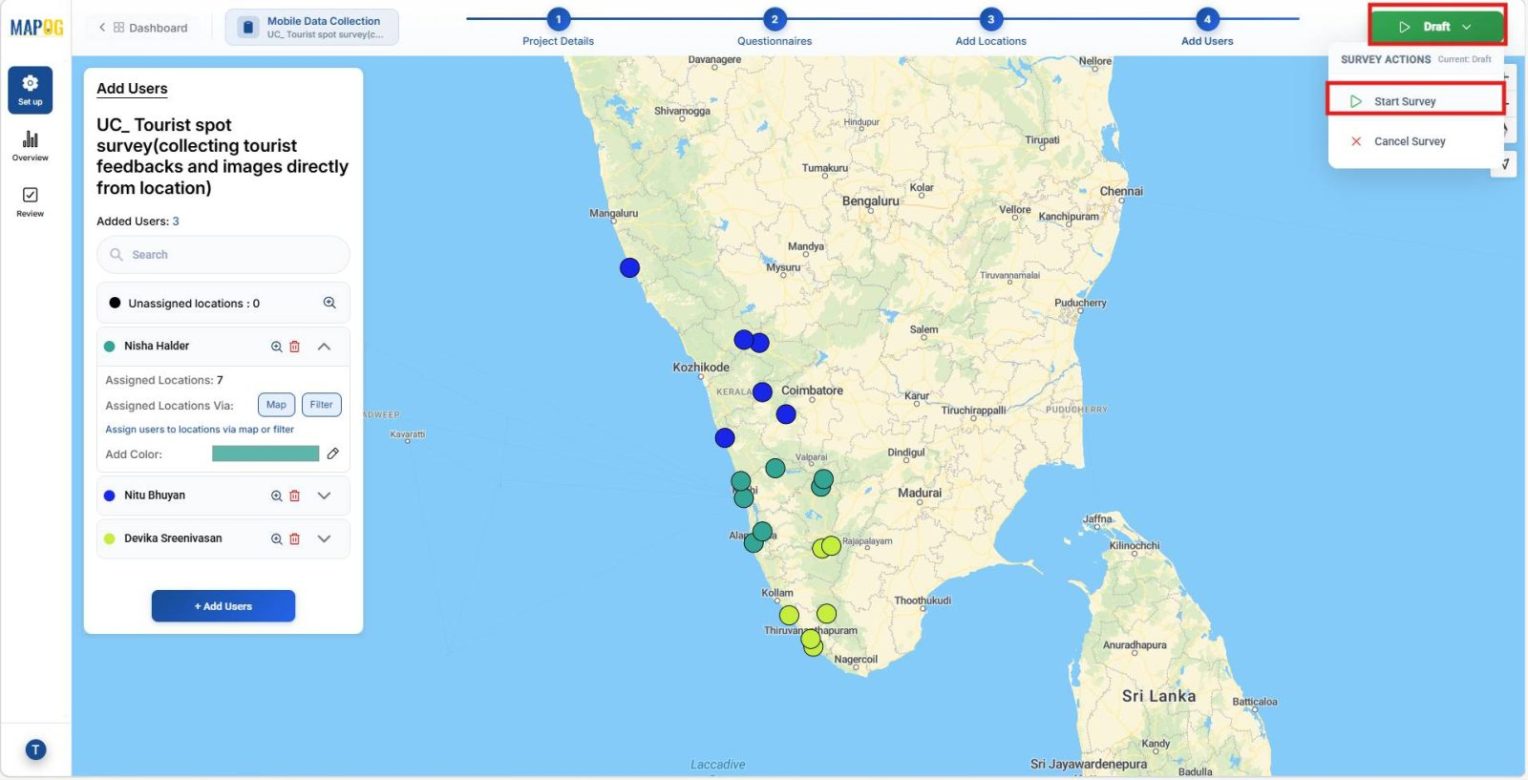
Finally, click Start Survey to go live.
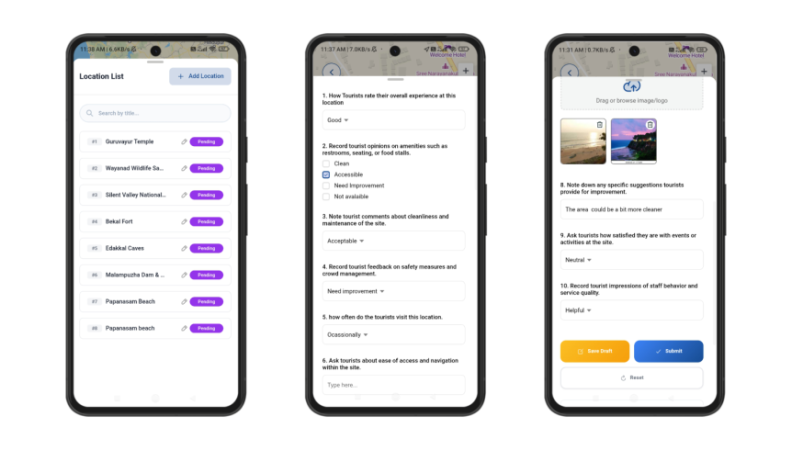
Assigned members access it through the MAPOG Contributor app. After signing in, they can complete surveys, collect feedback, and upload images on‑site then submit responses or save drafts.
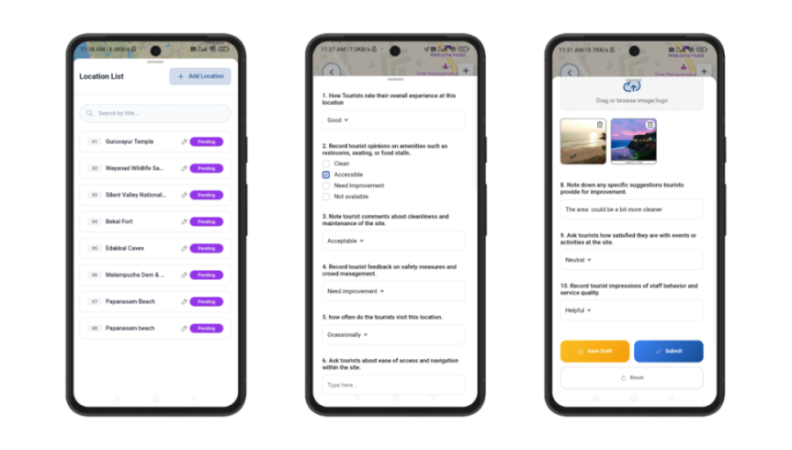
Users can also add new locations by clicking Add Location, searching by name, confirming to plot, and adding details like titles, descriptions, and photos. Once saved, the location becomes visible and surveys can be conducted there.
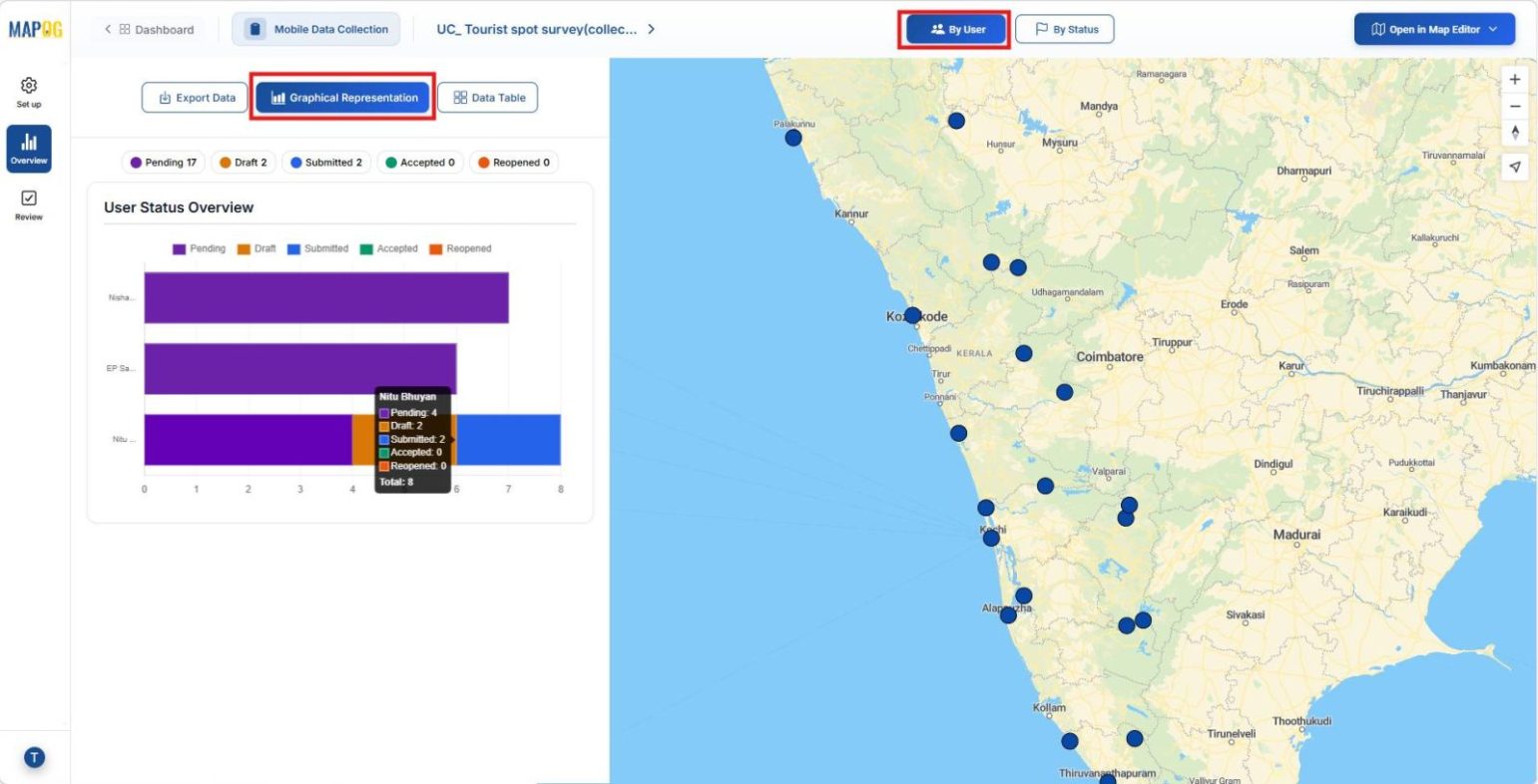
8. Monitor and Review Survey Data
Back in the MAPOG Overview section, admins can track statuses such as submitted, pending, or draft by user or by status.
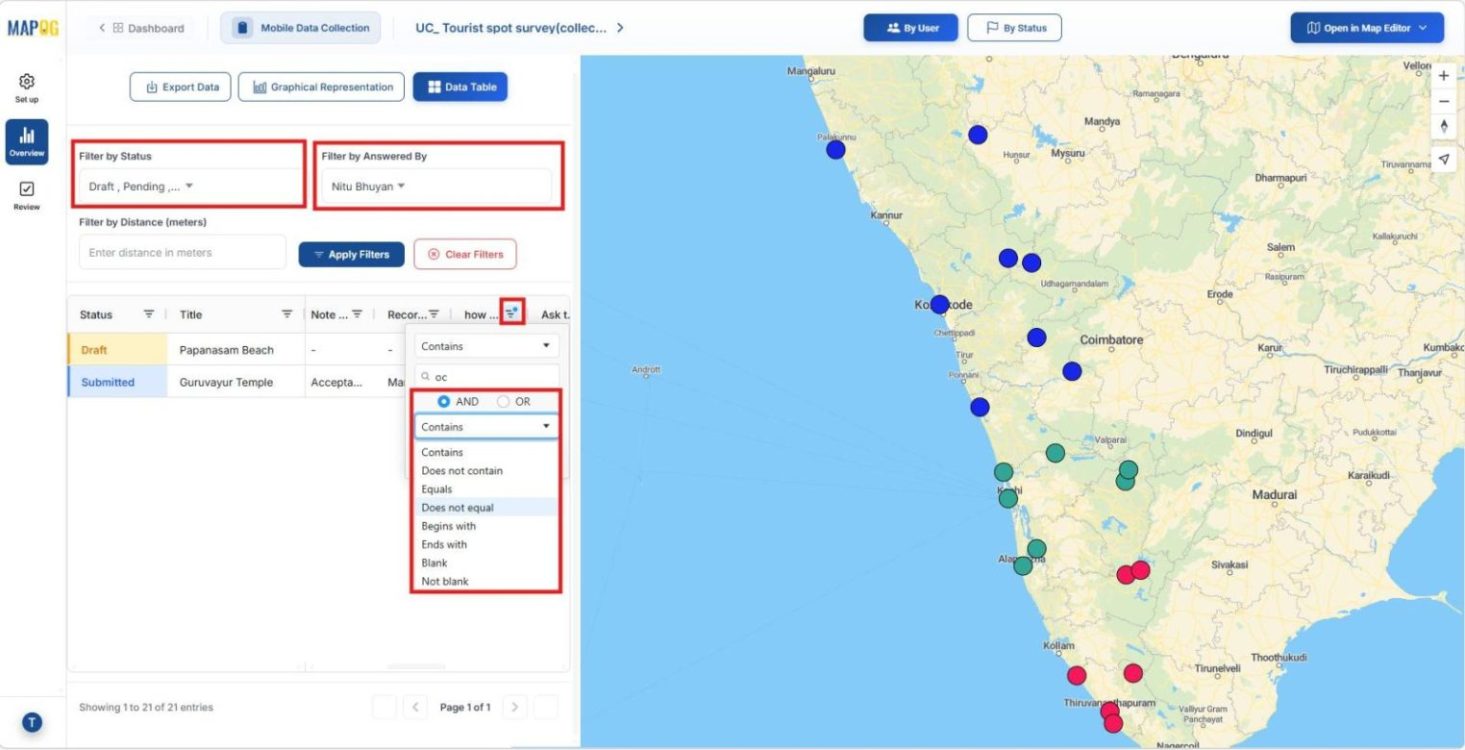
Moreover, in the data table, admins can filter information by status or assignee. They can further narrow responses with keyword conditions such as contains, does not contain, blank, begins with, or ends with and combine them with AND/OR logic, making it easy to access relevant data.
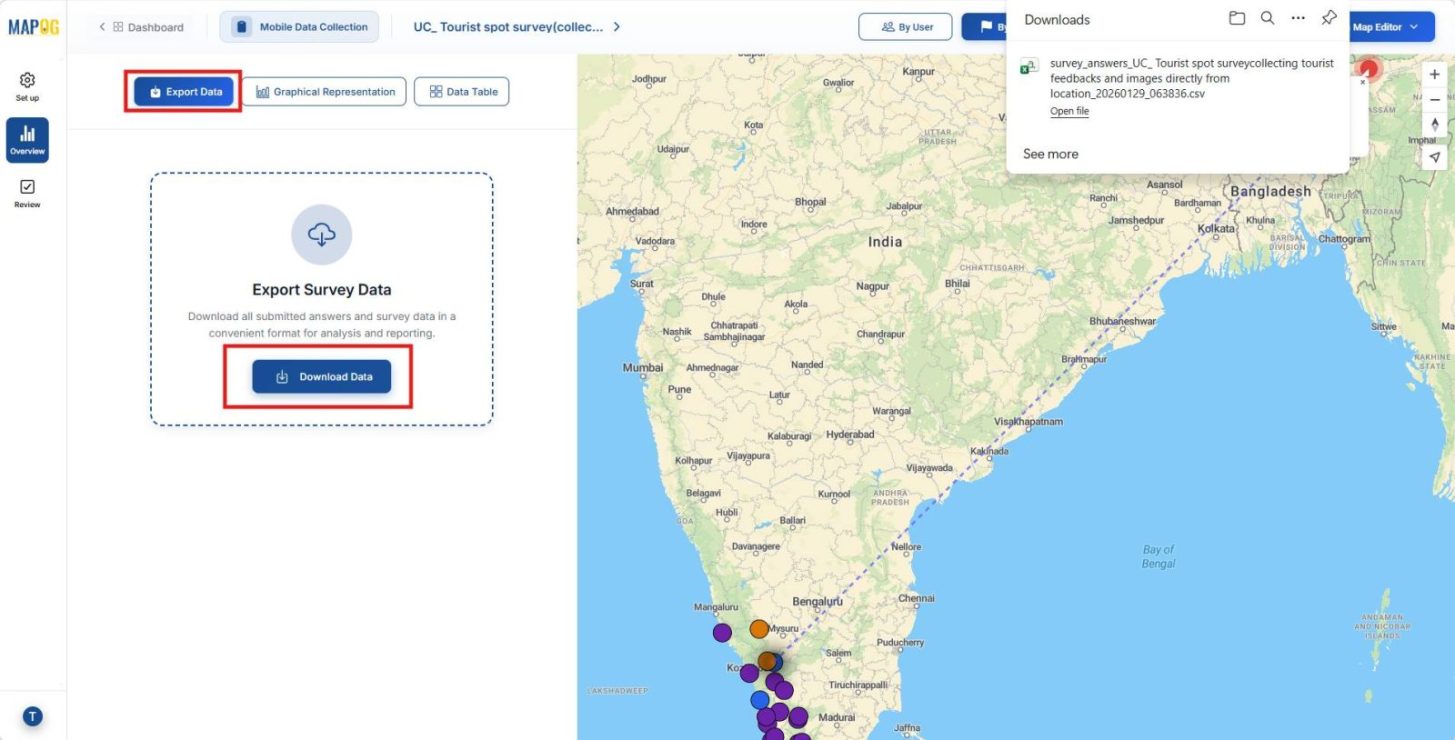
Further results can be exported as CSV files through export data tab.
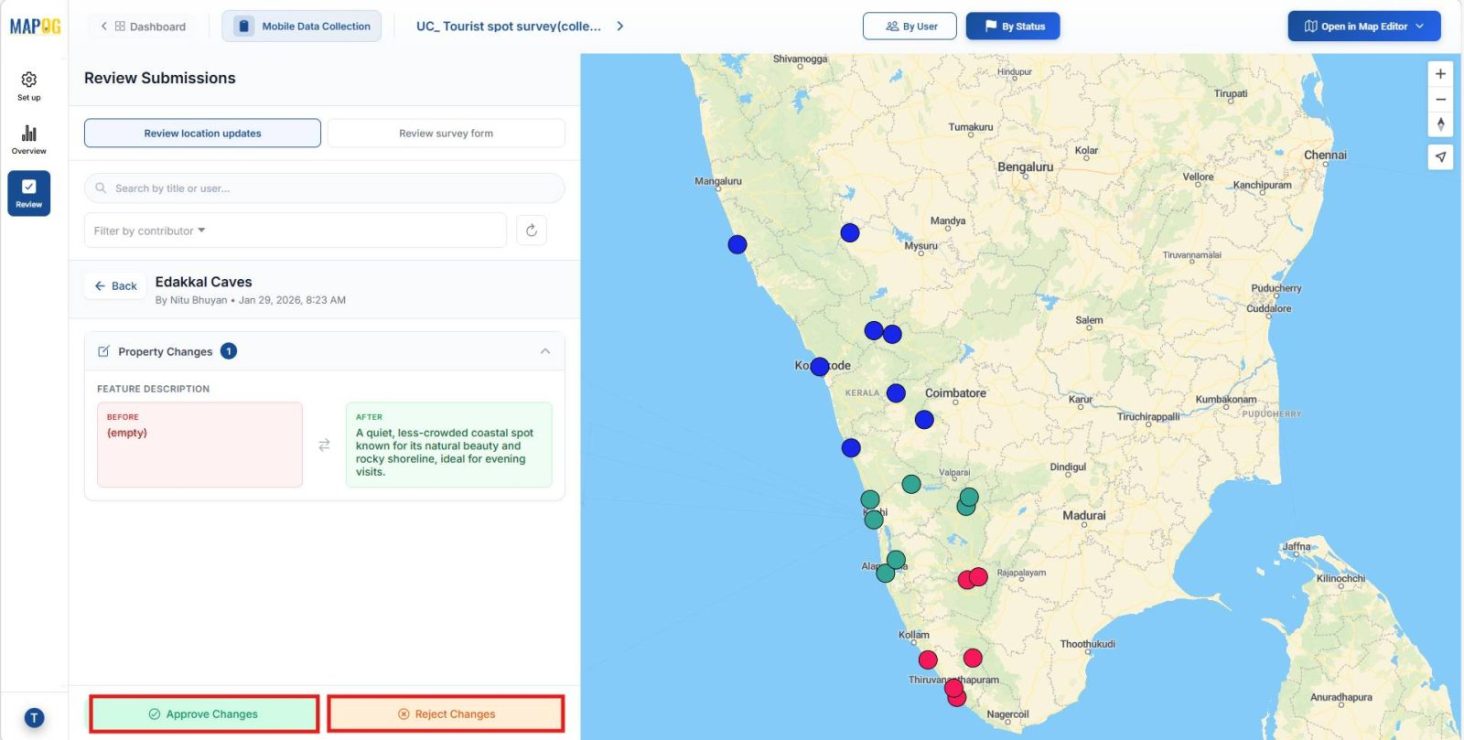
Moreover, in the Review section admins can review the location updates and approve or reject responses.
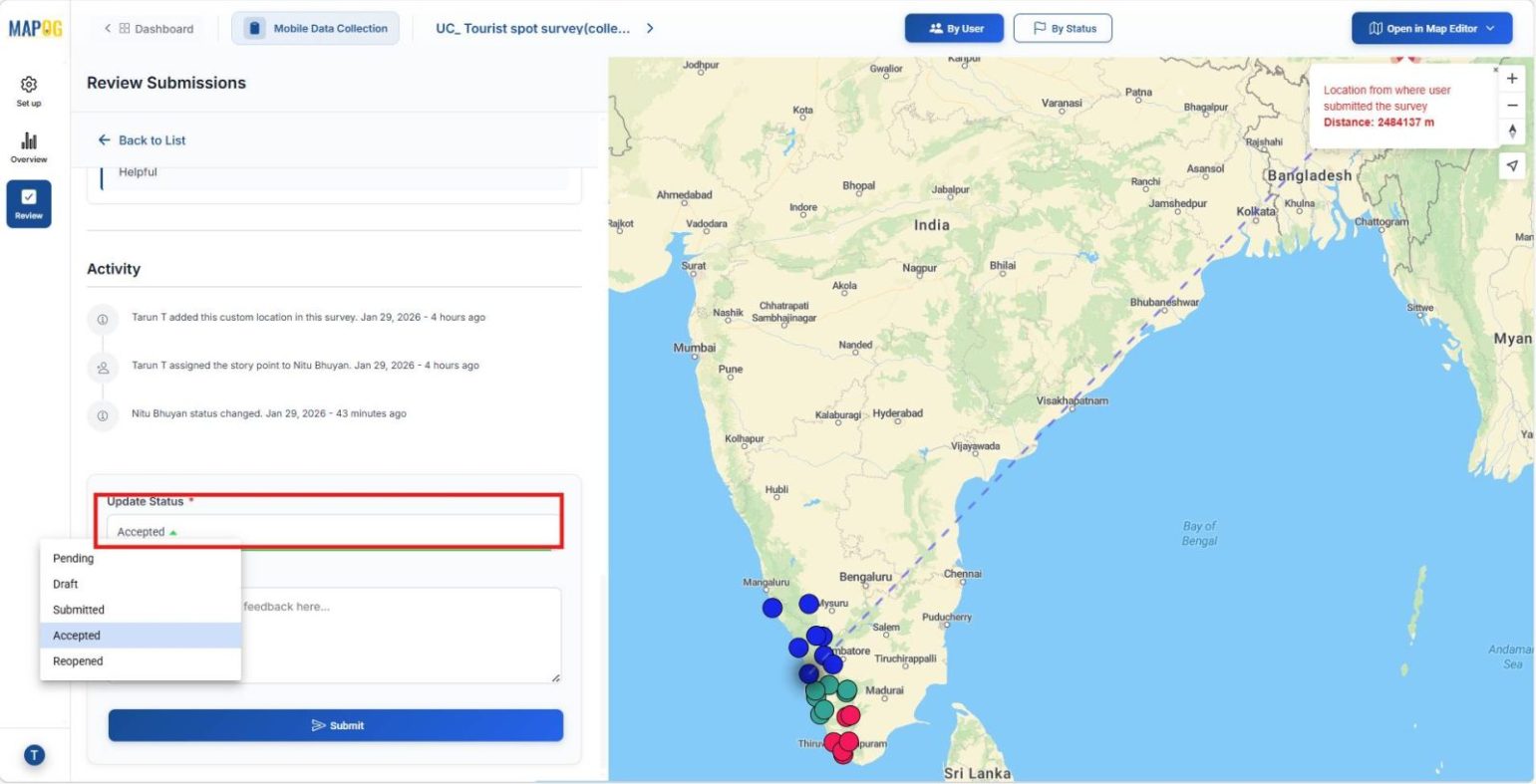
Statuses can be updated from Completed to Accepted, while filtered views help focus on specific assignees.
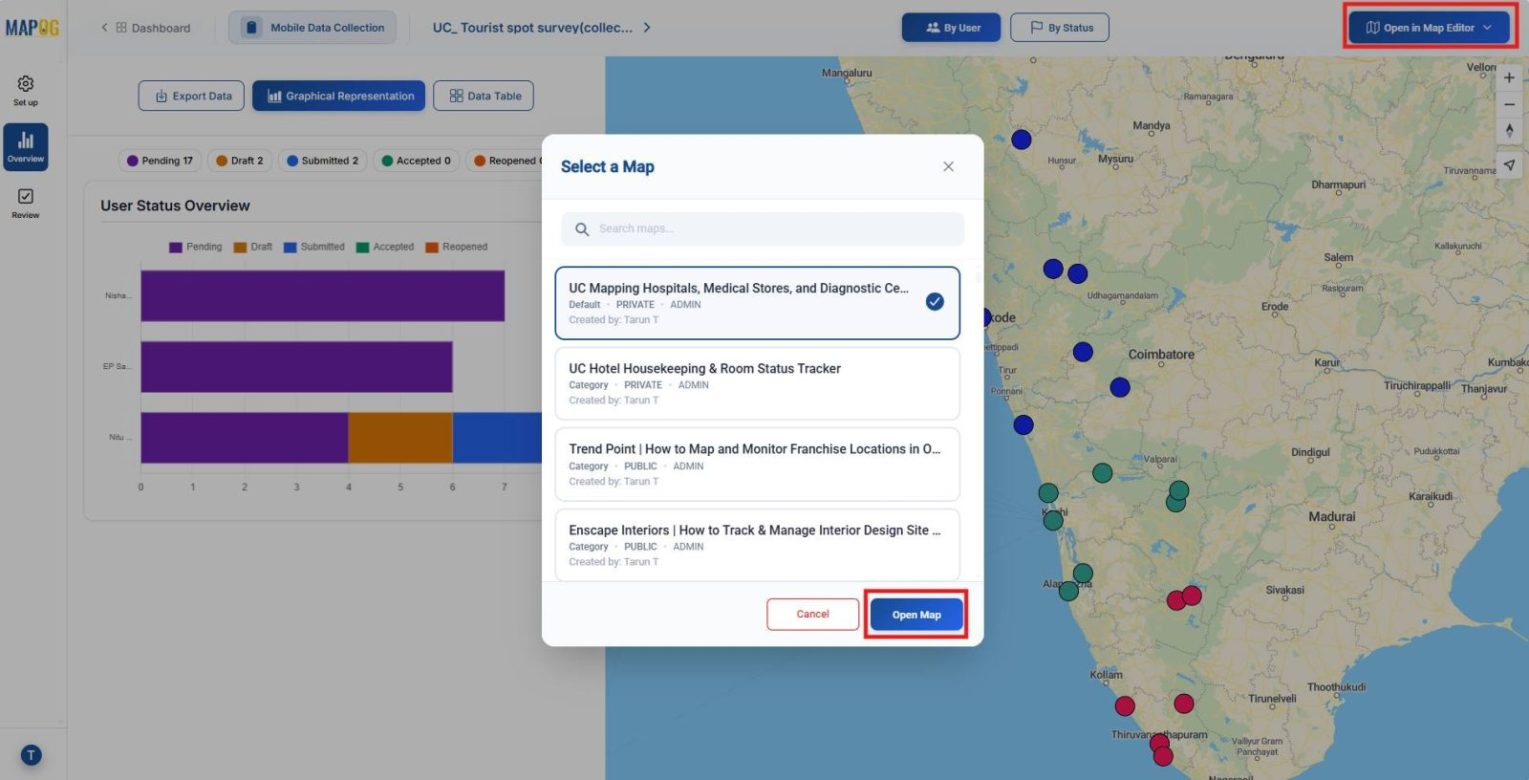
Lastly, in the overview section the map can be opened in Open Map Editor, either as a new project or within an existing one.
Industrial Use and Benefits
Feedback collected directly from location also benefit heritage sites, festivals, and eco‑parks. Heritage complexes capture preservation insights, festivals gain safety feedback, and eco‑parks monitor cleanliness. Consequently, managers coordinate resources better, strengthen visitor trust, and ensure sustainable engagement.
Conclusion
Ultimately, collecting tourist feedback directly ensures authentic insights and faster improvements. Therefore, destinations strengthen trust and achieve sustainable growth, while MAPOG supports this transformation through transparent, evidence‑driven management.