
Many mapped datasets feel incomplete because sometimes locations aren’t enough, context is needed too. Important details like site visuals, progress updates, or reference links often stay disconnected from the map itself. That’s why it’s essential to add multimedia to your maps. By including videos, images, and external links, you can turn each point into a rich, interactive experience.
MAPOG makes this easy by letting users attach media directly to mapped features, creating a unified view that blends location with content.
Key Concept: Add Multimedia to Your Maps for Better Context
Multimedia elements like videos, images, and links help transform static map points into meaningful, context-rich features. By adding these components directly to mapped locations, users can communicate updates, observations, or reference materials more clearly. This enhances understanding, supports analysis, and makes spatial data easier to interpret, all within a single, interactive view.
Steps to Add Multimedia to Your Maps
1. Start by Creating a New Map
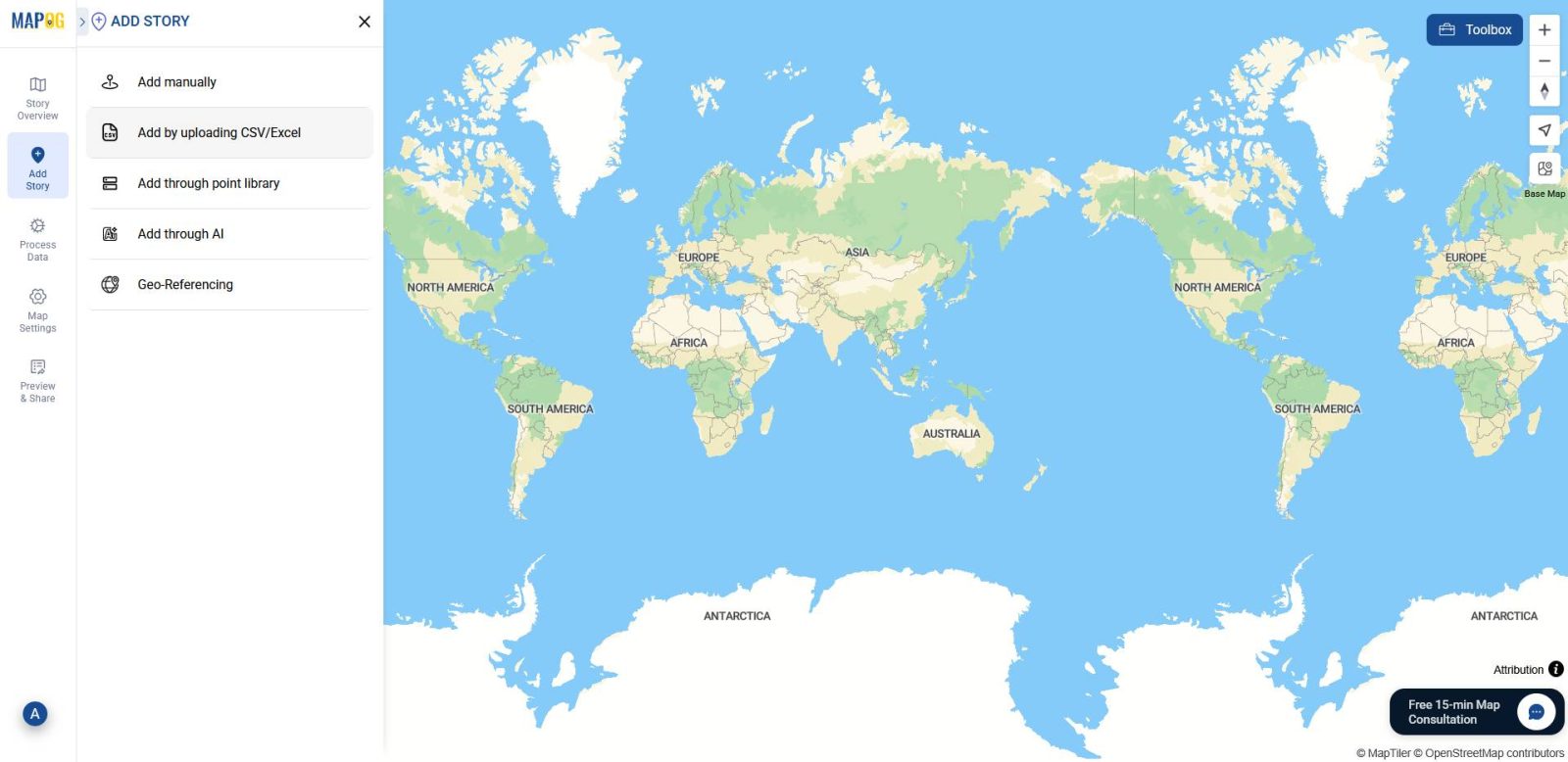
In MAPOG after creating a new map head to the “Add Story” section and choose “Add by uploading CSV/Excel” to begin building your data layer.
2. Set Up Point Type and Define Multimedia Attributes
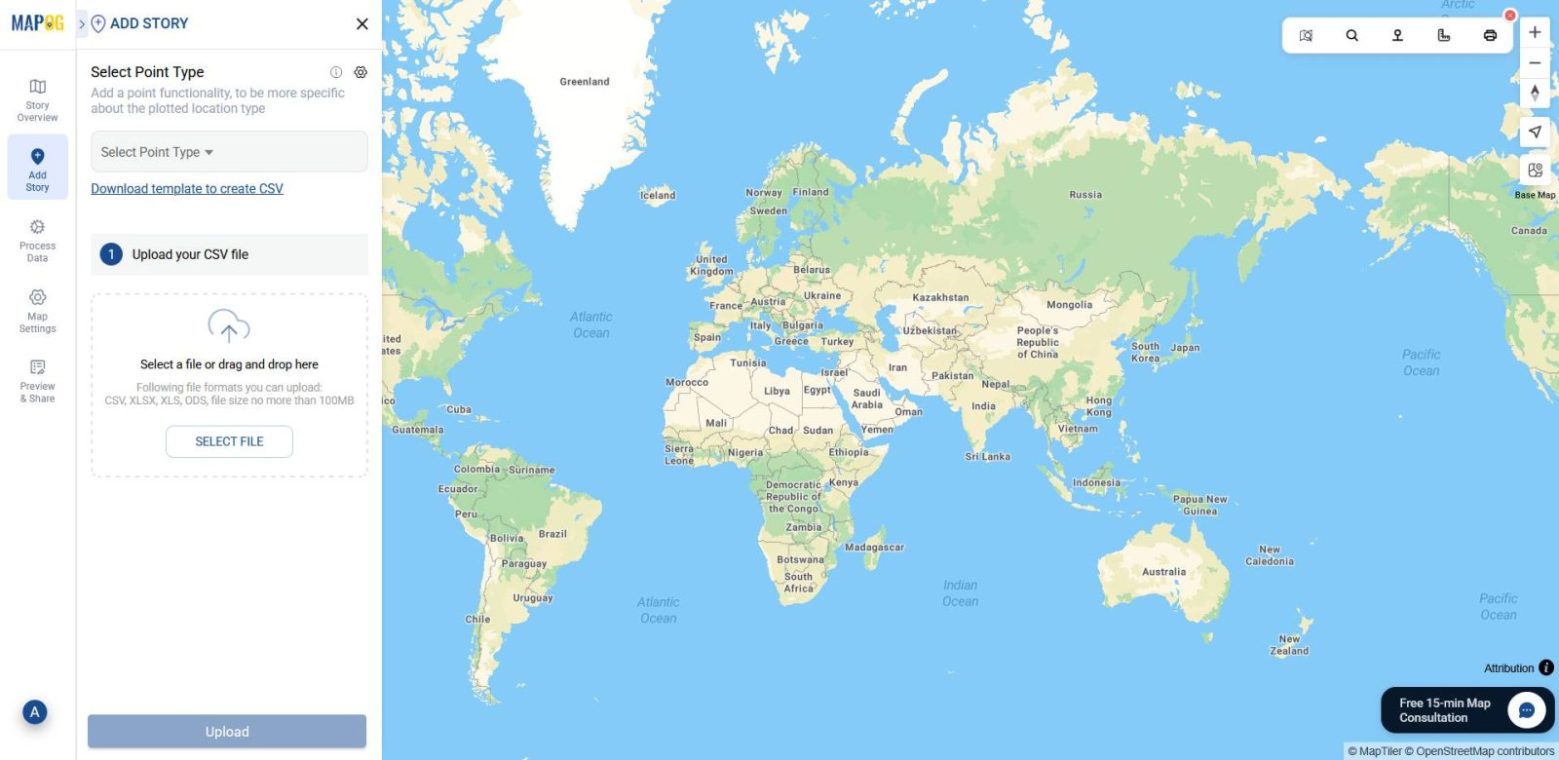
Next, click the select point type settings icon and create a location type for your attributes.
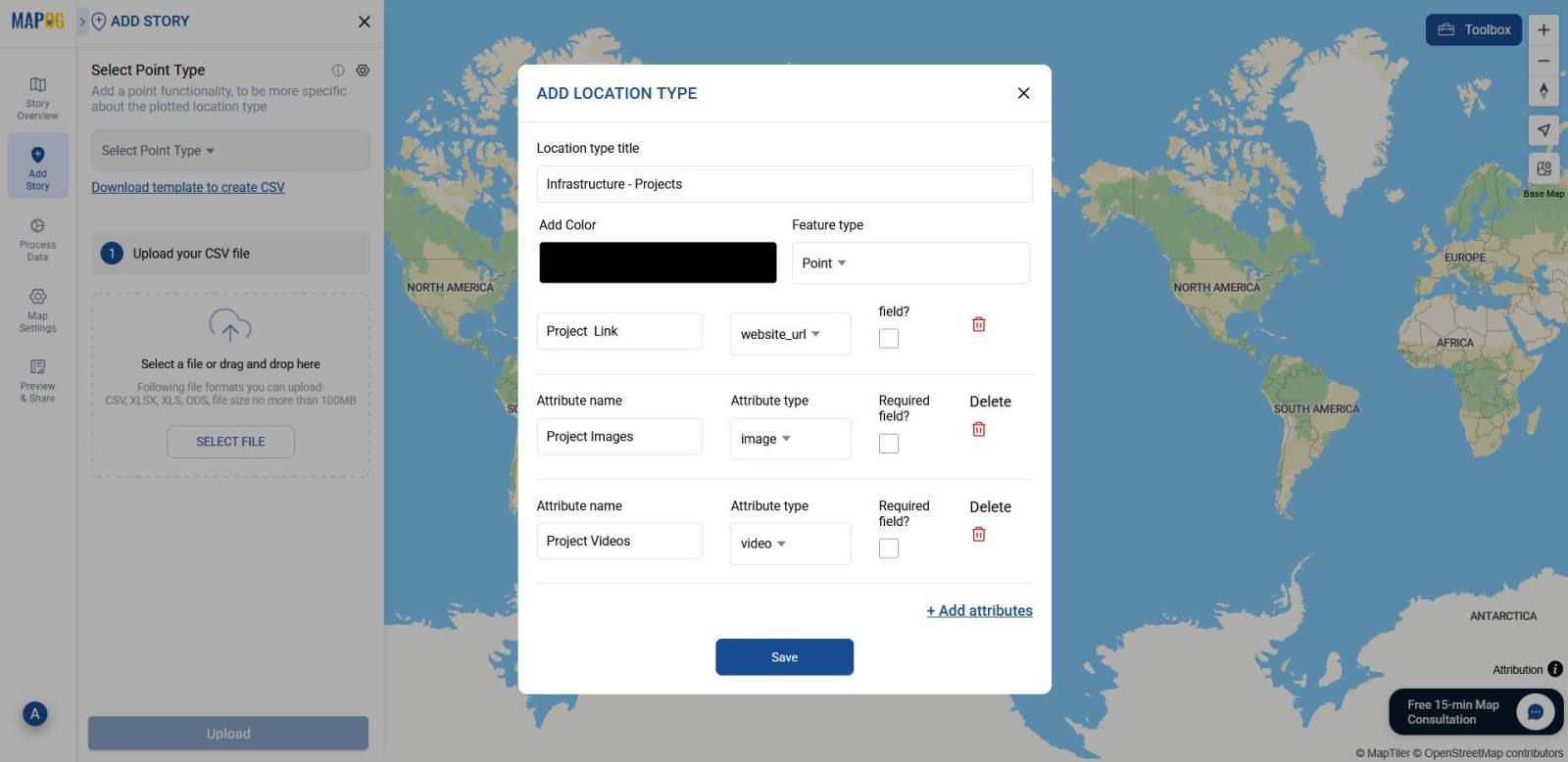
There, name your point layer such as “Infrastructure projects” and select feature type as point. After that add attributes, such as phone number, email, and company name, along with multimedia inputs like project image, videos, and links, making sure to select the correct attribute types: Image for photos,Video for clips, and Website URL for external links. Once done, click save to confirm your settings.
3. Upload Your Excel/CSV File
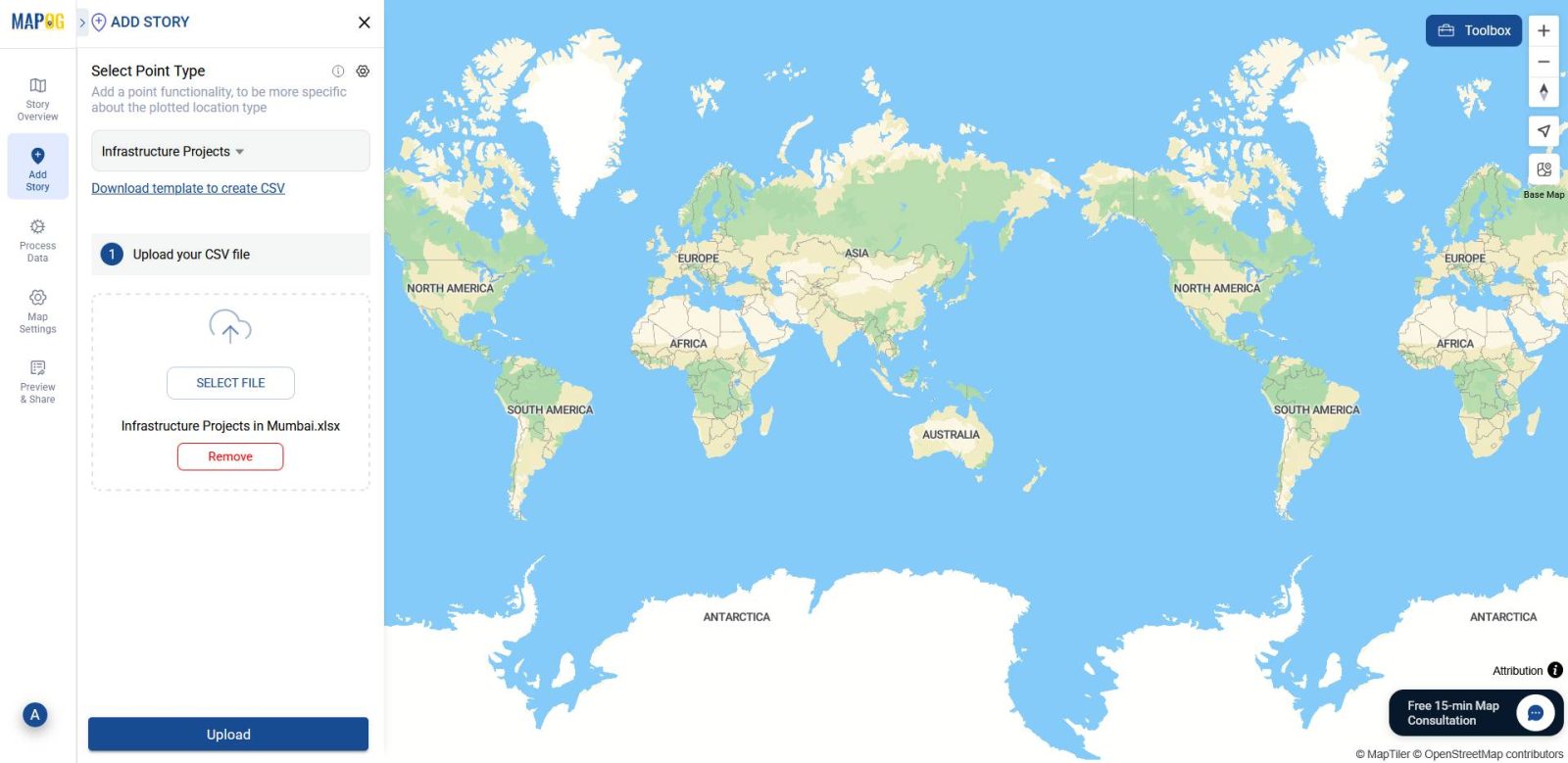
After setting up your point type, select it from the drop down menu. Then, browse and upload your Excel or CSV file containing coordinate data. This will automatically place your points on the map.
4. Define Location Fields
Now, select your unique ID & match attributes to your Excel columns.
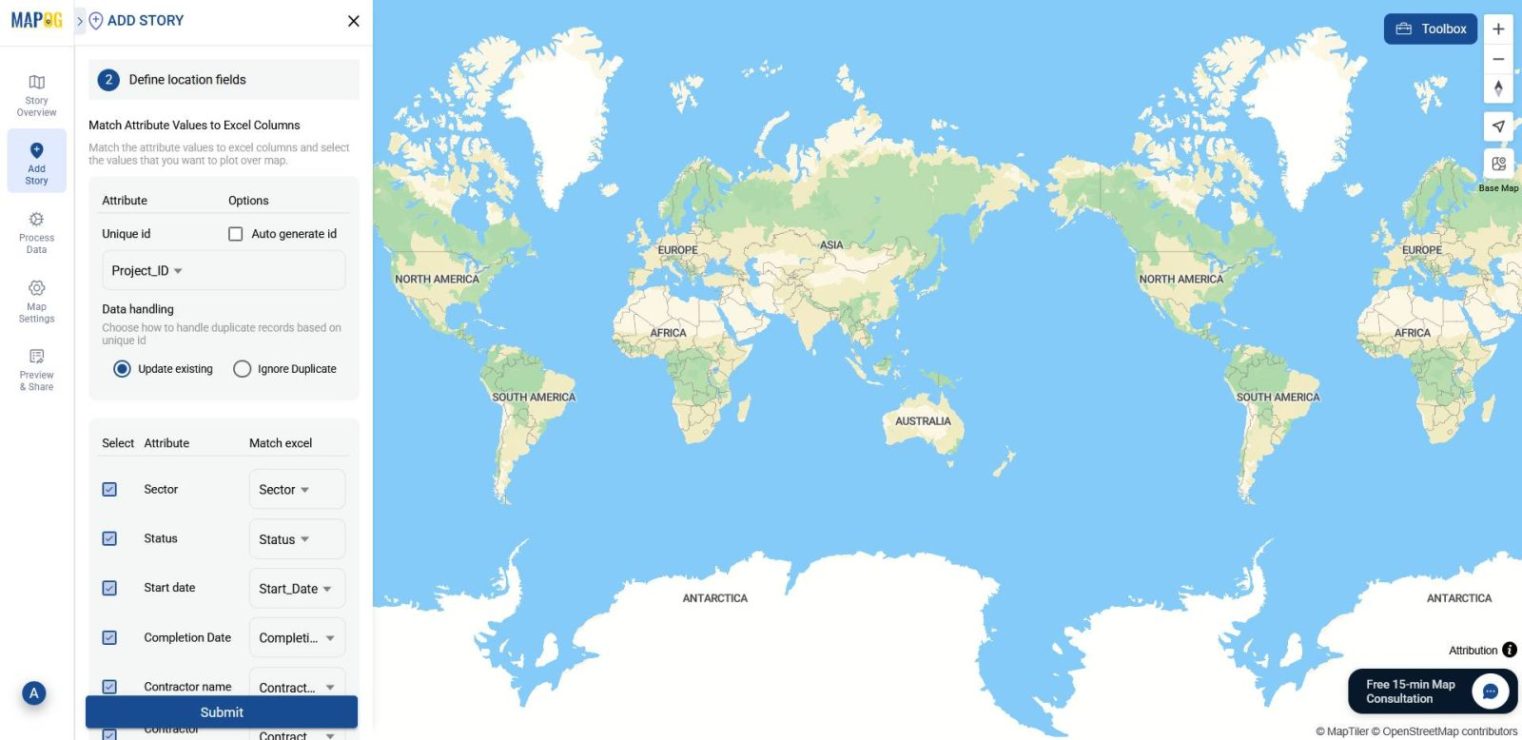
For placement, choose either coordinates or WKT,align them, and click Submit.
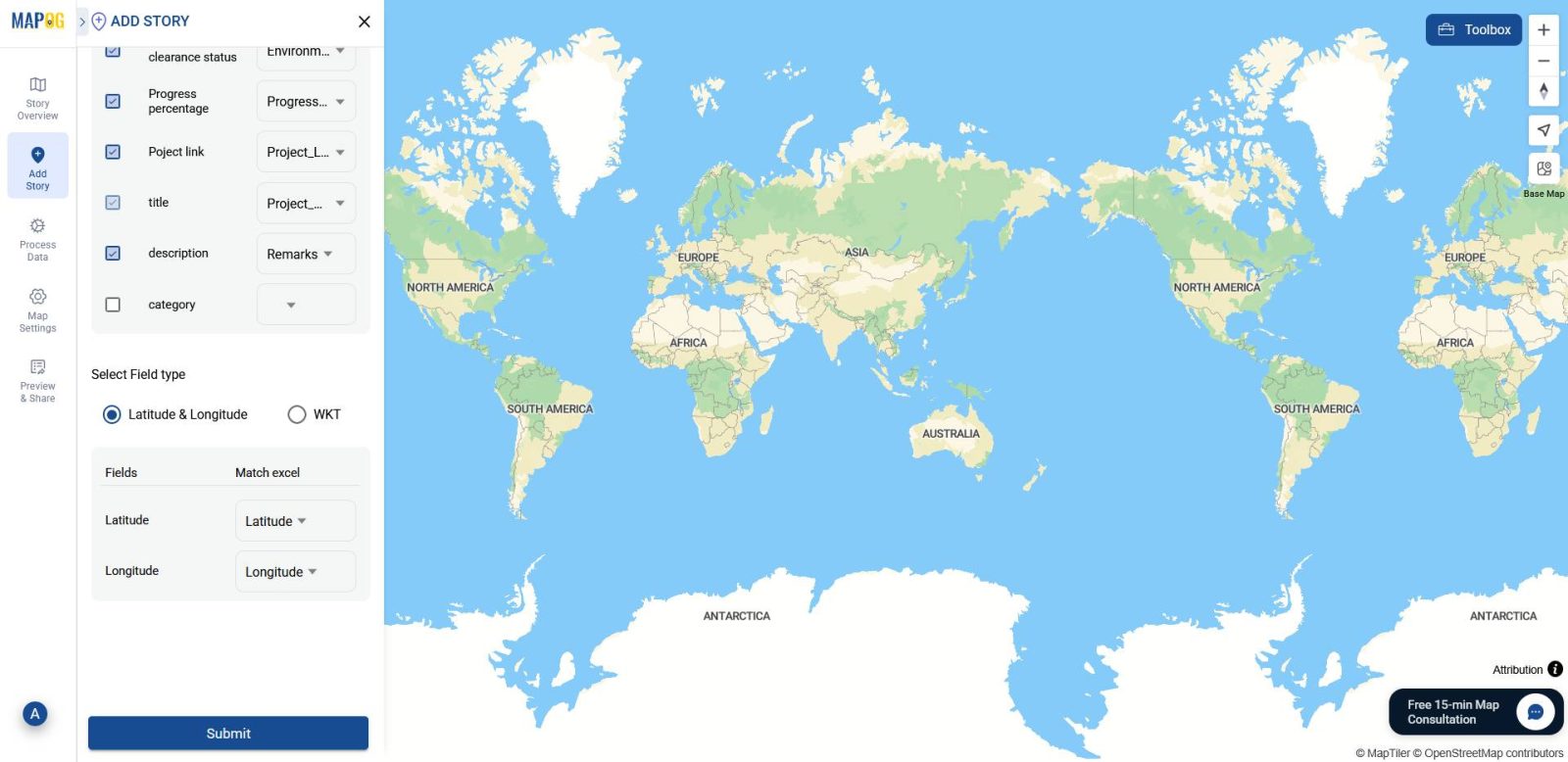
5. Edit Point Details and Add Media
Now that your points are visible on the map, click the pencil icon on each point to open the Edit Point Details panel.
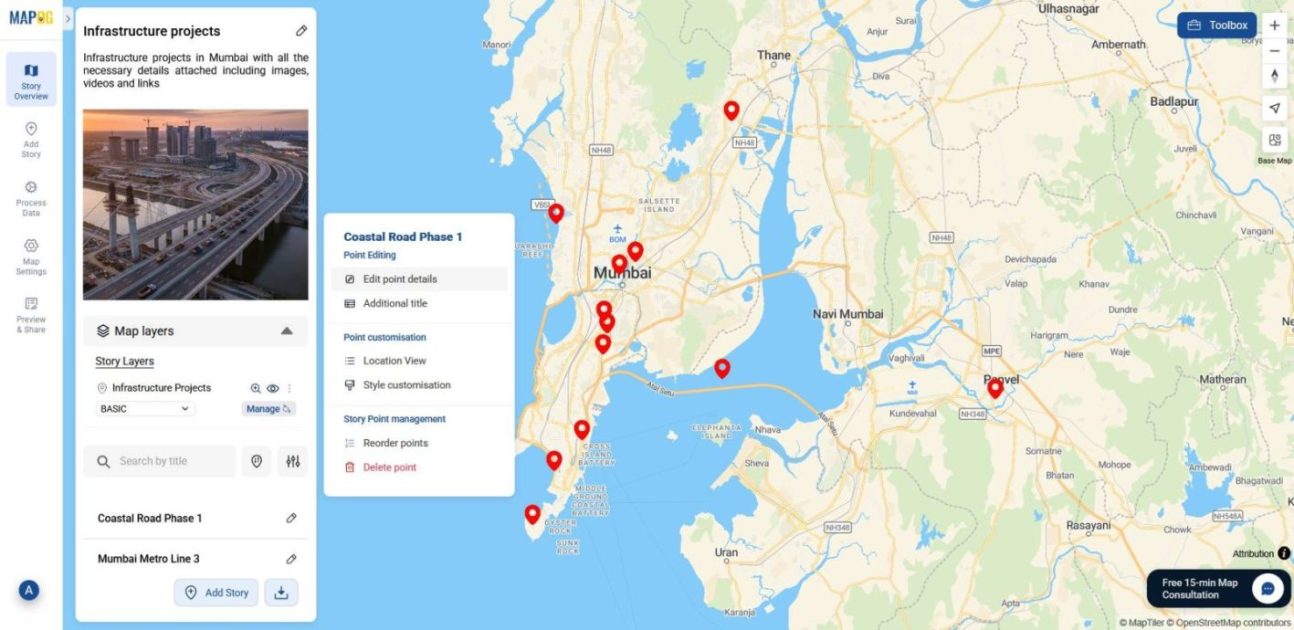
From here, you can upload company logos, images, and videos. If your links are not included in the Excel/CSV file, you can also add them manually here.
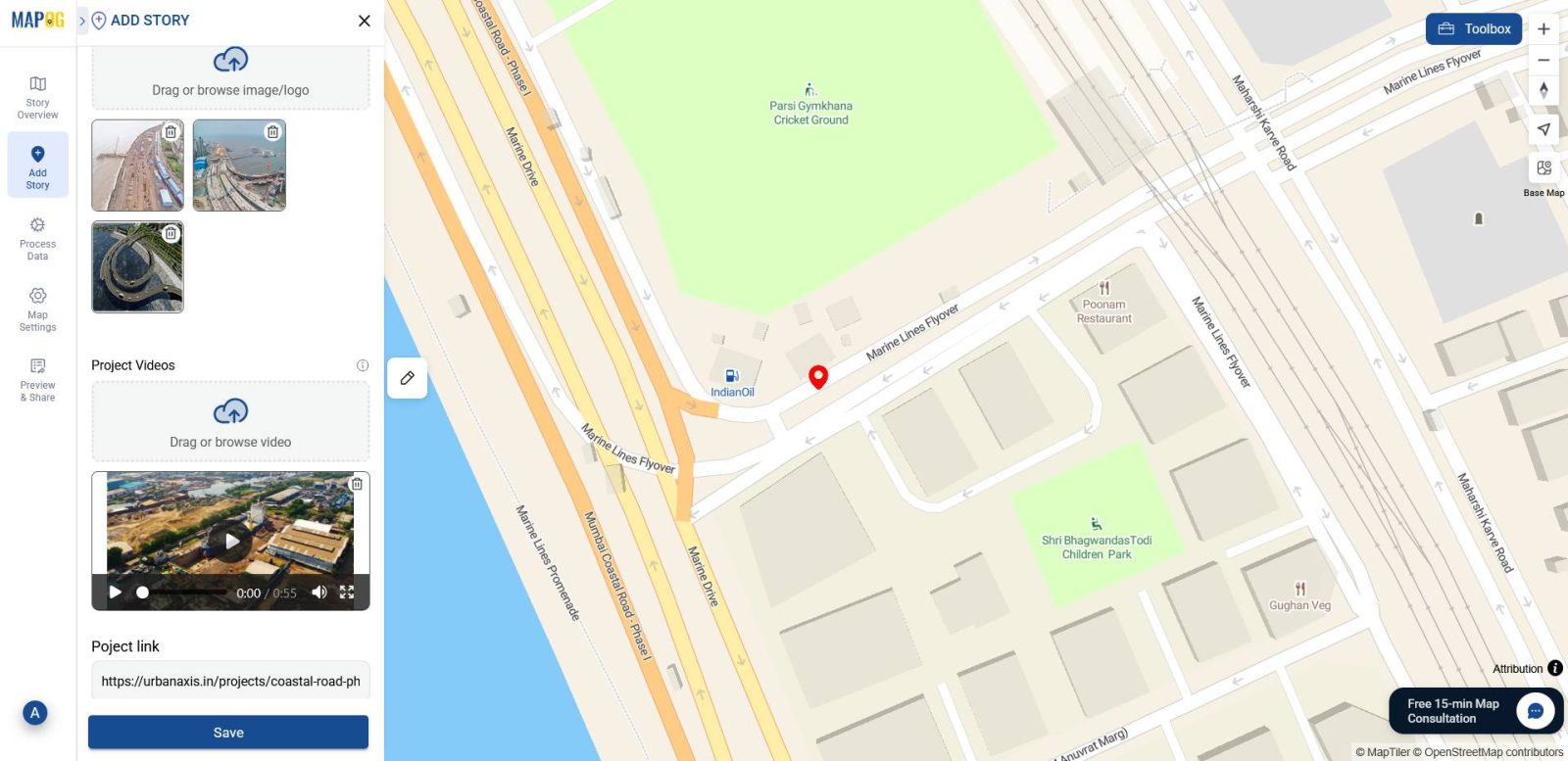
6. Finalize and Explore Your Multimedia Map
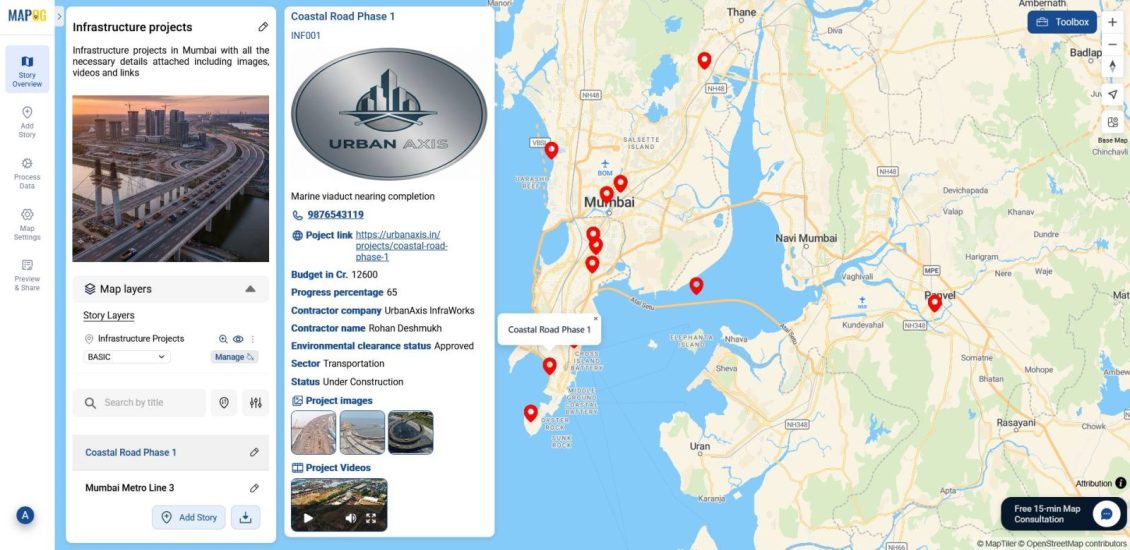
Finally, your points are now fully interactive, with videos, images, and links embedded directly into each location. This allows viewers to explore maps with deeper context and visual insight.
Industrial Use and Benefits
Multimedia mapping enhances transparency, engagement, and decision-making across all sectors.
For instance, planners can embed site images, progress videos, and tender links to monitor infrastructure development and share updates. Whereas, in disaster response workflows, agencies can attach flood footage, damage photos, and response links to mapped hazard zones for real-time coordination. Similarly, tourism boards can showcase heritage sites with embedded walkthroughs, gallery visuals, and booking links to improve visitor engagement. Moreover, public health departments, too, can map service zones with facility images, outreach videos, and emergency contact links to support awareness and access.
Conclusion
Overall, adding multimedia to your maps, whether it’s videos, images, or links, offers a powerful way to enrich spatial data with real-world context. Instead of static points, users can create interactive map views that communicate updates, showcase visuals, and link directly to relevant resources. Through MAPOG, the process becomes seamless, from setting up attributes to uploading media and customizing pop-ups, making maps informative, engaging, and adaptable across sectors, from planning and reporting to outreach and analysis.
Here are some other blogs you might be interested in:
- How to List Flats, Villas & Commercial Properties on One Interactive Map
- How Interior Designers Can Manage Projects On-Map, Not on Spreadsheets
- Interactive Map of Top Colleges and Universities for Students: A Complete Guide to Choosing the Right Institution
- Track Task Progress on a Map Dashboard (Completed vs Pending)