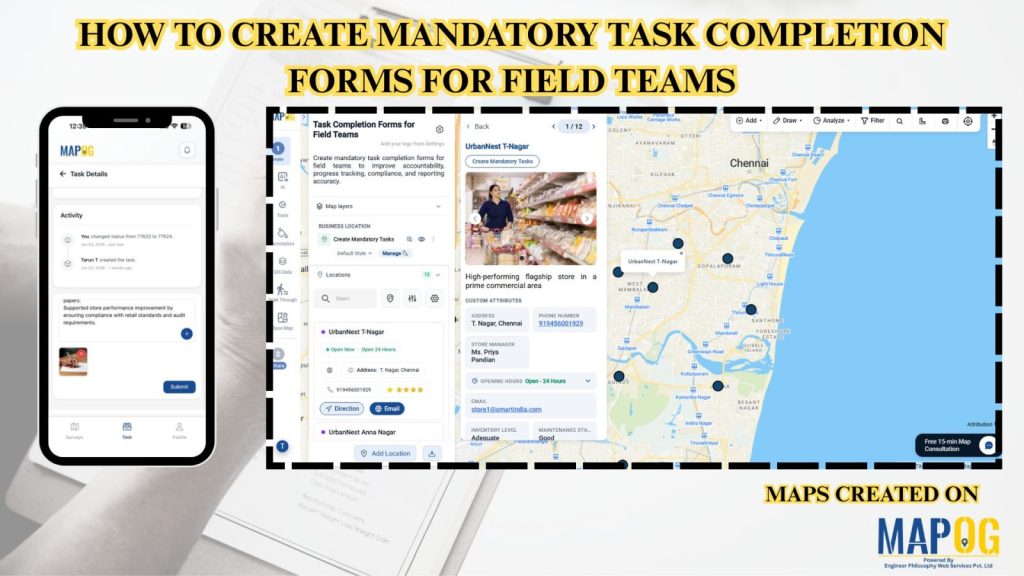
Retail teams often struggle with scattered records, missed updates, and limited visibility into store operations. MAPOG centralizes retail field activities through interactive maps and mandatory task completion forms, ensuring audits, inventory checks, merchandising tasks, and store visits are completed, documented, and submitted accurately.
Key Concept: Task Completion Forms
Mandatory task completion forms help organizations collect standardized field data, track task status, verify completed work, monitor team performance, and maintain accurate records. This improves accountability, compliance, reporting, and operational visibility across all field activities.
Methodology: Task Completion Forms
Visualize task completion on interactive GIS maps to improve monitoring and reporting.
1. Configure the Monitoring Project
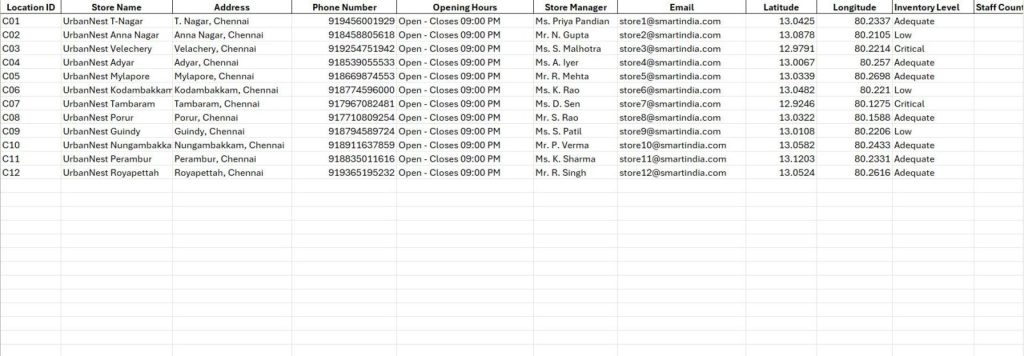
First, collect all task details, completion requirements, and field activity information in one master spreadsheet.
2. Create Your Location Type
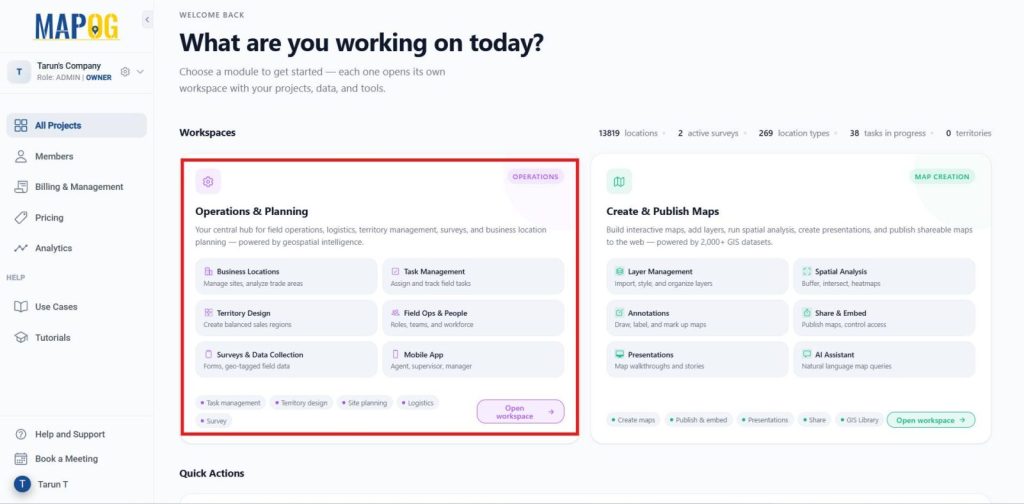
Launch MAPOG, navigate to Operations and Planning, and then select Open Workplace.
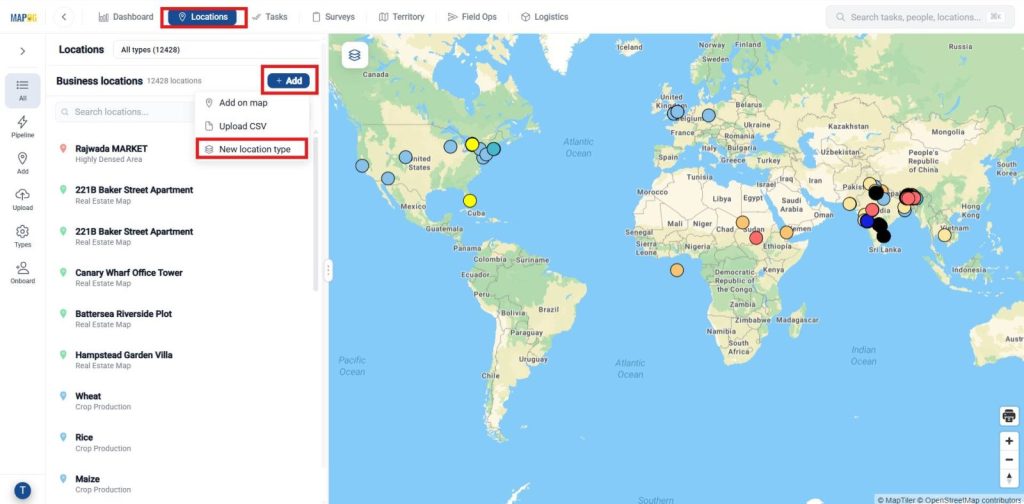
Within the workspace, go to the Location option from the dashboard at the top, click +Add, and then choose New Location Type.
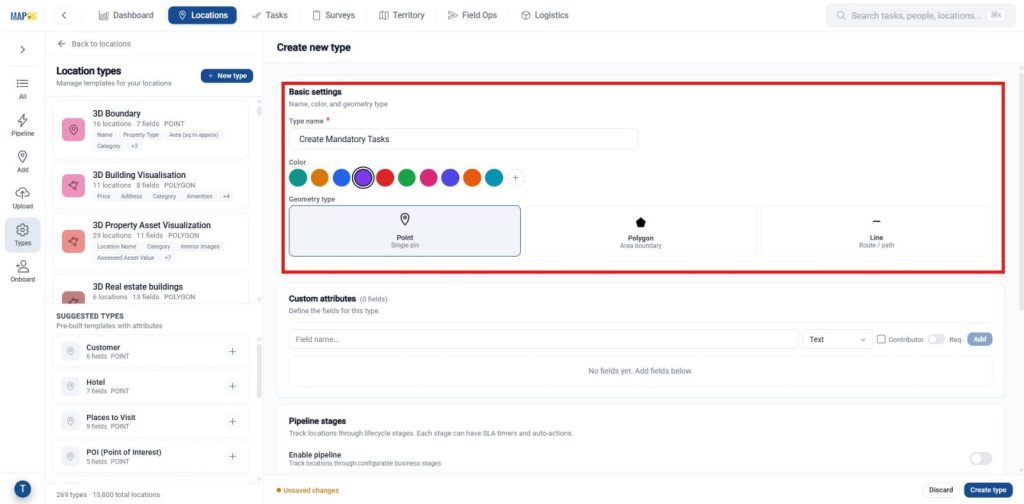
Enter basic settings like location type Name, choose a color, and set the geometry type as point based on your field operation requirements. Then add attributes to capture task completion data.
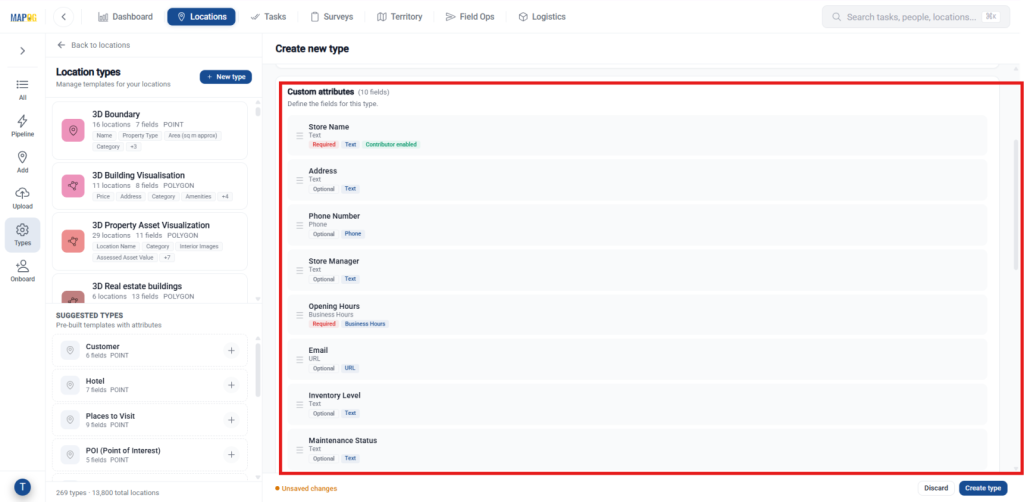
Add fields such as Store Name, Store Manager, Inventory Level, Maintenance Status, and Last Inspection Date. Mark important fields as required and enable contributor access so store managers and field teams can update information regularly.
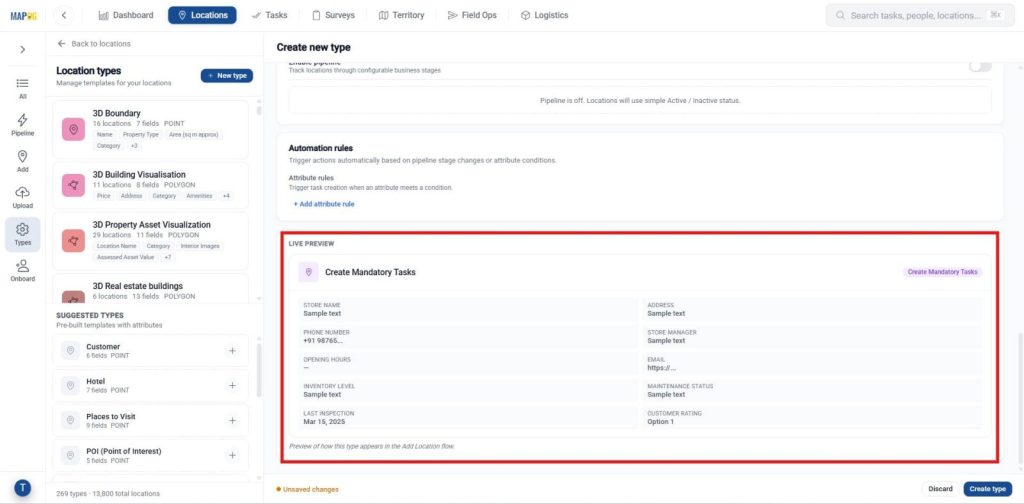
After adding all attributes, use Live Preview to review the form structure, then click Create Type to create the new task completion form.
3. Add Task Completion Records
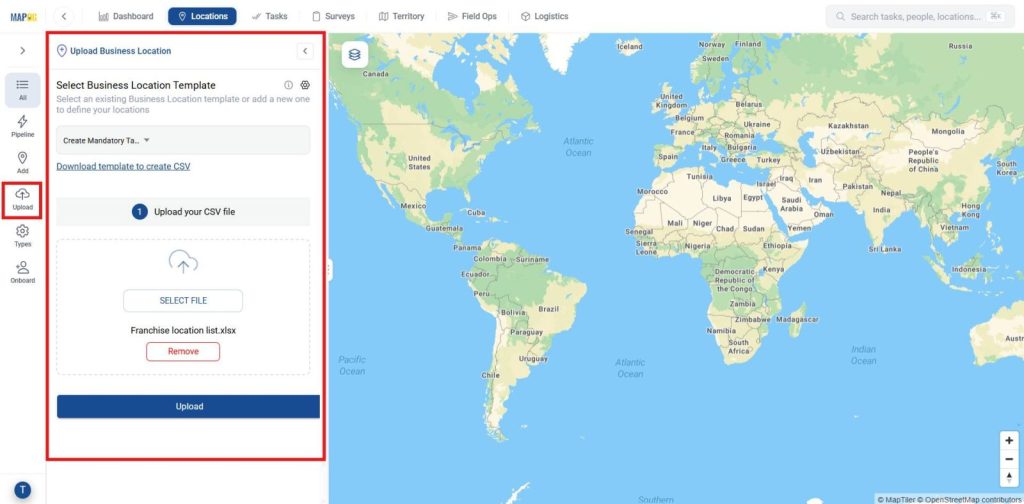
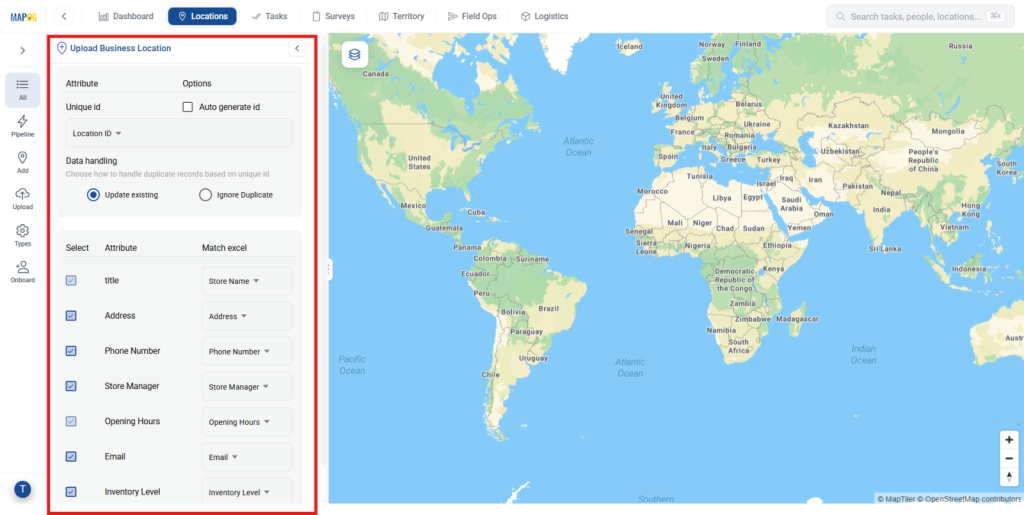
Go to Uploads, select your Template from the dropdown, then use Select File to upload your CSV.
Map form fields to spreadsheet columns, select the fields to display, and choose a Unique ID or Auto-Generate ID for syncing. Set duplicate handling to Update Existing or Ignore as needed.
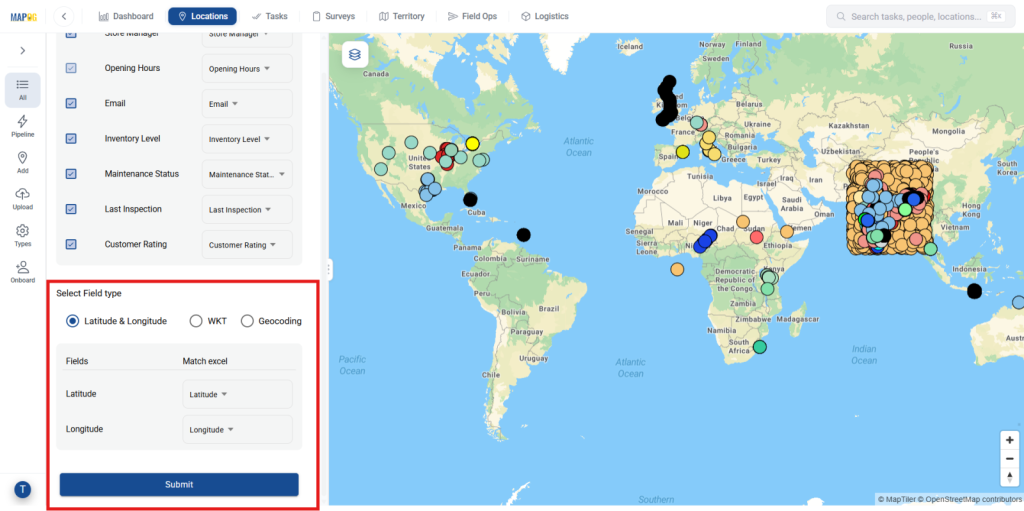
Assign any required location fields if tasks are linked to specific sites, then click Submit to upload and manage all task completion records within the project.
4. Adding Location Information
After uploading, locations are auto-saved in your business location template. Go to the Location dashboard, search your template, and open it.
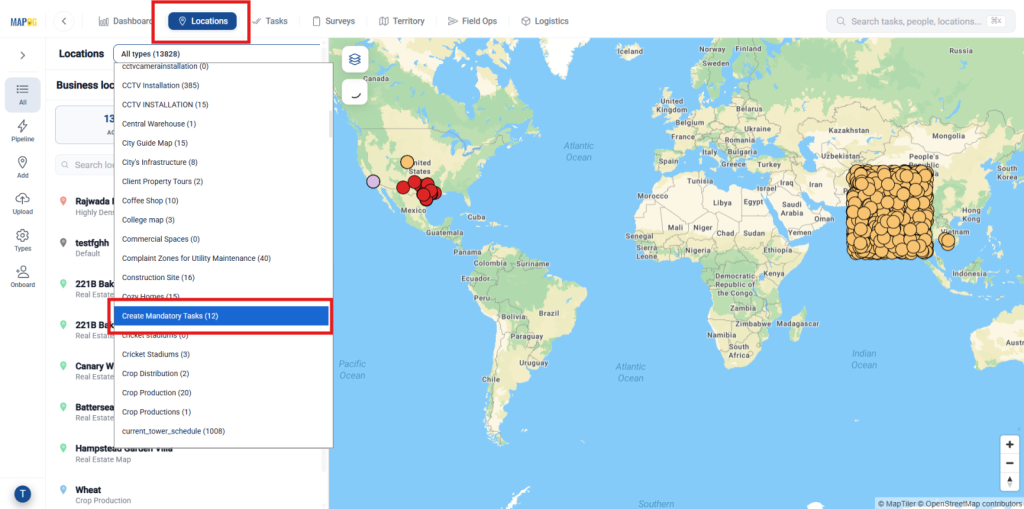
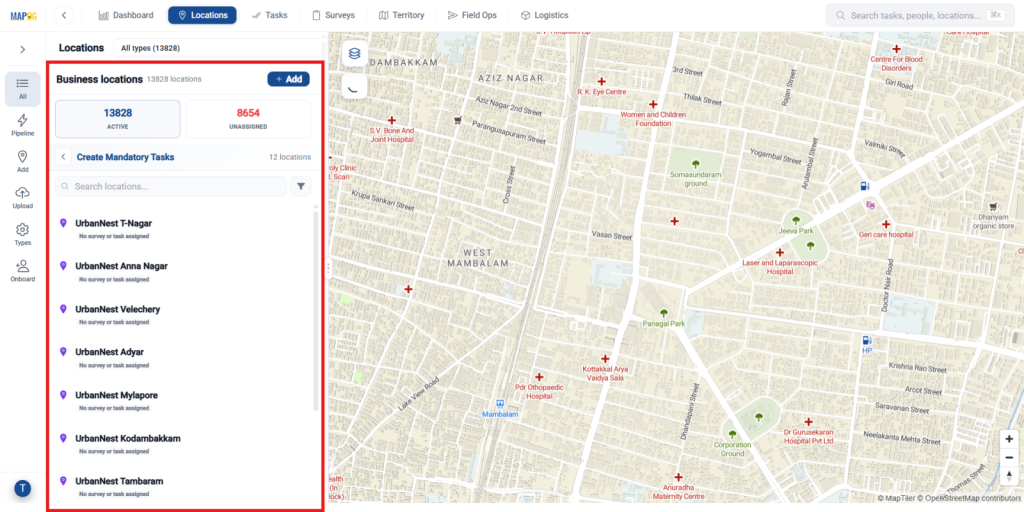
Select your template and verify all locations are added. Review pop-ups and make edits if needed.
Select any location, then click Edit to update its details. For each property, upload or add images, update location details with descriptions and additional info, then click Save Changes.
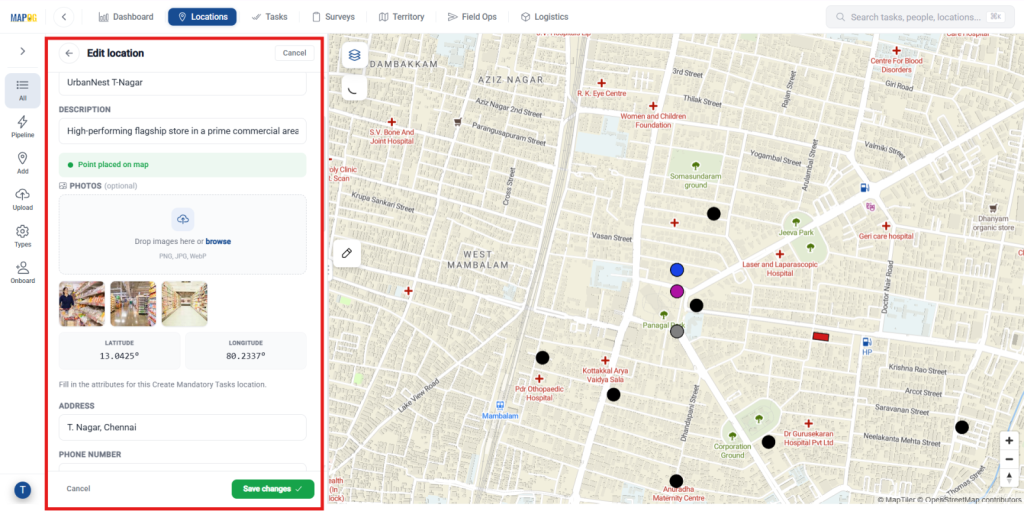
Repeat for each property to ensure complete, consistent data across all locations, with pop-ups for easy review.
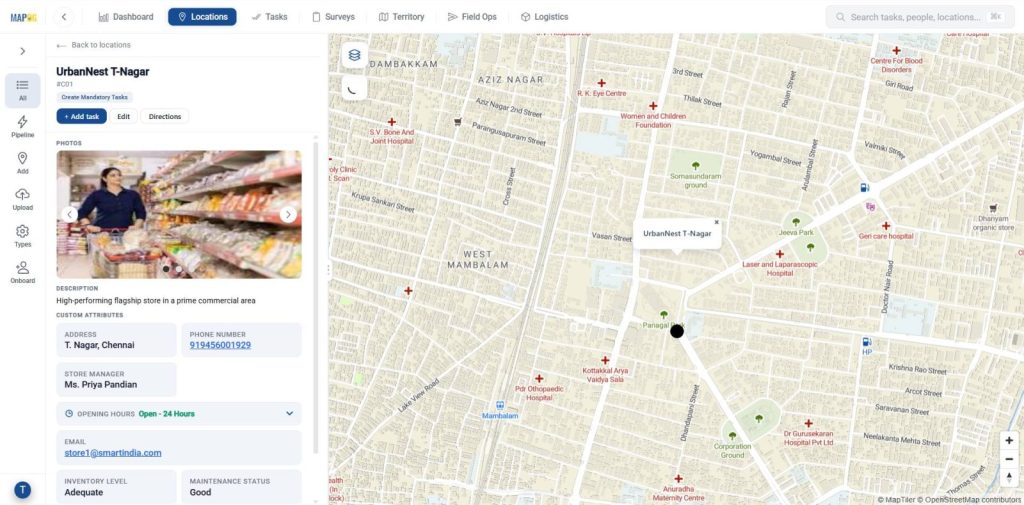
5. Task Completion Form Management
First, select the location where the task completion form needs to be assigned. Then, click +Add Tasks to continue.
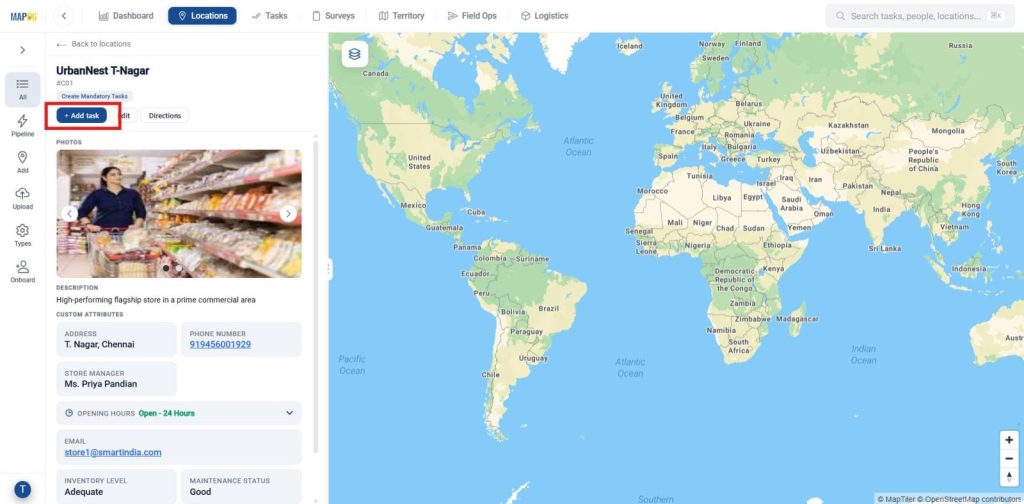
In the selected location, select an existing Task Type or use Manage to create a new one by clicking Manage in Task Types, create the new type, and select it.
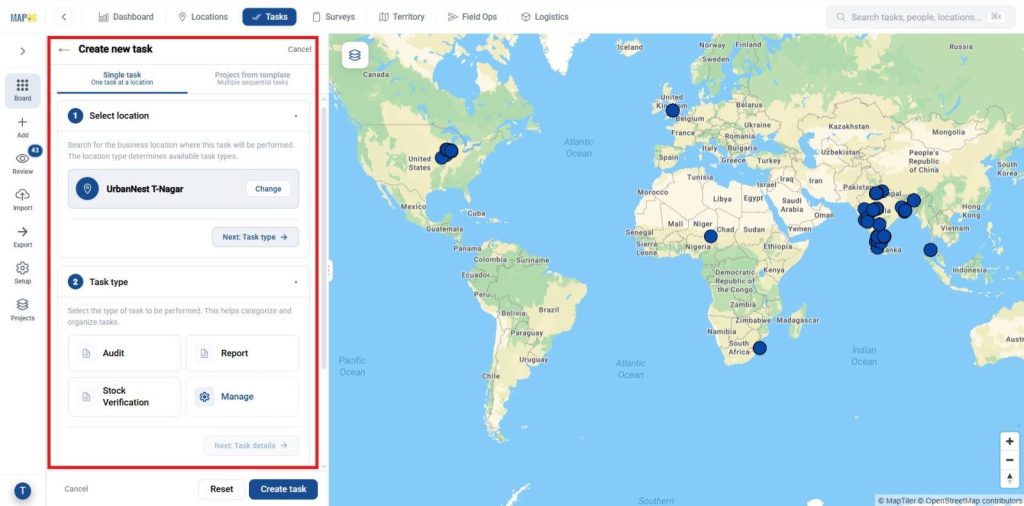
After selecting the task type, open the Completion Form Builder and choose Create Form to build a mandatory task completion form.
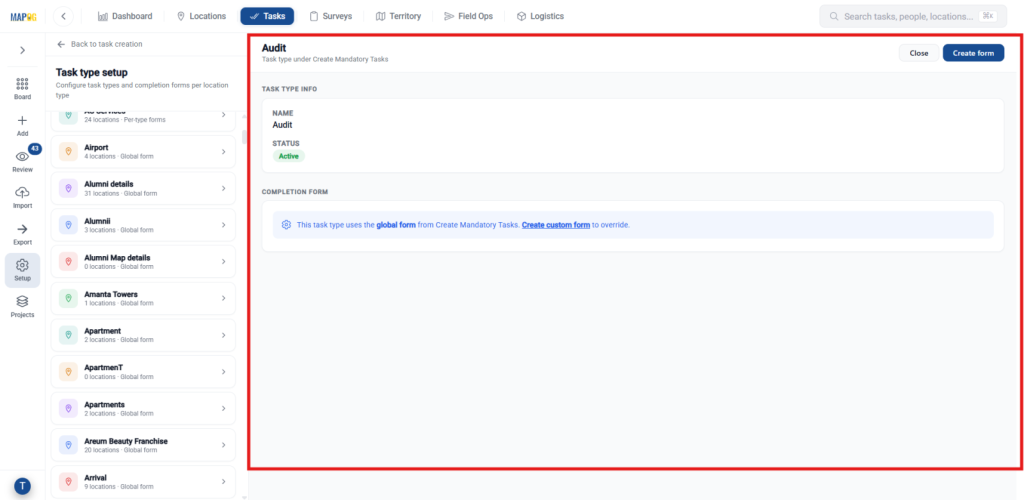
Add fields such as comments, status, verification details, and photos. Use appropriate field types and mark key fields as required to ensure complete task submissions
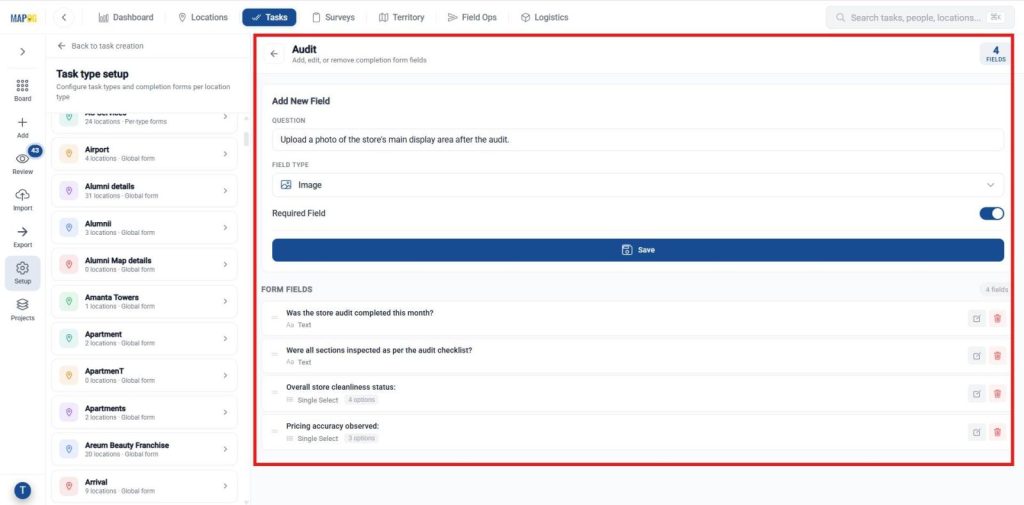
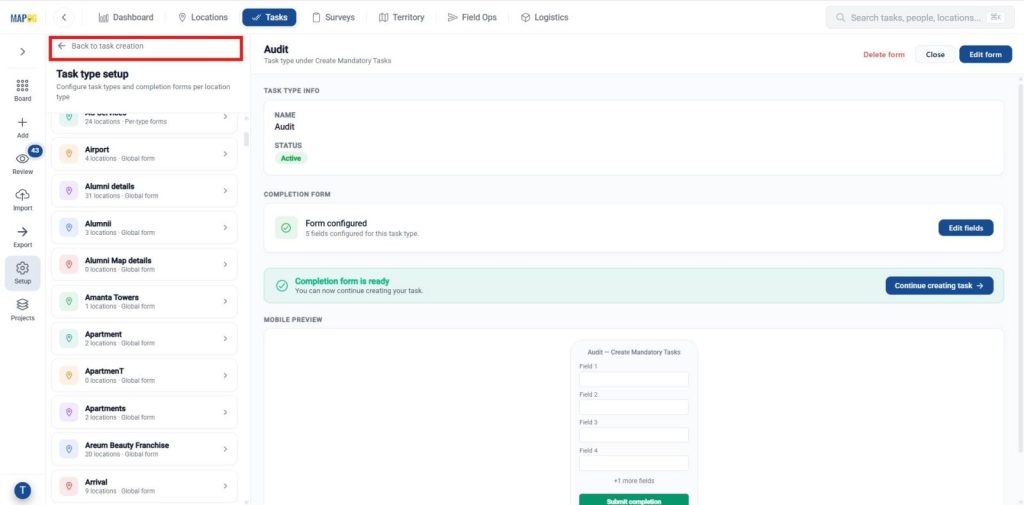
Then move back to the task management page.
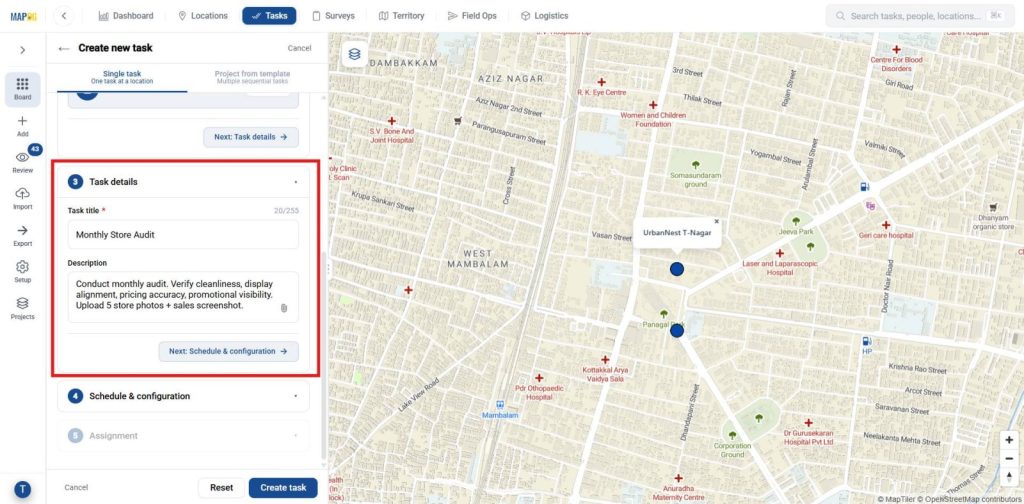
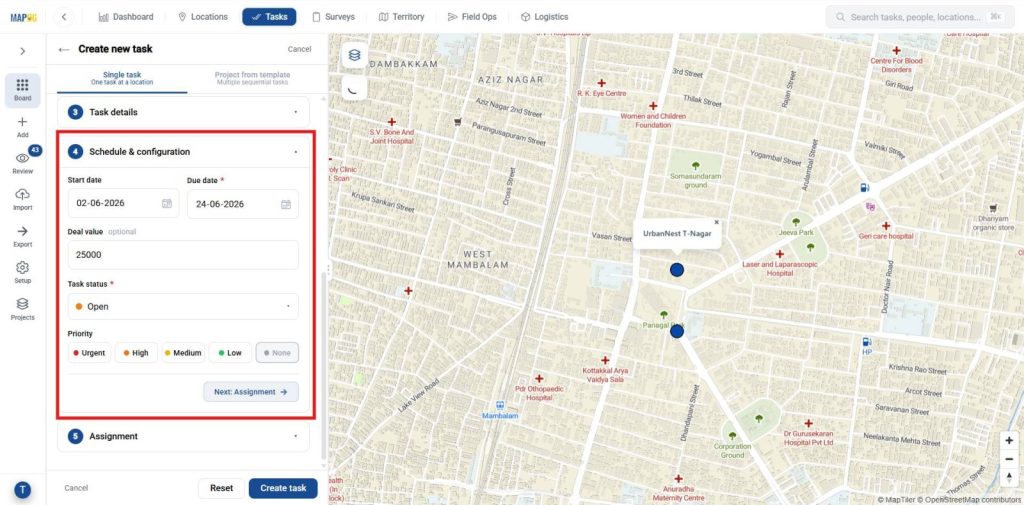
Select task type, enter the Task Title and Description, then move to the Schedule and Configuration.
Set the Due Date, Deal Value, Task Status, and Priority and move to the next Assignment.
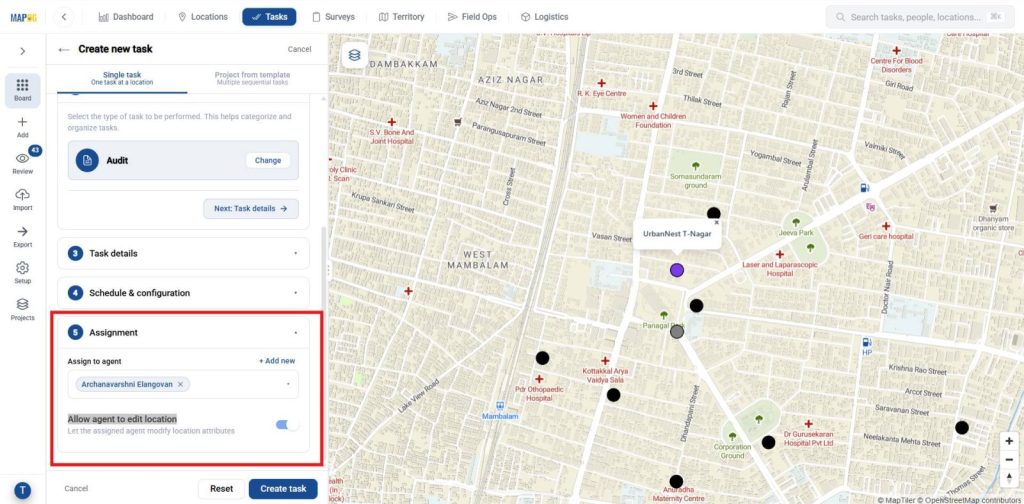
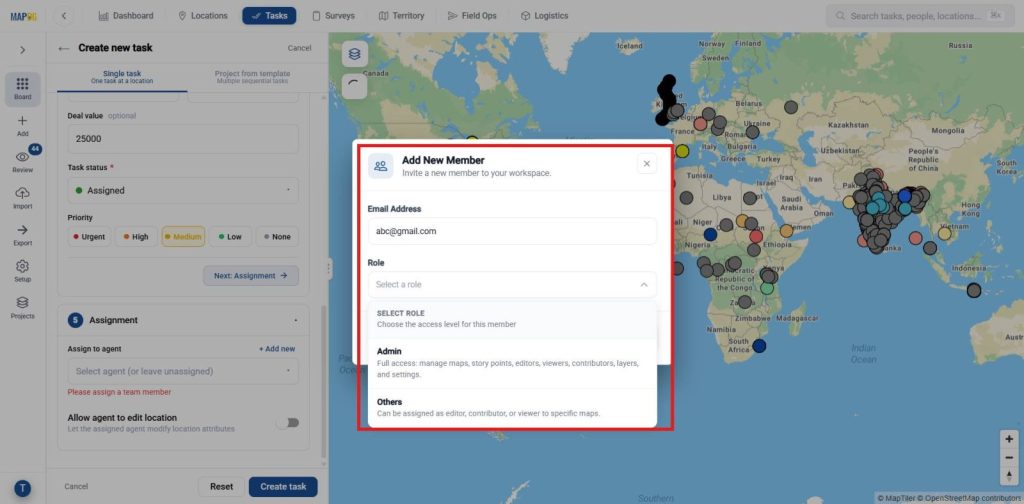
Add new team members, assign roles, and grant permissions to edit locations and create tasks as needed.
Also, using + Add More you can also add new members to assign task.
6. Task Completion Form Monitoring
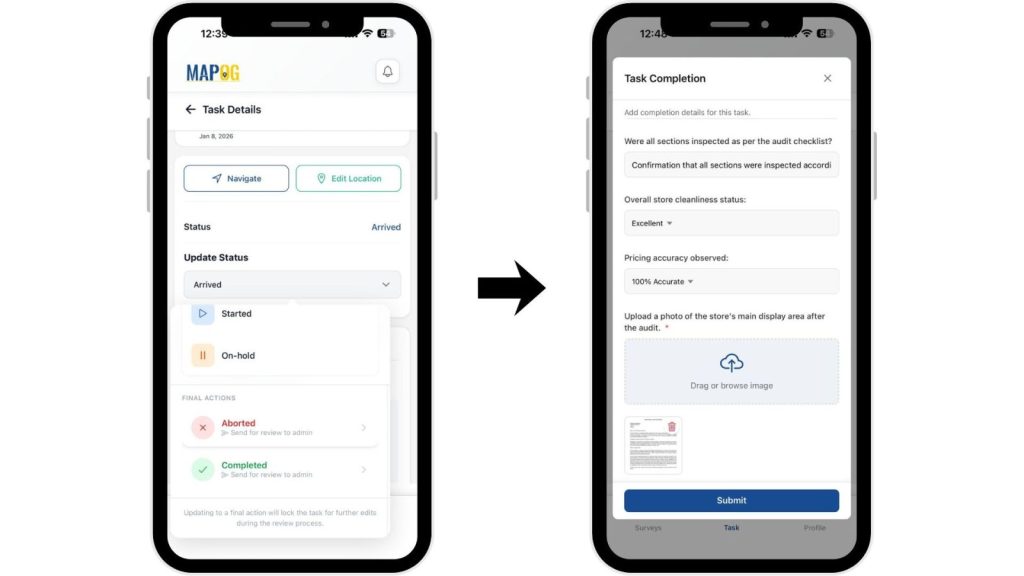
Assigned team members receive tasks instantly in the MAPOG Contributor App. They can view assigned tasks, update progress as arrived and add comments, complete mandatory fields, and upload supporting photos directly from the field.
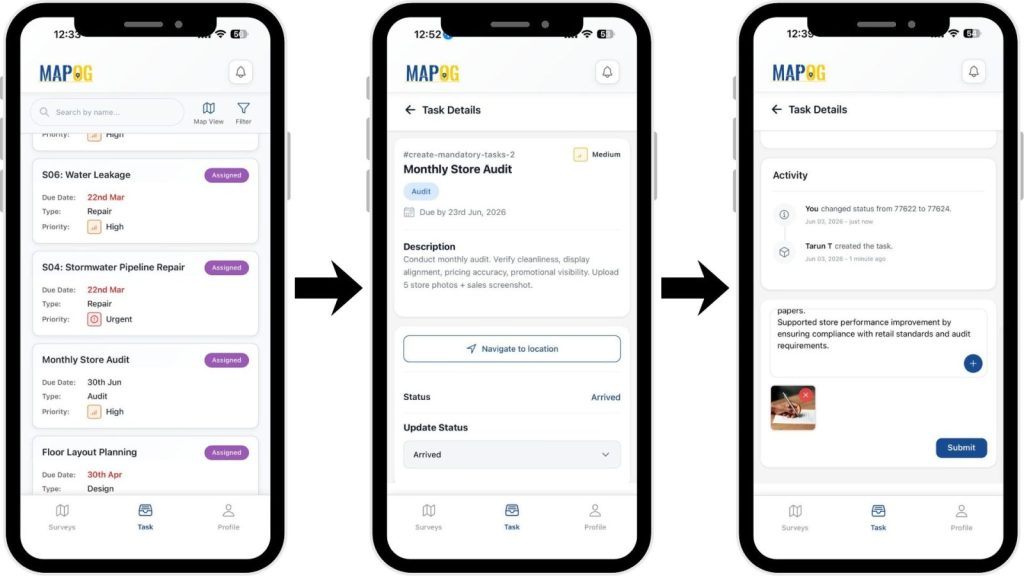
Before closing a task by moving the status to completion, users must submit the Task Completion Form with all required information, verification details, and photo evidence. Mandatory fields ensure that tasks cannot be marked as complete until all required data is provided.
Meanwhile, form submissions and task updates appear live in the Task Review from the review, where managers can monitor completion status, track progress, review submitted responses, and verify field activities in real time. Teams can filter tasks by status, priority, or assignee, ensuring complete visibility, accountability, and compliance across all locations.
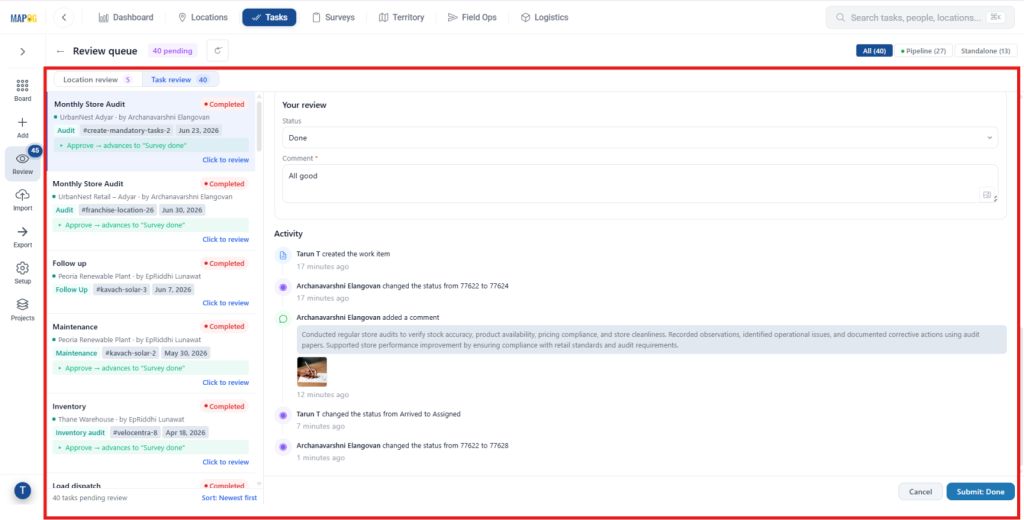
As a project manager, review submitted task completion forms, verify the provided details and evidence, and update the task status to Done once validation is complete.
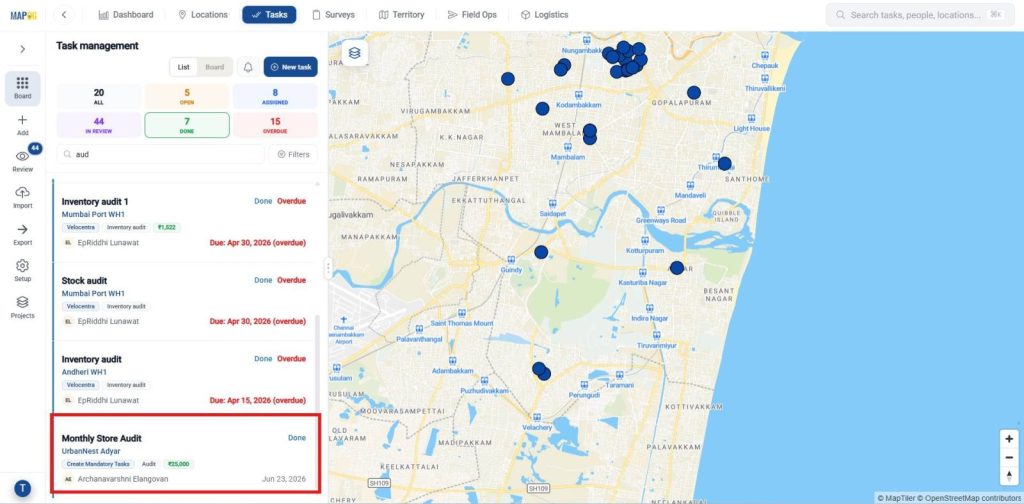
7. Creating and Publishing a New Map
Go back to the MAPOG dashboard and select the Create and publish map.
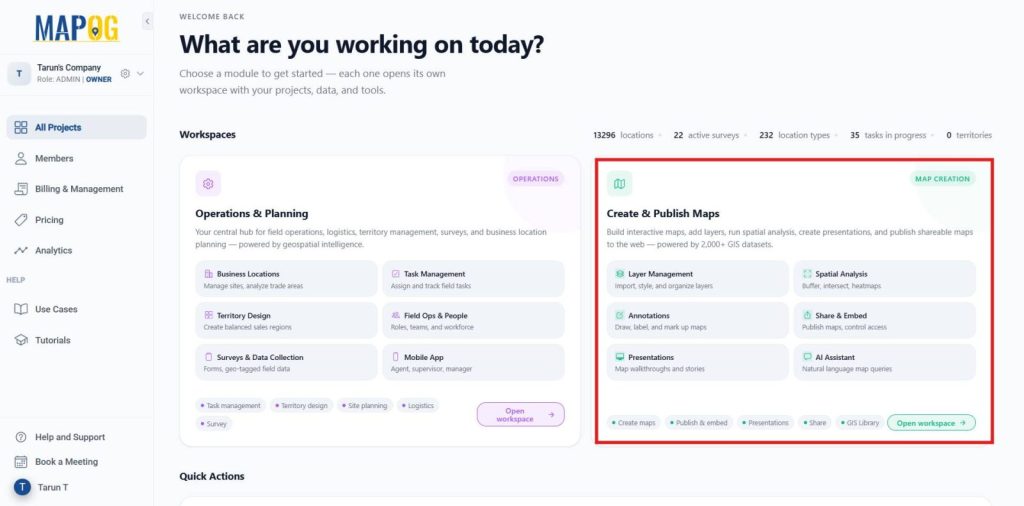
In the Create and publish map Dashboard, choose Create New Map.
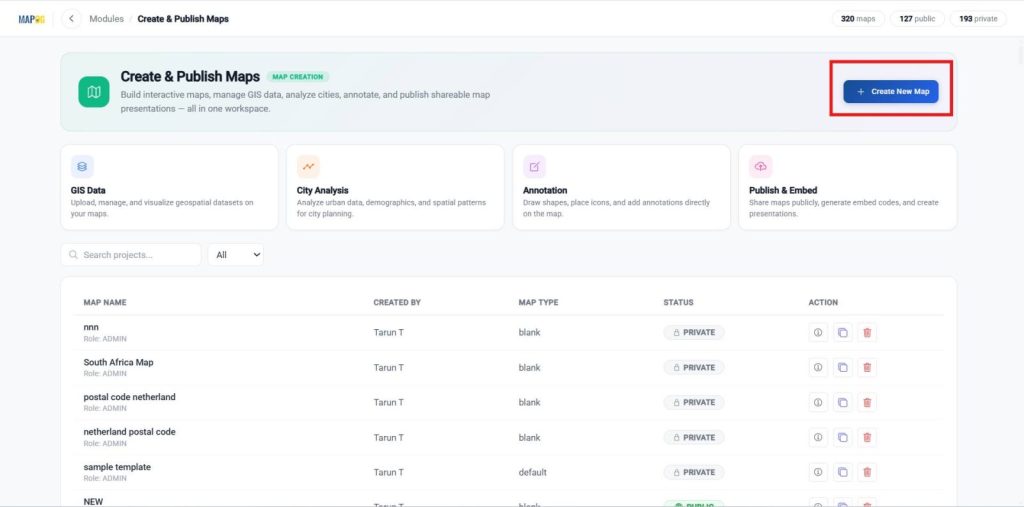
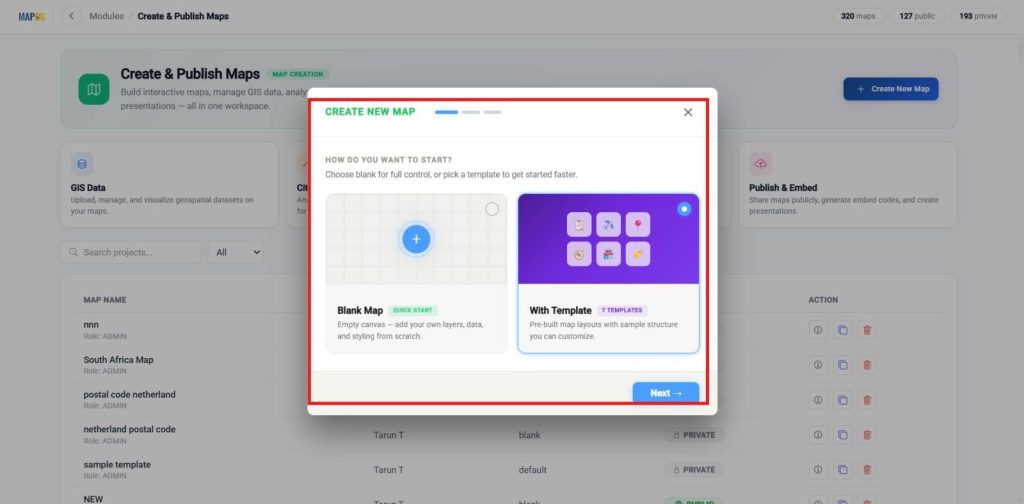
Create a new map, choose a template, and proceed to the next step.
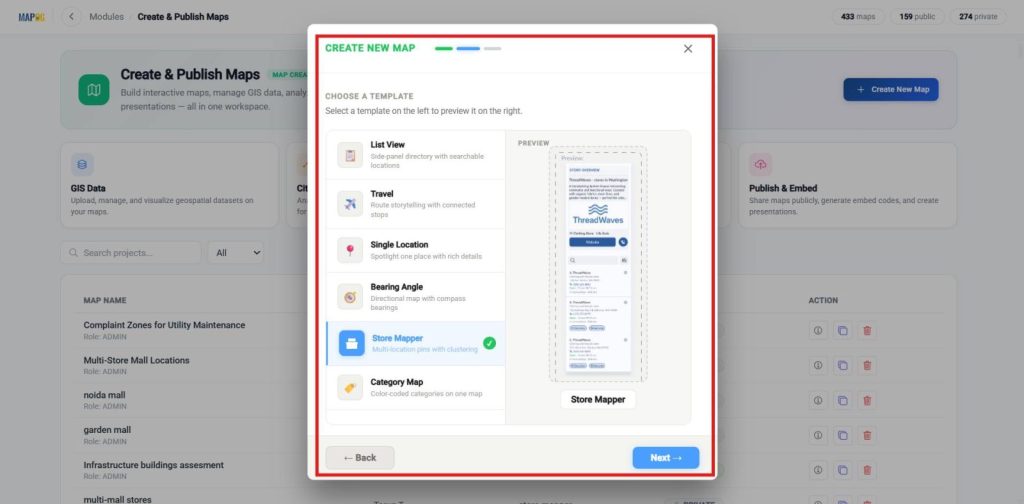
Select the template as the store Mapper, then proceed to the next step.
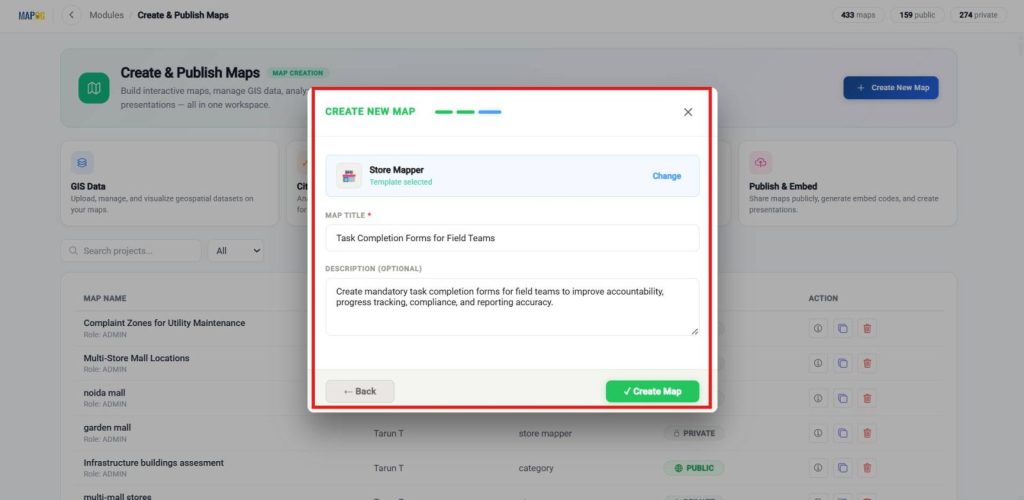
Enter a clear title and a brief description, then click Create to save your map.
8. Adding location details from library
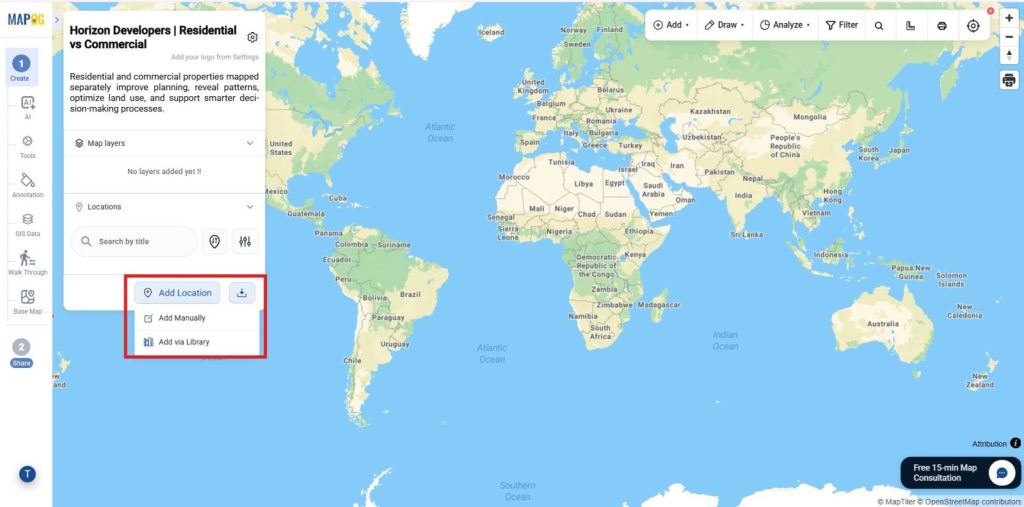
After creating the map, select Add Location and use Add Via Library to import all saved task completion records.
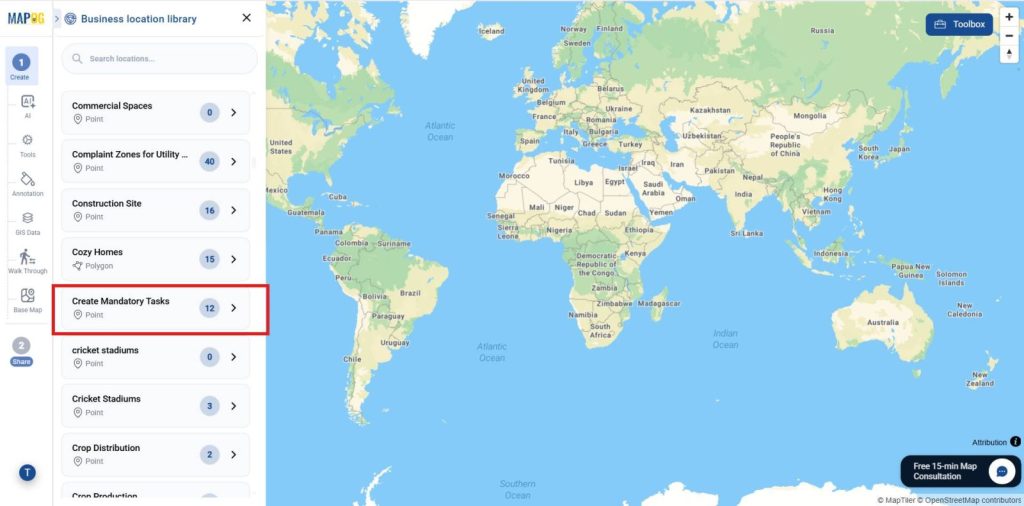
In the Business Location Library, search for the template you created and select it.
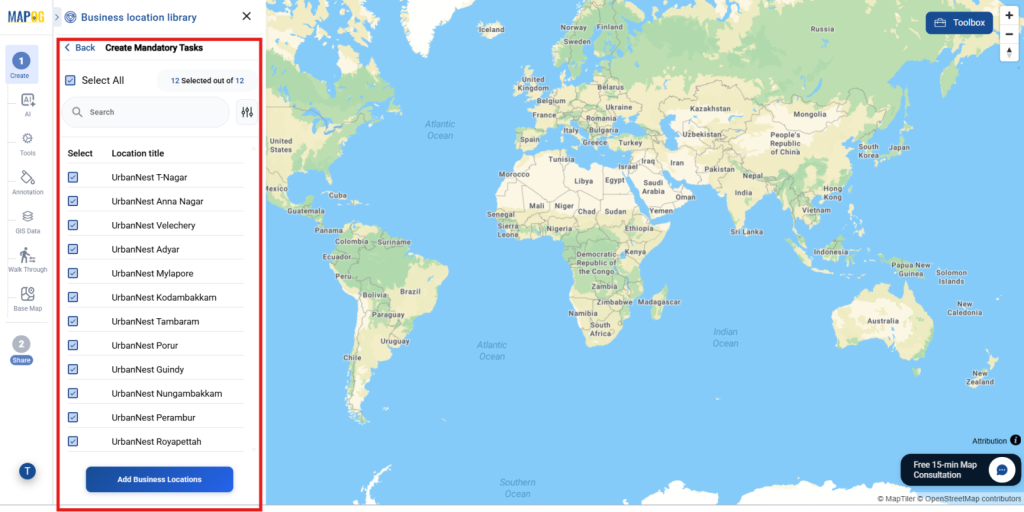
After selecting your template, choose Select All or pick specific task records manually or using filters, then click Add Business Location to add them to the map.
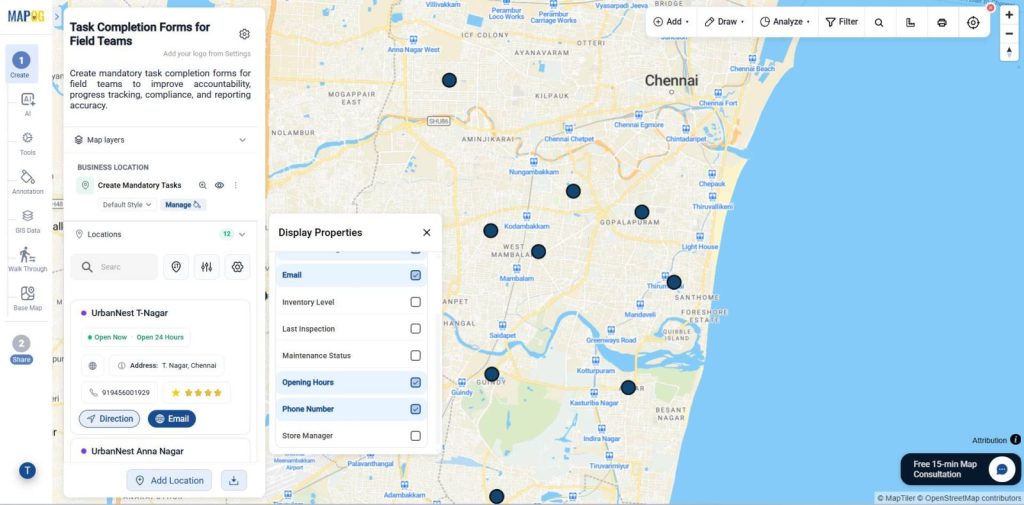
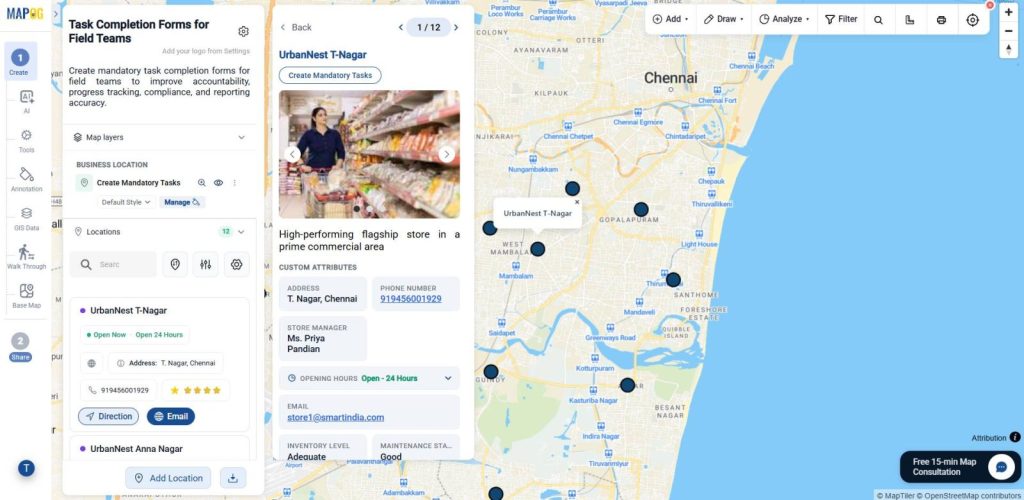
All saved locations are linked to the map, enabling real-time monitoring of tasks, form submissions, and field activity from a single dashboard.
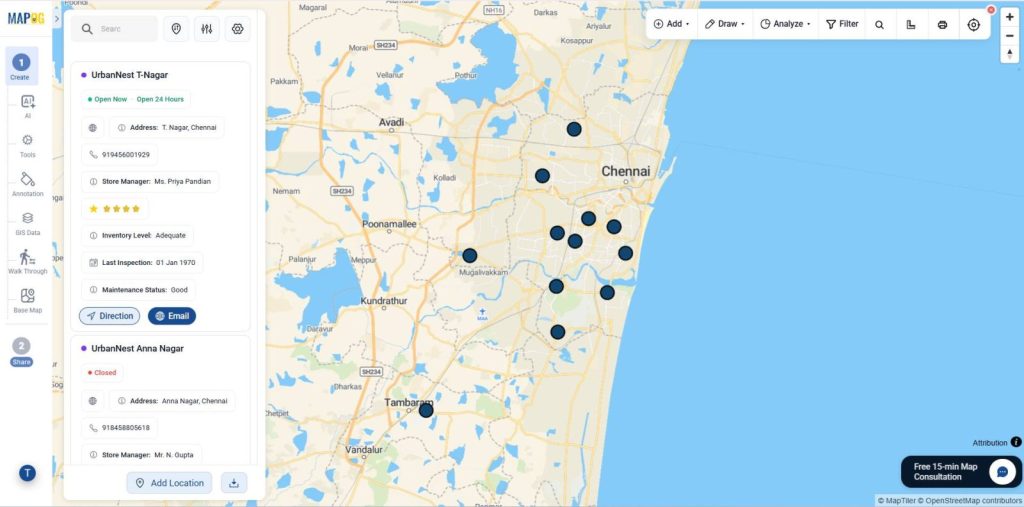
Using the setting you can manage the display properties also.
Industry Use Cases and Benefits
Task completion forms streamline field operations, audits, inspections, and compliance tracking while improving accountability, reporting, and real-time visibility.
MAPOG Mobile App: Android (Play Store) and iOS (App Store)
Conclusion
In conclusion, MAPOG streamlines field task management with interactive maps, improving visibility, compliance, reporting, and decision-making across teams.
Explore helpful blogs