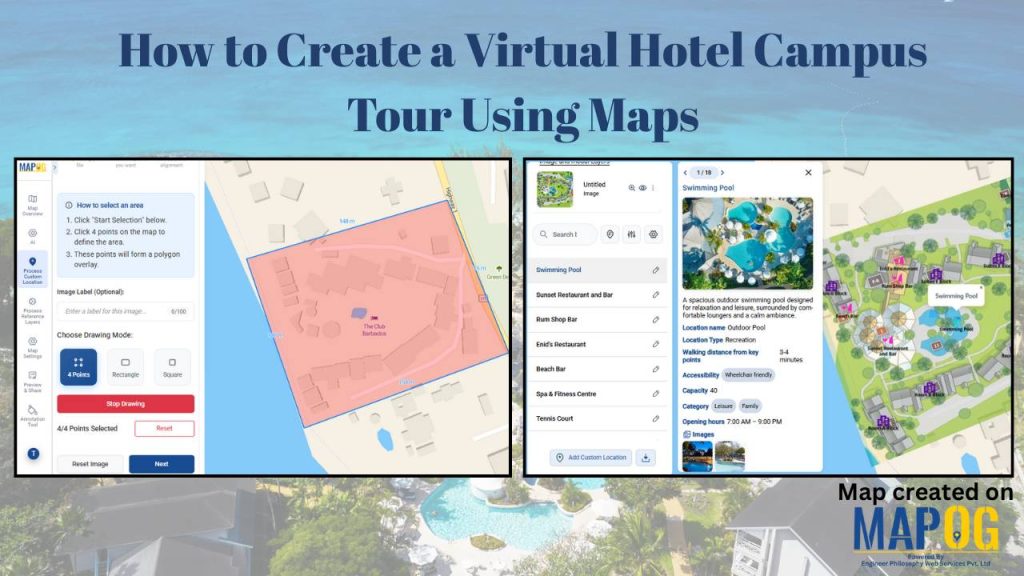
Booking a hotel is no longer just about room photos or star ratings—today’s travelers want to see and understand the space before they arrive. How far is the pool from the rooms? Where is the restaurant in relation to the lobby? Is the campus walkable?
Is the campus walkable? A virtual hotel campus tour using maps provides exactly that insight.
With MAPOG, hotels can create interactive, map-based tours that combine images, labels, and clear pathways, giving guests a realistic preview of the property. As a result, visitors can plan their stay more effectively and navigate the campus with ease, allowing hotels to showcase their campus in a visually engaging and informative way.
Key Concepts on Creating a Virtual Hotel Campus Tour using Maps
Modern travelers want more than room photos—instead, they want to understand a hotel’s layout and flow. Geo-referenced campus maps show the location of rooms, amenities, and pathways, while attributes provide details like room type, capacity, and hours. In addition, filters, icons, images, and videos make navigation easy, and updates highlight new facilities. This interactive approach helps guests visualize distances, plan their stay, and enjoy a confident, seamless experience.
Step by Step Guide on Creating a Virtual Hotel Campus Tour using Maps
1. Start with a New Map
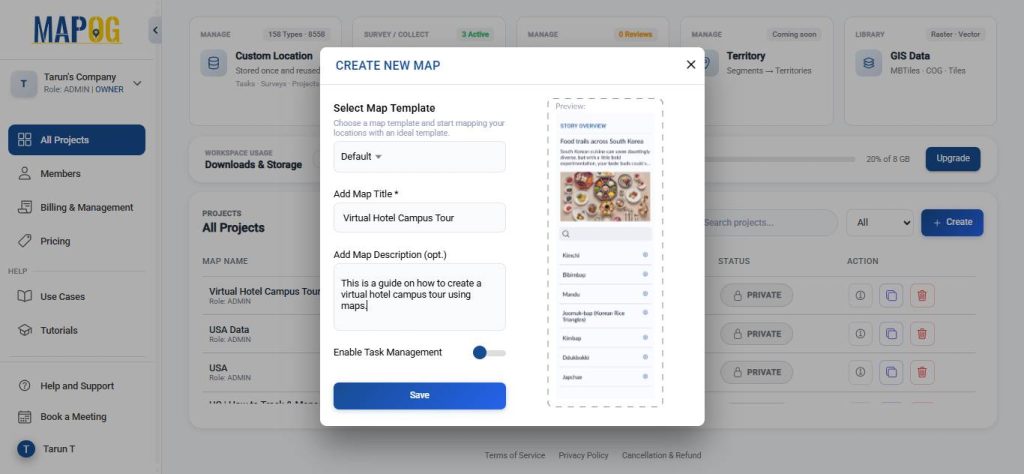
Open MAPOG and click on “Create”, give your project a title and a brief description, then hit save.
2. Geo-reference
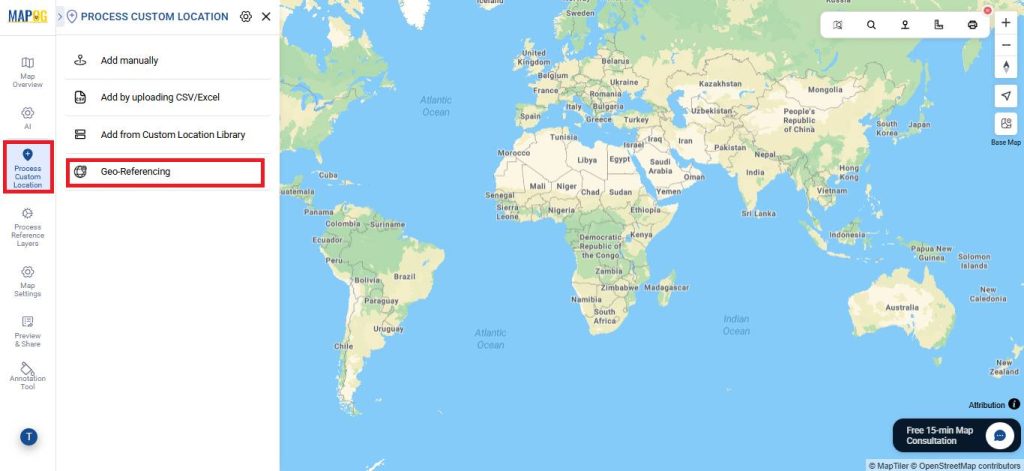
Next, go to Process Custom Location and choose the geo‑referencing option to align your layout with real‑world coordinates and ensure spatial accuracy.
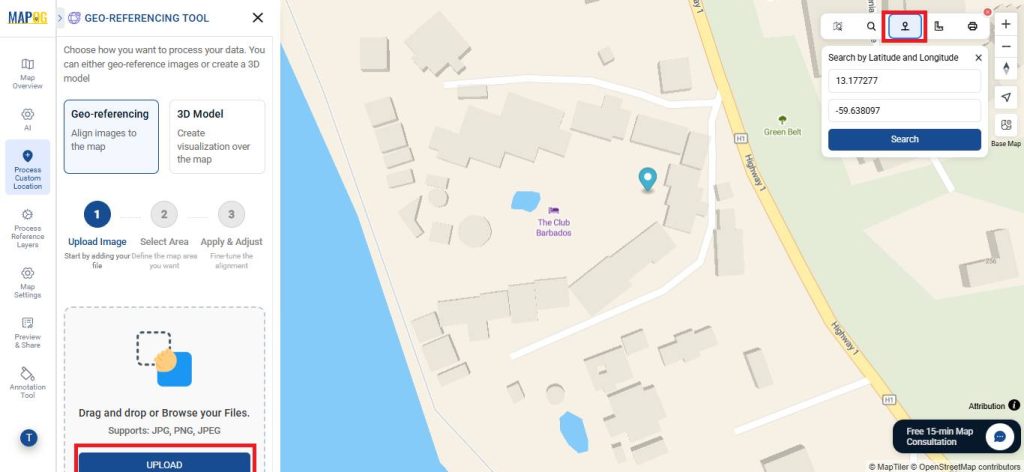
Use the toolbox to find your area by name or coordinates for an accurate placement. Then, upload your layout image in JPG, PNG, or JPEG format.
Next, choose a drawing mode—such as four points, rectangle, or square—and click ‘Start Drawing’.
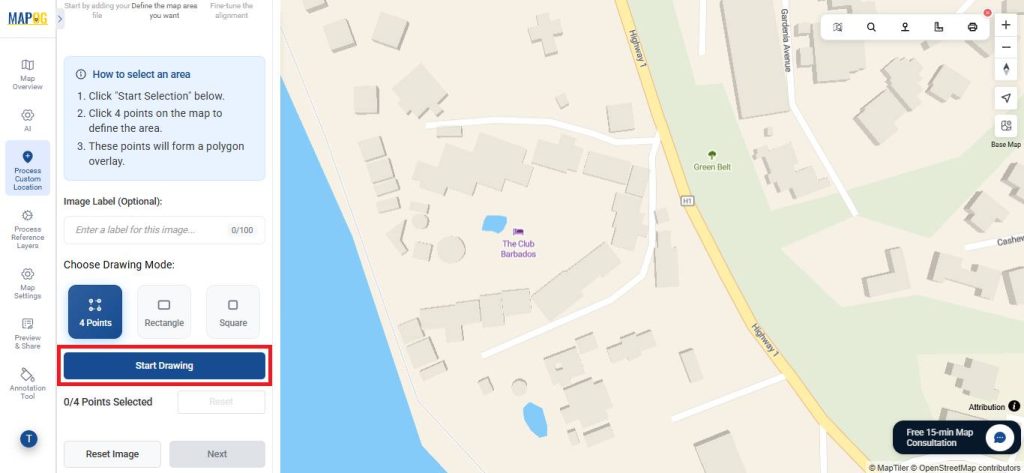
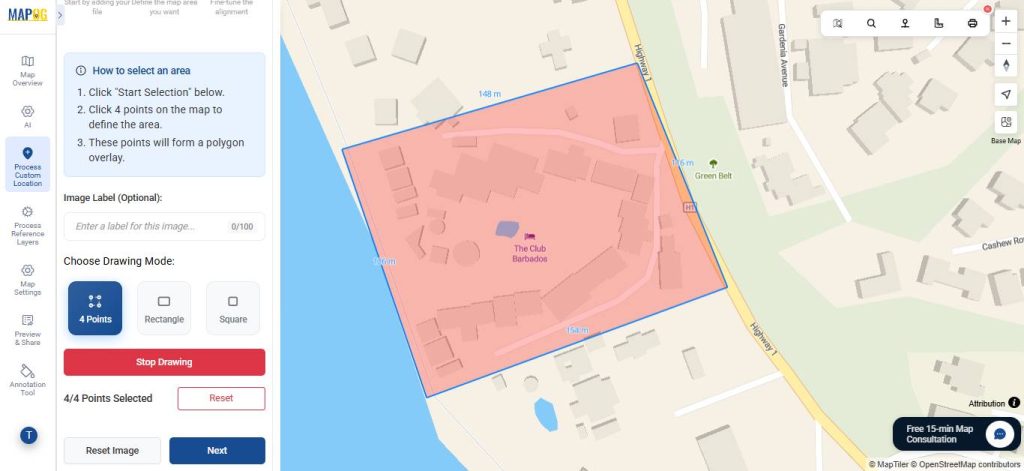
Align the image with the base map by adjusting the points, opacity, rotation, and scale, then save your changes.
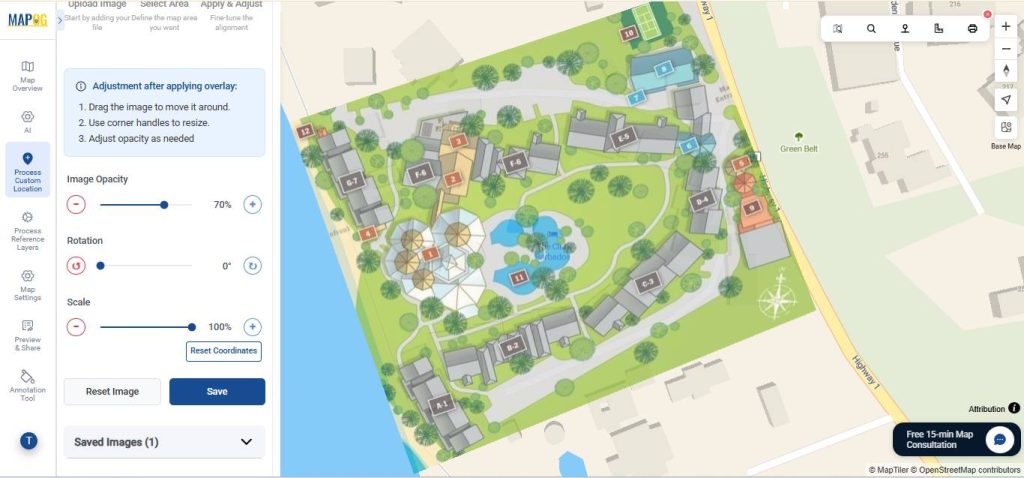
3. Add Custom Location
Click on Add Custom Location to add locations on map.
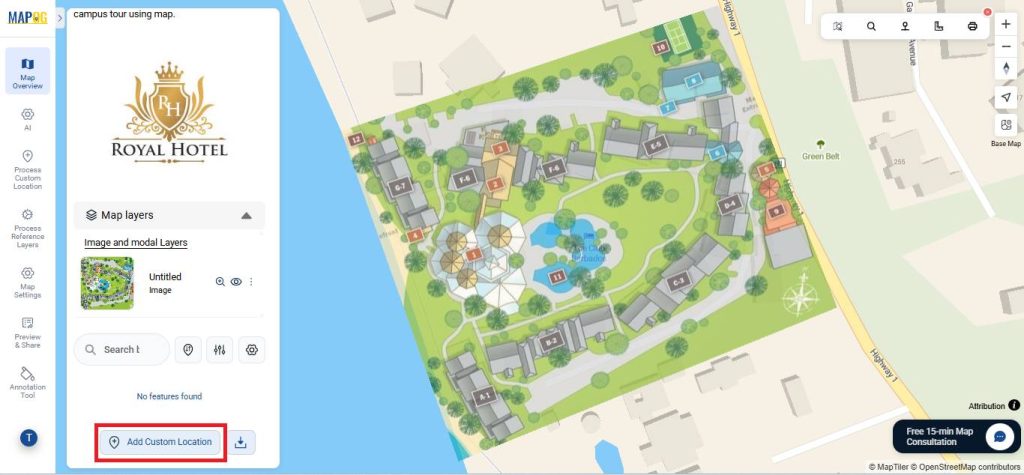
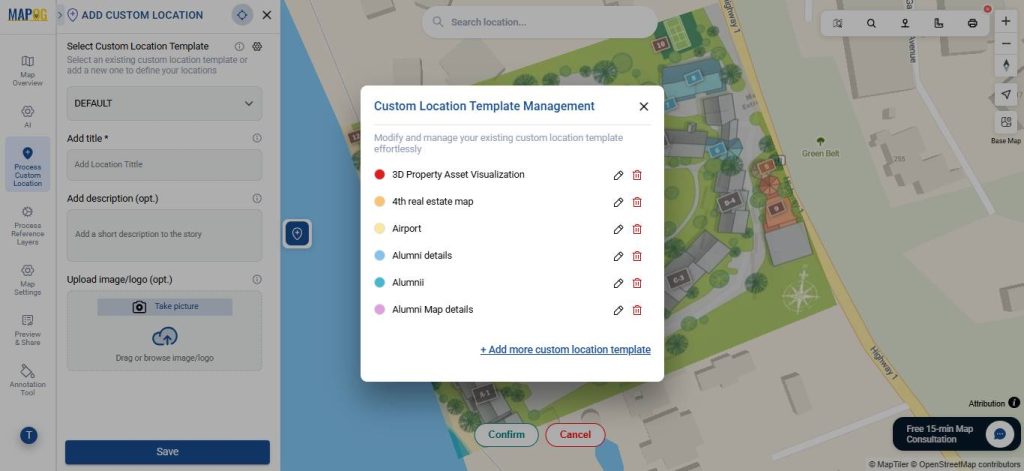
Select Custom Location Template settings to create a template that defines what information each location should include, ensuring consistency and clarity across the map.
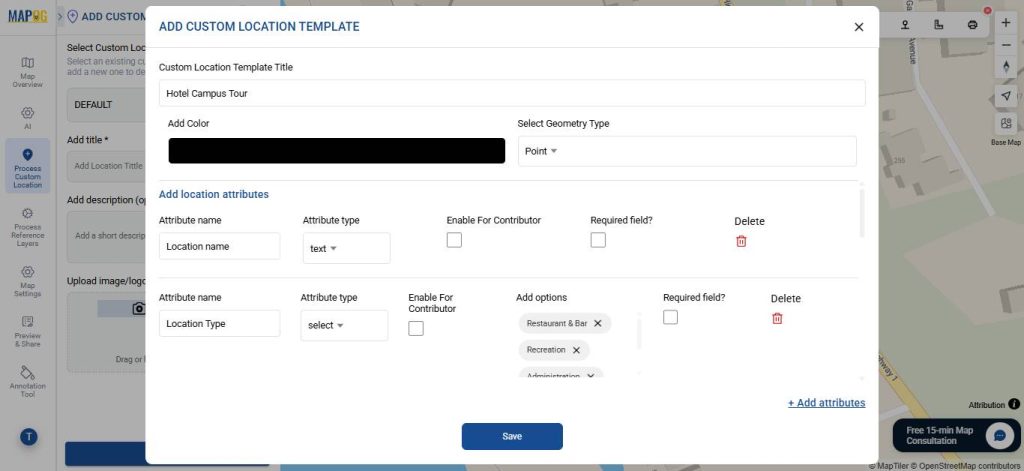
Give a suitable title, colour and select geometry type as point. Also add necessary attributes with types such as text, select, multiselect, image etc that define your point. Then, save it & select it from drop down.
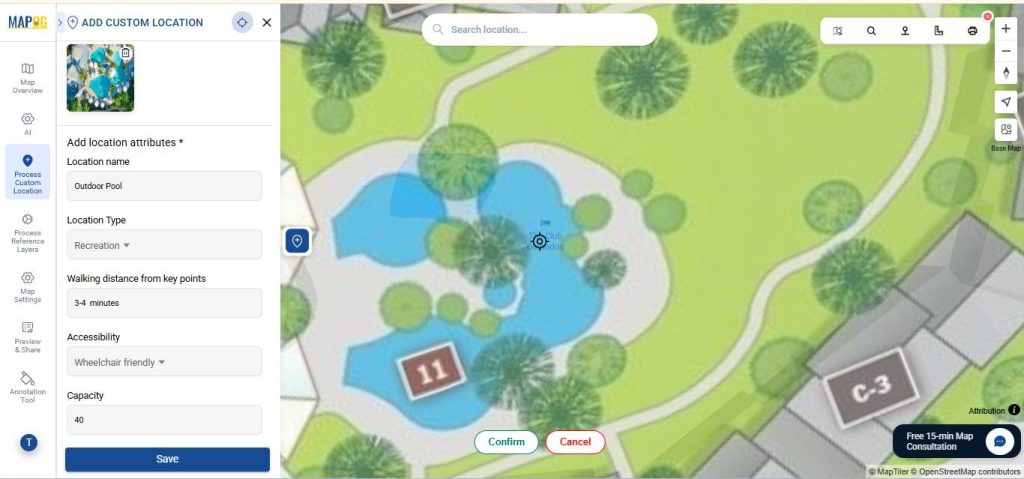
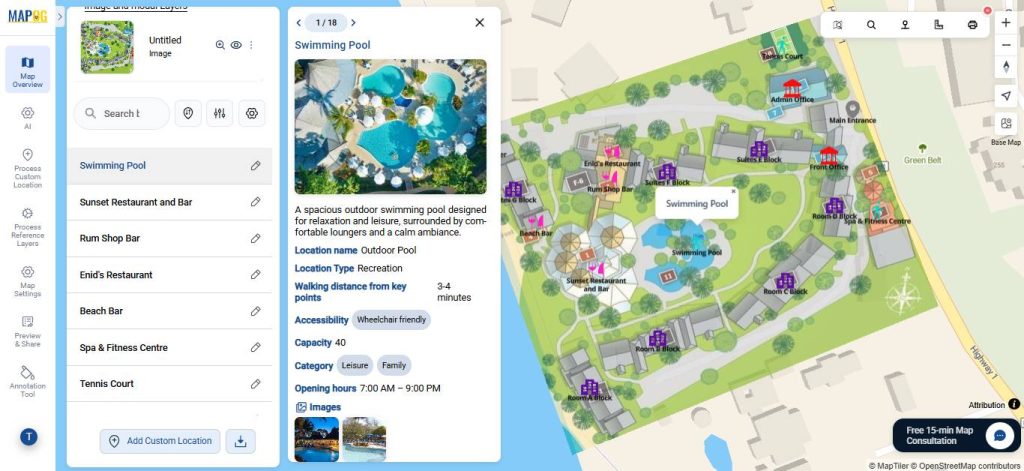
Next, place a point on the map, enter all the required details, images and save it. Repeat this process for all the points you wish to plot.
4. Organize and Filter Your Data
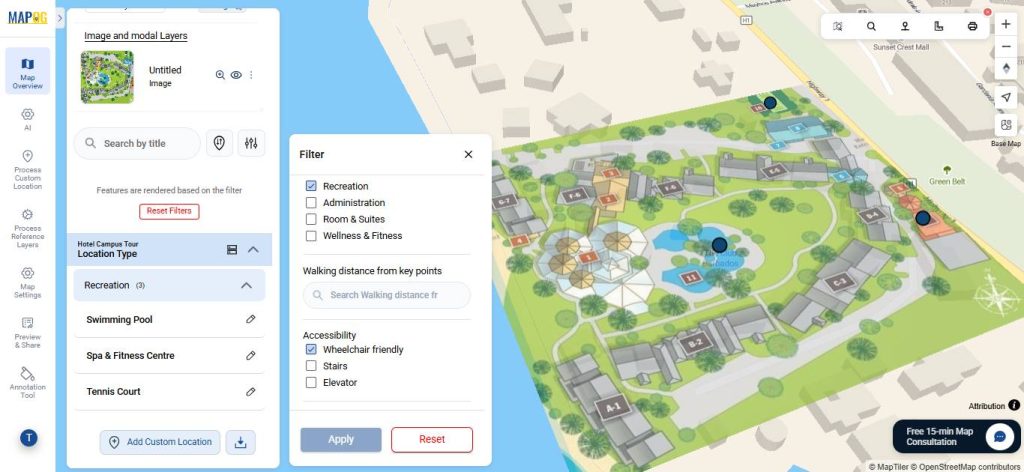
To simplify exploration, use the filtering tools to group points by attributes like type, range, or category ensuring stakeholders focus on the information that matters most.
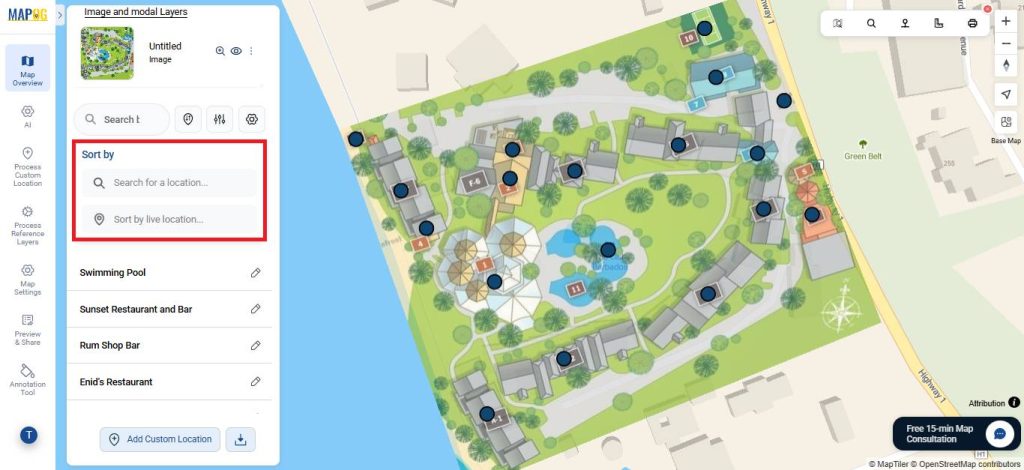
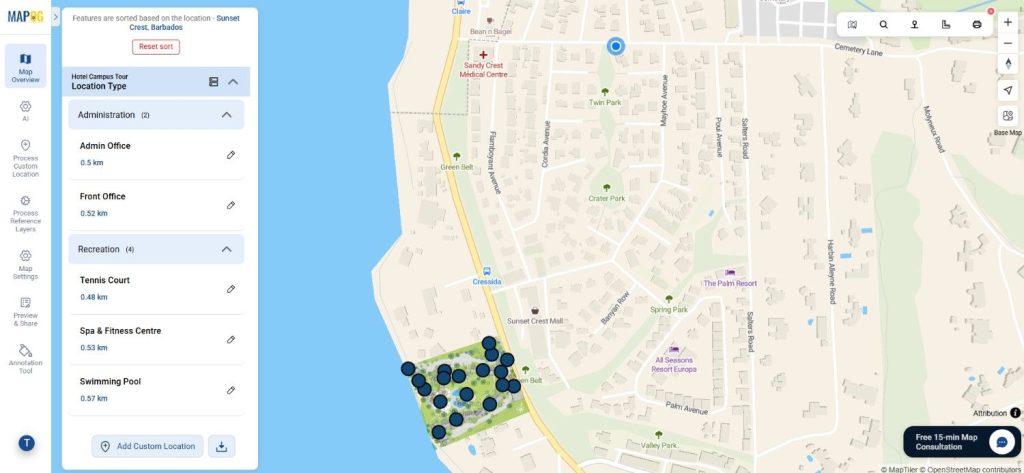
Features like Sort by Live Location and Search for Location let users quickly see distances between mapped points and searched locations.
5. Customize Map Appearance
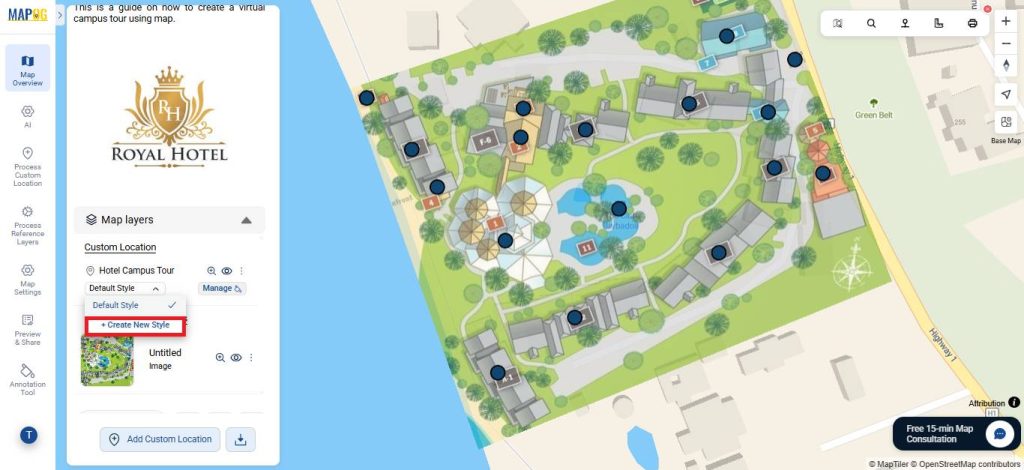
Open the Map Layer section and select Create New Style.
In the Category section, first pick an attribute such as location type. Then, apply colour coding and unique icons to each category so that differences stand out clearly. As a result, the map becomes easier to read and locations are quicker to identify.
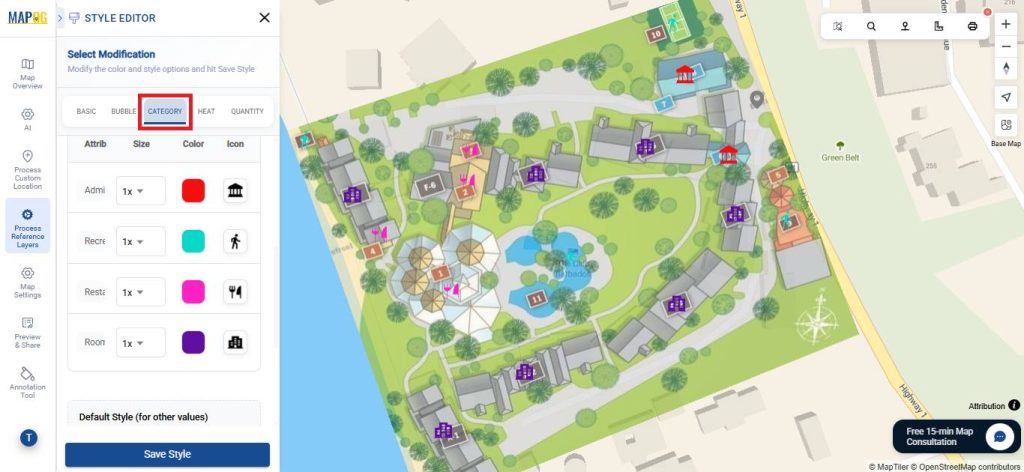
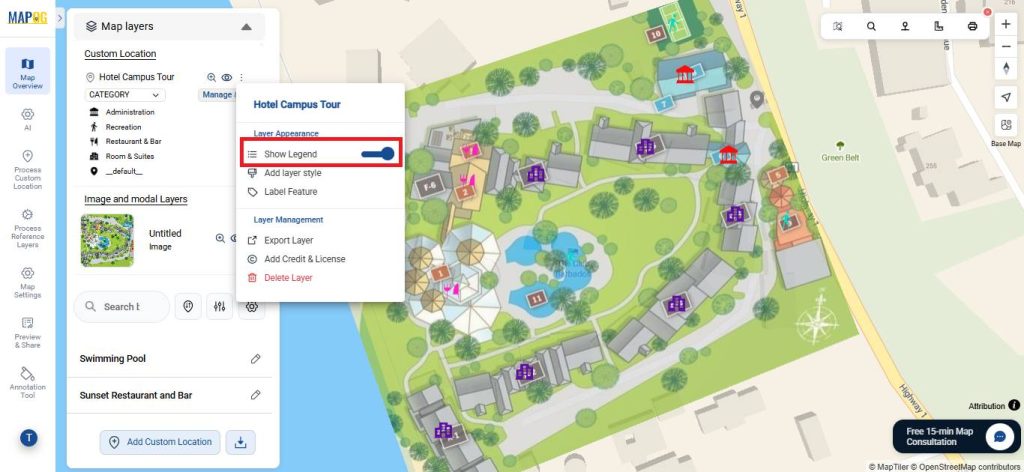
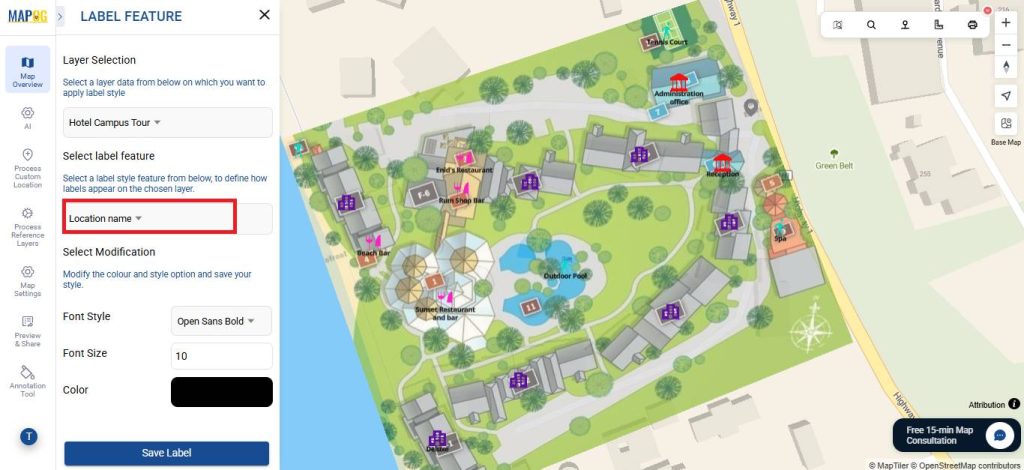
Enable the legend for easier interpretation, and use the Label Feature to add descriptive labels to points, making the map visually clear and easy to understand.
6. Share Your Map
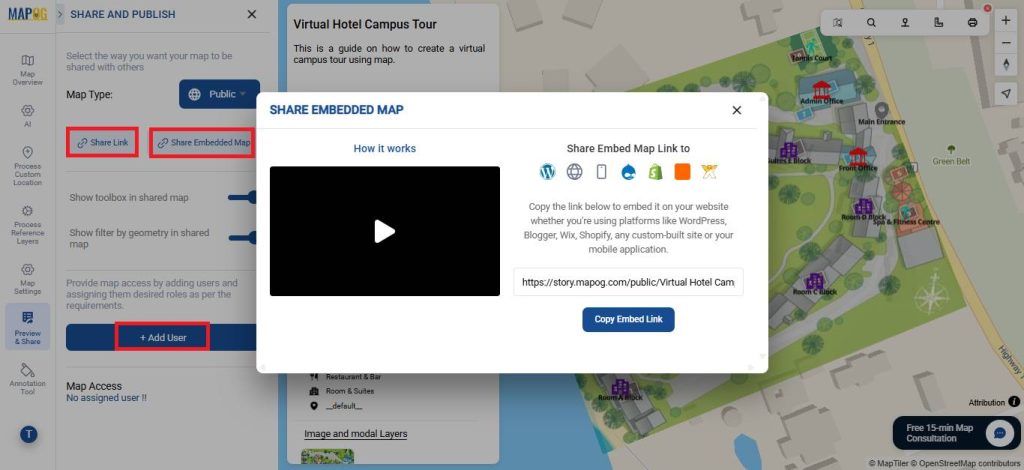
To share your map, click “Preview and Share”. Set it to Public for wider visibility, share it via a link, or embed it on your website. You can also invite users to collaborate and edit the map using the add user option.
Real World Applications
Overall, this is useful in marketing and guest engagement, as it allows potential visitors to explore rooms, amenities, and facilities virtually. Additionally, it supports event planning by helping organizers visualize layouts for conferences or weddings. At the same time, it aids staff training and operational planning by familiarizing employees with the property in advance. Finally, it plays a key role in accessibility assessments and investor reviews, since it enables remote evaluation of routes, facilities, and the overall property.
Conclusion
In conclusion, an interactive map for a virtual hotel campus tour enhances the overall efficiency and experience by combining marketing, planning, training, and accessibility into a single digital platform, making it a valuable tool for both guests and hotel management.