
In today’s data-driven landscape, understanding your customer geography is key to smart business growth. When opening a new store, it’s not enough to simply choose a location—you need to know who Locate Nearby Customers Around a New Store Location effectively. Interactive maps make this possible by visualizing customer clusters, highlighting high-demand zones, and revealing opportunities for local engagement. Therefore, with MAPOG, you can easily plot your customer data and pinpoint those located around your new store site. This visual insight helps you plan targeted marketing, optimize delivery routes, and personalize outreach—ensuring your new store launch is strategic, efficient, and customer-focused.
Key Concepts
Locating nearby customers around a new store isn’t just about plotting dots on a map—it’s about uncovering meaningful business insights. By mapping your customer data and analyzing proximity, you can identify potential demand zones, segment audiences by distance or region, and make informed decisions about promotions or logistics. MAPOG allows you to upload customer datasets, add store coordinates, and automatically visualize surrounding customers within defined radii or travel times. Whether you’re launching a retail outlet, franchise, or service center, identifying nearby customers ensures every location decision is backed by data and driven by insight.
Steps to Locate Nearby Customers Around a New Store Location
1. Upload customer data:
Open your store location data, then go to Process custom location and select Add by Uploading CSV/Excel. Then select the desired CSV file with attached details.
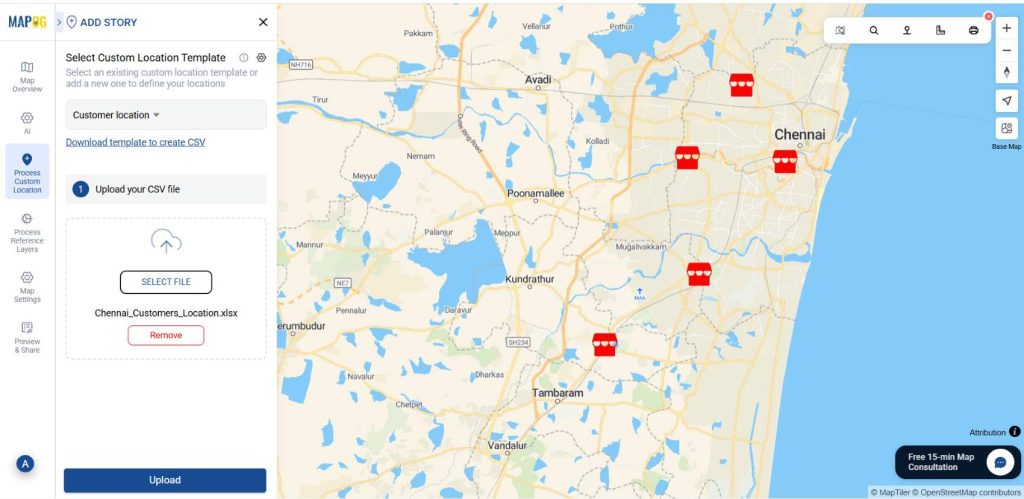
2. Add customer location template:
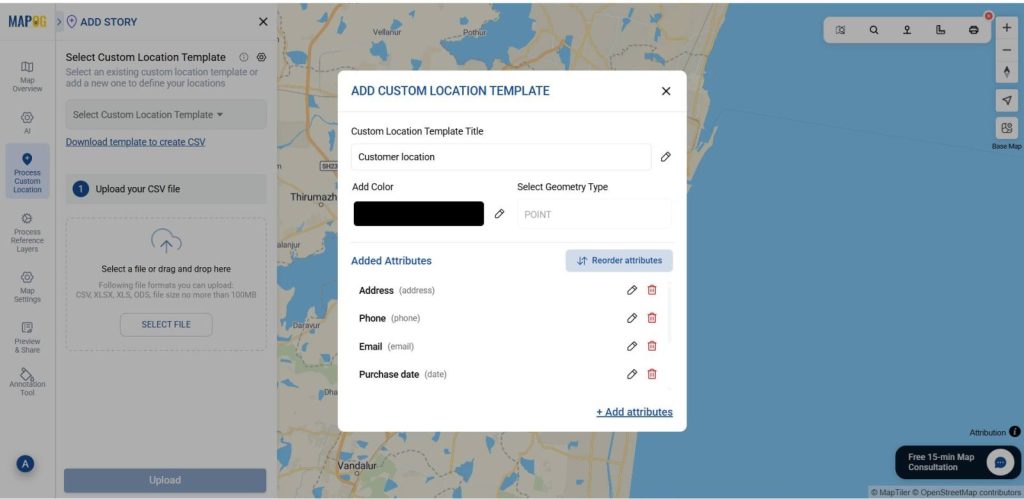
Using the select custom location template settings option, add location template such as “Customer location” & add different relatable attributes to it such as address, photos & much more. Save that custom template & select it from drop-down. Then give an upload.
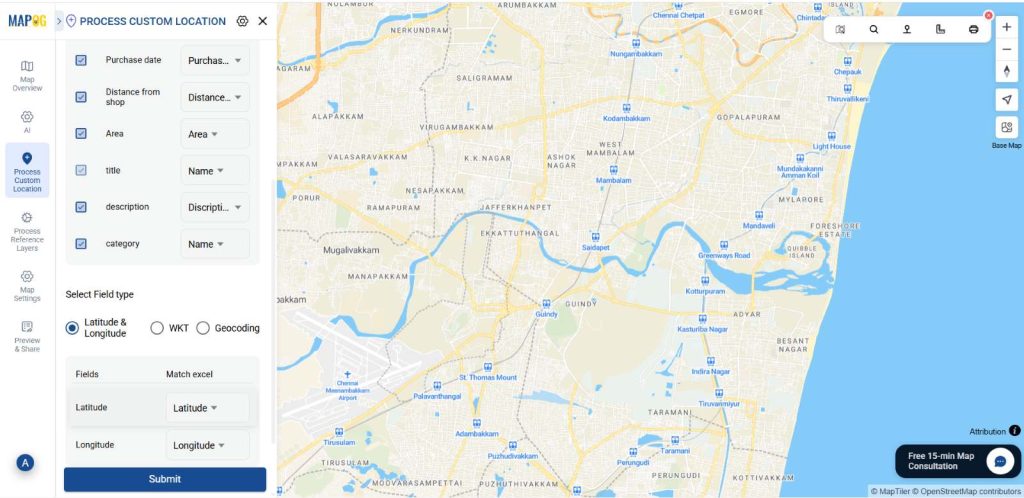
Later match the name, contact number, timings, Store name and description column with excel attributes. In the select field type give latitude in first column, give longitude in second column, then give submit.
3. Change category:
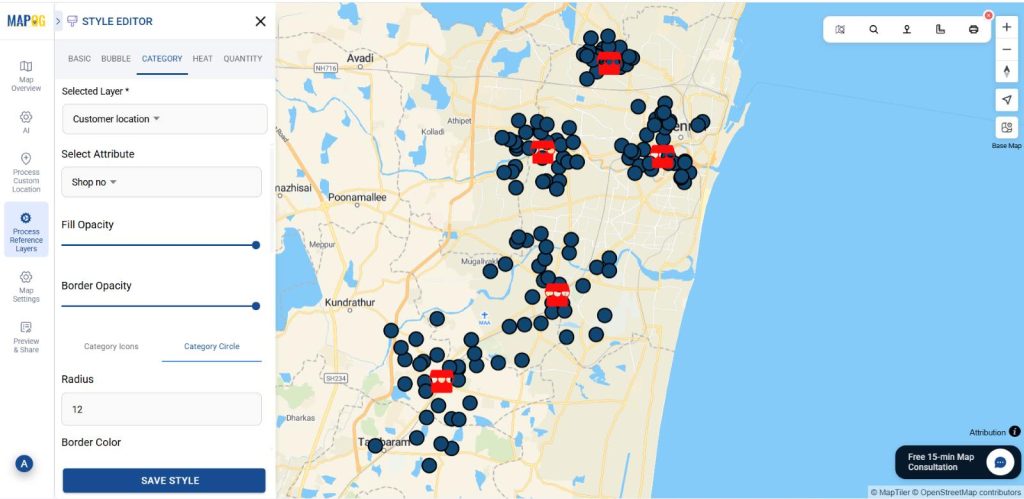
Once uploaded, go to Add Layer Style and choose the Category option.
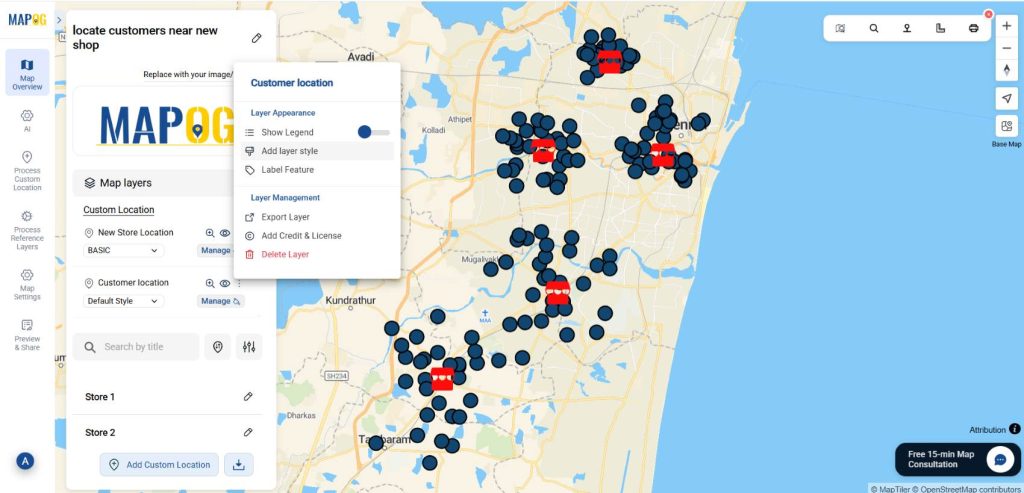
Then, select your customer data layer from the Selected Layer dropdown. Afterward, then select shop no in the select attribute option. Then give radius and suitable colour for all the shops. Finally, click Save Layer to apply and view your category map.
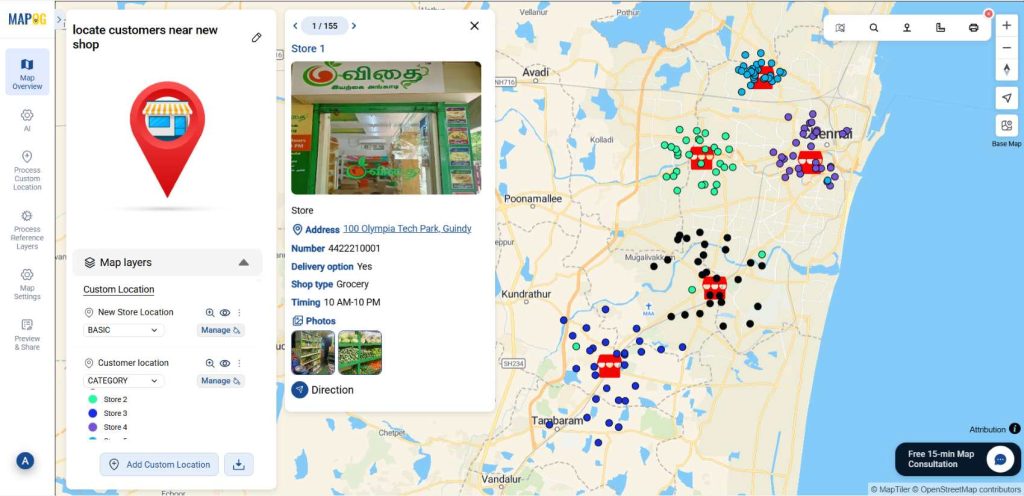
By mapping customer locations, we identified customers traveling long distances despite having nearby stores available. This insight helps redirect them to closer outlets and plan better store placements to improve convenience.
Applications of Locate Nearby Customers Around a New Store Location
Retail Chains: Identify customer clusters to choose the most profitable store location.
Franchise Owners: Analyze nearby customers to plan targeted launch promotions.
Marketing Teams: Design hyperlocal campaigns based on customer proximity and demand zones.
Delivery Services: Optimize delivery routes by mapping customers near new store hubs.
Real Estate Planners: Assess footfall potential by visualizing nearby customer density.
Conclusion:
Locating nearby customers around a new store location becomes simple and insightful with MAPOG. By visualizing customer data on interactive maps, businesses can identify high-demand areas, understand local demographics, and plan more effective outreach strategies. This data-driven approach ensures smarter store placement, optimized logistics, and targeted marketing efforts. With MAPOG’s mapping tools, every new store decision is guided by location intelligence—turning customer proximity insights into strategic growth opportunities.
Here are topics related to this topic: