
Food safety operations demand speed, accuracy, and accountability. Therefore, organizations rely on the Best Mobile App for On-Site Surveys to capture observations, temperatures, photos, and compliance data directly from the field. With MAPOG, staff or contributors update records in real time using their mobile devices on-site.
Key Concept: Understanding the Best Mobile App for On-Site Surveys and Inspections
The Best Mobile App for On-Site Surveys and Inspections enable staff or contributors to collect and update location-based data directly from their mobile devices, including compliance details, temperatures, and photos. Moreover, each entry links to a mapped location and syncs instantly, ensuring accurate, real-time records without paperwork or delays.
Step-by-Step Workflow: Best Mobile App for On-Site Surveys
1. Setting up a New Project
First, log on to MAPOG, and navigate to the Survey section.
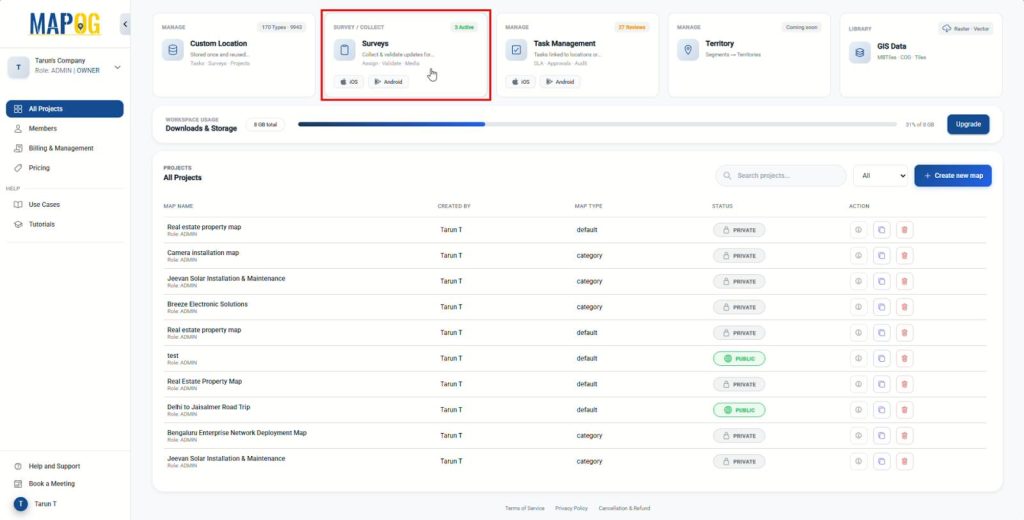
Then, from the Mobile Data Collection dashboard click create new and initialize the survey project.
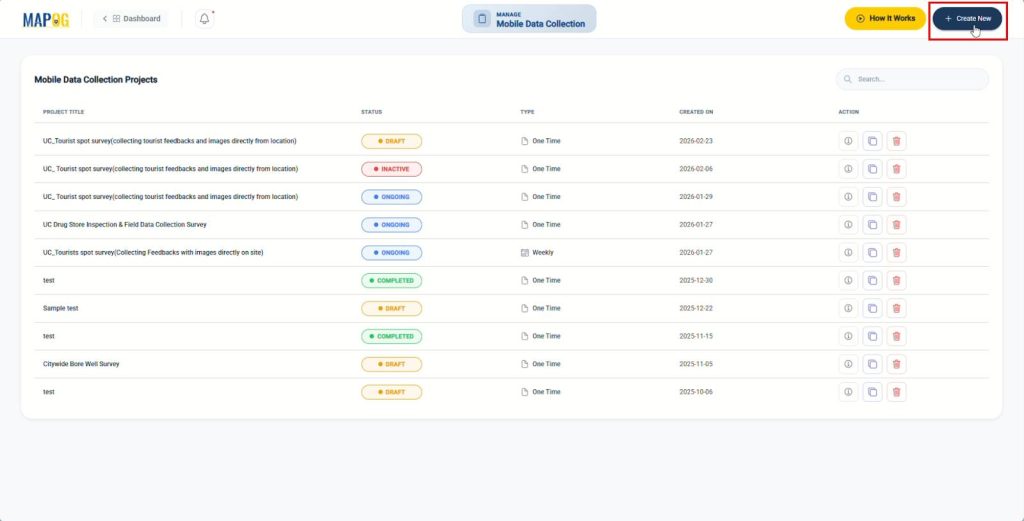
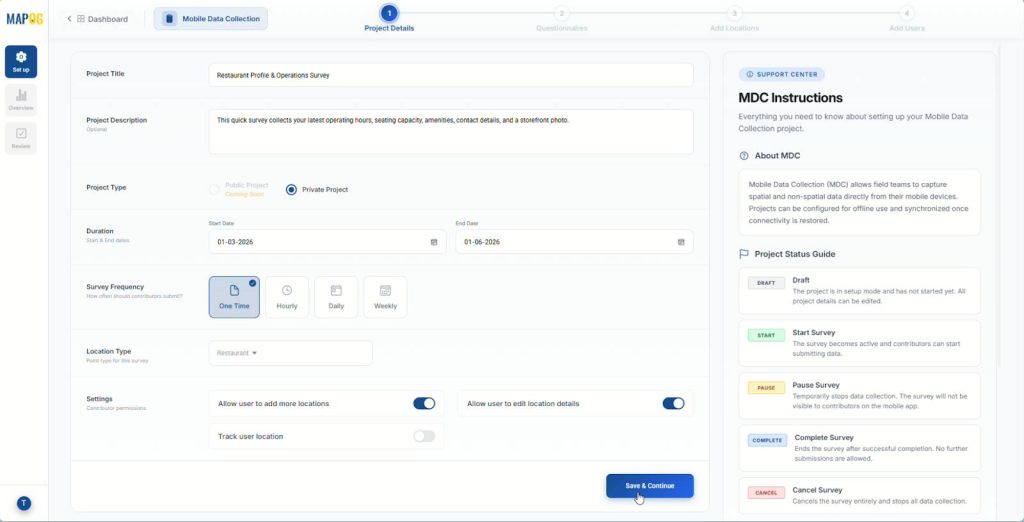
Add your project title (e.g., “Restaurant Profile & Operations Survey”) and description. Set it as private and define start/end dates and survey frequency.
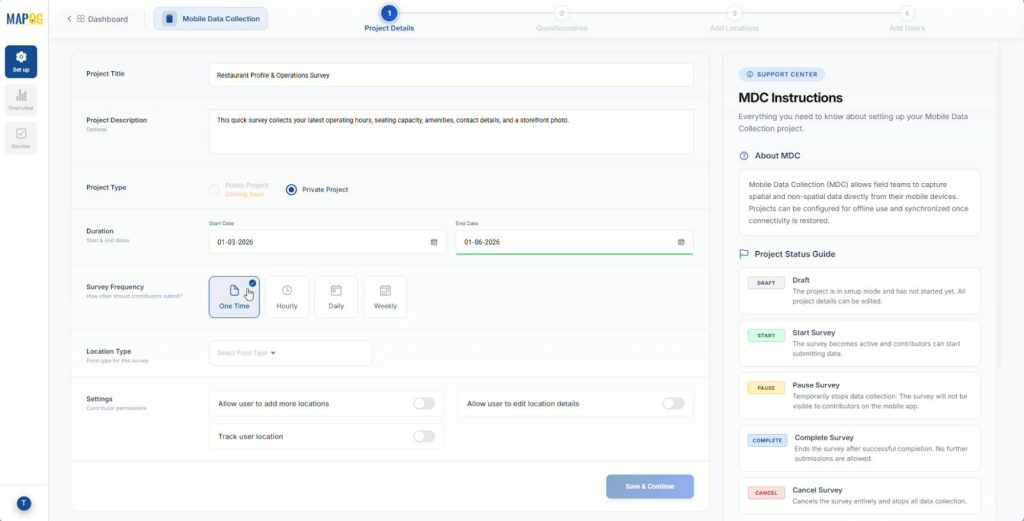
Subsequently, go to select point type, use the “Create New” option from the dropdown, then select “Add more custom location template” and give it a title. Following this, Set color and geometry type (e.g., point). Add attribute fields with attribute types such as text for Name, number for seating capacity, select for types and save them for structured, reusable location records.
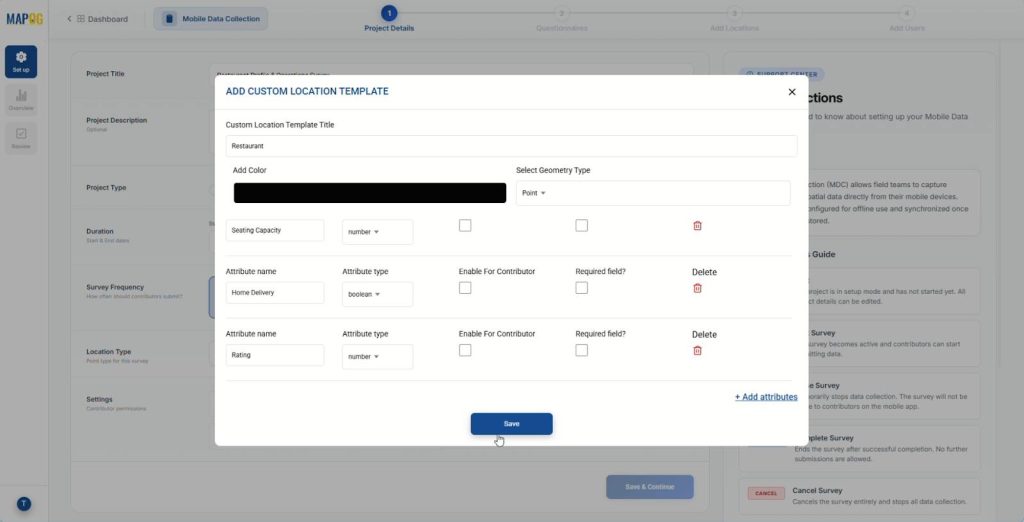
Then, select the point type you just created, toggle “Allow user to add more locations” if your contributors might discover unregistered food stalls Then click Save & Continue to proceed.
2. Add Survey Questions
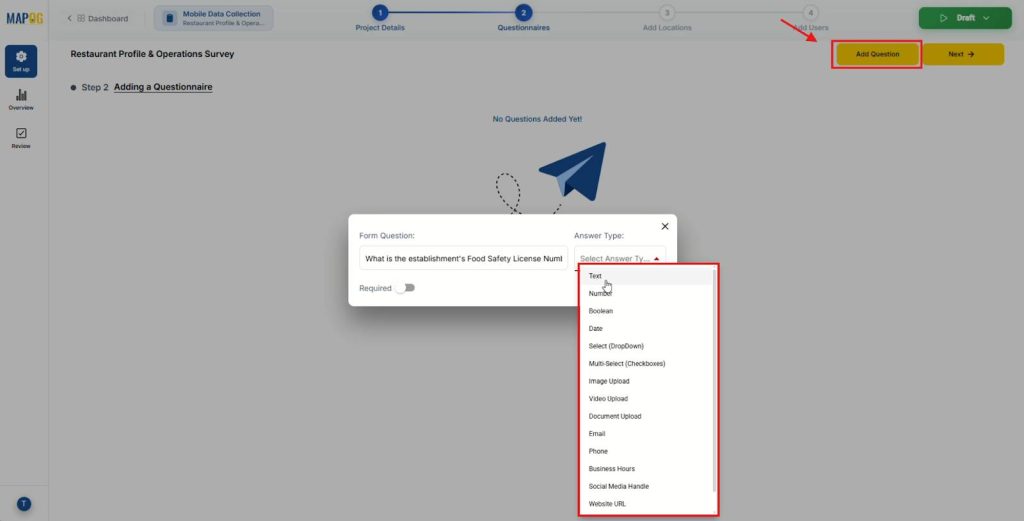
Afterward, click “Add question” and enter inspection questions with appropriate answer types one by one.
- Text: FSSAI License Number, Specific Hazards Observed
- Select (Dropdown): Kitchen Cleanliness (Good/Average/Poor)
- Number: Food Storage Temperature (°C)
- Image Upload: Photos (Kitchen, Storage Area, Wash Area)
3. Plot Customer Locations
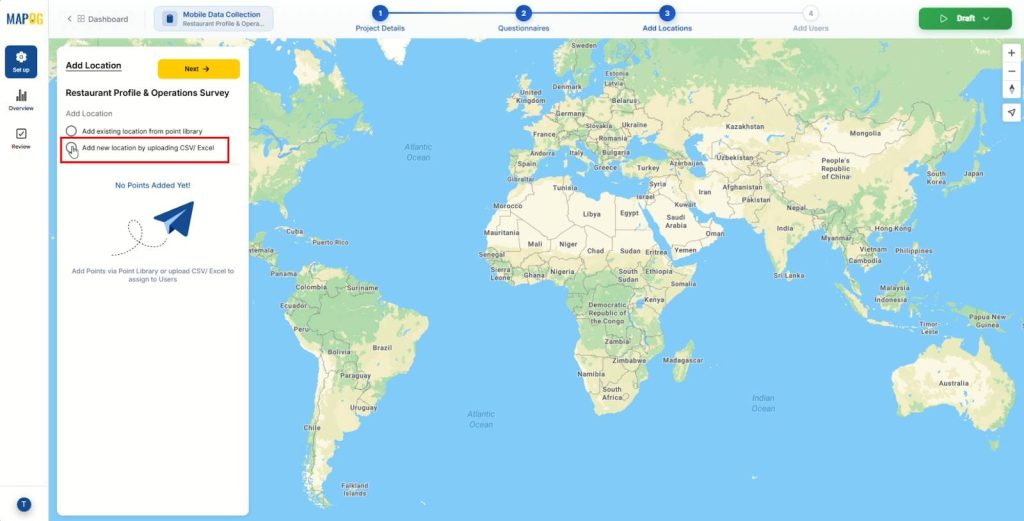
Next, select “Add new location by uploading CSV/Excel“
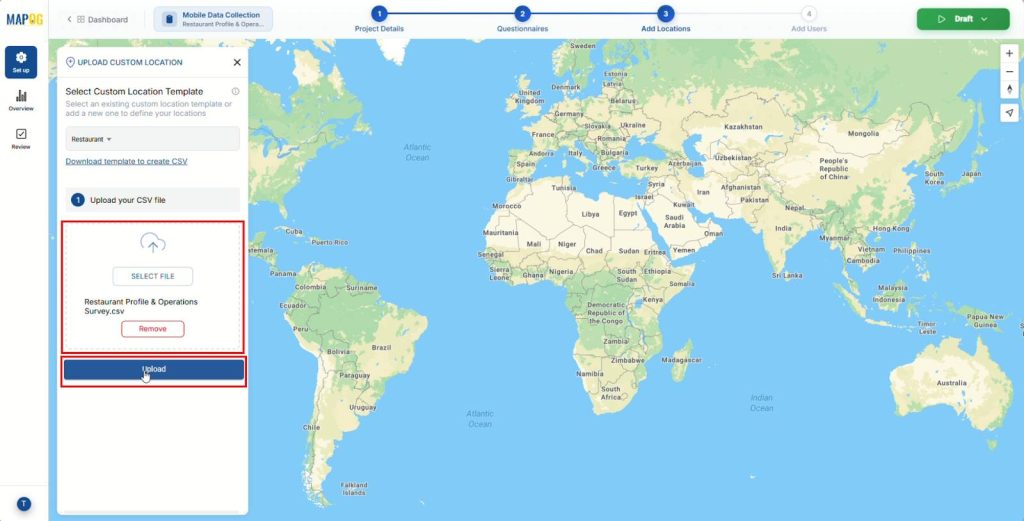
Then upload your pre-existing restaurant location file containing the establishment names and coordinates.
After uploading, Select a Unique ID column to keep each location distinct and prevent duplication.
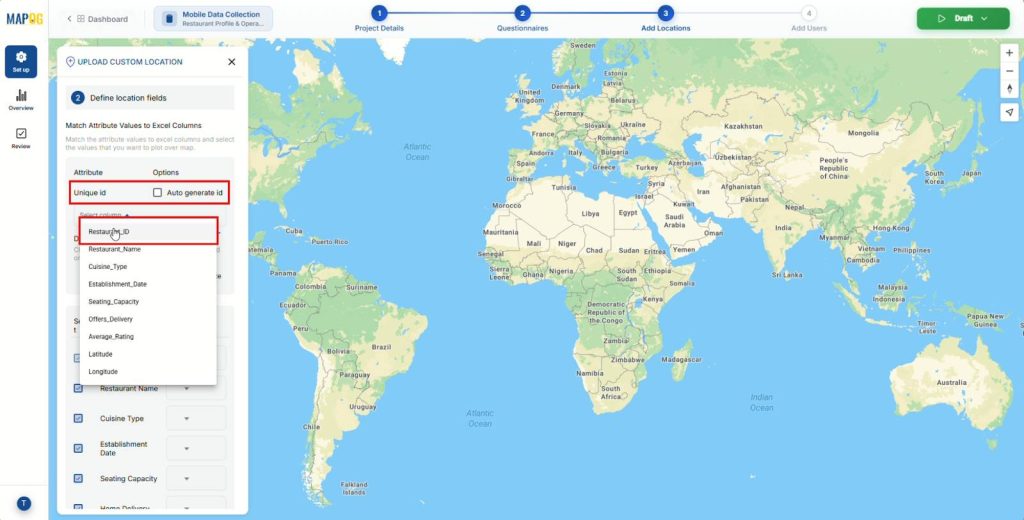
Match attribute fields with the corresponding Excel columns, select the latitude and longitude coordinates for accurate map placement then submit, Each point auto-plots on the map.
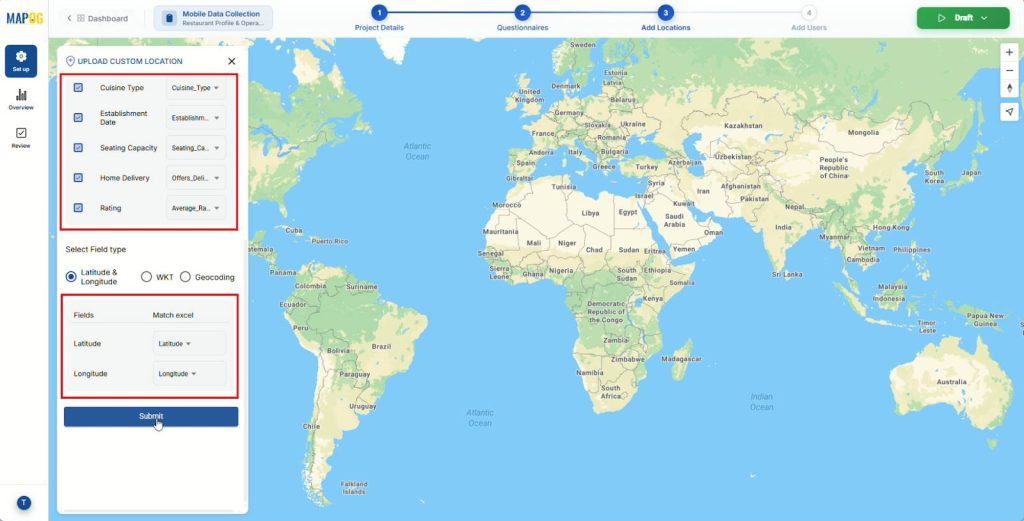
4. Add Contributors
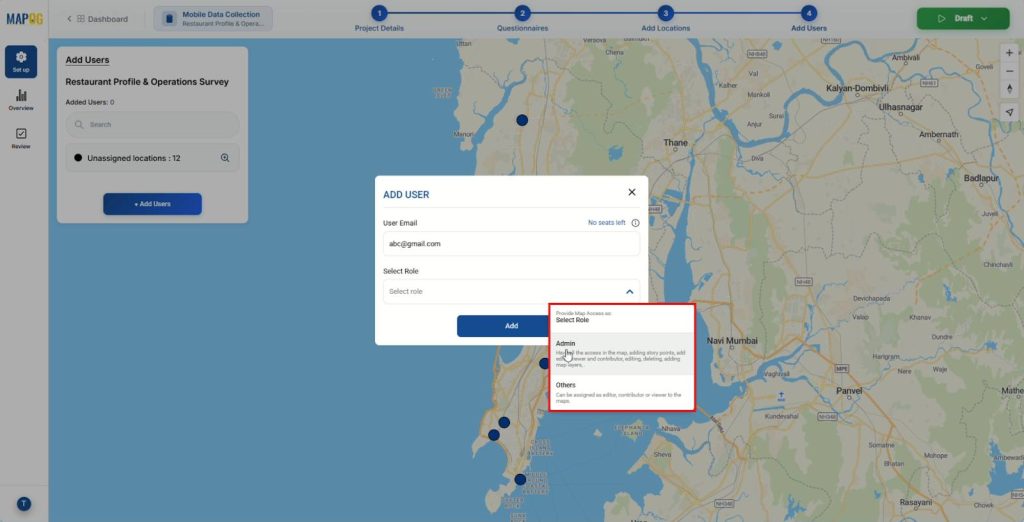
Now, go to Add Users, click Add Member, enter the contributor’s email, and assign a role.
- Admin has full map access, including story points and editor management.
- Others can be assigned limited roles such as editor, contributor, or viewer.
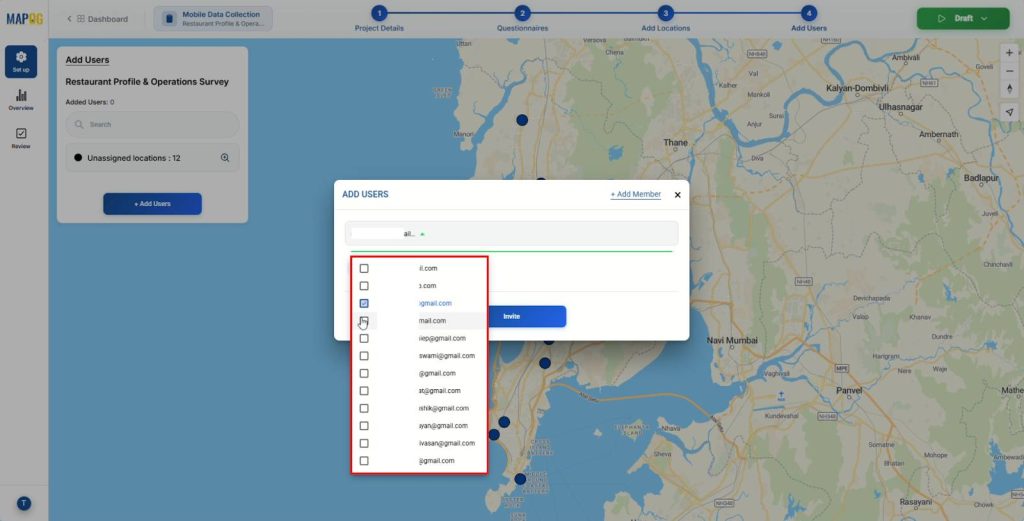
Following that, Select added users from ‘Select Member’ and click ‘Invite’ to add them as contributors.
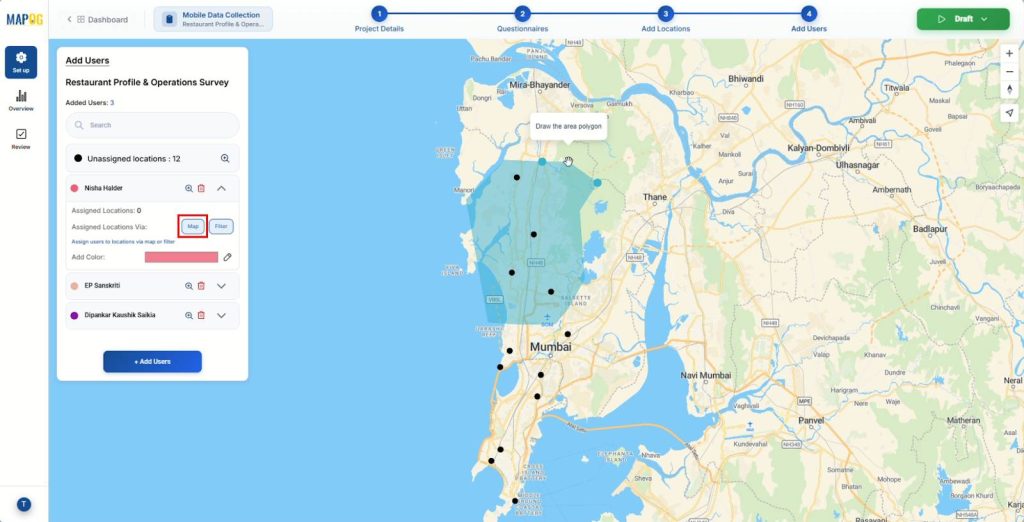
After adding your contributors, click on any contributor and select the map option to draw a polygon around specific locations to assign to that specific contributor.
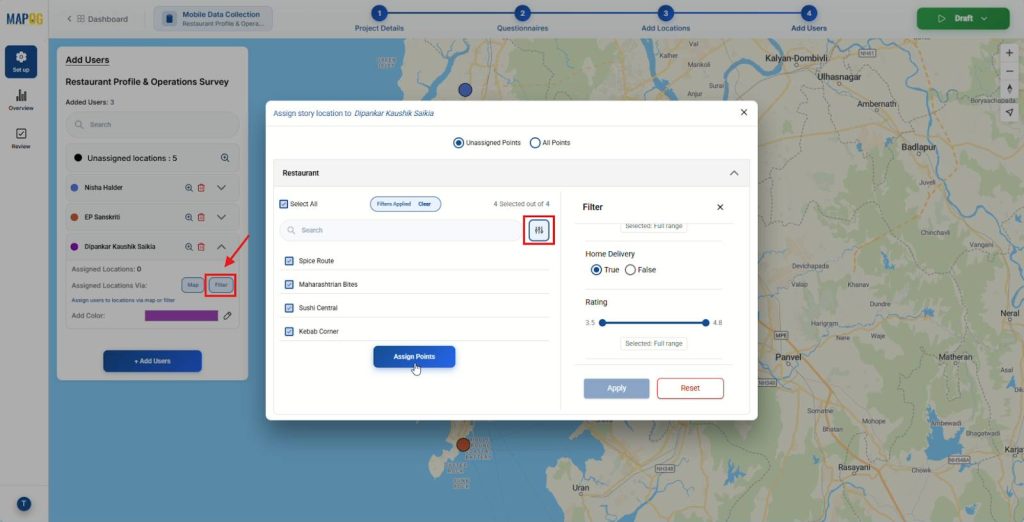
Moreover, you can filter locations by attributes (cuisine type, rating) and assign them accordingly.
5. Launching the Survey
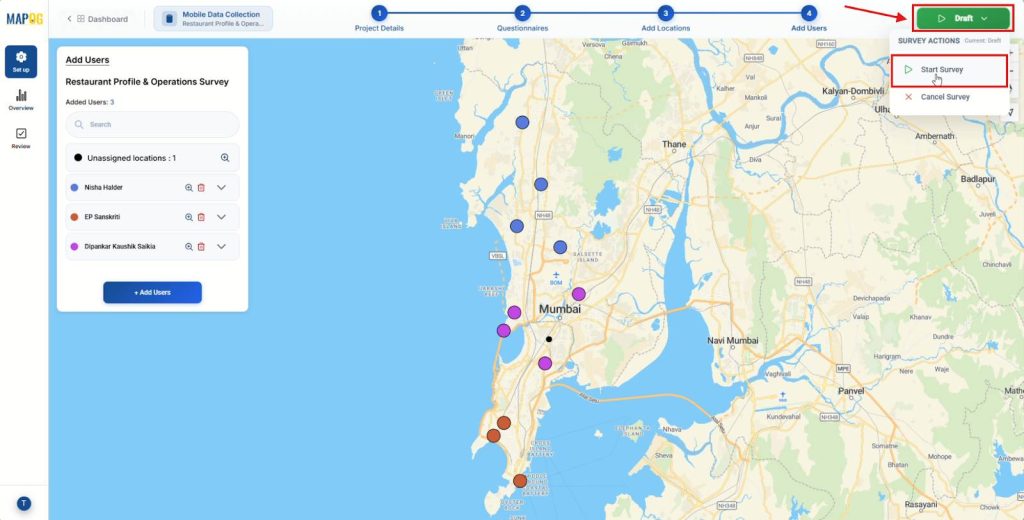
After assigning contributors, click on the Launch button, then Start Survey.
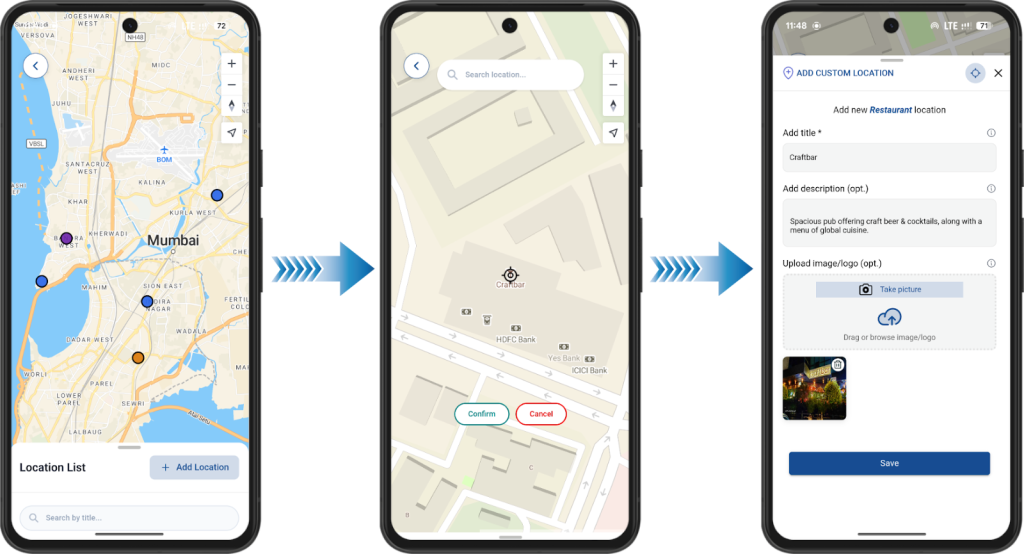
The assigned contributors can then access their designated restaurants from the MAPOG Contributor App and fill in all the survey questions and upload images on-site using their mobile devices.
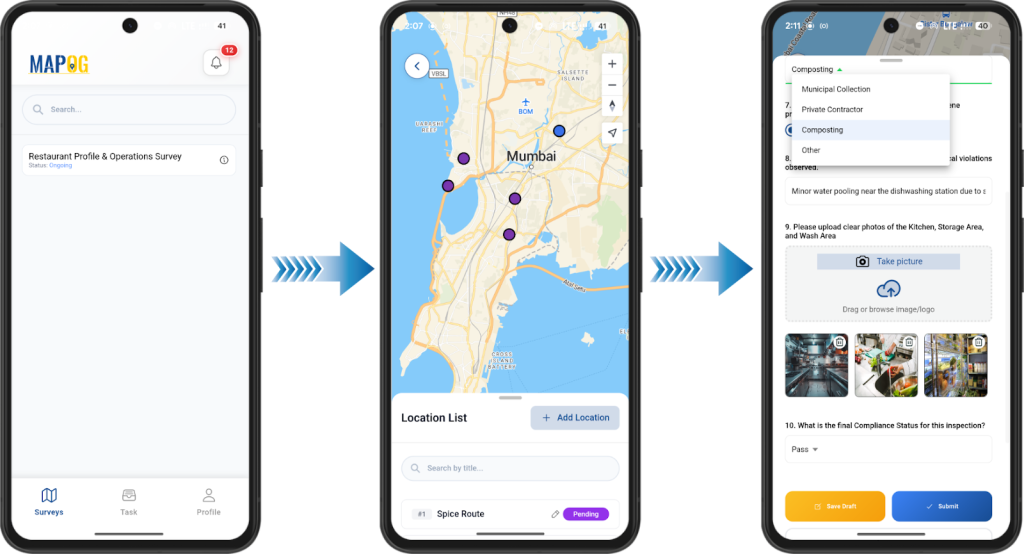
Contributors can add a new location directly through the App. They tap Add Location, confirm the spot, enter required details (title, description, image/logo), and save.
6. Review and Monitoring
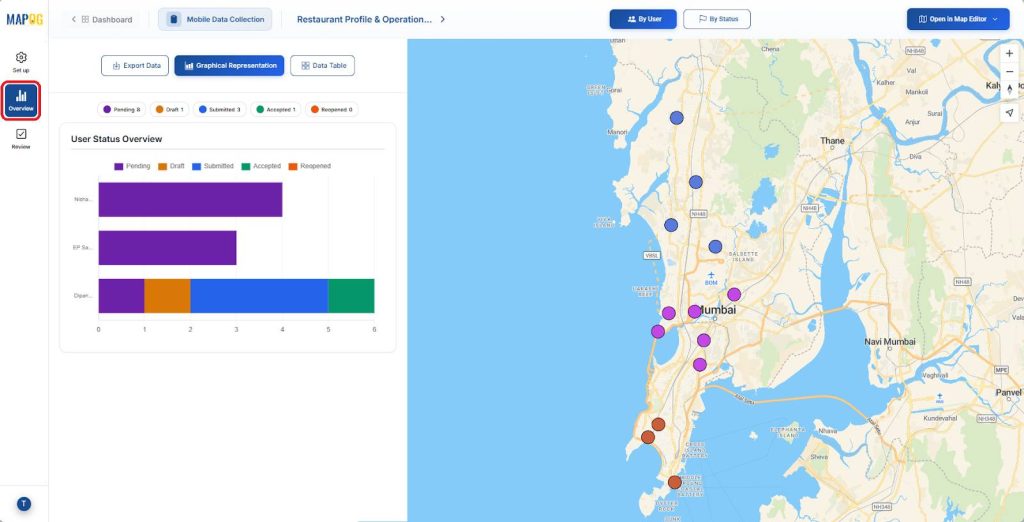
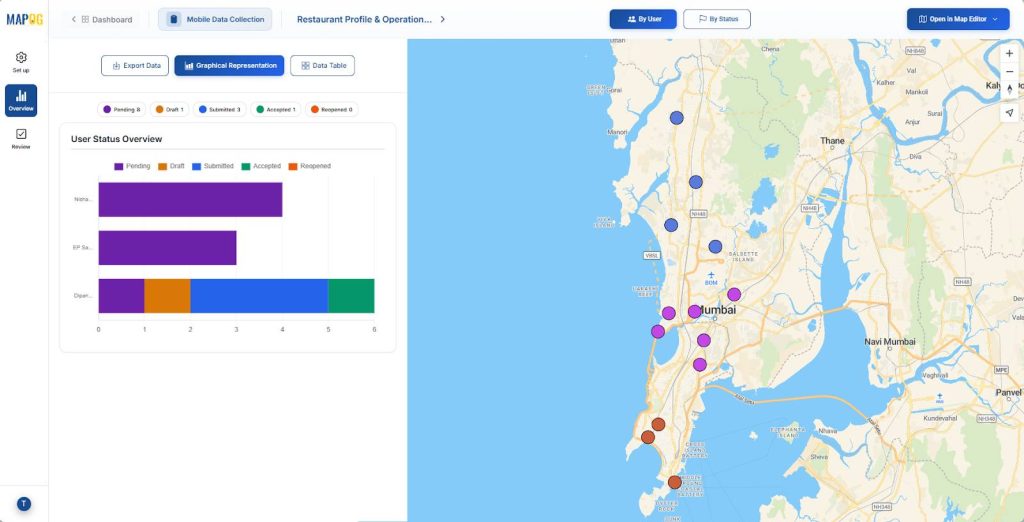
Finally, back in the platform, the overview panel lets managers monitor inspection progress through real-time graphical representations.
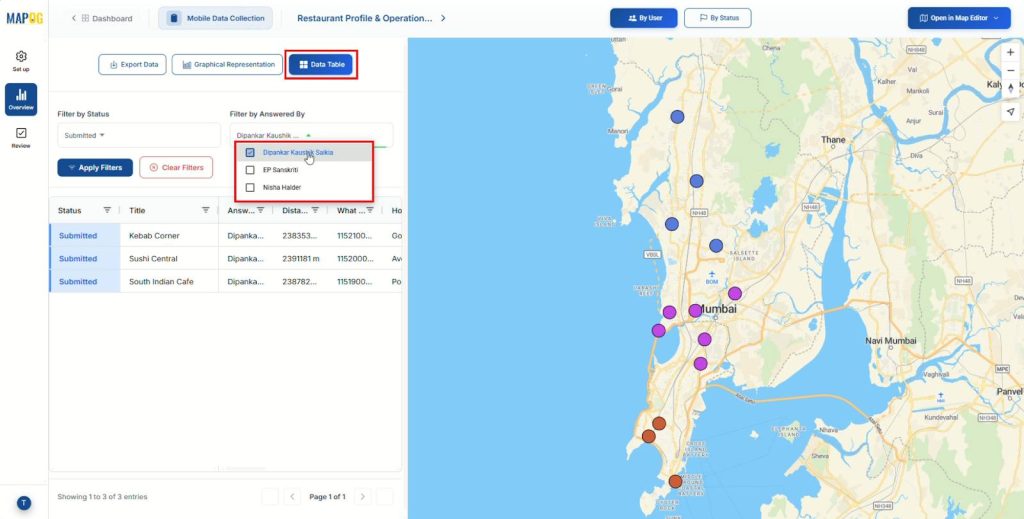
From there, managers can switch to the data table view, filter records by “status” or “answered by” to narrow down specific entries and analyze detailed submissions.
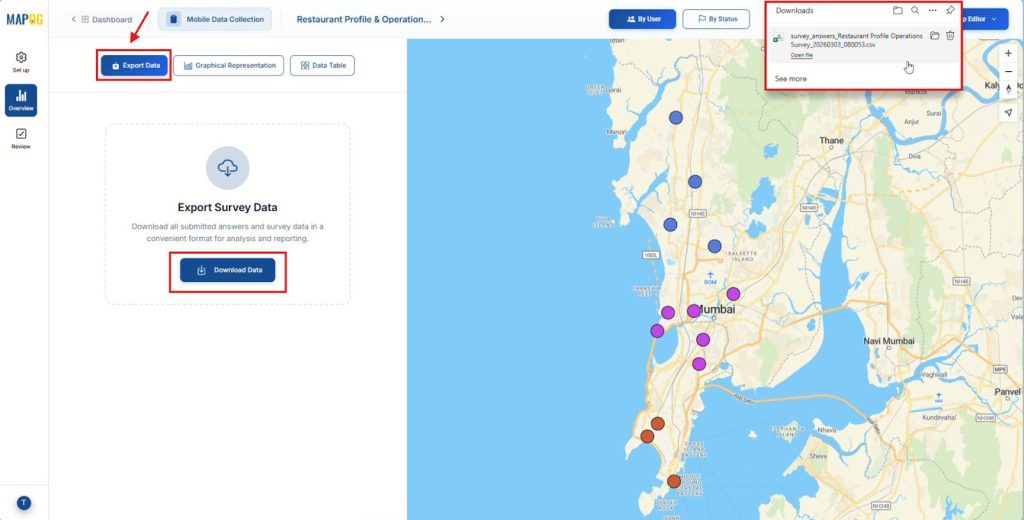
Next, they can click Export Data and select Download Data to export all records as a CSV file. This export supports reporting, regulatory submission, performance tracking, and external analysis.
In the Review section, managers can open a specific location update to validate recent changes or additions.
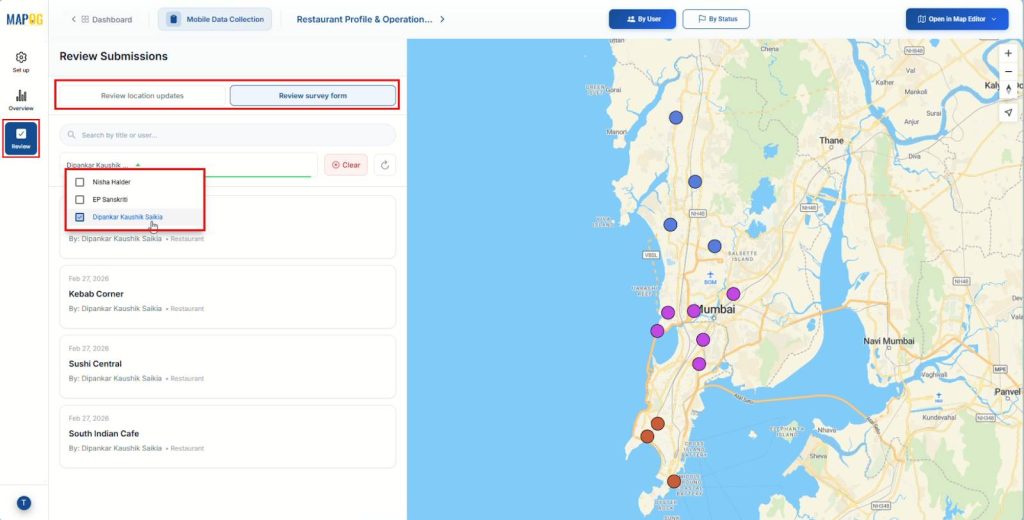
They can also review submitted survey forms by filtering entries by contributor and accessing surveys from the submitted survey list.
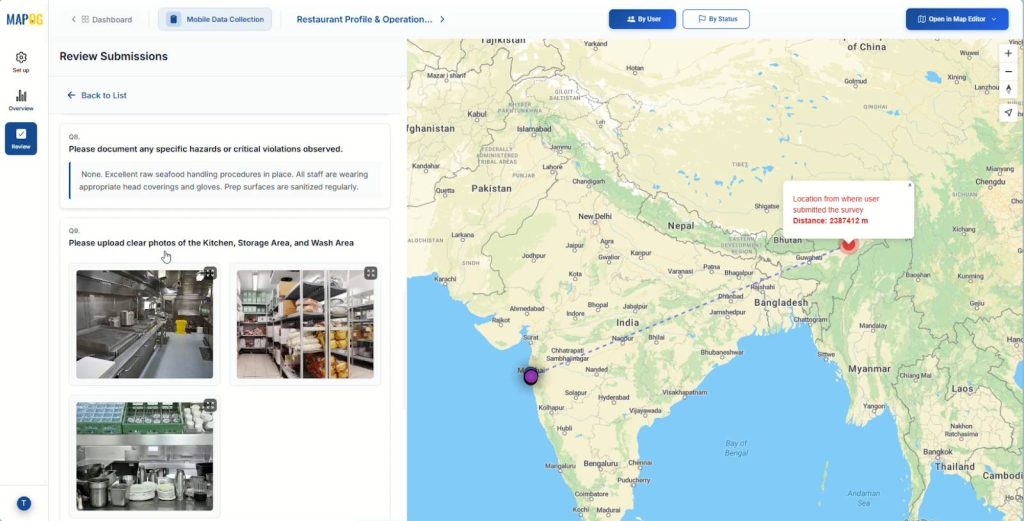
Inside each survey, managers review responses, verify images, and assess accuracy.
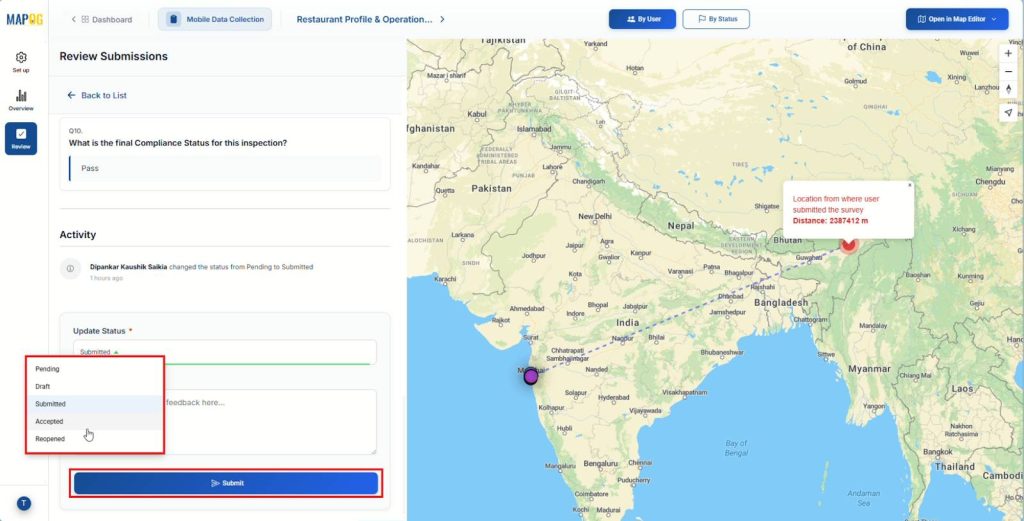
Based on the review outcome, they update the status to Pending, Draft, Submitted, Accepted, or Reopened, add comments or feedback if corrections are required, and then submit the review to complete the validation workflow.
Industries Benefiting from the Best Mobile App for On-Site Surveys
- Food & Beverage and Hospitality: Maintains consistent hygiene standards across multiple outlets and franchise networks.
- Public Health and Municipal Operations: Manages licensing checks, compliance tracking, and large-scale field monitoring efficiently.
- Facility Management: Ensures cleanliness and safety across corporate cafeterias, industrial kitchens, and institutional dining areas.
Across sectors, On-Site Surveys and inspections improve visibility, accountability, and operational control.
Conclusion
Modern food safety management demands real-time data, visual proof, and clear accountability. The Best Mobile App for On-Site Surveys and Inspections empowers staff and contributors to capture accurate information directly from the field. MAPOG unifies mobile data collection, location-based assignment, and live monitoring in one platform, ensuring faster decisions and stronger compliance control.