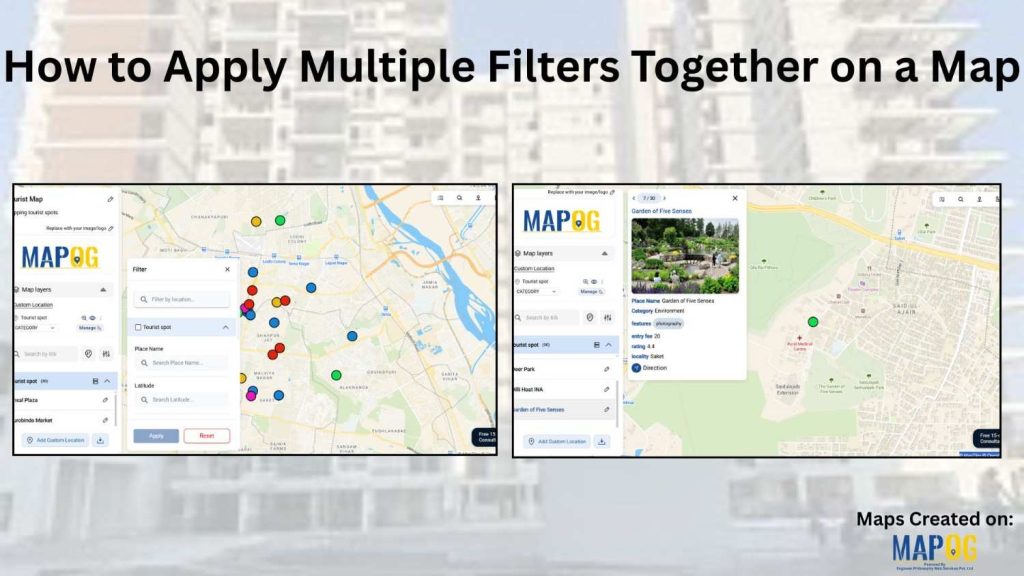
When you work with location-heavy data, simply placing points on a map is not enough. You need a way to apply multiple filters on map , compare categories, and instantly highlight visuals that matter. That is why applying multiple filters together on a map becomes so powerful. It helps you narrow down results, spot patterns faster, and make your map far more interactive. Moreover, most modern GIS tools — including MAPOG — now offer flexible filtering options that work beautifully even for large datasets.
Why Apply Multiple Filters Matter
Before exploring the steps, it is important to understand why this technique is useful. For example, you may want to view only schools with high student capacity and located within 5 km of your area. Or perhaps you want to shortlist buildings that offer multiple services, fall under a specific price range, and serve your zone. Although these queries sound complex, apply multiple filters makes them surprisingly easy. As a result, your workflow becomes quicker, clearer, and far more data-driven.
Types of Filters You Can Use
To make filtering smooth and intuitive, tools generally offer several filter types. Additionally, using a mix of these allows you to build advanced map views:
- Single-Select Filters – Choose one option at a time.
- Multi-Select Filters – Select multiple values together, such as services, facilities, or features.
- Number Filters – Filter by counts, ranges, prices, or any numerical value.
Steps to Apply Multiple Filters on a Map
Although tools may differ slightly, the workflow generally remains similar. Here is a simple step-by-step structure you can follow:
1. Prepare and Upload Your Data
Start by logging in to your MAPOG workspace. From the main dashboard, click “Create New Map.” Assign a relevant project name to keep it organized. Collect your location data in a clean spreadsheet. Furthermore, include fields such as category, attributes, ratings, capacity, and area names.
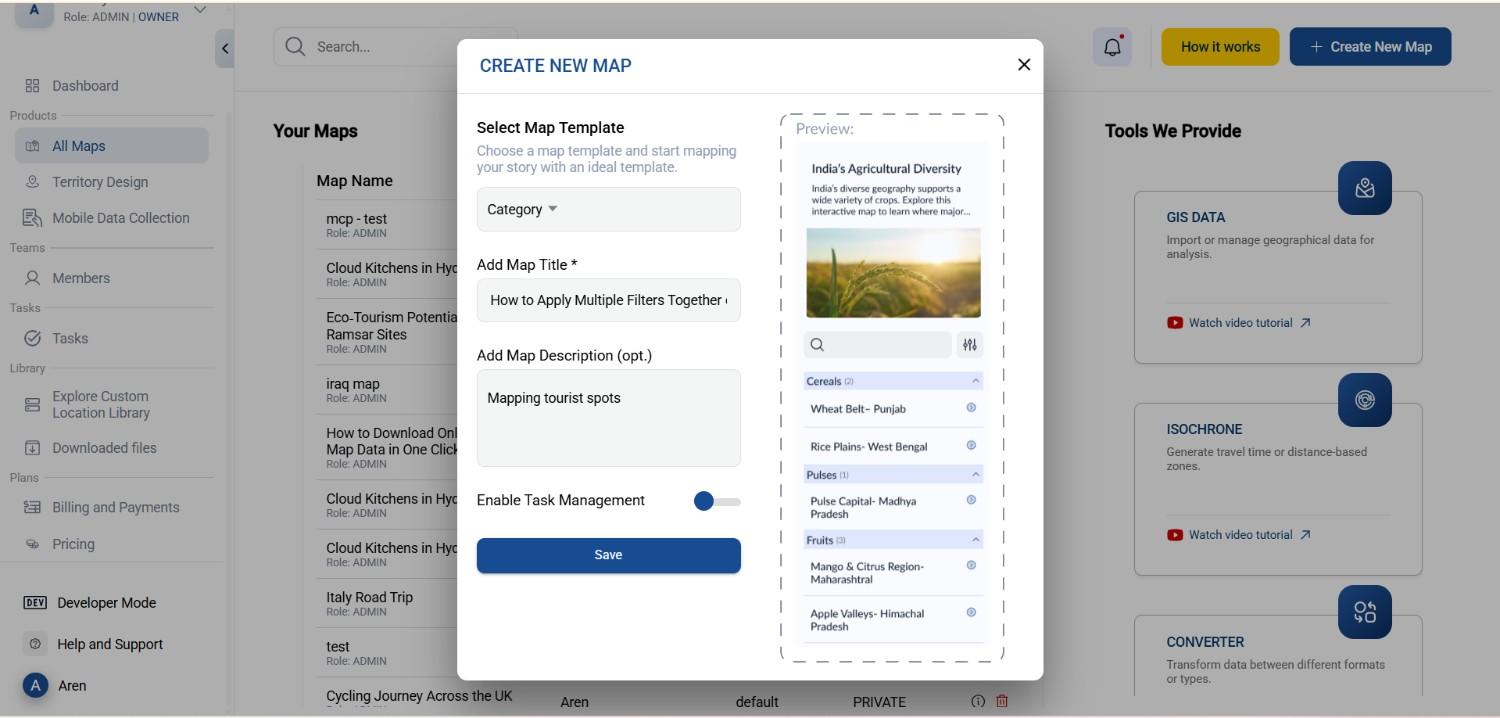
2. Upload Your Excel File
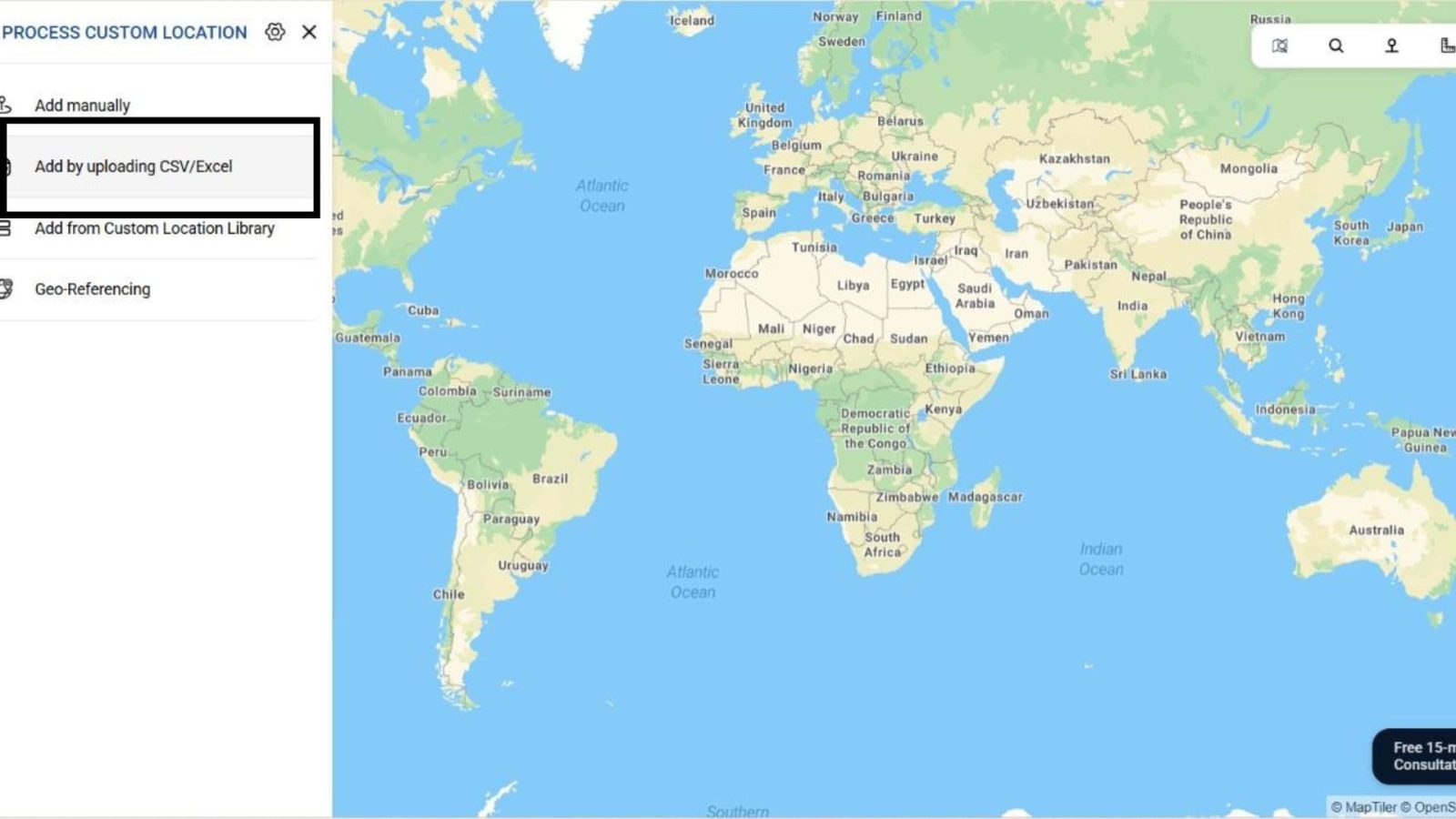
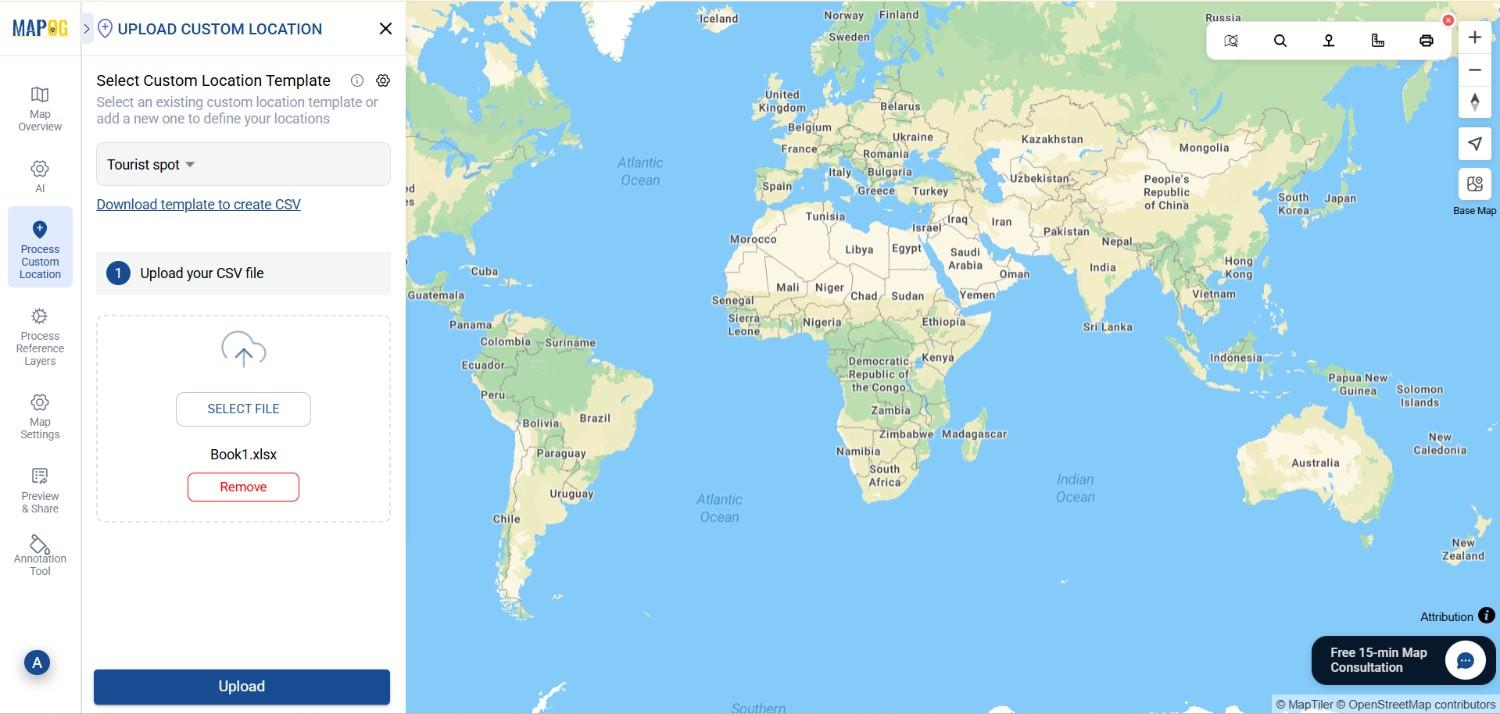
Next, click the “Process custom location ” option and Go to Add by Uploading CSV/Excel.
3. Add Attributes
Now, go to the select custom location template section to add a new custom template called Tourist spot . Inside this custom template, create attributes—such as “Category ,” “features,” and “ratings.” & many more.
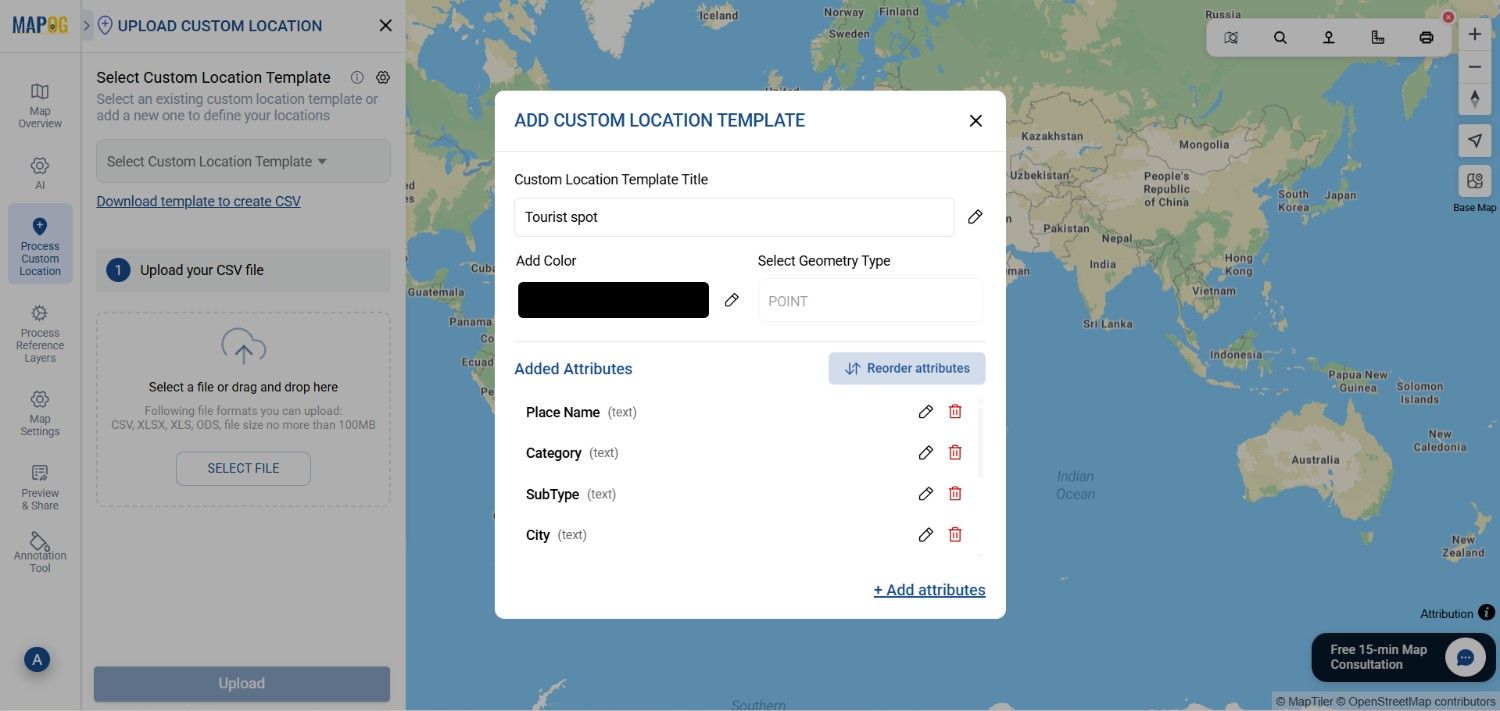
Browse your device to locate the Excel sheet containing your tourist spot details. Once selected, confirm the upload.
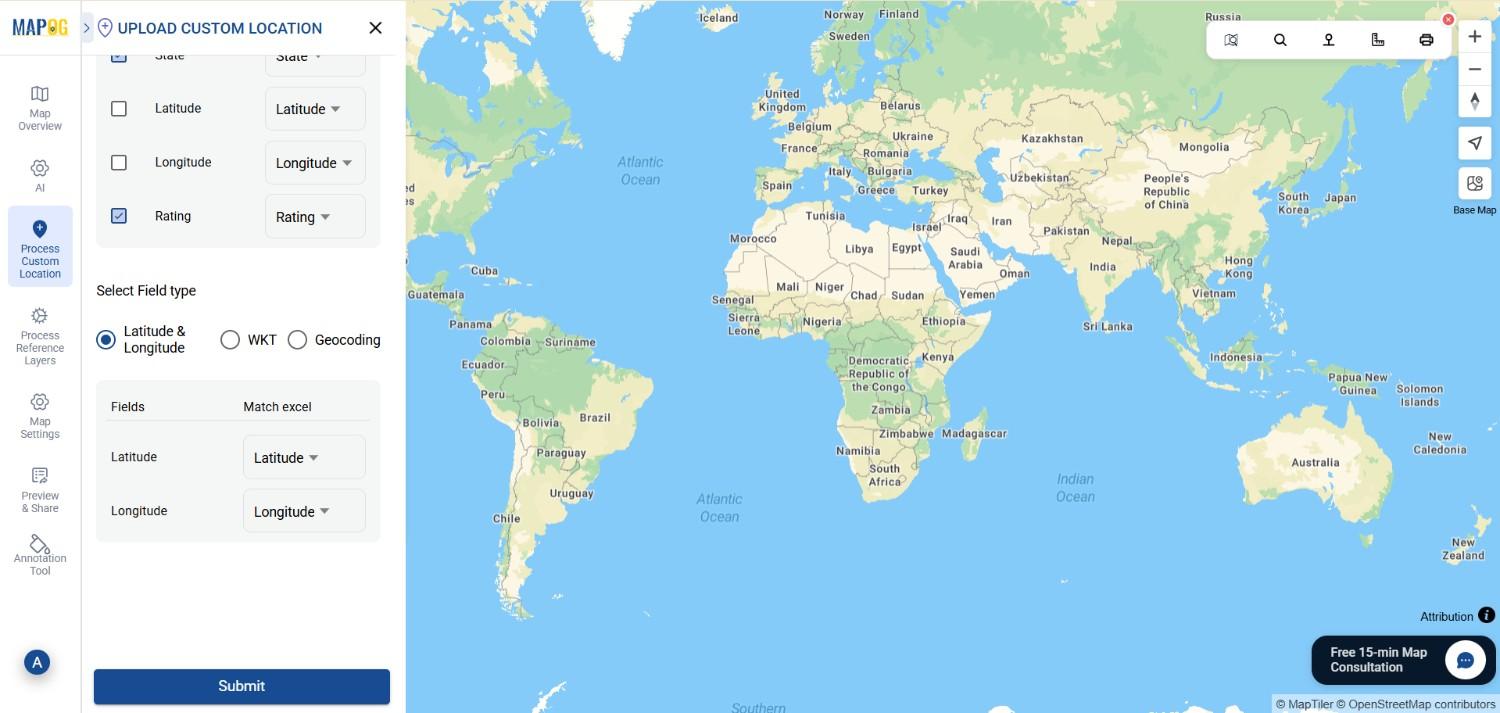
If your dataset includes additional attributes, such as cost or rating , MAPOG allows you to match all column names during the import process. After aligning attributes like “Name,” category” and “Latitude/Longitude,” finalize the upload to visualize all entries instantly.
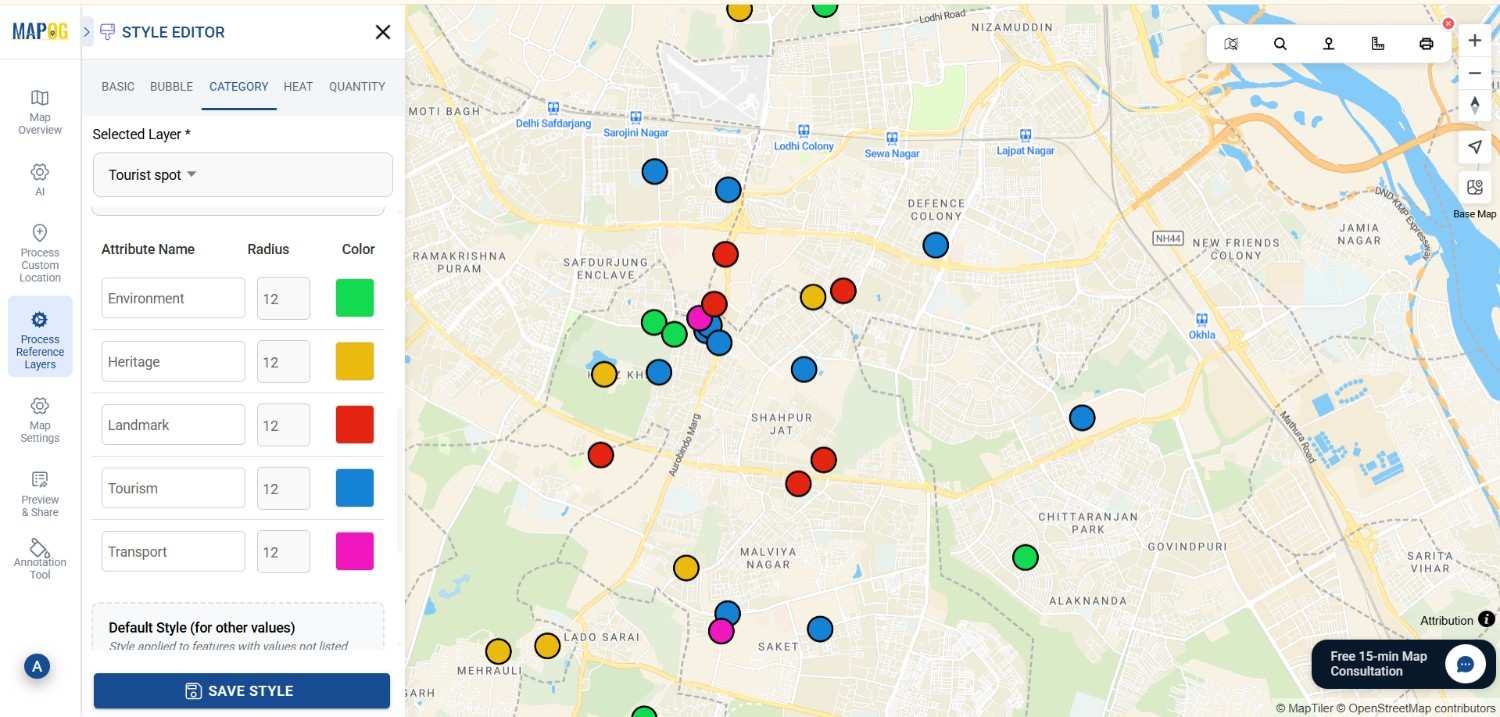
4. Style the Layer by Ratings
Now move to the add layer style section. Choose Category Style and select tourist spot as the defining attribute.
5. Enable the Filter Panel
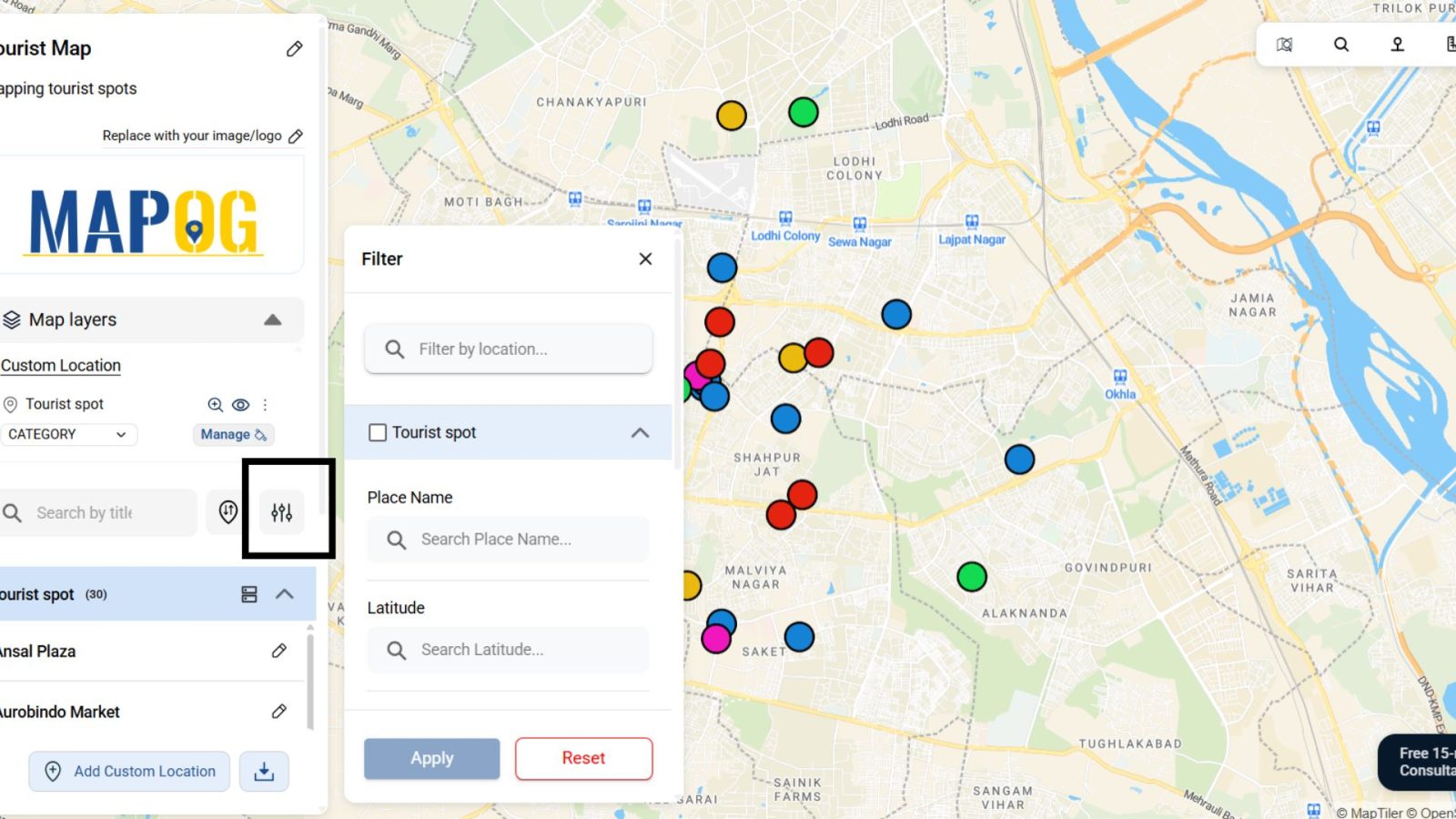
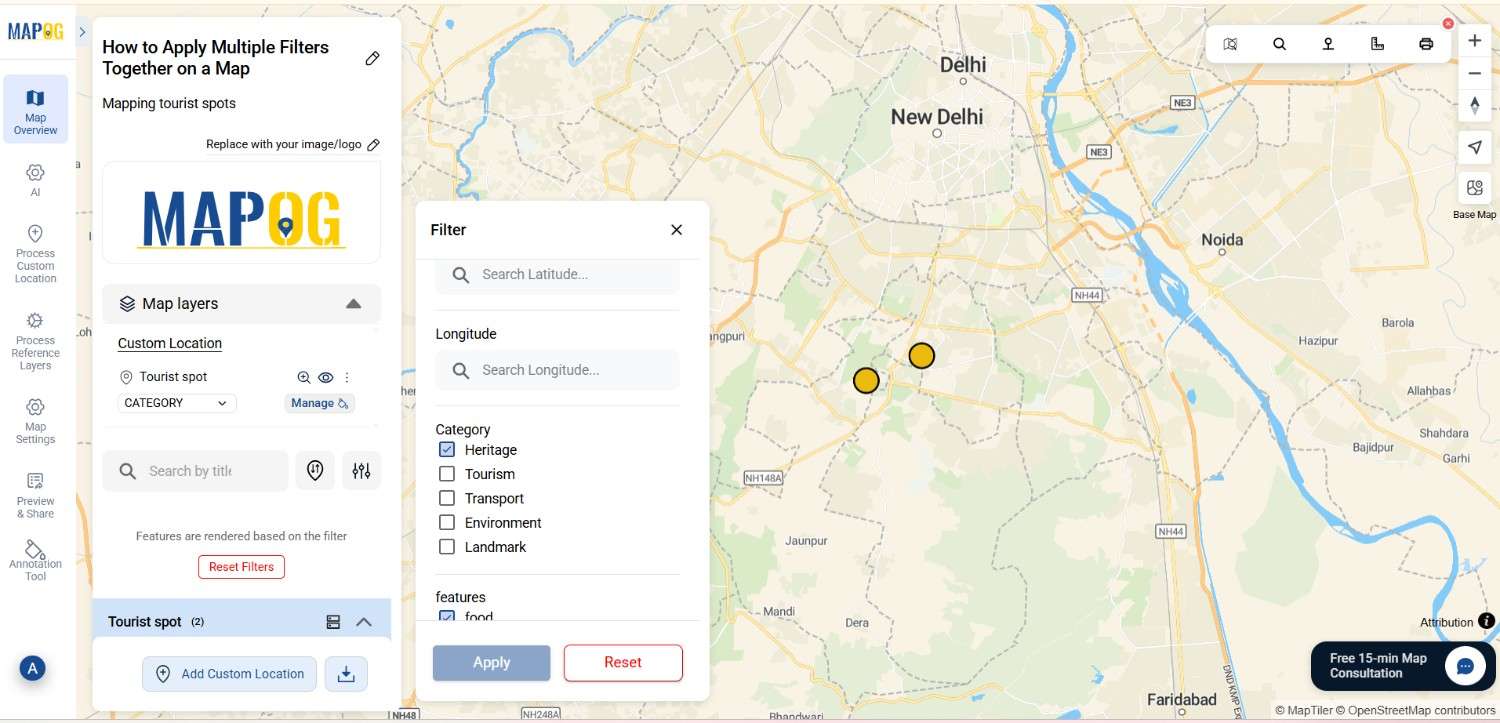
Next, open the filter sidebar or filter menu. Most platforms automatically detect column types — which means text columns become single-select filters, tags become multi-select, and numeric fields turn into number sliders. Because of this auto-detection, you save a lot of time.
6. Apply Your Filter and Compare the Results
Choose one attribute from the filter panel, such as “Category “ click apply. Immediately, your map updates.
6. Sorting or Grouping the map
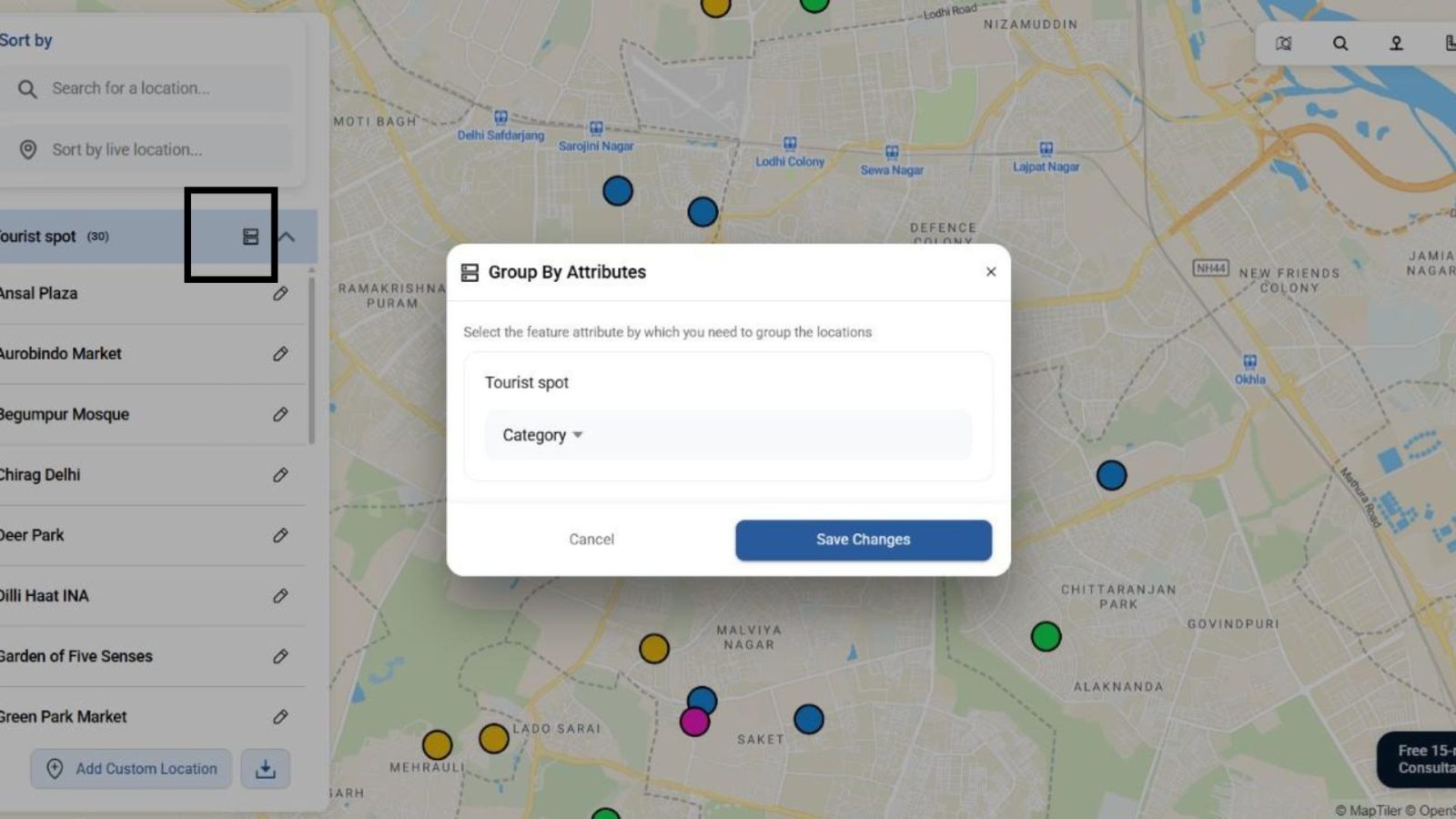
Click the “Group By” button
Select your attribute from the dropdown (e.g., category , rating, ).
The map will automatically group the points according to the attribute you selected.
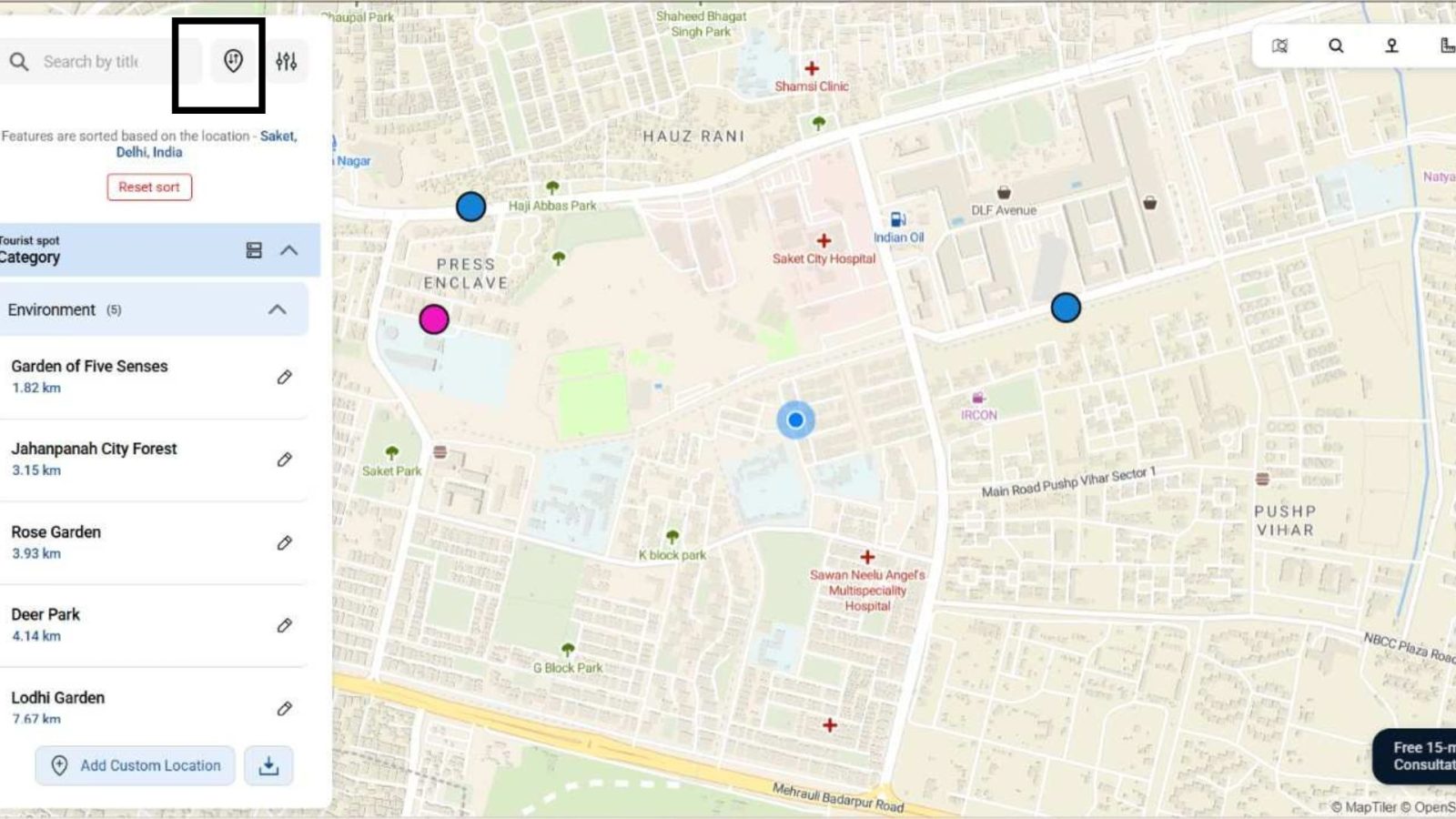
or you can click on sort by button and sort the points by searching locations or sorting by live location .
7- Share the Filtered Map
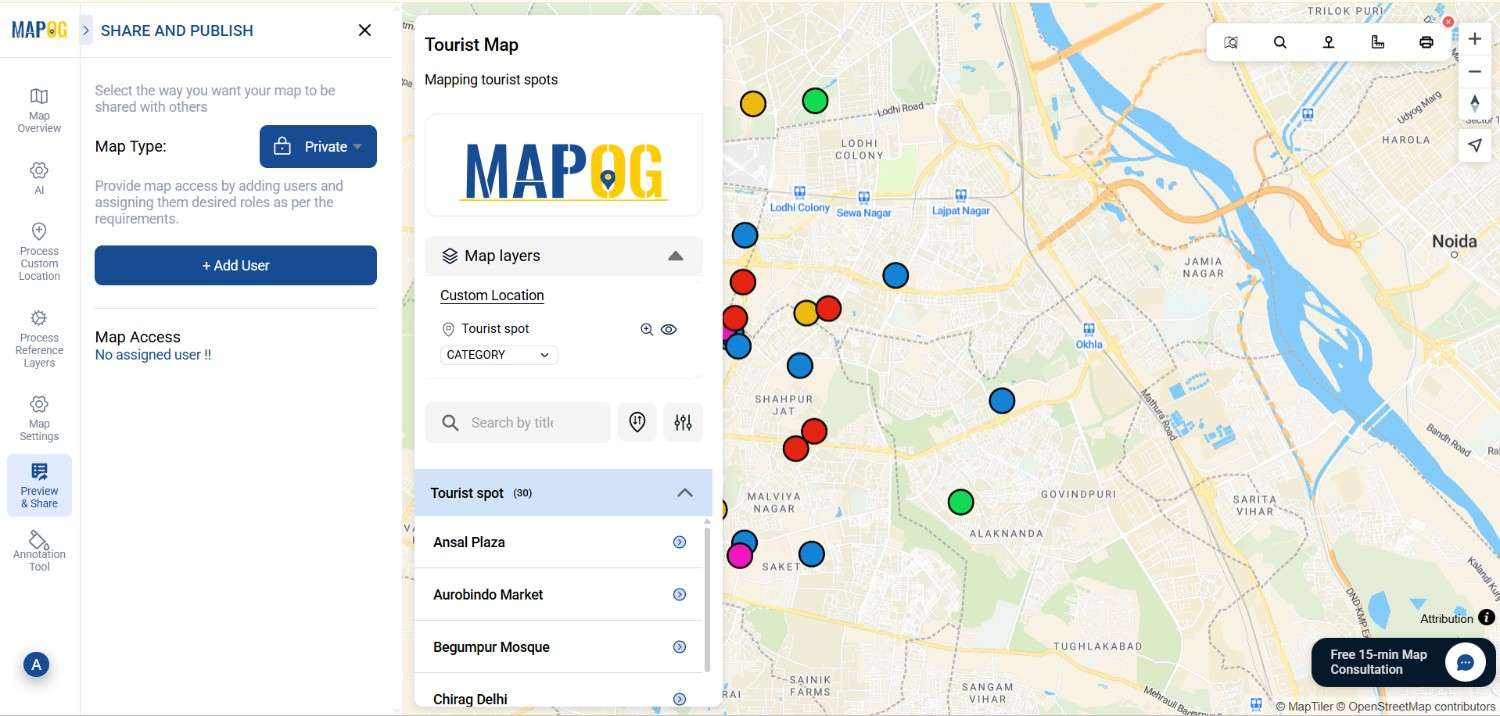
Finally, click Share & Publish to generate a public or private link.
Conclusion
Hence applying multiple filters together on a map helps you turn raw location data into clear insights. Moreover, the more thoughtfully you combine filters, the easier it becomes to identify patterns, take decisions, and communicate findings. Whether you are analyzing shops, facilities, traffic layers, or groundwater points, using multi-filter options adds accuracy and depth to your map.