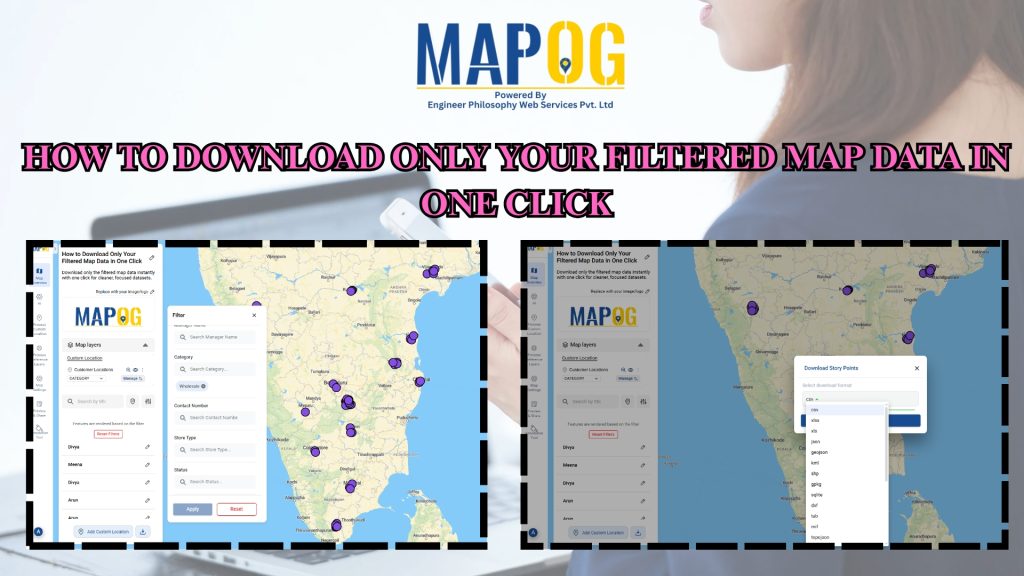
To begin with, downloading only your filtered map data is an easy way to extract clean, relevant datasets without exporting your entire project. Moreover, this approach helps planners, teams, and analysts avoid cluttered exports and get only the insights they need. As a result, you save time and download small, ready-to-use files directly from your filtered view using MAPOG.
Key Concept: Filter-Based Data Export
In particular, map filters allow you to narrow down data by category, date, status, or attributes. Additionally, once filters are applied, only the visible on-screen points are included in the export. Therefore, you get a clean dataset without manual cleaning.
What Is Filtered Map Data Export?
Filtered map data export is a GIS-based feature that lets you download only the points that match your active filters. Instead of exporting all locations, the system provides a one-click option to export only visible, filtered points. It removes irrelevant rows, reduces file size, and makes analysis fast and efficient.
In particular, map filters allow you to narrow down data by category, date, status, or attributes. Additionally, once filters are applied, only the visible on-screen points are included in the export. Therefore, you get a clean dataset without manual cleaning.
Uses of Filtered Data Export in GIS
- Government Dashboards: Export filtered wards, facilities, or field reports for planning.
- Planning & Operations: Download inspection sites, survey zones, or service tickets after applying category filters.
- Cross-Sector Applications: Works well for logistics, utilities, telecom, retail, and emergency management.
Methodology: Downloading Only Filtered Map Data
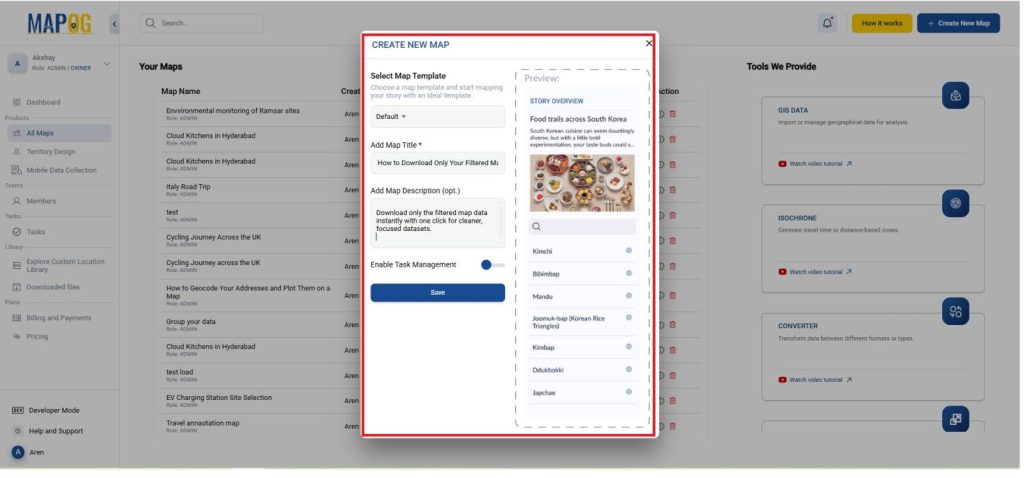
- Go to MAPOG and open the map project containing your dataset or create a new map and give it a title and description.
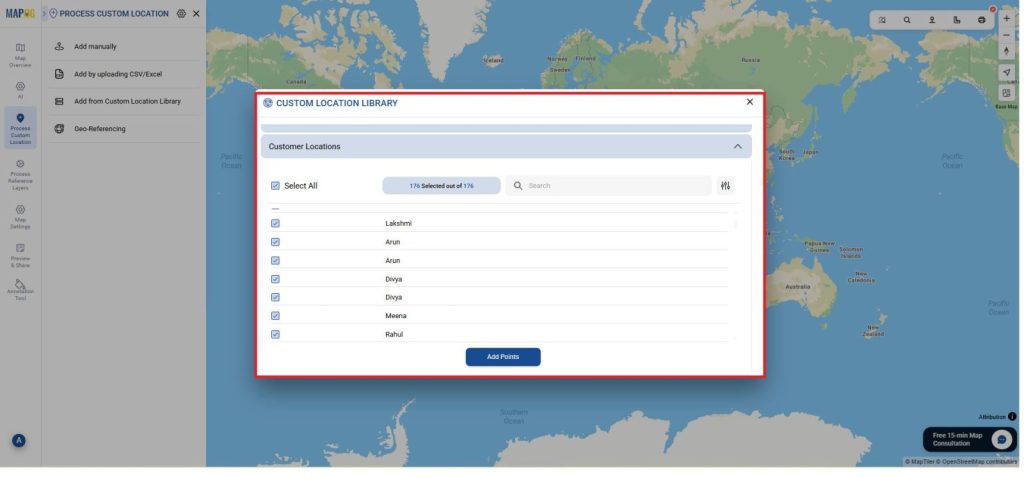
- Now the file may be already available or add it using the library from the Process Custom Locations and go to Add from the custom location library.
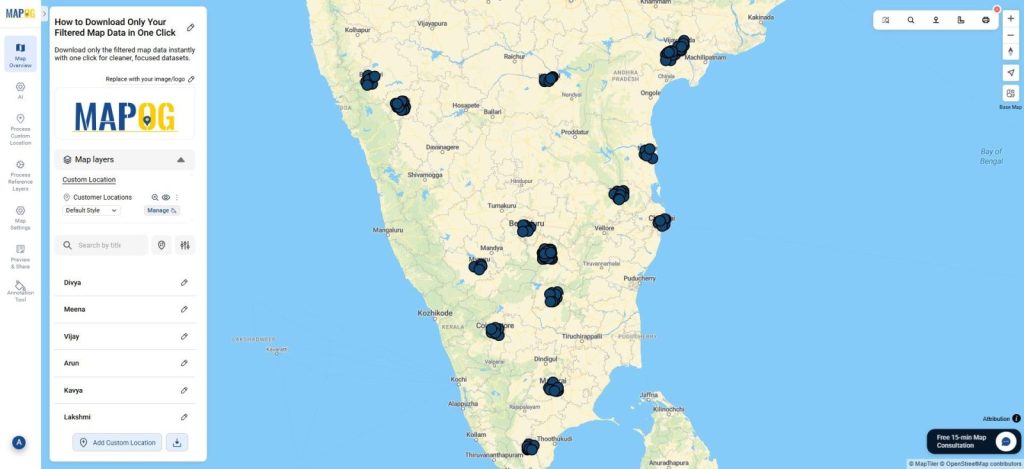
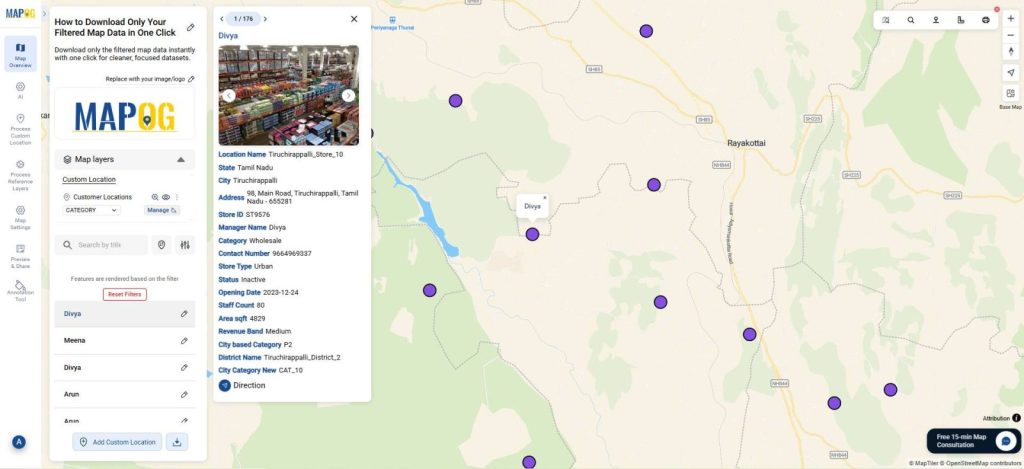
- Now, all the locations will appear in your map as shown.
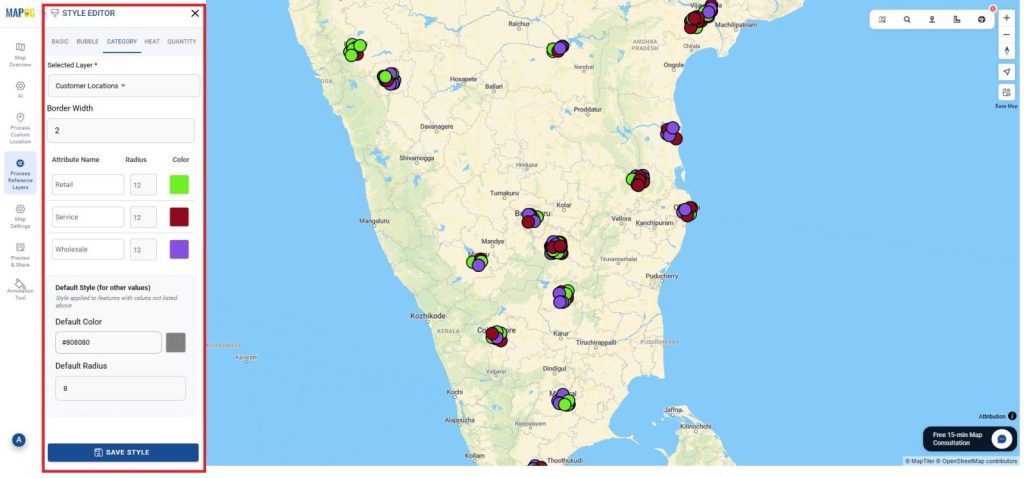
- For your better appearance I’ll just style the map under category and then use filter, but you can directly use filter.
- I’ll change the style to category under Retail, Wholesale and Service as mentioned.
- Go to Add style layer select style as category, attribute as category and give different colors for Retail, Wholesale and Service and save it.
- Apply filters such as category, zone, date, priority, or custom attributes using the filter panel mentioned below. Then, search or select any specific attribute & click apply.
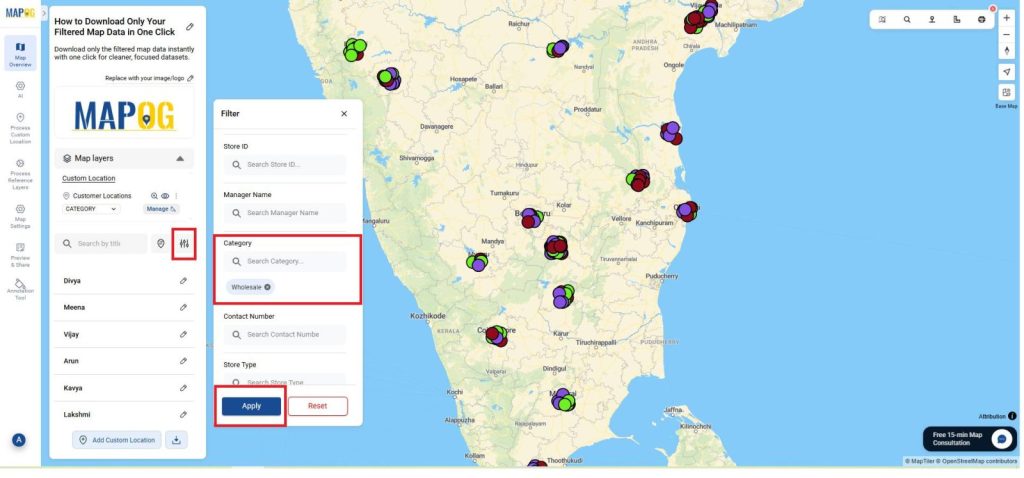
- In this I have filtered using the category, as wholesale and select apply.
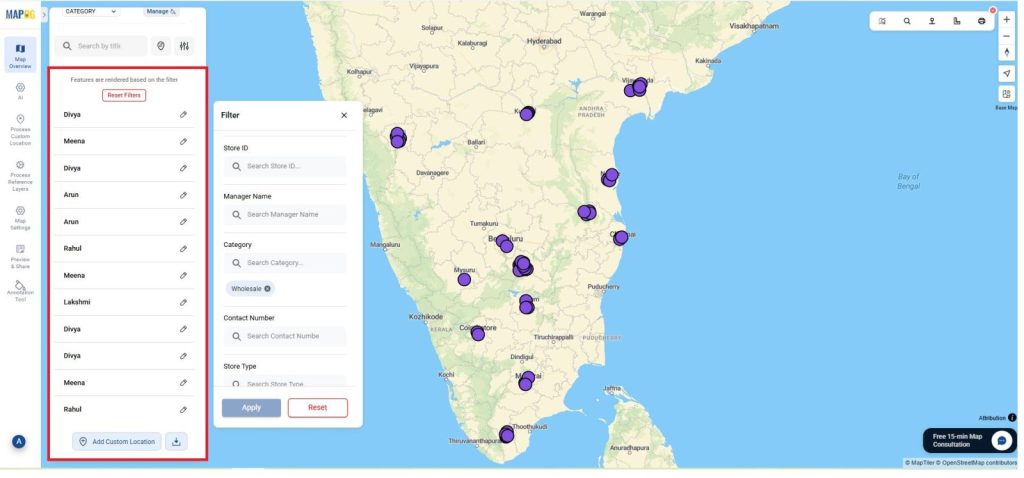
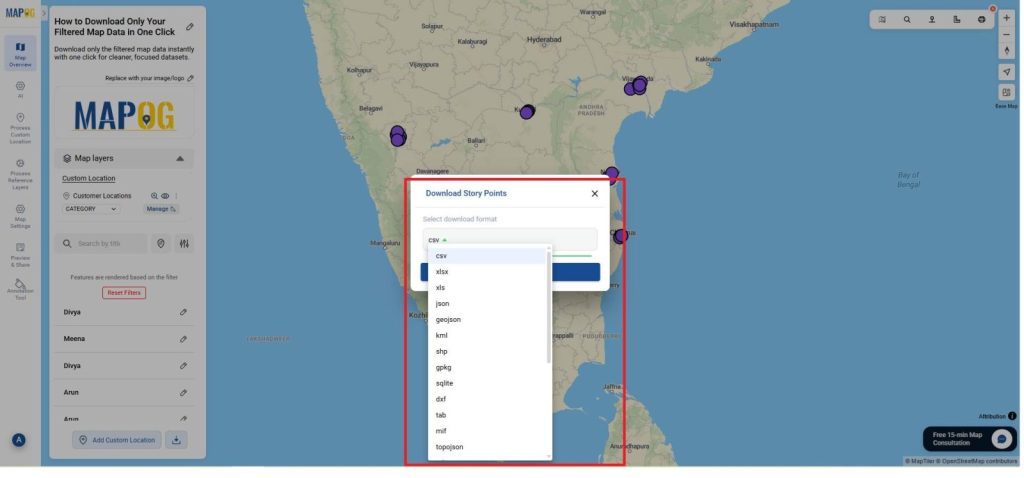
- Once the filtered points appear on the map, click the Download icon or Export layer option mentioned below.
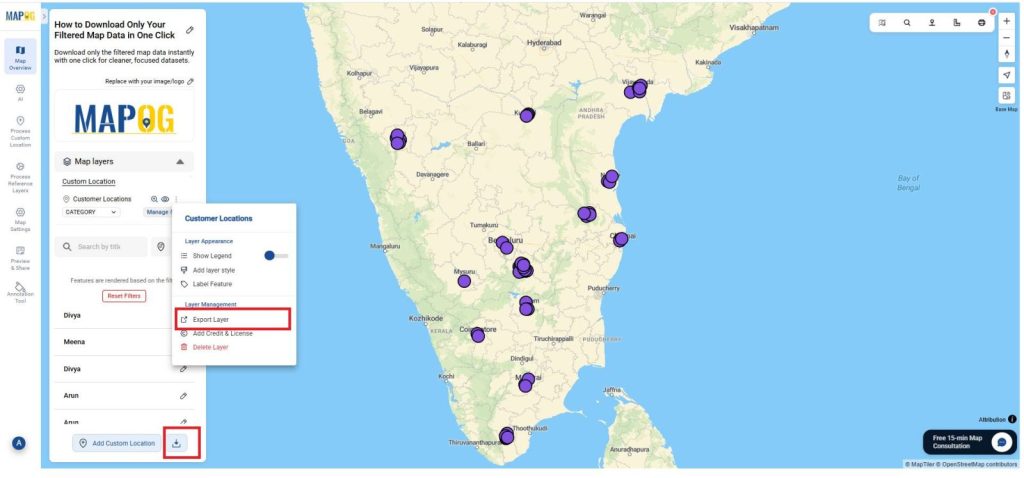
- So, this exports only the points currently shown on the map into CSV, XLSX, or GeoJSON and many formats as shown below.
- Once downloaded it will save to your device, Filter export ensures cleaner datasets and faster reporting.
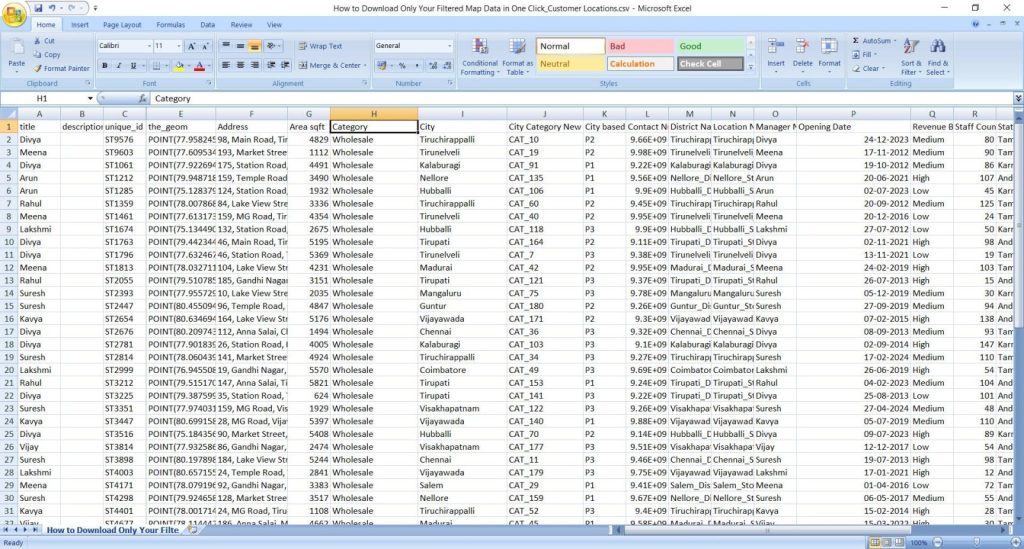
- Use these filtered files directly in analysis tools, dashboards, or field reports.
- A one-click filtered export makes data handling fast, accurate, and reusable.
Insights and Applications
- Quickly extract datasets: No need to clean unnecessary rows.
- Ensure accuracy: Every exported file contains only relevant points.
- Speed up workflows: Useful for reporting, audits, logistics planning, and field tasks.
Relevant For
- Urban Planners & Government Teams: Extract filtered facilities, reports, or zones.
- Corporate & Operations Teams: Download filtered branches, delivery points, or service tickets.
- NGOs, Students & Researchers: Export only the required data for studies or fieldwork.
Benefits of Filtered Map Data Export
- Boosts Efficiency: Avoids downloading full datasets again and again.
- Improves Accuracy: Exported files contain only verified, relevant points.
- Eco-Friendly: Cuts down repeated cleaning of large spreadsheets.
Conclusion
In conclusion, filtered data export in MAPOG lets you download only the points that matter, reducing clutter and improving clarity. Finally, this method works for any dataset from utilities to retail helping planners, analysts, and organizations handle location data faster, more accurately, and with minimal effort.